You typed a prompt into PixVerse, waited for the render, and got a moderation error instead of a clip. It happens to almost everyone who tries glamour, swimwear or boudoir ideas, and the frustrating part is that the refusal rarely tells you which word triggered it. This article gives you free PixVerse NSFW prompt examples that stay suggestive instead of explicit, the settings that make motion look natural, the limits you will hit, and the alternatives that make more sense when PixVerse says no.
Quick answer: PixVerse bans sexually explicit content in its community rules, and it checks both your prompt and the finished video. Tasteful, clothed, magazine-style prompts usually pass. Anything graphic does not, and no wording trick is worth building a workflow around.
💡 Short version: write suggestive, not explicit. Build a strong first frame. Keep the motion simple. If the idea still gets blocked, switch tools instead of rewording the same prompt ten times.
What PixVerse Actually Allows
PixVerse is a popular AI video generator known for fast clips, stylized effects and image-to-video animation. Several versions of it (v3.5, v4.5, v5, v5.6 and v6) are available on PicassoIA, so you can compare how each handles the same prompt.
The official stance on adult material is simple: sexually explicit content is a violation of the community rules. Penalties escalate from warnings and removed content to temporary restrictions and account suspension.
The Two Filter Layers
Based on what the vendor documentation describes, moderation runs twice:
- Input screening. Your text prompt (and any uploaded image) is checked before rendering starts.
- Output review. The finished video is checked again. A clip can pass the first check and still be rejected after it renders.
That second layer explains the most confusing failure: a prompt that worked yesterday producing a refusal today. The words were fine. The generated frames were not.
What Counts as Explicit
The line is not published as a word list, but the pattern is consistent across AI video tools:
| Content type | Usually accepted | Usually blocked |
|---|
| Swimwear, bikinis, one-pieces | Yes, in beach or pool settings | Transparent or barely-there styling |
| Lingerie and robes | Often, if framing is tasteful | Close focus on the body, undressing |
| Kissing, romantic mood | Light and brief | Sexual acts or implied acts |
| Nudity | No | Always |
| Real people's likeness | Risky | Public figures and private individuals |
⚠️ Never use photos of real people without their consent. Moderation systems flag it, and it can cause real harm. Stick to fictional or AI-generated subjects.
Free PixVerse NSFW Prompt Examples
These prompts are written for suggestive, non-explicit results: swimwear, glamour, boudoir mood. Copy them, adjust the subject, and keep the structure. Each one follows the same formula: subject + setting + one simple motion + light + camera move.

Poolside Glamour Prompt
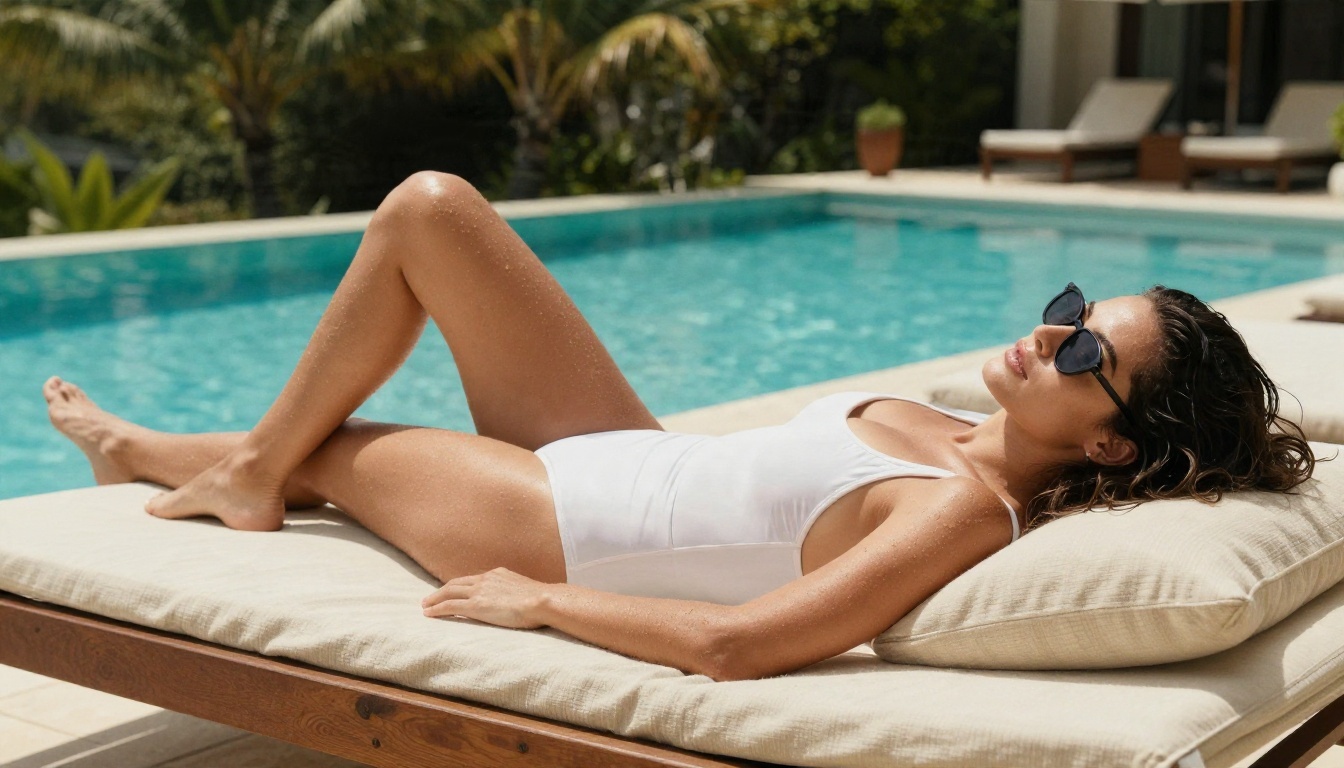
A young woman in a white two-piece swimsuit lounges on a teak sunbed beside an infinity pool, slowly pushes her sunglasses up into her hair and smiles at the camera. Turquoise water and palm trees behind her, soft midday sun through a linen parasol. Slow dolly-in, shallow depth of field, realistic skin, film grain.
Why it works: one action (sunglasses), one location, a calm camera. There is nothing in the motion that asks the model to invent body detail.
Boudoir Morning Prompt
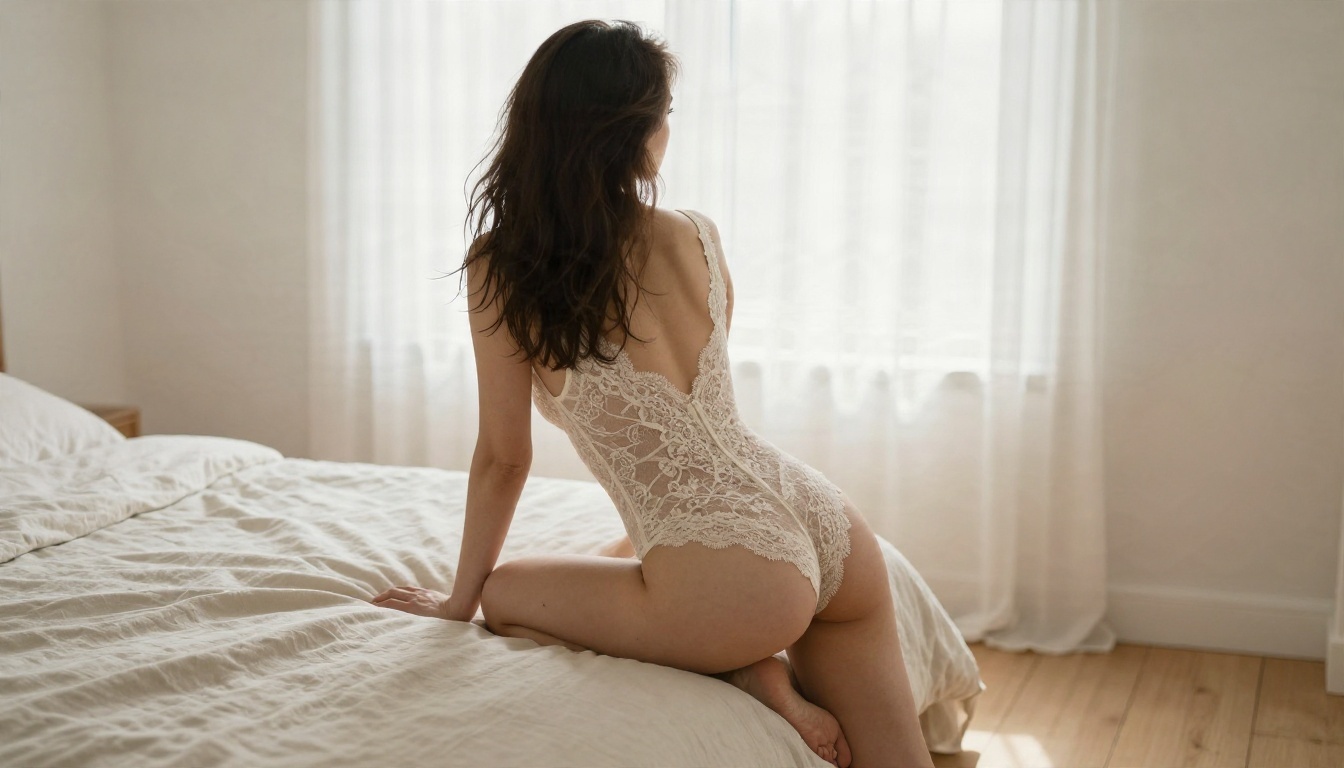
A woman in an ivory lace bodysuit sits on the edge of a linen bed in a sunlit bedroom. She turns her head toward the window and tucks her hair behind her ear. Sheer curtains move in a light breeze. Soft diffused morning light from the right, 85mm lens look, creamy background blur, gentle push-in.
Why it works: the story is the light and the curtain. The prompt describes mood, not anatomy. If this version gets flagged, swap the bodysuit for a silk robe or an oversized shirt and keep everything else.
Beach Walk Prompt
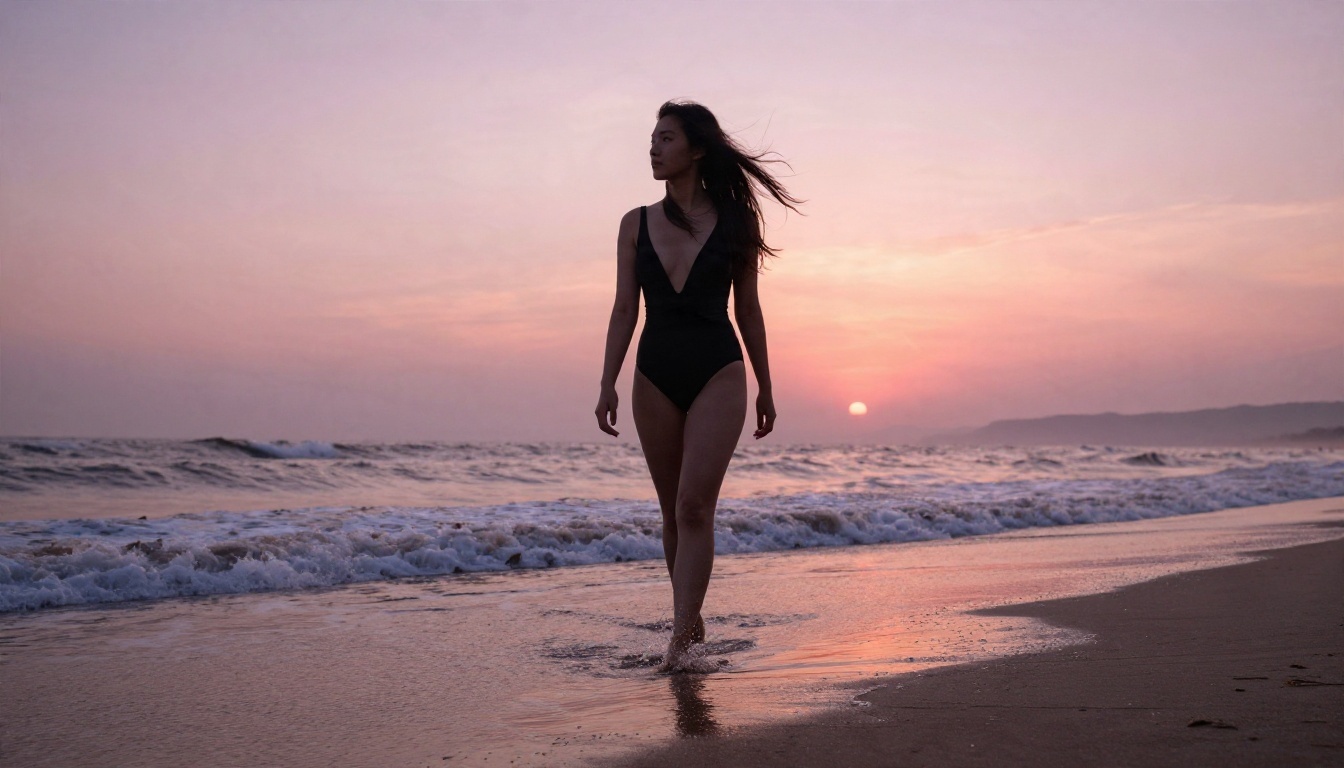
A woman in a black one-piece swimsuit walks along a wet sandy beach at sunrise, waves foaming around her ankles, wind moving her long dark hair. Pink and orange sky, backlit rim light on her shoulders. Low tracking shot moving alongside her, natural film look.
Why it works: walking is a motion every video model has seen thousands of times. Predictable motion means fewer warped limbs and fewer surprise frames for the output filter to reject.
Evening Balcony Prompt
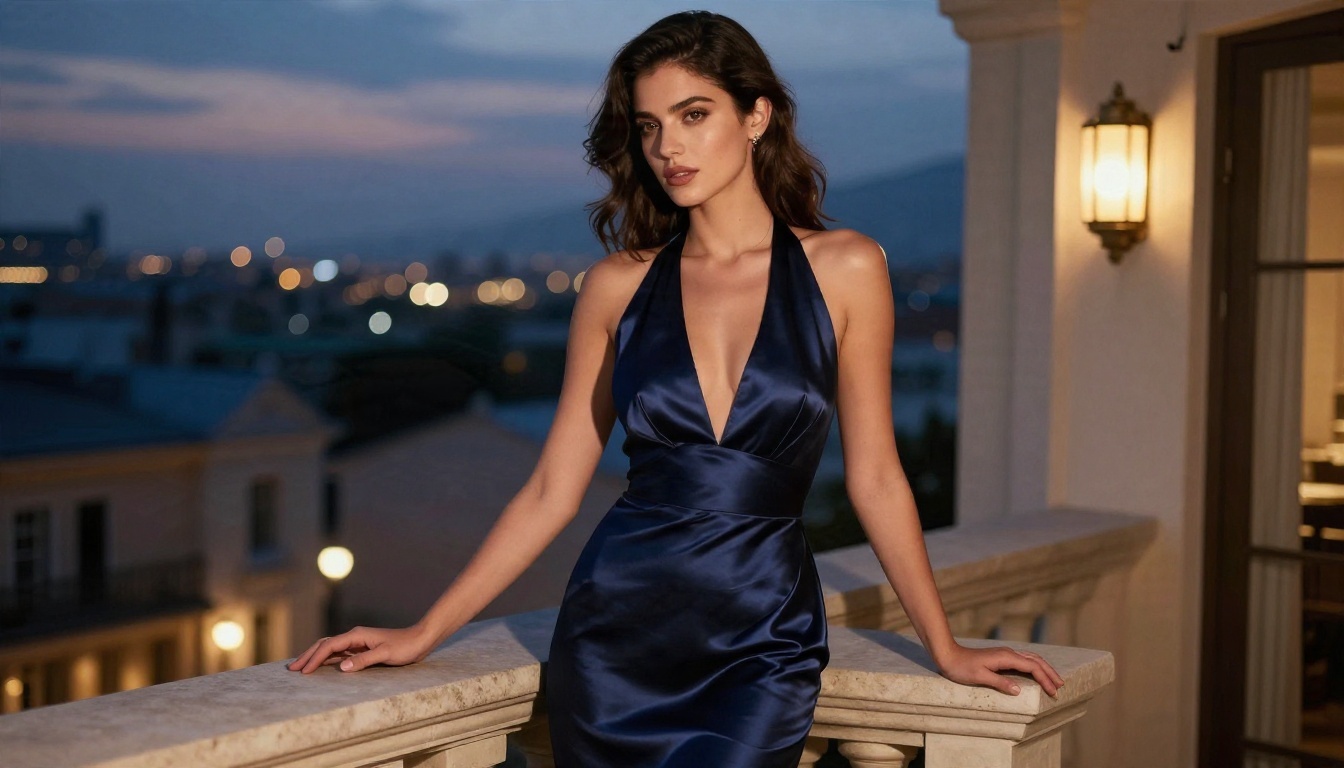
A woman in a navy satin evening gown stands on a hotel balcony at blue hour, city lights blurred behind her. She rests one hand on the stone railing and looks over her shoulder at the camera. Warm lamp light from inside, satin catching small highlights. Slow orbit to the left, cinematic color grade.
Why it works: formal glamour reads as fashion, not adult content. This is the safest category if your goal is attractive, editorial-looking clips.
💡 Prompt formula you can reuse: [subject + outfit] + [location] + [one gentle action] + [light direction] + [camera move] + [film look]
Settings That Change the Result
Prompts get the credit, but settings decide whether the clip looks like a photograph in motion or a melting mannequin.
Start With a Strong First Frame
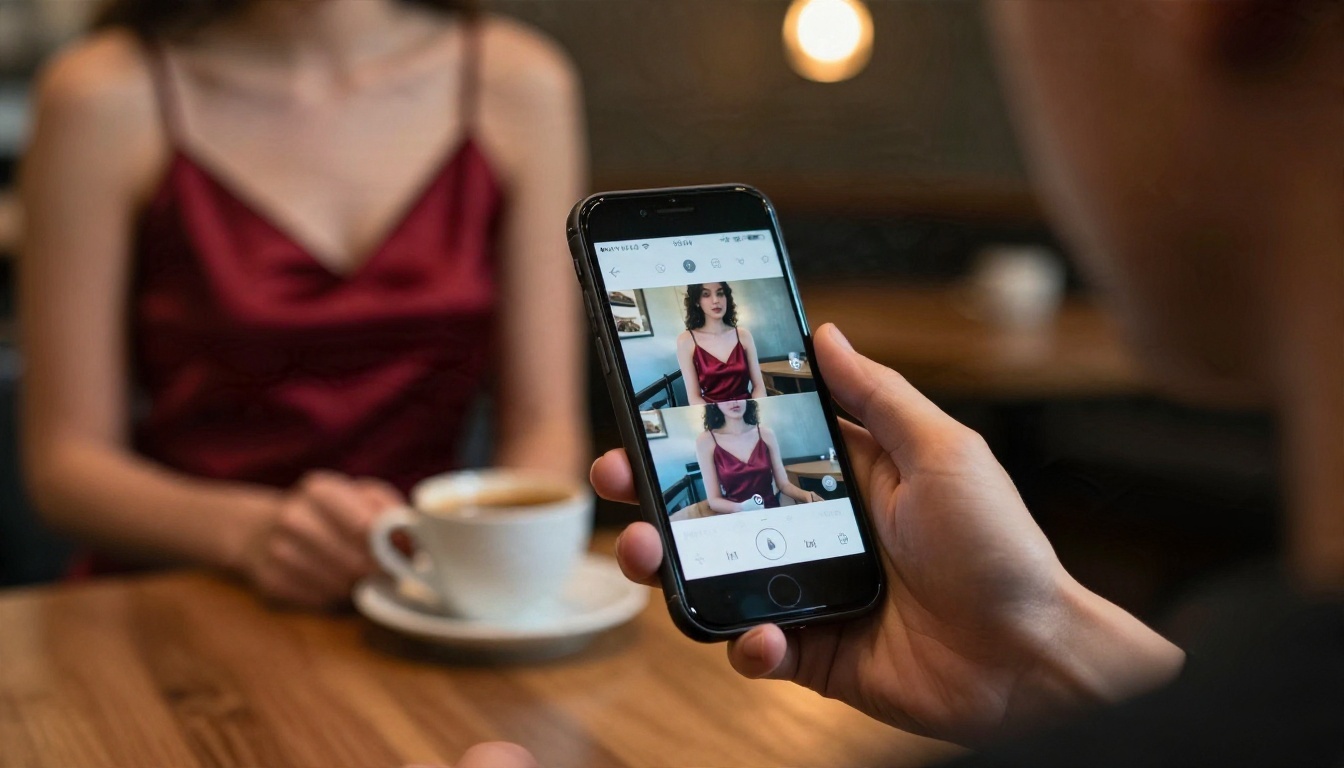
Image-to-video beats text-to-video for glamour content. A polished first frame locks in the face, the outfit and the lighting, so the model only has to invent motion. Generate your still first, check the hands and the fabric, and only then animate it.
Resolution, Duration and Audio
Option names vary between PixVerse versions, but these choices matter in all of them:
| Setting | Recommendation | Reason |
|---|
| Duration | Shortest option first | Fewer frames means fewer chances to drift or trigger the output filter |
| Resolution | Draft low, final high | Test the motion cheaply, then spend credits on the keeper |
| Aspect ratio | Match your first frame | Cropping a still causes odd zooms |
| Audio | Optional | Newer versions can generate sound, which adds credit cost |
| Seed | Save it | Reusing a seed lets you tweak one word at a time |
💡 Change one variable per test. If you change the outfit, the camera and the lighting at once, you will never know which edit fixed (or broke) the result.
Limits You Will Hit
Moderation Failures
Expect refusals on anything sexual, on prompts that name real people, and sometimes on harmless words that sit near risky ones ("wet", "tight", "undress"). Vendor documentation describes a generic moderation failure status and recommends modifying the prompt, which is not much help.
A practical way to debug a refusal:
- Remove the outfit description and test again.
- Remove the action verb and test again.
- Test the same text with a different, neutral first frame.
- If the neutral version passes, the problem was your original image or the combination, not a single word.
Free Credits and Quotas
Free tiers on AI video tools change often, so treat any number you read as temporary. What stays consistent is the pattern: a small daily or signup allowance, slower queues for free users, and watermarks or lower resolution on free output. One vendor source says credits for generations that fail moderation are refunded automatically on the API platform. Check the current terms in your own account before you rely on that.
The Limits That Never Move
- No explicit content. No prompt wording changes the policy, and trying to evade a safety filter is a fast road to a suspended account.
- No real-person likeness without consent.
- Short clips. Most generations run a few seconds, so plan scenes as single moments.
- Inconsistent faces between separate generations unless you reuse the same first frame.
How to Use PixVerse on PicassoIA
PixVerse is available on PicassoIA in several versions. Pixverse v6 is the newest and adds cinematic motion with AI audio. Pixverse v5.6, Pixverse v5, Pixverse v4.5 and Pixverse v3.5 are there too, which is handy for comparing results.
Step by Step
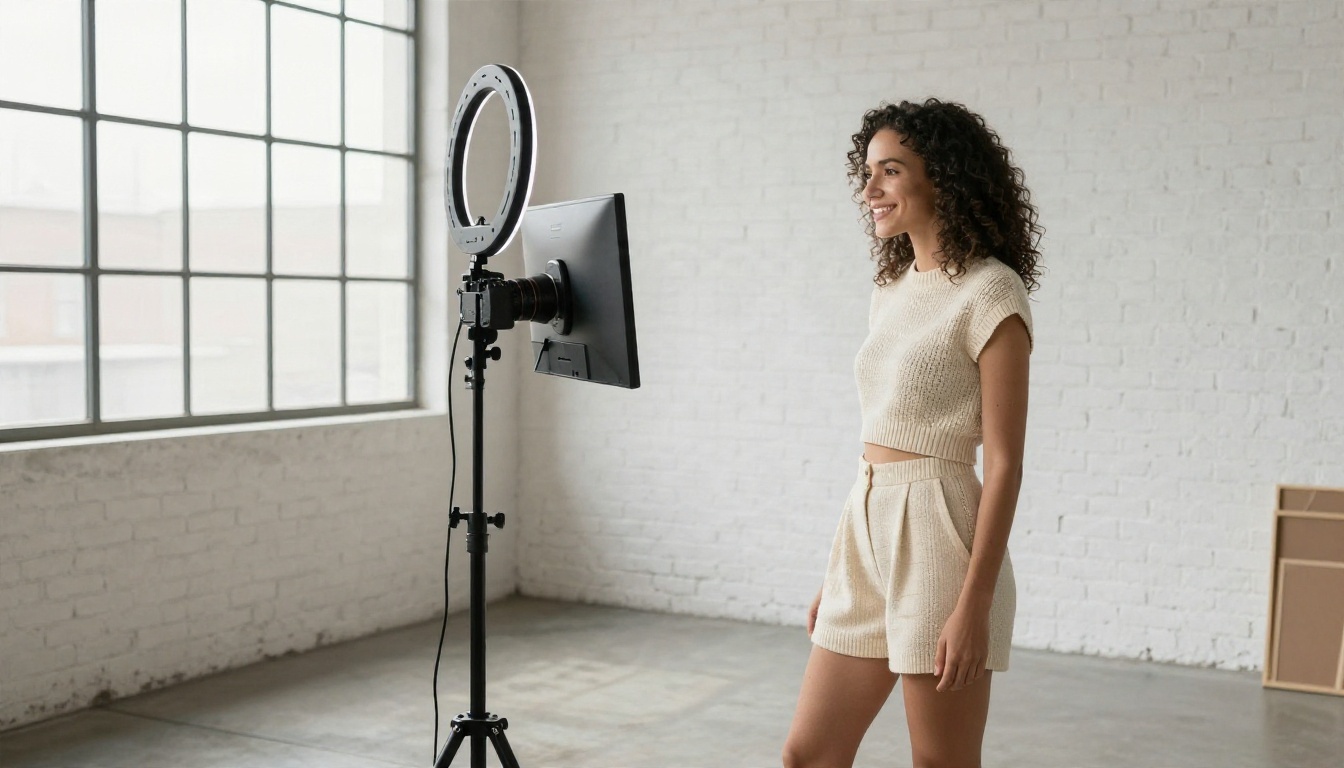
- Open the model page. Start with Pixverse v6 for the most recent motion quality.
- Prepare a first frame. Use a still you generated yourself (see the alternatives section for good image models) and upload it as the starting image.
- Paste your prompt. Use the formula from earlier: subject, location, one action, light, camera move.
- Pick the shortest duration for the first test, and a lower resolution if the model offers it.
- Generate, review, then iterate. Change one thing per run. Save the seed of any result you like.
- Upscale the winner. Rerun at the highest resolution, or use a super resolution model afterward.
Parameter Tips
- Use simple verbs: turns, smiles, walks, lifts, tucks. Avoid anything that needs two bodies or complex contact.
- Describe light in every prompt. It does more for realism than any adjective.
- Add one camera move only. Dolly-in, slow orbit or tracking are safe.
- Keep prompts under roughly 60 words. Long prompts give the filter more to misread.
💡 If one PixVerse version blocks a prompt, try a neighbor like v5 or v5.6 with a gentler wording. Filters and models are not identical across versions.
Alternatives When the Filter Says No
Sometimes the idea is fine for adult glamour work but PixVerse is simply the wrong tool. Here are the options on PicassoIA, in the order I would try them.
Seedream 4.5 for the First Frame
Seedream 4.5 is where I would start for adult glamour stills. It produces sharp, photographic images with realistic skin, fabric and lighting, which is exactly what you want as a first frame. Generate the still here, then animate it in a video model. Because the image is yours and consistent, you control the look from frame one.
Image Editor Pro for Unlimited Iterations
PicassoIA Image Editor Pro offers unlimited generations, which matters when you are testing outfits, poses and lighting. Instead of counting credits on every retry, you can refine a first frame until it is right, edit details, and then move on to video. It is fast, and the unlimited aspect removes the anxiety that makes people rush bad drafts.
Wan 2.5 I2V Fast and Kling for Animation
Once the still is ready, these video models animate it:
Quick Comparison
| Tool | Best for | Speed | Notes |
|---|
| Pixverse v6 | Cinematic clips with audio | Fast | Strict explicit-content rules |
| Seedream 4.5 | First-frame glamour stills | Fast | Sharp photographic detail |
| Image Editor Pro | Unlimited iteration | Fast | Unlimited generations |
| Wan 2.5 I2V Fast | Animating a still | Very fast | Great for A/B motion tests |
| Kling v2.5 Turbo Pro | Realistic camera work | Moderate | Smooth, filmic motion |
Want to see everything available? Browse the full catalog at picassoia.com/en/all-models.
Prompt Mistakes That Waste Credits
Most failed generations come from the same five habits:
- Stacking actions. "She walks, spins, laughs and sits" asks for four scenes in five seconds. Pick one.
- Vague light. "Beautiful lighting" means nothing. Say "warm light from the left at golden hour."
- Skipping the first frame. Pure text-to-video makes the model guess the face, outfit and room every time.
- Rewording blocked prompts endlessly. If three versions fail, the idea or the image is the issue. Change the concept or the tool.
- Ignoring hands and fabric. Check them in the still before animating. Motion exaggerates every flaw.
💡 Keep a prompt log. Write down the prompt, the seed, the version and the result. After ten runs you will have your own library of what passes and what looks good.
A Simple Testing Routine
- Generate three first frames with different outfits.
- Pick the best one and animate it with the shortest duration.
- Test two camera moves, each on its own.
- Upscale only the final pick.
This routine uses fewer credits than random experimenting and gives you repeatable results, which is the real goal when you are building content on a schedule.
Make Your Own Clips Today
You do not need a perfect prompt on the first try. You need a good first frame, one clear action and a tool that fits the idea. Start with a still in Seedream 4.5 or the unlimited PicassoIA Image Editor Pro, then animate it with Pixverse v6, Wan 2.5 I2V Fast or Kling v2.5 Turbo Pro.
Copy one of the prompts above, change the outfit and the location, and run it. Then run the same still through a second model and compare. Ten minutes of side-by-side testing on PicassoIA will tell you more than any article, and you can browse every other option at picassoia.com/en/all-models.


