You open a pricing page, see "from $19 a month," and feel fine about it. Three clips later your credits are gone, one render got blocked by a filter, and the free plan turns out to be a preview with a watermark. That is the daily reality of AI video platforms, and it is exactly why the Playcut vs Higgsfield: Content Rules, Free Credits, Pricing and Uncensored Alternatives question keeps showing up in search.
This article puts both tools side by side on the three things that actually decide whether you keep paying: what they allow you to make, what you get before paying, and what a normal month costs. Then it shows where creators go when they want fewer limits, with tools you can open right now.
💡 Honest note on sources: Higgsfield pricing is well documented across reviews, but the figures differ by date and billing cycle. Playcut details come mostly from its own marketing, and its free tier and moderation policy are not clearly published. Where something could not be confirmed, this article says so instead of guessing. Always check the live pricing and terms page before you pay.
Playcut vs Higgsfield at a Glance
Both products sell the same promise: type a prompt or upload a photo, get a short video back. The difference is in how they package it.
What Higgsfield Is
Higgsfield is a credit based creative platform built around image and video generation with a heavy focus on camera motion presets, cinematic looks and social ready clips. It bundles several underlying models behind one interface and charges you in credits, with each generation costing more or less depending on the model and the length.
What Playcut Is
Playcut positions itself as a multi model tool as well, with a brand kit and an AI actor library aimed at marketers and short form video makers. By its own material it uses flat monthly tiers of $19, $39 and $99. That is a vendor claim, so treat it as the starting point for your own check.
Side by Side Snapshot
| Factor | Higgsfield | Playcut |
|---|
| Core idea | Cinematic motion presets and many models in one place | Multi model tool with brand kit and AI actors |
| Billing | Credits, tied to a subscription | Flat monthly tiers (vendor stated) |
| Reported entry price | About $19 a month on annual billing | $19 a month (vendor stated) |
| Free plan | Reported as zero credits, with limits and watermarking | Not clearly published |
| Content moderation | Filters apply, details change with terms | Not clearly published |
| Best fit | Creators who want effects and camera moves | Marketers who want branded, repeatable clips |
Content Rules Compared
This is the part nobody reads until a render gets blocked. Mainstream video platforms moderate prompts and outputs, because they depend on payment processors, app stores and the model vendors behind them. That means adult content, explicit material, real person likenesses and some violent or political scenes are restricted on most hosted platforms.

What Gets Blocked on Hosted Tools
Expect filters around three areas on both platforms:
- Explicit adult material: blocked outright on almost every mainstream hosted service.
- Real people: celebrity faces, politicians and private individuals are usually restricted or require consent flows.
- Borderline glamour: swimwear, lingerie and sensual portraits sit in a gray zone. One day a prompt passes, the next day a model update rejects it.
I could not find a clear public breakdown of Playcut's moderation rules, and Higgsfield's rules shift as underlying models change. If your work includes fashion, swimwear or glamour content, test a few of your real prompts on any free allowance before committing to a paid plan.
Why Filters Feel Inconsistent
The platform is not the only gatekeeper. Each model inside it carries its own safety layer, so the same prompt can pass on one model and fail on another inside the same account. You also pay for some blocked attempts on certain tools, which is where frustration builds fastest.
💡 Quick test: write one tasteful bikini or evening wear prompt and run it on every model you plan to use. If more than one in three gets blocked, the platform will cost you time as well as money.
Commercial Use Matters Too
A free plan on Higgsfield has been reported to exclude commercial use rights, so even a clip that passes moderation may not be yours to publish for a client. Check the license on whatever tier you pick before posting anything for a brand.
Free Credits and What They Buy
"Free" is where marketing and reality drift apart the most.

Higgsfield Free Plan Reality
Several 2026 reviews describe the Higgsfield free plan as including no usable credits, limited model access, one generation at a time and visible watermarking. Trials have come and gone: a 24 hour trial offered in July 2026 reportedly needed a card at checkout, and by early September no card free trial appeared on the individual pricing cards. In short, treat Higgsfield as a paid tool with a window shopping mode.
Playcut Free Allowance
I could not confirm what Playcut gives away. It may offer a trial or a small starter balance, but nothing reliable and current was published in the sources checked. If you see a number on a landing page, screenshot it, because free tiers are the first thing platforms cut.
How Credits Actually Burn
| Action | Typical credit behavior |
|---|
| Short image generation | Small credit cost, often a few credits |
| Short video clip | Many times the cost of an image |
| Higher quality or longer model | Multiplies the cost again |
| Failed or blocked render | Sometimes refunded, sometimes not |
| Unused monthly credits | Reported to reset at renewal on Higgsfield |
| Extra credit packs | Reported to expire after about 90 days |
A plan with 270 credits sounds generous until a handful of premium video renders eats most of it. That is why per credit cost matters more than the headline monthly price.
Pricing Without the Surprises
Higgsfield Plan Ladder
Reported 2026 figures put Higgsfield in four steps, though they differ slightly by source and billing cycle:
| Plan | Reported monthly price | Reported credits |
|---|
| Free | $0 | 0 |
| Starter | About $19 (annual billing) | About 270 |
| Plus | About $47 annual, up to $59 monthly | About 1,200 |
| Ultra | About $99 annual, up to $129 monthly | About 3,000 |
Refunds are strict: initial purchases only, within a short window, and only if no credits were used. Annual billing saves money but locks you in, so a month to month test first is the safer move.
Playcut Tiers
Playcut markets flat $19, $39 and $99 tiers with no gap between annual and monthly billing. If that holds, it removes one common trap, since you never pay more for staying flexible. Still, flat pricing says nothing about how many clips each tier includes, so compare outputs per dollar, not sticker price.
The Real Monthly Cost
Here is a simple way to measure it. Decide how many finished clips you need each month, multiply by the number of attempts per good clip (usually three to five), then compare the credits that implies against what each plan includes. Most creators discover that the cheapest tier covers a week of experiments, not a month of production.
💡 Rule of thumb: if a tool makes you pay per attempt, prompt carefully and test on short clips first. If you can generate without a counter, you can afford to iterate, and iteration is what produces good results.
Why Creators Want Fewer Limits
Hit a filter three times in an hour and you start looking for another route. The search for uncensored alternatives is rarely about anything extreme. Most of the time it is about swimwear campaigns, boudoir style portraits, fashion editorials and glamour photography that a cautious filter mistakes for something else.
What "Uncensored" Should Mean
A useful uncensored tool is one that lets you make tasteful, attractive, adult oriented imagery such as bikinis, lingerie, sensual portraits and artistic glamour without constant false rejections. It does not mean explicit pornography, and the best results come from keeping prompts focused on aesthetics: light, fabric, pose, mood.
The Two Things That Matter Most
- Fewer false blocks: your prompt should run as written, not after five rewrites.
- No meter running: unlimited or very generous generation lets you refine a look until it is right.
Image First, Video Second
A practical workflow is to build the still frame first, because images are cheaper and faster to iterate, then animate the best frame. That approach also gives you a first frame you have already approved, which saves wasted video attempts.
Best Alternatives on PicassoIA
Neither Playcut nor Higgsfield is on PicassoIA, and this article does not suggest otherwise. For similar results today, these are the models worth trying, in the order I would use them.
Seedream 4.5 for Glamour Stills
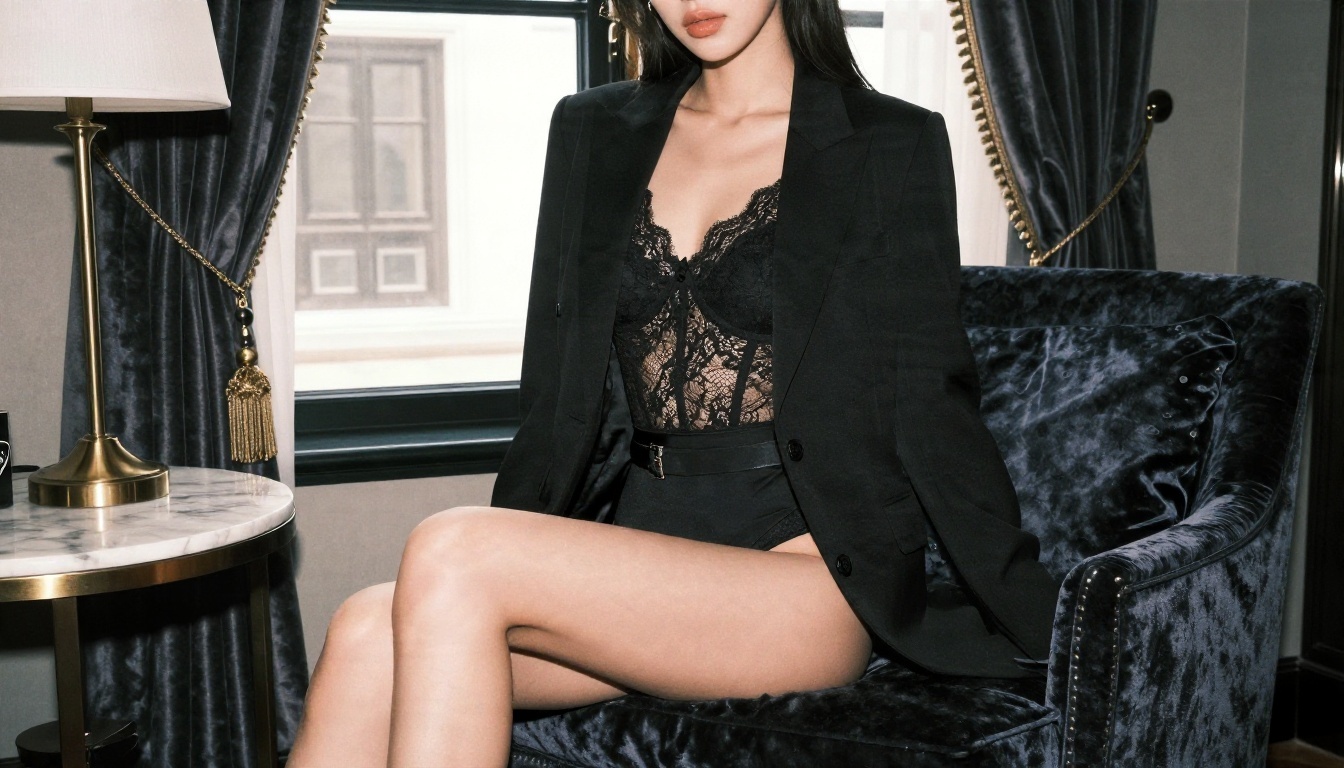
Seedream 4.5 is the first model I would open for photoreal portraits. It handles skin texture, fabric and natural light well, and it is far less jumpy about tasteful swimwear and glamour prompts than a typical hosted video suite. Output goes up to 4K, which is more than enough for campaign stills and for first frames.
PicassoIA Image Editor Pro for Unlimited Runs
PicassoIA Image Editor Pro is where the "no meter" benefit really shows. It offers unlimited generations, so you can edit an outfit, change a background, fix a hand or re-light a portrait as many times as you like without watching a credit counter.
More Image Options
- Qwen Image 3 Pro: strong photorealism and sharp detail, good for portraits and product shots.
- Flux 2 Klein 9B Base LoRA: useful when you want a consistent styled look across a series.
- Flux Redux Dev: makes variations from a reference, handy for building a full lookbook from one approved shot.
Video Options for Motion
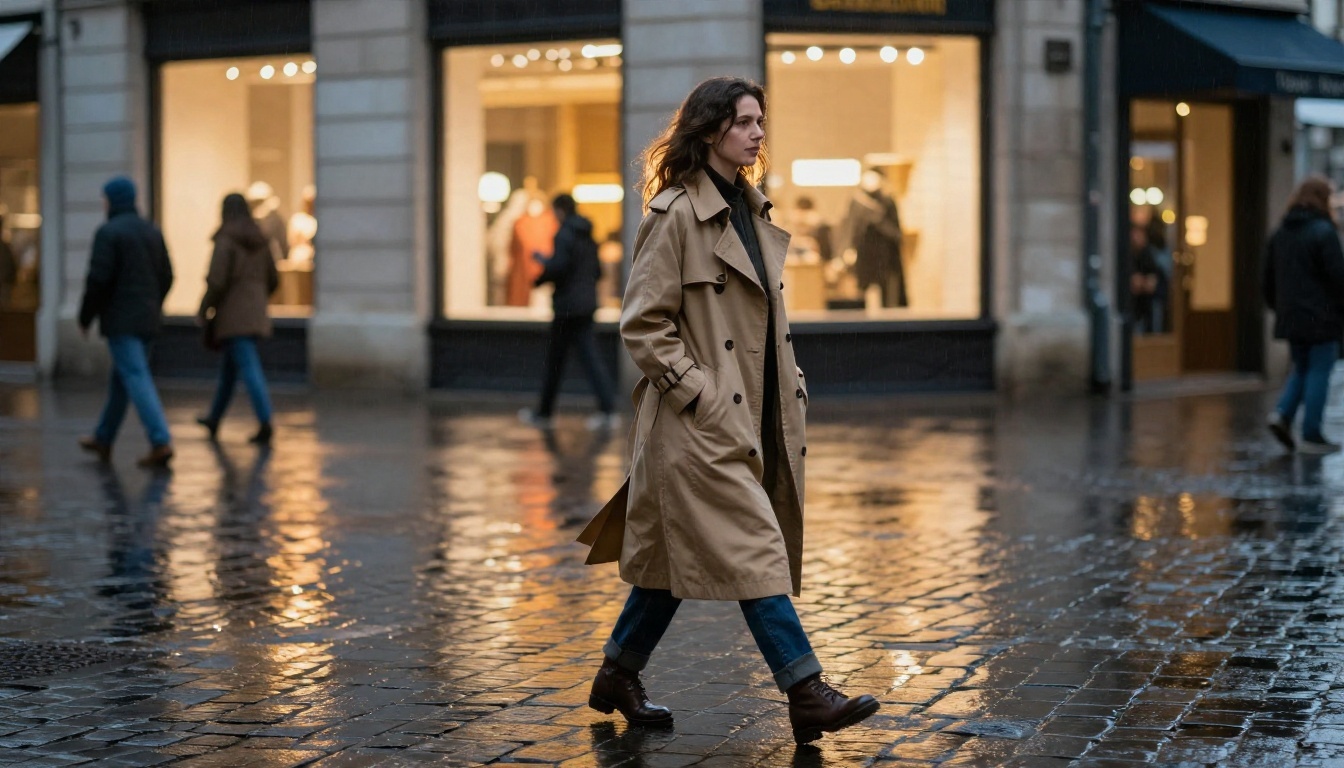
When you are ready to animate, these are the models to try for the same task Higgsfield and Playcut sell:
How to Get Similar Results on PicassoIA
The fastest way to match what Higgsfield style tools produce is to build a strong still in Seedream 4.5, polish it, then animate it. Here is the workflow.
Step by Step Workflow
- Open Seedream 4.5 from its model page and choose a 16:9 ratio if the clip is for video, or 9:16 for vertical social posts.
- Write the prompt in this order: subject and pose, setting, lighting direction, lens, then texture details. Example: "woman in a white linen dress on a sunlit terrace, golden hour backlight from the right, 85mm lens, shallow depth of field, natural skin texture, film grain."
- Generate a few variations and pick the strongest composition. Look at hands, eyes and fabric edges first.
- Open Image Editor Pro with that image and fix details: change the outfit color, soften a shadow, clean the background. Because it is unlimited, run as many passes as you need.
- Animate the final frame with Wan 3 or Hailuo 02, describing only the motion: "slow push in, hair moves in a light breeze, soft sunlight flicker."
Parameter Tips That Save Time
- Keep prompts photographic: name a lens, a light direction and a film stock. Vague adjectives like "stunning" add nothing.
- Use plain skin language: "natural skin texture, fine pores" beats "flawless," which pushes results toward a plastic look.
- Fix before you animate: a bad hand in a still becomes a worse hand in motion.
- Keep motion prompts short: one camera move and one subject movement per clip is enough.
- Match the ratio: generate the still in the same aspect ratio you plan to publish.
Common Mistakes to Skip
Overloading the prompt with ten styles, animating before the still is approved, and judging a model on a single try. A model that gives you one bad render may give you three great ones on the next pass.
💡 Tip: keep a small library of your best working prompts. Reusing a proven lighting and lens recipe gives you consistent results across a whole campaign.
Which One Should You Pick
If you want cinematic presets and are comfortable paying for credits, Higgsfield is the better documented option, and its pricing is at least visible. If you want a brand kit and AI actors for repeatable marketing clips, Playcut is worth a closer look, but verify its free tier, its moderation rules and what each flat tier really includes before you commit.
If your priority is fewer blocked prompts, no credit counter and a clean path from still to video, build in PicassoIA instead. Start with Seedream 4.5, refine in Image Editor Pro, then animate with Wan 3 or Hailuo 02.
| Your priority | Best route |
|---|
| Cinematic presets and effects | Higgsfield |
| Branded marketing clips | Playcut (verify terms first) |
| Glamour and swimwear stills | Seedream 4.5 and Image Editor Pro on PicassoIA |
| Unlimited iteration | Image Editor Pro on PicassoIA |
| Photo to video motion | Wan 3 or Hailuo 02 on PicassoIA |
Try It Yourself Today
Reading about filters and credit meters is useful, but nothing settles the question like running your own prompts. Take one idea you tried on another platform, a poolside portrait, a summer dress shoot, a hotel room editorial, and run it in Seedream 4.5. Polish the result in Image Editor Pro, then bring it to life with a video model.
You will know within ten minutes whether the results and the freedom fit your work. To see every image and video model in one place, browse the full list at picassoia.com/en/all-models and start creating your own photoreal images and clips with PicassoIA.


