You have a product, a launch date and no budget for a film crew. A product demo video would fix that, and a product demo video generator promises to build one in minutes. The reality is more mixed. Some tools are brilliant at one narrow job and useless at another. Some "free" plans stamp a logo on every export. Others cap you at a handful of clips per month. This article sorts out what is actually available, what you can get for nothing, where the real limits sit, and how to build a demo you would be comfortable putting on a landing page.
What a Product Demo Video Generator Does
The phrase covers two very different kinds of software, and mixing them up is the fastest way to waste an afternoon.
Two Very Different Tool Types
The first type records and polishes real software. You click through your app, the tool captures the screen, adds zoom effects, cursor smoothing, captions and a voiceover, and exports a walkthrough. Think of Arcade, Veed, Pictory or Synthesia style workflows. These are built for SaaS demos where accuracy matters, because the buttons on screen must be your real buttons.
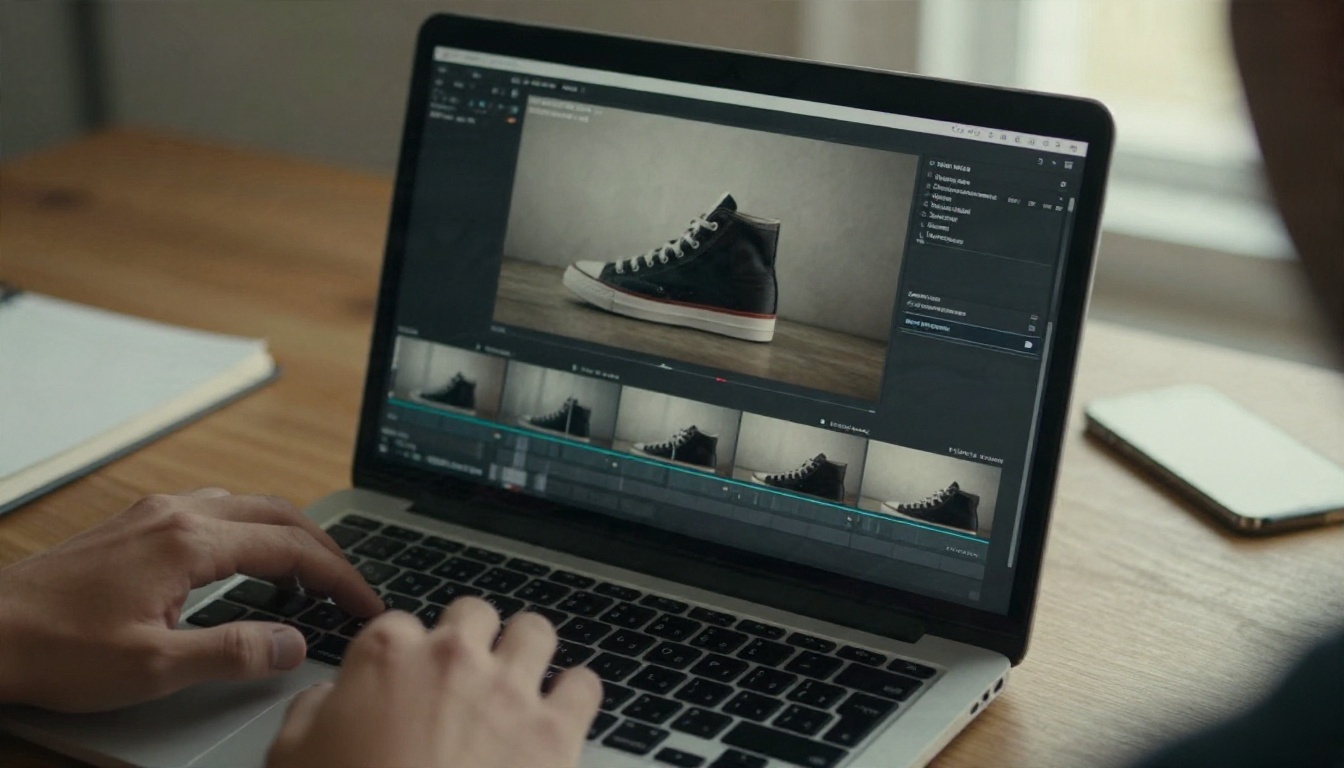
The second type generates footage from nothing. You type a prompt or upload a product photo, and a video model invents camera movement, lighting and motion. This is the territory of text-to-video and image-to-video models. It suits physical products, lifestyle scenes and ad-style clips, where a polished look matters more than showing a precise interface.
Where AI Video Fits
💡 Rule of thumb: if your viewer needs to see the exact interface, record it. If your viewer needs to feel the product, generate it.
A coffee grinder, a sneaker, a skincare jar or a smart watch are all good candidates for generated footage. A dashboard with fifteen filters is not. Most strong demo videos actually mix both: a generated hero shot to open, then real screen capture for the proof.
Free Options That Actually Work
"Free" is slippery in this category. Based on what vendors and reviewers were saying in 2026, free tiers fall into three buckets: watermarked exports, limited credits per month, and short clip lengths. Almost nothing is free without a catch, so the useful question is which catch you can live with.
Free Tiers of Online Tools
Several widely used editors and demo makers watermark exports on their free plans. A few general-purpose editors, such as Canva, Clipchamp and CapCut, are often described as friendlier on watermarks, although they may limit AI features or monthly generations. Reviews disagree with each other on exact terms, and plans change often, so check the current pricing page of any tool before you commit a campaign to it.
A quick test saves you pain: export a five-second clip first, then look at the corners and the final frame. If a logo appears, you know before you invest hours in the script.
Free Models on PicassoIA
For generated footage, Seedance 2.5 Lite is positioned as a free and unlimited AI video generator with clips up to 10 seconds. That is a long enough window for a hero shot of a product turning, a hand picking it up, or a slow push-in on the packaging. If you want to test an idea without watching a credit counter, it is a sensible place to begin.
Other models on the platform suit different needs:
| Model | Best for | Notable strength |
|---|
| Seedance 2.5 Lite | Free drafts and hero shots | Free and unlimited, up to 10 seconds |
| Seedance 2.5 | Longer story clips | Clips up to 30 seconds |
| Kling v3 Video | Cinematic product motion | Smooth camera work |
| Veo 3.1 Fast | Fast turnaround with sound | Native audio, 1080p output |
| Sora 2 | Scenes with synced audio | Strong realism and sound |
| Wan 2.5 I2V Fast | Animating a product photo | Image-to-video speed |
Different jobs need different tools. Here is how the three families stack up for a demo video.
Screen-Based Demo Tools
These win whenever the product is software. They capture clicks, add zooms, and let you edit the walkthrough like a document. Their weakness is visual flair: you will not get a dramatic hero shot from a screen recorder, and the free versions tend to watermark or cap exports.
Avatar Presenter Tools
Synthesia and HeyGen style tools put a virtual presenter on screen reading your script. They are quick for explainer content and training. The limit is tone. A synthetic presenter can feel stiff for a lifestyle product, and viewers notice. They also tend to sit behind paid plans for clean exports.
Generative Video Models
Models like Kling v3 Video, Veo 3.1 Lite and Hailuo 02 produce footage you could never afford to film: a slow orbit around a bottle, steam curling off a mug, a handheld push through a kitchen. The trade-off is control. You describe the result and iterate, rather than placing every element yourself.
| Tool family | Strength | Weakness | Typical free-plan catch |
|---|
| Screen-based demo makers | Accurate software walkthroughs | Plain visuals | Watermarks, export caps |
| Avatar presenters | Fast explainers | Stiff delivery | Watermarks, short minutes |
| Generative video models | Cinematic product shots | Weak with exact UI text | Credit limits or clip length |
Examples You Can Copy
Theory is cheap. These three patterns work well with generated footage, and each starts from a photo you already have.
Physical Product Rotation
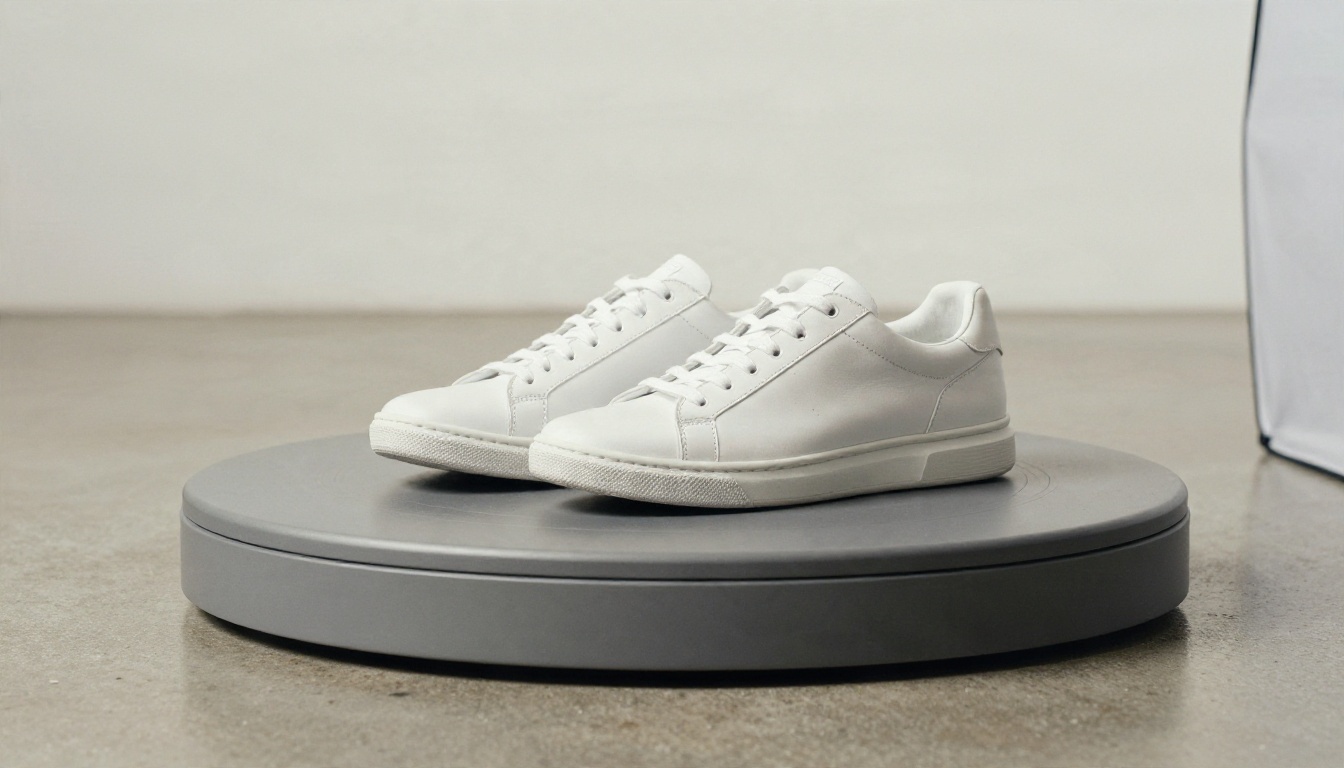
Take a clean product photo on a plain background and feed it to an image-to-video model such as Wan 2.5 I2V Fast or Hailuo 2.3 Fast. Ask for a slow orbit with soft studio light. A sneaker, a bottle or a gadget on a turntable reads as premium almost instantly.
A prompt that behaves well: "Slow 180 degree orbit around white leather sneakers on a matte gray surface, soft key light from the left, subtle reflections, shallow depth of field, steady camera."
Lifestyle Use Scene
Viewers trust a product more when they see a person using it. Describe a short moment: a woman filming a coffee grinder in morning light, a hand twisting a cap, steam rising. Veo 3.1 Fast and Sora 2 handle these scenes well, and both can add synchronized sound, which gives the clip a finished feel without a separate audio pass.

Maker Story
For handmade goods, a short clip of the person behind the product does more than any feature list. A craftsperson holding up a leather wallet in a bright workshop, wood and tools around them, builds trust in five seconds. Generate this as a still first, then animate it with Kling v3 Video for a gentle push-in.

The Limits Nobody Mentions
Marketing pages show the best take. Here is what the ordinary take looks like.
Text and Labels
Video models still struggle with small, exact text. A label on a bottle may drift, a logo may warp mid-turn, and an interface on a laptop screen will rarely be readable. If your demo depends on legible words, keep them out of the generated shot. Add them in your editor as an overlay, or cut to a real screen recording.
💡 Tip: shoot or generate your product with the label facing away from the camera in at least one angle. If the text fails, you still have a usable clip.
Clip Length
Most generators return clips of roughly 5 to 10 seconds. A few models stretch further, and Seedance 2.5 is listed with clips up to 30 seconds. A full demo is usually 30 to 90 seconds, so you will stitch several clips together. Plan for that from the start. Write a shot list where each shot is one idea and one motion.

Watermarks and Licensing
Beyond the watermark itself, check the commercial use terms. Some free plans allow personal use only. Others permit commercial use but require attribution. Read the licence line before the video goes into a paid ad, because pulling a campaign later costs far more than reading a paragraph now.
| Limit | What to check | Quick fix |
|---|
| Watermark | Export a five-second test | Pick a plan or model without one |
| Clip length | Maximum seconds per generation | Build a shot list of short scenes |
| Readable text | Labels, UI, packaging | Add text in the editor afterwards |
| Resolution | 720p versus 1080p output | Upscale the final cut |
| Licence | Commercial use rights | Read the terms before publishing |
A Workflow That Holds Up
A repeatable process beats a lucky prompt. This sequence keeps a demo short, clear and consistent.
Script First
Write the voiceover before you generate anything. Aim for 80 to 120 words for a 45 second demo: the problem in one sentence, the product in one, three benefits, and a closing line. Then split the script into shots. Each shot gets a prompt with the same lighting words and the same color palette so the clips look like they belong together.
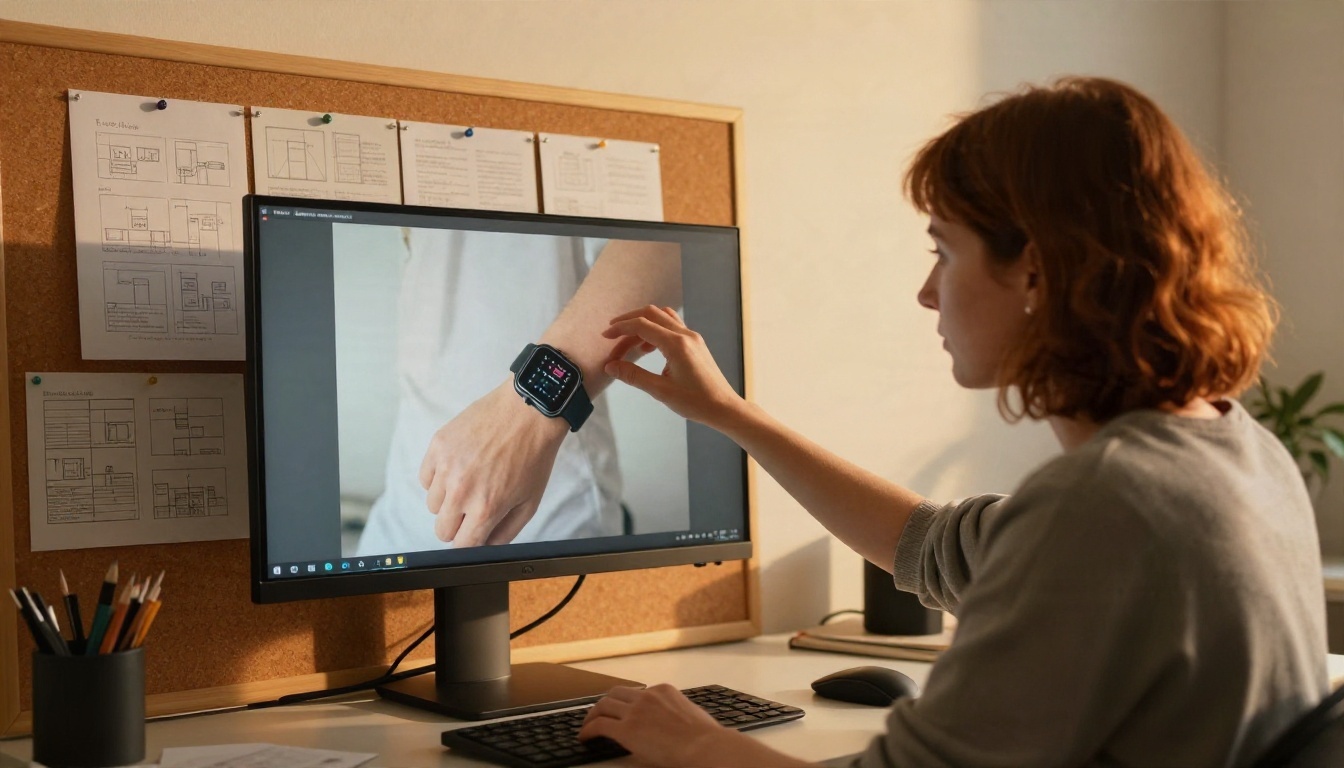
A short checklist for each shot:
- One subject, one action, one camera move
- Lighting named (soft window light, studio softbox, warm lamp)
- Lens feel named (85mm close-up, 35mm wide)
- Duration matched to the model's limit
- Consistent look across every prompt
Add Voice and Upscale
A silent clip feels unfinished. Record a voiceover or generate one with a text-to-speech model such as Realtime TTS 2 or Realtime TTS 1.5 Max. If your final export is soft or low resolution, run it through Video Upscale for sharper footage before you publish. For localized versions, Dubbing translates a finished video into other languages, which is useful when one demo has to serve several markets.
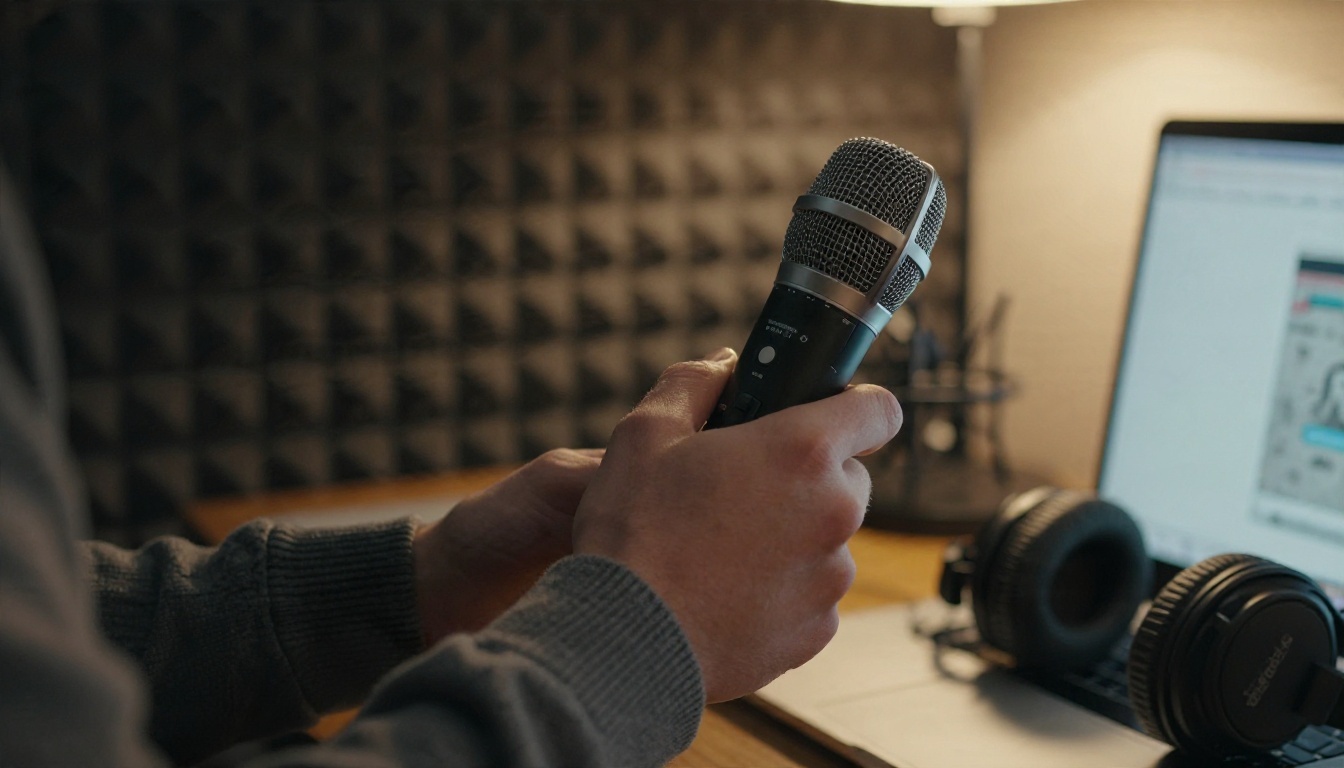
If you want to feed in your own photos, clips and audio as reference, PicassoIA Reference To Video builds video from your reference images, video and audio, which helps keep a product looking like your product from shot to shot.
Try Your Own Demo Video
You now have the practical picture: record when accuracy matters, generate when atmosphere matters, and always run a five-second export test before you trust a free plan. The cheapest way to find out whether a generated demo suits your product is to make one.
Start with a single product photo and a single sentence of motion. Open Seedance 2.5 Lite for a free draft, then compare it with Kling v3 Video or Veo 3.1 Fast when you want a more polished take. Add a voiceover, upscale the final cut, and publish.
Browse every video, voice and upscaling model in one place at picassoia.com/en/all-models, pick two, and make your first product demo today.


