A good product photo used to mean a studio, a light kit, a tripod and half a day of moving a bottle two centimeters to the left. Now a single sentence can get you most of the way there. Seedream 4.0 has quickly become a favorite for product visuals because it respects materials, keeps edges clean and follows layout instructions better than most image generators. If you sell candles, sneakers, skincare or coffee, you can produce catalog-ready shots in minutes.
This article gives you the working parts: a prompt formula, the settings worth changing, nine example images with the prompts behind them, a short tutorial on running Seedream 4 on PicassoIA, and the free options available right now. Everything here is written for sellers, marketers and designers who want results, not theory.
💡 Quick answer: Describe the product, the surface, the light and the camera in that order. Use 2K or 4K resolution, pick the aspect ratio for where the image will live, and add a reference photo when the product shape must be exact.
Why Seedream 4.0 Suits Product Shots
Product photography is a narrow, demanding genre. Shoppers zoom in, compare and notice when a bottle looks melted or a logo turns into mush. A model has to handle glass, metal, fabric and paper convincingly, and it has to do it with predictable composition. That is where Seedream 4.0 earns its reputation.
What It Does Well
The model is good at clean compositions. Ask for a centered object on a seamless backdrop and you usually get exactly that, with sensible shadows and no stray props. It also handles material cues well: frosted glass, brushed steel, canvas weave and matte ceramic all look different from one another when you name them.
It supports output up to 4096 pixels, which is enough for large web banners and for print mockups. It also accepts reference images, so you can hand it a rough phone snapshot of your real product and ask for a studio version. Single-sentence edits work too: "change the background to warm grey concrete" is a valid instruction on an existing image.
Where It Still Struggles
Be honest with yourself about the limits. Small printed text on labels can drift, so for packaging with legible copy, generate the scene and add the real label afterward. Complex mechanical products with many tiny parts, such as camera lenses with engraved scales, may need several attempts. And hands holding products can show odd finger positions, so generate a few variations and pick the cleanest.
| Strength | Weak spot | Practical fix |
|---|
| Seamless backdrops and soft shadows | Fine label text | Composite the real label later |
| Glass, metal and fabric textures | Tiny engraved details | Use a reference photo |
| Strong composition control | Hands and fingers | Generate 4 variants, pick one |
| Up to 4K output | Very busy scenes | Simplify props to two or three |
Long poetic prompts are not the goal. Seedream 4.0 responds best to concrete, ordered descriptions that read like a photographer's shot list.
Six Parts of a Product Prompt
Write your prompt in this order and you will rarely go wrong:
- Subject: the exact product, material and color. "A frosted glass serum bottle with a brushed gold dropper cap."
- Surface and backdrop: what it stands on and what is behind it. "On a pale travertine slab, cream to dusty rose paper backdrop."
- Props: one to three items at most. "A sprig of dried eucalyptus."
- Lighting: direction, size and quality. "Large softbox from camera left, white reflector on the right."
- Camera: angle, lens and aperture. "100mm macro lens at f/8, low angle."
- Mood and finish: the overall feeling and film look. "Calm, clean, luxurious, fine film grain."
💡 Name the light direction every time. "Soft window light from the left" gives you shadows that fall consistently and look believable. Leaving light unspecified is the most common reason product images look flat.
Words to Add and Words to Skip
Helpful words: softbox, seamless paper, contact shadow, specular highlight, macro, 85mm, f/8, matte, brushed, condensation, true to life colors. These are things real photographers say, and the model has seen plenty of images labeled with them.
Words to skip: masterpiece, ultra mega detailed, trending, perfect. They add noise without adding information. A short, precise prompt beats a long pile of adjectives. If you need negative instructions, phrase them as positives instead: write "clean empty background" rather than "no clutter".
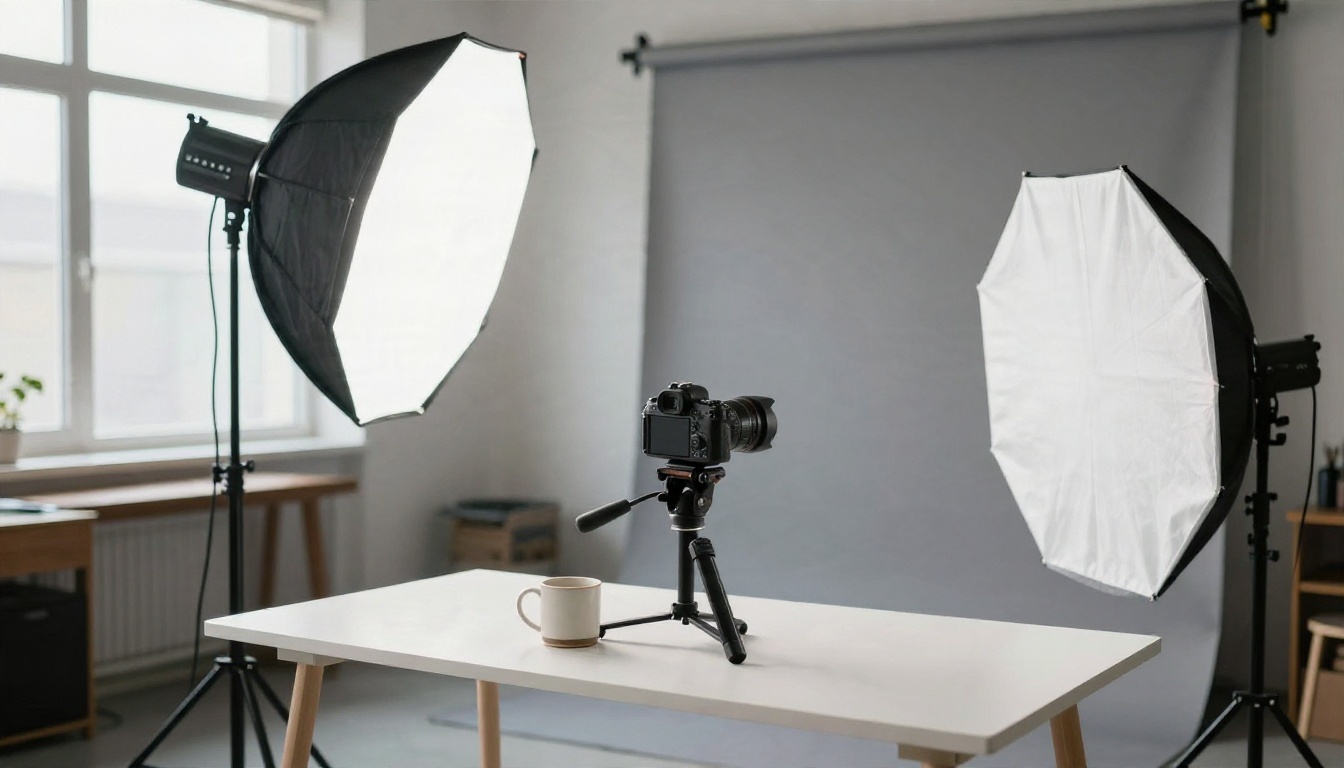
The setup above is the mental model to carry into every prompt: one big soft light on one side, a reflector on the other, a plain backdrop behind. When you describe that arrangement in words, the model recreates its look. You are essentially building a virtual studio in text.
Settings That Matter Most
Seedream 4 offers a short list of inputs on PicassoIA. Most of them are worth knowing, and two or three are worth changing every time.
Resolution and Aspect Ratio
The size option offers 1K, 2K, 4K or custom dimensions. The default is 2K, which suits marketplace listings and social posts. Choose 4K when you plan to crop in, print, or use the image as a hero banner. Use 1K for quick drafts while you tune a prompt, then rerun the winner at higher resolution.
The aspect ratio list includes 1:1, 4:3, 3:4, 16:9, 9:16, 3:2, 2:3 and 21:9, plus an option to match an input image. Pick by destination:
| Destination | Suggested ratio | Why |
|---|
| Marketplace listing | 1:1 | Square thumbnails are standard |
| Instagram feed | 4:5 via 3:4 crop | Fills more of the screen |
| Stories and Reels covers | 9:16 | Vertical full screen |
| Website hero banner | 16:9 or 21:9 | Space for headline copy |
| Print catalog | 3:2 or 2:3 | Matches photo paper |
Reference Images and Edits
The image input accepts between one and ten reference images. This is the setting that separates a gimmick from a business tool. Upload your real product photo, then describe the new scene. The model uses the reference to anchor shape, color and proportions, so your actual bottle or shoe appears rather than an invented lookalike.
For a quick fix, upload a decent snapshot and write one instruction such as "place this on a white seamless background with soft shadow." That edit flow is often faster than generating from scratch.
Sequential Mode for Variants
Set sequential image generation to auto and raise the maximum number of images, and the model can produce a related set in one run, up to 15 including inputs. For product work this is handy for colorways, angle sets or a consistent series for a campaign. Ask explicitly: "Four images of the same ceramic mug in blue, green, sand and black, same lighting and angle."
Prompts and Examples by Product Type
Each example below includes the prompt idea behind it. The images in this article were generated as photorealistic references, and the prompts are written so you can paste them into Seedream 4.0 and adjust the product name.
White Background Catalog Shots
Marketplaces still reward clean white backgrounds. The trick is asking for a soft contact shadow, otherwise products float and look pasted on.
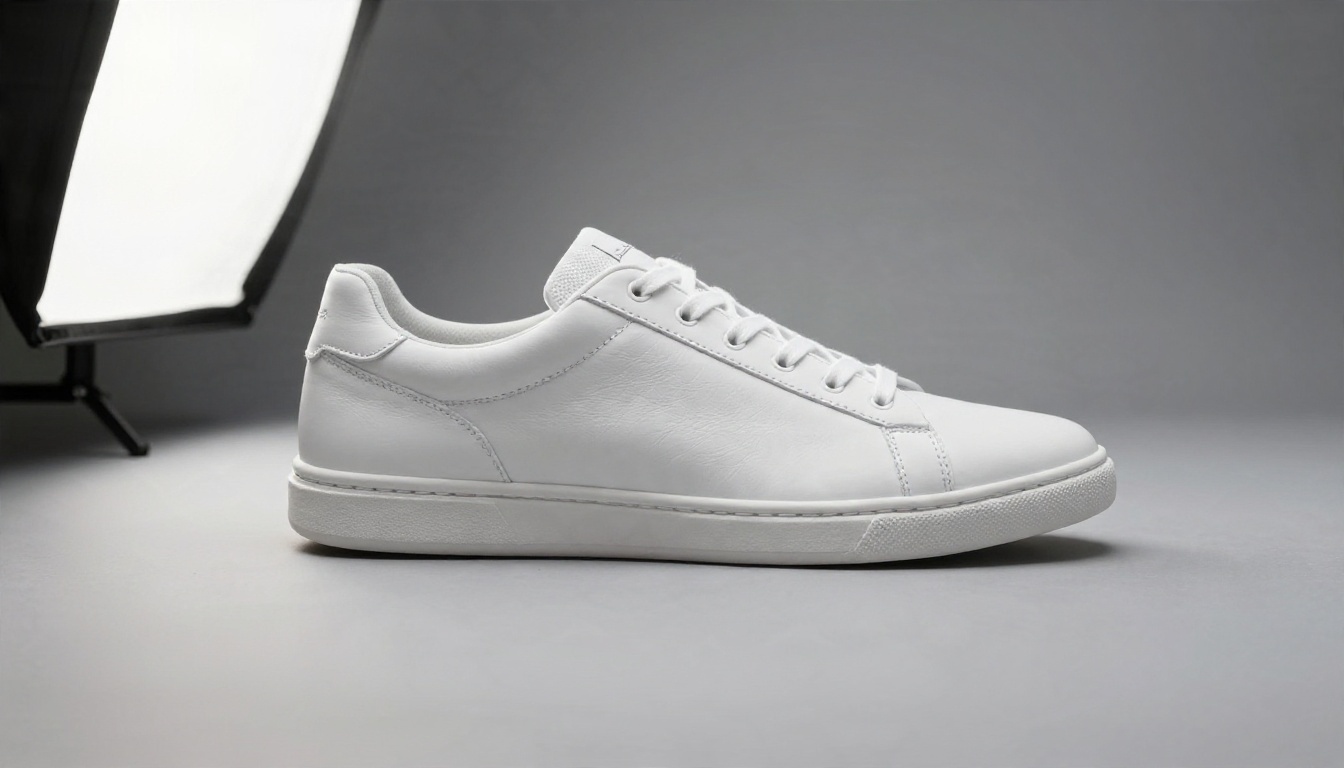
Prompt: A white leather running sneaker on a pure white seamless studio sweep, shot straight on from the side at eye level, soft contact shadow beneath the sole, large softboxes on both sides for even light, 85mm lens at f/9, every stitch and mesh weave crisp, clean e-commerce catalog look.
Why it works: side-on, eye-level framing is what shoppers expect, and the f/9 aperture signals deep focus so the whole shoe stays sharp.
Flat Lays and Overhead Angles
Flat lays suit food, stationery, tea and coffee. Shoot straight from above and keep props to what a customer would actually use with the product.
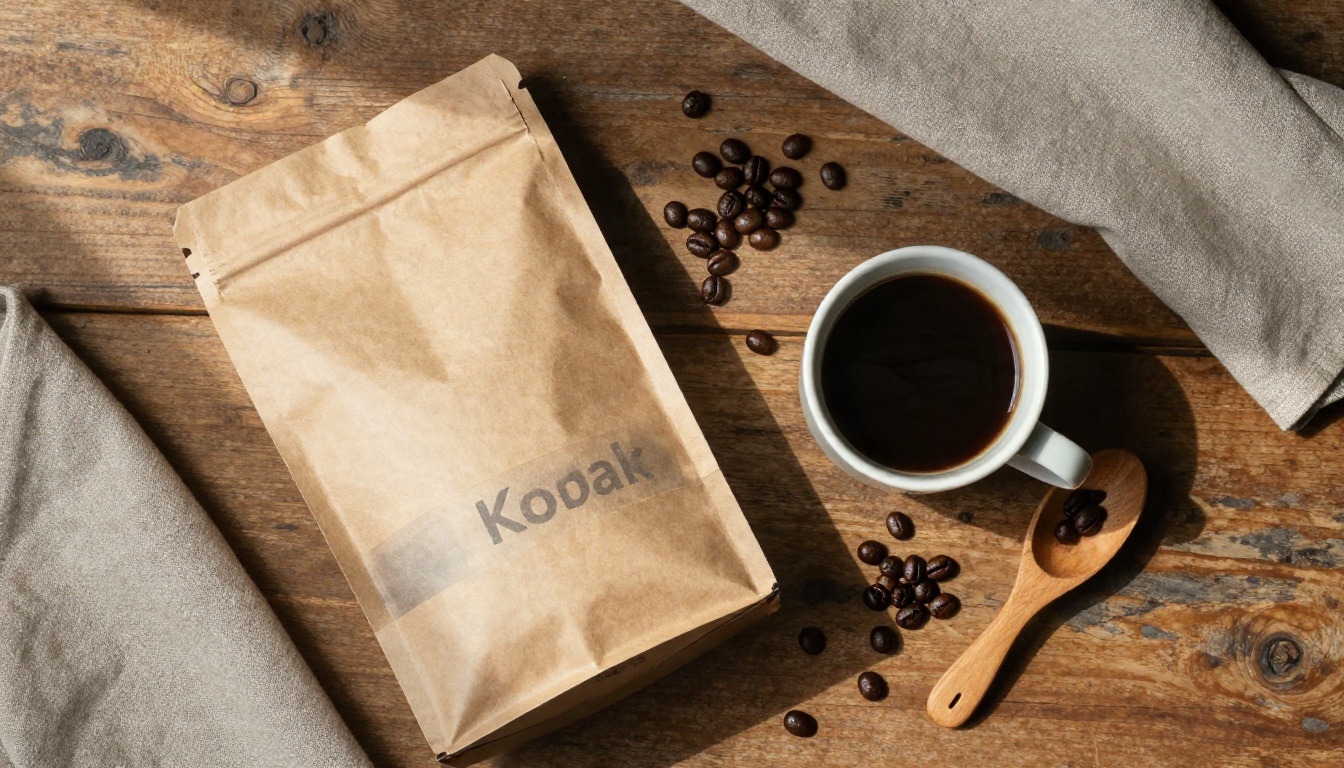
Prompt: Overhead flat lay from directly above of a kraft paper coffee bag, a ceramic cup of black coffee, scattered roasted beans and a wooden scoop on a weathered oak table, soft window light from upper left, linen napkin, 35mm lens at f/5.6, visible oil sheen on the beans.
Why it works: the diagonal window light gives gentle shadows that add depth to an otherwise flat arrangement. Mentioning "oil sheen" pushes the beans toward a believable, fresh look.
Macro Shots for Watches and Jewelry
Small, shiny products need close framing and controlled reflections. Describe a strip light or narrow softbox, since that is how real photographers draw a clean highlight along polished edges.
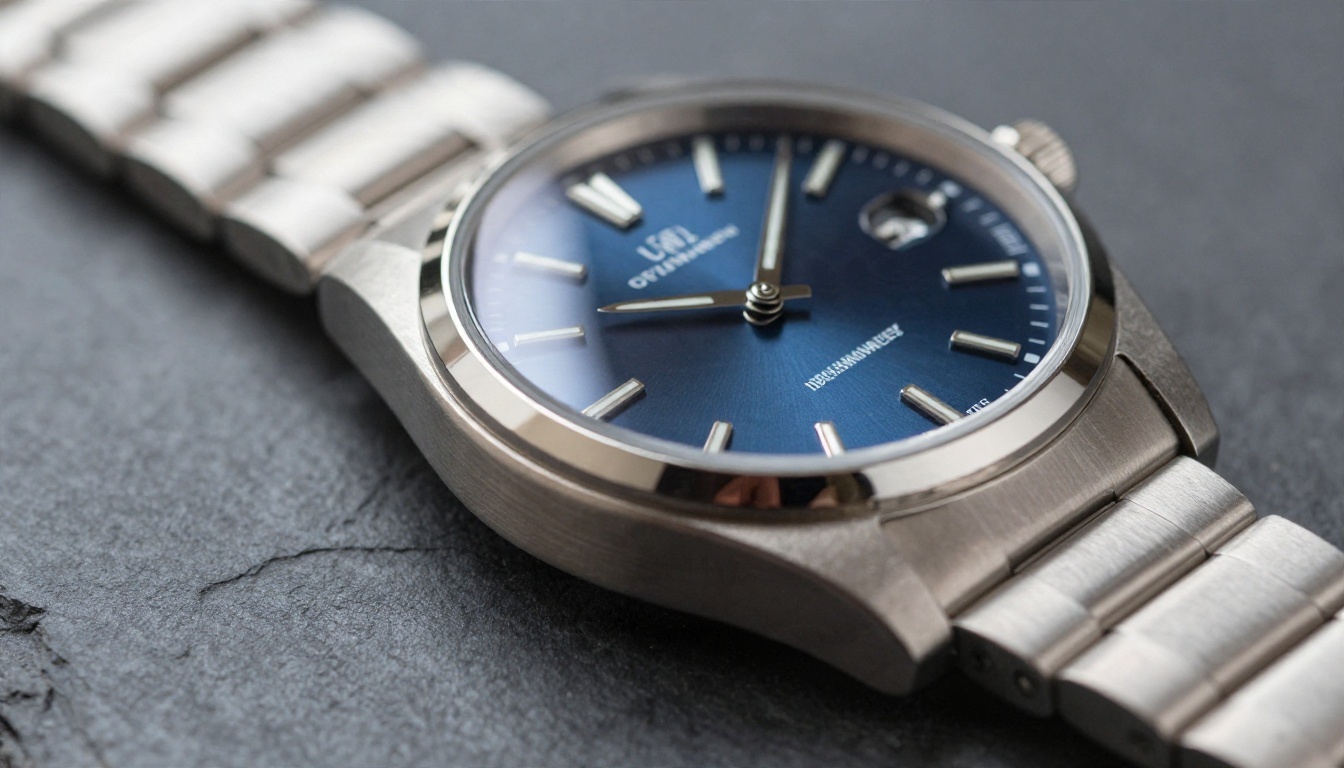
Prompt: Extreme close-up macro of a stainless steel automatic wristwatch with a deep blue dial on a dark slate slab, low three-quarter angle, narrow strip light from camera right drawing a crisp highlight along the bezel, brushed bracelet with fine directional grain, 100mm macro lens at f/11.
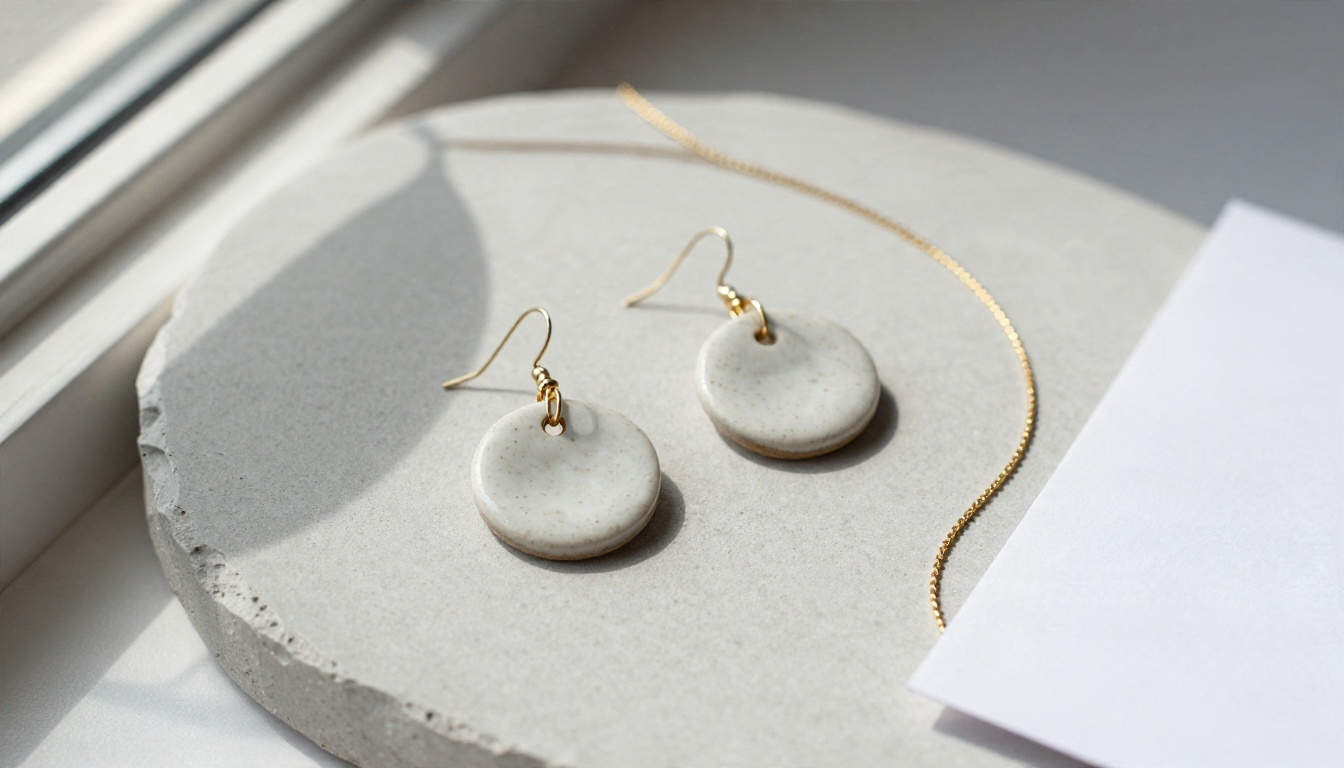
Prompt: Handmade ceramic earrings and a thin gold necklace arranged on a curved piece of pale grey plaster, a soft leaf shadow falling across them, shot from above at a slight tilt, window light from the left with a white card reflecting fill, 100mm macro lens at f/5.6, tiny glaze speckles, muted natural palette.
💡 For jewelry, ask for a muted palette and a single textured surface. Busy backgrounds make small items disappear and compete with the product.
Lifestyle and Outdoor Scenes
Lifestyle shots put the product in a believable setting, which helps shoppers imagine owning it. Pick an environment that fits the customer, then let one light source do the work.
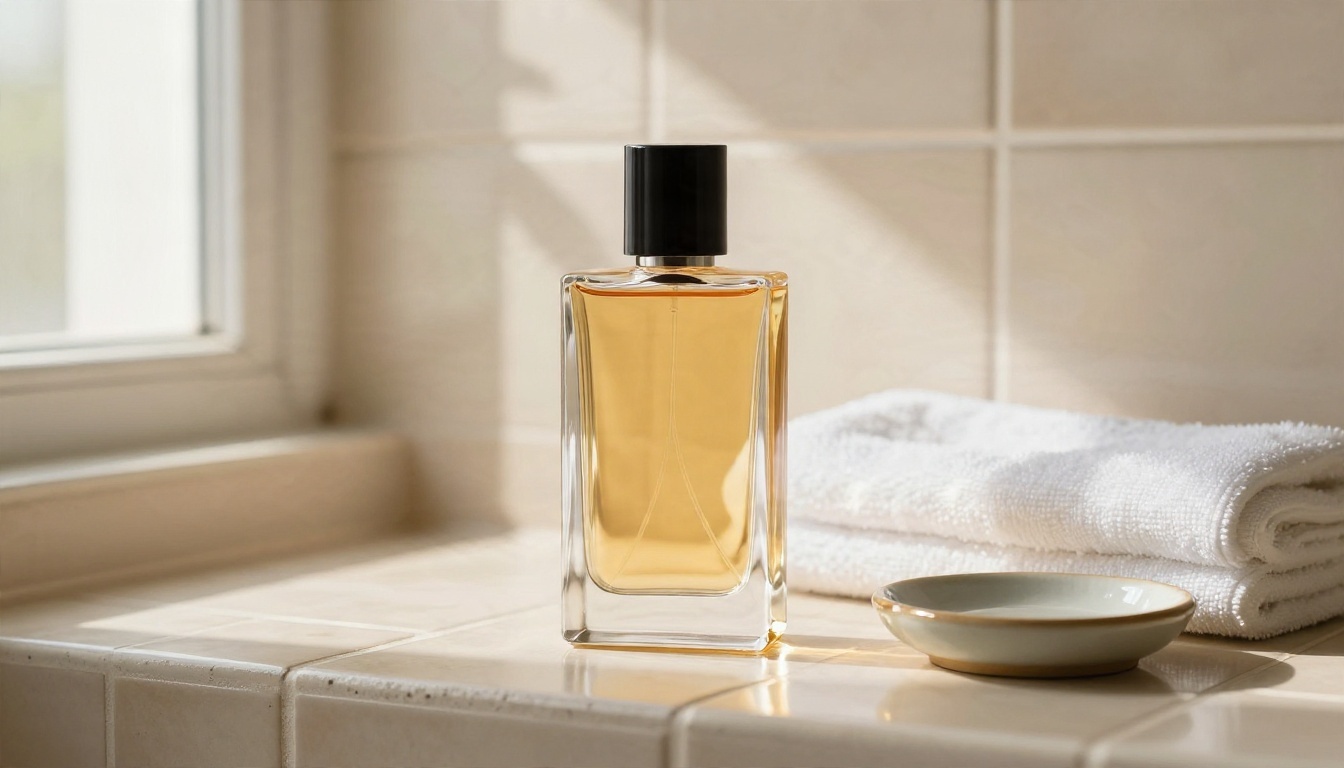
Prompt: A rectangular glass perfume bottle with clear amber liquid on a bathroom shelf of cream zellige tile beside a folded white towel, slight high angle, warm morning sunlight from a window at the left casting a soft leaf shadow on the wall, 50mm lens at f/2.8, gentle background blur.
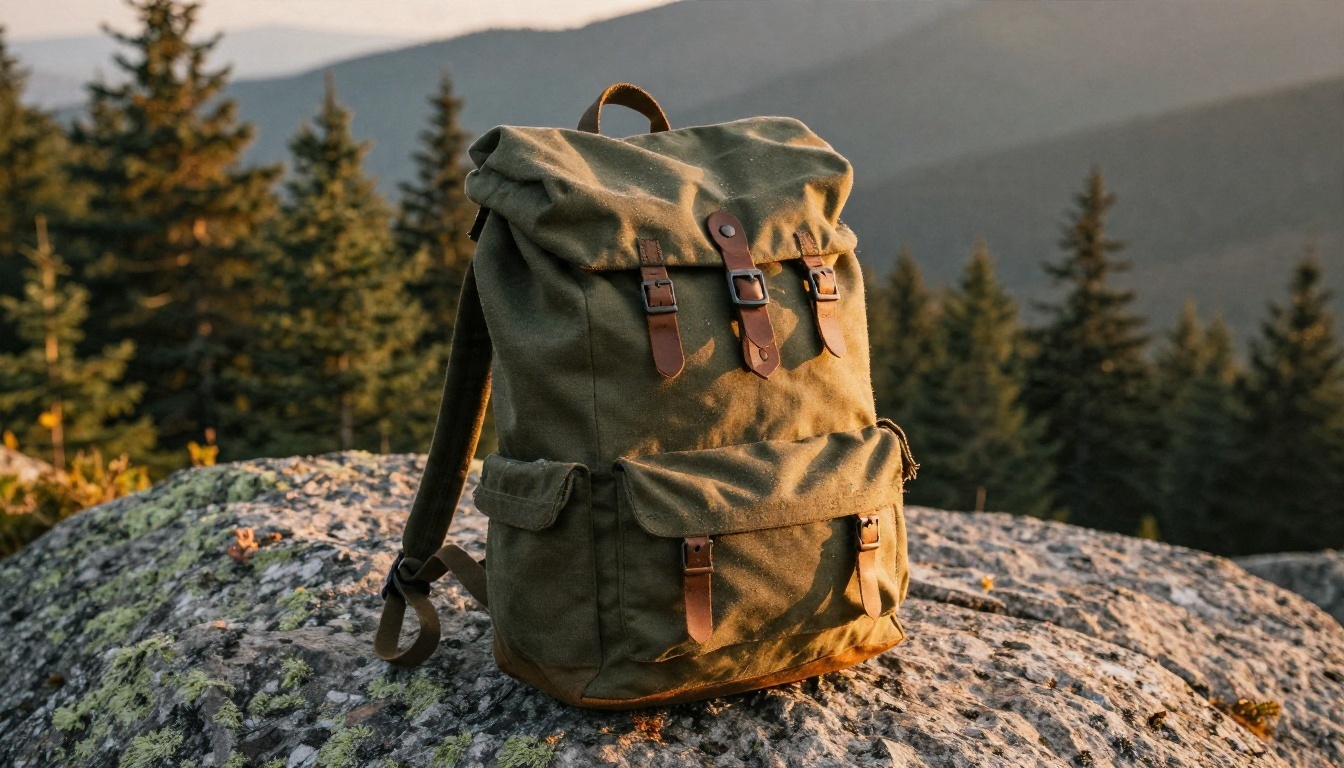
Prompt: A rugged olive canvas backpack with leather straps resting on a mossy granite boulder beside a mountain trail at golden hour, low wide angle, distant pine forest and hazy ridgelines, warm low sun from the back right rimming the fabric and buckles, 35mm lens at f/4.
A useful pattern: for indoor lifestyle, use a longer lens (50mm to 85mm) and shallow aperture so the background softens. For outdoor, go wider (28mm to 35mm) and include a recognizable landscape layer behind the product.
Drinks and Condensation
Beverages depend on one visual cue: freshness. Condensation, ice and a cut fruit do the talking. Backlight is what makes glass look like glass.
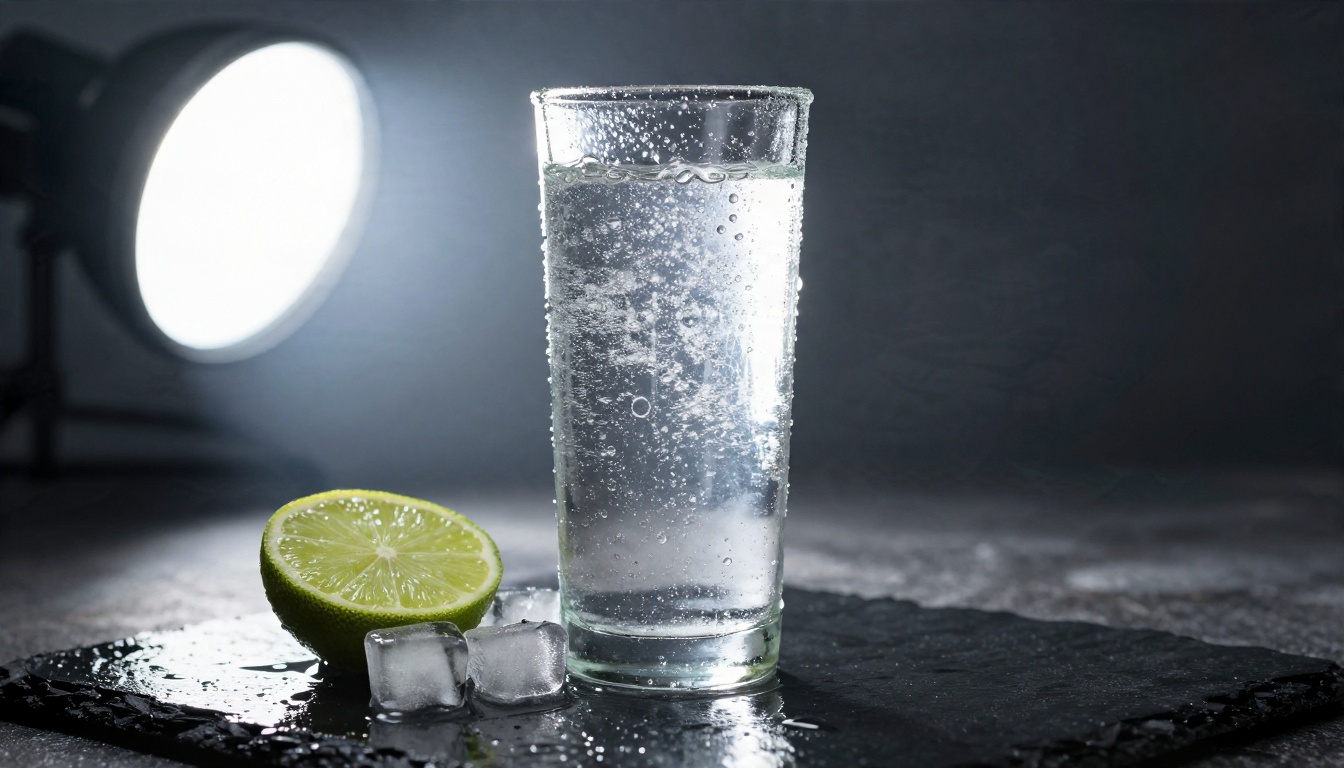
Prompt: A tall clear glass bottle of sparkling mineral water covered in fine condensation droplets on a wet black slate surface, sliced lime and ice cubes beside it, low front angle, strip softbox backlight outlining the glass with soft fill from the right, 90mm lens at f/7, crisp water beads, cool natural tones.
Skincare and Hands
Showing a product being held gives scale and a human touch. Keep the framing tight on hands and the product, and ask for visible skin texture so the image does not look waxy.
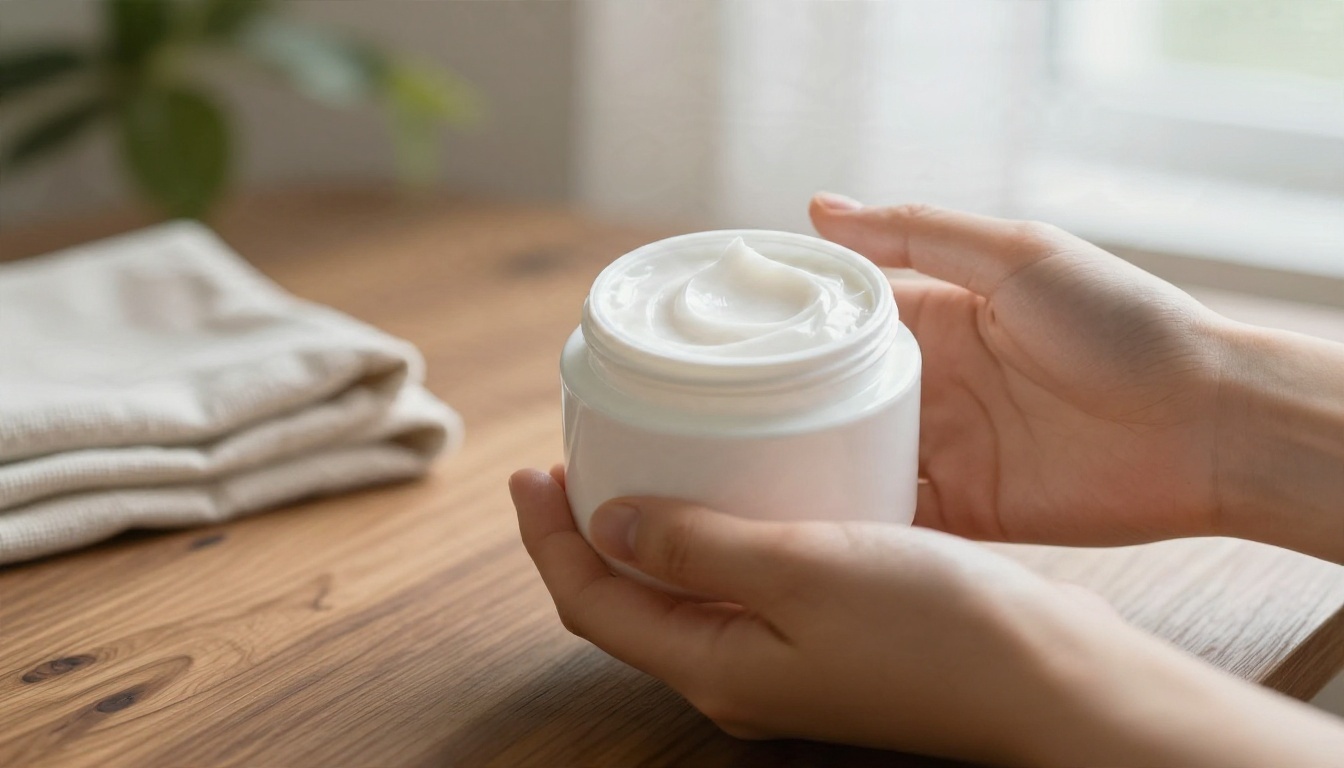
Prompt: Hands gently holding an open white ceramic skincare cream jar with a thick smooth cream surface, over a warm walnut table with a folded linen cloth and a soft green plant behind, 45 degree high angle, diffused window light from the right, 70mm lens at f/3.5, visible skin texture.
How to Use Seedream 4 on PicassoIA
Seedream 4 runs in the browser, so there is nothing to install. Here is the workflow that gives the most consistent product images.
- Open the model page. Go to the Seedream 4 page and start a new generation.
- Write the prompt in six parts. Subject, surface, props, light, camera, mood. Keep it under roughly 80 words for the first draft.
- Choose the size. Start with 1K for drafts. Switch to 2K for finished web images and 4K for banners or print.
- Set the aspect ratio. Use 1:1 for listings, 16:9 for banners, 9:16 for vertical social content.
- Add a reference image if the product shape matters. Upload one to ten photos in the image input field. Describe only the new scene, not the product, since the reference already supplies it.
- Try sequential mode for variants. Set it to auto, raise the maximum image count and ask for a defined set such as four colors or three angles.
- Review and refine. Change one element at a time: the light direction, the surface or the lens. Small prompt changes are easier to track.
- Upscale or finish. For extra resolution, run the chosen shot through a super resolution model, and add your real label or logo in a design tool.
💡 Iteration tip: Save your best prompt as a template. Replace only the product line and the surface line, and your whole catalog shares one lighting style. That consistency is what makes a store look professional.
Free Options Worth Trying
Free on PicassoIA
Seedream 4 is listed on PicassoIA as a free, online model, with no coding needed. For most small shops that covers drafts, listing images and social posts. The PicassoIA Image Editor Pro is another option when you want unlimited edits on an existing photo, such as swapping a background or fixing a shadow.
Other Free Tiers
Several third-party platforms have offered Seedream 4.0 through free daily credits, short free trials or limited-time unlimited weeks. These offers change often and usually come with watermark, queue or commercial-use conditions, so read the current terms before you build a store around them. A practical rule: use any free tier for testing prompts, then confirm licensing before publishing images commercially.
When to Pick Another Model
Seedream 4.0 is not the only choice, and newer siblings exist. Use this table as a quick chooser.
A sensible workflow: draft with Seedream 4 at 1K, pick the best composition, then compare the same prompt on Seedream 4.5 for a final pass. Same prompt, different model, and you choose what looks best for your product.
Mistakes That Ruin Product Images
After many rounds of generation, the same errors show up over and over.
- No light direction. The result looks flat. Always name where light comes from.
- Too many props. Four or more objects fight the product. Use one to three.
- Vague materials. "A bottle" gives you a generic bottle. "Frosted glass with a brushed gold cap" gives you a specific one.
- Wrong aspect ratio for the destination. Cropping a 16:9 image to a square cuts the product. Generate at the final ratio.
- Trusting generated text. Add the real label or logo yourself. Do not rely on rendered small print.
- Changing everything at once. If a shot is nearly right, change one variable. Otherwise you lose what was working.
- Skipping a reference. When the real product shape matters, a snapshot as a reference saves many failed rounds.
💡 One more point about honesty: if the images represent a real product you sell, make sure they do not misstate color, size or features. Customers trust the picture, and returns follow when it lies.
Make Your First Product Shots Today
You now have the prompt formula, the settings that matter and nine working examples. The fastest way to find your own style is to run a few. Open Seedream 4 on Picasso IA, paste one of the prompts above, swap in your own product, and generate four versions at 1K. Pick the strongest composition, rerun it at 2K or 4K, and compare it against Seedream 4.5 for a second opinion.
Try a white background shot first, then a lifestyle scene, then a macro detail. Three images in, you will have a consistent look for a product page, and you will have spent minutes instead of a studio day. For more image models, browse all PicassoIA models and see which one fits your next product.


