You typed "Qwen Image uncensored" into a search bar because you want one thing: a strong text-to-image model that does not flinch when you ask for glamour, swimwear or a moody boudoir portrait. Fair enough. Qwen Image from Alibaba has a reputation for sharp detail and clean rendering, so the interest makes sense. The trouble is that the word "uncensored" is doing a lot of heavy lifting online, and much of what ranks for it is marketing copy. This article sorts out what is real, shows you where people try the model for free, gives you prompts and settings that work, and lists the alternatives that deliver the same photorealistic look today.
💡 Quick answer: "Qwen Image uncensored" is usually the open-weight Qwen Image model run without a hosted safety layer, or a repackaged copy labeled "uncensored." It is not a separate magic model. Results depend on where you run it and which prompts you write.
What "Uncensored" Really Means
The label sounds like a product feature. In practice it describes a deployment choice. Understanding the difference saves you hours of hunting for something that does not exist.
Weights vs hosted services
Qwen Image has been released as open weights, meaning anyone can download the model and run it on their own graphics card. From what I found in recent write-ups, the open weights do not ship with a built-in safety checker, while versions hosted by big companies add prompt filters on top. That is where the "uncensored" idea comes from: take the same model, remove the hosted filter, and you get fewer refusals.
Several repositories and sites now carry "uncensored" in their name. Reports suggest many of these are simply quantized copies of the original model, smaller files made to fit on weaker hardware, not a retrained version with new abilities. Treat the label as a description of where it runs, not a guarantee of different behavior.
The license catch
Open weights do not always mean open for business. Reports point out that the license behind the Qwen Image family has limits on commercial use, with research and personal evaluation being the safe zone. If you plan to sell images or build a product, read the license text attached to the exact version you download, and do not rely on a random site's summary.
💡 Rule of thumb: If a page promises "no filters, no limits, no license worries" in the same sentence, close the tab. At least one of those claims is wrong.
Where to Try It Free Online
There are three realistic routes. Each has a trade-off between effort, privacy and quality.
Browser demos and free tiers
A handful of sites let you type a prompt and download a result without signing up. Others give a small daily quota per visitor. These are fine for a quick test of how Qwen Image handles composition and text rendering. They are weak for anything sensitive: most apply their own moderation, queues get long, and you cannot verify which model version is behind the button.
Running it locally
The only route that gives you real control is your own machine. Interfaces like ComfyUI and the Diffusers library can load the weights, and quantized versions help if your graphics card has limited memory. Expect a download of many gigabytes, a setup session and slower generations on mid-range hardware. In return you get privacy, repeatable seeds and no per-image cost.
Free tier red flags
Free does not mean harmless. Watch for these:
- Mystery model names: The page says "Qwen Image Uncensored" but never states a version.
- Promo-code funnels: The free demo exists to push a paid plan after three images.
- Upload demands: Sites asking for your photos before generating anything.
- Tiny daily limits: One or two images per day, which makes testing prompts pointless.
| Route | Cost | Setup effort | Privacy | Best for |
|---|
| Browser demo | Free, limited | None | Low | Quick tests |
| Hosted app with free tier | Free, then paid | Low | Medium | Casual use |
| Local install | Free after hardware | High | High | Repeatable work |
| Generator with unlimited tools | Varies | None | Medium | Daily output |
Prompts That Actually Work
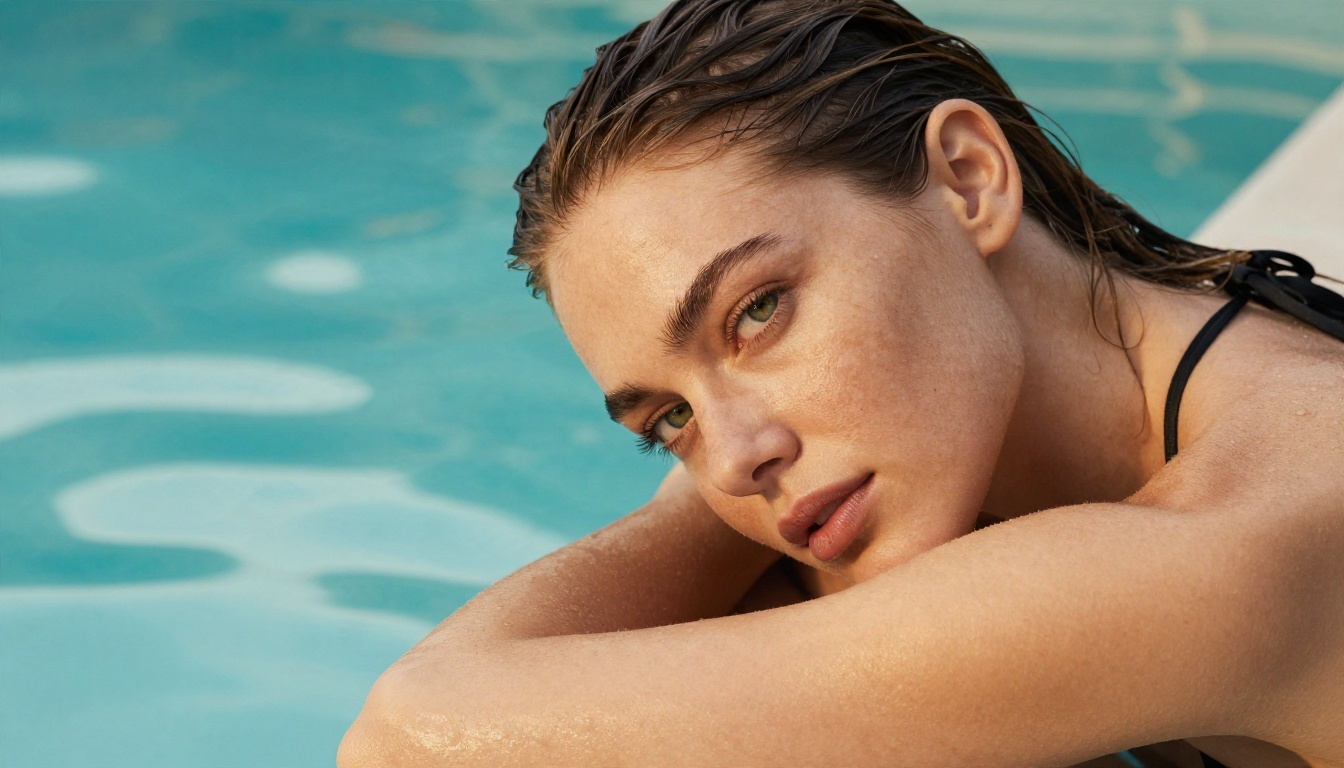
Qwen Image responds well to long, descriptive sentences. Short keyword piles that worked on older models tend to give flat, generic results here.
A prompt formula that holds up
Build every prompt in the same order: subject and pose, outfit, setting, light, lens, texture. Example:
"A woman in a black halter top resting her cheek on her arm beside a hotel pool, wet hair slicked back, turquoise reflections on her skin, soft late afternoon light from the left, 105mm lens at f/2, visible pores and fine hairs, shallow depth of field, film grain."
Notice what is in there: a lens, a light direction and a skin texture. Those three details do more for realism than any quality tag like "masterpiece" or "8K."
Glamour and swimwear prompts
For suggestive but tasteful results, describe the mood and the fabric, not just the body. Satin has folds and sheen. Wet skin has highlights. Sand sticks. A few reliable building blocks:
- Beach: white string bikini, linen shirt, wet sand, low sun behind her, rim light on hair, 50mm lens
- Boudoir: red satin robe, sheer curtains, cool dawn light mixed with warm lamp glow, 85mm lens
- Poolside: black one-piece swimsuit, marble pool edge, midday sun, crisp shadows, glossy wet skin
- Night out: lace trimmed bodysuit, denim jacket, tungsten lamps, velvet booths, heavy film grain
Prompts that trigger refusals
Even without a filter on the model, hosted tools reject certain wording. Naming real people, asking for minors in any context, or going explicit will fail on every serious platform and is a line this article does not cross. Keep subjects adult, fictional and suggestive rather than explicit, and you will hit far fewer walls.
💡 Tip: If a prompt gets blocked, do not add more forceful words. Rewrite it around the scene, the light and the fabric. It usually passes and looks better.
Settings That Matter
Settings vary by interface, but these starting points are common for the open-weight Qwen Image model. Adjust from here rather than guessing.
Steps and guidance
Around 40 to 50 steps is a typical sweet spot. Going lower gives softer detail, going higher rarely helps. Guidance (often called true CFG scale in Qwen workflows) sits around 4. Push it much higher and skin turns plasticky and contrast gets harsh.
Resolution and aspect ratio
Qwen Image was trained around fixed pixel budgets, so odd sizes can produce odd anatomy. Commonly used sizes include roughly 1328 by 1328 for square images and about 1664 by 928 for 16:9. Landscape works well for beach, pool and travel scenes. Portrait ratios suit close-ups and full-length fashion shots.
Seeds and batches
Lock the seed when you like a composition, then change only one word in the prompt at a time. Generate in batches of four, pick the best, and refine that one. This beats rewriting the whole prompt after every result.
| Setting | Starting value | If the result looks... | Try |
|---|
| Steps | 40 to 50 | Soft or mushy | Add 10 steps |
| Guidance (CFG) | About 4 | Plastic skin | Lower by 0.5 |
| Resolution | 1664 by 928 (16:9) | Warped limbs | Return to a native size |
| Seed | Fixed once you like a layout | Random every time | Lock it |
| Batch size | 4 | Too few options | 6 to 8 |
Better Alternatives on PicassoIA
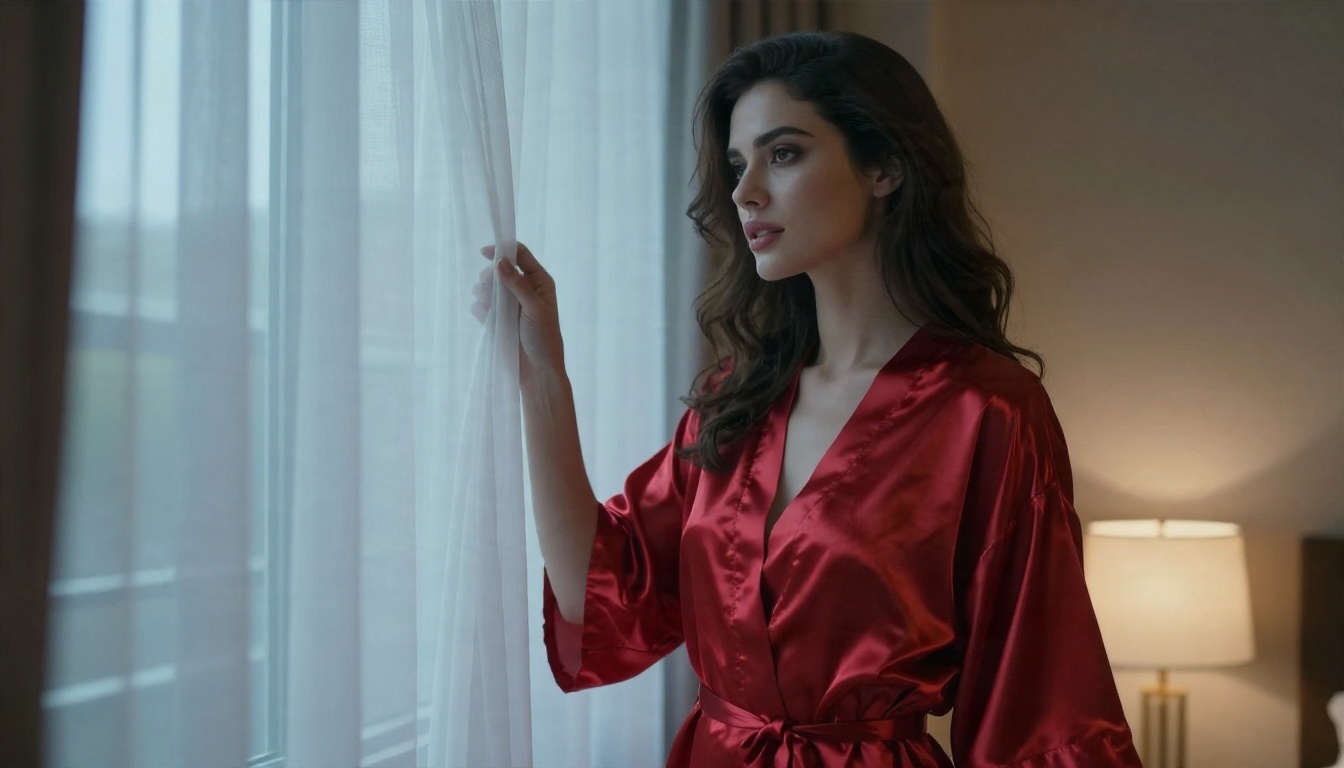
The uncensored builds of Qwen Image are not on PicassoIA. They are community repackages of open weights, and PicassoIA does not offer them. That is not a loss: for the same photorealistic glamour, swimwear and editorial look, several models on the platform do the job with zero setup, no hardware and no hunting for trustworthy download links. For similar results today, try these, in this order.
Seedream 4.5 first
Seedream 4.5 is the model I would start with. It renders skin texture, satin, wet surfaces and fine hair with the kind of photographic realism that Qwen fans want, and it follows long descriptive prompts closely. It handles bikinis, boudoir lighting and glamour portraits without constant refusals, and it outputs up to 4K. Speed is quick enough that you can iterate through a dozen variations in a sitting.
PicassoIA Image Editor Pro
PicassoIA Image Editor Pro is the one to use when volume matters. It offers unlimited generations, so you can test prompts, fix details and redo outfits or backgrounds without watching a credit counter. It also edits existing images, which makes it ideal for adjusting a result you almost like instead of starting over.
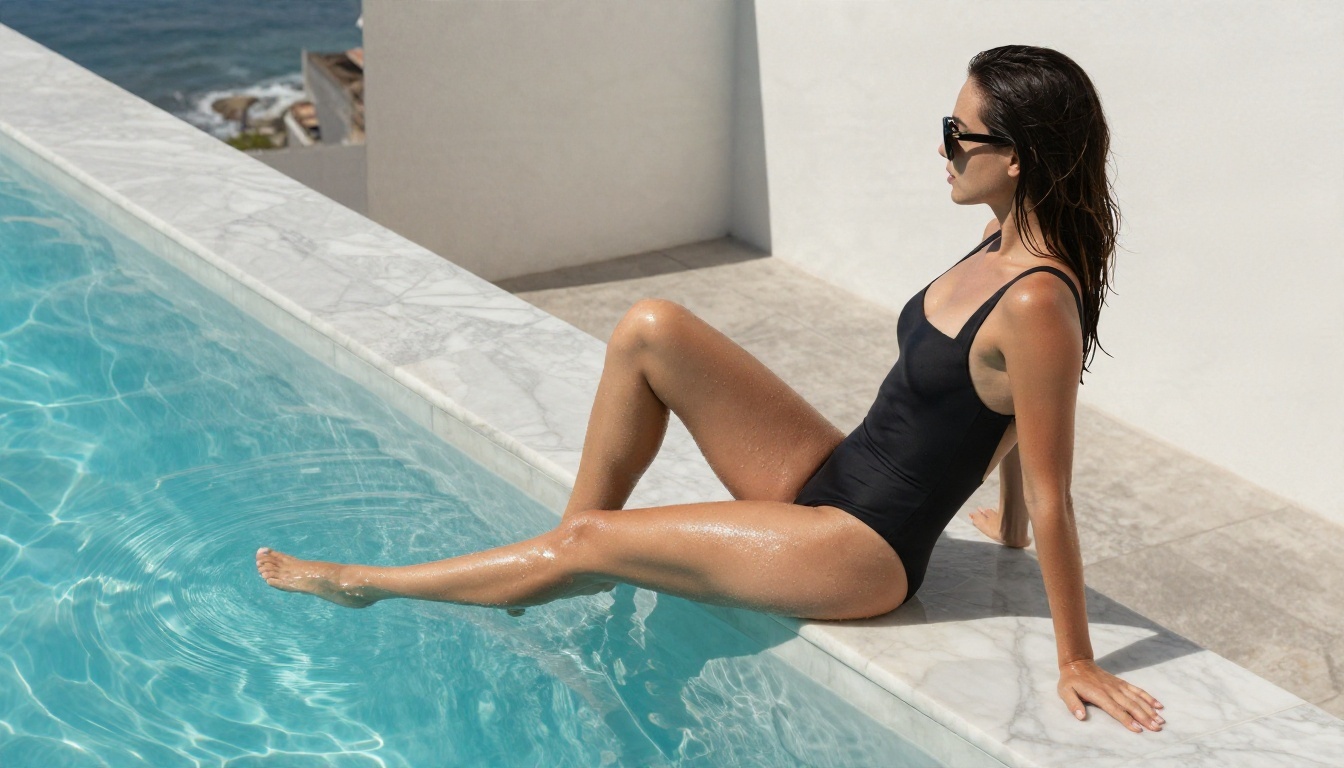
Z Image Turbo for speed
Z Image Turbo is built for fast, sharp output. Use it for drafting: run many quick ideas, then take the winner to Seedream 4.5 for the final render.
Other picks worth a look
- Flux 2 Klein 9B Base LoRA for styled results with LoRA control.
- Nano Banana Pro for polished 4K output and strong edits.
- Qwen Image 3 if you simply like the Qwen look. It is a different, newer model from the open-weight builds discussed above, and I make no claim about how it treats adult themes.
How to Get Similar Results on PicassoIA
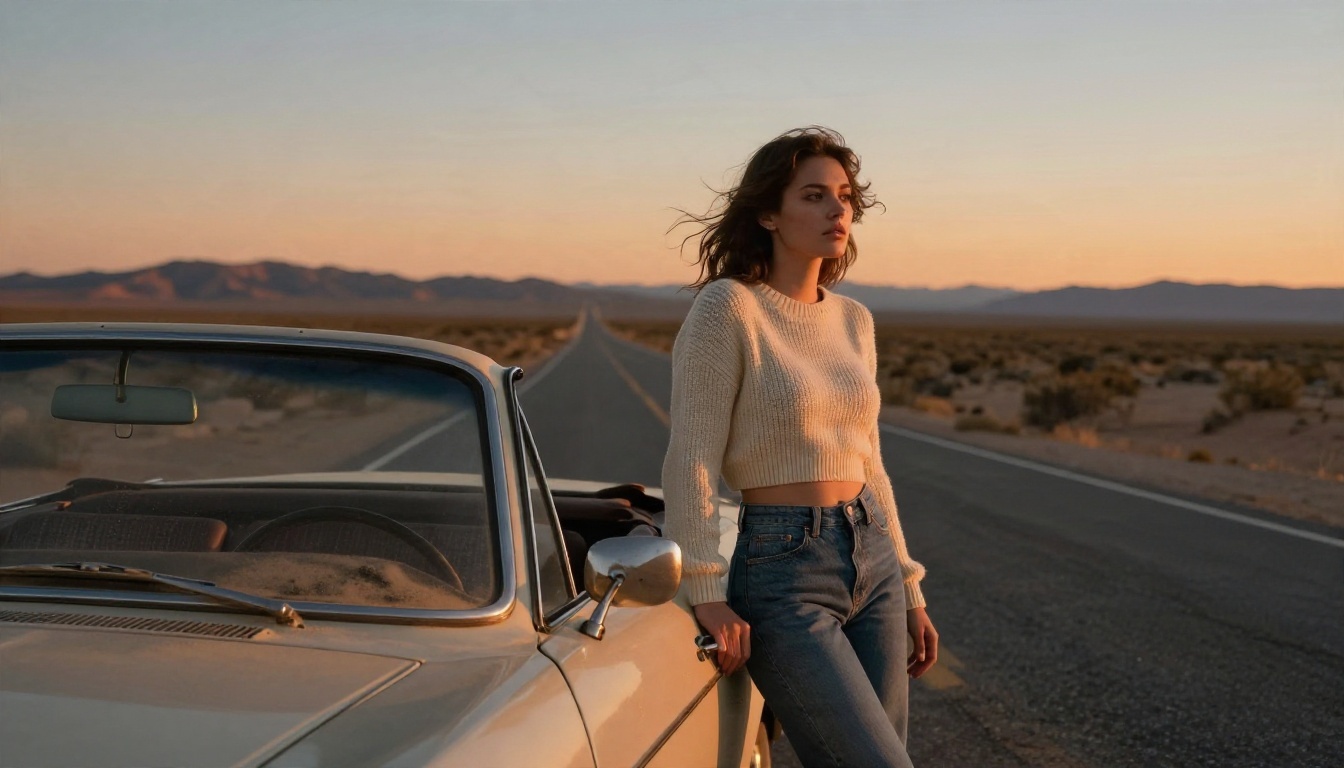
Here is the workflow I use with Seedream 4.5 to get the crisp, photographic look people expect from Qwen Image.
- Open the model page. Go to Seedream 4.5 on PicassoIA and open the generator.
- Write a long prompt. Follow the formula from earlier: subject and pose, outfit, setting, light direction, lens, texture. Two or three full sentences beat a list of tags.
- Pick 16:9 for scenery, portrait for close-ups. Beach, road trip and pool scenes read best in landscape.
- Name the lens and the film. Phrases like 85mm f/1.8, Kodak Portra 400 and natural film grain pull the result toward real photography.
- Generate, then change one thing. Keep the scene, swap a single detail such as the light or the outfit color, and compare.
- Polish in Image Editor Pro. Take your favorite result into PicassoIA Image Editor Pro and fix small details with unlimited tries.
💡 Parameter tip: Put the most important element first in the prompt. Seedream 4.5 weighs early words more heavily, so open with the subject and the light, not with the background.
A prompt you can copy and adapt:
"A confident woman in a cream knit crop top and high waisted jeans leaning against a vintage convertible on an empty desert road at sunset, long shadows, warm orange sky fading to pale blue, wind in her hair, dust on the car paint, 24mm lens, Kodak Portra 400 film grain, realistic skin and fabric texture."
Common Mistakes to Avoid
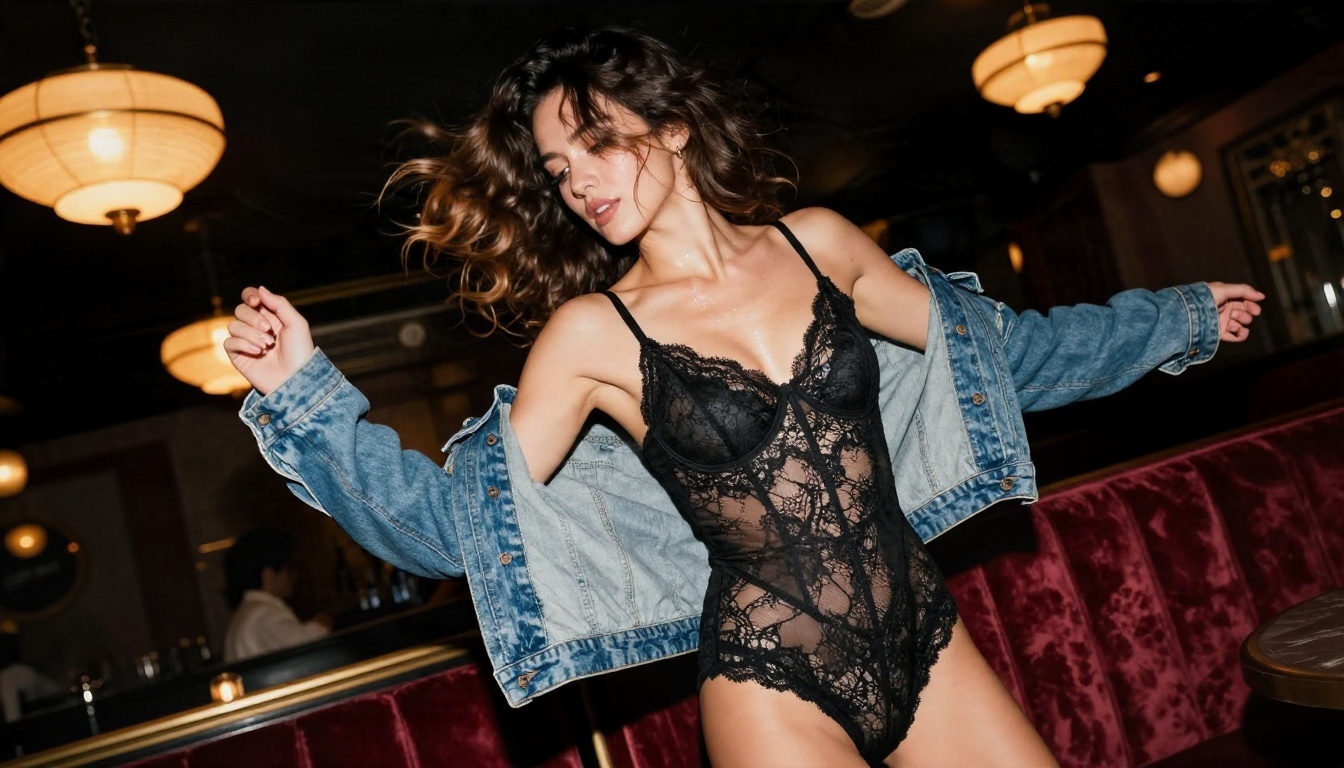
After a lot of side-by-side testing, the same errors keep showing up.
- Chasing the label. Spending an evening hunting "uncensored" downloads when a well-chosen hosted model would already give the result you want.
- Trusting unknown files. Random model files from unfamiliar pages can be mislabeled or unsafe. Download only from sources you can verify.
- Over-pushing guidance. Cranking CFG for "more detail" gives burnt contrast and waxy skin.
- Ignoring light. A prompt with no light direction almost always produces flat, studio-looking images.
- Skipping the license. Selling images made with a research-only model can cause real trouble later.
- Using real faces. Never generate suggestive images of real people without their consent. Keep subjects fictional and adult.
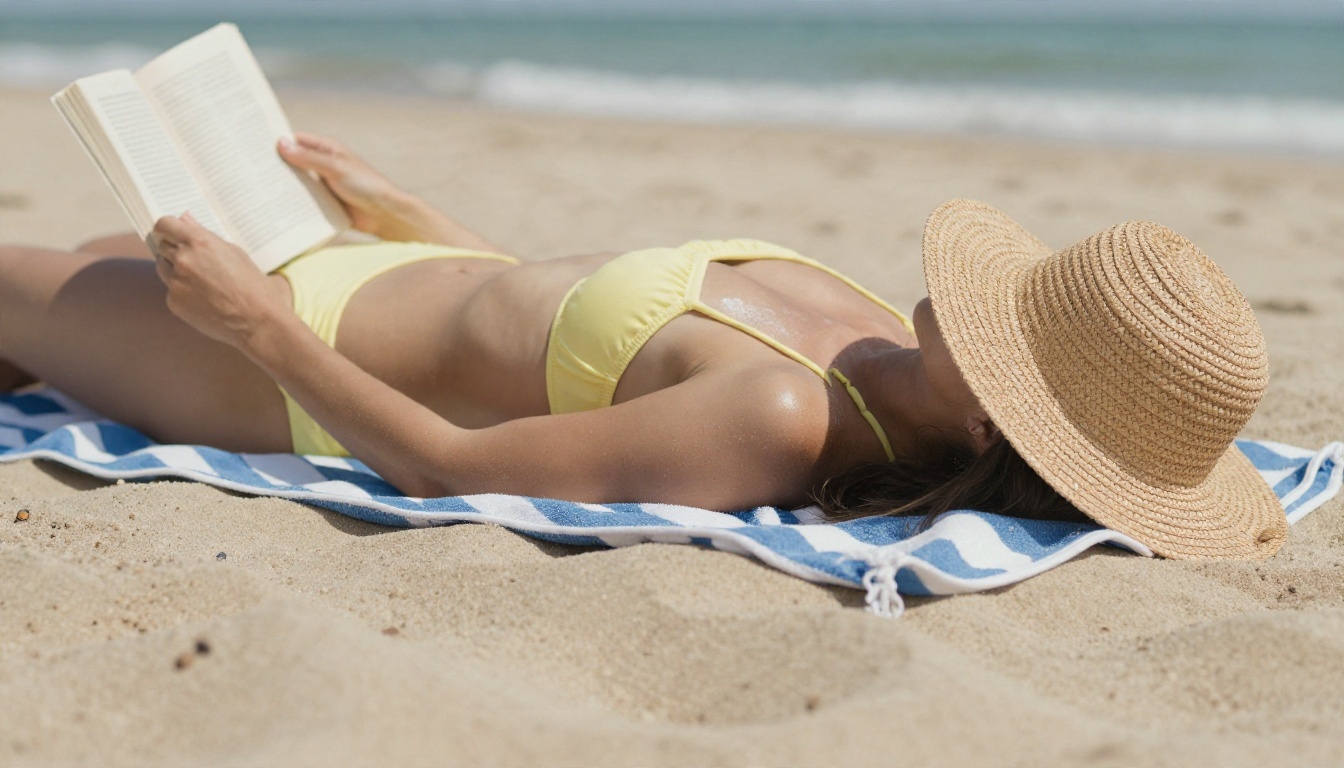
💡 Reality check: Glamour works best when it is a photograph first and a provocation second. Light, fabric and mood sell the image. The prompts above all lean on those three things.
Try It Yourself Today
You do not need a graphics card, a risky download or a long setup to get the look people want from Qwen Image. Start with Seedream 4.5, write a long prompt with a lens, a light direction and a fabric, and see what comes back. When you want to iterate without limits, switch to PicassoIA Image Editor Pro and keep refining. Need a fast draft first? Z Image Turbo gets you there in seconds.
Pick one prompt from this article, change one detail, and generate it. Then change another. In ten minutes you will have a small gallery that is entirely yours. For the full lineup of image, video and editing tools, browse all PicassoIA models and build your own set of photorealistic images on Picasso IA.


