Most AI girlfriend images fail in the first half second. The skin is too smooth, the eyes point in slightly different directions, and the lighting looks like it came from nowhere. You see it instantly, even if you can't say why. The good news is that a realistic AI girlfriend generator is mostly a question of settings and wording, not luck. This article gives you both: the exact settings that matter, prompt formulas you can paste today, and free online alternatives when you don't want to pay for anything.
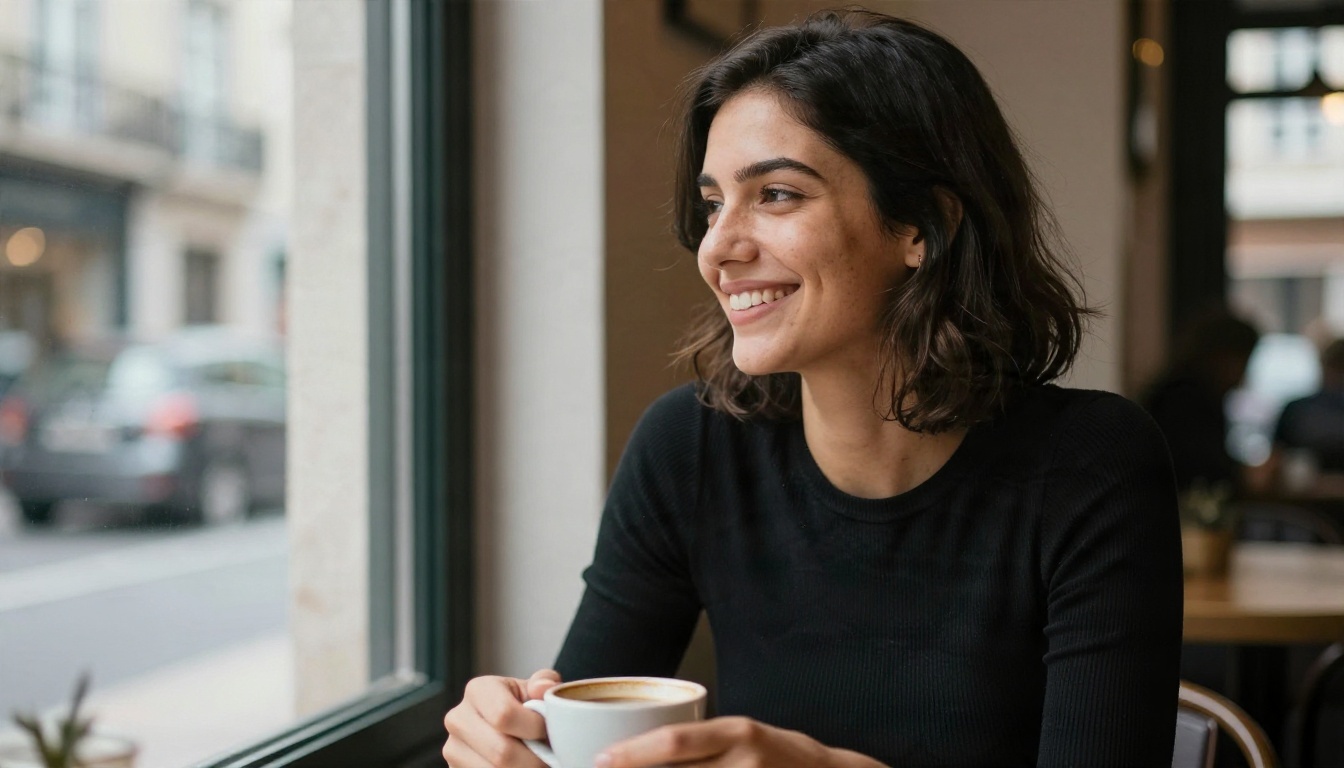
Everything here is about creating fictional, adult characters as photographs. Think glamour, beachwear, cozy mornings and city nights, all tasteful and non-explicit. If that's what you're after, read on.
What "Realistic" Actually Means
People say "realistic" and mean five different things. Before touching a setting, decide which of these you care about, because each one has its own fix.
| Realism Layer | What Viewers Notice | Where It's Fixed |
|---|
| Skin | Pores, freckles, peach fuzz, slight shine | Prompt wording, model choice |
| Light | Direction, softness, color temperature | Prompt wording |
| Optics | Depth of field, bokeh, grain | Lens and film terms |
| Anatomy | Hands, teeth, eye symmetry | Model choice, resolution |
| Context | Believable room, clothes, props | Scene detail in the prompt |
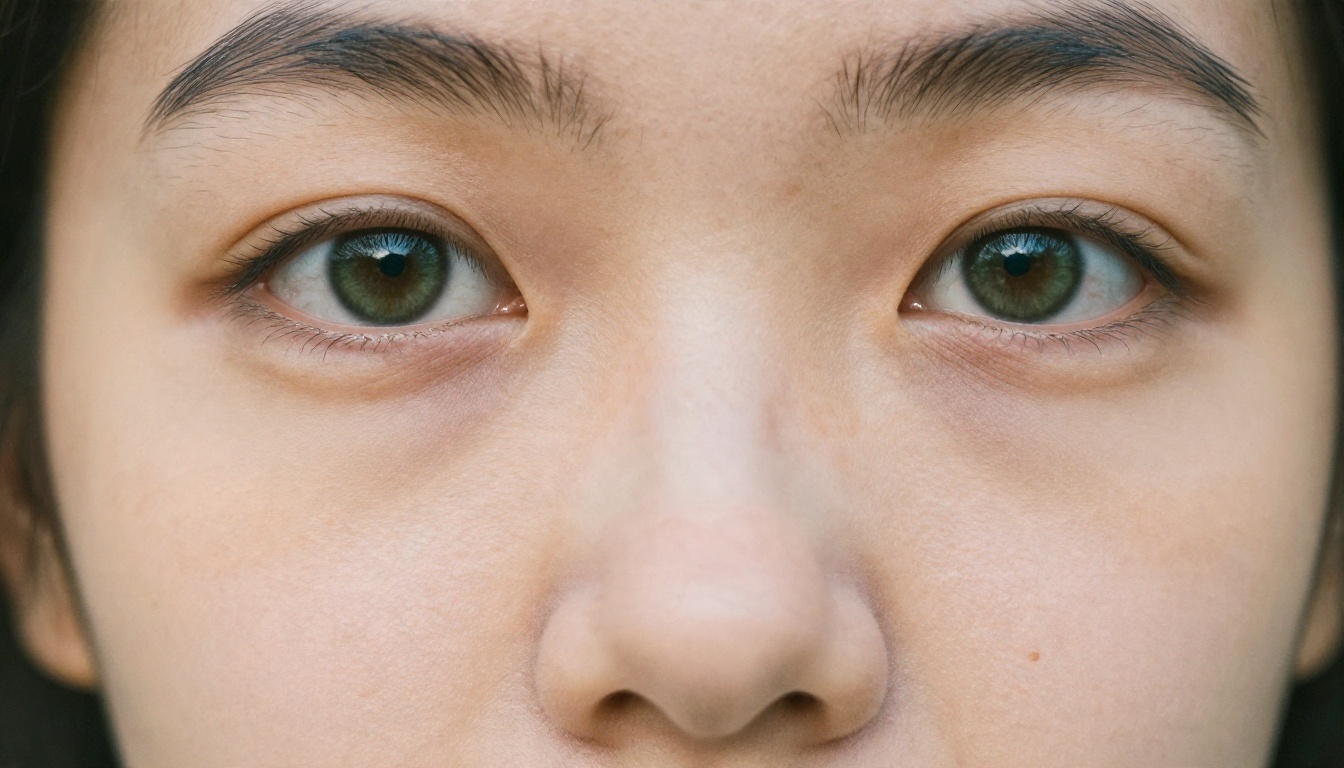
Skin is the biggest giveaway. Early generators smoothed everything into porcelain because their training data was full of retouched photos. Newer models do much better, but only when you ask for texture directly.
Why Plastic Skin Happens
Models learn averages. The average face on the internet is smoothed, filtered and lit by ring lights. If your prompt says only "beautiful woman", you get that average. Adding words like visible pores, faint freckles, fine peach fuzz and no retouching pushes the output away from the filtered look.
Why Faces Look Generic
Same logic. "Beautiful" is a vague target, so the model gives you the most common version of it. Specific features beat adjectives: a slightly asymmetric smile, hazel eyes, a small scar through one eyebrow, a gap between the front teeth. One odd detail makes a face feel like a person.
💡 Tip: Replace every vague compliment in your prompt ("gorgeous", "stunning", "perfect") with a physical detail you could point at in a photo.
The Settings That Matter Most
You don't need to touch twenty sliders. Five settings do most of the work, and they exist in nearly every text-to-image tool.
Aspect Ratio and Resolution
Pick the ratio for the story you want to tell:
- 16:9 for scenes with environment, like a rooftop or beach
- 3:4 or 2:3 for full-body fashion and phone-style portraits
- 1:1 for profile pictures and chat avatars
Higher resolution helps with eyes, teeth and fabric. If a model offers 2K or 4K, use it for final images and drop to a smaller size only while testing prompts.
Guidance and Steps
Guidance (sometimes called CFG) controls how strictly the model follows your prompt. Too high and you get crunchy, over-sharpened skin with harsh contrast. Too low and the image drifts away from what you wrote. For photorealism, stay in the middle of whatever range the model suggests. More steps usually give finer detail, with diminishing returns past the default.
Seed
The seed is a number that fixes the random starting noise. Same prompt plus same seed gives nearly the same image. This is how you change one thing at a time. Found a face you love? Save the seed, then edit only the outfit or the room.
Negative Prompt
If your tool has one, keep it short and practical: plastic skin, airbrushed, extra fingers, distorted hands, cross-eyed, text, watermark, cartoon, illustration. A huge negative list rarely helps and sometimes makes images flat.
Model Choice
This matters more than any slider. Current models handle skin and hands far better than older ones. Later in this article you'll find which models I'd reach for first.
Good prompts read like a photographer's shot list. Use this order every time:
Subject + Action + Environment + Light + Camera + Texture
Here's what each slot does:
- Subject: age range, hair, eyes, one distinctive feature, expression
- Action: what she's doing, not just standing there
- Environment: a real place with props, not "a room"
- Light: direction and quality ("soft window light from the left")
- Camera: lens and aperture ("85mm f/1.8")
- Texture: skin, fabric, film grain
A Base Prompt You Can Copy
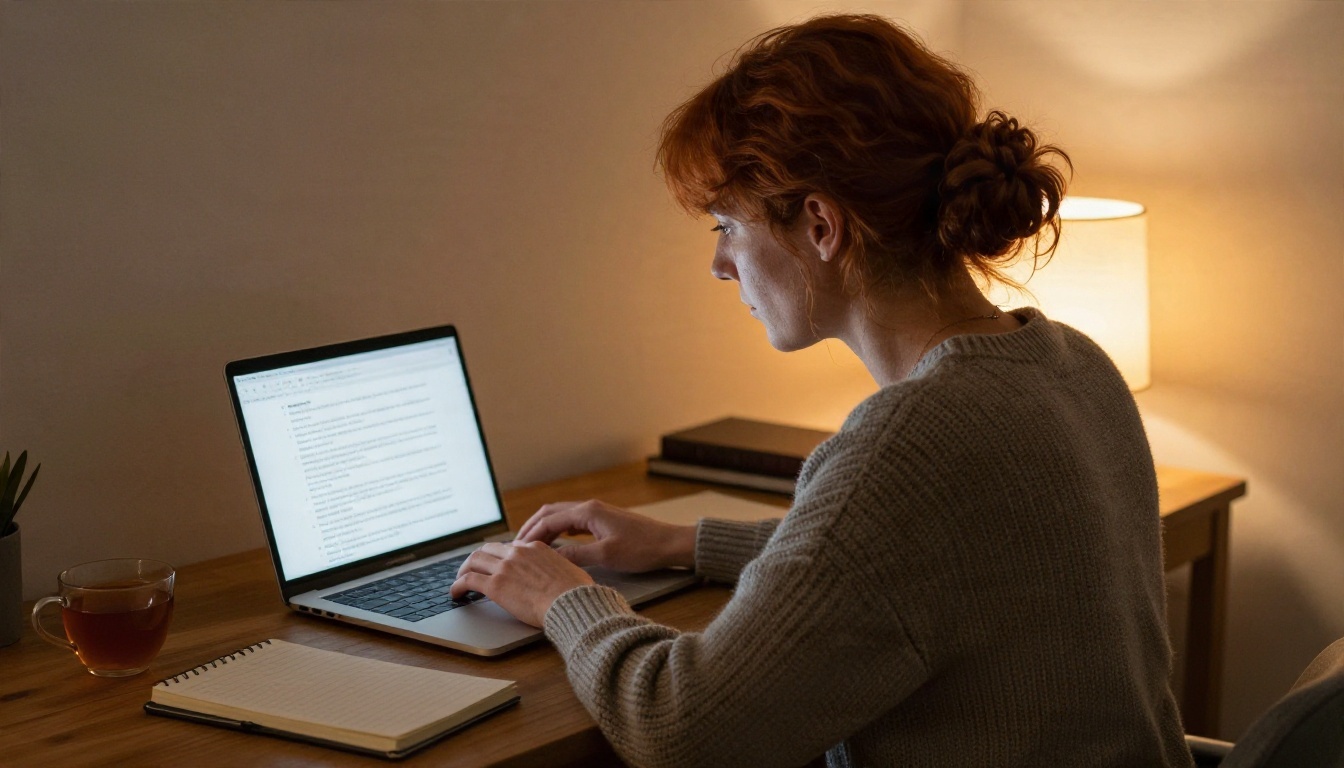
Candid RAW photo of a woman in her mid twenties with long wavy chestnut hair, hazel eyes and light freckles, sitting on a linen sofa in a bright apartment, soft smile toward the camera, morning window light from the left, 85mm f/1.4 lens, shallow depth of field, natural skin texture with visible pores, Kodak Portra 400 film grain, no retouching
Swap the subject, place and light and you have a thousand variations.
Words That Help
| Goal | Add This |
|---|
| Believable skin | visible pores, peach fuzz, natural sheen, no retouching |
| Photo feel | RAW photo, Kodak Portra 400, film grain, 85mm f/1.8 |
| Real light | golden hour, window light from the left, overcast softbox |
| Candid energy | mid-laugh, looking away, caught between poses |
| Natural hands | hands resting in lap, holding a coffee cup |
Words That Hurt
Skip 8k masterpiece, ultra detailed, trending, perfect, flawless, hyperrealistic. They push models toward the glossy, over-processed look you're trying to avoid. Ironically, "hyperrealistic" makes things look less real.
Prompt Examples by Mood
Copy, adjust and save the ones you like. Each follows the formula above.
Beach at Golden Hour
Low-angle RAW photo of a confident young woman with blonde beach waves walking along a quiet shoreline at golden hour, white halter bikini top under a loose linen shirt, wet footprints behind her, low sun backlighting her hair, 35mm f/2 lens, sea spray haze, sun-kissed skin texture, Kodak Portra 400 grain
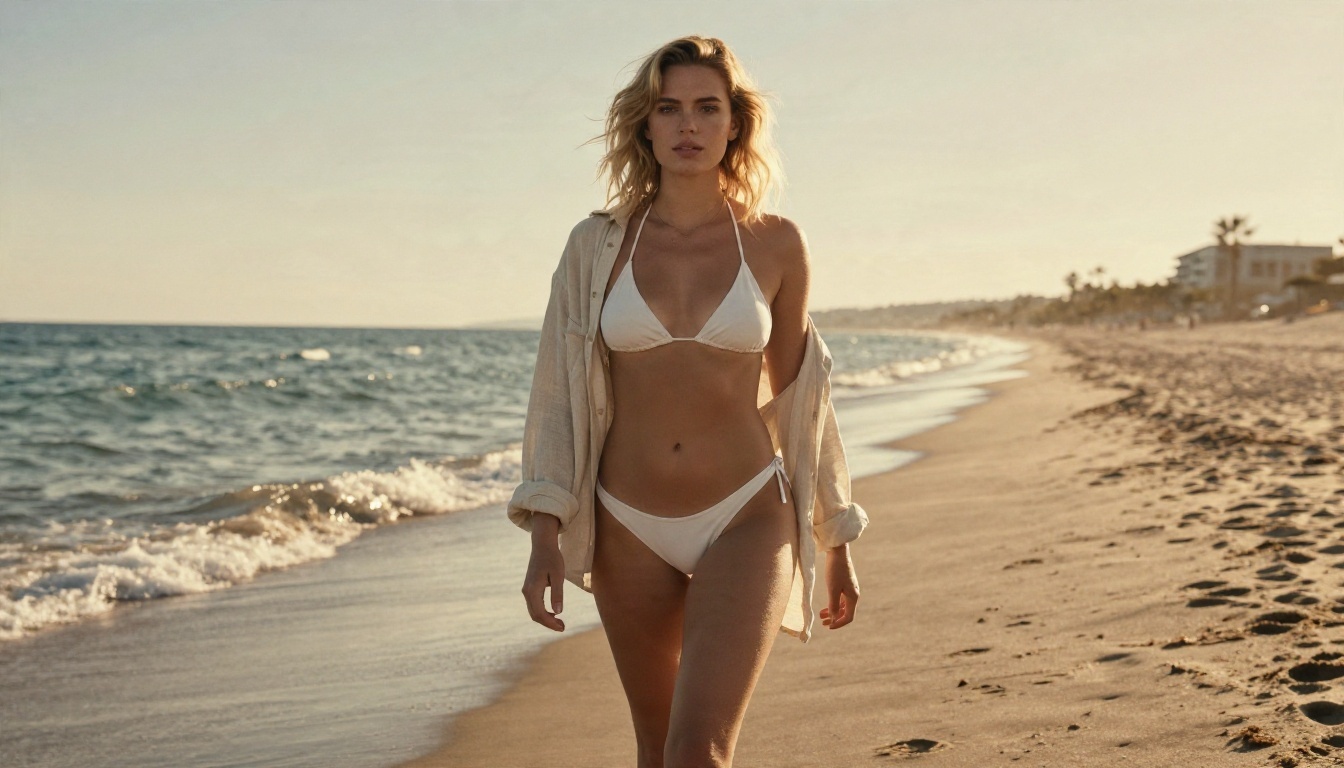
The low angle makes her look taller and gives the sky room. Backlight adds a warm rim around the hair, which is one of the fastest tricks for a convincing photo.
Glamour in a Hotel Hallway
Full-length fashion photograph of an elegant woman with sleek black hair in a sunlit hotel hallway, emerald satin slip dress, small gold earrings, one hand touching the wall, directional window light from the left, long soft shadows on marble, 35mm f/2.8, realistic satin sheen
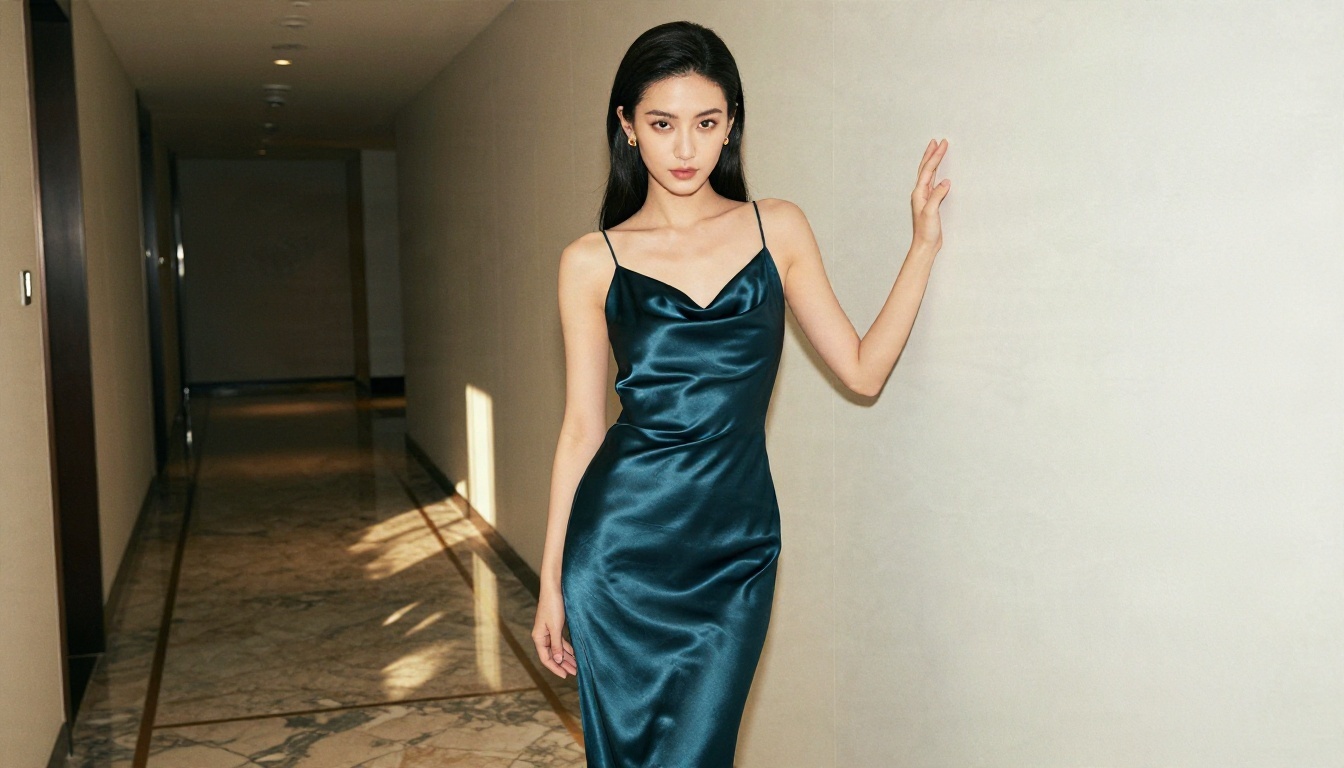
Satin is a good test for any generator. If the folds and highlights look right, the model understands materials. Stay tasteful: suggestion beats exposure, and it looks more like fashion photography.
Lazy Morning Selfie
High-angle photo of a young woman with curly brown hair on rumpled white linen sheets, oversized grey t-shirt, holding a phone above her face and smiling, morning light from a side window painting stripes across the bed, 28mm f/2.8, visible fabric wrinkles
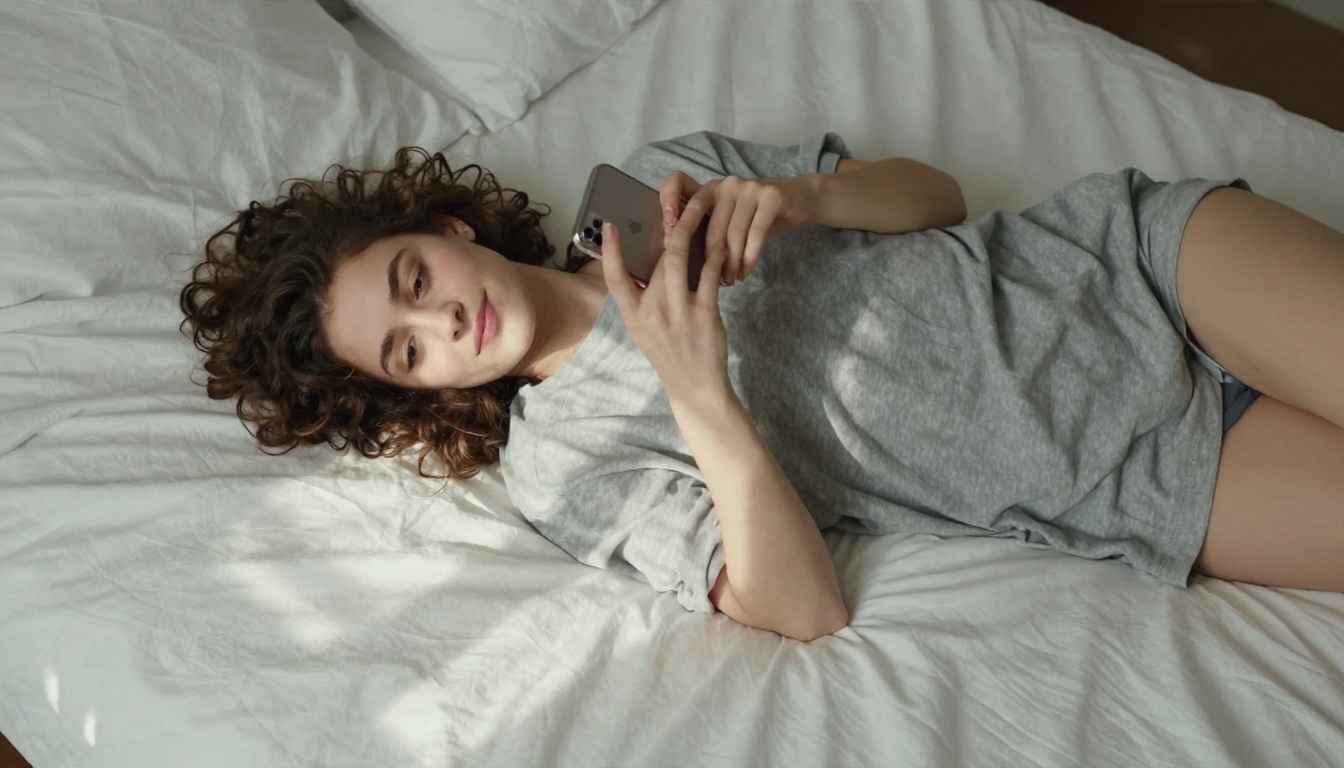
This is the "girlfriend" look people search for: casual, warm and slightly imperfect. Messy sheets and an oversized shirt sell the realism better than any lens term.
Light Is Half the Picture
Two prompts can describe the same woman and look completely different because of light. Learn three setups and you'll cover most scenes.
Soft Window Light
Best for portraits and home scenes. Write soft window light from the left, and add gentle shadow falloff on the right cheek. It flatters skin and shows texture without harshness.
Golden Hour Backlight
Best for outdoor shots. Write low sun behind her, warm rim light on hair. Add slight lens haze for a film feel.
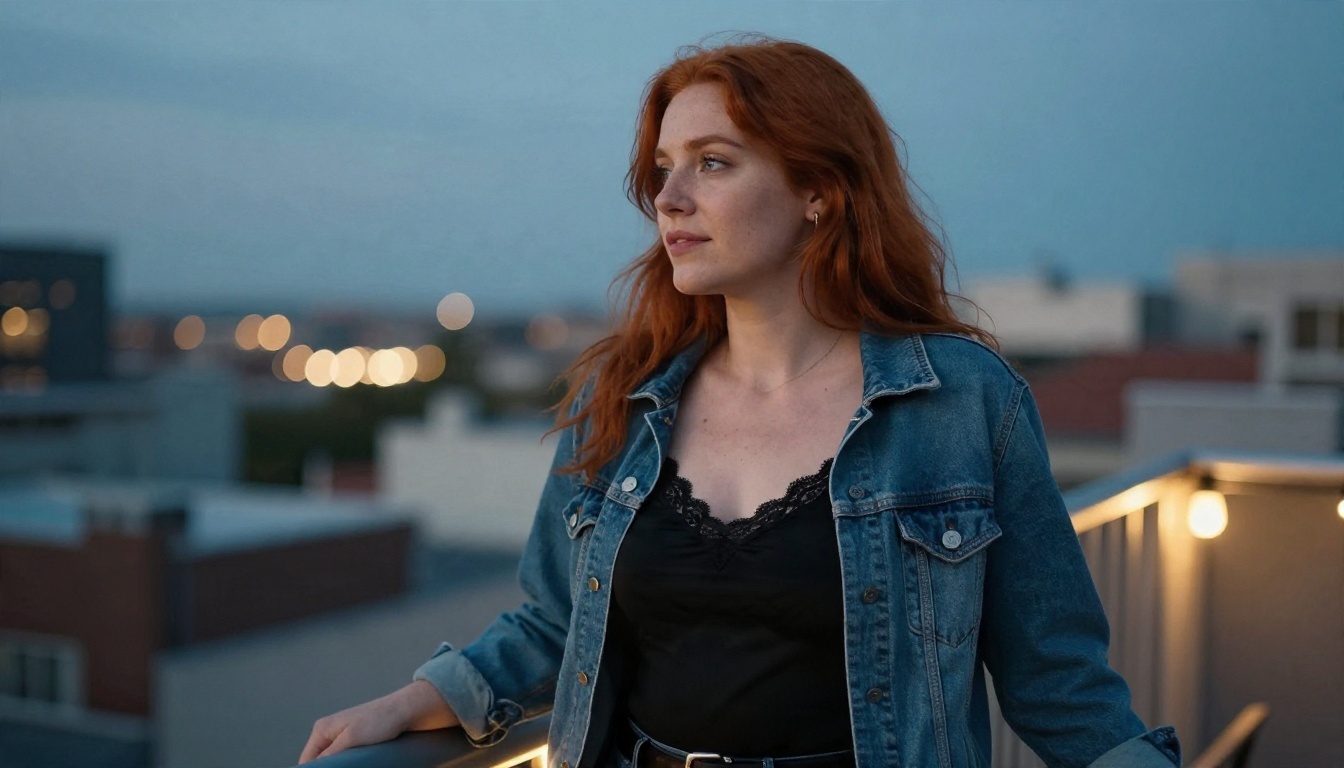
Mixed Evening Light
Best for city scenes. Describe two sources: warm string lights from the right, cool blue sky fill. The color contrast between warm and cool is what makes dusk photos feel real. The rooftop image above uses exactly this.
💡 Tip: Always name a direction. "Light from the left" gives a model something concrete. "Nice lighting" gives it nothing.
Keep the Same Face Across Scenes
The hardest part of an AI girlfriend is continuity. One great image is easy. Ten images of the same person is the real test. There are three practical approaches.
Approach 1: Reuse the Character Block
Write a fixed description and paste it at the start of every prompt:
A woman in her mid twenties, long wavy chestnut hair, hazel eyes, light freckles across the nose, a small mole under the left eye, slightly asymmetric smile
Then change only the scene. It's the simplest method and it works surprisingly well when your description includes odd, specific features.
Approach 2: Edit From a Reference Image
Upload your favorite image and ask an editing model to change the clothes, place or lighting while keeping the face. This is the most reliable route for consistency. Tools like Nano Banana and Flux Kontext Fast are built for this kind of instruction-based editing, and PicassoIA Image Editor Pro lets you keep iterating with unlimited generations.
Approach 3: Lock the Seed
Keep the seed fixed and change one phrase at a time. Good for small variations like hair color or outfit. Less good for big scene changes.
| Method | Consistency | Effort | Best For |
|---|
| Character block | Medium | Low | Quick series |
| Reference editing | High | Medium | Same face, new scenes |
| Fixed seed | Medium | Low | Small tweaks |
Best Models for Realistic Results
Not every generator is equal. Here's where I'd start, in order.
Seedream 4.5 First
Seedream 4.5 is my first pick for adult glamour and lifestyle photography. It handles skin texture, fabric and lighting with very little prompt fighting, and it outputs sharp, high-resolution images. If you want one model to try today, this is it.
PicassoIA Image Editor Pro Second
PicassoIA Image Editor Pro is where you iterate. It offers unlimited generations and fewer restrictions on tasteful adult-leaning content, so you can test ten outfits and five locations without watching a counter. That freedom is exactly what character building needs.
Other Strong Options
How to Use Seedream 4.5 on PicassoIA
Here's the workflow I'd follow from zero to a finished image.
- Open the model page. Go to Seedream 4.5 on PicassoIA.
- Paste your character block. Use the fixed description from earlier so you can reuse it.
- Add the scene. Follow the formula: action, environment, light, lens, texture.
- Choose the ratio. 16:9 for scenes, 3:4 for full-body or phone-style shots.
- Generate a small batch. Make several variations and pick the one with the best face.
- Refine one thing. Change a single phrase, like the light direction, and regenerate.
- Move to editing. Send your favorite to PicassoIA Image Editor Pro to change outfits and locations while keeping the face.
💡 Tip: Keep a text file of prompts that worked. After a week you'll have a personal library that makes every new image faster.
Free Online Alternatives Compared
You don't have to pay to get started. Here's how the options on PicassoIA compare for this specific job.
Free Versus Paid Companion Apps
Many "AI girlfriend" apps bundle chat, voice and images behind a subscription. If you only want the images, a generator beats them on quality and price, since you control every detail and you don't pay monthly for features you won't use. If you want a character who talks, you can pair your images with a text model and a voice tool later. Start with the picture.
What to Expect From Free Tiers
Free tiers usually limit resolution, daily generations or queue speed. Plan for that: draft with a fast model, then spend your best credits on the final version. Many people burn their allowance on bad prompts. Test small, finish big.
Mistakes That Ruin the Photo
Even good setups fall apart on a few repeat offenders.
Over-Prompting
Three hundred words of adjectives confuse a model. Aim for 60 to 100 focused words. If the output gets worse as you add detail, cut back.
Ignoring Hands and Teeth
Give hands something to do: holding a cup, resting in a lap, touching a wall. Empty hands in open space cause the most errors. For smiles, ask for a closed or softly parted smile when teeth keep coming out wrong.
Mixing Styles
"Cinematic neon cyberpunk oil painting" will never look like a photo. Choose one visual language. For realism, that means natural light, a real lens and film grain.
Skipping the Upscale
A good image at low resolution still looks soft on a big screen. Run your final through an upscaler, or generate at the highest size the model offers.
Forgetting the Rules
Keep it respectful and legal. Create fictional adult characters only. Never base an image on a real person's face without their consent, and never create anything involving minors. Staying tasteful isn't only the right call, it also keeps your account and your work safe.
Quick Checklist Before You Generate
- One clear subject with 2 or 3 specific, slightly unusual features
- A real place with props
- A named light direction
- A lens and aperture
- Texture words for skin and fabric
- A short negative prompt
- A saved seed for anything you like
Make Your Own Now
You've got the settings, the formula and the models. The only thing left is to try it. Open Seedream 4.5, paste the base prompt from this article, and change one detail: the city, the light, the outfit. Then take your best result into PicassoIA Image Editor Pro and build a whole set around the same face with unlimited generations.
Want to compare more options? Browse every model at picassoia.com/en/all-models and find the one that fits your style. Start with a single image tonight, and by the weekend you'll have a character that looks like someone you actually photographed.


