You have an idea at 11 p.m., a browser tab open, and zero interest in installing anything. That is the moment a good web based image generator earns its place. The best ones turn a sentence into a photograph in seconds, let you fail cheaply, and make the tenth attempt feel as fun as the first. This article recommends web based image generators for creative experimentation, with an honest look at what is free to try, the prompts worth copying, and examples of the experiments that show you what each model actually does.
I am skipping the hype and focusing on one question: which tools make play easy? If you want a polished final asset, you can pick a heavyweight later. For now, you want speed, variety and room to be wrong.
What Makes a Generator Good for Play
Not every tool suits experimentation. Some are built for one perfect output. Others reward the messy, curious workflow where you change a single word and see what happens.
Speed Beats Perfection
When a generation takes four seconds, you try twenty ideas. When it takes forty, you try three and stop caring. For experimentation, latency shapes behavior more than quality does. A fast draft model lets you test composition, mood and subject before you spend time on a slower, sharper model.
Freedom to Fail Cheaply
Creative testing means producing a lot of bad images. If every attempt feels expensive, you start protecting your credits and stop taking risks. Look for tools with free access or generous trial limits, so that a weird prompt costs you nothing but curiosity.
Model Variety Matters
A single model has a single personality. One leans toward soft cinematic skin, another toward crisp product shots, another handles lettering well. A platform that lets you switch models without switching tabs is a better lab than any one model alone. That is why browser platforms with a large model catalog tend to win for this kind of work.
💡 Quick rule: If you cannot compare at least three models on the same prompt, you are not experimenting yet. You are just generating.
The Best Web Based Options Right Now
Here are the models I would open first. All of them run in the browser on PicassoIA, so you can move between them using the same prompt box.
Nano Banana Pro for Detail
Nano Banana Pro is a strong all-rounder. It follows long prompts well, handles scenes with several objects, and produces clean 4K output. Its listing advertises free use, which makes it an easy first stop. If your prompt reads like a paragraph, this is a sensible place to send it. Its lighter sibling, Nano Banana, is useful when you want to edit an existing image through text rather than start from nothing.
Seedream 4.5 for Resolution
Seedream 4.5 shines when you want sharp texture and a polished look at high resolution. Skin, fabric, wood grain and glass tend to hold together when you zoom in. Use it for the experiments where you care about realism and plan to keep the result.
Flux Schnell for Rapid Drafts
Flux Schnell is built for speed. It is the model I reach for when I am testing twenty prompt variations and only want to see which direction feels right. Pair it with Flux Schnell LoRA when you want a custom style applied quickly. For a newer small model, Flux 2 Klein 4B Base is worth a test too.
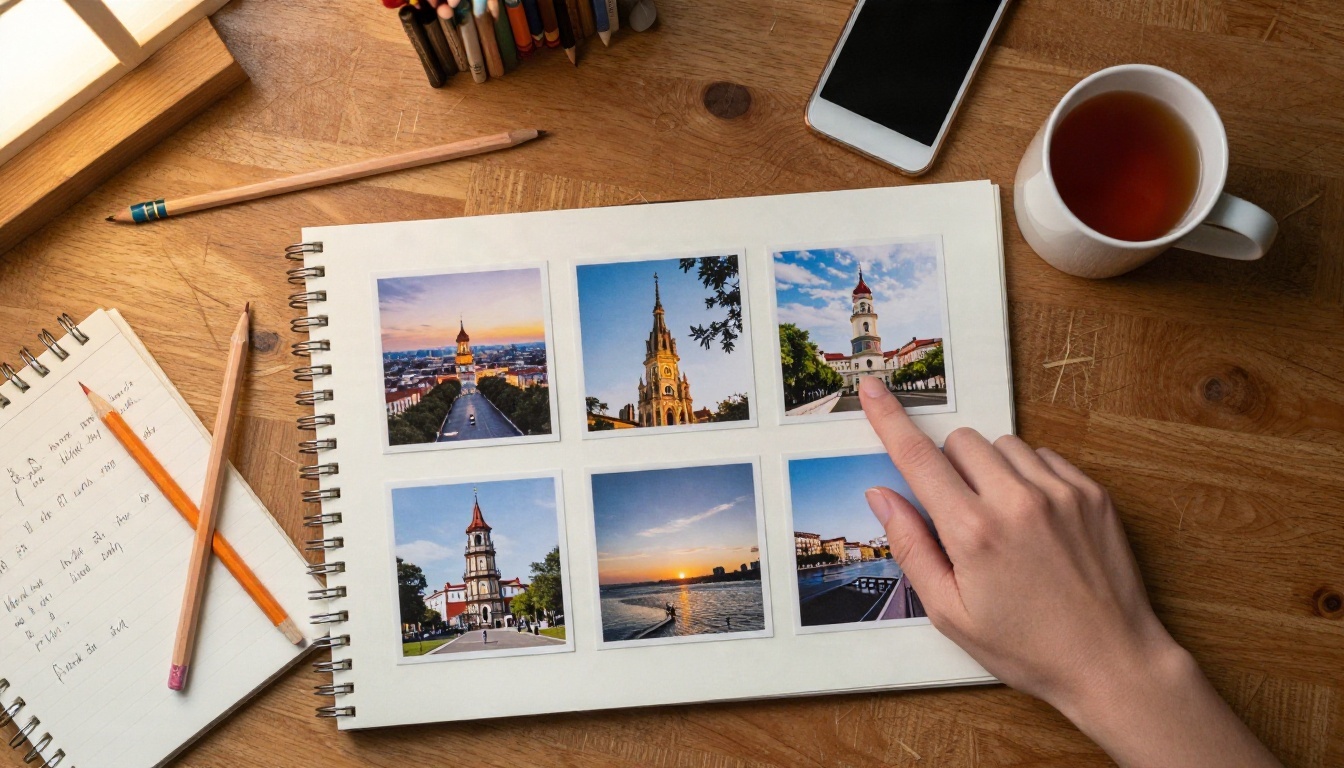
Imagen 4 for Photoreal Looks
Imagen 4 leans naturalistic: believable light, restrained color, faces that do not look overcooked. When you want something that reads as a photograph rather than an illustration, start here. Imagen 4 Fast trades a bit of detail for quicker results, and Imagen 4 Ultra pushes detail further when you have settled on an idea.
Ideogram v4 for Lettering
If your experiment includes a shop sign, a poster headline or a book spine, Ideogram v4 Balanced is a smart pick. Text rendering is where many generators stumble, and this family handles short phrases far better than most. The Ideogram v4 Quality variant gives you a slower, more refined pass.
Stable Diffusion 3.5 Large for Open Style
Stable Diffusion 3.5 Large has a distinct look, a little more painterly and a little less polished, which is exactly why it is useful in a comparison. It also responds differently to style words, so it teaches you how much of an image comes from the prompt and how much comes from the model.
Quick Comparison Table
Free Ways to Experiment
The word "free" deserves some care. Free access changes from model to model and over time, so check the current limits on each model page before you plan a long session. What stays constant is the strategy: spend your free attempts wisely.
Use Fast Models for Drafts
Run your first ten ideas through a speed-focused model like Flux Schnell or Imagen 4 Fast. You are looking for composition, not final polish. When one draft clicks, send that exact prompt to a sharper model like Seedream 4.5 or Nano Banana Pro for the final render.
Batch Variations, Not Random Tries
Random prompts waste attempts. Planned variations teach you something. Keep the subject constant and change exactly one thing per run: time of day, lens, background, mood. After five runs you will know what each word contributes.
Keep a Prompt Log
A plain notes file is enough. Paste the prompt, the model name and a one-line verdict ("great skin, bland sky"). Two weeks later, that log is worth more than any tutorial, because it records what works for your taste.
💡 Tip: Name each experiment in your log with the single variable you changed. "Lens swap, 24mm vs 85mm" is far more useful than "Test 14".
Good prompts are less poetic than people expect. They are specific, ordered and a bit dull to read. That is a feature.
The Five Part Formula
Use this order and you will rarely go wrong:
- Subject and action: who or what, doing what
- Environment: where, with two or three concrete details
- Light: direction, time of day, quality (soft, hard, diffused)
- Camera: lens length, angle, depth of field
- Texture and mood: surfaces, grain, atmosphere
Here is a prompt built from it:
A ceramicist shaping a bowl on a wheel, clay-splattered apron, in a small workshop with shelves of unglazed pots, soft window light from the left, 50mm lens at eye level with shallow depth of field, damp clay texture, fine film grain, calm morning mood.
Example Prompts to Copy
Paste these into any of the models above and compare:
| Goal | Prompt starter |
|---|
| Street portrait | Elderly fishmonger laughing at a harbor market stall, overcast light, 85mm lens, wet cobblestones, visible skin texture |
| Food photo | Overhead shot of fresh pasta drying on a floured wooden board, window light from the right, flour dust, 35mm lens |
| Landscape | Low fog over a pine valley at dawn, long lens compression, cold blue shadows, warm light on the ridge |
| Interior | Reading corner with a worn leather armchair, afternoon sun through linen curtains, 28mm lens, dust in the light |
| Product | Glass perfume bottle on black stone, single softbox from above left, subtle reflections, 100mm macro lens |
Change One Variable at a Time
If you change the subject, the light and the lens together, you cannot tell which change caused the result. Resist the urge. Controlled swaps are the entire reason experiments are useful.
Experiments Worth Trying This Week
Here are five small experiments that show you more about image generators than a month of casual use.
Same Prompt, Different Models
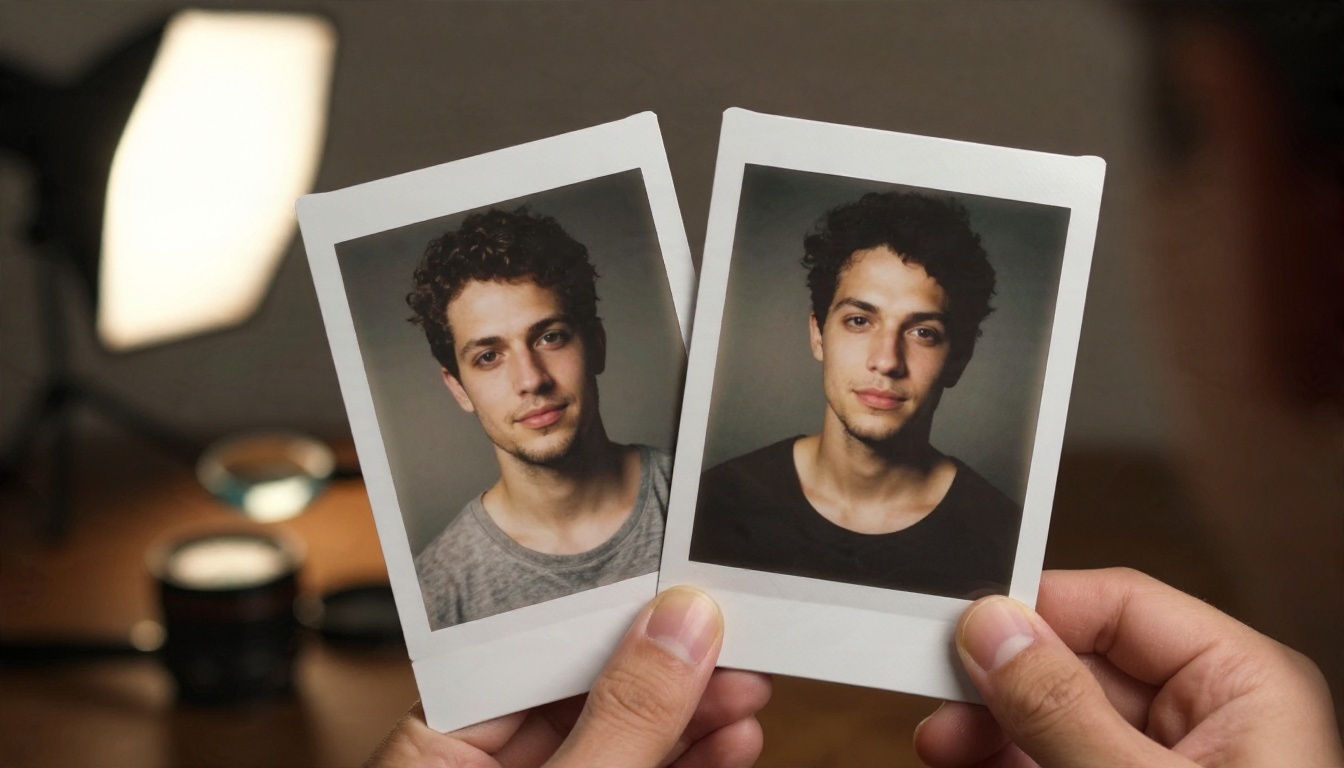
Take the ceramicist prompt above and run it through Nano Banana Pro, Seedream 4.5, Imagen 4 and Stable Diffusion 3.5 Large. Put the four results next to each other. You will see differences in skin, clay texture, color temperature and how each model treats the "calm" mood. This single test explains model personality better than any review.
Lens Swaps
Keep everything identical and change only the lens: 24mm, 50mm, 85mm, 135mm. Notice how wide lenses stretch rooms and exaggerate perspective, while long lenses compress backgrounds and soften them. Models respond to these terms surprisingly well, and once you see the effect you will use lens words deliberately.
Light Direction Tests
Write "light from the left", "light from behind", "overhead light" and "light from below" on the same scene. Backlight tends to create rim highlights and atmosphere. Overhead light flattens faces. These small notes change the emotional tone of an image more than any style label.
Text Inside the Image
Ask for a hand-painted shop sign that reads "OPEN" and compare an Ideogram v4 result to others. Keep the text short, one or two words, because every model handles short text better. This reveals which tool you should open when lettering matters.
Time Travel Edits
Take a successful image and rewrite only the time or season: "same street, 6 a.m. winter fog" versus "same street, noon in August". You are testing how well a model keeps a scene coherent while swapping its atmosphere, which is exactly what you need for creative series work.
How to Run Your First Test
If you have never compared models, follow this routine. It takes about ten minutes.
- Open a text to image model in your browser on PicassoIA, such as Flux Schnell.
- Paste a five part prompt, like the ceramicist example.
- Generate three drafts and pick the strongest composition.
- Send the same prompt to a second model, for example Seedream 4.5.
- Change one variable, such as light direction, and run it again.
- Log both results with a one-line verdict each.
- Repeat with a third model to see the full spread.
Look at aspect ratio and resolution settings on each model page. A 16:9 frame suits landscapes and wide interiors, while a 3:4 frame suits portraits. Choosing the right shape before you generate prevents awkward crops later.
Mistakes That Waste Your Time
I have made all of these. You probably will too, but you can shorten the learning curve.
Overloading One Prompt
A prompt with fourteen styles, six subjects and three moods gives the model nothing to prioritize. The result looks muddy. Trim it down. One subject, one setting, one light source, one camera.
Using Vague Style Words
"Beautiful, stunning, high quality" barely changes anything. Concrete words like "overcast light", "35mm lens", "wet pavement" and "matte ceramic" change plenty. If a word does not describe something you could photograph, delete it.
Judging a Model After One Run
Image generators have variance. One bad result tells you little. Run each model at least three times on the same prompt before you decide it is weak at something.
Ignoring Output Settings
Resolution, aspect ratio and seed settings matter. A fixed seed with a changed prompt lets you see exactly what a word does. A random seed adds noise to your comparison. If the model page offers a seed field, use it during controlled tests.
💡 Reminder: Use free or fast attempts for exploration, and save your sharpest, slowest model for the one image you plan to keep.
Who Benefits Most From This Workflow
Different people get different value from browser based generators, and the same models serve all of them in different ways.
Designers and art directors use quick drafts to test moods before a shoot or a layout. A single afternoon with Flux Schnell and Imagen 4 can replace a week of reference hunting.
Writers and game masters build character portraits and locations. Nano Banana Pro handles descriptive paragraphs well, which suits long scene descriptions.
Small business owners make product backdrops and social posts. Recraft v4.1 Pro is built for print-ready output at 2K, and Riverflow v2.5 Pro is another strong option when you want scored, high resolution results.
Hobbyists simply enjoy the surprise. There is a real pleasure in typing a sentence and watching a place appear that has never existed.
Start Making Your Own Images
The fastest way to understand what a web based image generator can do is to open one and break it. Pick a scene from your own life: your street at dawn, your grandmother's kitchen, the desk you are sitting at. Write it with the five part formula, send it to two or three models, and compare what comes back.
Begin with Flux Schnell for quick drafts, move to Nano Banana Pro or Seedream 4.5 for the version you want to keep, and bring in Ideogram v4 Balanced whenever words appear in your frame. Every model page on PicassoIA lists its own settings, so you can adjust ratio, resolution and seed without leaving the browser.
You do not need a studio, a special laptop or a design degree. You need a browser, a curious prompt and a willingness to try the thing that might not work. Open PicassoIA, run your first experiment tonight, and keep a record of what surprises you. For the full model list, browse all PicassoIA models and pick the one that matches your next idea.


