You type a sentence, and a few seconds later you have a logo whose curves stay razor sharp on a business card and on a shop sign. That is the promise of Recraft 4.1 Vector, and it is a very different promise from the one most AI image generators make. Regular generators give you pixels. Pixels blur when you enlarge them, and fixing that means hours of manual tracing. Recraft 4.1 Vector outputs a real SVG file, made of paths, shapes and fills that open in any vector editor.
This article answers the questions people actually search for: where you can try it free, which prompts give clean results, what the output looks like in real projects, and what each tier costs. Along the way, you will see how to run it on PicassoIA, where the same model family is listed as Recraft v4.1 SVG.
💡 Naming note: Recraft markets the model as "4.1 Vector". On PicassoIA the same task is served by Recraft v4.1 SVG, because SVG is the file format you receive. The two names point to the same kind of output: scalable vector art from text.
What Recraft 4.1 Vector Actually Does
Real SVG, not traced pixels
Most "vector" AI tools generate a raster image first and then run an auto-trace over it. The result is usually a messy file with thousands of tiny anchor points, jagged edges and merged colors you cannot separate. Recraft's vector models work differently. They generate the vector structure directly, so you get organized paths, clean geometry and fills you can recolor in seconds.
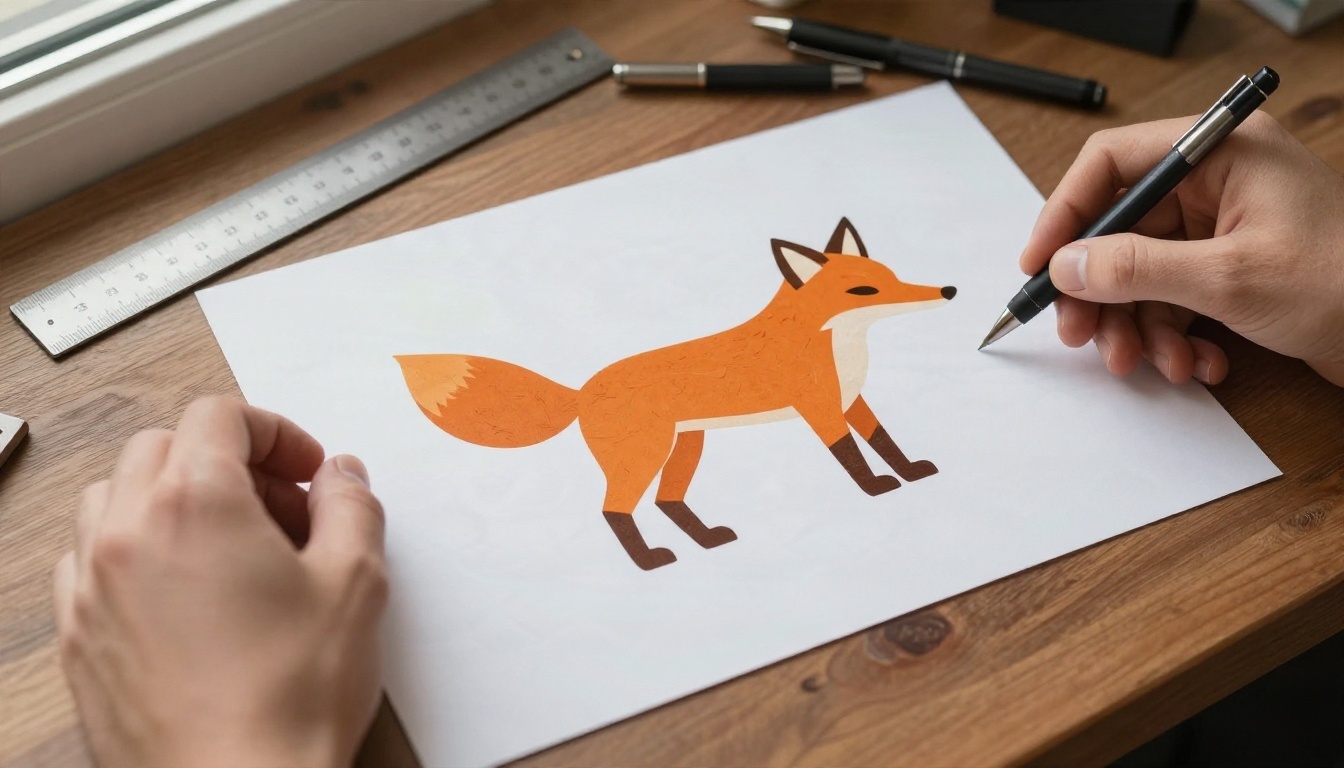
What that means in practice:
- Infinite scaling. The same file works for a favicon and a billboard.
- Editable shapes. Select a path, change its color, delete it, or move it.
- Small files. A flat logo is often a few kilobytes, far lighter than a PNG.
- Print readiness. Sign makers, screen printers and embroiderers work from vector files.
Vector versus Pro Vector
Recraft ships the vector engine in more than one tier. The standard version is built for speed and volume: concepts, icon sets, quick illustrations. The Pro version spends more compute on detail, balance and polish, which matters for hero artwork and finished brand marks.
| Tier | Best for | Typical output feel |
|---|
| Vector (standard) | Drafts, icon sets, social graphics | Clean, flat, fast |
| Pro Vector | Logos, posters, final artwork | More detail, better balance |
| Older V3 SVG | Simple icons and logos | Reliable, less refined |
On PicassoIA you can reach all three: Recraft v4.1 SVG, Recraft v4.1 Pro SVG and Recraft v3 SVG.
Free Options That Actually Work
"Free" gets used loosely in AI, so here is what each route really gives you.
Recraft's own free plan
Recraft's web app has been reported to offer a daily allowance of around 30 credits, with access to the V4 family and SVG export without a watermark. The catch is on the rights side: images made on the free plan are generally public, and the free tier does not come with a commercial license. That is fine for testing and personal projects. It is a problem for a client logo.
Free runs on PicassoIA
The Recraft v4.1 SVG page on PicassoIA presents the model as free to try, with no software to install and no GPU needed. Allowances change over time, so open the page and check the current limits before planning a batch of work.
Signup credits on third party platforms
Several resellers that host Recraft models give new accounts a pile of starter credits. One reseller reportedly lists the standard vector model at about 3 credits per generation with 200 credits on signup. Credit systems differ from site to site, so a "free credit" on one platform is not worth the same as on another.
💡 Rule of thumb: Use free tiers to test prompts and style, then switch to a paid route only when you need commercial rights, higher volume or API access. The API itself has no free tier.
How to Use Recraft v4.1 SVG on PicassoIA
This is the fastest way to go from idea to downloadable vector file without installing anything.
Step by step
- Open the model page. Go to Recraft v4.1 SVG on PicassoIA.
- Write your prompt. Describe the subject, the style, the palette and the background. The field accepts up to 10,000 characters, so be specific.
- Pick an aspect ratio. Choose from 1:1, 4:3, 3:4, 3:2, 2:3, 16:9, 9:16 and several more. Use 1:1 for logos and icons, 16:9 for banners.
- Or set an exact size. The size menu offers fixed canvases such as 1024x1024, 1536x768 and 768x1536. Note that size is ignored when an aspect ratio is set.
- Generate. The model returns a true SVG file.
- Download and open it in your vector editor of choice, or drop it straight into a website.
- Iterate. Change one variable at a time: palette, shape language, or detail level.
Settings worth changing
| Setting | Recommended value | Why |
|---|
| Aspect ratio | 1:1 for marks, 16:9 for banners | Matches the final use, avoids cropping |
| Prompt length | 40 to 120 words | Enough detail without contradicting yourself |
| Palette | Name 2 to 4 colors | Keeps the file clean and easy to recolor |
| Background | "plain white background" | Easier to isolate and remove the shape |
💡 Need a finished piece? Run your best draft again on Recraft v4.1 Pro SVG. Same prompt, more polish.
Prompts That Produce Clean Vectors
Vector models reward discipline. Flat shapes, limited colors and clear structure produce the best files. Photographic language and heavy texture work against the format.
The prompt formula
Use this order every time:
[Subject] + [Shape language] + [Palette] + [Composition] + [Background] + [What to avoid]
Example: A minimal fox head logo, built from geometric triangles, burnt orange and cream, centered, plain white background, no gradients, no text.
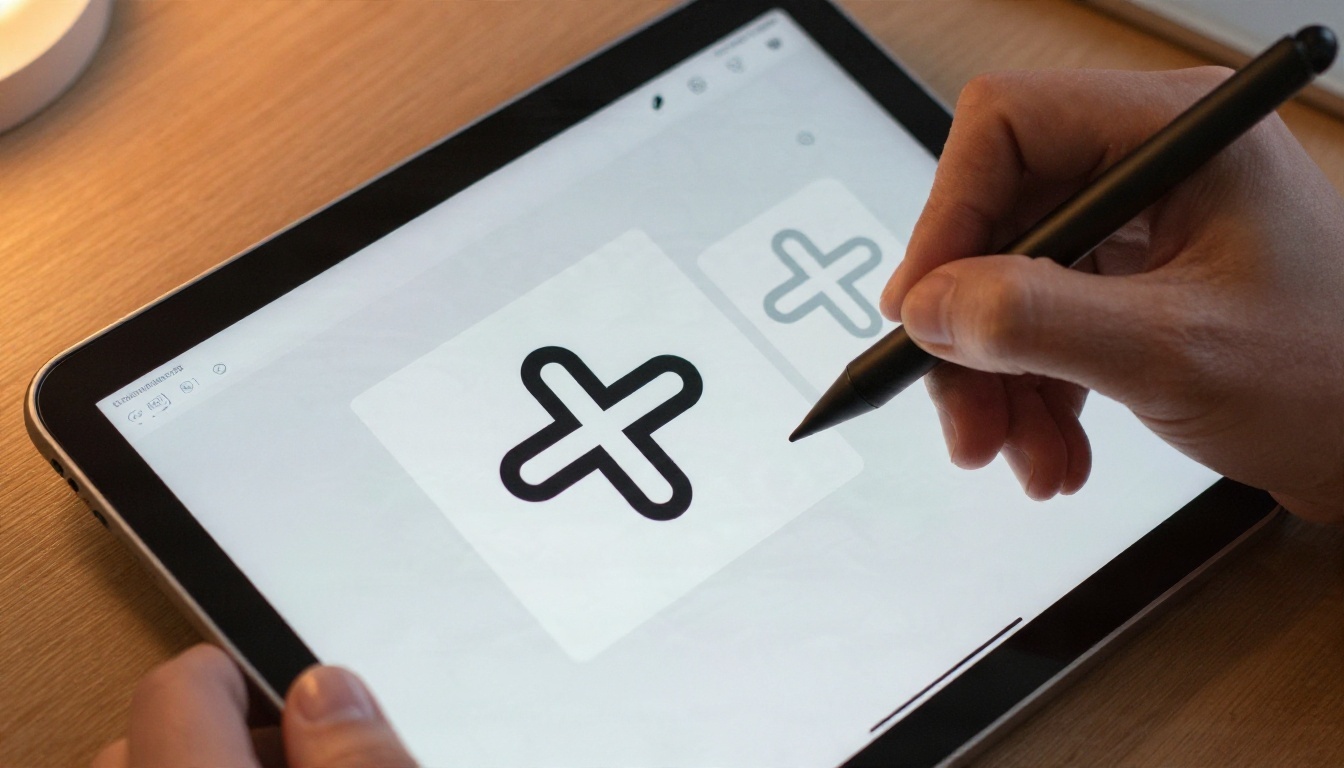
Eight prompts to copy
- Logo mark: "Minimal mountain and rising sun emblem, bold geometric shapes, deep teal and warm orange, centered, flat design, plain white background, no text."
- Icon set: "A set of nine rounded line icons for a travel app: plane, suitcase, map pin, camera, tent, ticket, compass, sunglasses, passport. Consistent 4px stroke, single navy color, white background."
- Badge: "Circular coffee roaster badge, bean in the center, thin concentric rings, dark brown and cream, flat vector, balanced symmetry."
- Poster: "Bold sunrise over a calm sea, layered horizontal bands, coral, gold and deep blue, screen print look, flat shapes only."
- Pattern: "Seamless looking repeating pattern of olive branches, small leaves, sage green on off white, evenly spaced."
- Mascot: "Friendly owl mascot, simple rounded shapes, three colors, thick outlines, front view, white background."
- Sticker sheet: "Six flat vector stickers of houseplants in terracotta pots, thick white outline around each, pastel palette."
- Infographic element: "Five horizontal progress bars with rounded ends, graduated from light to dark blue, clean spacing, no text."
Words that break vectors
- "Photorealistic", "bokeh", "film grain": these push the model toward raster logic.
- Long lists of colors: more than four colors gets muddy and hard to edit.
- Tiny text: lettering inside a logo often needs manual redrawing. Generate the mark first, then set type in your editor.
- "Highly detailed": it inflates the path count. Ask for "simple" or "minimal" when you want clean shapes.
💡 Quick fix: If a result looks busy, add "fewer shapes" and "large simple forms" to the prompt. It usually calms the file down.
Examples by Use Case
Logos and brand marks
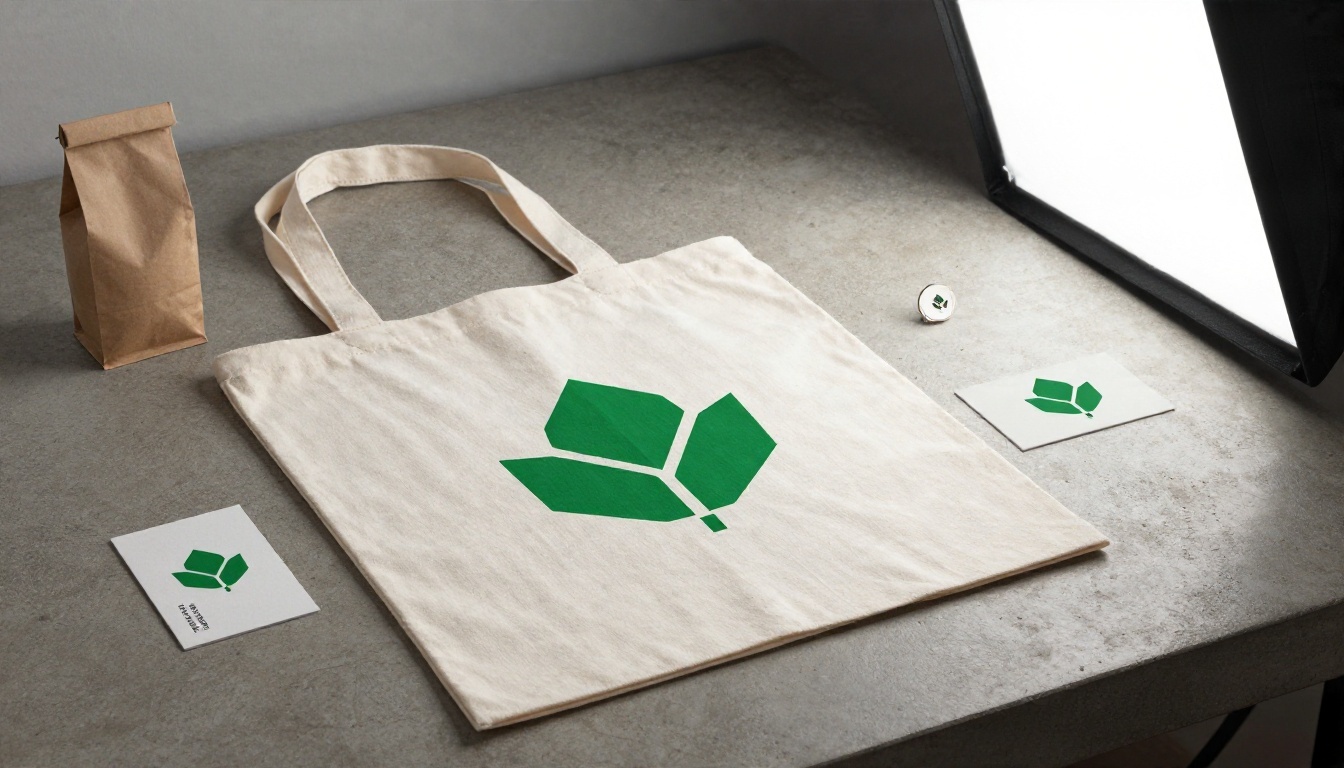
A logo is the most obvious fit. Generate a handful of directions in the standard tier, pick one, then refine it in the Pro tier. Because the output is vector, the same mark lands on packaging, totes, cards and pins without any rework.
Vinyl, signs and merch
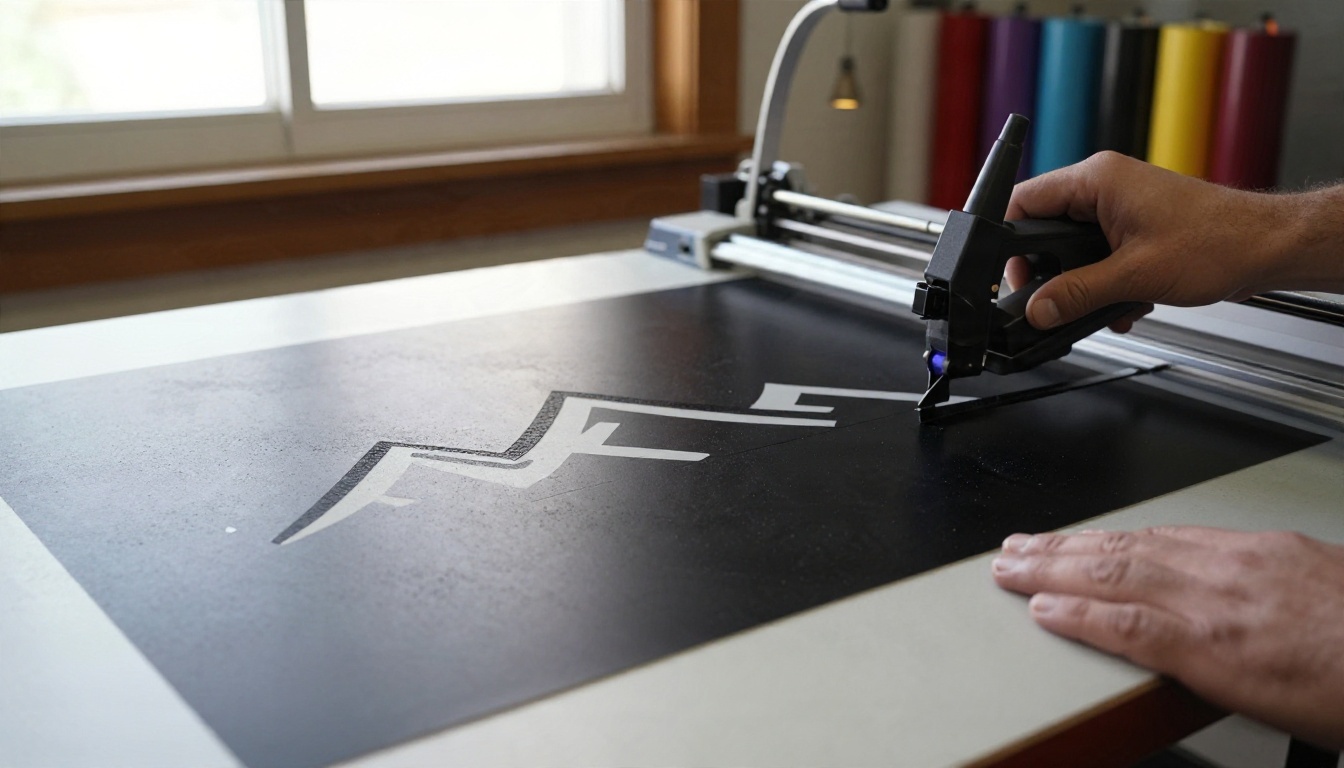
Cutting plotters follow paths. A clean SVG with closed shapes and few anchor points cuts smoothly, while a traced bitmap often produces broken curves and wasted vinyl. Ask for "solid shapes, no hairlines, no gradients" if the file is headed for a cutter.
Posters and screen printing
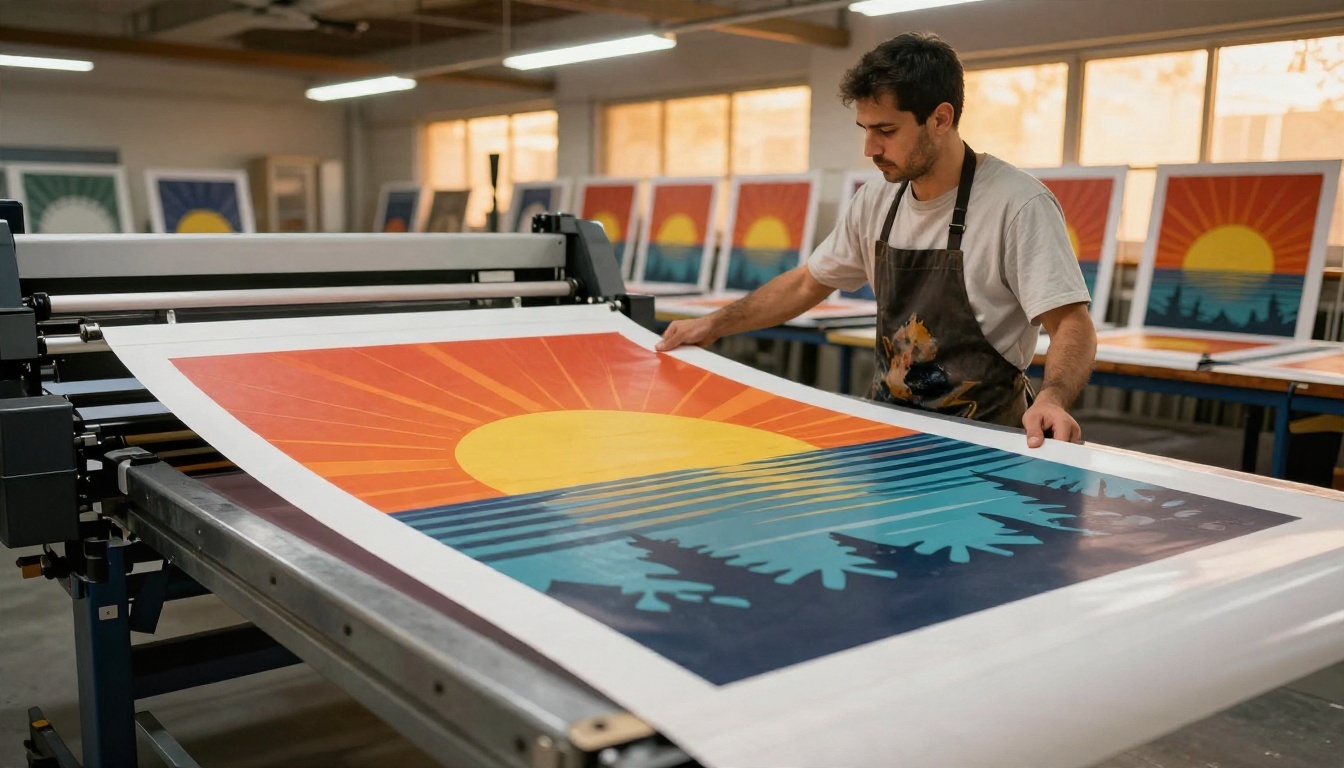
Screen printing wants flat color separations. Bold sunrise scenes, layered landscapes and geometric patterns suit the vector style well, and each color can become its own print layer.
Storefronts and small business
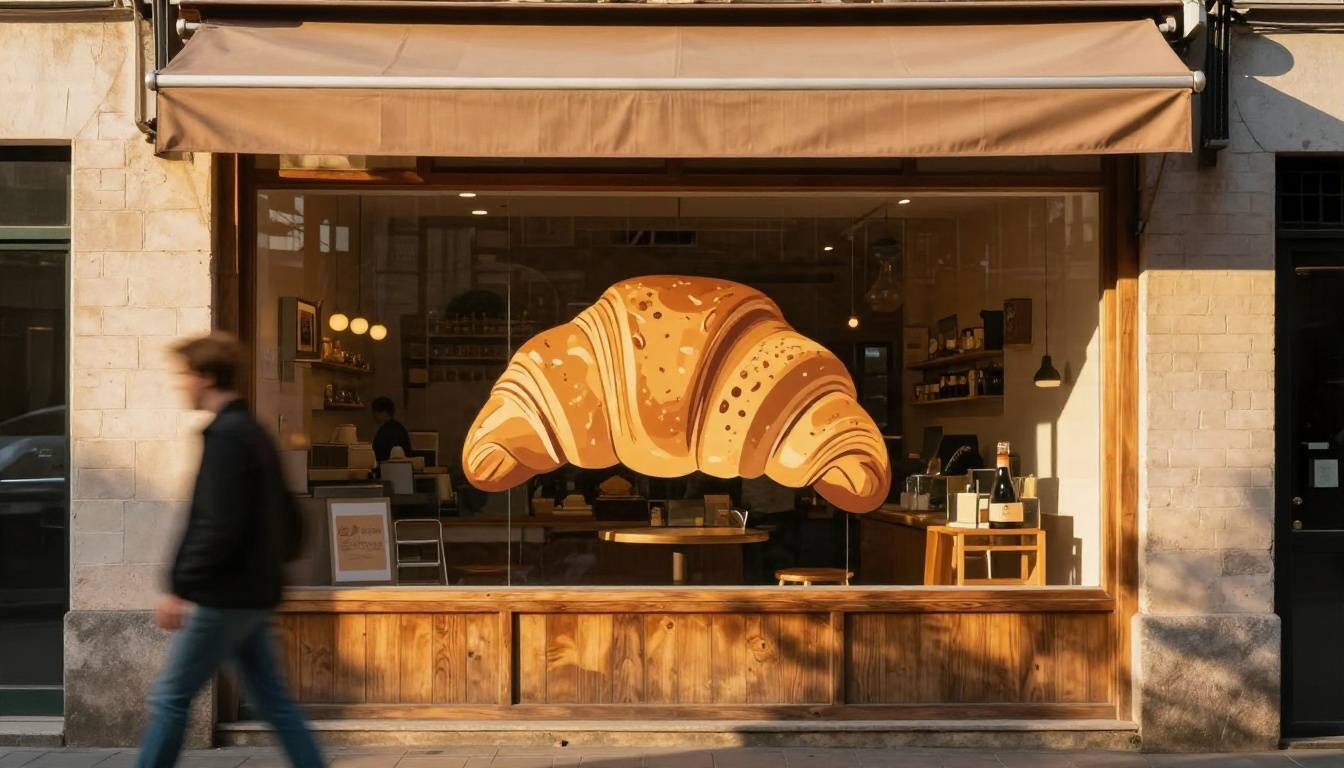
A bakery, a barber, a flower stand: small businesses need a mark that works on a window decal, an awning, a menu and an Instagram avatar. Vector delivers one asset for all of them.
The Real Cost of Vector Generation
Prices below come from public listings I checked and may change. Treat them as ballpark figures, and confirm on the provider's pricing page before budgeting.
| Route | Reported cost | Commercial rights | Best for |
|---|
| Recraft free web plan | Around 30 credits per day | Generally no, images are public | Testing prompts |
| Recraft API, standard Vector | About $0.08 per image | Yes, on paid use | Apps and automation |
| Recraft API, Pro Vector | Roughly $0.30 to $0.33 per image | Yes, on paid use | Final brand artwork |
| Third party resellers | Credit based, from a few credits per run | Depends on the platform | Light, occasional use |
| PicassoIA model pages | Listed as free to try, see page for limits | Check the current terms | Fast drafts without setup |
A quick budget example: 40 logo concepts at the reported $0.08 API rate comes to about $3.20. Finalizing the best three in Pro at roughly $0.30 each adds about $0.90. A whole identity exploration for a few dollars is the real appeal. The old route, a freelance trace job per concept, cost orders of magnitude more.
💡 Cheapest workflow: Draft broadly in the standard tier, shortlist two or three results, then spend Pro credits only on those.
When a Different Model Fits Better
Vector is not always the right tool. If you want a photo, a painterly scene or a 3D look, a raster model is the better pick.
- Print ready raster at 2K: Recraft v4.1 Pro keeps Recraft's design sensibility but outputs standard images.
- Detailed 4K images: Seedream 4.5 handles rich scenes and strong prompt following.
- Sharp 2K output: Seedream 5 Pro is a good choice for polished marketing visuals.
- Styled and fine tuned looks: Flux 2 Klein 9B Base LoRA works well for custom styles.
A common pairing: generate a mark with Recraft v4.1 SVG, then place it into a photographic scene created with a raster model. You get a sharp logo and a realistic mockup from two tools.
Start Making Your Own Vectors
The quickest way to judge a vector model is to run your own prompt. Open Recraft v4.1 SVG on PicassoIA, paste the mountain emblem prompt from above, and download the file. Open it in a vector editor and recolor one shape. That ten second test shows the difference from raster output better than any description.
Then change one thing: swap the palette, ask for a badge instead of an emblem, or try a nine icon set. When one direction clicks, rerun it on Recraft v4.1 Pro SVG for extra polish. If you want to see everything else on offer, browse all PicassoIA models and build your own set of tools.


