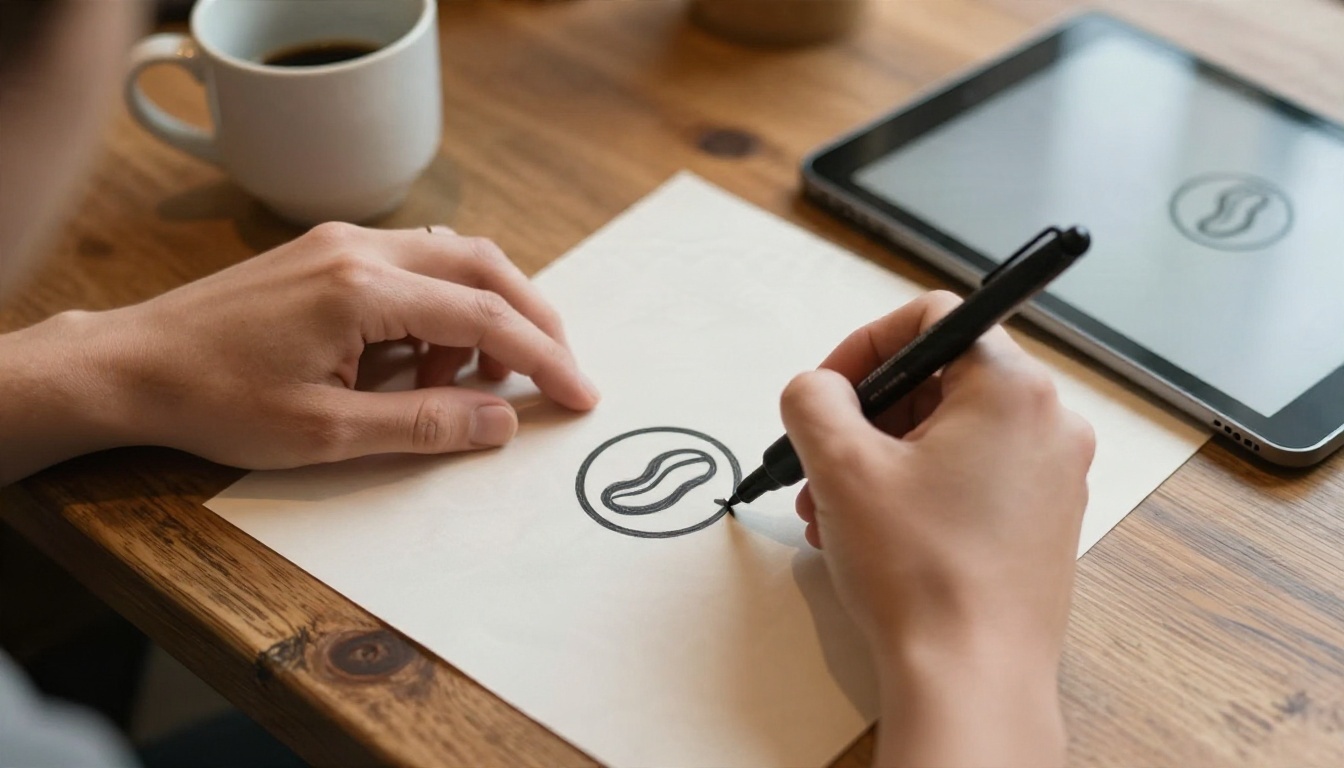
You typed "logo for my coffee shop" into an AI tool, and what came back was a muddy badge with gibberish letters and a coffee cup that looked melted. Logos are the hardest thing to ask an image generator for, because they need clean edges, simple shapes and a file you can scale to a billboard. That is exactly why the Recraft AI logo generator got so popular: it was built around vector output instead of pretty pictures. But it also comes with credit limits, public images on the free plan and a pricing page that confuses people. This article breaks down what Recraft does well, what it really costs, which prompts work, and which free alternatives are worth your time.
What the Recraft Logo Generator Does
Recraft is an AI design platform that started with image generation and then leaned hard into graphic design. Its pitch to logo makers is simple: instead of producing a flat grid of pixels, it can output SVG vector files that stay sharp at any size and open directly in Figma, Illustrator or Inkscape.
Native vector output
Most image models draw pixels. Zoom in on a PNG logo from a typical generator and the edges turn soft and noisy. A vector model builds paths and fills, so each curve is a real shape you can recolor, scale and edit. For a logo, that single difference matters more than any style setting.
What you get from a vector pass:
- Clean, editable paths you can open in any design editor
- Flat colors that print well on shirts, signs and stickers
- A mark that scales from a favicon to a storefront without blur
- Easy color swaps for dark mode and one-color versions
Where it falls short
Recraft is good, but it is not magic. Three limits come up again and again in reviews and user threads:
- Lettering is unreliable. Short words usually come out fine, but longer brand names can still drift, merge letters or invent new ones.
- Credits disappear fast. Vector files cost more credits than regular images, so a free daily allowance does not stretch as far as it sounds.
- A logo is not a brand. You still need to test it at small sizes, in one color, and on real surfaces.
💡 Quick rule: Use AI to generate the symbol, then add your brand name as live text in a design tool with a font you chose. It is faster and far more reliable than fighting the model over spelling.
Recraft Pricing in Plain Numbers
Pricing for AI tools shifts every few months, so treat every figure here as a snapshot and confirm it on Recraft's own pricing page before you pay. With that caveat, here is what recent reviews and user reports agree on.
Free plan limits
The free plan has been reported at roughly 30 credits per day, resetting every 24 hours, with a small cap on daily image uploads. Older listings mention 50 daily credits, which appears to be outdated. The catch is the cost of vector files: reports put a vector generation at around 4 credits per file, so 30 daily credits do not equal 30 logos. Plan on a handful of vector tries per day, not dozens.
Paid plans
Paid tiers (commonly called Basic, Pro and Teams) have been listed starting around $10 to $12 per month, with a discount for yearly billing. Higher tiers add more credits, more uploads and private generations. If you only need one logo, a monthly plan for a single month can be reasonable. If you iterate on brand work every week, the credit math is worth running before committing.
The commercial rights catch
This is the part most people miss. On the free plan, images are reported to be public and owned by the platform, with limits on commercial use. That is a real problem if the logo is for a client, a product launch or a trademark filing. A logo you cannot exclusively use is not much of a logo.
| Question | Free plan | Paid plan |
|---|
| Daily credits | Small daily allowance | Monthly credit pool |
| Vector files | Cost more credits each | Cost more credits each |
| Image privacy | Public by default | Private option |
| Commercial use | Limited | Broader rights |
| Safe for a client logo | Risky | Usually fine, check the terms |
💡 Before you commit: Read the current license terms on the plan you choose, and save a screenshot of them on the day you generate the logo. Terms change.

Free Alternatives Worth Trying
You do not need a single tool for logo work. A good workflow often mixes a vector model for the final mark with a general model for fast concept exploration. These are the options I would try first.
Recraft models on PicassoIA
Good news if you like Recraft's output: several Recraft models are available on PicassoIA, so you can work with the same vector approach without managing a separate subscription.
- Recraft v4.1 SVG generates vector art from a text prompt, the closest match to what people want from a logo generator.
- Recraft v4.1 Pro SVG is the higher fidelity version for detailed marks and more polished shapes.
- Recraft v3 SVG is a reliable choice for simple logos and icons.
- Recraft v3 and Recraft v4.1 Pro are raster options, useful for mockups, packaging scenes and brand imagery around the logo.
Ideogram for text in logos
If your logo needs a word inside it, such as a wordmark or a badge with a short name, test Ideogram v4 Quality. Ideogram has built a reputation on rendering readable lettering. For faster tests, Ideogram v4 Balanced trades a bit of detail for speed, and P Image Ideogram is another quick option when you want many variations.
GPT Image and Nano Banana for concepts
Not every logo project starts with a vector. Sometimes you need to see ten directions before you pick one. GPT Image 2 follows long, detailed prompts closely, and Nano Banana Pro is strong at edits, so you can ask it to adjust a symbol or recolor a mark without starting over. For polished brand scenes, Seedream 4.5 and Imagen 4 produce clean, realistic mockups.
Using Recraft v4.1 SVG on PicassoIA
Here is the fastest route from idea to vector file with Recraft v4.1 SVG.
- Open the model page. Go to the Recraft v4.1 SVG page on PicassoIA and open the prompt box.
- Write the subject first. Name the symbol in plain words: "a fox head", "a mountain with a rising sun", "a coffee bean inside a circle".
- Add style constraints. Include words like flat vector, minimal, two colors, bold geometric shapes, centered on white background.
- Generate several versions. Run the same prompt three or four times. Vector models vary a lot between runs, and the third attempt is often the keeper.
- Refine with one change at a time. If the fox is too detailed, add "fewer shapes, thick outlines". Do not rewrite the whole prompt.
- Download the SVG. Open it in your design editor, check the paths, and add your brand name with a real font.
- Step up if needed. For a more polished result, run the same prompt through Recraft v4.1 Pro SVG.
Parameter tips:
- Keep prompts under about 40 words. Long prompts invite clutter.
- Ask for one subject. "A fox and a mountain and a moon" produces a messy badge.
- Say "white background" so the mark is easy to isolate.
- Use one or two colors. Gradients and textures are the first things to break at small sizes.
💡 Fallback plan: If the SVG comes out too busy, switch to Recraft v3 SVG for the same prompt. Older versions sometimes give simpler, more logo-like shapes.
Logo Prompts That Actually Work
A prompt for a logo is not a prompt for a poster. The goal is fewer details, not more. Strip out anything that would disappear when the logo is the size of a thumbnail.
The prompt formula
Use this order and you will get steadier results:
[Symbol] + [style] + [shape language] + [colors] + [background]
Example: A fox head in profile, flat vector logo, bold geometric shapes, burnt orange and charcoal, centered on white background.
Ten prompts by industry
Copy these, swap the subject, and adjust the colors.
| Industry | Prompt |
|---|
| Coffee shop | Coffee bean inside a circle, flat vector logo, thick lines, dark brown and cream, white background |
| Bakery | Wheat stalk forming a heart, minimal vector emblem, warm gold, white background |
| Fitness | Abstract flame made of three shapes, bold vector mark, black and red, white background |
| Law firm | Balanced scale built from simple lines, minimal vector logo, navy blue, white background |
| Eco brand | Single leaf with a clean vein line, flat vector icon, forest green, white background |
| Tech startup | Hexagon with a small spark at its center, geometric vector mark, deep blue and teal, white background |
| Photography | Camera aperture made from six curved blades, minimal vector logo, black, white background |
| Pet care | Dog and cat silhouettes sharing one circle, flat vector emblem, soft blue and orange, white background |
| Travel | Mountain peak with a compass needle, simple vector badge, dark green and sand, white background |
| Music | Sound wave forming a letter shape, bold vector mark, black and gold, white background |
Words that ruin logos
Some prompt words push the model toward illustration instead of a mark. Skip these:
- photorealistic, 3D, glossy, cinematic: they add shading and depth
- intricate, highly detailed, ornate: they add clutter
- gradient, shadow, glow: they break one-color printing
- long brand names: add them later as live text
From Generated Logo to Real Brand
Getting a nice SVG is the first step, not the last. A logo earns its keep on real surfaces, and real surfaces are unforgiving.
Test at small sizes
Shrink your logo to 32 pixels wide and look at it. Can you still tell what it is? Then convert it to pure black on white. If the shape collapses into a blob, simplify it. Print it on a test sheet at business card scale too, because screens hide problems that paper shows immediately.
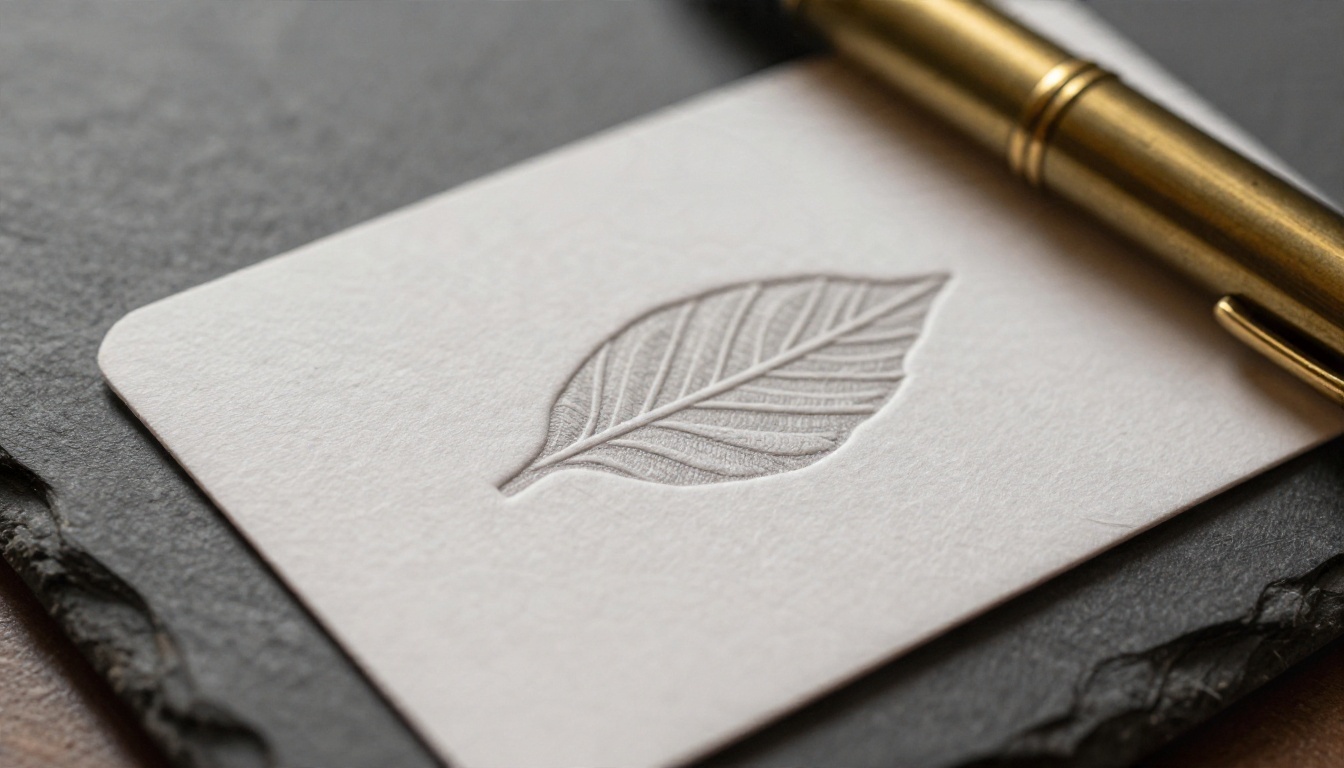
A quick checklist before you finalize:
- Works in one color, black on white and white on black
- Readable at 32 pixels
- Still clear when printed small
- No fine lines thinner than a couple of pixels at normal size
- Looks balanced inside a circle, since social avatars crop to circles
Build a consistent identity
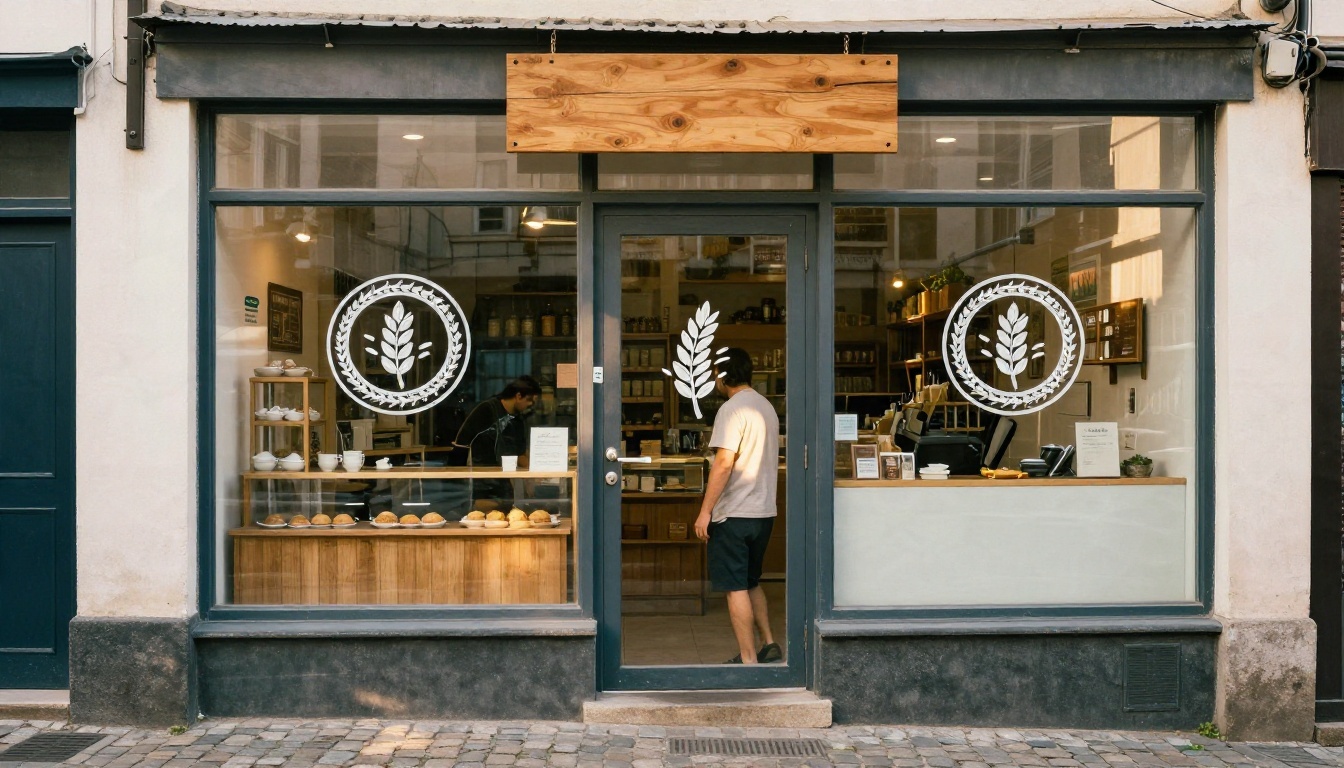
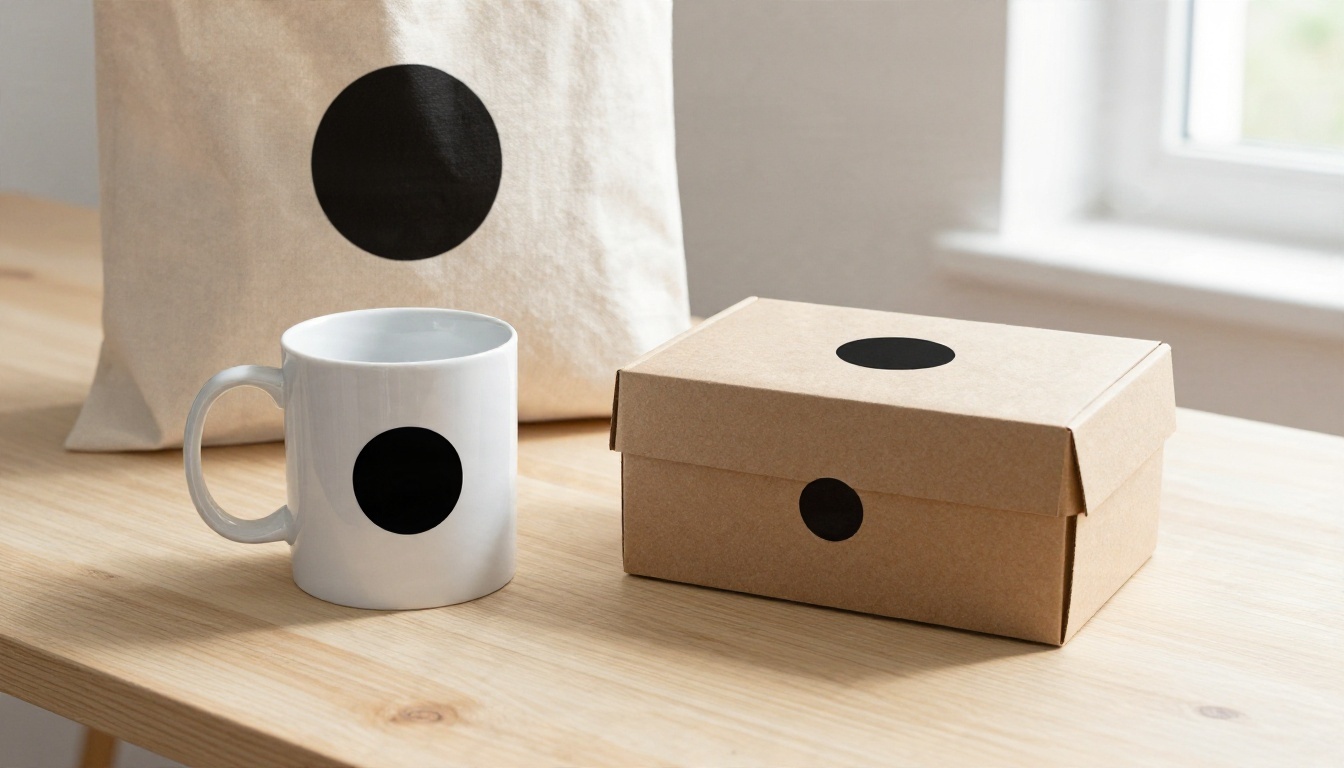
One logo is not a brand. You also need colors, fonts and a few applications that make the mark feel real. This is where raster models help. Use Seedream 4.5 or Nano Banana Pro to create mockup scenes such as mugs, tote bags, shop doors and packaging so you can judge the logo in context before you spend money printing it.
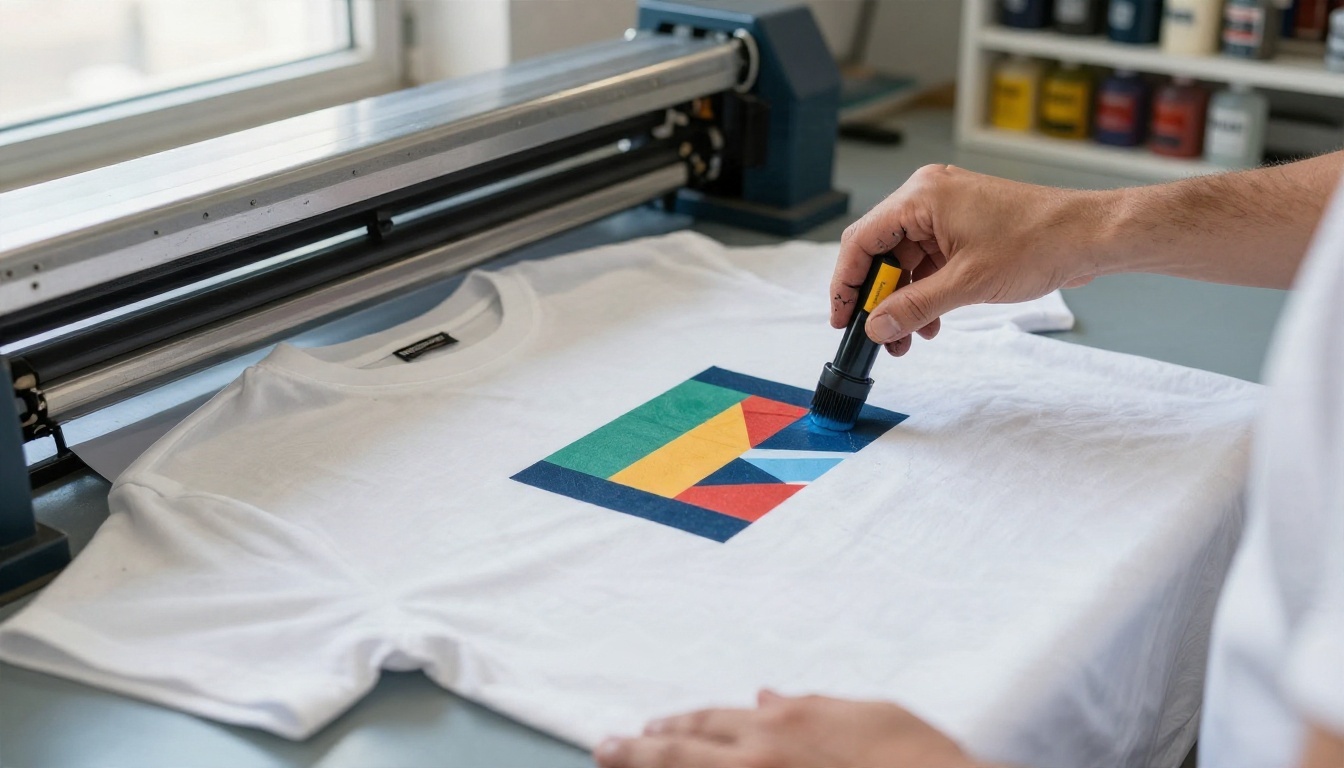
Printing is the final test. A one-color mark that survives screen printing will survive almost anything else.
Here is a quick way to decide, based on what you actually need.
A simple rule of thumb: if the logo needs to be edited, printed or sent to a client, start with a vector model. If you are still deciding what the brand should look like, start with a general model and move to vector once you have a direction.
Make Your First Logo Today
You do not need a design degree or a monthly subscription to test a logo idea. Pick one symbol, write a 30 word prompt using the formula above, and run it through Recraft v4.1 SVG on PicassoIA. Generate a few versions, keep the simplest one, and check it at thumbnail size. Then try the same idea in Ideogram v4 Quality to see how a wordmark looks, and build a mockup scene with Seedream 4.5.
Experiment freely. The best logos usually come from the fifth or sixth variation, not the first. Open PicassoIA, start with one prompt from the table above, and see what your brand looks like by the end of the afternoon. You can browse every available model at picassoia.com/en/all-models.


