You type "anime girl, blue hair, cherry blossoms" into SDXL and get something that looks like a plastic doll wearing a costume. Sound familiar? That gap between what you pictured and what the model delivers is the reason this topic gets searched so often. The good news: SDXL can produce striking anime images, but only if you treat it differently from a purpose-built anime model. The prompt structure, the sampler, the CFG value and even the resolution all change the result.
This article walks through what actually works. You will get prompt templates you can paste today, a settings table, a short list of negative prompts that earn their place, a hands-on walkthrough using SDXL Lightning 4Step on PicassoIA, and a fair look at free alternatives when SDXL is not the right tool.
Why SDXL Still Works for Anime
Stable Diffusion XL launched as a general-purpose model. It was trained on a huge mix of photos, paintings, product shots and illustrations, so anime is only one of many styles it can imitate. That is both its weakness and its strength.
What the base model does well
SDXL understands natural language better than older Stable Diffusion releases. It handles longer sentences, reads lighting cues, and renders 1024 pixel images with far less blur than the 1.5 generation. For anime, that means you can describe a scene in plain English and still get a coherent composition, something older anime checkpoints struggled with.
Where it falls short is style consistency. Without help, the base model drifts between semi-realistic faces, western cartoon proportions and true anime shading. One generation looks like a cel from a 90s series, the next looks like a 3D game character.
Fine-tunes changed the picture
The community solved the drift problem with fine-tuned checkpoints. Animagine XL, Pony Diffusion XL, Illustrious XL and NoobAI XL are the names you will hear most. They were trained on tagged anime and illustration datasets, which is why they respond to booru-style tags like 1girl, solo, looking at viewer and masterpiece, best quality. These checkpoints are usually run locally or through community platforms, and each has its own preferred prompt format.
💡 Rule of thumb: if you are using a general SDXL model, write descriptive sentences plus a few style anchors. If you are using an anime fine-tune, write comma-separated tags. Mixing the two styles in the wrong model is the number one reason results look off.
Prompts That Actually Work
A good anime prompt is built in layers. Think of it like directing a small film crew: subject first, then wardrobe, then setting, then camera, then style.
The five-layer structure
- Subject: who or what is in the frame (
a teenage girl with short silver hair and heterochromia)
- Outfit and props: (
navy sailor uniform, red ribbon, holding a clear umbrella)
- Setting and light: (
rainy city crossing at dusk, warm shop windows reflected on wet asphalt)
- Camera and framing: (
low angle, medium shot, shallow depth of field)
- Style anchors: (
anime key visual, clean lineart, cel shading, soft gradient sky)
Put the subject early. SDXL gives more weight to the opening words, so a prompt that starts with the background will often shrink your character into a small figure.
Copy-paste prompt templates
Here are four starting points. Swap the details for your own character.
| Goal | Prompt |
|---|
| Clean portrait | anime portrait of a young woman with long lavender hair, soft smile, sailor uniform, golden hour backlight, detailed eyes, clean lineart, cel shading, pastel color palette |
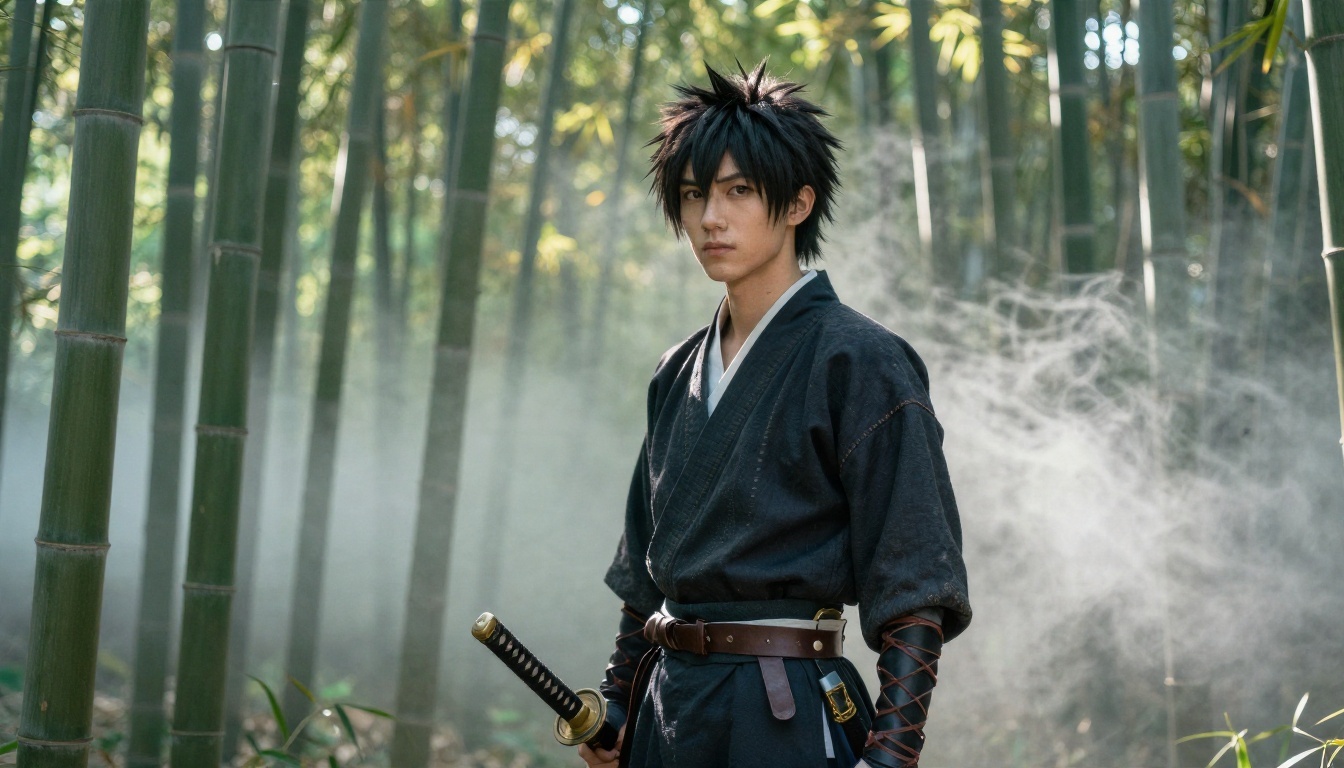
| Action scene | anime swordsman with spiky black hair mid leap, flowing scarf, bamboo forest, dynamic low angle, motion lines, dramatic shadows, film still, high contrast |
| Cozy slice of life | anime girl reading in a small cafe, rainy window, warm lamp light, steam from a latte, soft watercolor background, gentle shading, studio quality illustration |
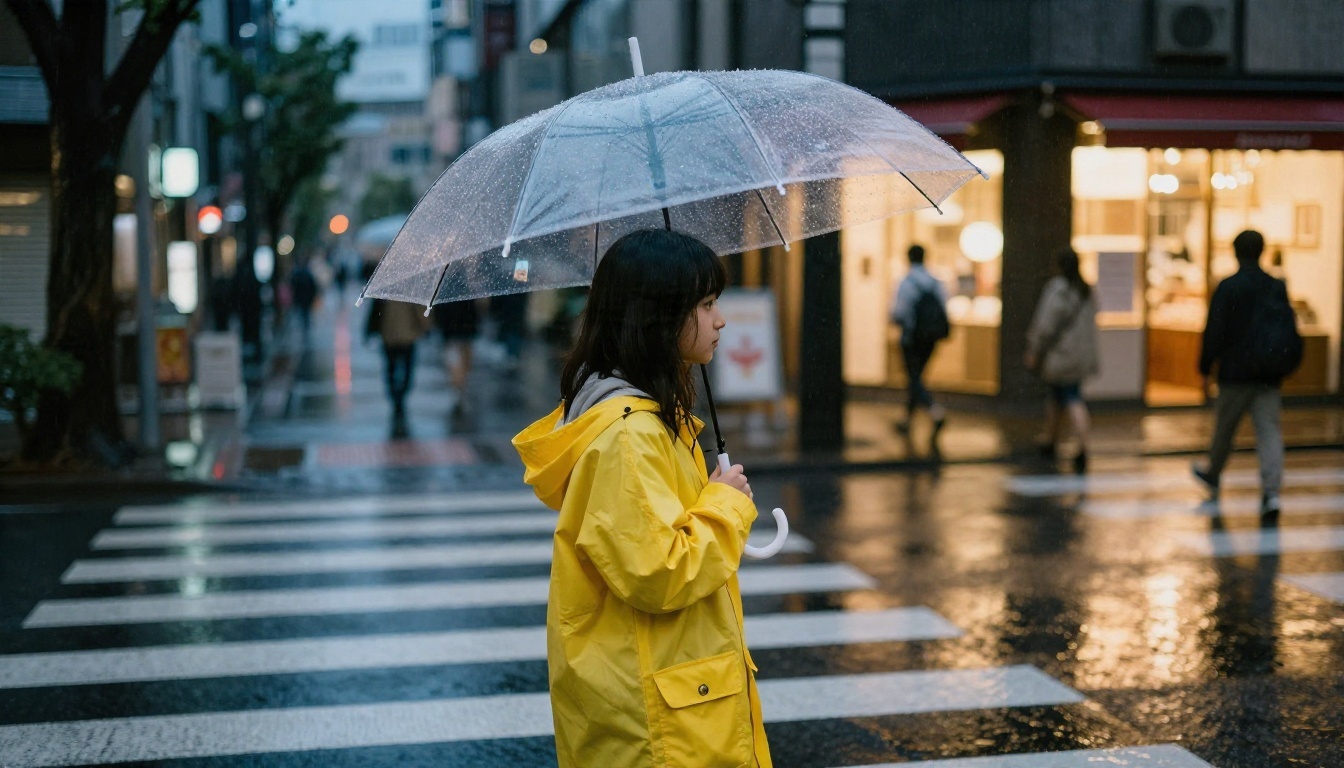
| City at night | anime schoolgirl in a yellow raincoat, transparent umbrella, wet crosswalk, reflections, cinematic wide shot, muted blue and amber palette, detailed background art |
💡 Tip: Add a medium word like anime key visual, cel shading or illustration near the front. Without it, SDXL tends to slide toward painterly or semi-realistic rendering.
Weights and emphasis
Many interfaces support emphasis syntax such as (blue eyes:1.3). Values between 1.1 and 1.4 are usually safe. Go past 1.5 and you start seeing burnt colors and warped anatomy. Use weights sparingly: two or three emphasized terms per prompt is plenty.
Negative Prompts Worth Keeping
Negative prompts tell the model what to steer away from. Most people paste a giant wall of terms they found online. That backfires, because long lists can flatten contrast and remove details you actually want.
A short, targeted list works better:
worst quality, low quality, blurry for general cleanupextra fingers, fused fingers, bad hands for the classic hand problembad anatomy, extra limbs, long neck for body proportionswatermark, signature, text, logo to remove stray letteringphotorealistic, 3d render, western cartoon to keep the style anime
The last line matters most on general SDXL models. If your results keep looking like a game cutscene, add 3d render to the negative field before touching anything else.
💡 Tip: Change one negative term at a time and keep the seed fixed. That is the only way to see what each word really does.
Best Settings for Clean Linework
Settings matter as much as the prompt. These are good defaults for standard SDXL models, followed by the very different values used by distilled models.
Steps, CFG and sampler
| Setting | Standard SDXL | Distilled (Lightning style) |
|---|
| Steps | 25 to 35 | 4 |
| CFG / guidance | 5 to 7 | 0 to 2 |
| Sampler | DPM++ 2M Karras or Euler a | Euler |
| Resolution | 1024 x 1024 or similar total pixels | 1024 or 1280 |
| Batch size | 4 for exploring, 1 for finishing | 1 to 4 |
CFG deserves a closer look. Low CFG (4 to 5) gives softer, more natural color and fewer artifacts. High CFG (8 and above) makes the model follow the prompt rigidly but fries saturation and creates harsh edges, which is especially ugly in cel-shaded art. Start at 6 and move in small steps.
Euler a produces softer, slightly dreamier results with some variation between step counts. DPM++ 2M Karras converges more predictably, so it is a good choice when you want to reproduce an image exactly.
Resolution and aspect ratio
SDXL was trained around one megapixel. That is roughly 1024 x 1024, 896 x 1152 for portraits, or 1216 x 832 for landscape scenes. Rendering far outside those sizes causes duplicated heads, stretched torsos and repeated patterns. If you want a bigger final file, generate at the native size and upscale afterward instead of asking for 2048 pixels directly.
Hardware reality check
Running SDXL locally generally calls for a GPU with 8 GB of video memory or more, and 12 GB or more feels comfortable with LoRAs and ControlNet stacked together. If your card is smaller, browser-based generation saves a lot of frustration.
How to Use SDXL Lightning 4Step on PicassoIA
If you want to test SDXL for anime without installing anything, SDXL Lightning 4Step is the quickest route. It is a distilled version of SDXL that produces a finished image in four denoising steps, so each try takes seconds. Here is the exact workflow.
- Open the model page. Go to the SDXL Lightning 4Step page on PicassoIA and open the generator.
- Paste your prompt. Use one of the templates above. Start with the subject, then outfit, setting and style anchors such as
anime key visual, cel shading, clean lineart.
- Fill the negative prompt. The default is
worst quality, low quality. Extend it with bad hands, extra fingers, 3d render, photorealistic, watermark.
- Keep steps at 4. The model is built for four denoising steps, and the page notes that 4 gives the best results. More steps will not sharpen it.
- Set guidance low. The default guidance scale is 0. If your image ignores the prompt, try small values like 1 or 1.5, but avoid pushing high.
- Choose a size. Width and height both default to 1024, and 1280 is also recommended. Use 896 by 1152 style proportions for portraits only if you are comfortable going off the defaults.
- Pick a scheduler. K_EULER is the default. Switch to DPMSolverMultistep or K_EULER_ANCESTRAL to shift the look, and test one at a time.
- Lock a seed. Once you like a composition, copy the seed so you can tweak the prompt without losing the layout.
- Generate several outputs. Raise the number of outputs to compare variations side by side.
💡 Honest note: Lightning is a fast generalist, not a dedicated anime checkpoint. It responds well to strong style words, but for deeply stylized anime looks you will get better control from LoRA-based models, covered below.
Fixing Hands, Faces and Muddy Colors
Even with perfect settings, some problems show up repeatedly. Here is how to deal with the three most common ones.
Use LoRAs and ControlNet
A LoRA is a small add-on that nudges a model toward a specific style or character. On PicassoIA, SDXL Multi Controlnet LoRA gives you layered control over structure and style, which helps when you want a specific pose or line layout. If you prefer a different base, Flux 2 Klein 9B Base LoRA and Flux Schnell LoRA accept LoRA-style customization too.
ControlNet works differently. You feed it a pose skeleton, a line sketch or a depth map, and the model follows that structure. For anime, line-art ControlNet is excellent: sketch the rough pose, then let the model add colors and shading.
Fix muddy color
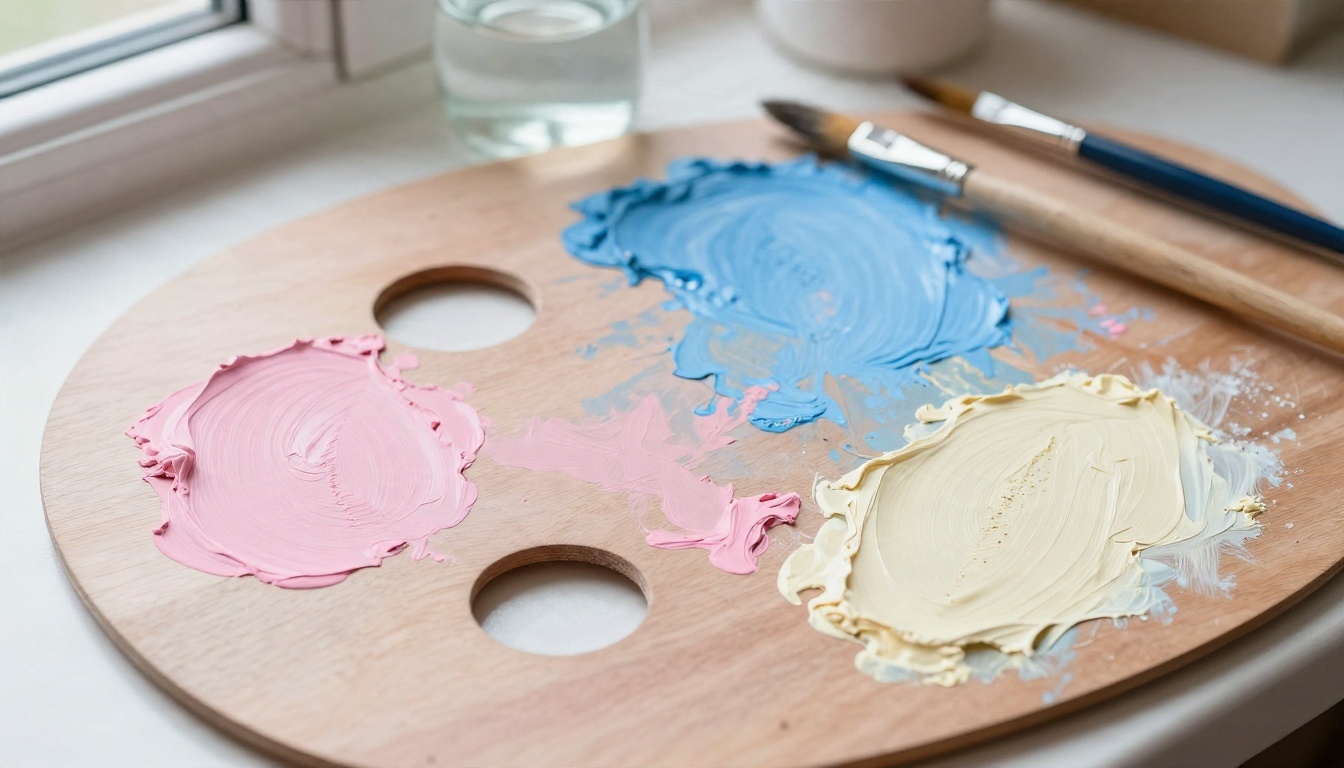
Washed or muddy color usually comes from CFG that is too high, too many weighted terms, or a negative prompt that is too long. Reset to CFG 5 or 6, remove weights, and shrink the negative list to five or six terms. Then add a palette hint such as pastel color palette or muted blue and amber palette.
Upscale without losing line quality
Generate small, then upscale. Real ESRGAN enlarges images up to 4x and keeps edges clean, which matters because anime depends on crisp lines. Do the upscale last, after you have picked your favorite seed.
Free Alternatives Worth Trying
SDXL is not the only route. Depending on your goal, another model may deliver the look faster.
| Model | Best for | Link |
|---|
| SDXL Lightning 4Step | Fast drafts and prompt testing | Open model |
| Flux Schnell | Quick, sharp images with strong prompt following | Open model |
| Stable Diffusion 3.5 Large | Detailed illustration and text-friendly layouts | Open model |
| Seedream 4.5 | High-resolution polished output | Open model |
| Qwen Image 3 | Natural language scenes with clean composition | Open model |
| Stable Diffusion | Classic baseline for experiments | Open model |
Newer models like Flux Schnell and Seedream 4.5 are easier to prompt because they follow plain sentences well. You do not need booru tags, weights or giant negative lists. Try describing your scene as if you were briefing an illustrator, adding words like anime key visual, clean lineart, flat colors, soft gradient shading.
Stable Diffusion 3.5 Large is a strong middle ground for people who like the Stable Diffusion family but want better prompt understanding and richer detail.
💡 Tip: Run the same prompt through three models with a similar seed idea. You will see within five minutes which one suits your character design.
Common Mistakes to Avoid
Here are the errors that waste the most generations.
- Writing tags in a model that wants sentences. General SDXL reads sentences better. Tag stacks work best on anime fine-tunes.
- Overloading the prompt. Past 75 tokens, later words lose influence. Trim anything decorative.
- Chasing CFG. If the image looks wrong, high CFG rarely fixes it. Change the prompt or the seed first.
- Skipping the seed. Without a locked seed you cannot compare changes fairly.
- Asking for huge sizes. Native size plus an upscale beats a giant first render.
- Copying giant negative lists. Short lists keep contrast and detail intact.
- Ignoring references. Study real light and composition. Photos of street scenes, costumes and interiors teach you what to ask for in
lighting and camera angle terms.
A final workflow that holds up well: draft at low cost with a fast model, pick the best composition, lock the seed, refine the prompt in small edits, and only then upscale. That order saves hours.
Start Making Your Own Anime Art
You now have everything needed to produce better anime images: a layered prompt structure, templates to adapt, a tight negative list, sampler and CFG values that avoid burnt color, and a set of alternatives for when SDXL is not enough. The fastest way to improve is to run experiments, change one variable at a time and keep notes.
Open SDXL Lightning 4Step on PicassoIA, paste one of the templates above and generate your first batch. Then try the same idea in Flux Schnell or Seedream 4.5 and compare. When you find a result you like, send it through Real ESRGAN for a sharp final file. Want more options? Browse everything at picassoia.com/en/all-models and build your own anime workflow today.


