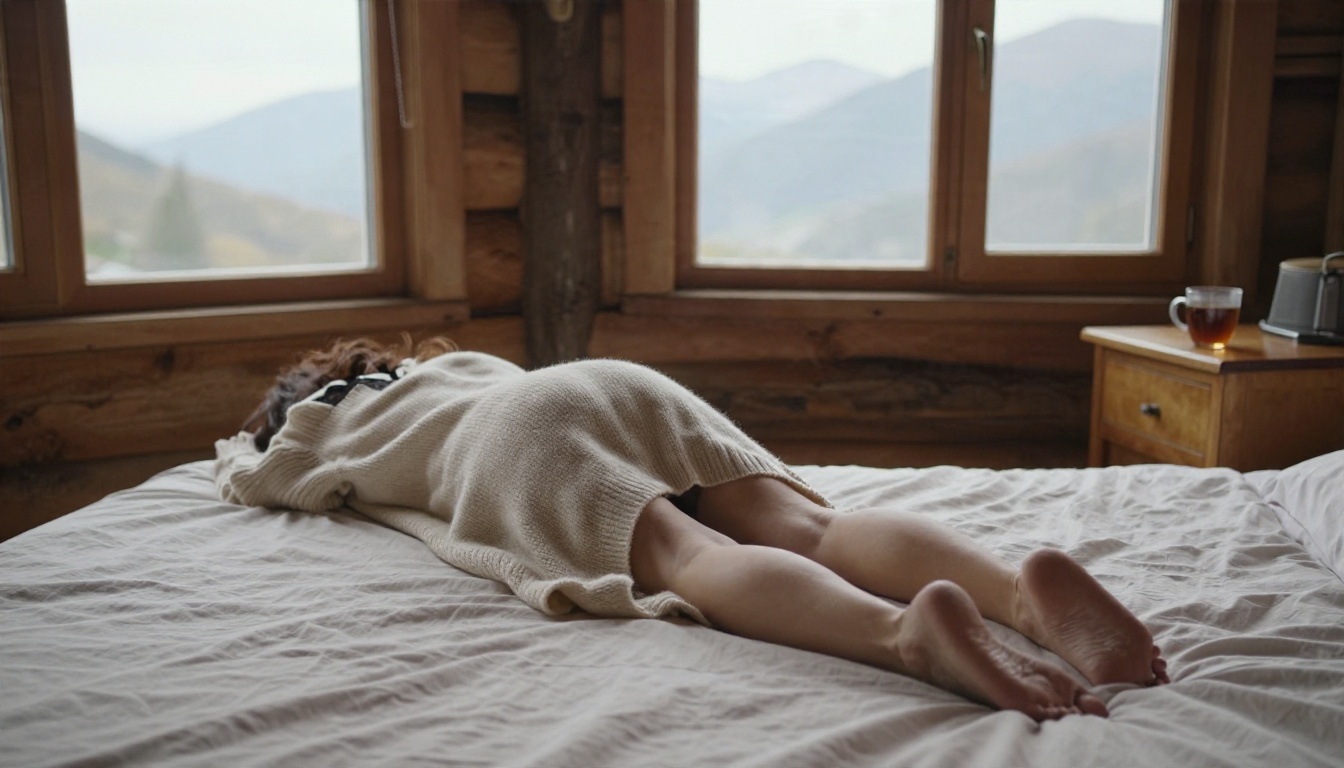
SDXL NSFW LoRA: Free Downloads, Settings, and Prompt Examples
Where to find free SDXL NSFW LoRA files, which weight, CFG, steps and sampler to use, and ready-to-copy prompt examples for realistic glamour portraits. Plus a faster route on PicassoIA when SDXL gets fiddly.
Most people who search for an SDXL NSFW LoRA want the same thing: a small file that pushes a general model toward glamour, boudoir and swimwear looks without ruining anatomy or skin. The catch is that a LoRA is only as good as the settings around it. Drop a weight of 1.0 on the wrong checkpoint and you get waxy faces, melted hands and a washed-out palette.
This article sorts out the whole workflow. You will see what these LoRAs actually do, where people usually find free downloads, which weight, CFG, steps and sampler to start with, and prompt examples you can paste straight into your interface. Everything here stays on the suggestive, non-explicit side: bikinis, lingerie, silk, and flattering light. If you want the same look with far less tuning, there is a faster route on PicassoIA near the end.
💡 Quick answer: start at LoRA weight 0.7, CFG 5 to 6, 28 steps, sampler DPM++ 2M Karras, resolution 1024x1024 or a 1216x832 crop. Change one value at a time.
What an SDXL NSFW LoRA Does
A LoRA (Low-Rank Adaptation) is a lightweight add-on, usually between 20 MB and 200 MB, that nudges a base model toward a style, a pose family or a body type. It does not replace your checkpoint. It sits on top of it and bends the output.
LoRA vs Checkpoint
A checkpoint is the full model, often 6 GB or more. A LoRA is a patch. If the checkpoint is a camera, the LoRA is a lens filter. That is why the same LoRA can look great on one checkpoint and terrible on another.
Item
Typical size
Job
Risk if misused
Checkpoint
2 to 7 GB
Core look, anatomy, realism
Wrong base style
LoRA
20 to 200 MB
Specific pose, outfit or skin feel
Overbaked, plastic results
Embedding
Under 1 MB
Small concept or fix
Weak effect
Negative prompt
A few lines
Removes unwanted traits
Over-filtering
Why SDXL Still Gets Used
SDXL produces native 1024px images, handles natural language better than SD 1.5, and has a huge catalog of community files. Photoreal checkpoints such as Juggernaut XL and RealVisXL built a large following around it, and many glamour LoRAs were trained on those bases.
Free SDXL LoRA files are usually shared on Civitai and Hugging Face, and a few creators post on Patreon-style pages with early access tiers. Search by base model first, then by theme: "glamour", "boudoir", "swimwear", "lingerie", "skin detail", "film look".
⚠️ I am not linking to any download page. Always open the creator's own model card and read it before you grab the file.
What to Check First
Before you download anything, check these five points on the model card:
Base model tag. It must say SDXL 1.0. Files tagged Pony or Illustrious are trained on different bases and often look broken on a regular photoreal checkpoint.
Trigger words. Many LoRAs only fire when a specific word is in the prompt.
Recommended weight. Most creators list a range such as 0.6 to 0.8.
Sample images with metadata. If the samples have no prompt or settings, you are guessing.
Version history. A v2 or v3 often fixes the anatomy problems of v1.
File Safety and Licenses
Prefer files in the .safetensors format. Older .ckpt and pickle-based files can carry executable code, so skip them. Check the license too: some creators ban commercial use or reselling.
Use LoRAs only for adult, fictional subjects. Never train on or generate recognisable real people without their written consent, and never depict anyone who looks underage. That is a hard line, not a preference.
Settings That Actually Work
Creators differ, so treat the numbers below as a starting grid, not law. They match the ranges that show up repeatedly on model cards and community guides.
LoRA Weight
Weight controls how strongly the LoRA bends the output.
0.4 to 0.6: subtle. Good for skin feel or lighting LoRAs.
0.6 to 0.8: the sweet spot for most outfit and pose LoRAs.
0.9 to 1.1: strong. Fine for narrow concepts, risky for faces.
Stacking: if you use two or three LoRAs, keep the combined weight under about 1.2.
Write it as <lora:name:0.7> in most interfaces.
CFG, Steps, and Sampler
Higher CFG strengthens the LoRA's pull and also burns contrast. When you add a LoRA, drop CFG by about one point from your normal baseline.
Setting
Safe start
Range to test
What changes
LoRA weight
0.7
0.5 to 0.9
Strength of the effect
CFG scale
5.5
4 to 7
Prompt obedience vs natural look
Steps
28
24 to 35
Detail, with diminishing returns
Sampler
DPM++ 2M Karras
Euler a, DPM++ SDE
Texture and edge character
Resolution
1024x1024
1216x832, 832x1216
Composition and crop
Clip skip
1
1 to 2
Mostly checkpoint dependent
For speed-oriented SDXL variants, the recipe flips: use 4 to 9 steps and a CFG near 2 to 3.5. That is how fast distilled models are designed to run.
Resolution and Aspect Ratio
SDXL was trained around one megapixel. Stay near 1024x1024, 1152x896, 1216x832 or the portrait flips of those. Generating at 512 or at 2048 directly breaks anatomy more often than any LoRA does. If you want bigger files, generate at native size and upscale after.
💡 Change one variable per run, then keep the same seed. That is the only reliable way to see what a setting really does.
Prompt Examples You Can Copy
SDXL responds better to short natural sentences than to the long tag soup used with older models. Lead with the subject, then clothing, then setting, then light, then camera.
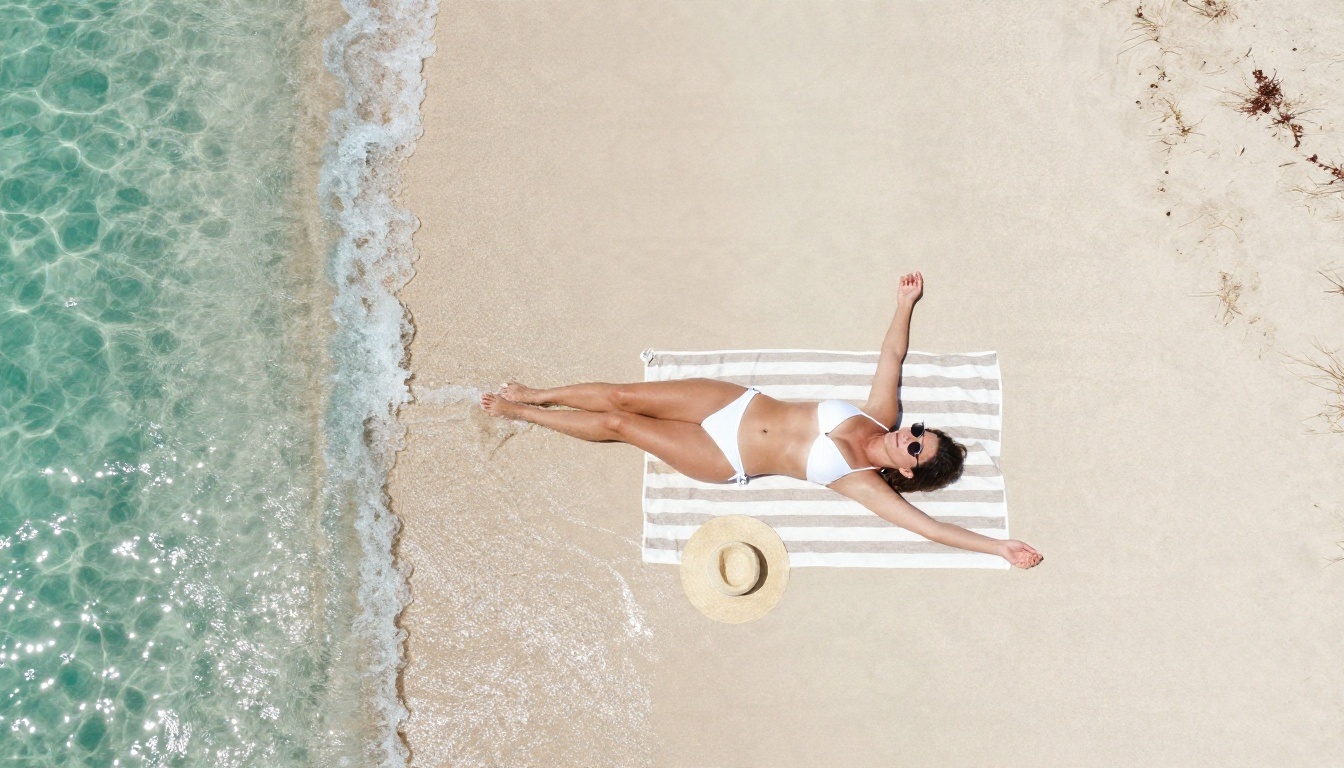
Swimwear and Beach Prompt
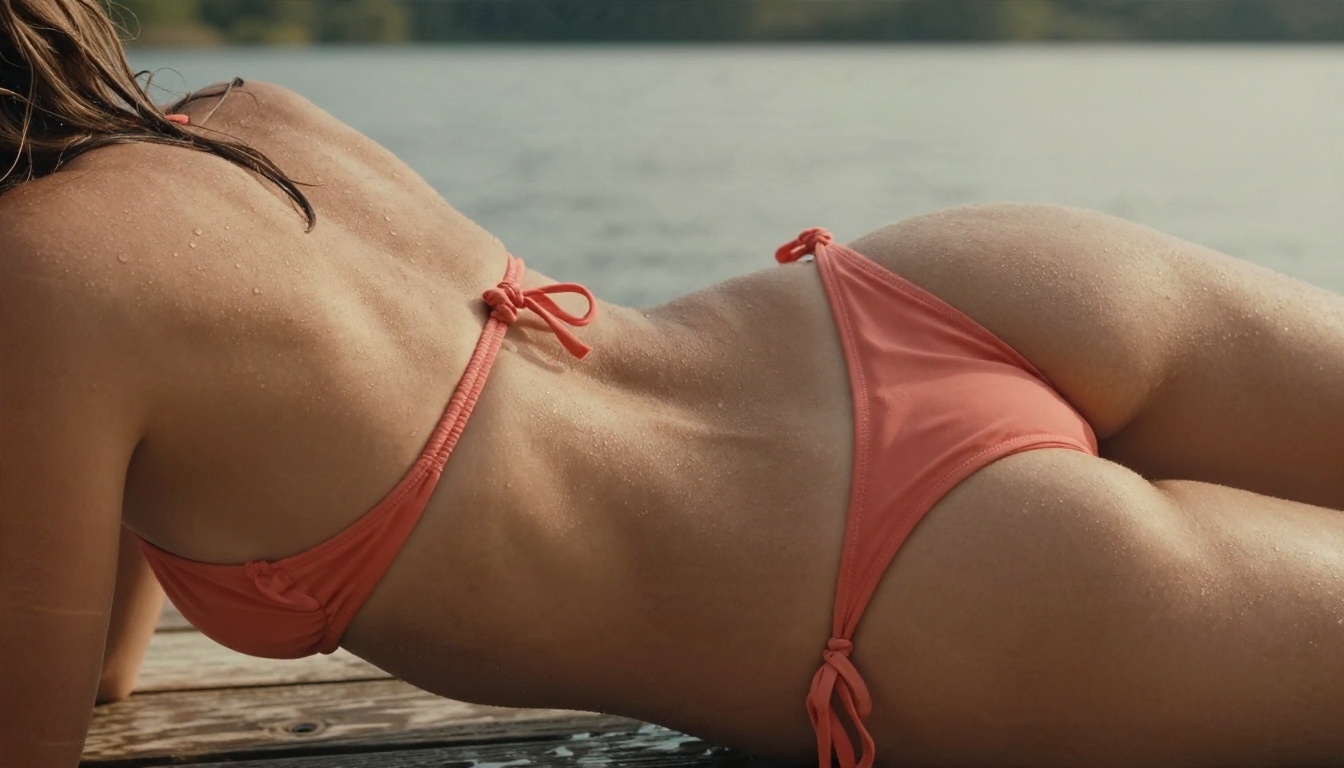
photo of an adult woman in a white string bikini lying on a striped
beach towel, pale sand, turquoise water at frame edge, bright midday
sun, natural skin texture with fine pores, 35mm lens, shot from above,
Kodak Portra 400 film grain, <lora:glamour_style:0.7>
Why it works: the lighting and the lens are named, the skin texture is requested explicitly, and the LoRA sits at a moderate weight.
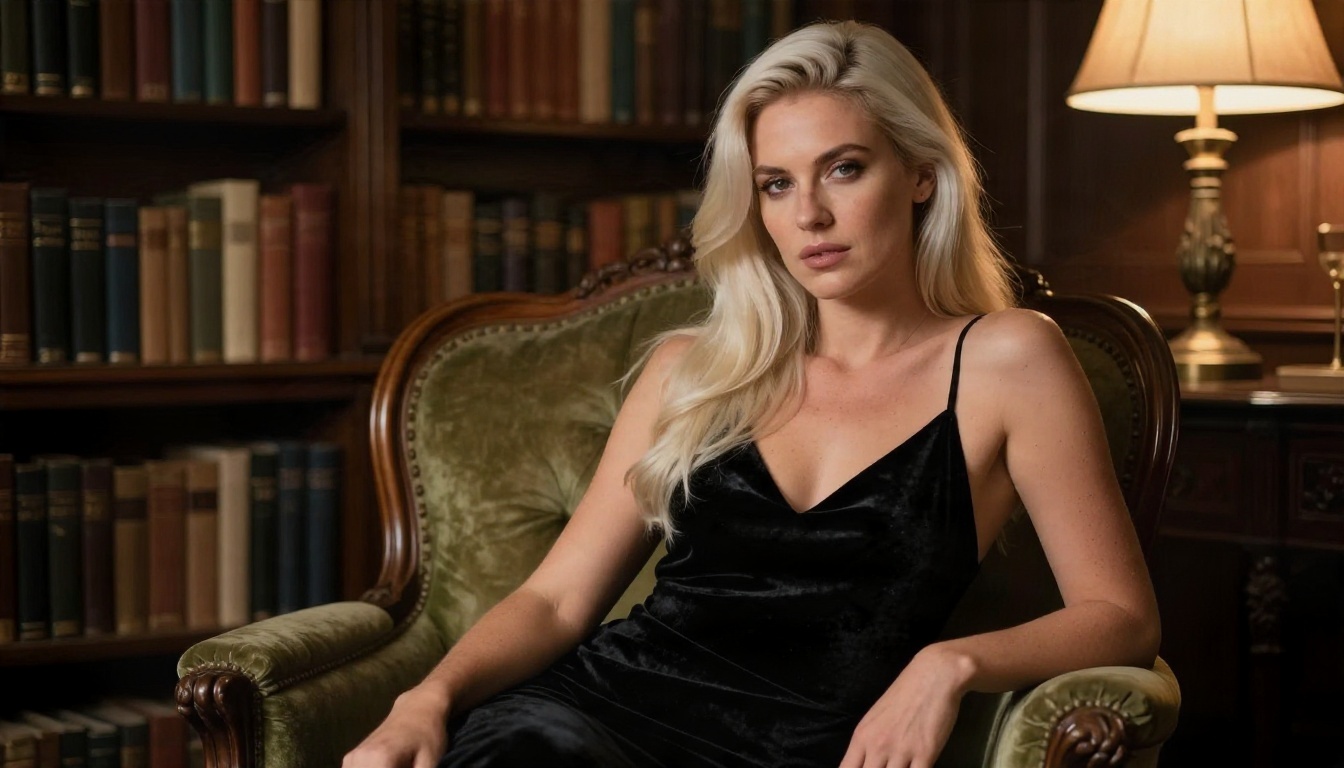
Boudoir Portrait Prompt
portrait of an adult woman with long platinum blonde hair in a black
velvet slip dress, seated on a vintage emerald armchair, candle-lit
library, warm lamp light from the right, soft shadows, 85mm f/1.8,
shallow depth of field, visible fabric texture, elegant mood,
<lora:boudoir_light:0.6>
Keep the mood words about elegance and atmosphere. They steer the model toward editorial photography and away from crude results.
Negative Prompt Starter
deformed hands, extra fingers, fused fingers, plastic skin, airbrushed,
waxy, oversaturated, blurry, low quality, watermark, text, logo,
cropped, bad anatomy, extra limbs, cartoon, 3d render
Add words only when you see a problem. Long negative lists flatten the image and cost you detail.
Fixing Common Problems
Even good settings fail sometimes. These are the failures that show up most.
Plastic Skin and Bad Hands
Plastic skin means the LoRA is too strong or CFG is too high. Drop weight by 0.1 and CFG by 0.5. Name the texture in your prompt: "fine pores", "faint freckles", "peach fuzz".
For hands, keep them simple. A hand resting on a knee or touching hair is easier than a hand holding an object. When a hand still fails, inpaint just that region at a lower denoise value, around 0.4.
Overbaked and Washed Out Results
If colors turn harsh or the face looks identical in every image, you have an overbaked LoRA. Try these in order:
Lower the weight to 0.5.
Lower CFG to 4.5.
Remove the second LoRA you stacked.
Switch sampler to Euler a for a softer look.
Confirm the LoRA's base model matches your checkpoint.
Mixed Base Models
This one wastes the most time. A Pony LoRA on a photoreal SDXL checkpoint gives noisy color and warped faces, and no amount of CFG fixes it. Match the base tag every time.
A Faster Route on PicassoIA
Local SDXL setups are flexible, but they cost you hours: matching bases, hunting trigger words, fixing hands. If you want the same glamour look without that work, newer models on PicassoIA already know photographic lighting, fabrics and skin.
The order I would try them in:
Seedream 4.5: the first stop. Sharp, high-resolution photoreal output with very good skin and fabric rendering.
PicassoIA Image Editor Pro: unlimited generations, so you can iterate on a look as many times as you like. Excellent for editing an image you already made.
Base model tag says SDXL 1.0 and matches your checkpoint.
File is .safetensors.
Weight starts at 0.7, never above 1.0 on the first run.
CFG sits at 5 to 6, steps at 28.
Resolution stays near one megapixel.
Prompt names light, lens and skin texture.
Negative prompt is short and only fixes real problems.
Same seed while you test a single change.
Subjects are adult and fictional, with no real people.
Start Making Your Own Images
You now have the settings, the prompt patterns and the fixes for the usual failures. The fastest way to build your own taste is to run small tests: one prompt, three weights, same seed, and keep the best.
If you would rather skip the setup, open Seedream 4.5 on PicassoIA, paste one of the prompts above, and see what comes back in seconds. Then take your favorite into Image Editor Pro and keep refining with unlimited generations. Pick a prompt and try it now.