You typed a prompt into Gemini, hit enter, and got a polite refusal. So you searched for a secret way around it. Here is the short version: there is no hidden switch, no magic phrase that holds up, and the "tricks" passed around forums tend to stop working within days. Google built the filters on purpose, and they sit at more than one layer of the system. The good news is that you do not need to fight them. If what you want is glamour, swimwear, boudoir style portraits, or bold fashion imagery, other generators handle those requests without the lecture.
This article explains where Gemini's limits actually sit, why even harmless photos sometimes get blocked, and which free, less restricted tools produce attractive, photorealistic results. Everything here stays on the tasteful side: suggestive and beautiful, never pornographic.
The Honest Answer About Gemini
Why There Is No Secret Switch
Every few weeks a new "jailbreak prompt" shows up on social media. It usually involves role play, a fake developer mode, or a long story that tries to confuse the model. Some of them work for a day. Then they stop.
That is not an accident. Google's published policy for its image generation says the system is designed to block sexually explicit output, along with dangerous, violent, hateful and toxic material. Developers who use the API can adjust a few harm categories, but the consumer Gemini app gives you no such dial. Core protections cannot be turned off at all.
💡 Reality check: If a method needs ten paragraphs of setup to trick a model, it is fragile. Google patches what spreads, and your account can be restricted for repeatedly pushing against the rules.
I will not hand you a bypass prompt here, because it would be outdated before you finished reading it, and it would send you down a path of wasted attempts. A better use of your time is picking a tool whose rules match what you want to make.
What Google Actually Blocks
The refusals tend to fall into a few groups. Here is how they typically look in practice:
| Request type | Typical Gemini result | Why |
|---|
| Explicit nudity or sexual acts | Hard refusal | Violates the prohibited use policy |
| Suggestive but clothed portraits | Sometimes allowed, sometimes blocked | Borderline classifier decision |
| Swimwear and fashion shoots | Usually allowed, with random blocks | Image safety layer can be jumpy |
| Real public figures in adult scenarios | Blocked | Likeness and consent protections |
| Anything involving minors | Always blocked, no exceptions | Fixed child safety rules |
That last row matters. It is never adjustable, and no tool worth using will help with it.
How Gemini's Filters Work
Prompt Layer Versus Image Layer
Gemini checks your request twice. First the prompt filter reads your words and decides whether the request looks acceptable. If it passes, the model generates an image, and then a second image safety layer inspects the actual pixels before showing you the result.
This is why you can get two different failures. One says it cannot help with that request. The other quietly returns nothing, or a generic error, after it already did the work. Beating the first layer does not disable the second, which is the main reason clever wording rarely holds up.
Why Innocent Photos Get Blocked
Developers on Google's own forums have complained about perfectly normal fashion and swimwear images being rejected. A white dress in the wind, a gym outfit, a beach photo. The classifier is tuned to err on the side of caution, so anything that resembles skin exposure can trip it.
If you are a photographer, a fashion creator, or someone making art for a mood board, this is the part that actually hurts. You are not asking for anything explicit, yet the tool still says no half the time.

Why Workarounds Keep Breaking
Three reasons, in order of importance:
- Updates are constant. Safety systems are retrained regularly, and public tricks are the first thing they target.
- Output is inspected, not just input. Even if your prompt slips through, the image can still be stopped.
- Account risk is real. Repeated violations can limit your access, which is a poor trade for a few borderline pictures.
One small academic preprint from late 2025 reported that indirect prompting produced unsafe material in some tests, which is exactly the type of gap vendors close quickly. Treat it as a single study, not a reliable method.
What Gemini Can Still Do
Before you give up on it entirely, be fair to the tool. Gemini and its image model, often called Nano Banana Pro in its newer form, are excellent at several things.
Safe Glamour and Fashion
Clothed portraits, editorial looks, evening wear, and many swimwear scenes can work if the prompt reads like a photography brief rather than a request for skin. Words like editorial, lookbook, golden hour, and beachwear campaign help.
Editing and Consistency
Image editing is where this family of models shines. You can change outfits, backgrounds, lighting and poses while keeping the same face. If you want a clean edit of a photo you own, Nano Banana and its siblings are strong choices, and the lighter Nano Banana 2 Lite is quick for drafts.
Where It Stops
The moment your idea moves toward bolder adult aesthetics, you hit the wall. That is where a different generator makes more sense.
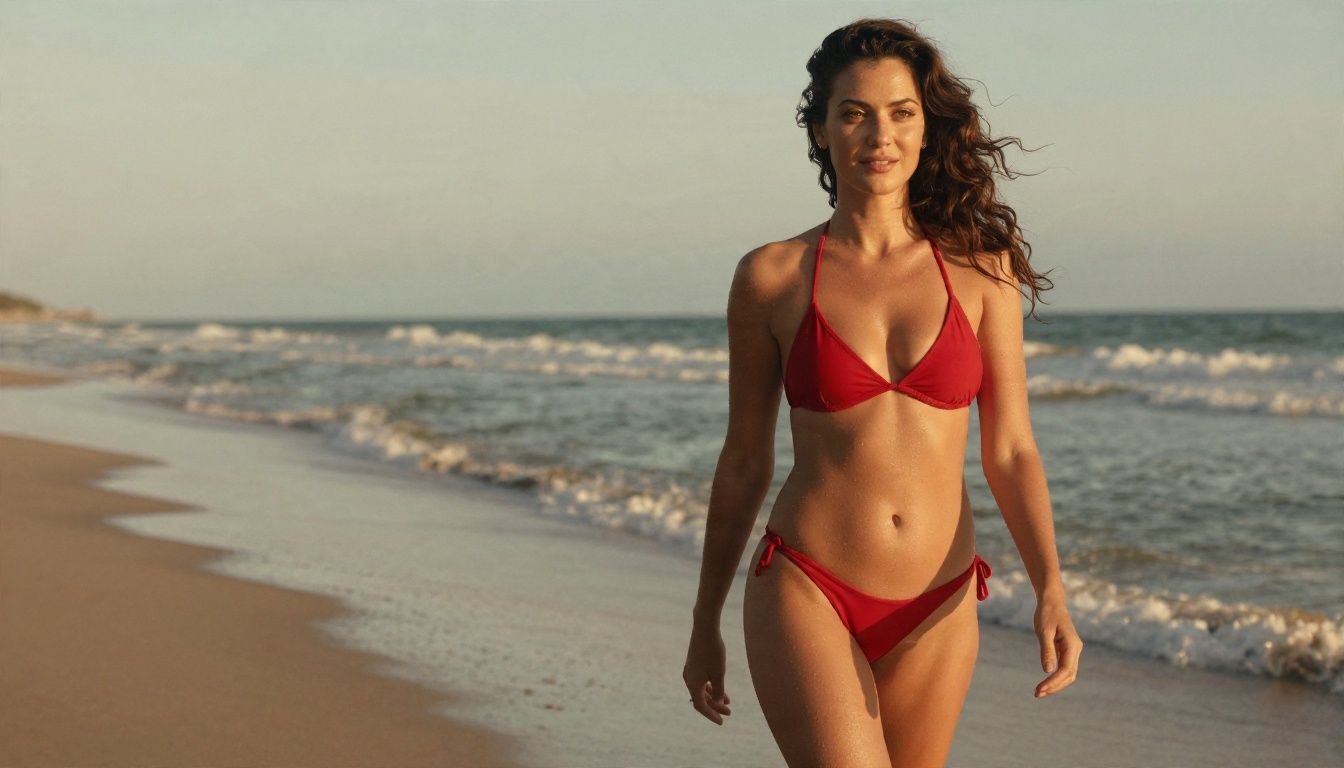
Free Uncensored Alternatives That Work
Here are the options I would try, in the order I would try them. Remember the goal: attractive, photorealistic, non-explicit imagery that does not get refused for no reason. All of these are on PicassoIA, where you can compare them side by side.
Seedream 4.5 Comes First
Seedream 4.5 is my first pick for glamour work. It renders skin with believable texture, handles fabric folds and wet surfaces well, and follows long, detailed prompts without drifting. Bikini shoots, boudoir style lighting, and fashion portraits come out sharp up to 4K. It is also far less jumpy than Gemini when a prompt mentions swimwear or lingerie style outfits.
Best for: hero portraits, beach and pool scenes, editorial glamour.
PicassoIA Image Editor Pro
PicassoIA Image Editor Pro is the unlimited option. You can generate and edit as many times as you like, which matters when you are iterating on outfits, poses and lighting. If a first result is close but not right, you adjust the prompt and run it again without watching a counter.
Best for: heavy iteration, outfit changes, retouching your own photos.
Z Image Turbo for Speed
Z Image Turbo returns sharp images in seconds. When you want to test ten ideas before choosing one for a polished render, it is a very fast way to sketch.
Best for: quick drafts, prompt testing, batch exploration of looks.
Flux 2 Klein for Styling
Flux 2 Klein 4B Base and Flux 2 Klein 9B Base LoRA give you more control over style, especially when you want a consistent look across a series of pictures. The LoRA variant suits creators who care about a recognizable aesthetic.
Best for: consistent series, stylized fashion looks, personal visual identity.
Nano Banana Pro for Clean Edits
Keep Nano Banana Pro in your toolbox for polite, high quality edits. It will not do everything, but for fashion retouching and lighting changes it is excellent, and you can use it right next to the others.
Gemini vs Alternatives Compared
| Tool | Glamour and swimwear | Refusal rate | Iteration limits | Best use |
|---|
| Gemini app | Inconsistent | High on borderline prompts | Daily caps | Safe edits |
| Seedream 4.5 | Excellent | Low for tasteful glamour | Generous | Hero portraits |
| Image Editor Pro | Excellent | Low | Unlimited | Heavy iteration |
| Z Image Turbo | Very good | Low | Generous | Fast drafts |
| Flux 2 Klein | Very good | Low | Generous | Consistent series |
| Nano Banana Pro | Good for safe looks | Moderate | Generous | Retouching |
💡 Rule of thumb: use the tool whose rules fit your goal from the start. Time spent tricking a filter is time not spent making images.
Generate Glamour Shots Step by Step
You do not need a secret. You need a clear photography brief. Here is a workflow that works well in Seedream 4.5 and carries over to the other models.
Pick the Model and Ratio
Open the model page, choose a 16:9 ratio for landscape scenes or 3:4 for portraits, and set the highest quality your plan allows. For a first attempt, leave the other settings at their defaults.
Write the Prompt Like a Photographer
Structure your prompt in this order:
- Subject and pose: an adult woman in a red bikini walking along the shoreline
- Environment: wet sand, soft waves, distant cliffs
- Lighting: low golden sun from the right with rim light on the shoulders
- Camera: 85mm lens, f/2, shallow depth of field
- Texture and mood: natural skin detail, light film grain, warm tones
A tight, specific brief like this beats any trick. Models respond to concrete photography terms because they were trained on photographs.
💡 Prompt tip: describe lighting direction and lens choice every time. They do more for realism than any adjective like "stunning" or "perfect."
Refine With the Editor
Take your best result into PicassoIA Image Editor Pro. Change the outfit color, soften the shadows, move the background, or adjust the pose, then regenerate as often as you need. Because there are no counters, you can try five variations in a row without stress.
Ready to Use Prompt Starters
Copy these and adapt them:
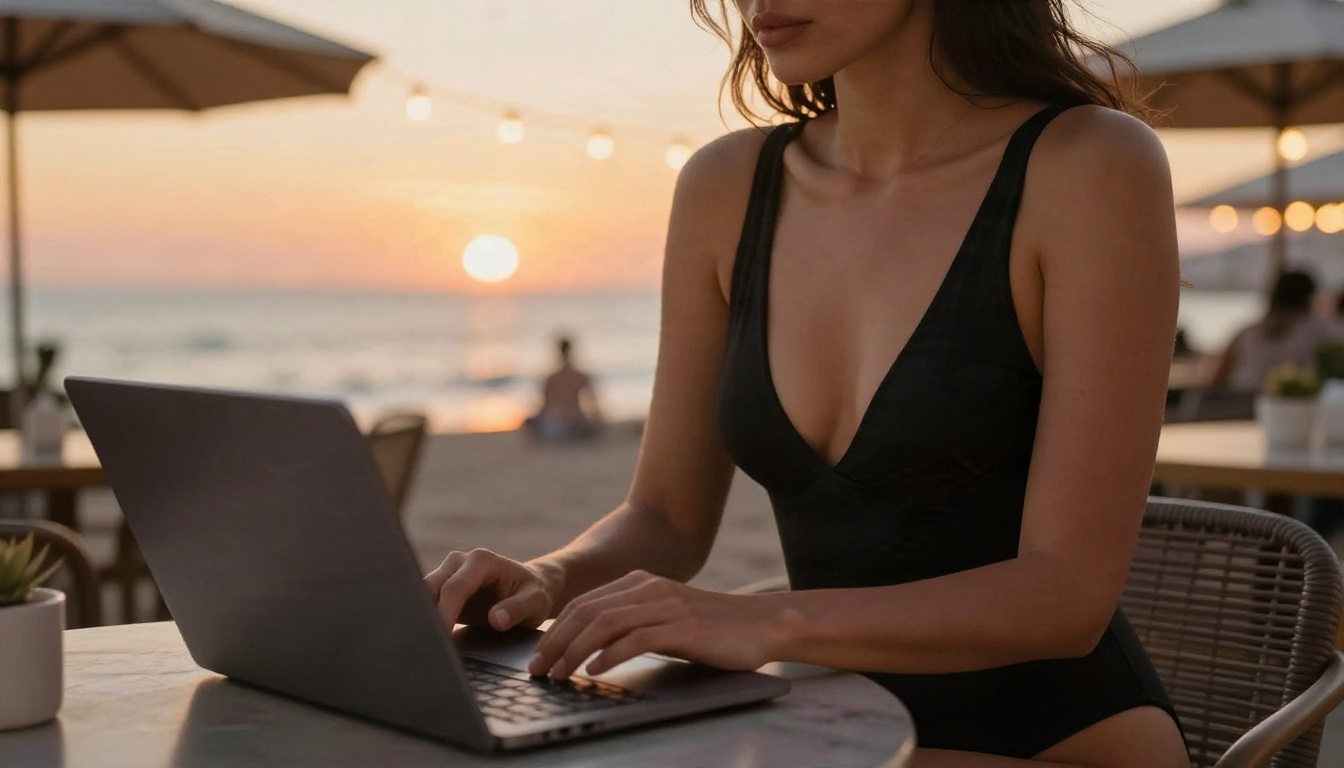
- Beach campaign: "Adult woman in a coral bikini on a quiet beach at sunset, wind in her hair, warm side light, 70mm lens, shallow depth of field, film grain, realistic skin."
- Boudoir mood: "Adult woman in a black silk robe sitting on a linen bed in a sunlit loft, soft window light from the left, 85mm f/1.8, natural freckles, Kodak Portra 400 look."
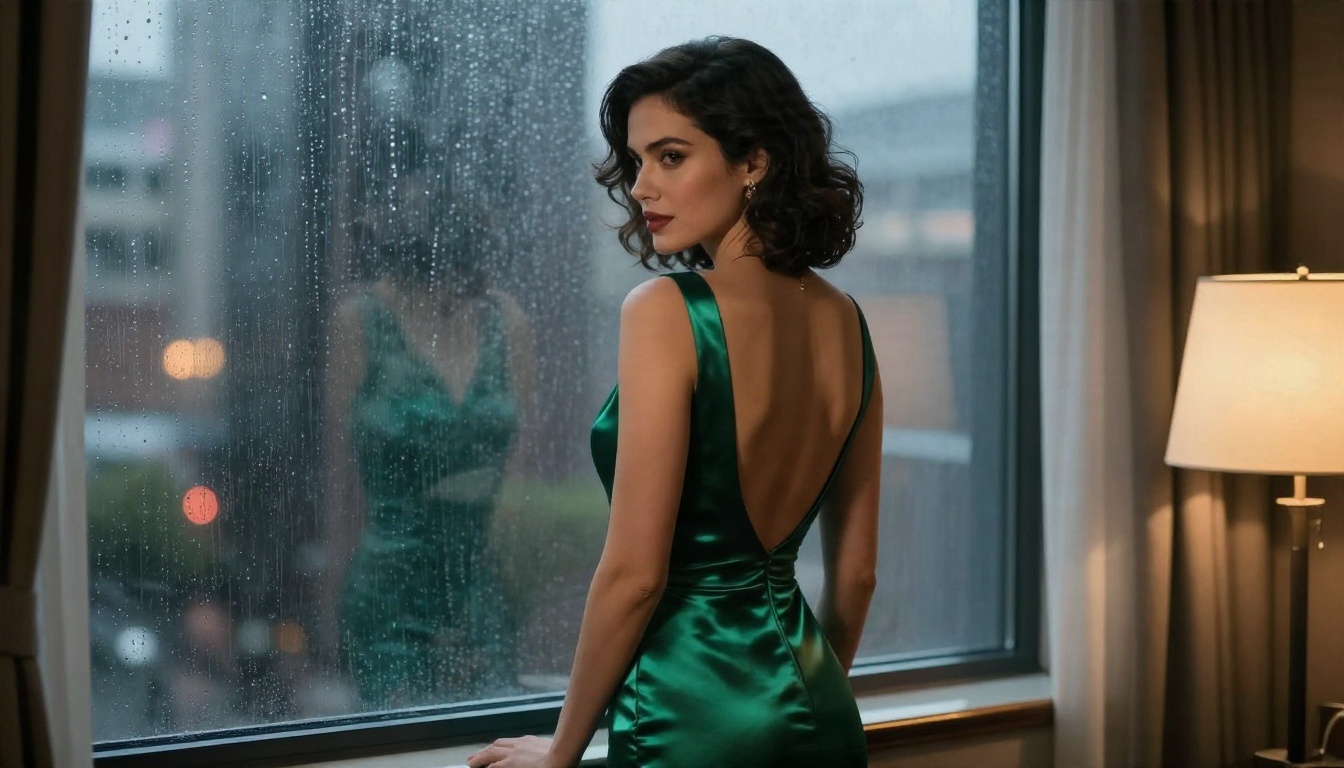
- Evening glamour: "Adult woman in an emerald satin gown beside a rainy hotel window, warm lamp light, 50mm f/1.4, glossy fabric highlights."
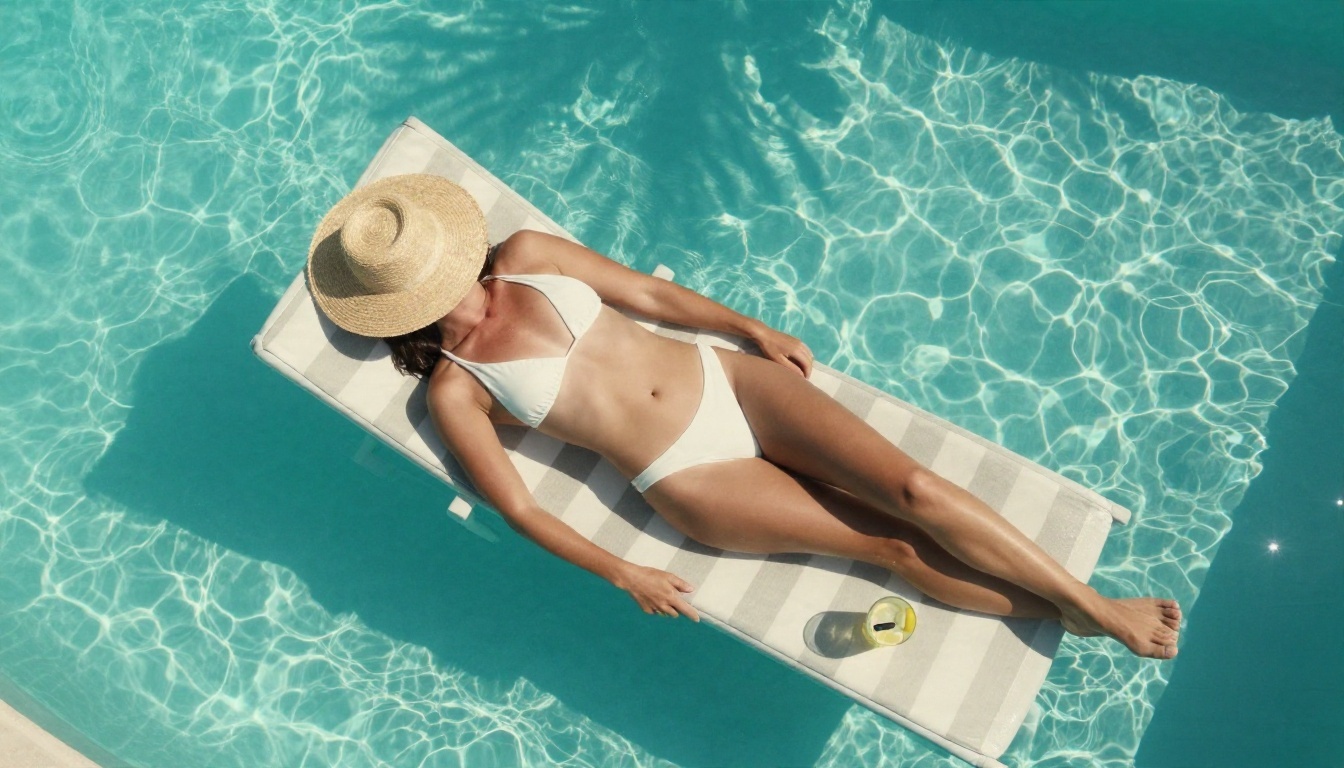
- Poolside: "Adult woman in a white swimsuit on a striped lounger, midday sun, crisp palm shadows, 24mm lens from above."
Mistakes That Waste Your Time
Most people burn hours on the same few errors. Avoid them:
- Chasing jailbreak prompts. They break, and they can put your account at risk.
- Writing vague prompts. "Hot girl on beach" gives generic output. Describe light, lens and fabric.
- Ignoring lighting. Flat light makes skin look plastic. Side light and rim light fix that fast.
- Using one model for everything. Draft in a fast model, polish in a strong one, retouch in an editor.
- Skipping the adult rule. Every subject must be an adult, and you should never recreate a real person without their consent. Reputable tools block this, and so should you.

A Note on Quality Over Edge
Here is something people rarely say out loud. The most shared glamour images are not the boldest. They are the ones with great lighting, believable skin and a strong mood. A tasteful portrait with a warm window light beats a crude, overexposed render every time. That is good news, because tasteful is also what these models do best.
Try It Yourself Today
Stop hunting for a loophole that will be gone by next week. Pick a generator that is built for the look you want, write a proper photography brief, and iterate until the picture matches what you had in your head.
Start with Seedream 4.5 for your hero shots, then move them into PicassoIA Image Editor Pro for unlimited tweaks. When you want speed, try Z Image Turbo, and when you want a consistent style across a set, reach for Flux 2 Klein.
Want to see every option in one place? Browse the full catalog at picassoia.com/en/all-models and run your first prompt in a couple of minutes. Your next image is one good brief away.


