Most image models make you pick: sharp detail or faithful prompts, readable text or natural skin, speed or resolution. Seedream 4.5 from ByteDance gets unusually close to having all of them at once, and you can try it without paying a cent. This article shows where free access actually comes from, which settings are worth touching, a prompt formula that holds up, and eight copy-ready examples you can adapt in a minute.
One note before the examples. The photos in this article are illustrations of the kind of scenes each prompt describes. Your own results will differ in the details, which is exactly why the settings and prompt structure matter.
What Seedream 4.5 Does Well
Seedream 4.5 is a text-to-image and image-to-image model that outputs at 2K and 4K. It follows long, specific prompts better than most models in its class, keeps multiple subjects consistent, and handles realistic skin, fabric and surface texture without the waxy finish that gives AI images away.
Where it sits in the Seedream line
ByteDance has released several versions, and they are easy to mix up. Seedream 4 was the first to push native 4K and multi-reference editing. Seedream 4.5 refined prompt accuracy, text rendering and consistency across a set of images. Newer siblings such as Seedream 5 Lite and Seedream 5 Pro target different speed and quality trade-offs, so always check which version a site is really serving before you judge the results.
Realistic output with readable detail
Where 4.5 earns its reputation is fine detail at high resolution. Pores, wool fibres, wet asphalt, steam over a bowl of broth: the model tends to draw these as texture rather than smudge. That matters if you plan to print, crop in tight, or place the image on a large display.
💡 Quick rule: the more physical detail you describe (light direction, lens, surface texture), the more the model behaves like a camera instead of an illustrator.
How Free Access Really Works
"Free" means different things depending on where you open the model. Here is the honest breakdown.
Free on PicassoIA
The Seedream 4.5 page on PicassoIA lets you type a prompt and get a 2K or 4K image online, with no code and no local install. You can also upload reference images, set the aspect ratio and request batches. It is the quickest route if you simply want to test the model against your own prompts.
Daily credits on ByteDance apps
ByteDance's own consumer apps, Dreamina and Doubao, run the Seedream family and have generally given users a small allowance of free daily credits. The amounts and rules change often, so treat any number you see quoted online as a snapshot, not a promise.
Trial credits and API pricing
Third-party platforms commonly offer new-user trial credits. You may see a figure of around 200 free images repeated across several sites, but it is not clearly an official ByteDance offer, so confirm it on the platform before relying on it. The developer API, offered through ByteDance's cloud and various hosting providers, is billed per image.
| Route | Cost | Best for |
|---|
| PicassoIA model page | Free to try online | Quick tests, prompt practice |
| Dreamina and Doubao | Daily free credits (rules vary) | Casual, regular use |
| Third-party trial credits | Limited, then paid | Comparing hosts |
| Developer API | Paid per image | Apps and automated workflows |
💡 Tip: free allowances are meant for testing. If you plan commercial use, read the terms of the specific provider, because licensing rules vary from one platform to the next.
How to Use Seedream 4.5 on PicassoIA
The workflow takes about a minute from open page to finished image.
- Open the Seedream 4.5 model page.
- Paste your prompt into the Prompt box. The field accepts up to 4,000 characters, so there is no need to shorten a good description.
- Pick size: 2K for drafts and social posts, 4K for print and large displays.
- Choose an aspect ratio that matches where the image will be used.
- Leave sequential image generation on disabled for a single image, or switch to auto when you want a related set.
- Run the generation, check the result, then adjust one variable at a time.
Settings that matter
| Setting | Options | When to change it |
|---|
| Size | 2K (default), 4K | Use 4K for print, tight crops and detail checks. 1K is not supported. |
| Aspect ratio | match input image, 1:1, 4:3, 3:4, 16:9, 9:16, 3:2, 2:3, 21:9 | 16:9 for banners, 9:16 for stories, 3:2 for photo looks, 21:9 for cinematic frames |
| Image input | 1 to 14 reference images | Style transfer, product consistency, face or outfit reference |
| Max images | 1 to 15 | Only used with sequential generation set to auto |
| Custom dimensions | 1024 to 4096 px per side | Exact layout needs such as ads or thumbnails |
| Prompt | Up to 4,000 characters | Detailed scene descriptions |
💡 Start at 2K while you refine the wording. Switch to 4K only for the version you intend to keep. You get faster feedback and waste less on prompts that still need work.
Batch mode for related sets
Setting sequential generation to auto and raising max images lets the model produce a group of related pictures in one run: character variations, story scenes, a product shown from several angles. Keep in mind that total images, inputs included, cannot go beyond 15. For a consistent set, write one shared description of the subject and then add a short line saying how each frame should differ.
Long prompts are fine for this model, but long is not the same as organised. A fixed structure gives better results than a pile of adjectives.
The five-part structure
- Subject and action: who or what, doing what, in what pose.
- Environment: location, background objects, time of day.
- Light: direction, quality, colour temperature.
- Camera: lens length, aperture, angle, distance.
- Texture and finish: skin, fabric, surface, film grain, mood.

A photography vocabulary is the single biggest lever. Phrases like 85mm f/1.8, soft overcast light from above left or Kodak Portra 400 grain give the model a concrete visual target. Words like "stunning" or "masterpiece" give it nothing to hold on to.
Mistakes to avoid
- Contradictions. "Harsh midday sun" and "soft diffused light" in the same prompt force the model to guess.
- Too many subjects. Three people, two animals and a vehicle will blur your priorities. Describe the main subject first and keep the rest short.
- Missing light. If you skip lighting, you get flat default light. Always name the source and direction.
- Changing everything at once. Edit one element per run so you know what caused the improvement.
- Long quoted text. If words must appear in the image, keep them to one or two short words in quotation marks.
Eight Prompt Examples to Copy
Every prompt below follows the five-part structure. Paste it as is, or swap the subject and keep the rest.
Portraits and fashion
Golden hour portrait
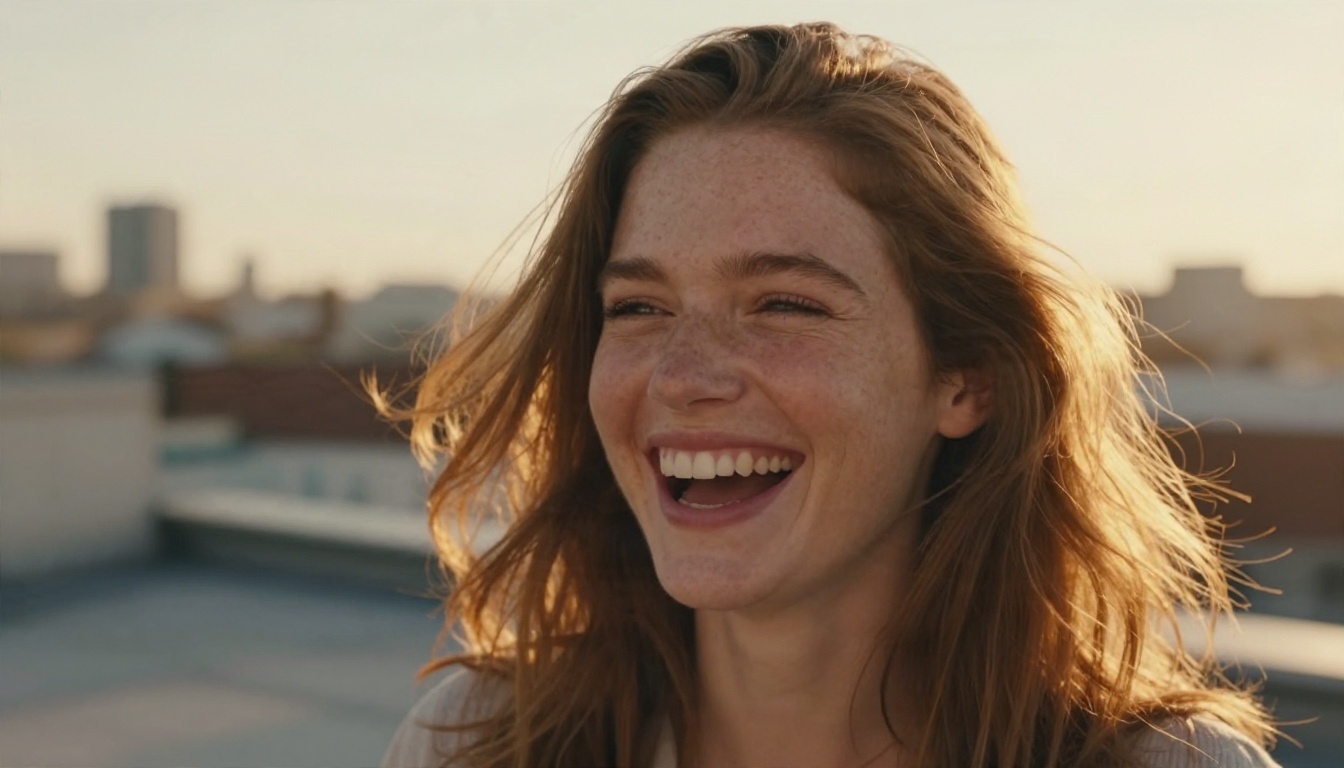
Close-up portrait of a young woman with light freckles and wind-tossed auburn hair laughing on a rooftop terrace at golden hour, visible skin pores and fine peach fuzz, warm backlight from camera right rimming her hair, blurred city skyline behind, 85mm f/1.8 shallow depth of field, Kodak Portra 400 grain.
Settings: 3:2 or 4:5 style framing, 2K for the draft, 4K for the final.
Weathered character study
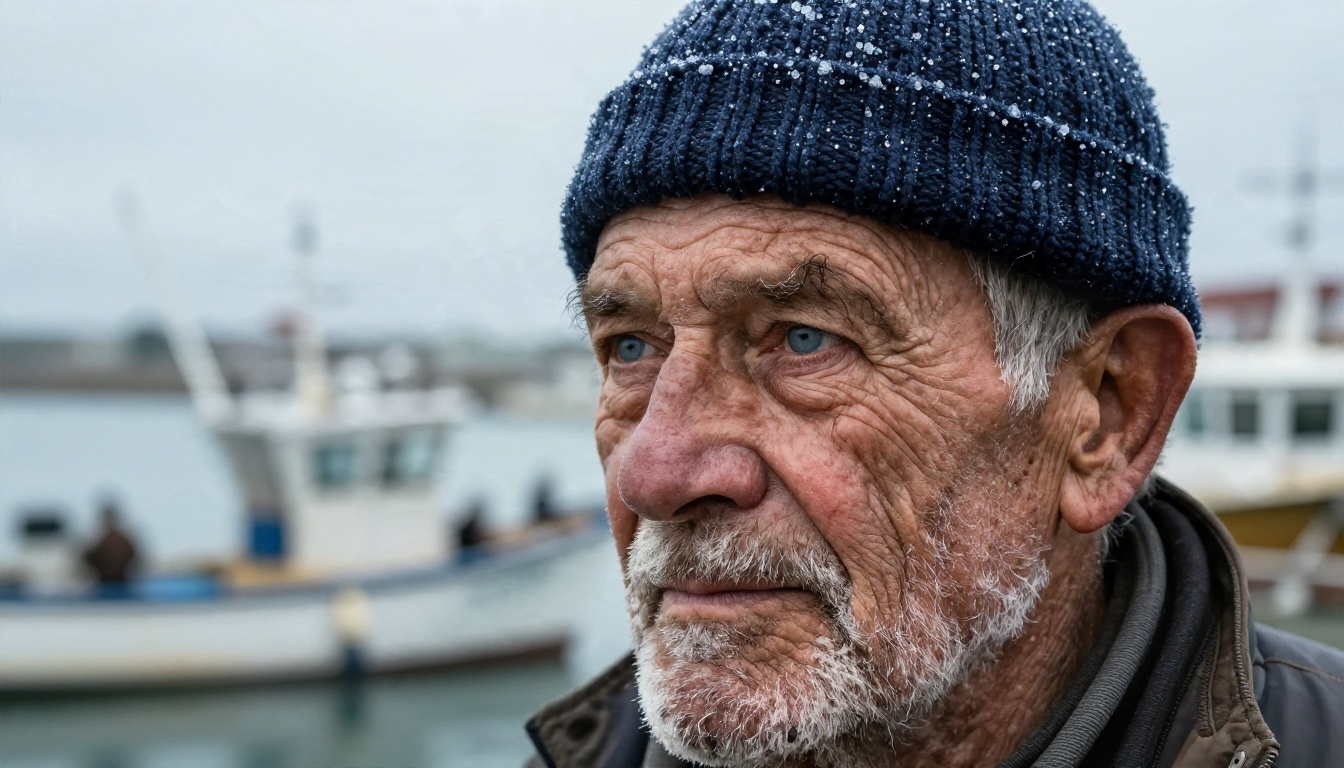
Tight close-up of a weathered elderly fisherman with deep wrinkles, white stubble and pale blue eyes, knitted navy wool cap beaded with sea mist, harbour boats blurred behind, soft overcast light from above left, 100mm f/2 lens, hyper-detailed skin and wool fibres.
Character faces are where the 4K setting pays off. Zoom in and check the eyelashes and stubble.
Fashion editorial
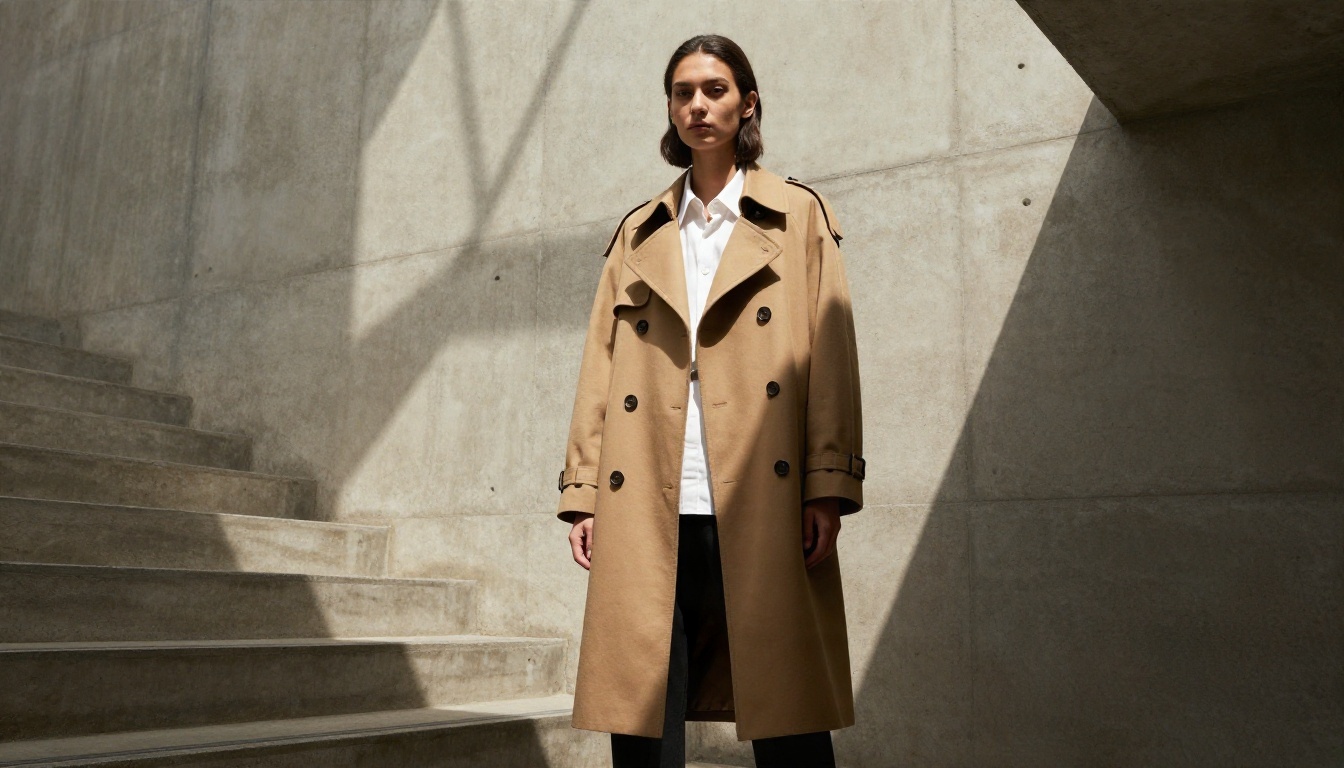
A model in an oversized camel trench coat and white shirt standing in a sunlit concrete stairwell with geometric shadows from a skylight, hands in pockets, looking off camera, visible wool weave, hard light from above right, 70mm f/2.8 full-length framing, muted warm tones, film grain.
For a lookbook, switch on sequential generation and ask for the same model in three poses.
Food and products
Overhead food shot
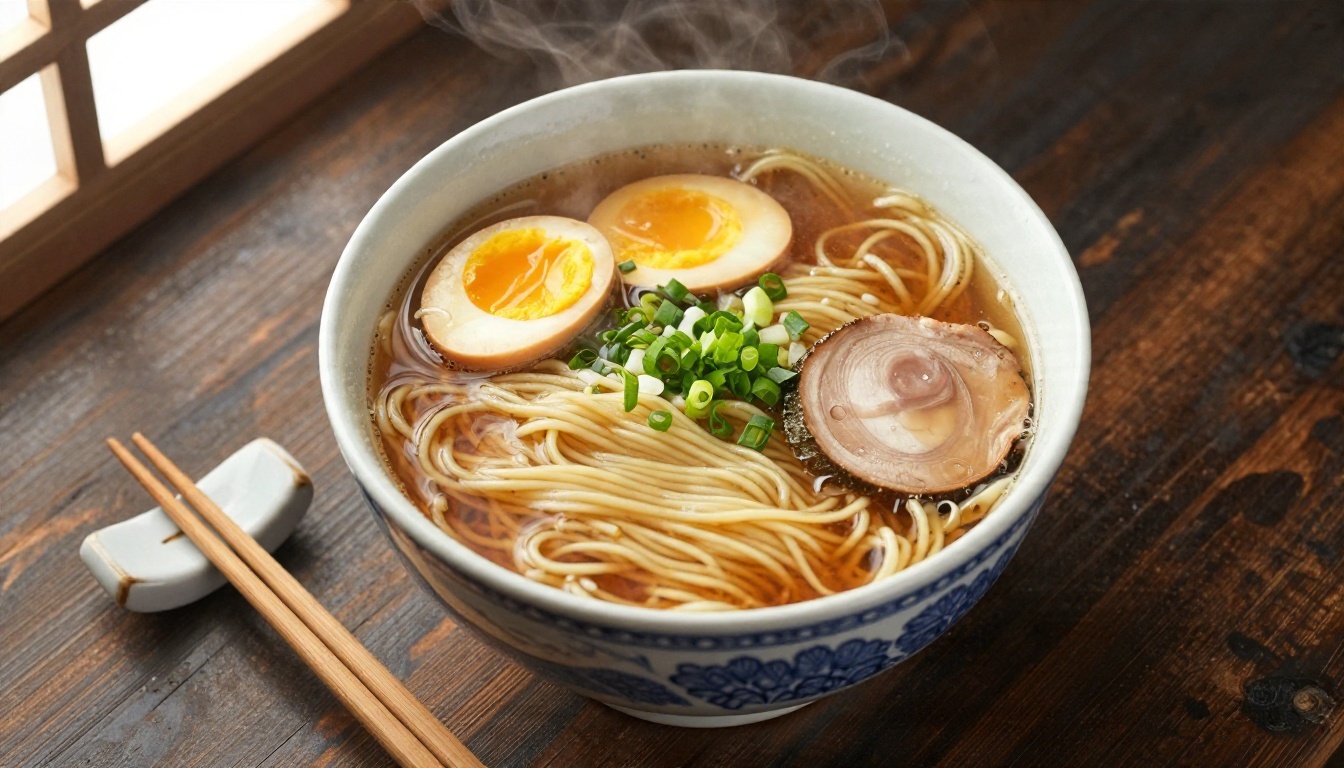
Overhead flat-lay of a steaming bowl of tonkotsu ramen with soft egg, scallions and nori on a dark weathered wooden table, chopsticks on a ceramic rest, droplets of broth on the rim, soft window light from the left, 50mm f/2.8 top-down angle, glossy oil and noodle texture.
Food responds well to a dark, matte surface and one clear light source. Steam and gloss are what sell it.
Studio product still
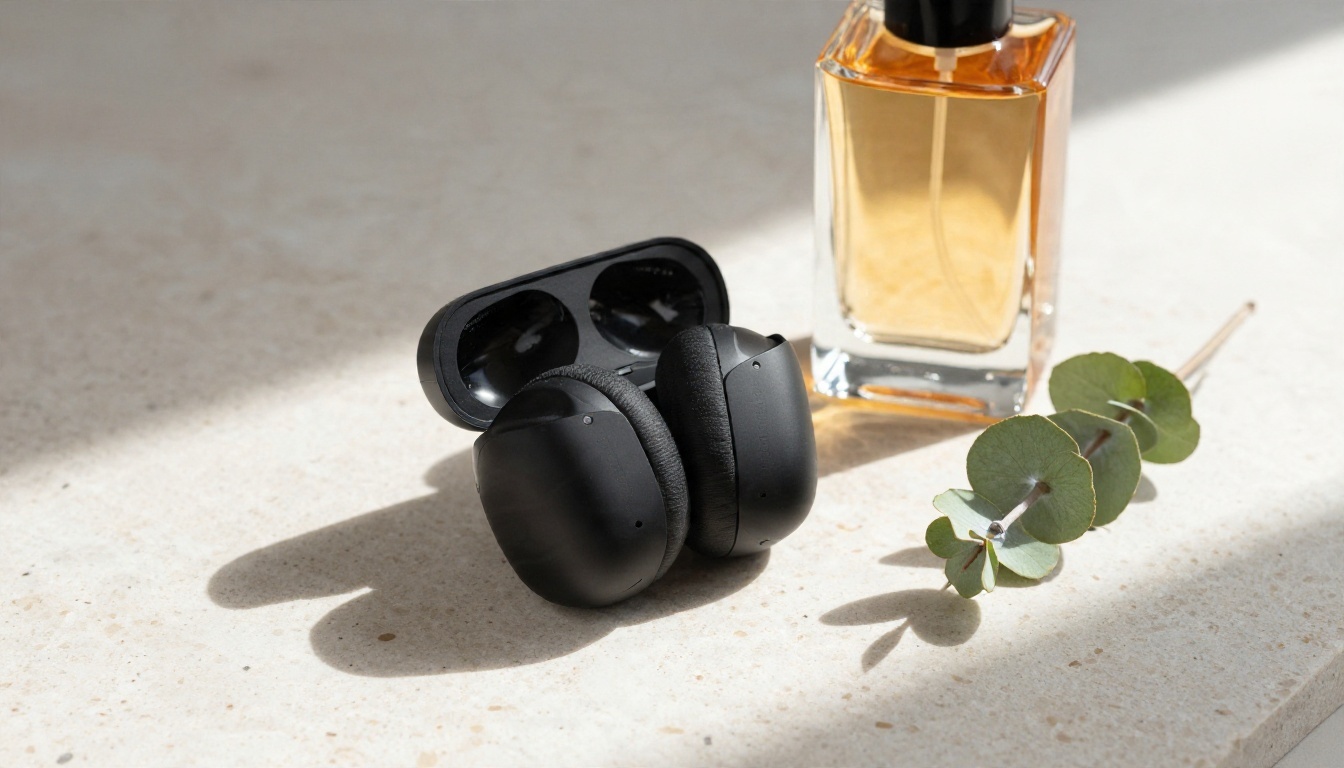
Product photograph of matte black wireless headphones and a glass bottle of amber perfume on a slab of pale travertine stone, hard morning sunlight from the right casting crisp diagonal shadows, a green eucalyptus sprig beside them, 90mm macro f/5.6 slightly elevated angle, accurate glass reflections.
Upload your own product photo through image input if you want the model to keep the exact shape and branding while changing the setting.
Places and interiors
Interior design scene
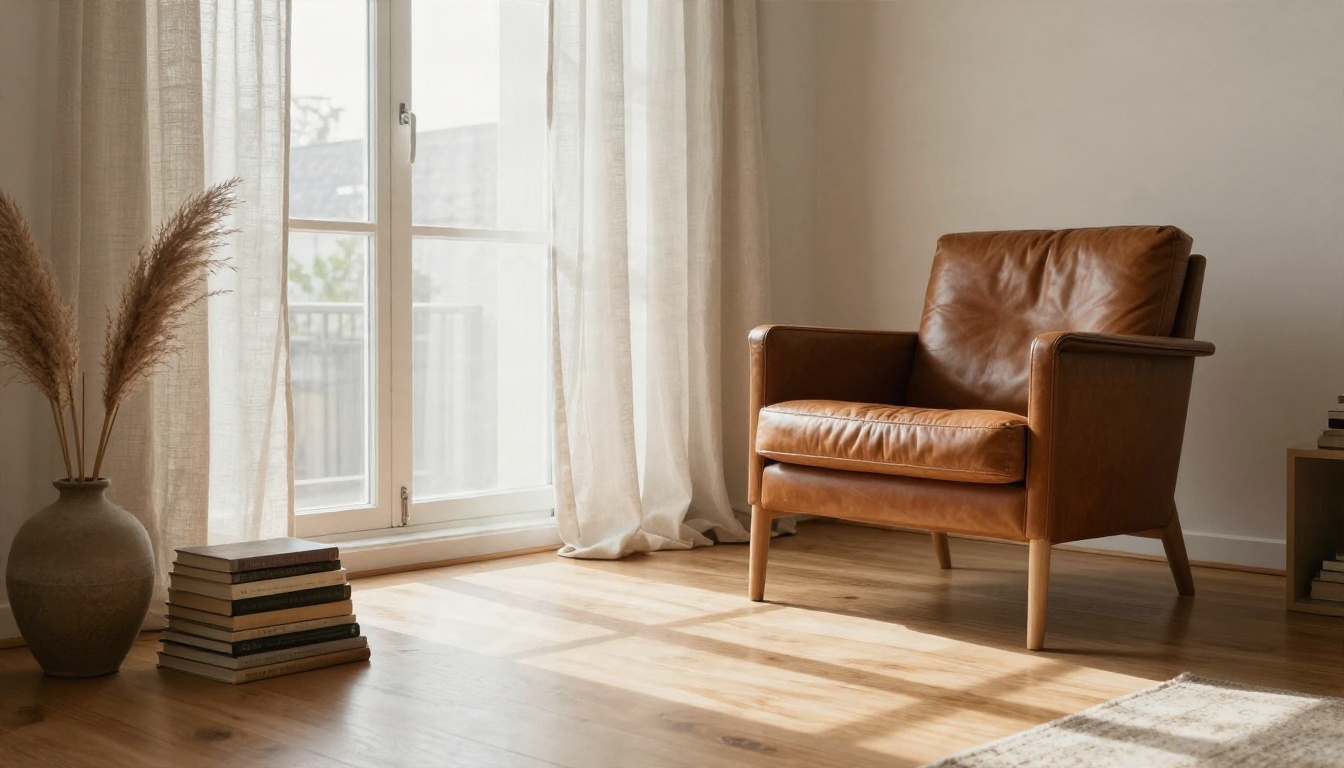
Low-angle wide shot of a minimalist Scandinavian living room with a cognac leather armchair beside a tall window, linen curtains moving slightly, oak floor with soft reflections, a stack of books and a ceramic vase with dried pampas, volumetric morning light from the left, 24mm f/4 lens.
Wide lenses (20 to 28 mm) keep the room believable. Avoid fisheye-style wording unless you want distortion.
Aerial landscape
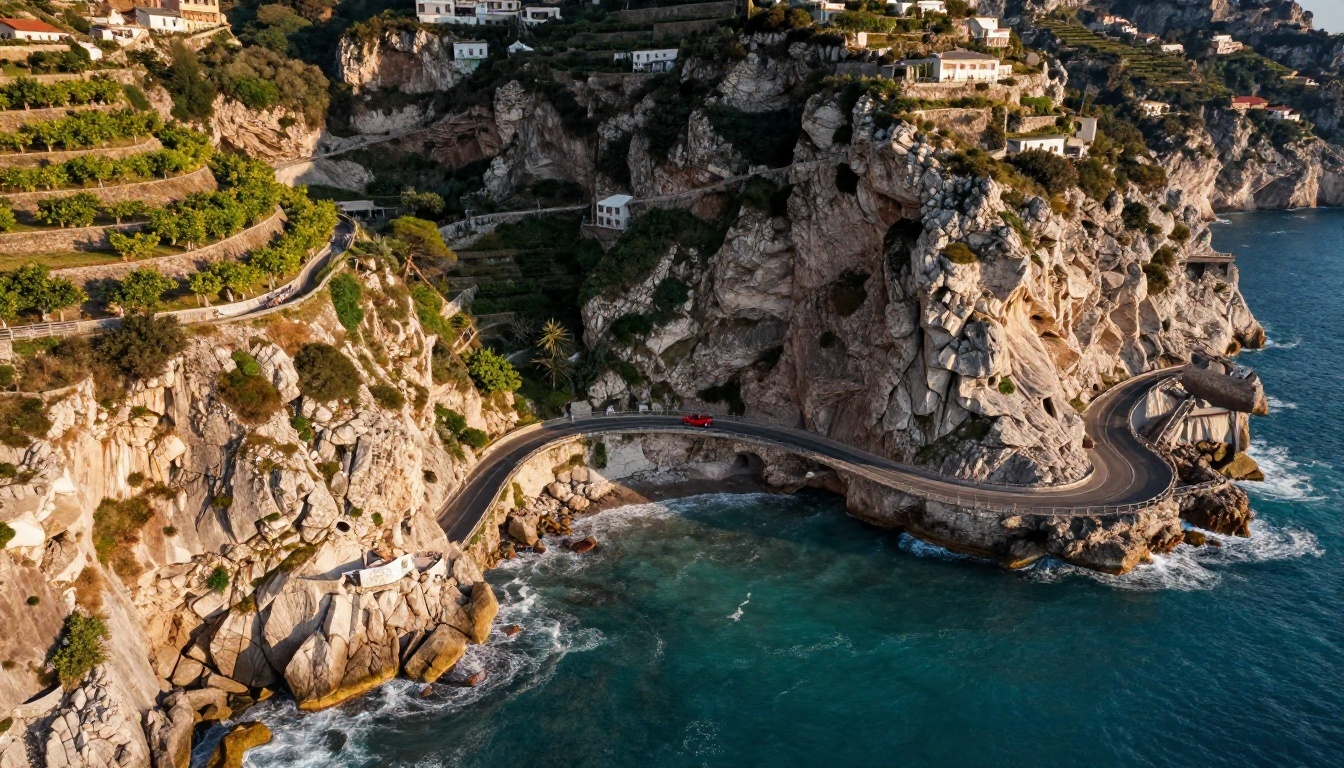
Aerial drone view of a turquoise coastal road winding along limestone cliffs, a tiny red vintage convertible on the curve, white surf lines on the rocks, terraced lemon groves, late afternoon sun from the west casting long shadows, 24mm lens at 120 metres, natural saturation.
Mention the altitude and the sun position. Those two details control scale and shadow length.
Street and documentary
Rainy street scene
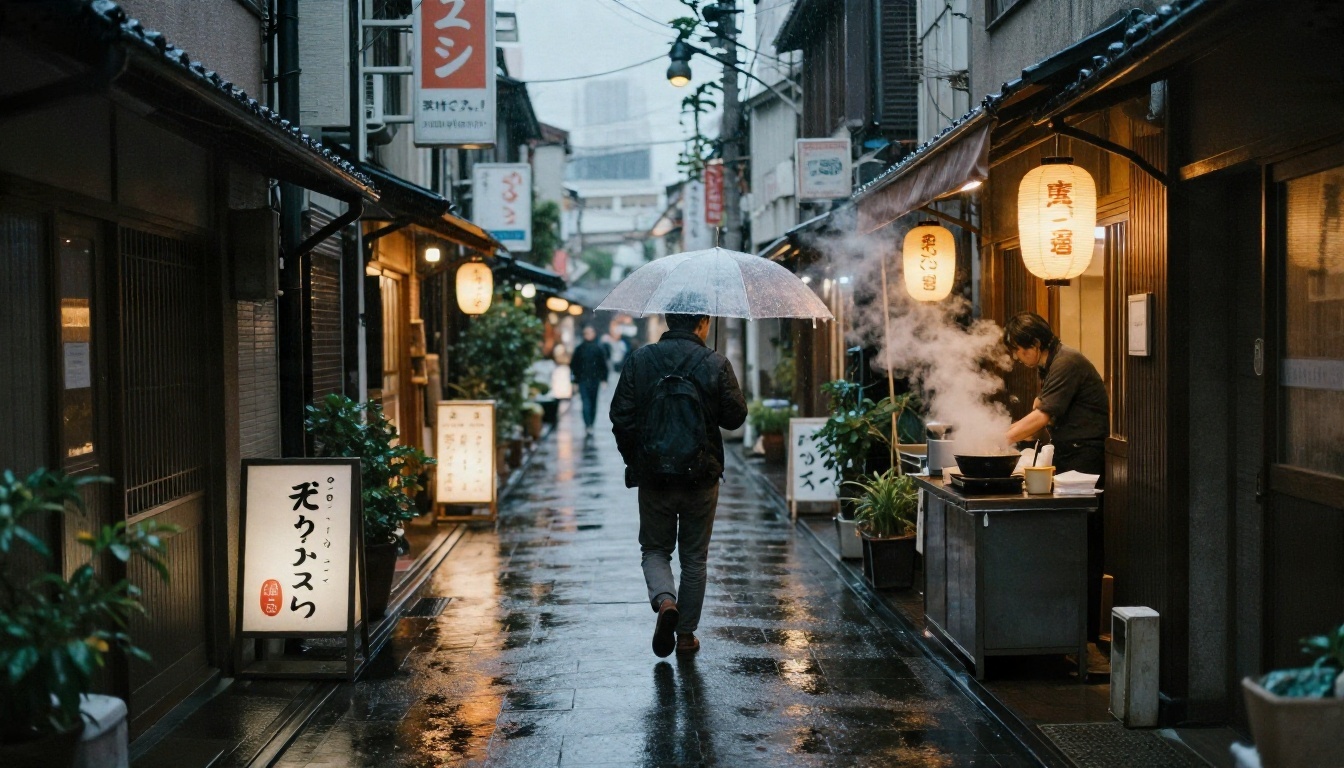
Street photograph of a narrow Tokyo alley after rain at dusk, wet asphalt reflecting warm lantern light, a man with a transparent umbrella walking away mid-stride, steam rising from a small ramen stall, 35mm f/1.4 at eye level, soft natural twilight, raindrops on the umbrella, fine film grain.
Reflections on wet ground are a good stress test for any model. If the lights look doubled or misplaced, shorten the prompt and name only two light sources.
Seedream 4.5 vs Other Image Models
No model wins every task. Use this table to decide when to stay with Seedream 4.5 and when to switch.
| Model | Strength | Pick it when |
|---|
| Seedream 4.5 | Long prompts, 4K detail, multi-reference sets | You need sharp, controlled photoreal output |
| Seedream 4 | Earlier generation, still strong at 4K | You want to compare against an older baseline |
| Nano Banana Pro | Conversational edits, 4K output | You are editing an existing photo with plain-language instructions |
| Qwen Image 3 Pro | Photorealistic generation | You want another realistic take on the same prompt |
| Flux 2 Klein 9B Base LoRA | Styled output through LoRA | You need a specific look or trained style |
| Seedream 5 Lite | Fast 2K generation | Speed matters more than maximum resolution |
A practical workflow: run the same prompt in two models at 2K, keep the one that matches your intent, and only then generate the final at 4K.
Fixing Common Problems
The image looks flat. Add a light direction and a lens. "Soft window light from the left, 50mm f/1.8" does more than any quality adjective.
Faces look too smooth. Name the skin explicitly: "visible pores, fine peach fuzz, no retouching". Also check that you did not ask for "flawless" or "perfect" skin, which pushes the model toward a plastic finish.
The wrong subject dominates. Put your main subject in the first sentence and keep supporting objects short. Order matters.
Text in the image is wrong. Limit it to one or two words in quotation marks and say where it appears, for example "a small sign reading 'OPEN' above the door".
The set of images does not match. Use sequential generation set to auto, repeat the identical subject description in each request, and add a reference image through image input to anchor the look.
Edges or hands look off. Raise the resolution to 4K and simplify the pose. Hands resting in pockets or holding a single object are far more reliable than complex gestures.
💡 Keep a prompt log. Save the prompt, size and aspect ratio next to every result you like. After ten or fifteen runs you will have a personal template library that beats any generic list.
Make Your Own Images Today
You now have the settings, the formula and eight prompts to start from. The fastest way to improve is to run them, change one detail, and compare. Open Seedream 4.5 on Picasso IA, paste the rooftop portrait or the ramen prompt, and generate a 2K draft. Then swap the subject for something of your own: your product, your street, your kitchen.
If you want to compare, run the same prompt in Nano Banana Pro or Seedream 4 and see which one matches your vision. For every other option on the platform, browse all models on Picasso IA and keep experimenting. Your next best image is one prompt away.


