Most AI video models give you a few seconds of motion and then lose the plot. The character's face drifts, the background melts, and the scene that started as a charming fox in a forest ends as something unrecognizable. Seedance 2.5 was built to push against exactly that problem, and animators are paying attention. ByteDance announced it in June 2026 with a headline promise of up to 30 seconds of continuous video, a huge pool of reference inputs and a rough 3D preview stage before the final render. This article shows what that means in practice, gives you prompts you can paste today, and points out the free online options that let you test the idea without spending anything.
What Seedance 2.5 Brings to Animation
Animation is a harsh test for any video model. A live-action clip can hide small errors in noise and camera shake. A drawn character cannot. If the line weight changes, the eye color shifts or the costume loses a button, viewers see it immediately. That is why a model aimed at animation needs consistency more than raw spectacle.
Thirty seconds in one take
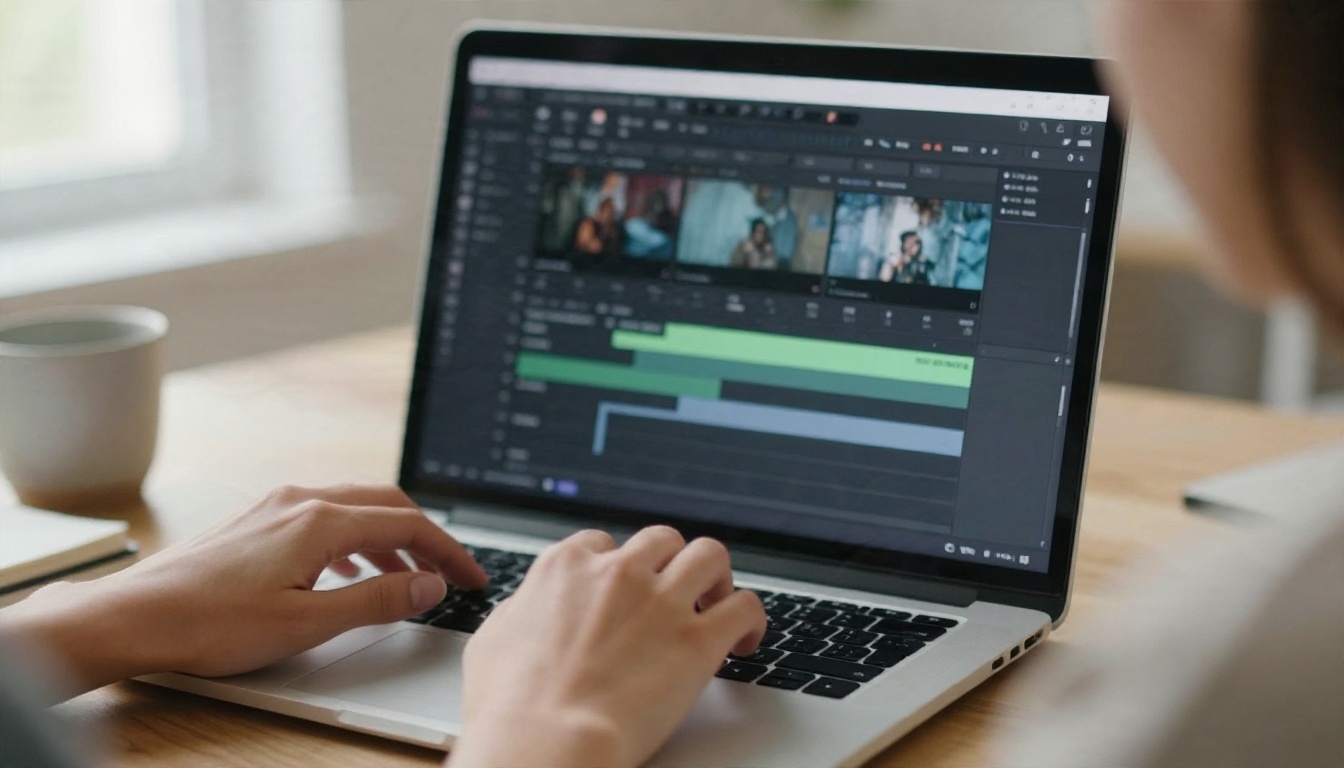
Earlier models in the family topped out at short clips. Seedance 1 Pro delivered sharp 1080p footage but over a brief window, and Seedance 1.5 Pro added synchronized audio. The jump with Seedance 2.5 is length. A single generation can reportedly run for about 30 seconds, which is enough for a full gag, a walk cycle across a street, or an establishing shot followed by a character entrance.
For animators, that changes how you plan a sequence. Instead of stitching eight tiny clips and hoping the character matches, you can write one prompt that describes a beginning, a middle and an end.
Reference inputs and the white-box preview
Two other features matter for animation work:
- Many reference inputs. Reports describe support for up to 50 multimodal references, meaning images, clips and audio that anchor the look of your character, the set and the movement.
- A 3D white-box preview. Before the full render, the model can produce a low-fidelity animated blockout. You judge timing and camera movement first, then commit to the expensive pass.
- Local redraw editing. Instead of regenerating a whole shot because one hand looks wrong, you can reportedly fix a region.
- Synchronized audio. Footsteps, ambience and effects can be generated alongside the picture.
💡 Think of the white-box preview as the animatic stage of a traditional pipeline. Cheap, fast, ugly on purpose, and perfect for deciding whether a shot works before you spend time on polish.
Where the claims need caution
A fair warning: much of the public detail about this release comes from the vendor and from resellers who list the model. Resolution figures, reference counts and the exact length limit can vary by platform and plan. Treat the numbers above as the ceiling, then test the actual limits on the tool you use. A quick test clip tells you more than any spec sheet.
Animation prompts fail for one common reason: they describe a picture instead of a performance. A good prompt reads like a short scene direction.
Subject, motion, camera, style
Use four blocks, in this order:
- Subject. Who or what is on screen, with two or three fixed visual traits (a red scarf, round glasses, a patched jacket).
- Motion. What happens, described in sequence. Use words like "then", "as", and "finally".
- Camera. Dolly in, slow pan left, locked-off wide shot, handheld follow.
- Style and light. Hand-drawn ink lines, flat cel shading, soft watercolor wash, warm evening light.
| Block | Weak version | Strong version |
|---|
| Subject | A cute robot | A small rusted robot with one round eye and a yellow antenna |
| Motion | The robot walks | The robot trips on a cable, catches itself, then waves at the camera |
| Camera | Cinematic | Slow dolly-in from a low angle, ending on a close-up of the eye |
| Style | Animated | Hand-painted 2D animation, visible brush texture, muted warm palette |
Write for time, not for stills
Because the model can now hold a longer clip, you should give it a clock. Break 30 seconds into beats:
- 0 to 8 seconds: establish the place and the character.
- 8 to 20 seconds: the main action or joke.
- 20 to 30 seconds: reaction, camera pull-back, or an exit.
Even a rough beat list stops the model from stalling in the middle of the clip. Repeat the character traits once near the end of the prompt. That small reminder helps keep the design steady.
Prompt Examples by Animation Style
Below are prompts written in the four-block structure. Paste them into your tool of choice and adjust the details. They work as starting points, not magic spells.
Hand-drawn 2D character
A young girl with a short black bob haircut and a mustard raincoat stands at a bus stop in heavy rain. She hops over a puddle, then spins her umbrella so droplets fan outward, then looks up as a bus arrives. Locked-off medium shot that slowly pushes in. Hand-drawn 2D animation, clean ink outlines, flat cel colors, soft grey-blue palette, subtle paper texture. The girl keeps her mustard raincoat and black bob throughout.
Why it works: three beats, two repeated identifiers, and a camera move that does not fight the action.
Clay stop motion
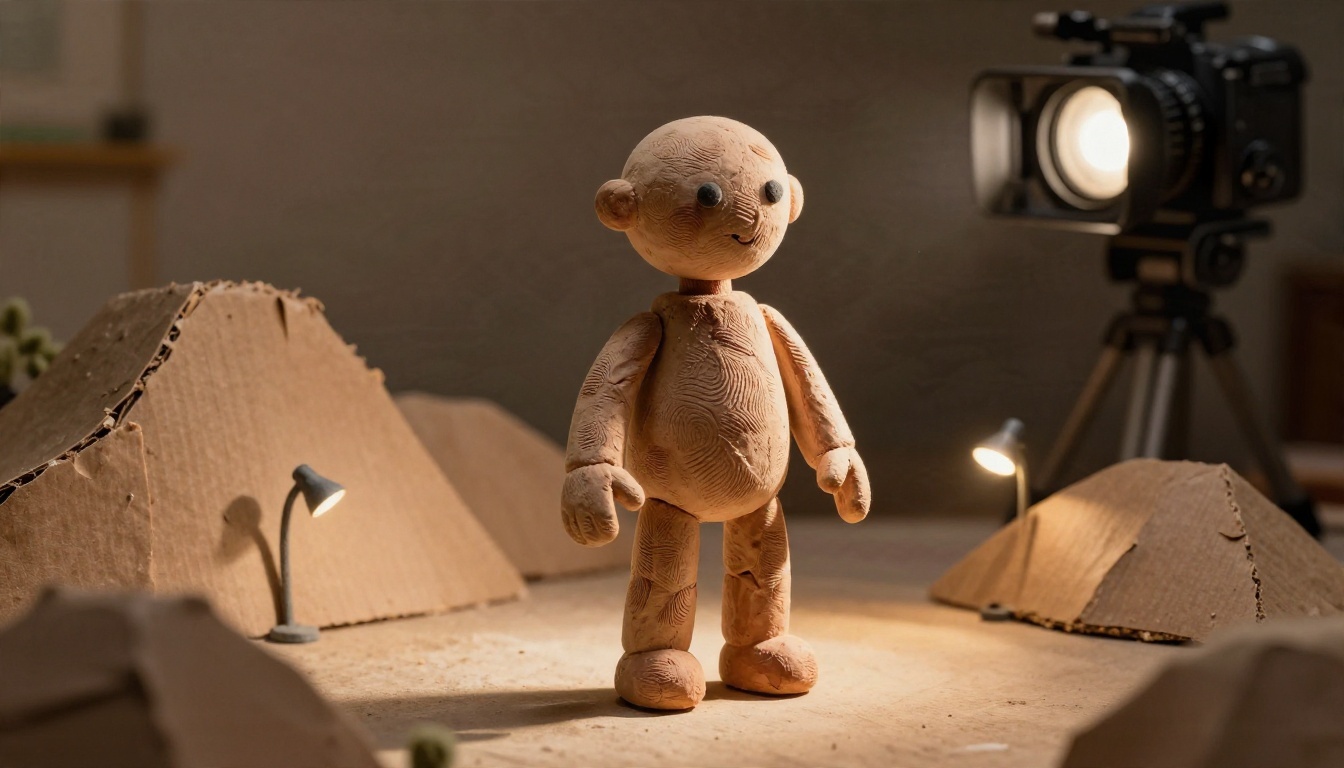
A clay hedgehog with visible fingerprint marks on its body carries a tiny lantern across a handmade cardboard hill. Each step has a slightly jerky stop-motion rhythm. It stops, holds up the lantern, then a clay moth lands on the glass. Low-angle camera, shallow depth of field, miniature set lit by warm tungsten lamps. Handmade textures, slight frame-to-frame wobble.
The phrase "slightly jerky stop-motion rhythm" matters. Without it, the model tends to smooth the motion into something that looks like standard CGI.
Watercolor landscapes
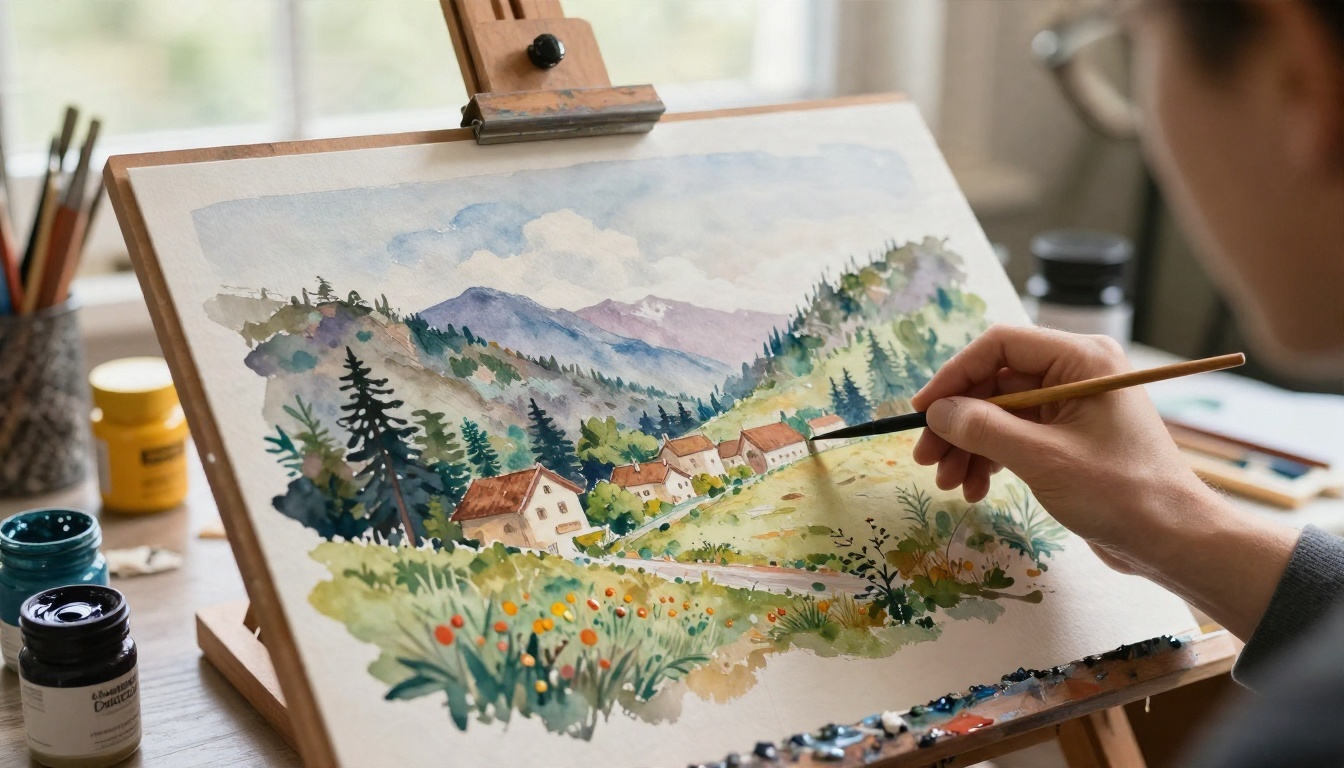
A watercolor mountain village at sunrise. Pale pink light spreads across the rooftops as mist drifts through the valley and a flock of birds crosses the sky from left to right. Smoke rises from two chimneys. Slow lateral pan to the right. Soft wet-on-wet watercolor washes, visible paper grain, gentle bleeding edges, no hard outlines.
Watercolor is forgiving. Slow ambient motion hides tiny inconsistencies and plays to the strengths of a model that handles atmosphere well.
Anime-inspired action
A teenage courier with silver hair and a green jacket sprints across rooftops at dusk, leaps a gap between two buildings, then lands in a roll and skids to a stop. Fast tracking shot from the side, then a sudden low angle as she lands. Anime-inspired 2D animation, bold speed lines, dramatic orange sky, crisp shadows. The courier keeps her silver hair and green jacket in every frame.
Action needs more clarity than quiet scenes. Name each movement in order and keep it to three or four actions. Ten actions in one clip is a recipe for mush.
How to Use Seedance 2.5 on PicassoIA
Seedance 2.5 is available as a text-to-video model on PicassoIA, so you can generate a clip in your browser without installing anything.

Step by step
- Open the Seedance 2.5 page.
- Paste your prompt into the text box. Use the four-block structure from the earlier section.
- If the interface offers an image or reference upload, add a character sheet or a still of your set. A clear front view of the character works best.
- Choose your duration. Start short for the first test, then extend once the character looks right.
- Pick an aspect ratio that suits the final platform: 16:9 for YouTube, 9:16 for short vertical clips.
- Generate, watch the whole clip once without pausing, then note what drifted.
- Edit only one thing in the prompt, then run it again.
Settings worth adjusting
- Duration: shorter runs are cheaper to iterate. Save the long render for when the prompt is locked.
- Reference image: the single biggest lever for character consistency.
- Audio: describe sounds in the prompt ("rain on a tin roof, distant bus engine") when the model supports synchronized audio.
- Aspect ratio: decide before you write the camera direction, since a vertical frame changes composition.
💡 Generate your character sheet first with Seedream 4.5, then feed it to the video model as a reference. A consistent source image beats a long description every time.
Free Online Options Compared
You do not need a paid plan to start. The trick is choosing the right free tool for the right stage of the project.

Seedance 2.5 Lite for drafts
Seedance 2.5 Lite is listed as a free and unlimited generator for clips up to 10 seconds. That makes it the obvious place to test prompts. Run five or six variations of the same scene, pick the winner, and only then move to the full-length model for the final render.
Use the Lite model to answer cheap questions:
- Does the character design survive motion?
- Is the camera direction being followed?
- Does the style phrase produce the look I expect?
Other models for different jobs
No single model wins every category. A practical pipeline uses two or three of them, each for what it does best.
Workflow From Storyboard to Final Cut
A model does not replace the planning stage. It rewards it. The animators getting the best results from AI video still start with paper.
Pose frames and references first
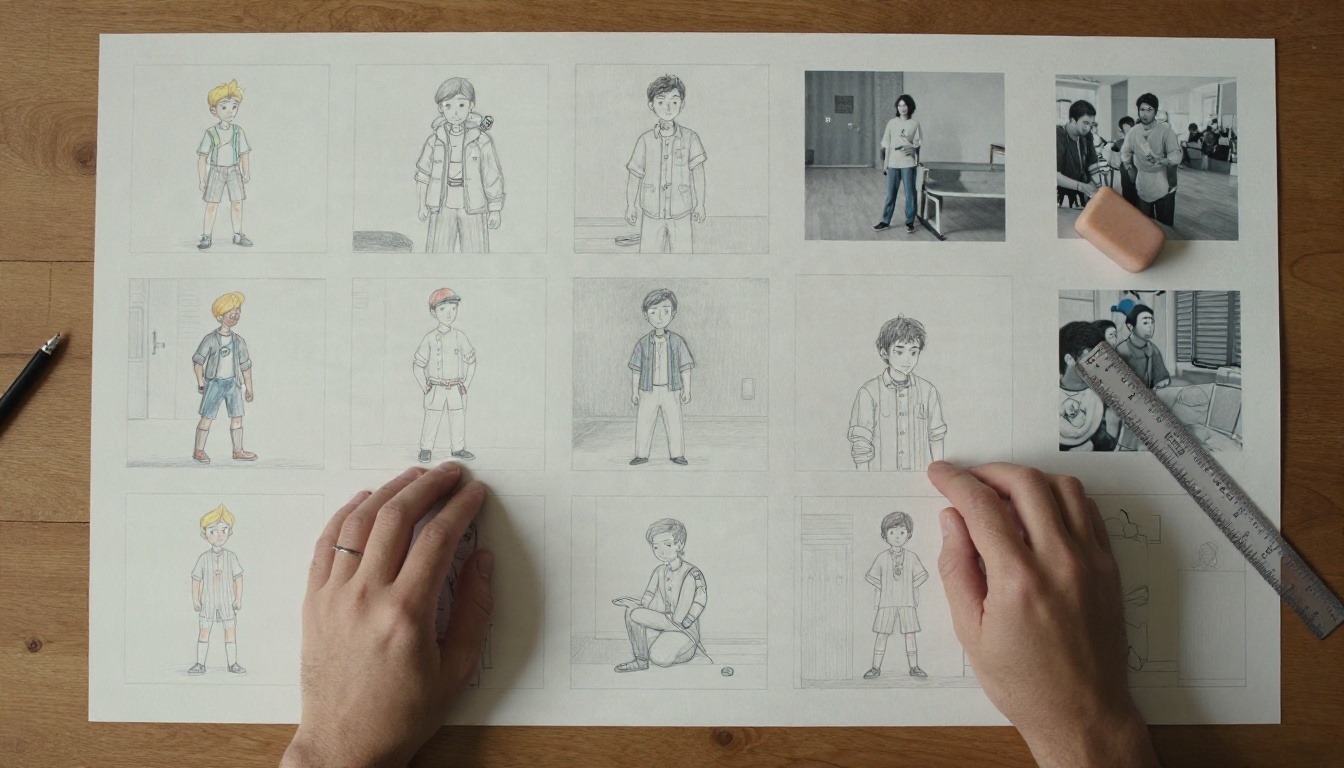
Draw or generate the three most important poses in your scene: the opening, the peak of the action and the ending. Clean, simple drawings are enough. These become your reference images, and they tell the model where the clip should land.
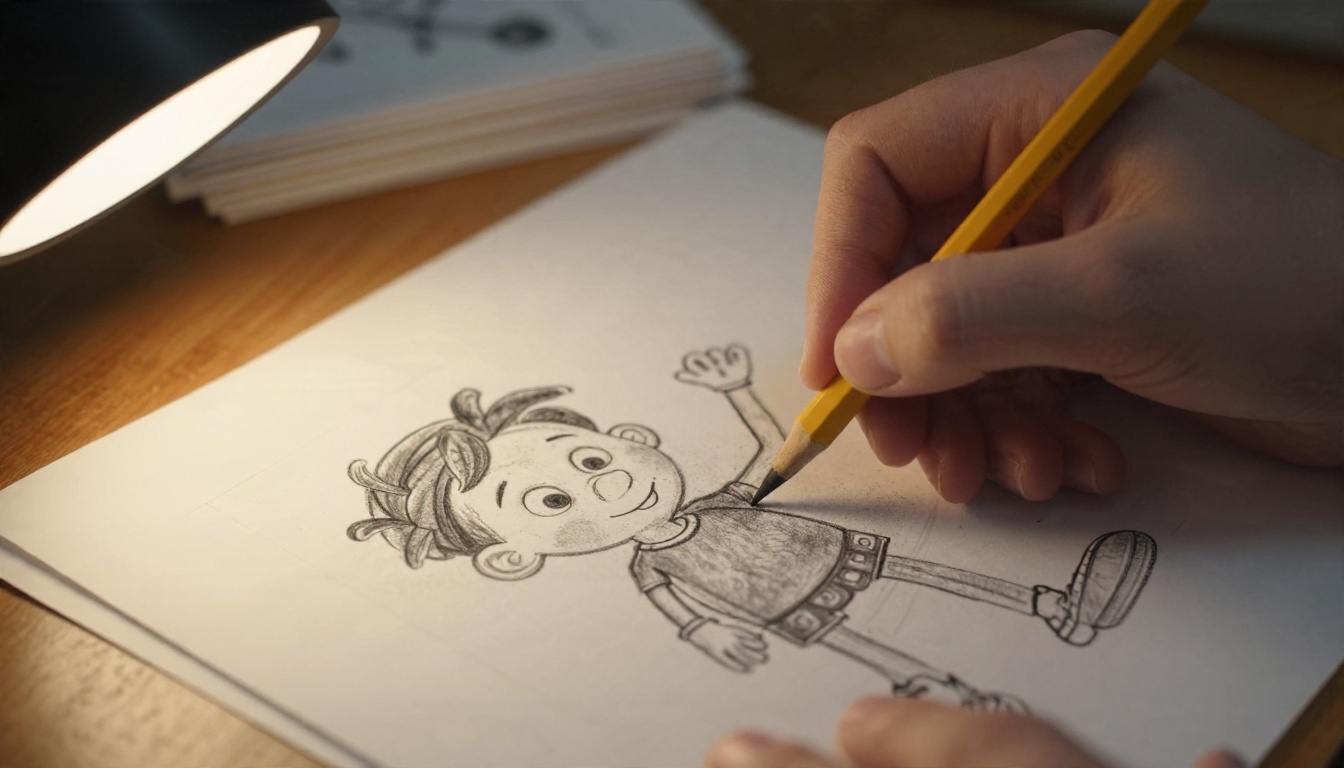
Here is a workflow that scales from a single shot to a short film:
- Script one line per shot. "Girl waits at bus stop in rain" is enough.
- Make a character sheet. Front, side, three-quarter view, one neutral expression and one smiling.
- Draft with the free model. Use the Lite option to explore timing.
- Render the winners at full length. Keep prompts identical except for the details you are fixing.
- Add sound and music. If you need a score, PicassoIA also offers AI music generation and text-to-speech, so you can build the audio track in the same place.
- Cut it together. Even simple trims and crossfades in an editor make separate clips feel like one film.
If a finished clip looks soft, you can run it through an AI video enhancement or super resolution model to sharpen detail before delivery. That step is often faster than regenerating the shot.
Common Mistakes to Avoid
After a lot of test runs, the same errors show up again and again.
- Overloading the prompt. Six characters, three locations and a car chase in one clip. Pick one idea per generation.
- Vague style words. "Animated" means nothing. "Hand-drawn 2D, ink outlines, flat cel shading" means something.
- No identifiers. If you never mention the red scarf, the model has no reason to keep it.
- Fighting the camera. A fast whip pan during a delicate facial expression almost always breaks the face.
- Skipping the draft stage. Spending your best render on an untested prompt is the most expensive way to learn the prompt is wrong.
- Expecting a final film in one click. Treat each clip as a shot, not a movie.
| Mistake | Quick fix |
|---|
| Character drifts mid-clip | Add a reference image and repeat the traits in the prompt |
| Motion looks too smooth | Name the rhythm: "stop-motion wobble", "limited animation, held poses" |
| Background changes | Describe the set once, clearly, and keep the camera slow |
| Wrong mood | Add a lighting and palette phrase |
| Clip ends abruptly | Write a final beat: exit, pull-back, or a freeze on the face |
Try Your Own Animation Today
Seedance 2.5 does not replace an animator's eye, but it shortens the distance between an idea and a moving shot. A single paragraph of well-structured prompt can produce a first draft in minutes, and a free Lite model means the first experiments cost nothing.

Pick one prompt from the examples above, change the character and the setting to something personal, and run it. Then try the same prompt in two other models and compare the results. If you want a character sheet first, generate it with a text-to-image model, and bring it into the video tool as a reference.
Everything mentioned here lives in one place. Open Seedance 2.5 for the long takes, start your drafts with Seedance 2.5 Lite, and browse the full catalog of video, image and audio models at picassoia.com/en/all-models. Your first animated scene is one prompt away, so write it now.


