Most people searching for Seedream 4.5 uncensored want the same thing: a model that stops refusing perfectly normal glamour, swimwear and boudoir prompts, without paying per image or fighting a wall of "content blocked" messages. The good news is that Seedream 4.5 gives you a real control for this, and you can use it today. The honest news is that "uncensored" means something narrower than the clickbait suggests. This article shows what the setting does, where you can run it for free, which prompts hold up, and which settings produce sharp, believable photos instead of plastic skin.
What "Uncensored" Really Means Here
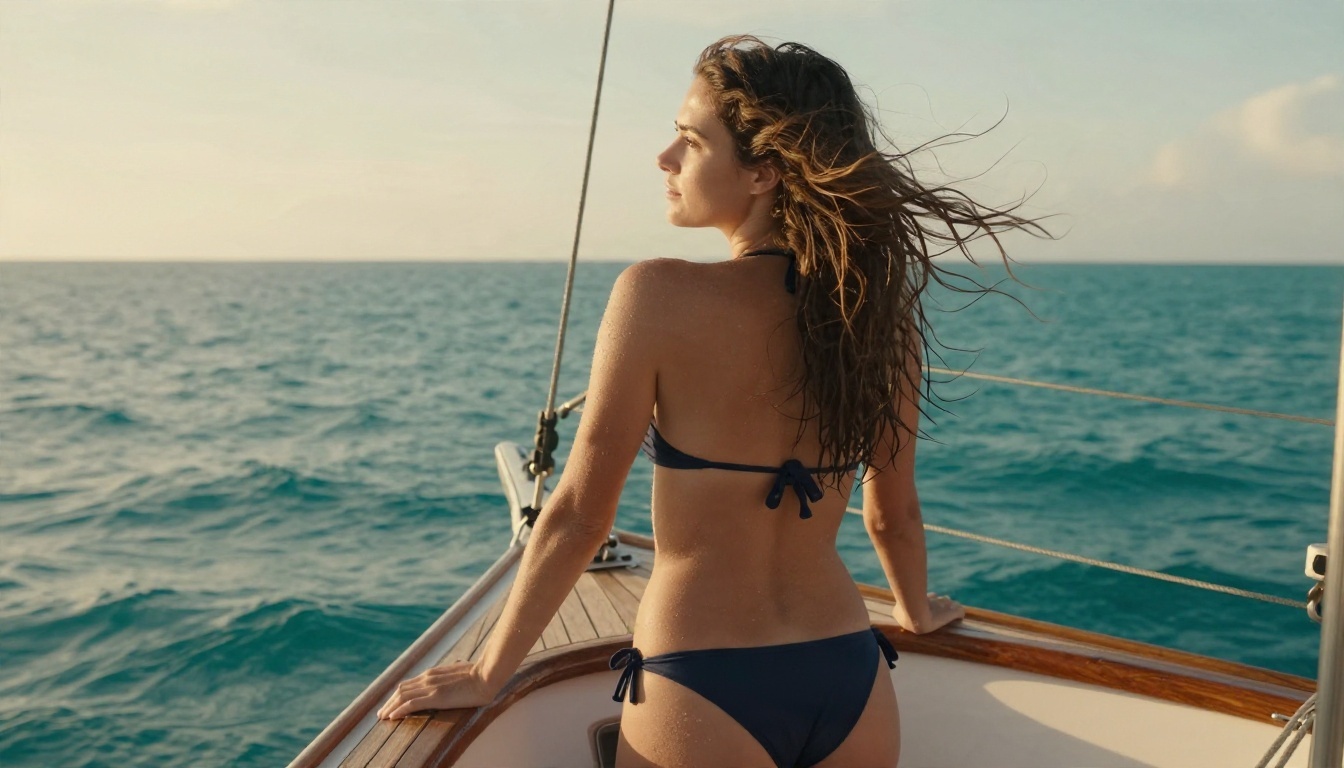
Seedream 4.5 is a text-to-image model from ByteDance, built for sharp 2K and 4K output, strong prompt following and reliable photographic detail. Like most hosted image models, it ships with moderation that checks your prompt and sometimes the result. That moderation is tuned to be cautious, which is why harmless requests such as a bikini on a boat deck can occasionally get flagged.
The safety checker toggle
On PicassoIA, the Seedream 4.5 form includes a Disable Safety Checker option. When you switch it on, input moderation is relaxed so that only clearly illegal content is blocked. That is the whole trick. It is not a hidden "adult mode" and it does not rewrite the model's training. What it does is remove the false positives that interrupt glamour, swimwear, lingerie and artistic portrait work.
💡 Tip: If a prompt gets refused with the checker on, turn the toggle on and run the same prompt again before you rewrite anything. Most refusals on swimwear and boudoir prompts disappear at that point.
What stays blocked
Be realistic about the limits. Content involving minors is always blocked, and so are other clearly illegal requests. Real people's likenesses used without consent are also a line you should not cross, whatever the toggle says. This article, and the examples in it, stay in suggestive and elegant territory: bikinis, silk robes, lace, evening gowns, implied intimacy. That is where Seedream 4.5 is strongest anyway, because its skin, fabric and light rendering reward tasteful composition.
| Question | Short answer |
|---|
| Does the toggle make Seedream 4.5 "anything goes"? | No, illegal content is still blocked |
| Does it reduce false refusals? | Yes, noticeably on swimwear and boudoir prompts |
| Is it free to try? | Yes, see the options below |
| Best use case | Photorealistic glamour, fashion and portrait work |
Free Ways to Run Seedream 4.5
You have three realistic routes, and they are not equal. The right one depends on whether you want to generate from scratch or keep refining one image.
Free generation on PicassoIA
The Seedream 4.5 page on PicassoIA lets you type a prompt and get a 2K or 4K image in seconds, with the safety checker option sitting right in the form. Check the model page for the current free allowance on your account, since limits can change. For testing prompts, this is the fastest starting point because you see the result within seconds and can adjust one variable at a time.
Unlimited edits with Image Editor Pro
Once you have a base image you like, the better tool is PicassoIA Image Editor Pro. It has no per-edit cap and no daily quota, handles up to three reference images, and finishes most edits in a few seconds. This changes how you work. Instead of regenerating a whole picture to fix a dress colour or a background, you upload the Seedream result and ask for the specific change.
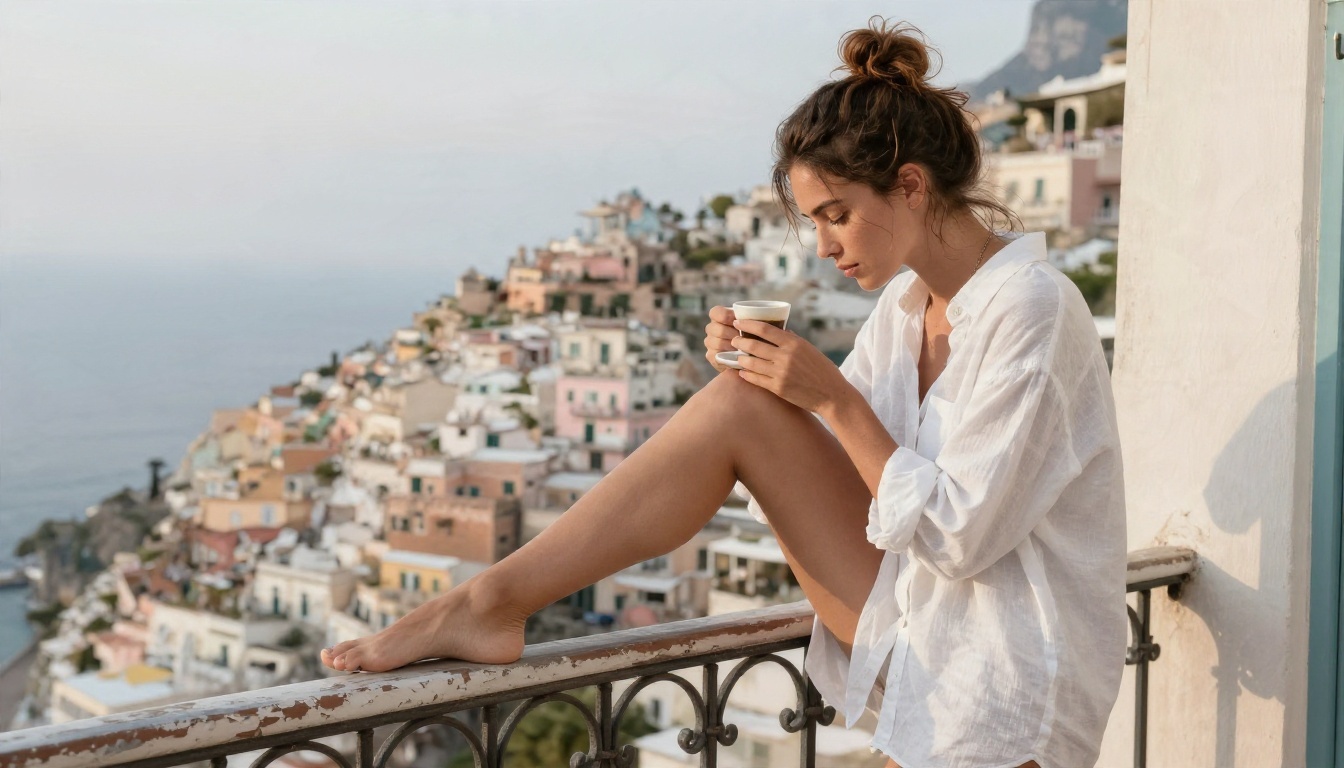
A simple workflow that costs very little:
- Generate a base image with Seedream 4.5 at 2K.
- Pick the strongest result.
- Send it to Image Editor Pro and refine one thing at a time: outfit, colour grade, background, expression.
- Re-run Seedream 4.5 at 4K only for the final version.
Other free routes and their catches
Some sites offer Seedream 4.5 through trial credits or daily limits. Those can work for a first test, but they tend to run strict moderation, add watermarks, or cap resolution. Always check whether a service lets you control the safety setting. If it does not, you will hit the same refusals you were trying to avoid.
| Option | Cost model | Safety control | Best for |
|---|
| Seedream 4.5 on PicassoIA | Free to try, check current allowance | Toggle in the form | Fresh generations at 2K and 4K |
| Image Editor Pro | Unlimited edits | Edit based workflow | Refining and fixing an existing image |
| Third party trial sites | Credits or daily caps | Usually fixed | Quick one-off tests |
How to Use Seedream 4.5 on PicassoIA
Step by step
- Open the Seedream 4.5 model page.
- Paste your prompt into the Prompt field. It accepts up to 4,000 characters, so you have plenty of room for lens, light and fabric detail.
- Set size to 2K for testing or 4K for finals.
- Pick an aspect ratio. Use 16:9 for wide scenes and 3:4 or 2:3 for portraits.
- Turn on Disable Safety Checker if you are working on swimwear, lingerie or boudoir themes and getting false refusals.
- Leave sequential image generation on "disabled" for single images, or set it to "auto" when you want a batch of related shots.
- Run it, review, and adjust one setting at a time.
Settings that actually matter
| Setting | Options | My recommendation |
|---|
| Size | 2K or 4K (1K is not supported) | 2K while testing, 4K for the final |
| Aspect ratio | match_input_image, 1:1, 4:3, 3:4, 16:9, 9:16, 3:2, 2:3, 21:9 | 3:4 or 2:3 for portraits, 16:9 for scenes |
| Max images | 1 to 15 (needs sequential mode on auto) | 4 to 6 for outfit or pose variations |
| Image input | 1 to 14 reference images | One or two clean references |
| Disable safety checker | On or off | On only when you hit false refusals |
| Prompt length | Up to 4,000 characters | 80 to 200 words works best |
💡 Tip: Resolution is the setting people waste the most time on. Test composition, outfit and light at 2K, then render only the winner at 4K. You will see the same image with more fine detail, and you will spend far less.
Using reference images
Seedream 4.5 accepts between one and 14 reference images. That is useful for keeping a consistent outfit, a location, or a mood across a set. Keep references clean: one subject, even light, no heavy filters. If you want to keep the same face across images, use your own photos or a character you created, and do not use someone else's likeness.
Prompts That Work
Seedream 4.5 responds best to prompts that read like a photographer's shot list. Think subject, setting, light, lens, texture. Vague words such as "beautiful" or "hot" waste characters. Concrete words such as "window light from the left" and "linen sheets with soft wrinkles" do the real work.
The glamour portrait formula
Use this order every time:
Subject and pose + outfit + setting + light direction + lens + skin and fabric texture + film look
Editorial glamour portrait of a woman in her late twenties with long wavy chestnut hair, reclining on a cream linen sofa in a sunlit hotel suite, ivory silk robe over a champagne satin slip, soft morning light from the left through sheer curtains, 85mm f/1.8 shallow depth of field, visible skin pores and faint freckles, natural silk sheen, Kodak Portra 400 film grain, photorealistic.
That single prompt covers every layer the model needs. Notice that it describes skin texture and fabric behaviour explicitly. Those two phrases are what separate a believable photo from a smooth airbrushed render.
Swimwear and beach prompts
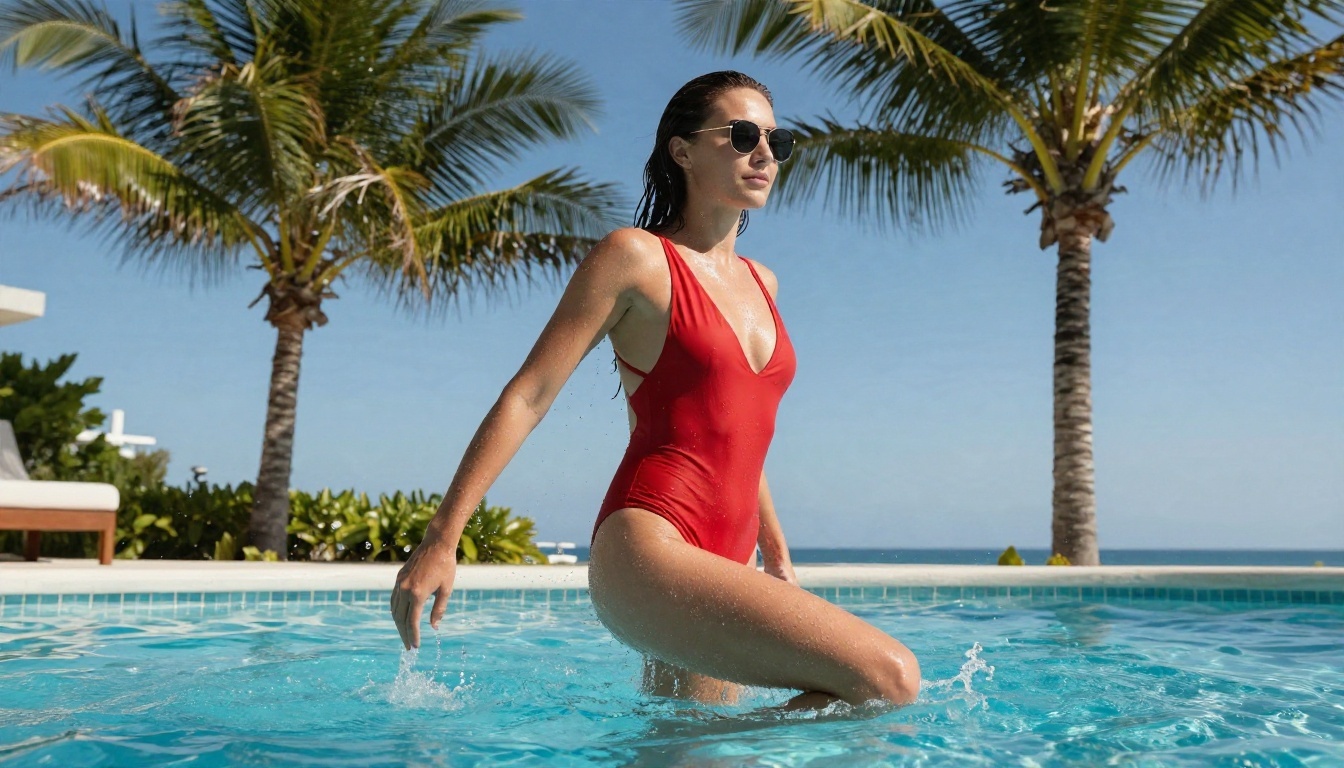
Swimwear prompts trigger the most false refusals, and they also benefit most from good lighting language. Water, sun and wet skin are hard to fake, so give the model strong cues.
Low-angle shot of a woman in a red one-piece swimsuit stepping out of an infinity pool at a villa, water streaming down her skin, bright midday sun from above right, palm trees and blue sky, 24mm lens, water droplets frozen mid-air, natural saturated colour, fine film grain, photorealistic.
A few extra prompt ideas that work well:
- Sailboat deck at golden hour: rope fibres, teak grain, salt on skin, low sun from the right.
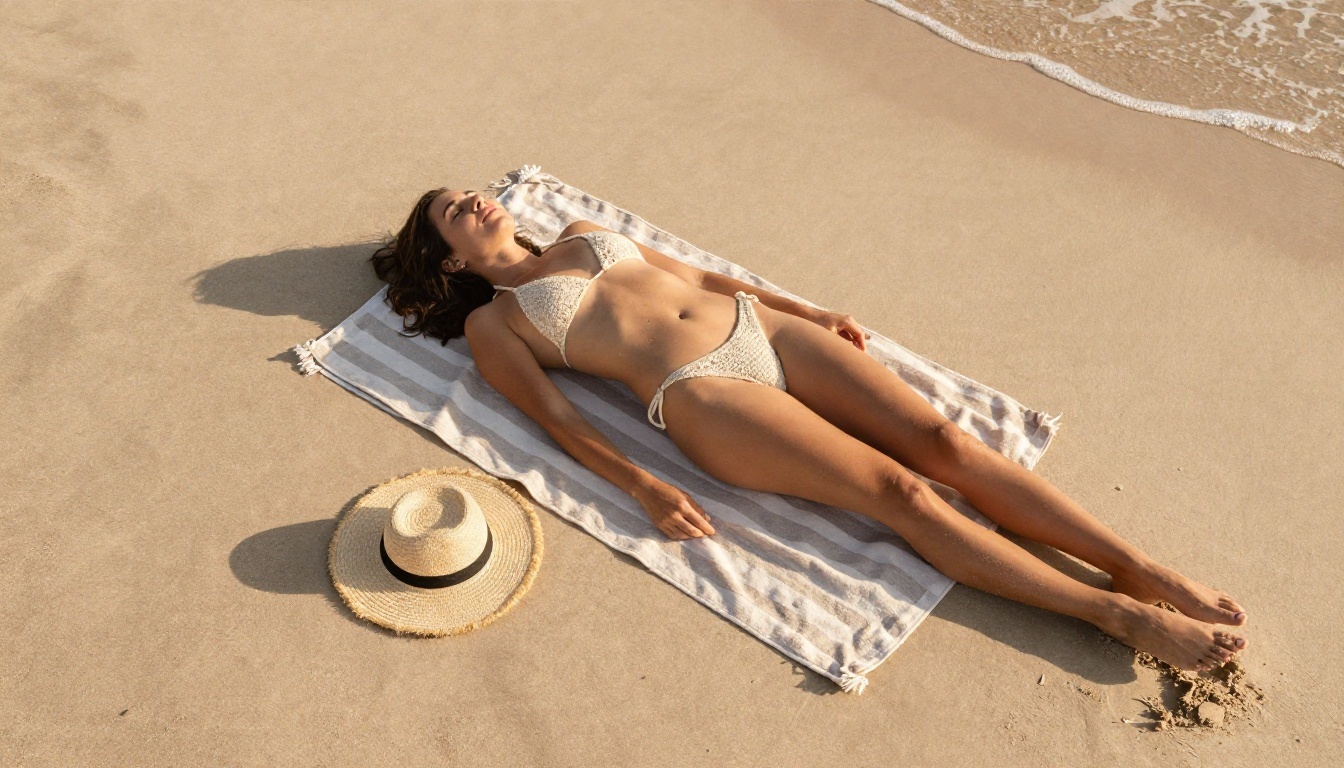
- Beach from above: top-down view, striped towel, straw hat, foam line at the edge of the frame.
- Poolside terrace: terracotta tiles, wet footprints, sunglasses pushed into the hair.
Boudoir and lingerie, kept tasteful
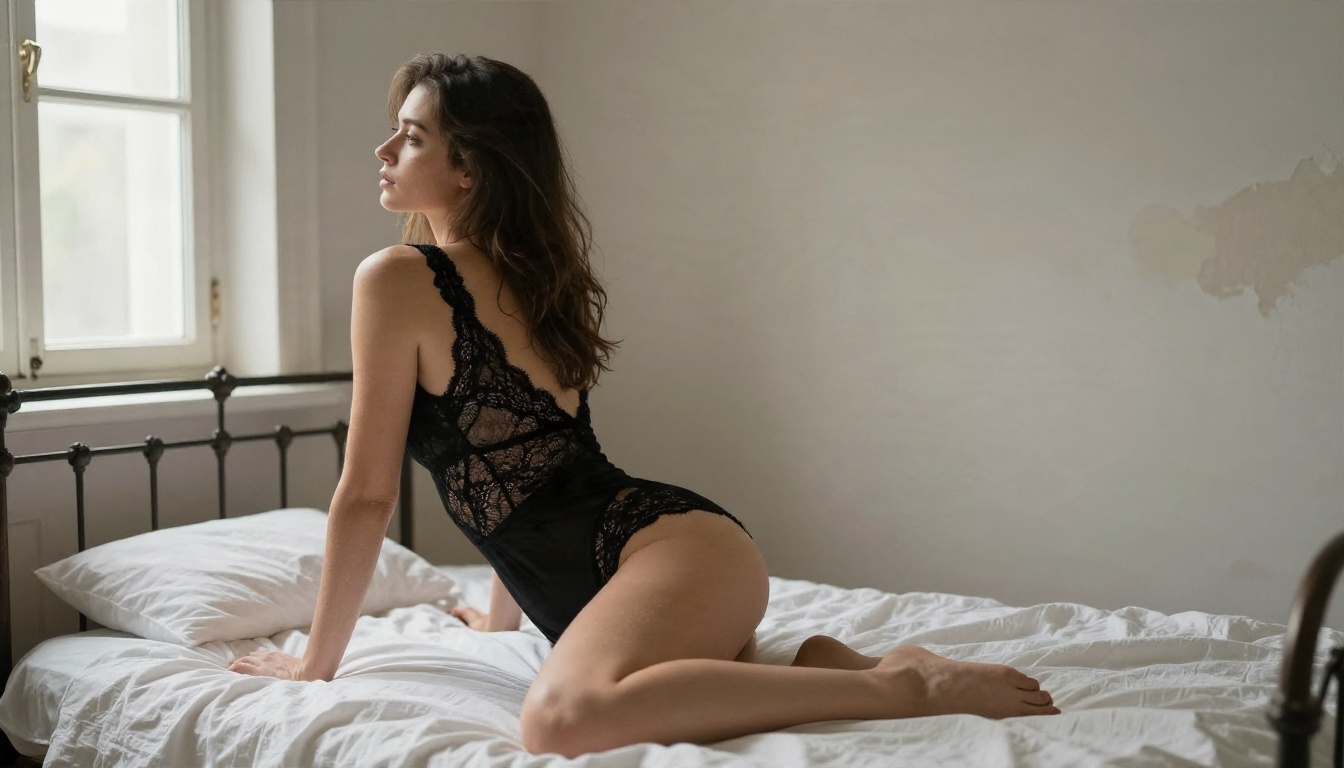
The strongest boudoir images rely on mood, not exposure. Soft side light, deep gentle shadows, rumpled linen, lace detail, and a gaze away from the camera all say "intimate" without needing anything explicit.
Tasteful boudoir photograph of a woman in a black lace bodysuit seated on the edge of a vintage iron bed with rumpled white sheets, looking toward a tall window, loose hair over one shoulder, soft side light from the left, deep gentle shadows on the right, 50mm f/1.4, lace pattern detail, natural skin texture, fine grain, elegant.
Use words like elegant, editorial, tasteful and natural skin texture. They steer the model toward a magazine look and away from the generic over-polished style that most people complain about.
Evening wear and vanity scenes
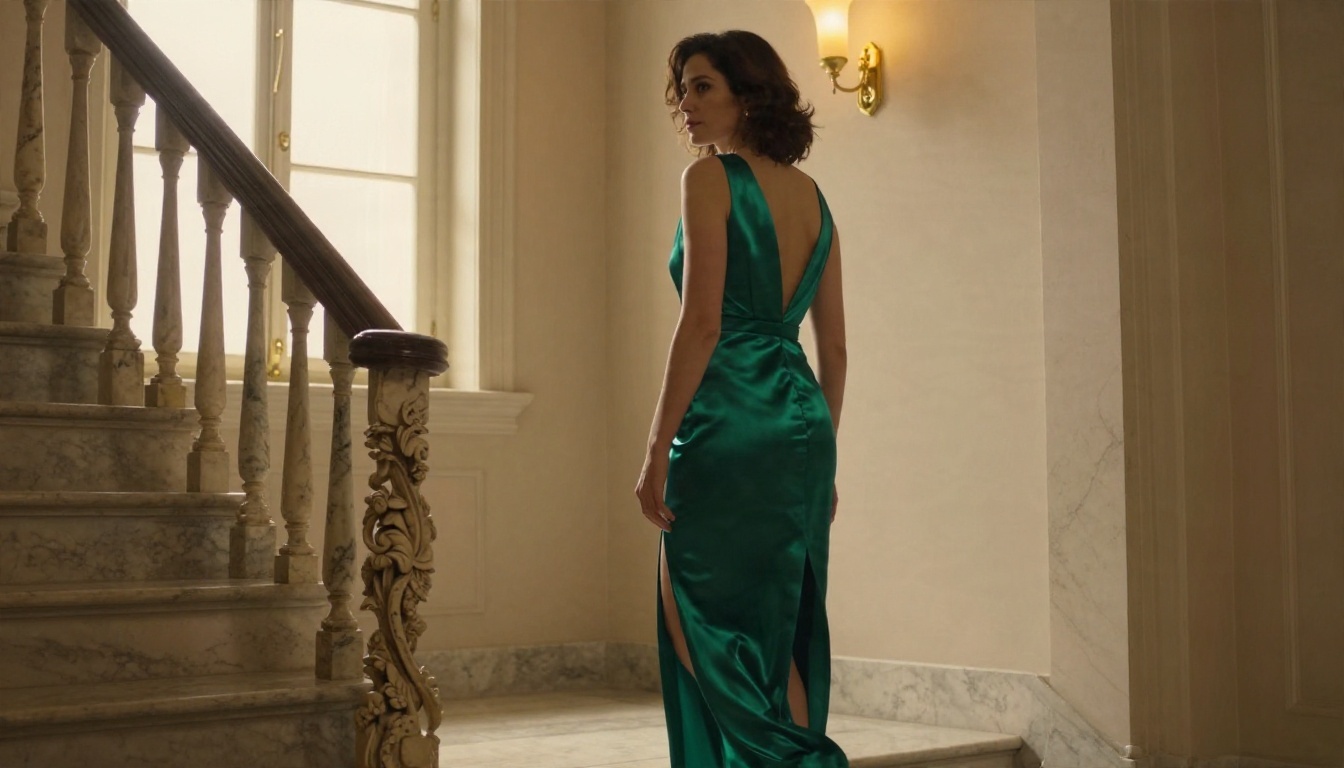
Silk is one of Seedream 4.5's best materials. Long highlights, soft folds and slight creasing at joints all render convincingly when you name them.
Woman in a floor-length emerald silk evening gown with an open back, descending a marble staircase in an old European townhouse, glancing over her shoulder, warm sconce light from the left mixed with soft daylight from an arched window, 70mm f/2.8, silk sheen and fabric folds, marble veining, Kodak Portra 400 grain, photorealistic.
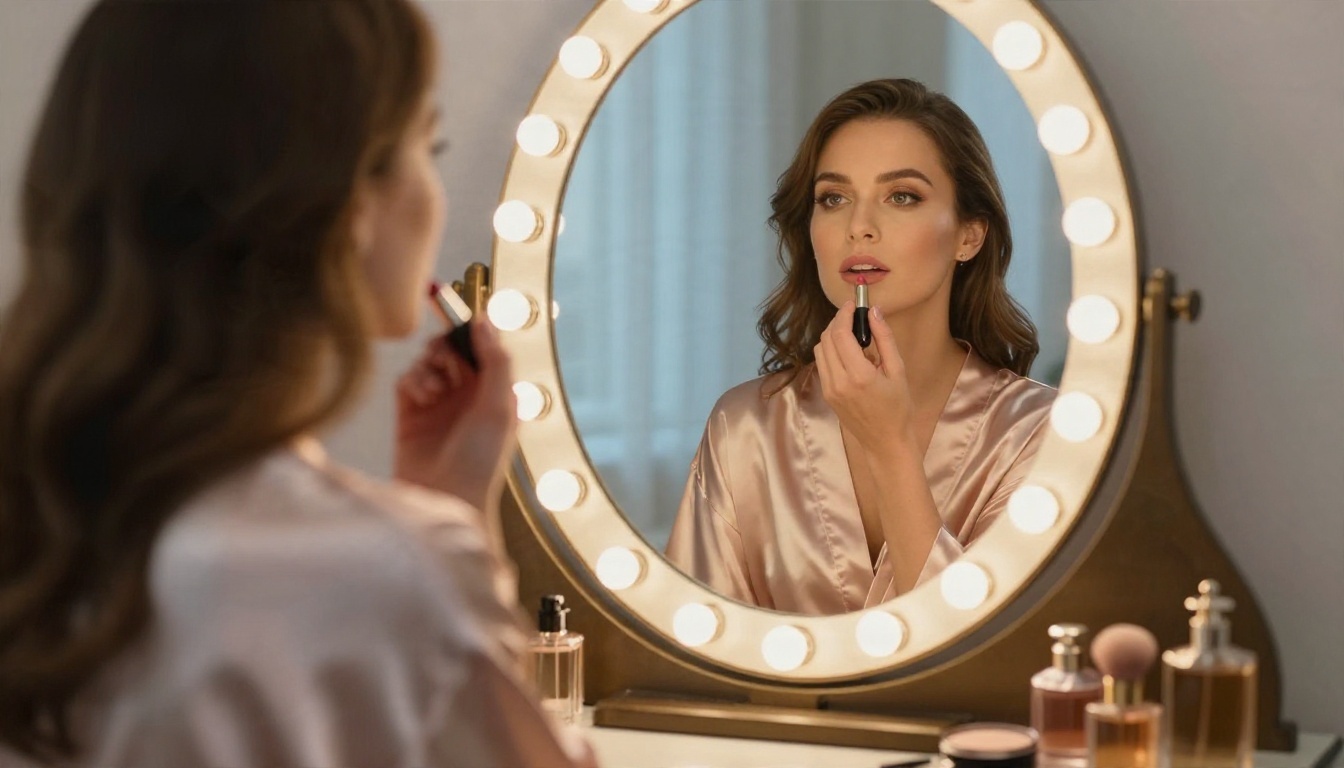
For a quieter, more intimate set, try a vanity scene: a satin robe, a mirror ringed with warm bulbs, perfume bottles and brushes on the table. The mirror gives you a second angle on the subject in a single frame.
Fixing Common Problems
Plastic or over-smooth skin
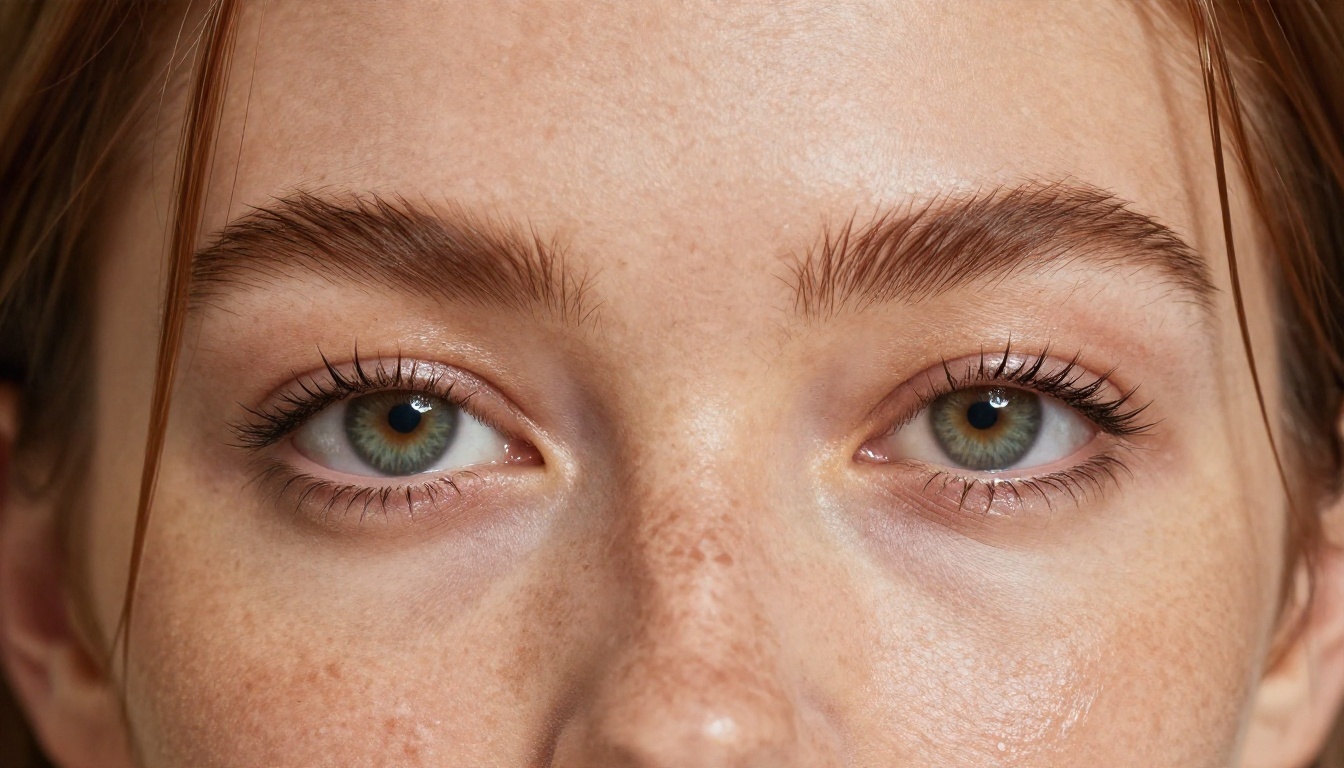
If faces look waxy, the prompt is probably missing texture cues. Add visible pores, faint freckles, fine flyaway hairs, natural lip texture. Also remove words like "flawless", "perfect skin" and "airbrushed", which push the model toward the smooth look you are trying to avoid.
Prompts that still get blocked
When a prompt is refused even with the checker off, check for these common triggers:
- Wording that implies a minor, such as "girl", "schoolgirl" or "teen". Use adult descriptors like "woman in her late twenties".
- Names of real people or celebrities.
- Explicit anatomical terms. Seedream 4.5 on PicassoIA is a better fit for suggestive work than for explicit content, so rewrite toward mood and styling.
💡 Tip: State an adult age in every portrait prompt. It improves the face and body proportions too, because the model stops averaging toward youthful features.
Soft or blurry results
Soft output usually comes from asking for 2K and then zooming in. Render the winner at 4K, and describe the focal point: "sharp focus on the eyes, shallow depth of field". If the whole frame is soft, check that you did not request motion words such as "dreamy" or "hazy" in the prompt.
| Problem | Likely cause | Fix |
|---|
| Waxy skin | No texture words, "flawless" in prompt | Add pores, freckles, flyaway hair |
| Refusal on swimwear | Moderation false positive | Turn on Disable Safety Checker |
| Soft detail | 2K render, vague focus | Render at 4K, name the focal point |
| Odd hands | Complex pose | Simplify the pose, hold an object |
| Inconsistent outfit across set | No reference | Use image input with 1 or 2 references |
Alternatives Worth Trying
Seedream 4.5 is the model to start with, and Image Editor Pro is the best companion for refining. When you want a different look, speed or style, these are worth testing, in this order:
- Seedream 4.5: sharp 2K and 4K realism with the safety toggle.
- PicassoIA Image Editor Pro: unlimited, fast edits on any base image.
- Seedream 4: the previous generation, still strong on portraits and a useful second opinion.
- Z Image Turbo: very fast sharp images, ideal for rapid prompt testing.
- Flux 2 Klein 9B Base LoRA: styled results when you want a specific look.
- Qwen Image 3: photorealistic output with good prompt following.
The same prompt will look different on each one. That is useful: run a favourite prompt across two or three models and keep the version that matches your taste.
You can also browse the full catalogue at picassoia.com/en/all-models to find models for upscaling, background removal and other steps after generation.
Make Your Own Images Today
You now have the settings, the prompt structure and the workflow. The fastest way to see the difference is to run one prompt twice: once with the default safety setting, and once with Disable Safety Checker on. Then take the better result into Image Editor Pro and change a single detail, such as the outfit colour or the time of day.
Start on Picasso IA with Seedream 4.5, keep your first test at 2K, and write your prompt like a photographer: subject, light, lens, texture. Refine in PicassoIA Image Editor Pro, where edits are unlimited, then render the final at 4K. Browse everything else at picassoia.com/en/all-models, pick a scene from this article, and make it yours.


