Two names, one family, and a lot of confusion. Seedream and Seedance both come from ByteDance, they sound almost identical, and people mix them up constantly. Here is the short version: Seedream makes still images. Seedance makes video, with sound. That single difference decides what you pay, what you can try for free, and which one you should open first.
If you want to know which tool belongs in your workflow, this article lays out the differences side by side: what each family does, how the versions line up, what the money looks like, where the free limits sit, and which jobs suit which model.
The Short Answer
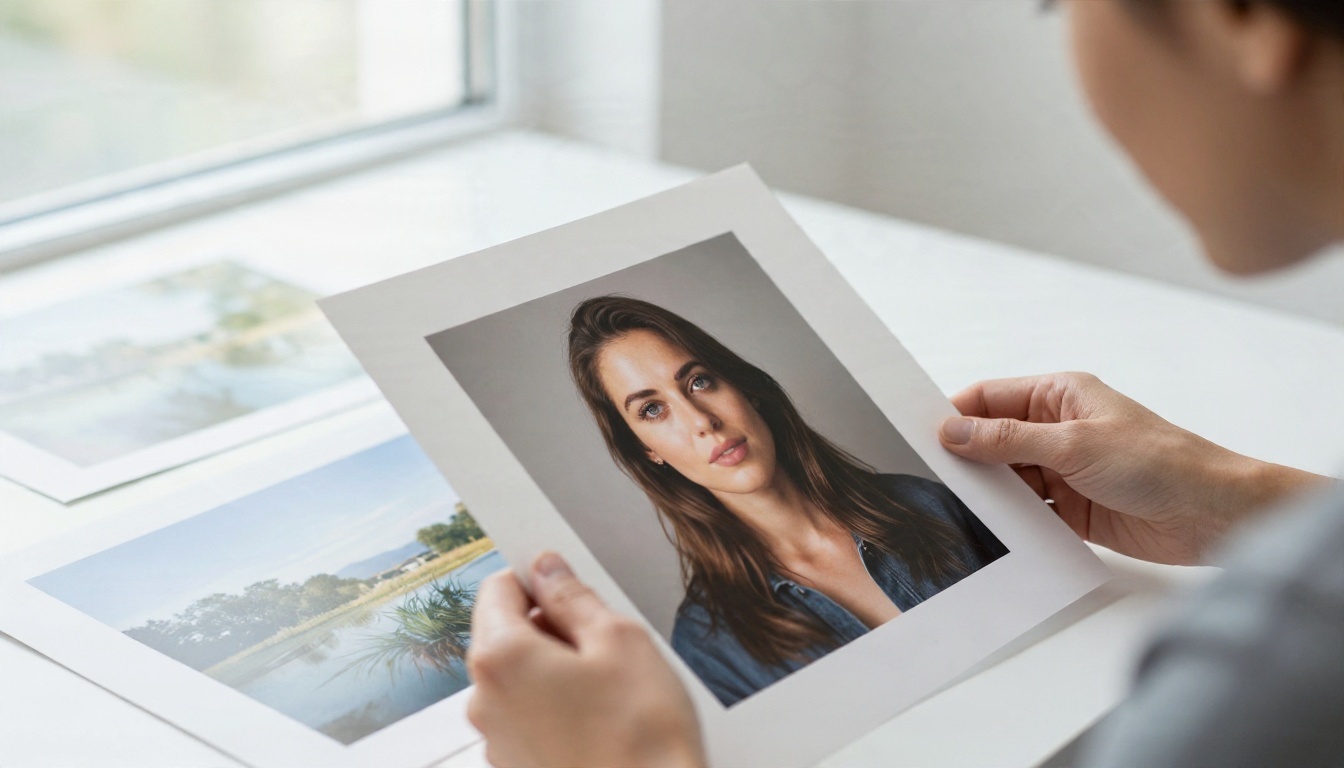
Pick Seedream when the final product is a picture: a poster, a product shot, a thumbnail, a portrait, a banner. Pick Seedance when the final product moves: a social clip, an ad, a short scene, an animated product reveal.
| Question | Seedream | Seedance |
|---|
| What does it make? | Still images | Short video clips with audio |
| Typical input | Text prompt, optional reference images | Text prompt, or a starting image |
| Typical output | 2K or 4K picture | 480p to 1080p clip, several seconds long |
| Speed | Seconds | Longer, because every frame must stay consistent |
| Cost per result | Low | Noticeably higher |
| Best for | Marketing visuals, concept art, product photos | Ads, shorts, motion tests, animated stills |
💡 Quick rule: if you could print it or post it as a single frame, start with Seedream. If someone needs to press play, start with Seedance.
What Seedream Actually Does
Seedream is the text to image side of the family. You type a description, and the model returns a finished picture. Newer versions handle dense prompts, readable lettering, and consistent faces far better than the first generation did.
The versions you will run into on PicassoIA:
- Seedream 4: listed as a free 4K option, a solid place to begin.
- Seedream 4.5: 2K and 4K output, up to 15 related images in one run, and 1 to 14 reference images for blending visuals.
- Seedream 5 Lite: a faster, lighter 2K model for quick drafts.
- Seedream 5 Pro: sharp 2K output when you want more polish.
Where It Shines
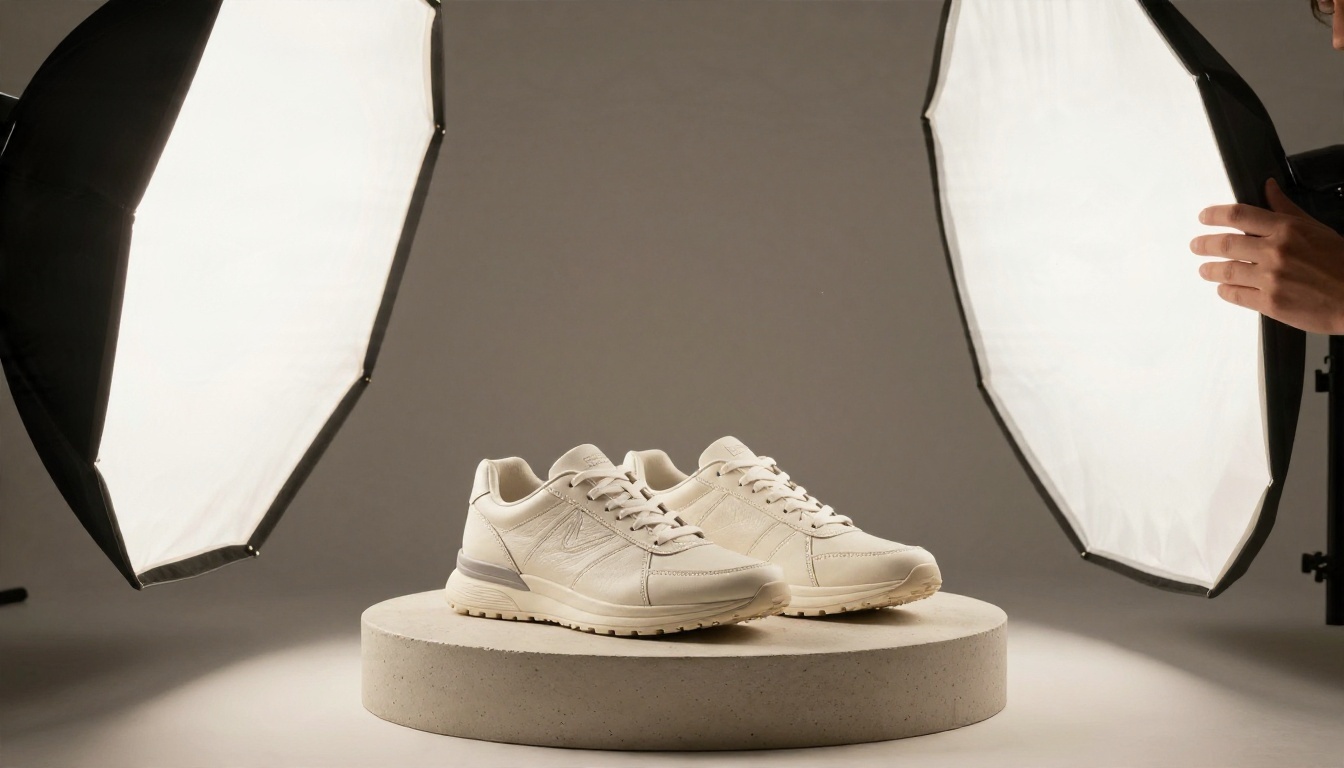
Seedream is strong with photoreal portraits, product mockups, packaging scenes, and posters with short text. Because it also accepts reference images, you can feed it a brand photo and ask for a new scene that keeps the same look. Version 4.5 supports nine aspect ratios, including 21:9 for wide banners and 9:16 for stories.
Where It Falls Short
A still image cannot show motion, timing, or sound. If your idea depends on a camera move, a gesture, or a spoken line, a picture will only hint at it. That is where Seedance steps in.
What Seedance Actually Does
Seedance is the video side. You describe a scene, or hand it a starting image, and it produces a short clip. The more recent versions generate synchronized audio in the same pass, so footsteps, ambient sound, and music can arrive with the picture instead of being added later.
The lineup on PicassoIA is wider than most people expect:
Where It Shines
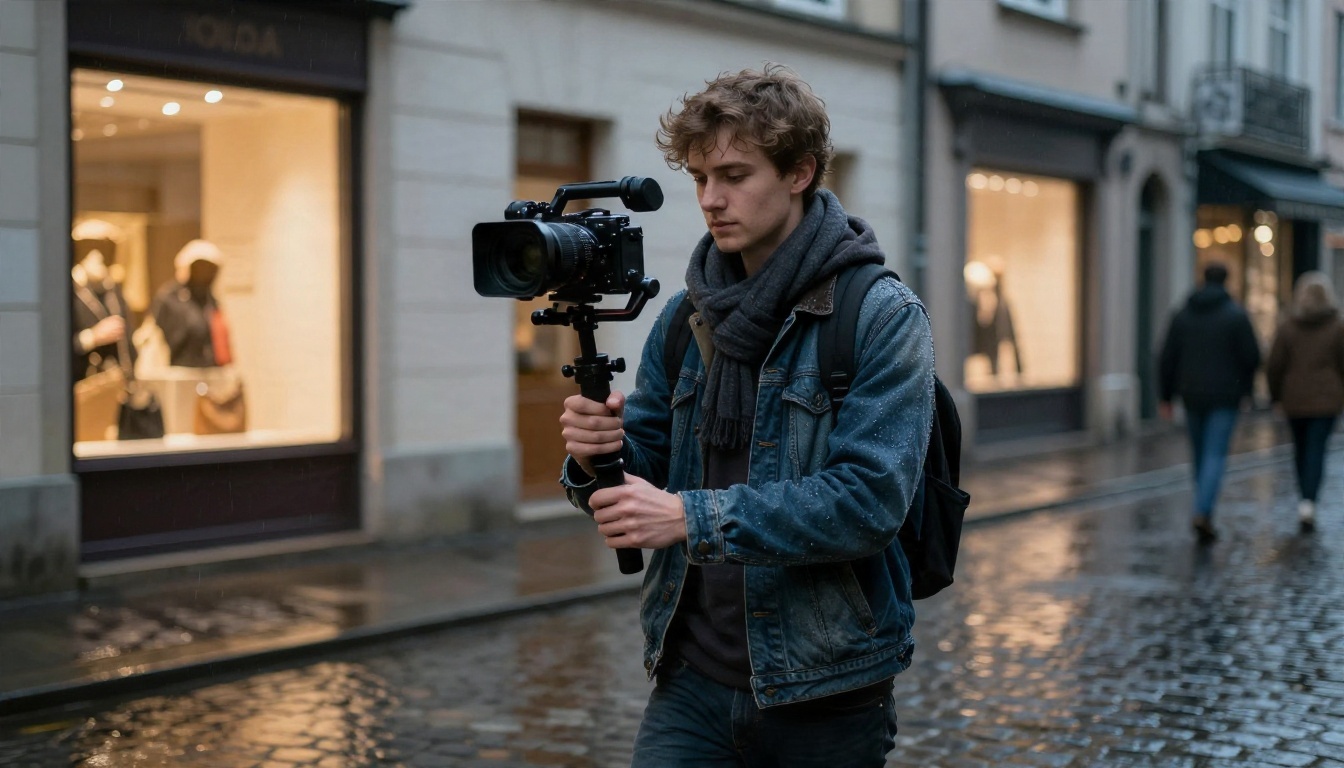
Seedance is good at camera movement: slow push ins, tracking shots, orbits, and gentle handheld drift. It also keeps a subject reasonably consistent from the first frame to the last, which is the hardest part of AI video. When you start from a still image, the clip uses that image as the opening frame and keeps its aspect ratio.
Where It Falls Short
Video is expensive to produce and slow to iterate. A single clip can take much longer than a picture, and small mistakes, like a hand that bends oddly, are more obvious when they move. Most people get better results by perfecting a still first, then animating it.
Image or Video: How to Choose
Think about where the content ends up, not which tool sounds more exciting.
| Your goal | Better choice | Why |
|---|
| Product listing photos | Seedream | Sharp, consistent stills at print size |
| Blog header or thumbnail | Seedream | One frame, fast and cheap |
| Instagram Reel or TikTok clip | Seedance | Motion and sound grab attention |
| Animated logo or product reveal | Both | Seedream for the frame, Seedance to animate it |
| Storyboard for a film | Seedream first | Cheap to try ten looks before committing to video |
| Short ad with voiceover feel | Seedance | Built in audio saves editing time |
The Hybrid Workflow
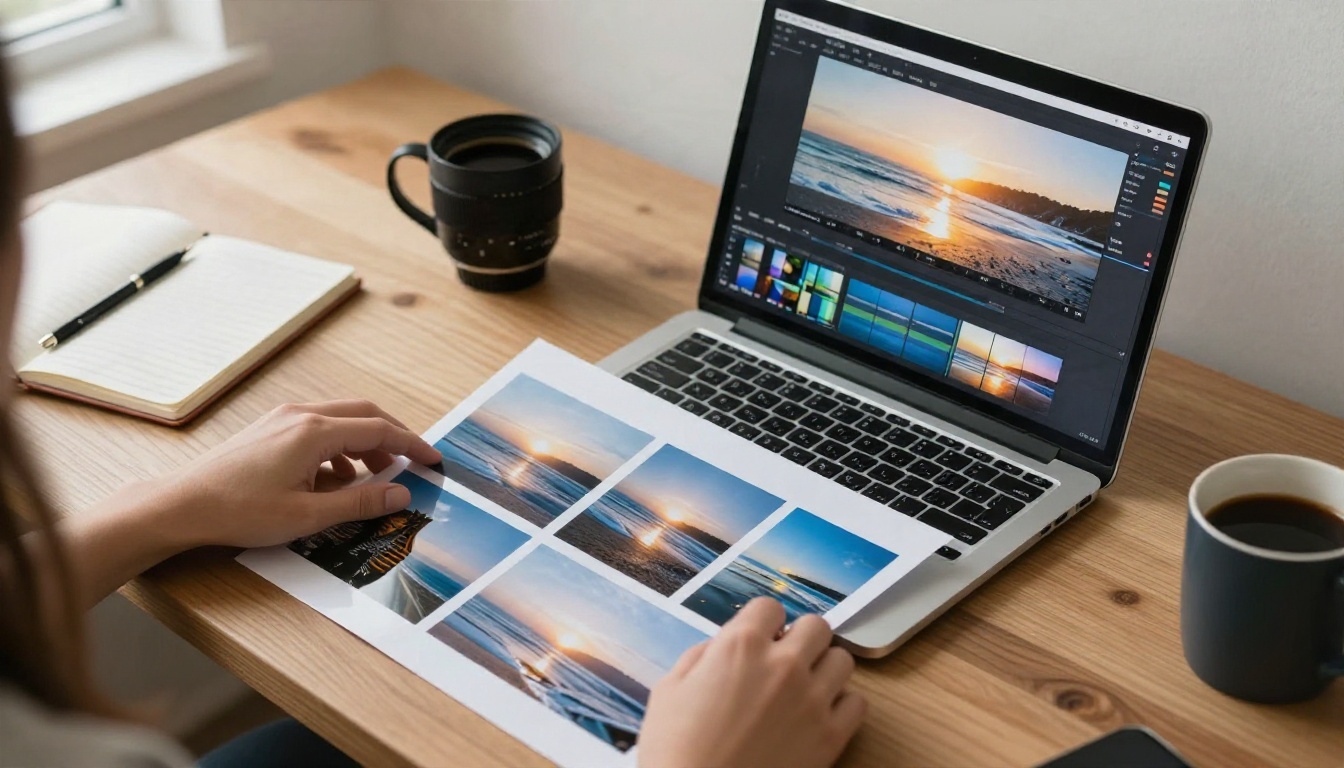
The smartest way to use both is image first, video second. Generate the frame you love with Seedream, then feed it into Seedance as the opening shot. You get control over composition and lighting at the cheap stage, and you only pay the video price once.
💡 Pro move: write the still prompt like a film frame. Name the lens, the light direction, and the mood. The same description then guides the motion prompt when you switch to Seedance.
The Real Cost of Each
Pricing depends on where you run the models, so treat any figure as a ballpark and check the current rate before you commit.
Seedream Pricing
Hosted API providers have listed Seedream 5 Lite at roughly three to four cents per image, and the exact number changes from provider to provider. That means a hundred pictures costs a few dollars. Higher resolutions and bigger batches can cost more on some platforms, while others charge a flat rate no matter the size.
Seedance Pricing
Video is billed differently. Most providers charge by seconds of output and by resolution, and a five second clip generally costs many times more than one image. Longer clips and higher resolutions raise the price further, which is why quick iteration on video burns through budget fast.

| Cost factor | Seedream | Seedance |
|---|
| Billing unit | Per image | Per second of video, often by resolution |
| Rough scale | A few cents per image on hosted APIs | Many times higher per clip |
| What raises the price | Higher resolution, batches | Longer clips, higher resolution, audio |
| Cheapest way to test | Lite or free tier | Lite or Mini tier |
💡 Budget tip: test your idea with a cheap Seedream still and a short Seedance Lite clip before you ever run a top tier model. Most prompt mistakes show up in the cheap versions.
Free Limits You Can Use Today
Neither family is fully free everywhere, but there are real free routes.
- Consumer apps from ByteDance: reports say apps such as Dreamina offer daily credits that cover both images and short video, with limits that reset on a schedule. The amounts change, so check inside the app.
- Hosted APIs: these are generally pay per use. Some give trial credits, but a free tier is not the norm.
- PicassoIA: Seedream 4 is listed as a free image option, and Seedance 2.5 Lite is listed as a free and unlimited video model for Elite and Infinite members, with clips of 5 or 10 seconds at 480p or 720p.

Free Does Not Mean Unlimited
Free tiers tend to cap resolution, clip length, or daily volume. A free video model might stop at 720p, and a free image model might skip 4K. For a social post or a draft that is plenty. For a print poster or a client delivery, you will want the higher tier.
Best Uses for Each
Seedream for Marketing and Product Work
Small shops use Seedream for catalog images, lifestyle scenes, and ad banners. Because you can supply reference images, a single product photo becomes a whole set of settings: kitchen counter, beach, studio, forest. That used to mean a location shoot.
Seedream for Concept and Planning
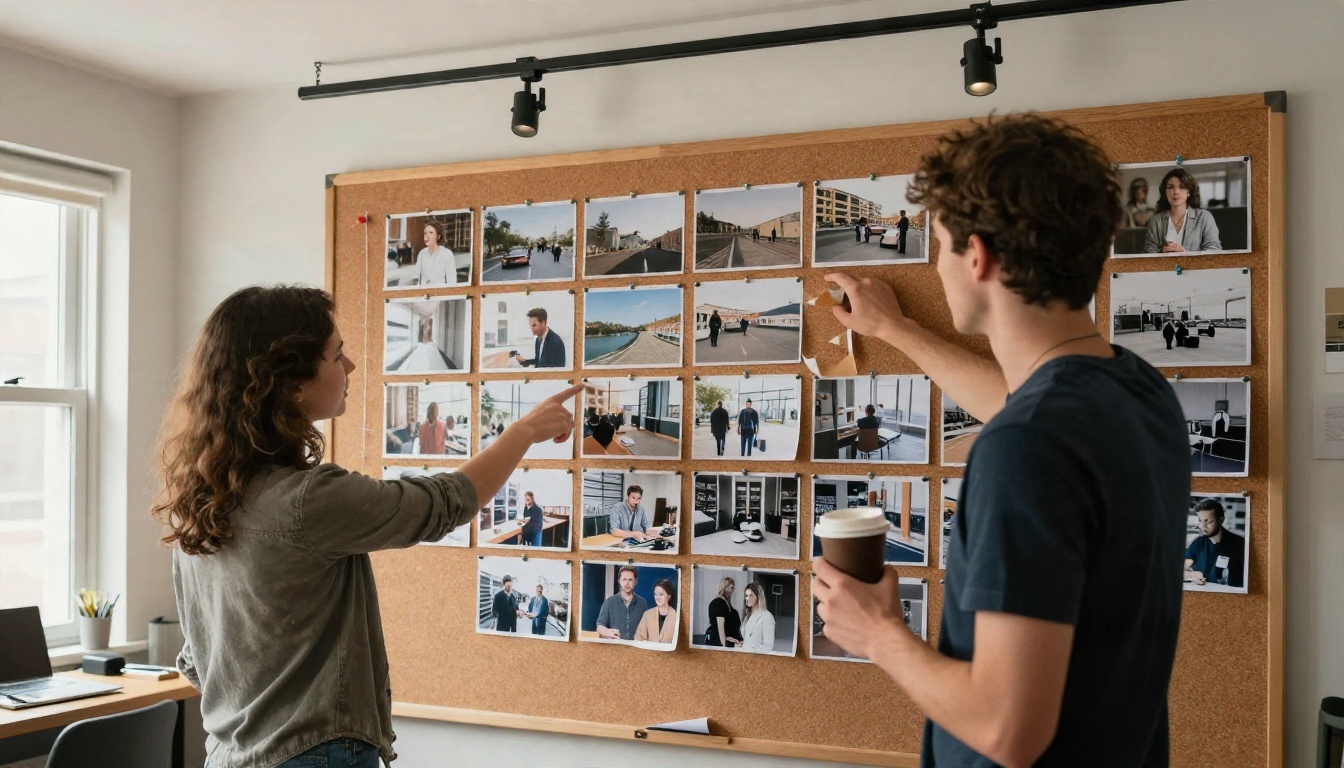
Directors and designers use it to build mood boards and storyboards in an afternoon. Ten looks for the same scene cost very little, and you can show a client real options instead of rough sketches.
Seedance for Social Video
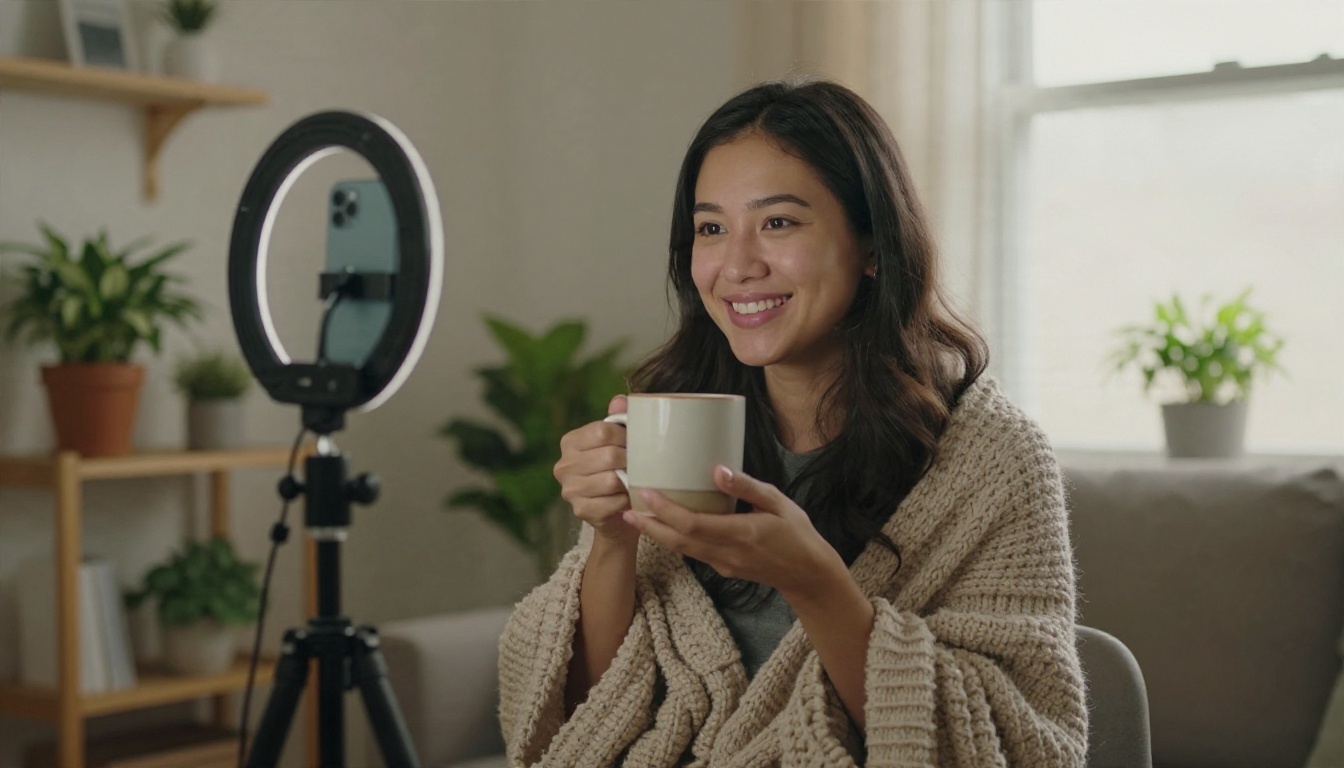
Short vertical clips are the obvious fit. A creator can turn a single product image into a five second hook: steam rising from a mug, a slow push toward a sneaker, a hand sliding into frame. With built in audio, the clip often needs only a light trim before posting.
Seedance for Ads and Teasers
Agencies use the longer variants for teaser shots, background loops, and scene tests before booking a real shoot. Version 2.5 pushes single clips up to 30 seconds, which is long enough for a full beat of storytelling.
Using Both on One Campaign
A realistic campaign mixes them. Seedream produces the hero image, the website banner, and the thumbnail. Seedance turns the hero image into a short reel. One visual identity, two formats, one afternoon.

How to Use Seedream and Seedance on PicassoIA
Both families are on PicassoIA, so you can run the image first workflow in one place. Here is the process.
Step 1: Build the Still with Seedream 4.5
- Open Seedream 4.5.
- Write a prompt with subject, setting, lighting, and lens. For example: "a ceramic coffee cup on a wooden table, morning window light from the left, 50mm lens, shallow depth of field."
- Set size to 2K for drafts and 4K for final art.
- Choose an aspect ratio that matches your video plan. Use 16:9 for wide clips or 9:16 for vertical ones.
- Add reference images in image input if you want to keep a brand look or a character.
- Turn on sequential generation if you want a batch of related variations in one run.
Step 2: Animate It with Seedance 2.5 Lite
- Open Seedance 2.5 Lite.
- Upload your Seedream image as the input image. The clip will use it as the opening frame and match its aspect ratio.
- Write a prompt that describes the motion in order: what moves first, how the camera travels, how the light shifts.
- Set duration to 5 seconds for a first test, then 10 for the final take.
- Pick 720p for the sharper result, or 480p for the fastest preview.
- Leave save audio on if you want sound, or switch it off for a silent clip.
- If you want a controlled ending, add a last frame image so the clip travels from your first picture to a second one.
Parameter Tips That Save Credits
- Fix the image before you animate. A flaw in the still becomes a flaw in every frame.
- Describe motion chronologically. "The camera slowly pushes in as steam rises" works better than a list of adjectives.
- Use a seed. Locking the seed lets you change one word and see exactly what changed.
- Step up gradually. Go from Lite to Fast to the full model only when the idea is proven.
💡 Need more power? Try Seedance 2.0 for built in audio at a higher tier, or Seedance 2.5 for clips up to 30 seconds.
Common Mistakes to Avoid
- Starting with video. Skipping the still stage makes you pay video prices for prompt experiments.
- Overloading the prompt. Ten ideas in one sentence confuse both image and video models. Keep one subject and one action.
- Ignoring aspect ratio. A 16:9 still turned into a vertical video crops badly. Decide the format first.
- Expecting perfect text. Short words work. Long paragraphs inside an image still break often.
- Assuming free means final quality. Use lite and free tiers for drafts, then upgrade the shots that matter.
- Mixing up the names. Seedream is the picture model. Seedance is the video model. Searching for the wrong one wastes time.
Which One Should You Open First?
If you are new to both, start with a still. A Seedream image takes seconds, costs little, and tells you right away whether your idea works. Once you have a frame you like, bring in Seedance and let it add motion and sound.
Here is the decision in three lines:
- Need a picture? Seedream.
- Need a clip? Seedance.
- Need a polished campaign? Seedream first, then Seedance.
Try Both on PicassoIA
The fastest way to see the difference is to run the same idea through both. Open Seedream 4.5, generate a frame from your own prompt, then send it to Seedance 2.5 Lite and watch it move. Whether you are building product photos, social clips, or a storyboard, you can test the whole workflow in a single session. For more options across image, video, and audio, browse the full catalog at picassoia.com/en/all-models, then create your first image with PicassoIA today.


