Most people who try spicy AI image generation quit after three attempts. The skin looks plastic, the hands have seven fingers, and the "sexy" result looks like a mannequin in a bad mood. The problem is almost never the tool. It is the prompt, the settings, and a few wrong assumptions about what these models can do. Fix those three things and the same model that gave you wax figures starts producing images that look like they came out of a real glamour shoot.
This article walks through exactly that: the prompt formula that works, the settings that change results the most, the free and unlimited tools worth your time, and the limits you should expect before you waste an evening fighting them. Everything here is about non-explicit, adult glamour: boudoir, swimwear, lingerie editorials, and fashion portraits. Think magazine spread, not anything pornographic.
What "Spicy" Actually Means in AI
When people search for spicy AI images, they usually want one of three things: attractive portraits with a sensual mood, swimwear and lingerie photography, or uncensored creative freedom without a model refusing half of their prompts. Those are very different goals, and the tool you pick should match yours.
Suggestive Is Not Explicit
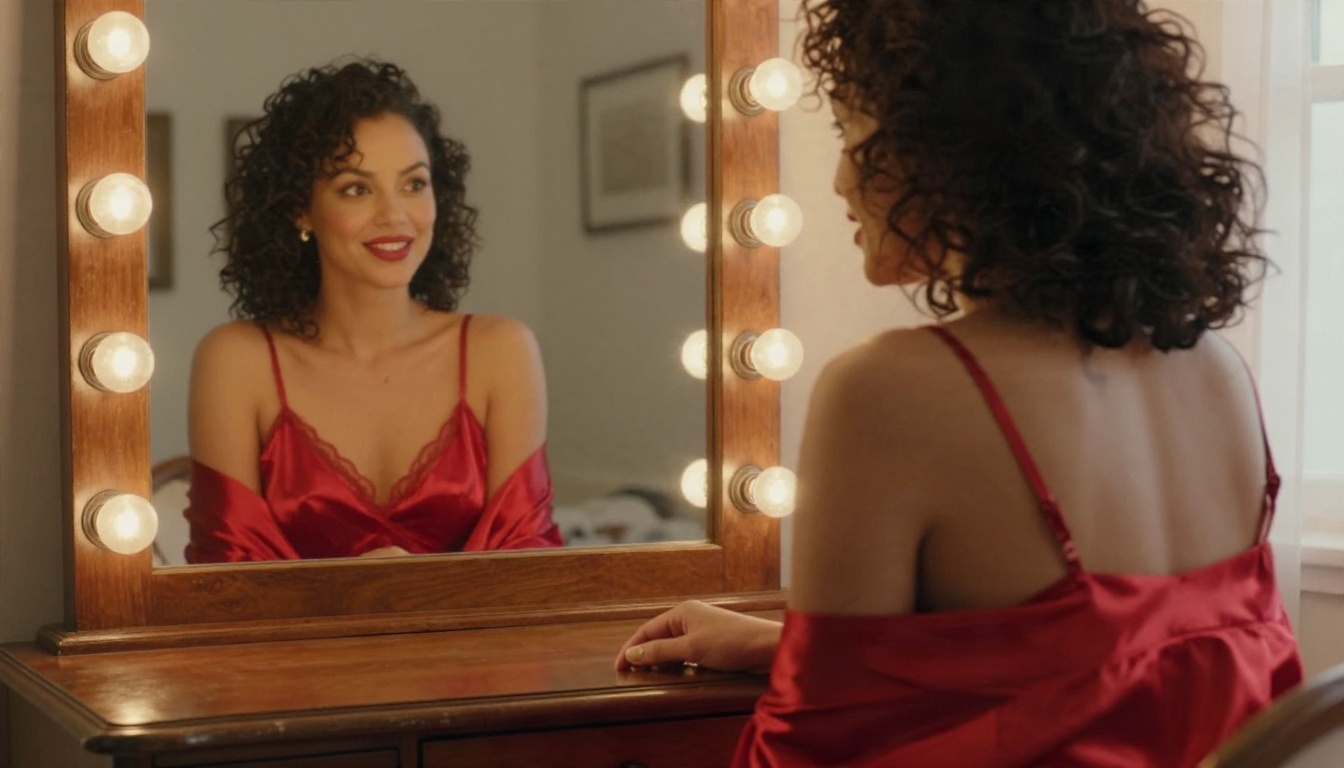
The best-looking spicy images rarely show more. They suggest more. A satin robe slipping off one shoulder, a glance over the shoulder, warm light skimming a collarbone: that is what makes a picture feel intimate. Photographers have known this for a century, and AI models trained on professional photography respond to the same logic.
Why Results Look Fake
Fake-looking output comes from vague prompts. If you type "sexy woman, beautiful, 4k", the model averages thousands of airbrushed stock images and gives you a smooth, symmetrical, lifeless face. Real photos have pores, freckles, flyaway hair, fabric creases, and uneven light. Ask for those and the realism jumps.
💡 Quick rule: every detail you leave out, the model fills with the most average version of it. Describe the light, the lens, the fabric, and the skin, or accept the average.
After a lot of trial and error, the structure that gives the most consistent results is short and repeatable. Write your prompt in this order:
- Subject and pose: who, doing what, with what expression.
- Clothing and fabric: be specific about material (satin, lace, linen, ribbed cotton).
- Environment: a real, believable place with two or three props.
- Lighting: direction, softness, time of day.
- Camera and lens: focal length and aperture.
- Texture and film look: skin detail, grain, color palette.
A Prompt You Can Copy
Here is a working example for a boudoir-style portrait:
"Adult woman in her late twenties reclining on rumpled white linen sheets beside a tall window, black satin robe loosely draped over a champagne silk bralette, relaxed confident expression looking at the camera, warm golden morning light from camera left through sheer curtains, 85mm lens at f/1.8, shallow depth of field, visible skin pores and light freckles, fine fabric creases, Kodak Portra 400 film grain, natural color."
Notice what is missing: no "ultra realistic masterpiece 8k trending" spam. Those tag-soup words were useful for older models. Current models respond better to photographic language.
Words That Help and Words That Hurt
| Helps realism | Hurts realism |
|---|
| 85mm f/1.8, shallow depth of field | "perfect", "flawless skin" |
| Kodak Portra 400, film grain | "hyper detailed", "ultra HD" stacked 5 times |
| Visible pores, light freckles | "airbrushed", "glossy" |
| Window light from the left | "studio lighting" with no direction |
| Rumpled sheets, creased fabric | "clean", "pristine" backgrounds |
Keep Prompts Short and Specific
Around 50 to 90 words is the sweet spot for most models. Longer prompts add contradictions ("soft light" and "dramatic shadows" in the same breath), and the model tries to satisfy both, which muddies the result.
Settings That Change Everything
Prompts get the attention, but settings quietly decide whether you get a usable image or a coin flip. Here is what matters.
Lighting Beats Everything Else
If you only improve one thing, make it the light. Three setups cover almost every glamour scenario:
- Window light from one side: soft, directional, flattering on skin. Best for boudoir and portraits.
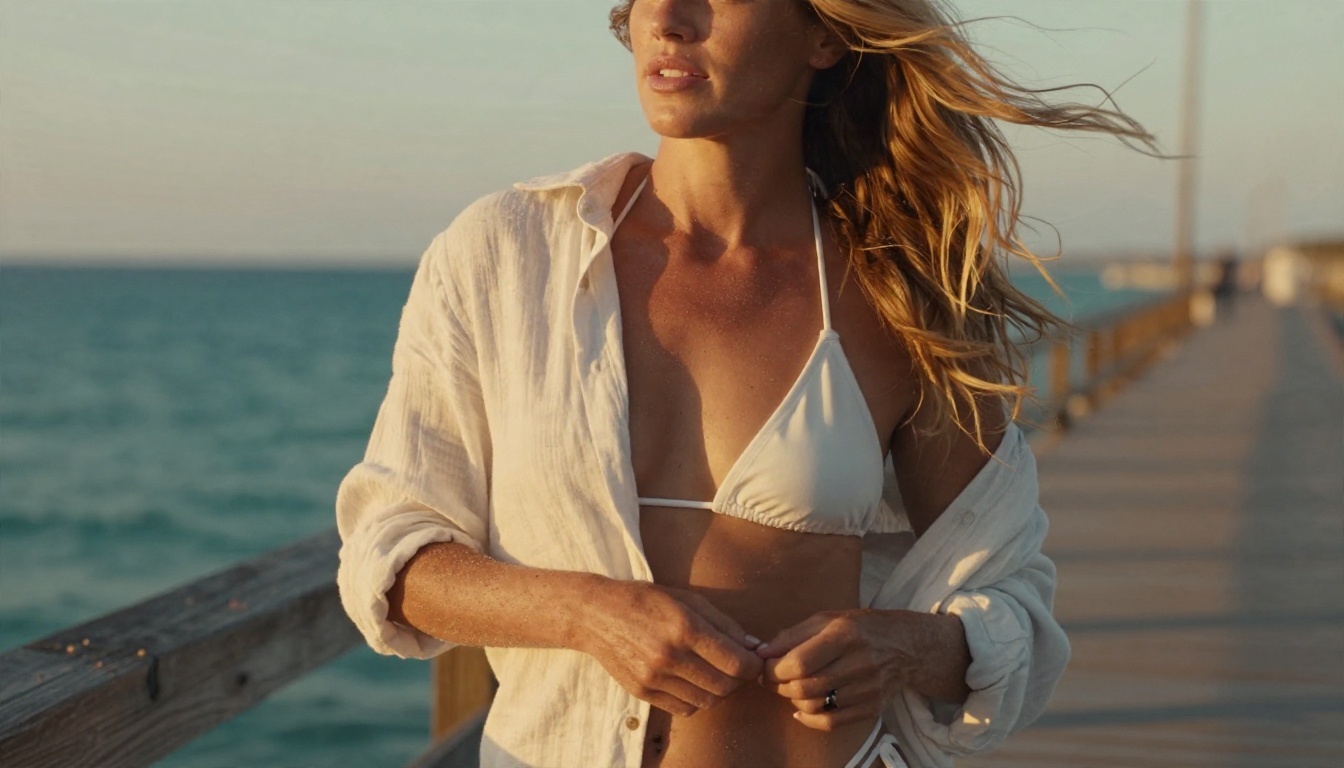
- Golden hour backlight: rim light on hair and shoulders. Best for beachwear and outdoor shots.
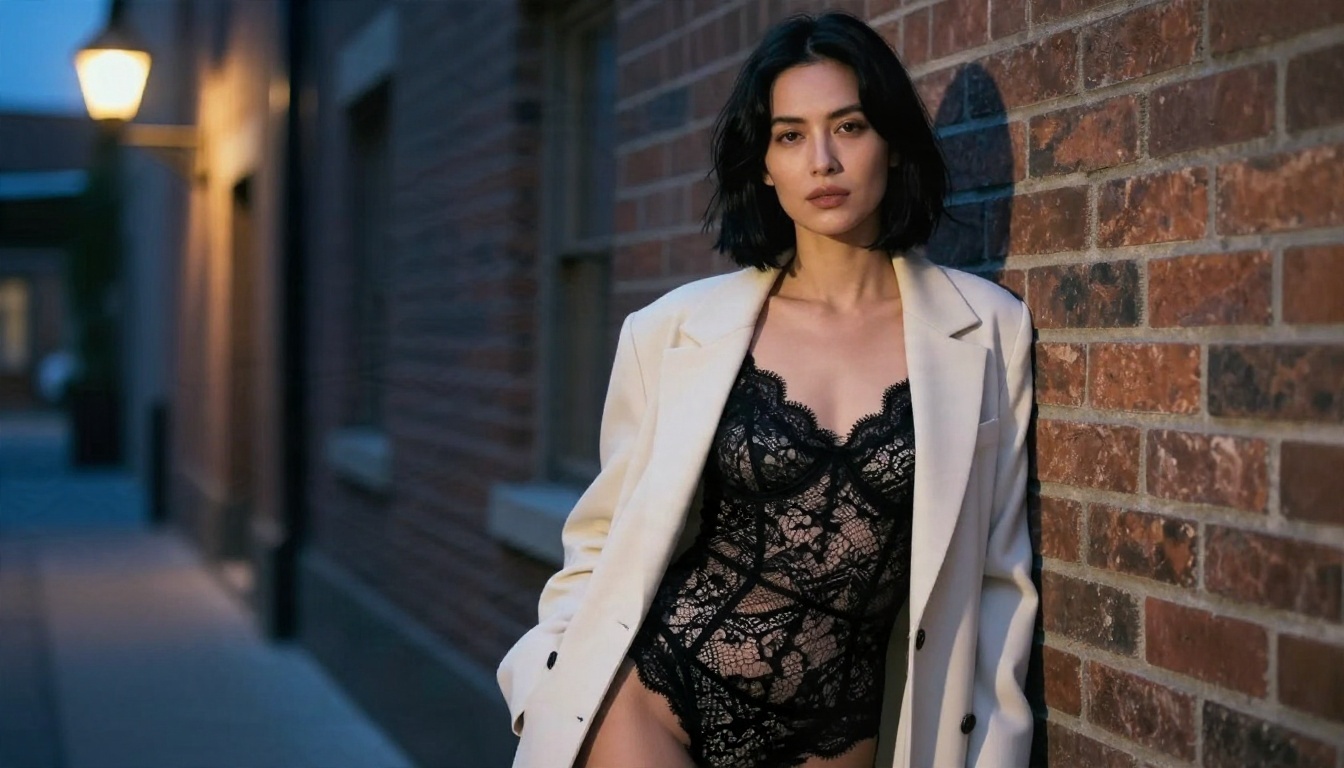
- Warm lamp plus cool window: mixed color temperature, moody and cinematic. Best for evening and lingerie scenes.
Always name the direction ("from camera left") and the quality ("soft", "diffused", "hard midday sun"). The model treats direction as a real instruction.
Lens, Angle and Distance
A focal length changes the whole feel of a picture:
| Lens | Look | Best for |
|---|
| 35mm | Wider, environmental | Full-length and travel shots |
| 50mm | Natural, candid | Lifestyle, balcony, bedroom |
| 85mm | Compressed, flattering | Portraits and close-ups |
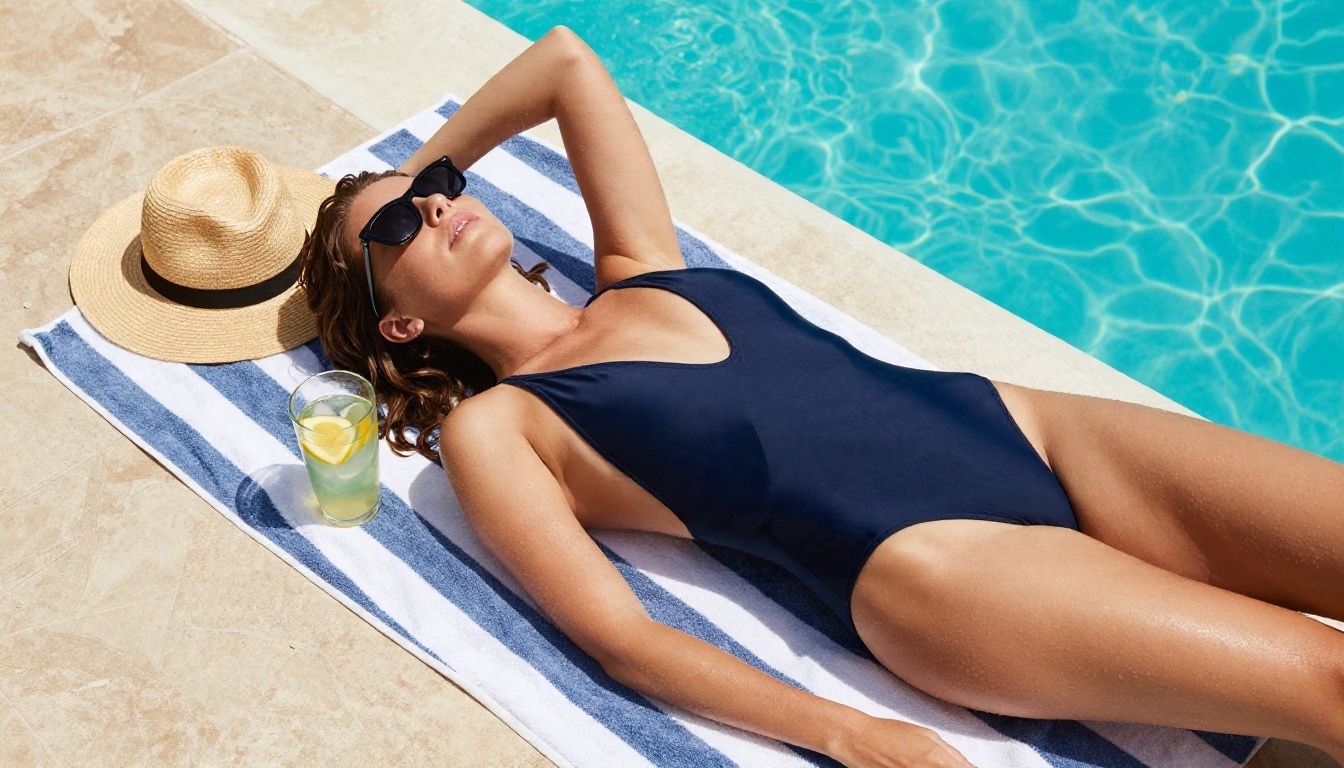
| 24mm | Dramatic perspective | Overhead and pool scenes |
Vary angle too. A slightly high angle looks soft and playful. A low angle looks confident and tall. Eye level feels honest and intimate.
Aspect Ratio and Resolution
Use 16:9 for scenic and full-length shots, 3:4 or 2:3 for portraits, and 1:1 for social posts. Generate at the highest native resolution the model offers, then upscale only if you need print size. Upscaling a bad base image just gives you a larger bad image.
Seeds and Variations
Every generation starts from a random seed. When you land a composition you like, save the seed and change only one word at a time: the robe color, the time of day, the lens. That is how you build a consistent set instead of ten unrelated images.
"Free" is where most people get burned. Many sites advertise free spicy generation, then limit you to a handful of credits, slap on a watermark, or quietly blur anything that looks suggestive. Before committing time, check four things:
- How many generations per day? Some cap at 3 to 10.
- Is there a watermark? Fine for testing, useless for sharing.
- What is the filter policy? Some refuse even swimwear.
- Does it let you edit? Fixing a hand or a background matters more than generating twenty new images.
Where Unlimited Actually Matters
Realistic glamour images almost always need iteration. Expect 5 to 15 attempts for one great shot while you adjust light, pose and fabric. A tool that charges per image punishes exactly the workflow that produces good results. That is why unlimited generation is worth more than a flashy model name.
On PicassoIA, PicassoIA Image Editor Pro offers unlimited generations, which makes it a natural place to iterate and refine without watching a credit counter. If you are tired of metered tools, that is the one to try first for editing and variations.
Best Models for Spicy Images
Not every model handles skin, fabric and body proportions equally. These are the ones worth using, in the order I would try them.
| Order | Model | Why use it |
|---|
| 1 | Seedream 4.5 | Sharp 4K output, strong skin and fabric realism, flexible with glamour prompts |
| 2 | PicassoIA Image Editor Pro | Unlimited generations and editing, ideal for fixing details |
| 3 | Seedream 4 | Reliable 4K quality, good for pose and lighting variety |
| 4 | Nano Banana Pro | Strong prompt following and clean 4K detail |
| 5 | Z Image Turbo | Very fast drafts for testing prompts quickly |
Seedream 4.5 for the Final Image
Seedream 4.5 is the model I reach for when the shot matters. It handles satin sheen, lace patterns and natural skin texture better than most, and it follows long photographic prompts without drifting. Use it for the hero image, then refine.
Fast Models for Drafting
When you are still testing a pose or a lighting idea, speed beats polish. Z Image Turbo returns sharp images in seconds, so you can run ten quick variations, pick the best composition, and then recreate it in a heavier model.
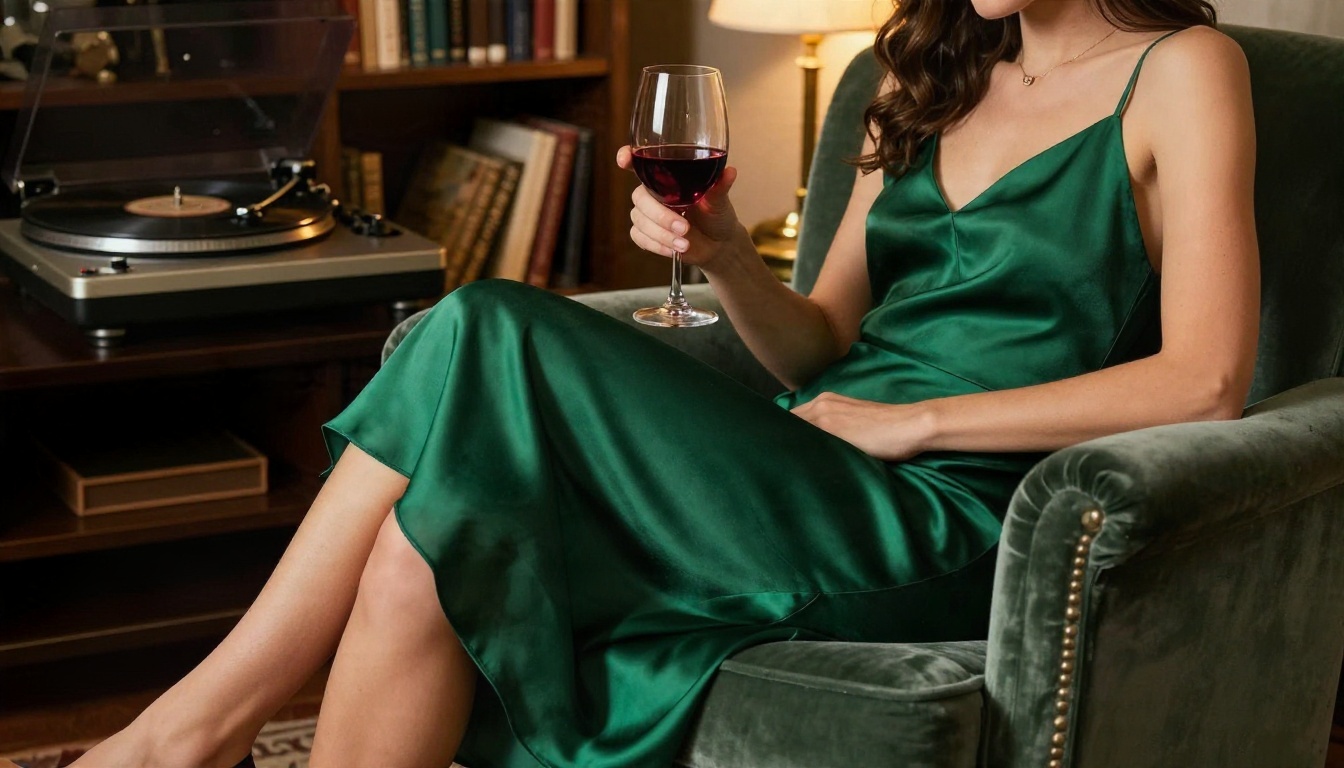
How to Use Seedream 4.5 on PicassoIA
Here is the workflow I follow from blank screen to finished image.
Step by Step
- Open the Seedream 4.5 page on PicassoIA.
- Paste a prompt built with the six-part formula: subject, clothing, environment, light, lens, texture.
- Pick your aspect ratio: 16:9 for scenes, 3:4 for portraits.
- Choose the highest resolution available.
- Generate, then compare the result against your prompt. Check hands, eyes, fabric edges and the background.
- Change one variable and generate again.
Parameter Tips
- Keep the prompt between 50 and 90 words.
- Name the light direction in every prompt.
- Describe texture (pores, freckles, linen weave) instead of using words like "perfect".
- Generate three to five variations before judging the model.
💡 If a pose keeps failing, describe it with a physical anchor: "one hand resting on the sheet, the other touching her hair". Models follow concrete body positions better than abstract moods.
Refine with Image Editor Pro
Once you have a strong base, send it to PicassoIA Image Editor Pro. Because generations are unlimited, you can fix a hand, change the robe color, soften the background, or adjust the mood without counting attempts. For targeted edits like swapping an outfit or shifting the setting, Flux Kontext Fast is another quick option, and Depth of Field helps you blur backgrounds for a more portrait-like look.
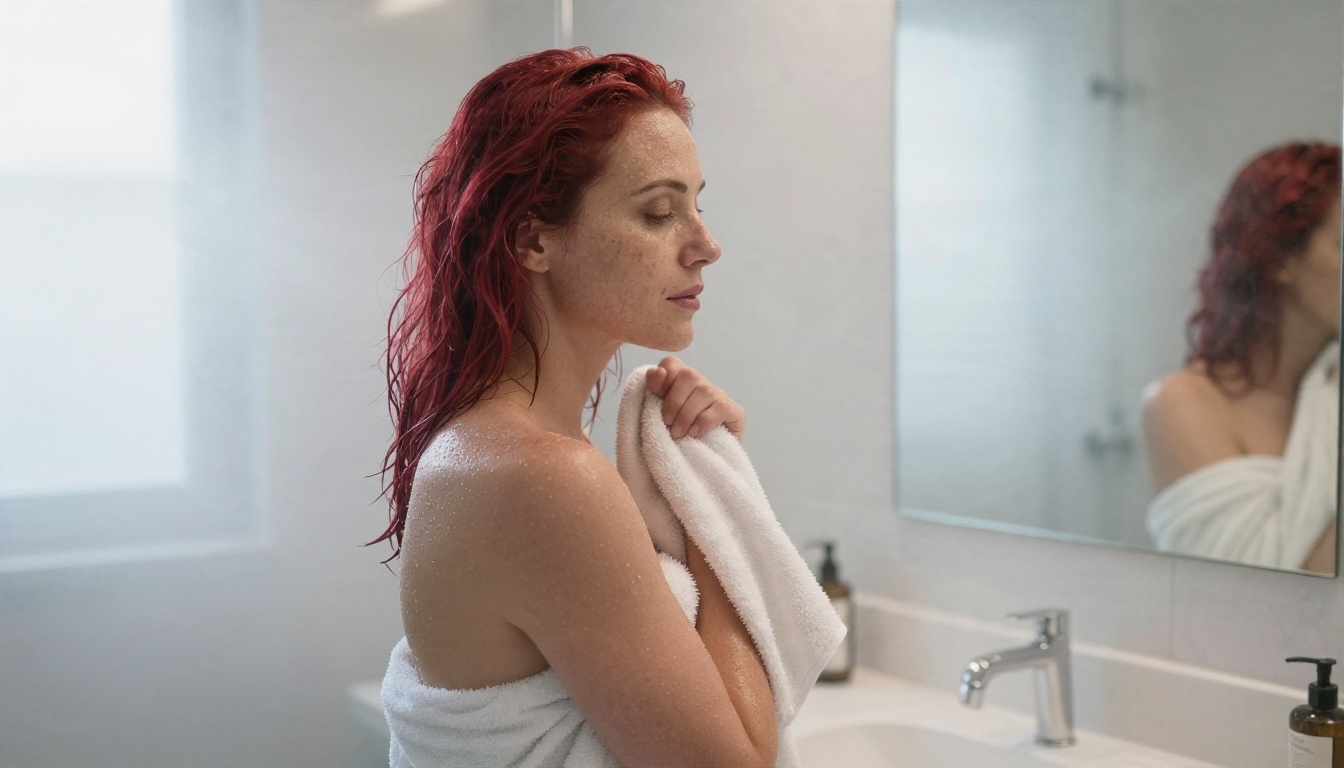
Common Mistakes and Quick Fixes
Most failed images trace back to the same handful of errors. Here is the short list.
Plastic Skin
Cause: words like "flawless", "perfect skin", "airbrushed". Fix: ask for visible pores, light freckles, small imperfections, and name a film stock such as Kodak Portra 400 for natural color.
Broken Hands and Anatomy
Cause: hands doing complicated things. Fix: keep hands simple. Resting on a surface, holding a glass, touching hair. Avoid interlaced fingers and tangled poses. If a hand still fails, fix it with an editing pass instead of regenerating the whole image.
Wrong Mood
Cause: a vague mood word like "sexy". Fix: describe the expression and the light instead. "Relaxed confident expression, warm lamp light, soft shadows" gives you a mood. "Sexy" gives you an average.
Flat, Studio Look
Cause: no lighting direction. Fix: name where the light comes from and what it passes through: sheer curtains, a frosted window, a streetlamp.
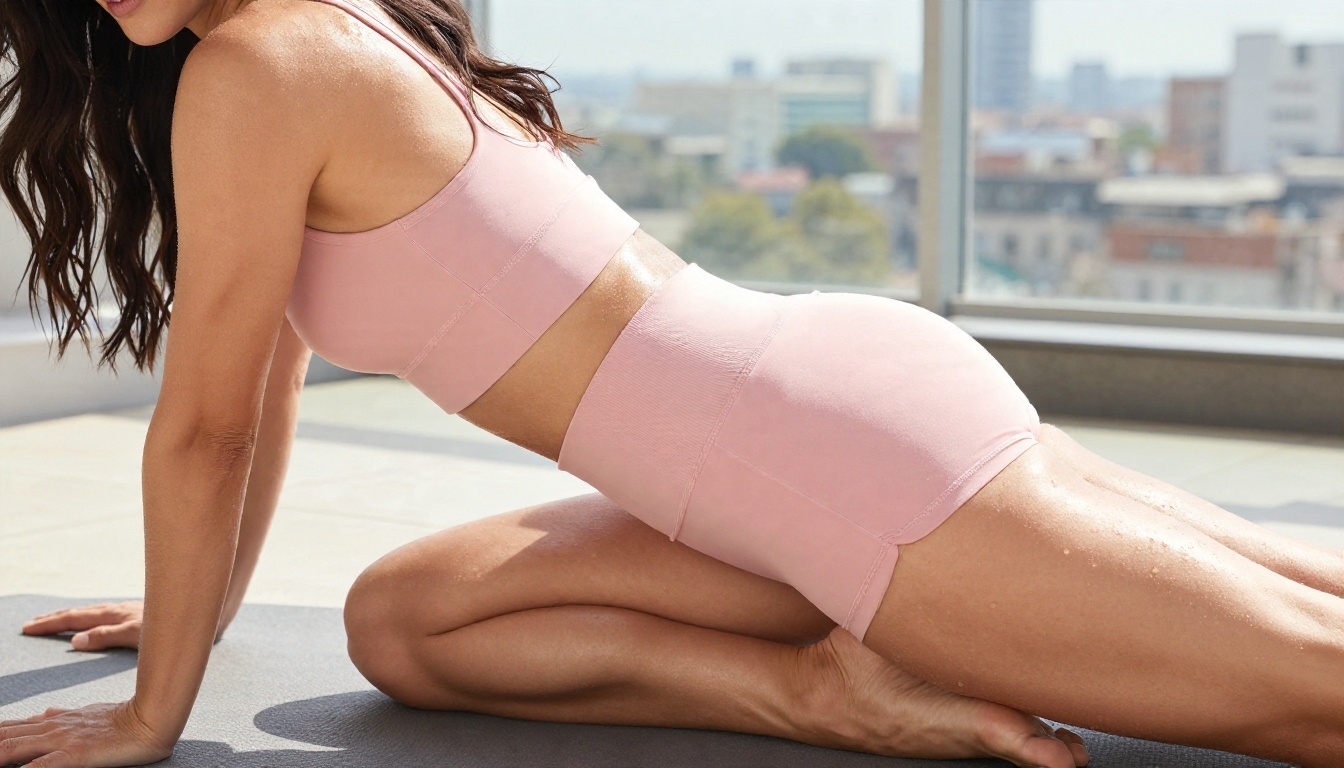
Real Limits You Should Expect
Honest expectations save time. Here is what spicy AI generation can and cannot do right now.
What Models Still Struggle With
- Complex multi-person poses: limbs merge or duplicate.
- Text on clothing and signs: letters often warp.
- Consistent characters across many images: faces drift unless you reuse references or edit the same base image.
- Jewelry and fine lace patterns: detail can smear at distance.
Rules That Still Apply
Even with fewer restrictions, some lines stay in place and should:
- Adults only. Every subject should be clearly an adult. Anything suggesting minors is off the table, full stop.
- No real people without consent. Do not generate images that imitate a real person's face, whether a celebrity or someone you know.
- Non-explicit stays non-explicit. This article and the workflow in it are about glamour, swimwear and boudoir photography.
- Label your work. If you post AI images, say they are AI generated. Platforms increasingly require it.
Platform Rules Differ
A prompt that works on one platform may be refused on another, and some social networks remove suggestive AI content no matter how tasteful. Check the posting rules of wherever you share before you build a whole set.
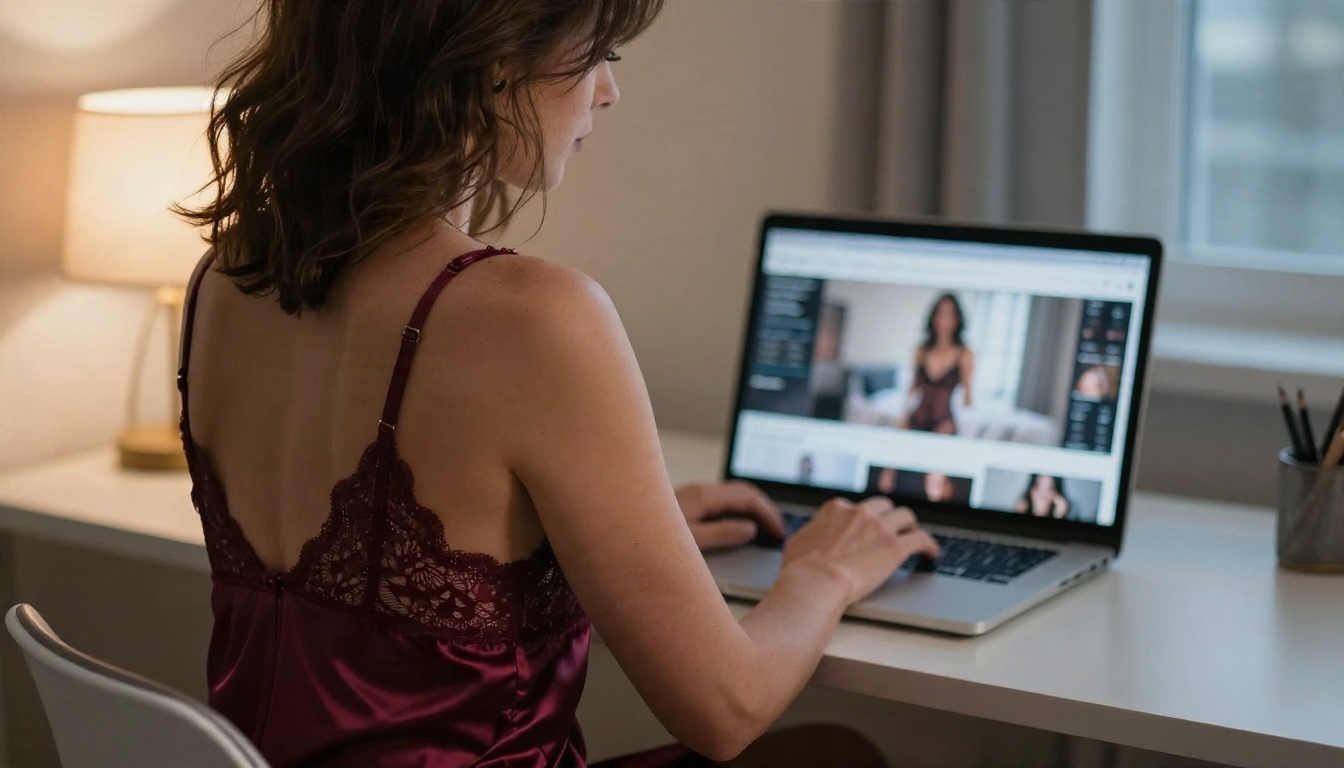
A Simple Workflow You Can Repeat
Here is a routine that takes about 20 minutes for a finished image.
- Draft fast. Use Z Image Turbo to test 5 to 10 pose and lighting ideas.
- Pick one composition. Choose the one with the best light and pose, ignore minor flaws.
- Rebuild it in a stronger model. Run the refined prompt in Seedream 4.5 or Nano Banana Pro.
- Fix details. Open the result in PicassoIA Image Editor Pro and correct hands, fabric edges or background clutter.
- Finish. Upscale only if you need it, then save the final and the prompt together so you can repeat it.
💡 Keep a small prompt notebook. After ten images you will see patterns in which words consistently give you better skin, better light or better poses. That notebook is worth more than any single model.
Quick Prompt Variations
Swap one element at a time to build a varied set from the same base:
- Setting: hotel suite, balcony, pool, cove, lounge, spa bathroom.
- Fabric: satin, lace, linen, silk, ribbed cotton, terry towel.
- Light: golden hour, mixed lamp and window, overcast daylight, dusk streetlamp.
- Lens: 35mm for scenes, 85mm for faces.
Try It Yourself Today
You do not need a long list of tricks. You need a clear prompt, a named light source, a believable setting, and a tool that lets you iterate without counting credits. Start with Seedream 4.5 for the base image, move to PicassoIA Image Editor Pro for unlimited refinements, and keep your prompts photographic instead of poetic.
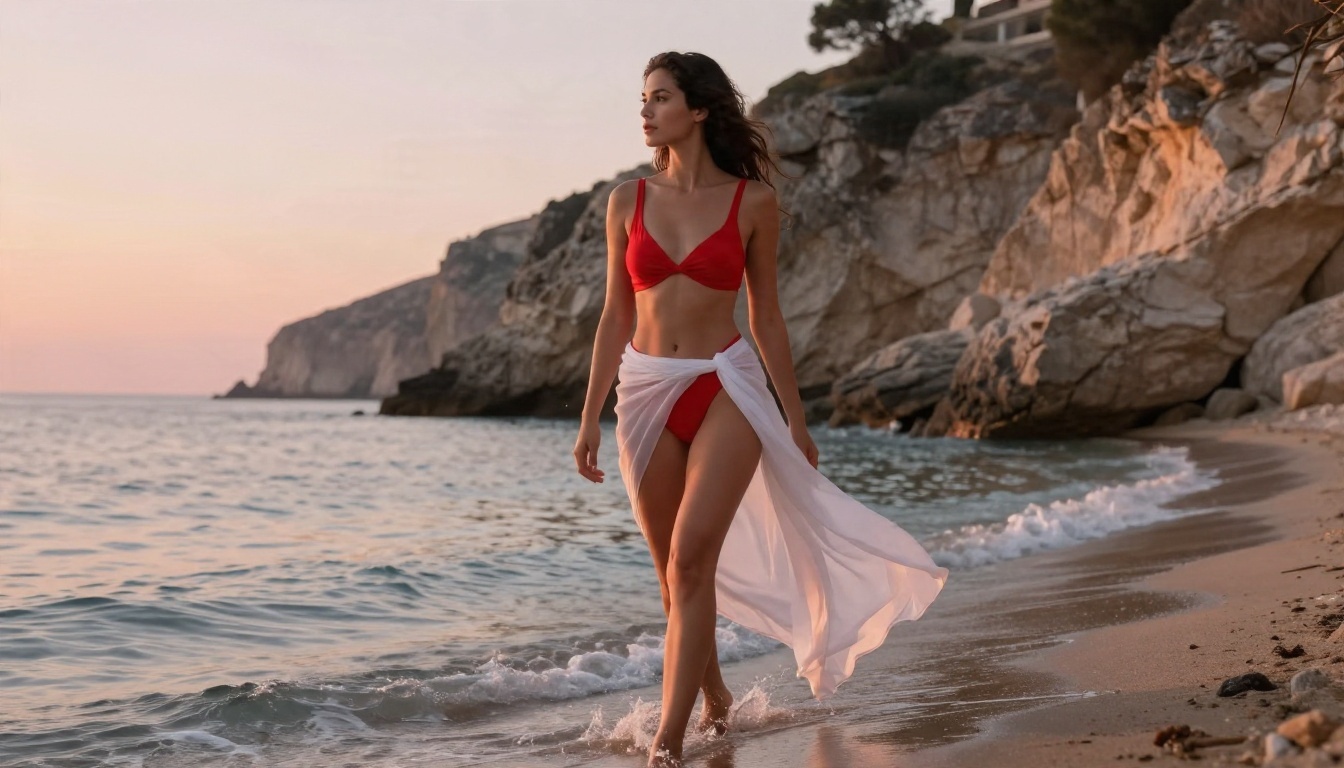
Pick one scene from this article, paste the formula, change a single detail, and generate. Ten minutes from now you will have a better feel for it than any amount of reading can give. When you want more options, browse the full catalog at picassoia.com/en/all-models and try a different model on the same prompt to see how each one handles skin, light and fabric.


