Typing "hentai" into a generic image model usually gets you a bland, over-smoothed anime face with the wrong proportions and a washed-out palette. The reason is simple: general models were not trained on the tag vocabulary, line weight and shading habits that anime fans expect. Pick the right Stable Diffusion model for hentai, though, and the same prompt gives you crisp linework, expressive eyes and consistent characters. This article walks through the checkpoints that matter, the prompt formulas that work, and the free online options for people who do not own a high-end GPU.
💡 Quick note: everything below is about adult characters only, and the example images in this article are non-explicit, photorealistic cosplay-style photos made to show mood and styling. Keep your own projects within the rules of the platform you use.
What Hentai Checkpoints Actually Are
A "checkpoint" is a fine-tuned version of a base model. Stability AI released the base Stable Diffusion weights, and the community then trained thousands of variations on top of them. Some lean toward painterly fantasy, some toward realism, and a big group toward anime and manga aesthetics.
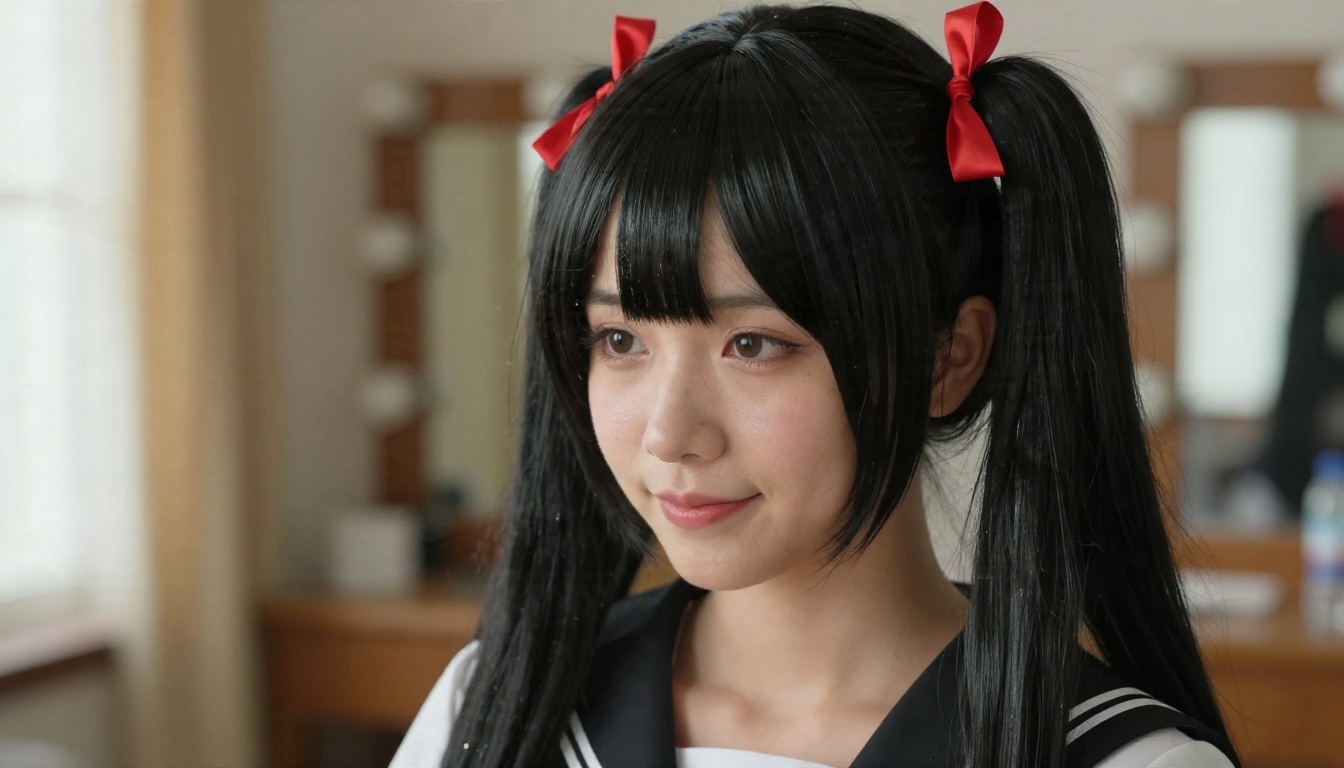
Base model versus fine-tune
The base Stable Diffusion model is a generalist. It handles landscapes, product shots and portraits well, but anime nuance gets lost. A fine-tune takes that foundation and pushes it with tens of thousands of curated anime images, usually tagged in the Danbooru style (short comma-separated labels such as 1girl, long hair, school uniform).
Why tags beat sentences
Most anime checkpoints respond better to tags than to flowing prose. 1girl, silver hair, red eyes, soft lighting, looking at viewer outperforms "a beautiful woman with silver hair gazing at the camera". Newer models mix both styles, which is one reason they are easier for beginners.
SD 1.5, SDXL and beyond
| Base family | Native size | Typical VRAM | Anime strength |
|---|
| SD 1.5 | 512 x 512 | 4 to 6 GB | Huge library, soft detail |
| SDXL | 1024 x 1024 | 8 to 12 GB | Sharper, better anatomy |
| SD 3.5 Large | 1024 x 1024 | 12 GB or more | Strong prompt following |
The jump from SD 1.5 to SDXL is the single biggest quality upgrade most people ever make. If you are picking a first local checkpoint today, start with an SDXL-based one.
The Best Stable Diffusion Models for Hentai
The community moves fast, so treat this as a map of the main families rather than a permanent ranking. These checkpoints are community releases that you download and run yourself, and they are mentioned here by name only.
Animagine XL
Animagine XL is an SDXL fine-tune built for clean, polished anime output. It understands character names from popular series, handles quality tags well and keeps colors bright. It is a safe first pick if you want a tidy look without wrestling with odd tag syntax.
Best for: clean illustration style, recognizable character looks, beginners.
Pony Diffusion V6 XL
Pony Diffusion V6 XL became a phenomenon because of its huge training set and its "score" tags such as score_9, score_8_up, score_7_up placed at the start of the prompt. These tags tell the model to aim for the best slice of its training data. It is flexible across anime, cartoon and stylized looks, and it has a giant ecosystem of LoRAs.
Best for: variety, LoRA compatibility, dynamic poses.
💡 Pro tip: Pony-style models need the score prefix. Skip it and the output often looks noticeably weaker.
Illustrious XL and NoobAI XL
Illustrious XL is another SDXL-based anime line, trained on a very large tagged dataset and prized for sharp linework and good anatomy at higher resolutions. NoobAI XL builds on that foundation and widens the tag vocabulary, which means more characters and artist styles respond to your prompt. Many of today's most popular anime merges descend from one of these two.
Best for: detailed linework, character accuracy, modern workflows.
Anything and Counterfeit for SD 1.5
The older SD 1.5 favorites, such as Anything V5 and Counterfeit, are still around because they run on almost any hardware. Their detail is softer and hands are weaker, but they can produce charming, painterly anime on a laptop GPU with 4 GB of memory.
Best for: low-end hardware, quick experiments, nostalgic soft style.
Side-by-side summary
| Model family | Base | Prompt style | Strength | Weak spot |
|---|
| Animagine XL | SDXL | Tags plus quality words | Clean, bright color | Less style range |
| Pony Diffusion V6 XL | SDXL | Score tags plus tags | Flexibility, LoRAs | Needs prefix |
| Illustrious XL | SDXL | Danbooru tags | Linework, anatomy | Strict tag habits |
| NoobAI XL | SDXL | Danbooru tags | Huge tag range | Long prompts needed |
| Anything V5 / Counterfeit | SD 1.5 | Short tags | Runs on weak GPUs | Soft detail |
Free Online Options That Work
Downloading a 6 GB checkpoint, installing a web interface and tuning drivers is a hobby in itself. If you simply want results, browser tools skip all of that. On PicassoIA, you can generate images with no GPU and no install, and several models handle anime and stylized looks well.
Seedream 4.5 first
Seedream 4.5 is the one to try first. It produces sharp 4K images, follows long descriptive prompts closely and handles stylized, anime-inspired scenes and glamour portraits with very clean detail. It is fast, and it is a strong fit for adult-oriented creative work where you want attractive results without a pile of workarounds.
PicassoIA Image Editor Pro
PicassoIA Image Editor Pro is built for editing and re-styling images, and it offers unlimited generations. That matters because anime workflows are iterative: you rarely nail it in one pass. Unlimited tries mean you can adjust the outfit, the lighting or the background as many times as you need.
More models worth a try
If you want to start from a photo and push it toward an anime look, Qwen Image Edit Plus LoRA Photo To Anime converts a reference picture into an anime-styled version while keeping the pose.
💡 Local or online? Local setups win on total control and community LoRAs. Online tools win on speed, zero setup and consistent quality. Plenty of creators use both: online for ideas, local for deep customization.
How to Use Seedream 4.5 on PicassoIA
Here is the quickest route from idea to finished image with Seedream 4.5.
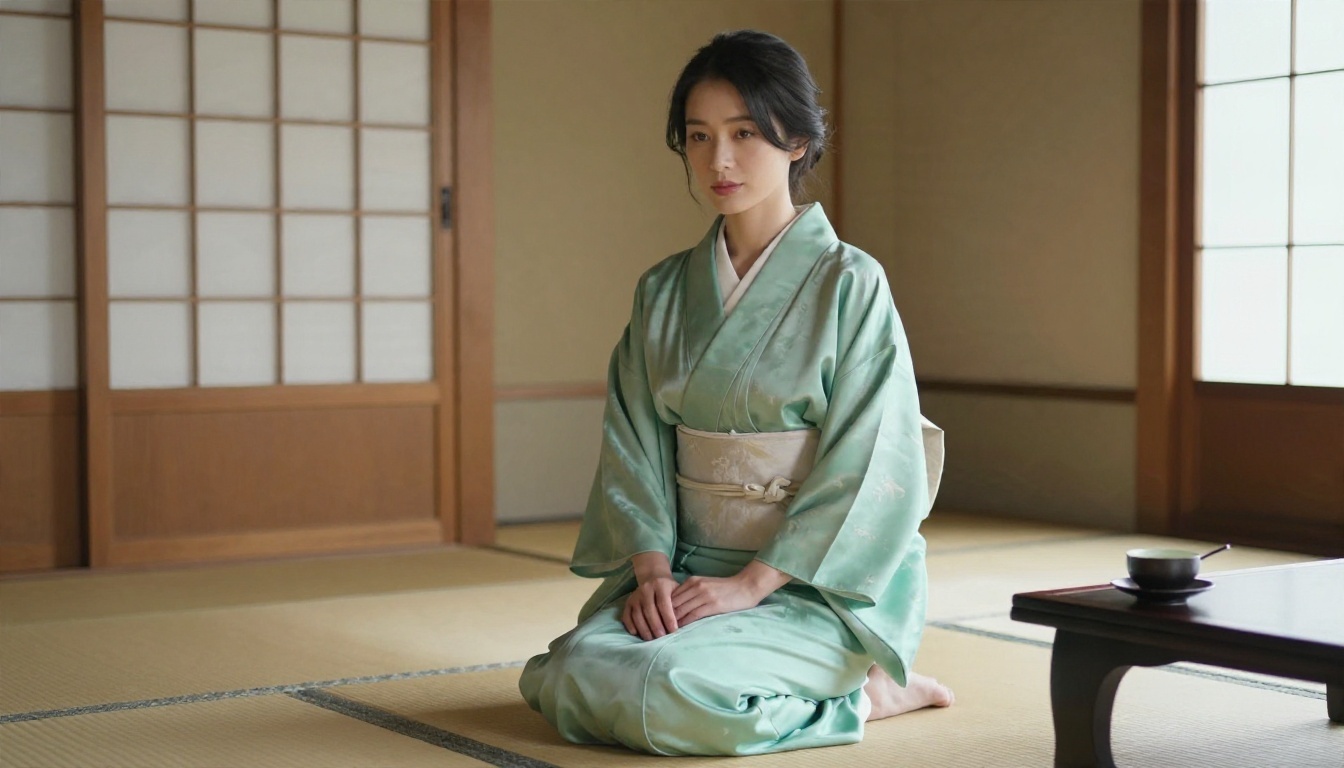
Step by step
- Open the model page and choose Seedream 4.5 from the text-to-image collection.
- Write a descriptive prompt. Name the subject, outfit, setting, lighting and mood. Seedream 4.5 reads long prompts well, so full sentences work fine.
- Pick an aspect ratio. Use 16:9 for wide scenes, 3:4 or 2:3 for full-body character art.
- Generate and review. Look at the face, hands and edges first. Those reveal quality quickly.
- Refine, do not restart. Change one detail at a time, such as the lighting or the hair color, so you can see what each edit does.
- Polish in the editor. Send the best result to PicassoIA Image Editor Pro for outfit changes, background swaps or clean-ups.
Parameter tips
- Resolution: start at a moderate size for drafts, then render the winner at the highest setting.
- Prompt length: 40 to 90 words is a sweet spot. Shorter prompts leave too much to chance.
- Negative detail: describe what you want positively. Instead of "no extra fingers", write "hands resting naturally with five fingers".
- Seeds: when you find a composition you like, keep the seed and tweak words only.
Prompts That Work
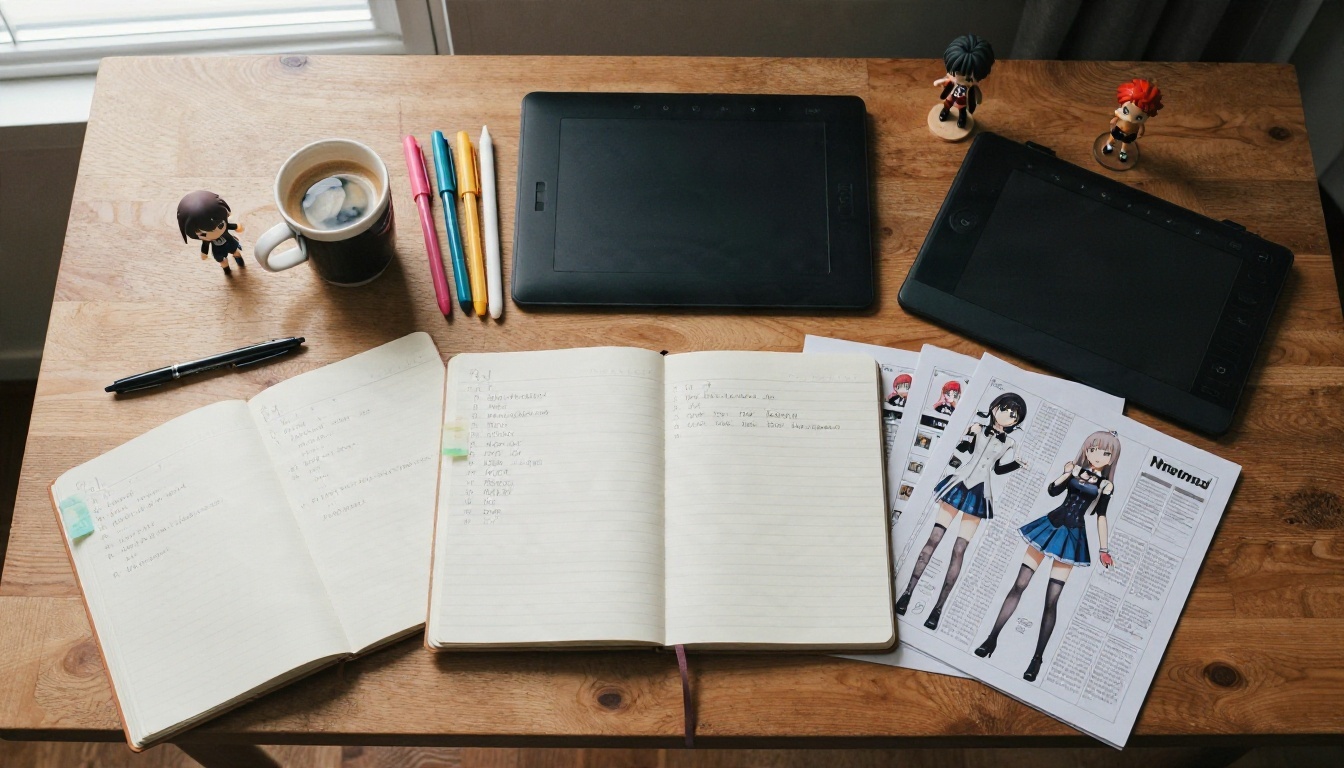
A good prompt has layers. Think of it as a short film shot: who, where, how lit, how framed.
The tag formula for community checkpoints
For SDXL anime checkpoints, use this order:
quality tags, subject count, character details, outfit, pose, setting, lighting, style tags
Example for a Pony-style model:
score_9, score_8_up, score_7_up, 1girl, long silver hair, red eyes, sailor uniform, standing on a rooftop, sunset, wind in hair, soft rim light, detailed eyes, masterpiece
Example for an Illustrious or NoobAI model:
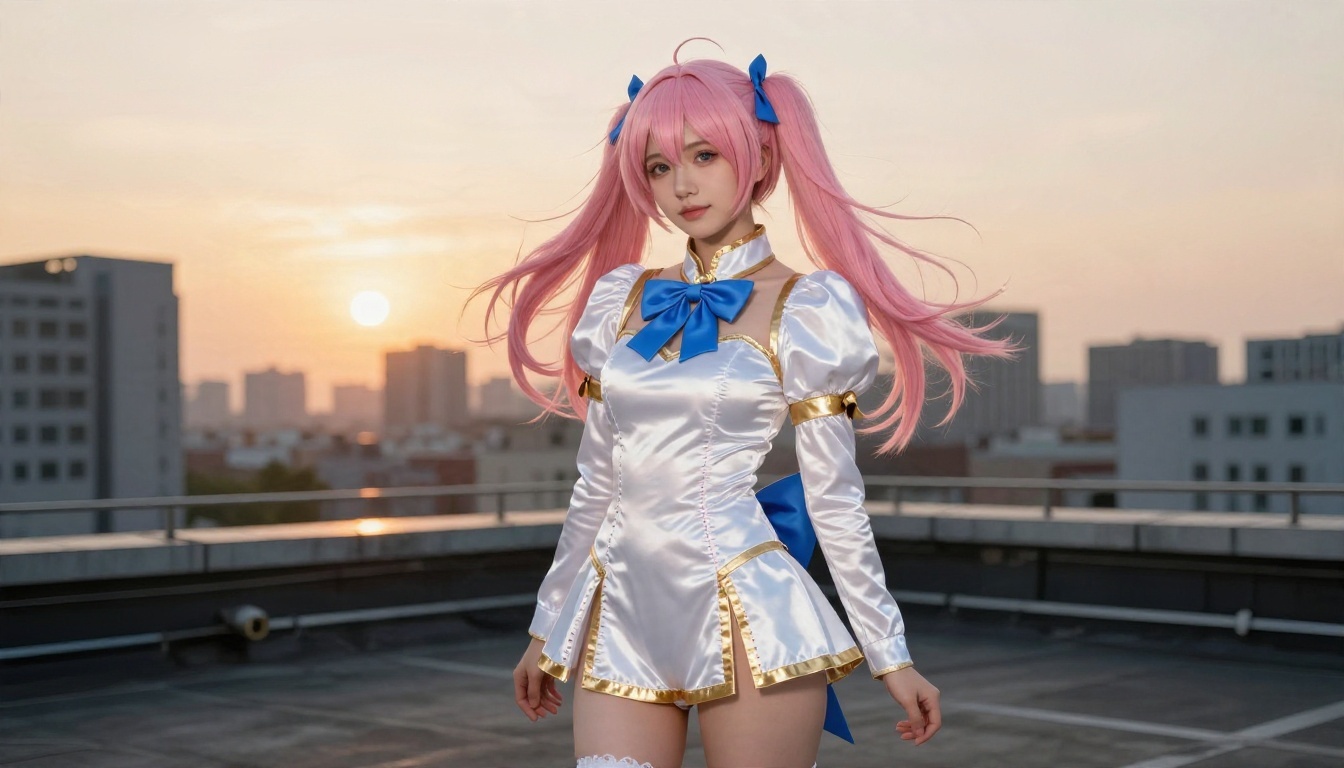
masterpiece, best quality, newest, 1girl, long lavender hair, blue eyes, magical girl outfit, gold trim, twin tails, city skyline, golden hour
The sentence formula for modern models
For models such as Seedream 4.5, write it like a scene description:
An adult anime heroine with long lavender hair stands on a sunlit rooftop, wearing a white and gold magical-girl outfit with a blue bow, hair lifted by the wind, warm backlight, crisp linework, vivid but natural colors, cinematic composition.
Negative prompts that help
On checkpoints that support negative prompts, a short list beats a long one:
lowres, bad anatomy, extra fingers, blurry, watermark, text, cropped, worst quality
Long walls of negative tags can flatten the style. Add terms only when you see a specific problem.
Prompt building blocks
| Layer | Examples |
|---|
| Subject | adult woman, anime heroine, shrine maiden |
| Hair and eyes | long teal hair, heterochromia, sparkling eyes |
| Outfit | sailor uniform, silk kimono, maid-inspired dress |
| Pose | looking over shoulder, hand on hip, seated |
| Setting | rooftop, tatami room, vintage cafe |
| Light | golden hour, soft window light, rim light |
| Style | clean linework, cel shading, soft gradient |
Settings That Matter
Prompts get the attention, but settings decide whether a good prompt turns into a good image.
Sampler, steps and CFG
| Setting | Typical range | What it does |
|---|
| Steps | 20 to 35 | More steps add detail up to a point |
| CFG scale | 4 to 7 | Higher follows the prompt more strictly but can look harsh |
| Sampler | Euler a, DPM++ 2M Karras | Changes texture and softness |
| Resolution | 832 x 1216 for SDXL portraits | Matches training sizes |
| Clip skip | 2 for SD 1.5 anime | Softens interpretation of tags |
Hires fix and upscaling
Generate at the native size, then upscale. Rendering directly at huge sizes duplicates faces and bodies. A two-pass approach (draft first, then upscale at low denoise strength) keeps proportions stable and adds fine detail.
LoRAs for style and character
A LoRA is a small add-on file that nudges a model toward a style or a character. Keep the weight around 0.6 to 0.8. Stacking more than two or three LoRAs tends to muddy the image.
Common Mistakes to Avoid
Most weak results trace back to a handful of habits.
Mixing the wrong prompt style
Writing long sentences for a tag-driven checkpoint, or tags for a sentence-driven model, causes the model to ignore half your instructions. Match your style to the model.
Ignoring the base resolution
SDXL models trained at around 1024 pixels. Forcing 512 x 512 gives mushy faces. SD 1.5 models are the reverse: pushing them to 1024 gives stretched bodies and duplicates.
Overloading the prompt
Fifty tags in a row do not make a better picture. Past a point, extra tags compete with each other. Pick the ten that matter most and place them first.
Skipping the edit pass
Even strong models leave small flaws: an odd finger, a stray strand, a blurry eye. A quick pass in an editor fixes them in a minute and makes the final result look polished.
Forgetting the audience and the rules
Platforms differ in what they allow. Read the terms before you publish, keep every character clearly adult, and label mature work properly. That protects you and keeps your gallery online.
Style Ideas Worth Trying
Once the basics work, variety keeps the hobby fresh.
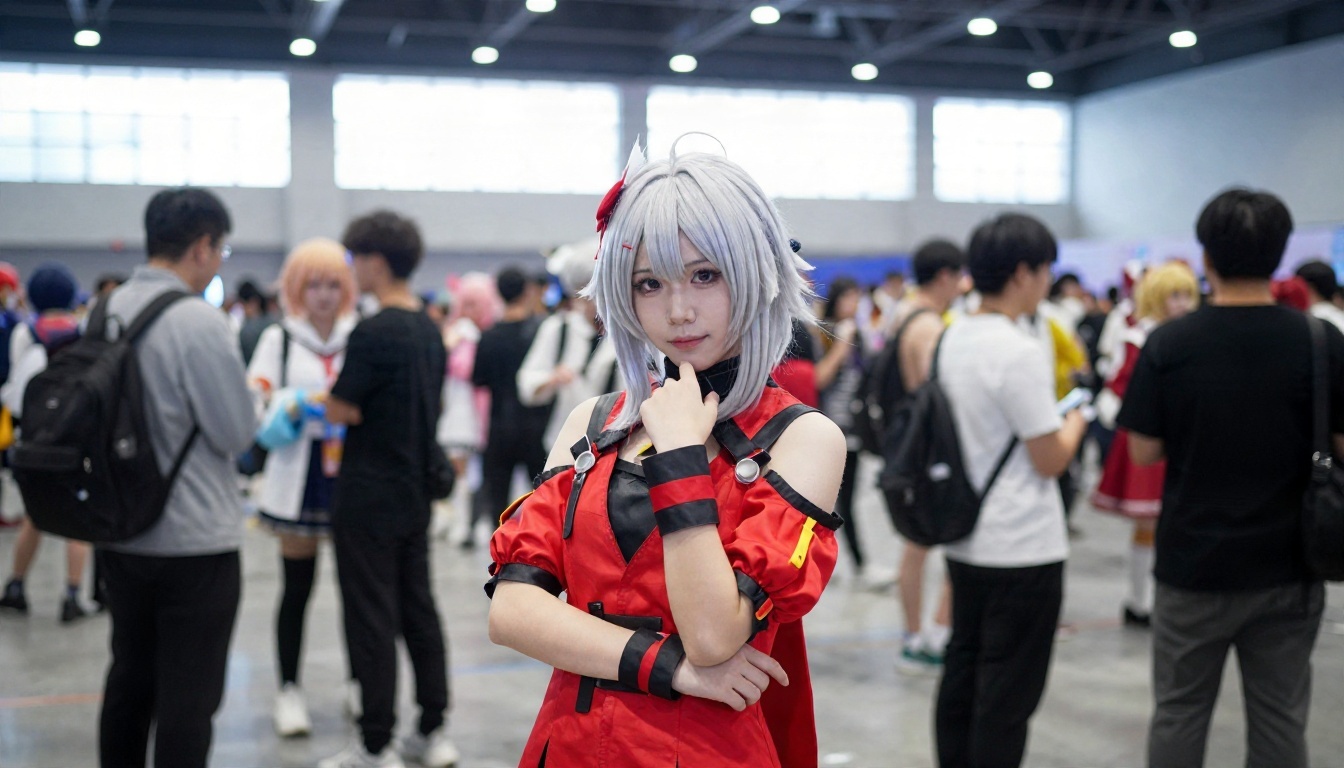
Cosplay-inspired looks
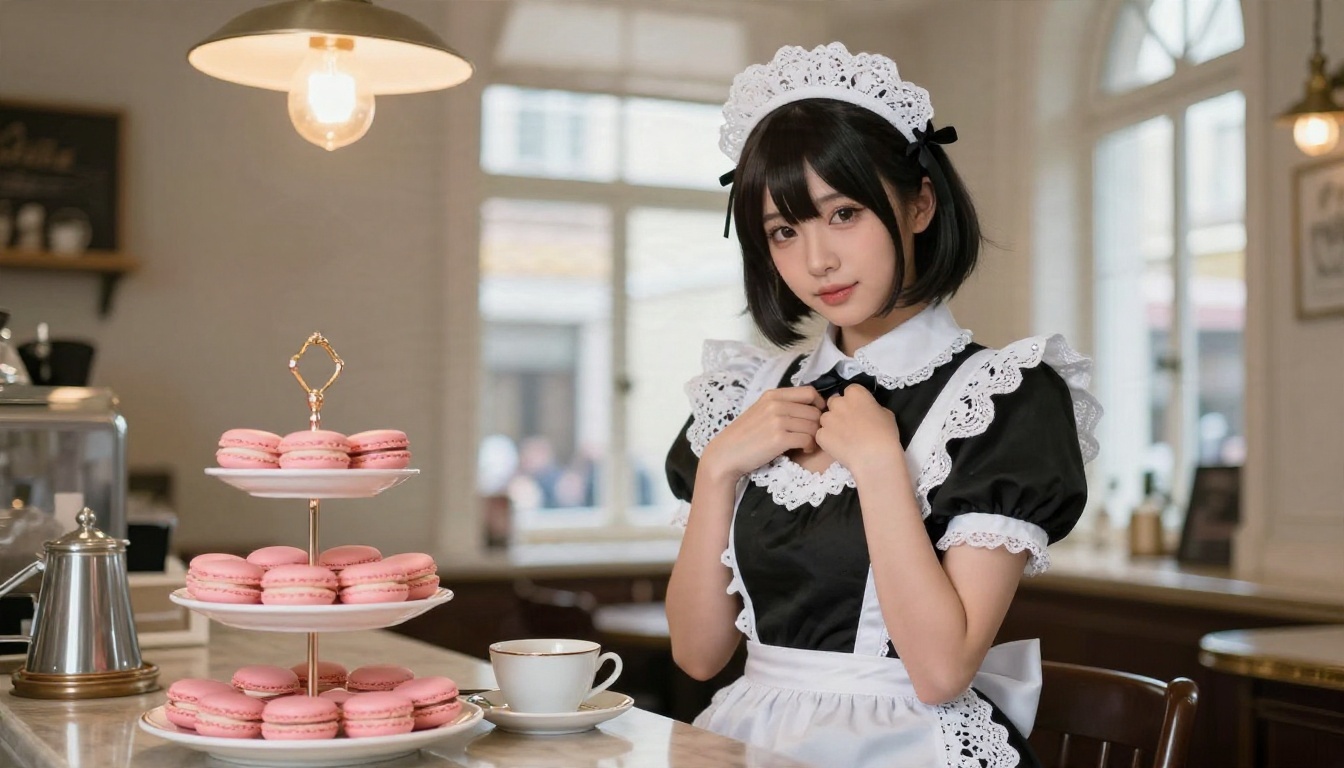
Anime outfits translate beautifully into photographic styling: satin ribbons, pleated skirts, stage-ready wigs. They are a good test of whether a model handles fabric texture, hair detail and lighting at the same time.
Cafe and slice-of-life scenes
Warm interiors, pastel desserts and soft pendant lights give a cozy mood without any complexity in the pose. They are great for practicing composition.
Traditional and seasonal themes
Kimono, shrine festivals and cherry blossom scenes offer rich color palettes. Try the same prompt with different seasons and see how the lighting changes everything.
Try It Yourself Today
You do not need a monster GPU or a weekend of setup to get good anime results. Start with Seedream 4.5 for sharp, detailed images, then refine them in PicassoIA Image Editor Pro, where generations are unlimited. If you want a more illustrated feel, test Proteus v0.3 or Krea 2 Medium with the same prompt and compare.
Copy one of the prompt formulas above, change the hair color, outfit and lighting, and generate five variations. You will see within minutes which direction suits your taste. To browse everything that is available, open picassoia.com/en/all-models and try a few side by side.


