A photo lands in your feed and something feels off. The light is too clean, the skin too smooth, and the account that posted it has no history. Before you share it, quote it or build a story around it, you can run a SynthID detector check in about ten seconds. It looks for an invisible watermark that Google's AI tools write into the pixels of every image, video clip and audio track they generate.
This article shows where the check lives today, how to run it step by step, how to read a positive or an empty result without fooling yourself, and what the tool can never see. The short version: a positive result is strong evidence, a negative result proves very little. Most of the confusion online comes from mixing those two up.
What SynthID Actually Is
SynthID is a watermarking system built by Google DeepMind and introduced in 2023. Instead of stamping a visible logo on a picture, it nudges pixel values in a pattern too subtle for the eye to catch. The pattern is spread across the whole frame, which is why cropping out a corner does not erase it.
It is not limited to pictures. SynthID also marks video frames, audio tracks and text, and a text version was released as open source in 2024. At Google I/O in May 2026, the company said the system had labeled more than 100 billion images and videos and over 60,000 years of audio. That scale is why a SynthID check has become a routine step for journalists, moderators and anyone who edits other people's pictures.

A Watermark You Cannot See
Put a watermarked image next to the same image without one and you will see two identical pictures. Only a trained detector reads the difference. That is the whole point: the mark does not spoil the photo, and nobody has to trust a caption.
Two details matter here. First, the signal is written during generation, not added afterwards, so it is tied to the tool that made the image. Second, it lives in the image data itself, not in a metadata tag. A screenshot wipes metadata in one tap, but it does not automatically wipe a pixel-level pattern.
What It Is Built to Survive
Google designed the watermark to stay readable after the everyday things that happen to pictures online:
- JPEG compression and re-saving
- Filters, brightness and contrast changes
- Resizing and moderate cropping
- Screenshots of the original file
Designed to survive is not the same as guaranteed to survive. Every extra edit chips away at the signal, and a picture that has been through five apps is harder to read than the original download.
Where to Run a SynthID Check
Until late 2025 the only route was a waitlist. Today there are several, and you do not need special access for most of them.

The Gemini App
This is the simplest option. Open Gemini, upload the file and ask whether it was created with Google AI. Gemini checks for the SynthID watermark and adds its own reasoning to give you context about what you are looking at. It works for images that were generated or edited with Google AI.
The app also accepts video. It scans both the visual and the audio tracks for the watermark and can point to the moment in the clip where it appears. That helps with the common case of a real video where one segment was swapped out.
Google Search, Lens and Circle to Search
At I/O 2026, Google announced that SynthID verification is coming to Search through Lens, AI Mode and Circle to Search, with Chrome support following. Features like this roll out in stages, so what you see on your own device may differ. If you already use Lens to look up a picture, the origin check will sit in the same place once it reaches you.
The SynthID Detector Portal
Announced in May 2025, the portal is a dedicated web tool aimed at journalists, media professionals and researchers. It opened through a waitlist first. If your job involves verifying material every day, it is worth asking for access.
Check an Image in Gemini
Here is the routine that takes the least effort and gives the cleanest answer.
- Find the best copy. Download the highest quality version you can reach. Avoid screenshots of screenshots.
- Open Gemini on your phone or in the browser and start a fresh chat.
- Upload the file. One image per question keeps the answer about a single file.
- Ask a plain question. Use Google's own phrasing: "Was this created with Google AI?" or "Is this AI-generated?"
- Read the whole reply. Gemini explains what it found and adds context, so do not stop at the first line.
- Try a second copy if the result is unclear and you have another version, for example the original post and a repost.
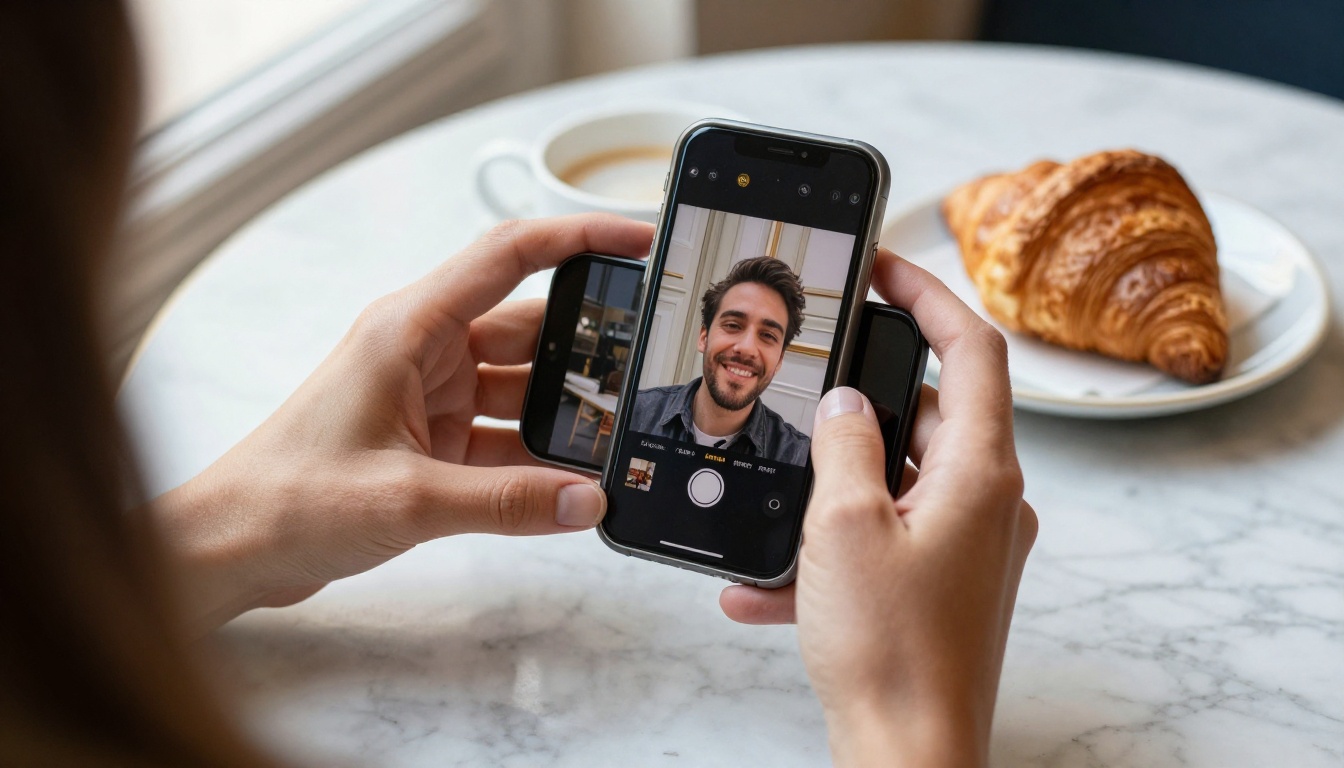
💡 Tip: upload the file, not a link. Link previews are small, compressed versions, and a compressed copy gives the detector less to work with.
Pick the right file. Resolution matters more than people expect. A 3000 pixel original carries far more of the pattern than a 600 pixel thumbnail pulled from a chat app. If you only have a low quality copy, say so in your notes and treat a negative result as even weaker.
Ask a clean question. Skip leading questions like "this is fake, right?". Ask what you actually want to know, which is whether the file carries Google's mark. You are asking the tool to check, not to agree with you.
Reading the Result Correctly
The answer comes in three flavors, and each one supports a different takeaway.
| Result | What it tells you | What it does not tell you |
|---|
| Watermark detected | The image was made or edited with Google AI | Whether the scene is harmful, or whether it was meant to deceive |
| Partly detected | Some area or segment was edited with Google AI | How large the edit is, or what the original looked like |
| Nothing detected | No SynthID signal was found in this file | That the image is a real photograph |
When the Watermark Is Found
Treat it as strong evidence of origin. The watermark is not something that appears by accident on a real photo. Be precise in how you report it, though: the finding is "made or edited with Google AI", which is not the same as "a lie". Plenty of legitimate illustrations, mockups and concept shots are generated on purpose and labeled honestly.
When Nothing Is Found
This is where people go wrong. An empty result has at least four innocent explanations:
- The image came from a generator that does not use SynthID
- The watermark was weakened by heavy editing or repeated compression
- The file is a genuine photograph
- The tool does not support that kind of content yet
So "nothing detected" means keep checking, never "verified real".
Add Your Own Judgment
A detector answers one narrow question. The wider questions are yours: who posted this first, does the location match, do other angles of the same event exist, and does the story make sense for the date? A watermark result is one piece of evidence, and good verification stacks several.
What SynthID Cannot Catch
Knowing the blind spots is what separates a careful check from a false sense of security.

Other Generators
SynthID detection reads SynthID. Images from a generator that never embedded it come back empty, however artificial they are. The picture is changing: reports from Google I/O 2026 say OpenAI, Kakao and ElevenLabs have announced they will adopt the watermark, and NVIDIA is reported to use it for its video models. But adoption is uneven, and there are many open models people run on their own machines with no watermark at all.
Heavy Re-Edits
No watermark is unbreakable. Printing a picture and photographing the print, running it through aggressive filters, or regenerating it with another model can weaken or destroy the signal. A determined person can usually get past it. SynthID is built to label honest output at scale, not to stop a motivated forger.
Real Photos With AI Edits
A genuine photograph with a small AI edit, such as an object removed or a sky replaced with a Google tool, may show a partial result. A photo edited with a non-Google tool shows nothing. The detector tells you about the tools that left a mark, not about the full history of the file.
Other Checks Worth Running
Layer these on top of a SynthID result. None is perfect alone.
| Check | Speed | Strength | Weak spot |
|---|
| SynthID verification | Seconds | Strong when positive | Blind to unmarked generators |
| Content credentials (C2PA) | Seconds | Shows origin and edit history | Stripped by screenshots |
| Reverse image search | Minutes | Finds the earliest copy | New images have no history |
| Visual inspection | Minutes | Free and always available | Modern models fool the eye |
Content Credentials
C2PA content credentials are signed metadata that record where a file came from and what was done to it. When they are present they are excellent. When they are missing, it often means the file was screenshotted or re-exported, which tells you little by itself.
Visual Tells
Look at hands, teeth, reflections, text on signs, the way hair meets the background, and whether shadows agree with the light source. Earlier models failed these tests often. Current ones fail them rarely, so treat a clean image as unproven, not as authentic.
Reverse Image Search
Drop the picture into a reverse image search and look for the oldest appearance. A "breaking news" photo that existed three years ago is a different story from one that appeared an hour ago with no source.

Which Generators Add SynthID
Google's own generative tools are the reference case. Several of them are available on Picasso IA, which makes it easy to produce a test file and check it yourself:
Google says content from its generative products carries SynthID. The dependable way to confirm that for a specific file is to run the file through the check, so do not take any table, including this one, as proof.
Models from other makers behave differently. GPT Image 2, Seedream 4.5 and Flux 2 Pro each follow their own makers' rules on watermarking, and those rules are changing. Test a real file instead of assuming.
Why this matters for creators. If you publish AI images, a detectable mark works in your favor. It lets viewers and platforms confirm the label you already put on the work, and it protects you from the accusation that you hid how the picture was made. Keep your originals in their native format, because the original file is the strongest proof you have.
Use Nano Banana Pro on PicassoIA
Nano Banana Pro is a Google image model, so it makes a clean test subject. This is how to use it for an experiment.
- Open the model page for Nano Banana Pro on PicassoIA.
- Write a specific prompt. Describe subject, light and lens. Example: "A ceramic mug on a wooden windowsill, soft morning light from the left, 50mm lens, shallow depth of field, film grain."
- Pick the aspect ratio that fits where the image will be used.
- Generate and download the original file. Do not screenshot it.
- Upload it to Gemini and ask: "Was this created with Google AI?"
- Record the answer next to the date and model name.
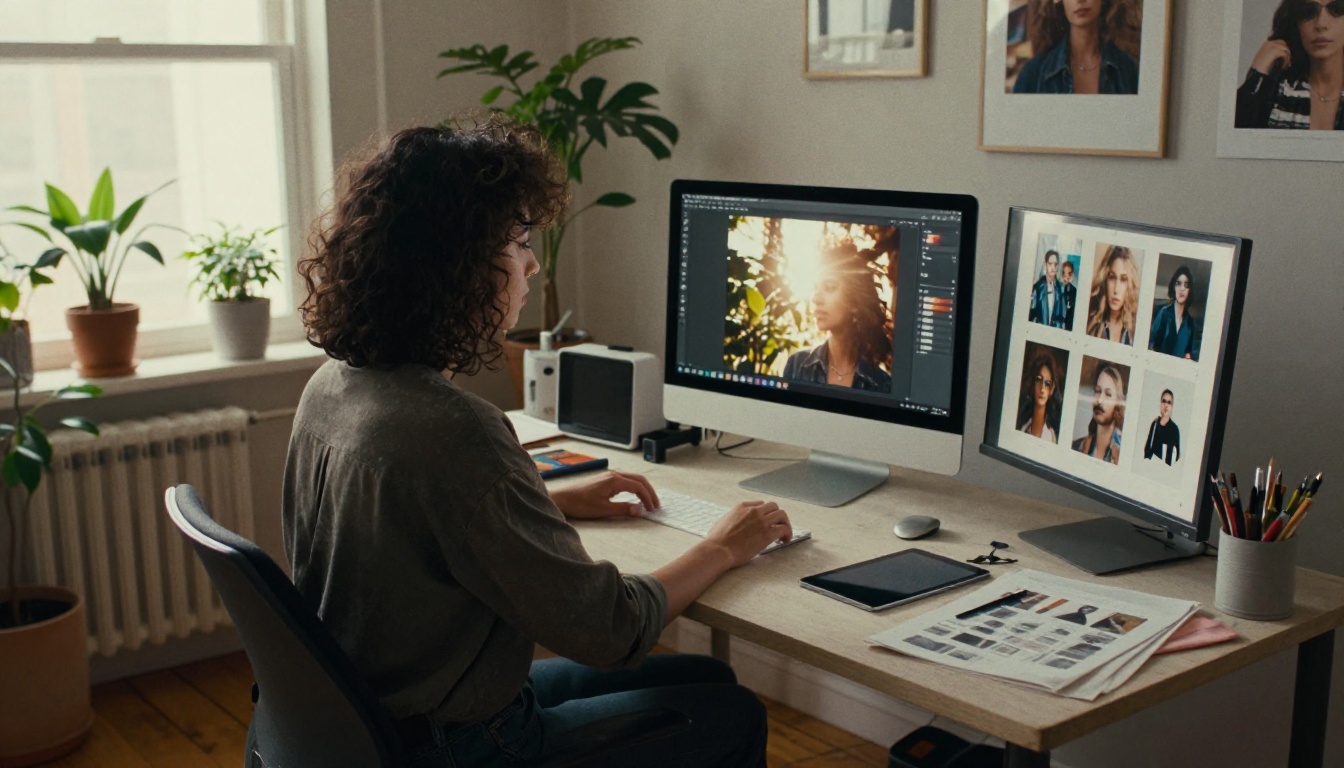
Stress test the watermark. Here is the experiment that teaches you the most. Take your downloaded file and push it through a few real-world steps, checking after each one:
The results are your own data, and they show you far better than any article how much editing a watermark can take before the detector stops finding it.
💡 Tip: repeat the test with a clip from Veo 3.1 or a track from Lyria 3. Video and audio checks use the same idea, and Gemini reads both tracks of a clip.
For video work outside Google's family, Seedance 2.0 is another option. As with the image models above, run the clip through the check to see what you get.
Make Something and Test It Yourself
Reading about a watermark is useful. Watching it appear, or fail to appear, on a file you made is better. Open Picasso IA, generate a few images with Nano Banana Pro, Imagen 4 and one non-Google model, and run all of them through the same Gemini check. In ten minutes you will know more about how this works than most people who argue about it online.
Then try the bigger test: make a short clip with Veo 3.1 or a track with Lyria 3, and see what the verification says about video and sound. Experiment freely, label your work honestly, and keep your originals. Picasso IA gives you the models, and the check takes you ten seconds.