Most AI image generators say no more often than they say yes. Ask for a woman in a bikini on a beach and some tools refuse, blur the result, or quietly swap the outfit for a sweater. If you have ever stared at a "this prompt violates our policy" message while asking for a plain glamour photo, you already know why people search for uncensored AI image generation. This article shows what the term actually means, which free tools deliver, and how to write prompts that produce photorealistic, tasteful, adult-oriented images without wasting credits on refusals.
Everything here stays on the non-explicit side: glamour, swimwear, lingerie-style fashion, boudoir lighting, suggestive but beautiful. That is also where the best results live, because the models are strongest at fabric, skin and light, not at anatomy.
What "Uncensored" Really Means
The word gets thrown around loosely, so let's pin it down before you spend time on any tool.
Filters, Not a Free-for-All
Every image generator has a safety layer. It usually works in two places: a prompt filter that scans your text for flagged words, and an output filter that scans the finished picture and hides it if it looks too revealing. "Uncensored" in practice means one of three things:
- The prompt filter is relaxed, so words like bikini, lingerie, sensual or boudoir pass without a warning.
- The output filter is relaxed, so a swimsuit or a sheer fabric is not blurred.
- The tool has no daily cap or credit wall, so you can iterate freely instead of rationing attempts.
The third point matters more than most people expect. Good adult-glamour images rarely come from the first try. You need ten or twenty generations to get skin tone, pose and lighting aligned, and a tool that charges per attempt makes that painful.
What Stays Off Limits
A responsible tool still draws lines, and so should you. Never generate images of real, identifiable people without their consent, never depict anyone under 18, and never use a generated image to mislead, harass or impersonate. Every subject in this article is a fictional adult. Keep your own work the same way and you avoid both legal trouble and platform bans.
💡 Quick test: if you would be uncomfortable showing the image to the person it resembles, rewrite the prompt with an invented character.
Plenty of sites advertise "unlimited free uncensored AI" and then hide a watermark, a queue or a paywall behind the button. Here is what is actually worth your time on PicassoIA.
Seedream 4.5 First
Seedream 4.5 is the model I reach for first when the subject is adult glamour. It handles skin texture, fabric sheen and soft window light better than most generators, and it follows long, descriptive prompts closely. Output goes up to 4K, which matters when you want to print or crop. Swimwear, silk, lace and boudoir lighting go through without the constant refusals you get elsewhere.
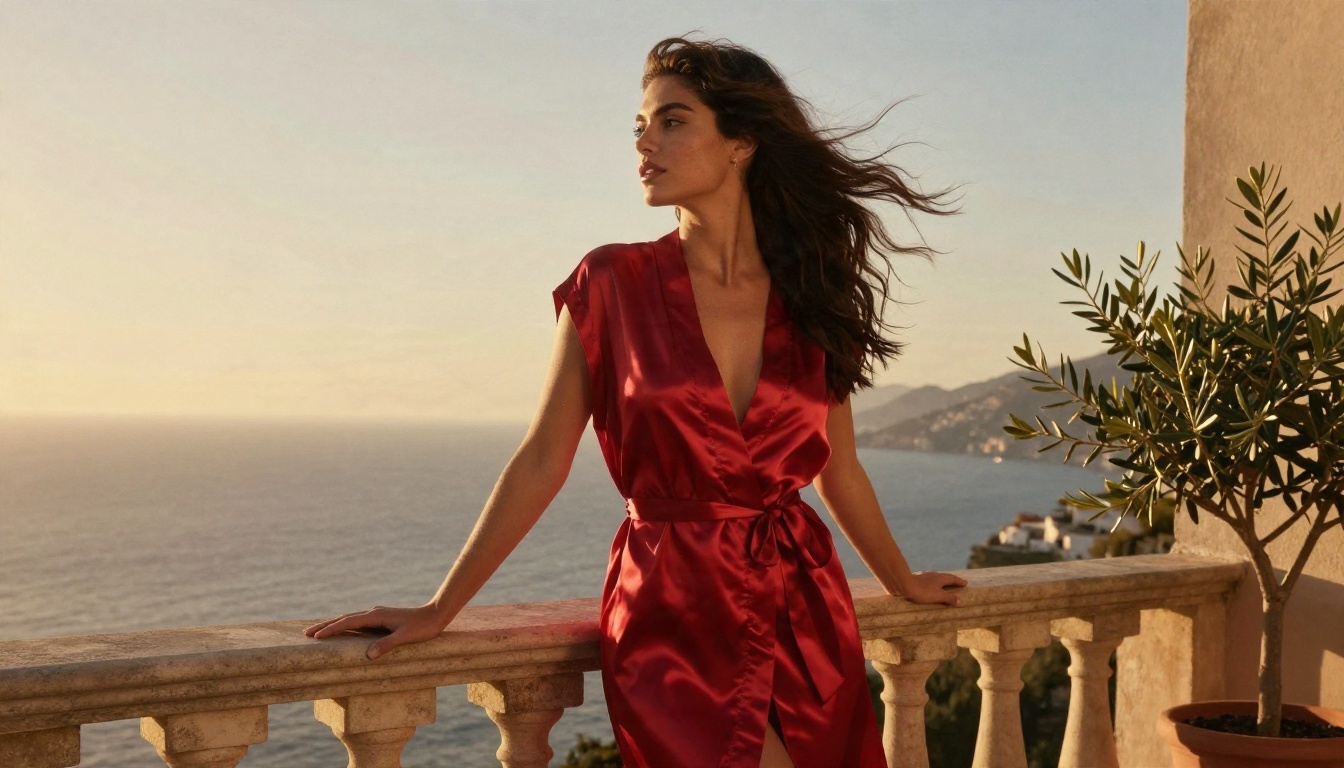
Image Editor Pro for Unlimited Runs
PicassoIA Image Editor Pro is the answer to the credit problem. It offers unlimited generations, so you can run the same prompt twenty times, nudge one word, and compare. It also edits: upload a photo you own, describe the change (a different outfit, a new background, softer lighting) and it rebuilds the picture around your instruction. For anyone who works by trial and error, this is the tool that makes uncensored generation affordable.
Other Models to Test
Different models have different tastes. These are worth a few test runs each:
Rules can change between models and versions, so treat each one as something to test, not a promise. If a model blocks a prompt, switch to Seedream 4.5 or Image Editor Pro rather than rewording ten times.
Quick Comparison
| Tool | Best for | Speed | Adult glamour friendly |
|---|
| Seedream 4.5 | Final, high-detail images | Medium | Yes |
| Image Editor Pro | Unlimited tries and edits | Fast | Yes |
| Z Image Turbo | Rapid drafts | Very fast | Test first |
| Flux 2 Klein 9B LoRA | Consistent series | Medium | Test first |
| Qwen Image 3 | Photoreal portraits | Medium | Test first |
How to Use Seedream 4.5 on PicassoIA
This is the fastest path from idea to a finished image.
- Open the model page. Go to Seedream 4.5 and sign in.
- Write your prompt. Use the structure in the next section: subject, setting, light, lens, texture.
- Choose 16:9 for scenes, 3:4 for portraits. Wide frames give you room for environment; tall frames suit full-body fashion.
- Pick the highest resolution you need. Start low for drafts, then re-run the winning prompt at full size.
- Generate, compare, adjust one thing at a time. Change the lighting, or the outfit, or the lens. Not all three together, or you will never know what worked.
- Send the best result to Image Editor Pro for unlimited touch-ups such as changing a background or softening a shadow.
💡 Parameter tip: keep the same seed while you tweak wording. The composition stays stable and only the part you changed moves.
Prompts That Actually Work
Short prompts like "sexy woman beach" produce generic, plastic results. Long, photographic prompts produce images that look shot, not drawn.
The Five-Part Prompt
Build every prompt from the same five blocks:
- Subject and pose: age (always adult), hair, expression, what she is doing.
- Environment: the room or location, with two or three concrete objects.
- Light: direction, quality, time of day.
- Camera: lens length, aperture, angle, distance.
- Texture: skin pores, fabric weave, water droplets, film grain.
Here is that structure written out:
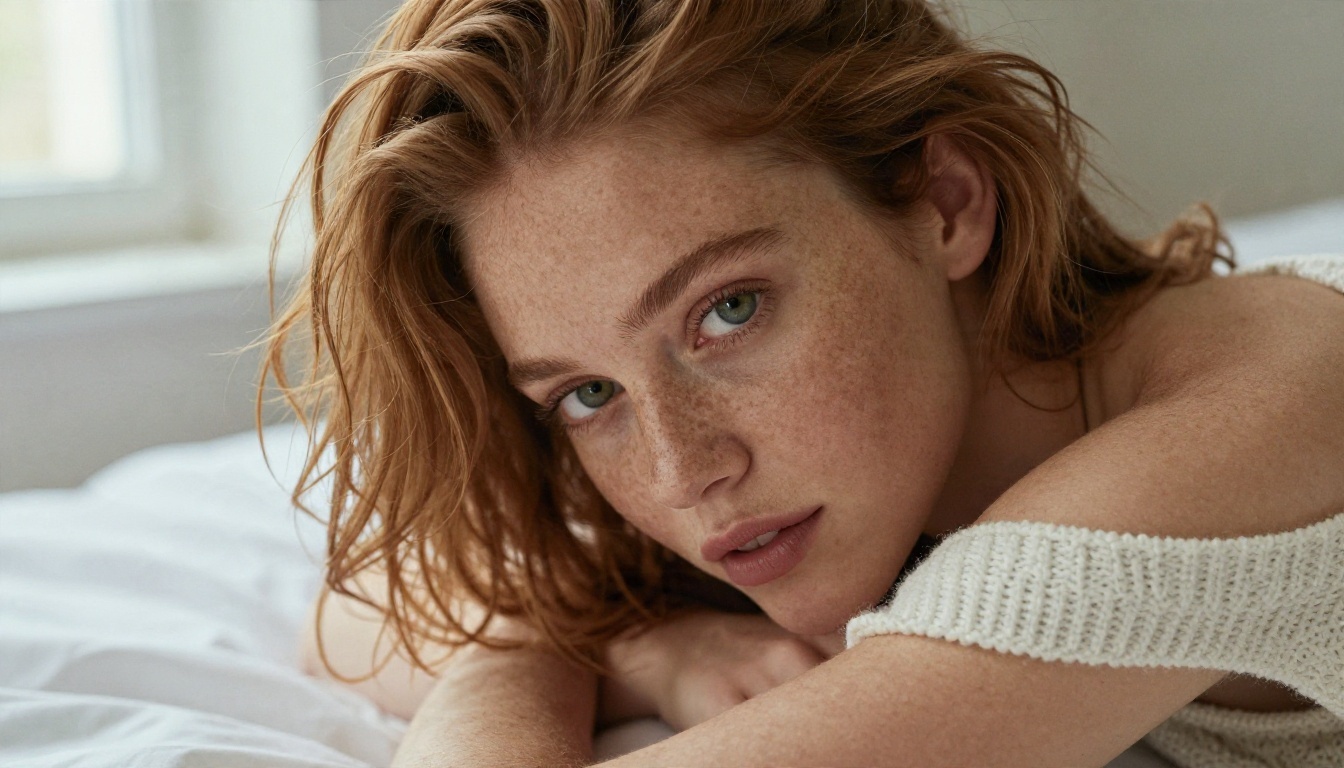
A woman in her late twenties with freckles and wavy auburn hair, wearing a white off-shoulder knit top, lying on rumpled linen sheets, soft diffused window light from the left, natural skin pores and fine hairs visible, 100mm lens at f/2.8, creamy background blur, subtle film grain, Kodak Portra 400.
Light Does the Heavy Lifting
Glamour is mostly lighting. Three setups cover almost everything:
- Golden hour backlight: warm rim light on hair and shoulders, ideal for balconies, beaches and pools.
- Window light from one side: soft falloff across the face, perfect for boudoir and bedroom scenes.
- Warm lamp plus cool fill: a moody, editorial look for libraries, hotel corridors and lounges.
Name the direction ("from camera left") and the quality ("diffused", "soft", "dappled"). Models respond well to this.
Lens Words Change the Mood
| Lens phrase | Effect |
|---|
| 35mm f/2 | Wider, environmental, a hint of storytelling |
| 50mm f/1.8 | Natural, close to how the eye sees |
| 85mm f/1.4 | Flattering portrait compression, soft background |
| 100mm macro look | Intimate close-ups with detail in skin and eyes |
Words to Keep Out
Skip "8K ultra HD masterpiece trending" style filler. It adds nothing. Also avoid terms that push toward illustration (anime, digital art, 3D render) if you want photographs. Stay with real camera and film vocabulary.
Examples You Can Copy
Here are the scenes shown in this article, with the thinking behind each prompt. Paste them into Seedream 4.5 or Image Editor Pro and adjust.
Balcony at Golden Hour
Low-angle photograph of a woman in a red satin robe loosely tied, standing on a hotel balcony overlooking a Mediterranean coastline, wind lifting her dark hair, warm backlight, stone balustrade and an olive tree in the foreground, 50mm f/1.8, soft film grain, realistic satin texture.
Why it works: the low angle adds presence, the robe gives you suggestive without explicit, and the backlight does the glamour for you.
Library Editorial
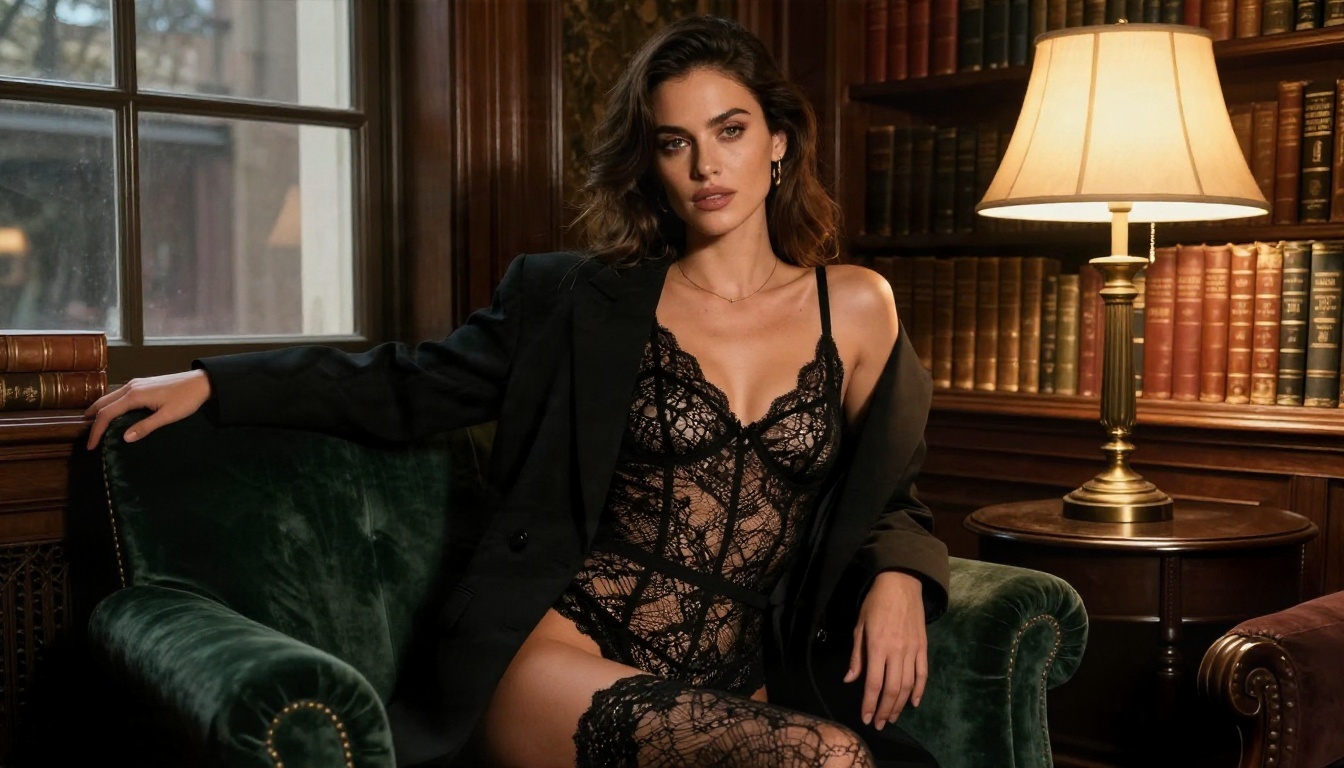
Medium shot of a woman in a black lace bodysuit under an oversized tailored blazer, leaning on a dark green velvet armchair in a vintage library, warm tungsten lamp from the right and cool window fill from the left, 85mm f/1.4.
Why it works: the blazer layered over lace gives a fashion-shoot feel and keeps the image elegant. Contrasting warm and cool light adds depth.
Evening Gown in an Empty Corridor
Dutch-angle photograph of a woman in a fitted silver satin gown with a high leg slit, standing in a marble hotel corridor at night, amber wall sconces, glossy floor reflections, 35mm f/2.
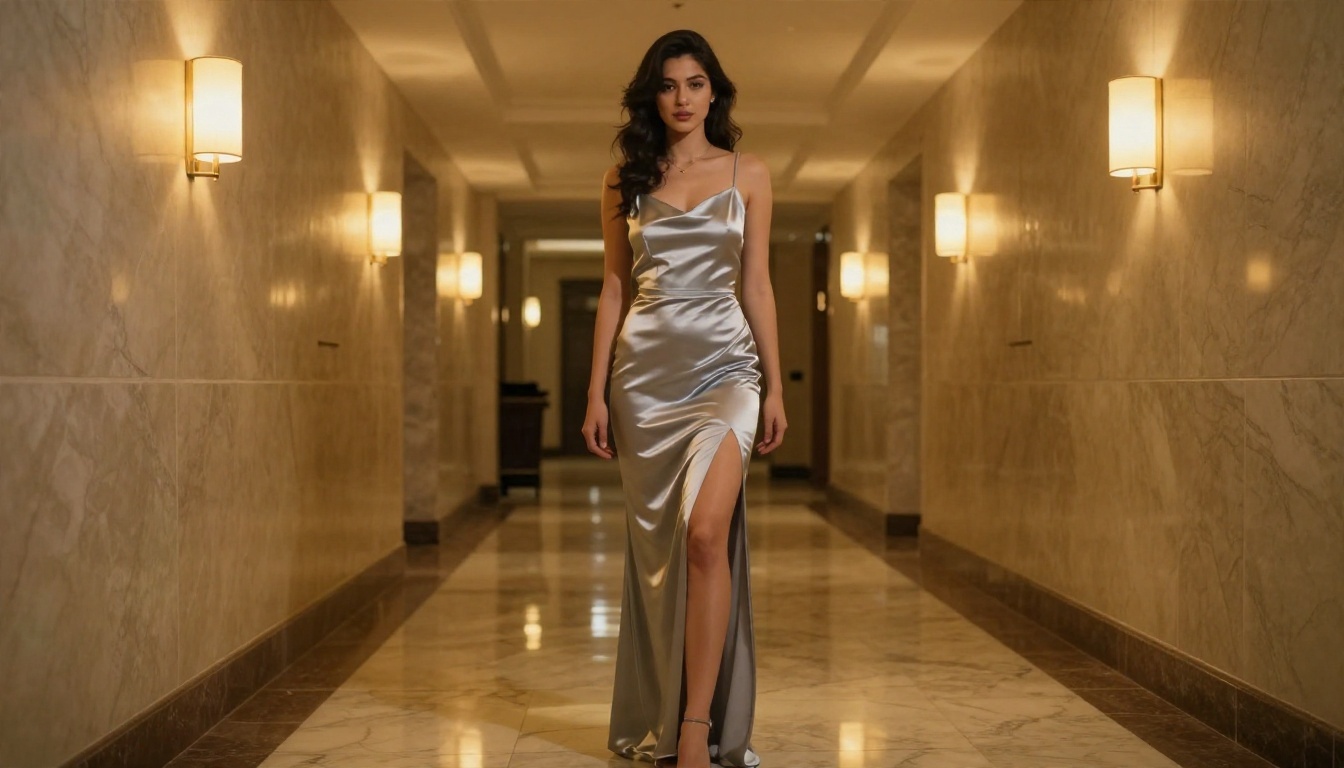
The tilted frame makes the picture feel cinematic. Satin is a great test of a model: if highlights roll smoothly across the fabric, the generator understands light.
Pool Deck Candid
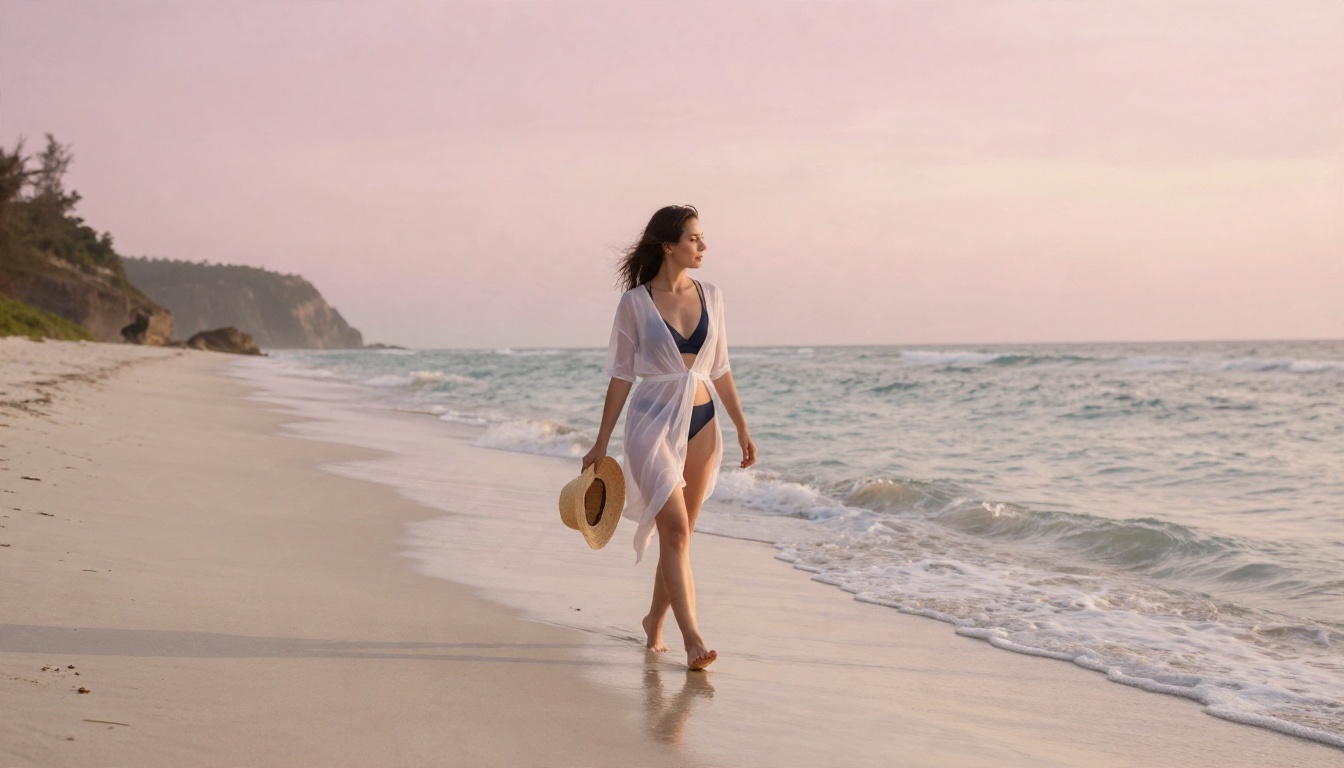
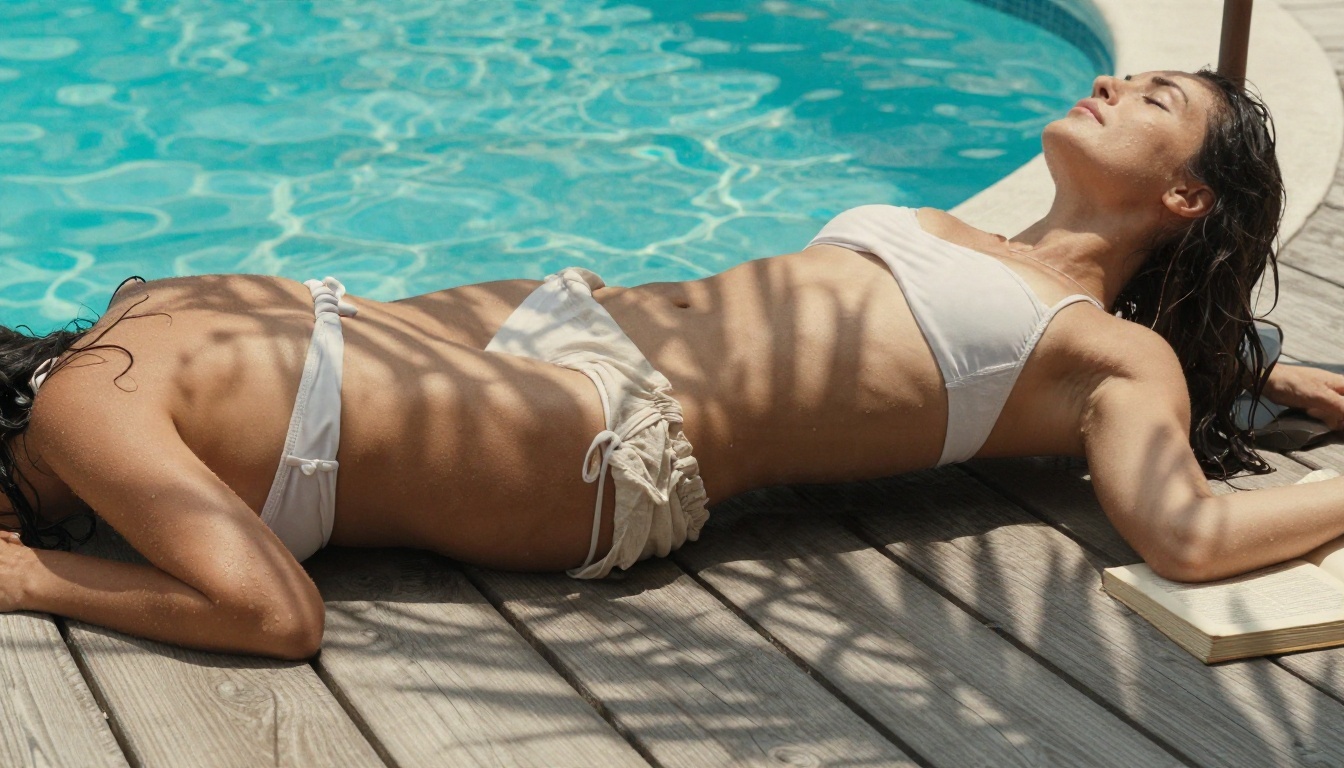
Candid side-profile photograph of a woman in a white bikini top and linen shorts on a wooden pool deck with a book, turquoise water reflecting dappled light on her skin, canvas umbrella shade, 70mm f/2.8.
Candid framing (looking at a book, not at the lens) reads as more natural than a posed stare.
💡 Variation trick: keep the prompt identical and swap only the location. Pool, balcony, beach and library give you four portfolio looks from one character description.
Fixing Common Mistakes
Even strong models go wrong in predictable ways. Here is what to change.
Plastic or Airbrushed Skin
If faces look waxy, you probably left out texture words. Add visible pores, fine peach fuzz, natural freckles, slight skin sheen and unretouched. Drop words like flawless and perfect skin, which push the model toward smoothing.
Hands and Fingers
Hands are still a weak spot. Plan your composition around that: hold a book, rest a hand on fabric, tuck it into a pocket, or crop it out of frame. A hand in sharp focus in the foreground invites trouble.
Overstuffed Prompts
More words do not always help. Past about 120 words, models start ignoring parts of your prompt. If an element keeps disappearing, move it to the front of the prompt or cut something less important.
Blocked Prompts
If a prompt is refused, do not argue with the filter. Switch tools. Seedream 4.5 and Image Editor Pro are the first two to try. Rewrite the scene around fabric, light and mood rather than specific body descriptions, which is better photography anyway.
A Workflow That Saves Hours
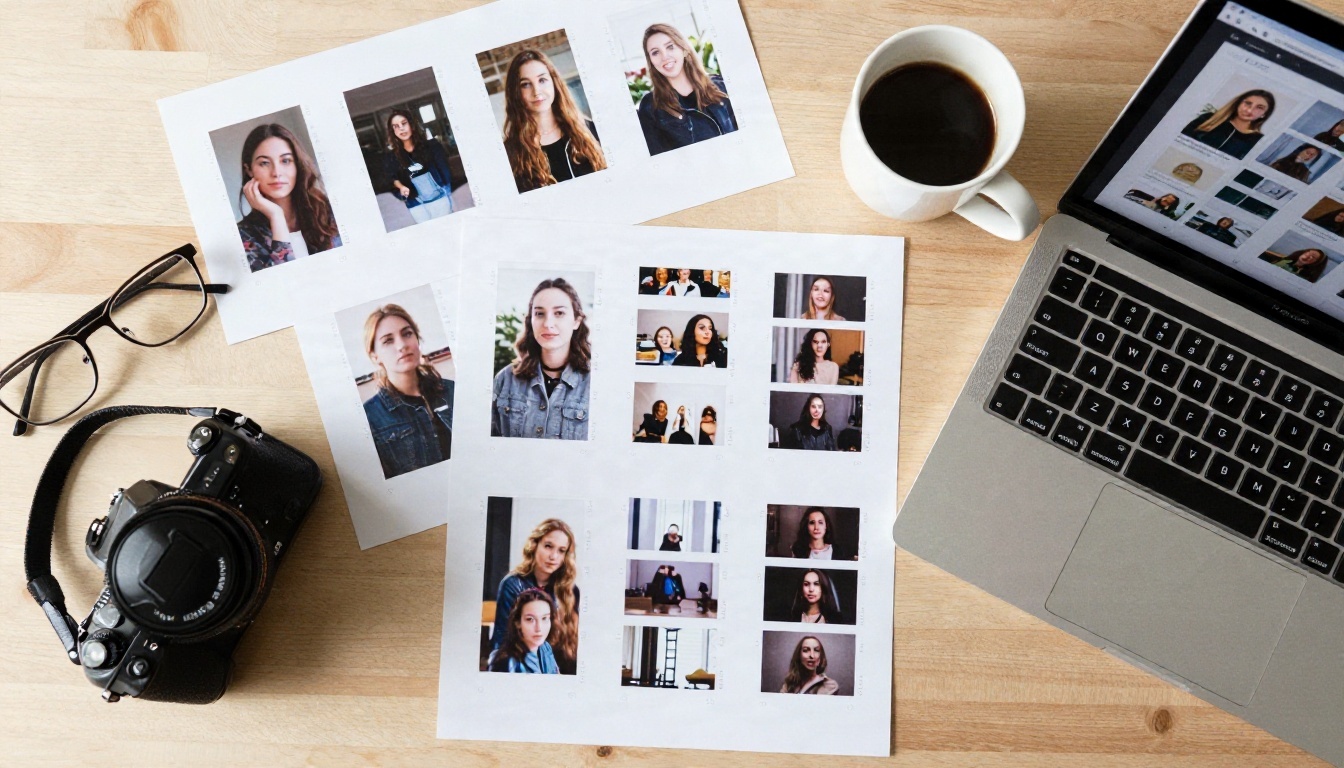
Treat generation like a photo shoot, not a slot machine.
- Draft with a fast model such as Z Image Turbo to test pose and framing.
- Refine the best draft with Seedream 4.5 at higher resolution.
- Iterate in Image Editor Pro with unlimited runs: change the outfit color, tone down a shadow, move the background.
- Upscale the winner if you need a large print.
- Keep a prompt log. Save the exact wording of every image you like. A simple notes file saves you from rebuilding a look from memory.

Keep a Character Sheet
To get the same fictional woman across several images, write a fixed description block (age, hair, skin tone, one or two distinctive features) and paste it at the start of every prompt. Then only change the setting and outfit. For tighter consistency, a LoRA-based model like Flux 2 Klein 9B Base LoRA helps.
Edit Instead of Regenerate
When an image is 90 percent right, do not roll the dice again. Open it in Image Editor Pro and describe just the fix: "change the robe to emerald green" or "make the light warmer". Editing keeps the parts you like.
Quick Answers
Is uncensored AI image generation legal? Creating fictional adult imagery is legal in most places when it is non-explicit and does not depict real people or minors. Local laws vary, so check yours.
Can I use these images commercially? Check the terms of each model. Tasteful glamour images are often fine for personal projects, but never use a likeness of a real person.
Do I need a powerful computer? No. PicassoIA runs everything in the browser, so a laptop or phone is enough.
Why do some free tools still blur results? Their output filter catches revealing swimwear or sheer fabric. That is exactly why Seedream 4.5 and Image Editor Pro are worth trying first.
Make Your First Image Today
You now have the structure, the lighting vocabulary, and nine examples to borrow from. The only thing left is to try it. Open Seedream 4.5 on Picasso IA, paste one of the prompts above, and change a single detail: the location, the outfit, the lens. Then send your favorite to PicassoIA Image Editor Pro and keep refining with unlimited generations.
When you want to test more engines side by side, browse the full catalog at picassoia.com/en/all-models. Pick a scene, write your first five-part prompt, and see how close you can get to a real photo shoot in an afternoon.


