You type a perfectly normal prompt. A woman in a bikini on a beach, a silk dress by a window, a boudoir style portrait for a photography project. The generator thinks for a few seconds and then throws back a red banner: "Blocked by content policy." No image, no explanation, and a wasted credit. If that sounds familiar, you are exactly who this article is for.
While building this very article, two of my own test prompts bounced off a strict filter on another tool, and both were for fully clothed, magazine style shots. That is the daily reality of uncensored AI image generator models searches: people are not hunting for anything shocking, they just want a model that does not panic at skin, swimwear or a low neckline.
Below you will find the models worth using, a clear picture of what "uncensored" can and cannot mean, prompts you can paste today, and the free options that actually deliver. Every image in this article was made with AI, and every model mentioned links to its page on PicassoIA so you can try it in seconds.
What "Uncensored" Really Means
Fewer false blocks, not zero rules
Let's be straight about the word. No serious platform lets you generate anything at all. Content involving minors, real people shown in sexual situations without consent, and explicit pornographic material stay off the table on responsible services, and they should. When people search for an uncensored AI image generator, what they usually want is a model with sensible, permissive filters that allows:
- Swimwear, lingerie style fashion and beach photography
- Glamour and boudoir portraits that are suggestive but not explicit
- Artistic figure studies with implied, tasteful framing
- Fashion editorials with bare shoulders, backs and legs
That is the standard used throughout this article. Everything here is aimed at attractive, non-explicit, photorealistic results.
Why filters misfire on photography
Most safety systems score an image or a prompt on a probability scale. A word like "bikini" or "lingerie" pushes the score up, and a strict threshold rejects the whole request. The result is a flood of false positives: normal beach photos, fashion shoots and portraits that get flagged because of a keyword, not because of the actual content.
Models differ a lot here. Some run a filter before generation, some after, and some barely at all. That gap is why picking the right model matters more than rewriting your prompt twenty times.
💡 Quick test: run the same swimwear prompt on three different models. The one that returns an image without a warning is your baseline for everything else you plan to make.
Best Picks at a Glance
Here is the short version before the detail. Ratings reflect realism, how relaxed the filter feels for glamour style content, and speed.
Filter behavior can change as providers update their systems, so treat the "filter feel" column as a starting point and run your own quick test.
The Picks, One by One
Seedream 4.5 for realism
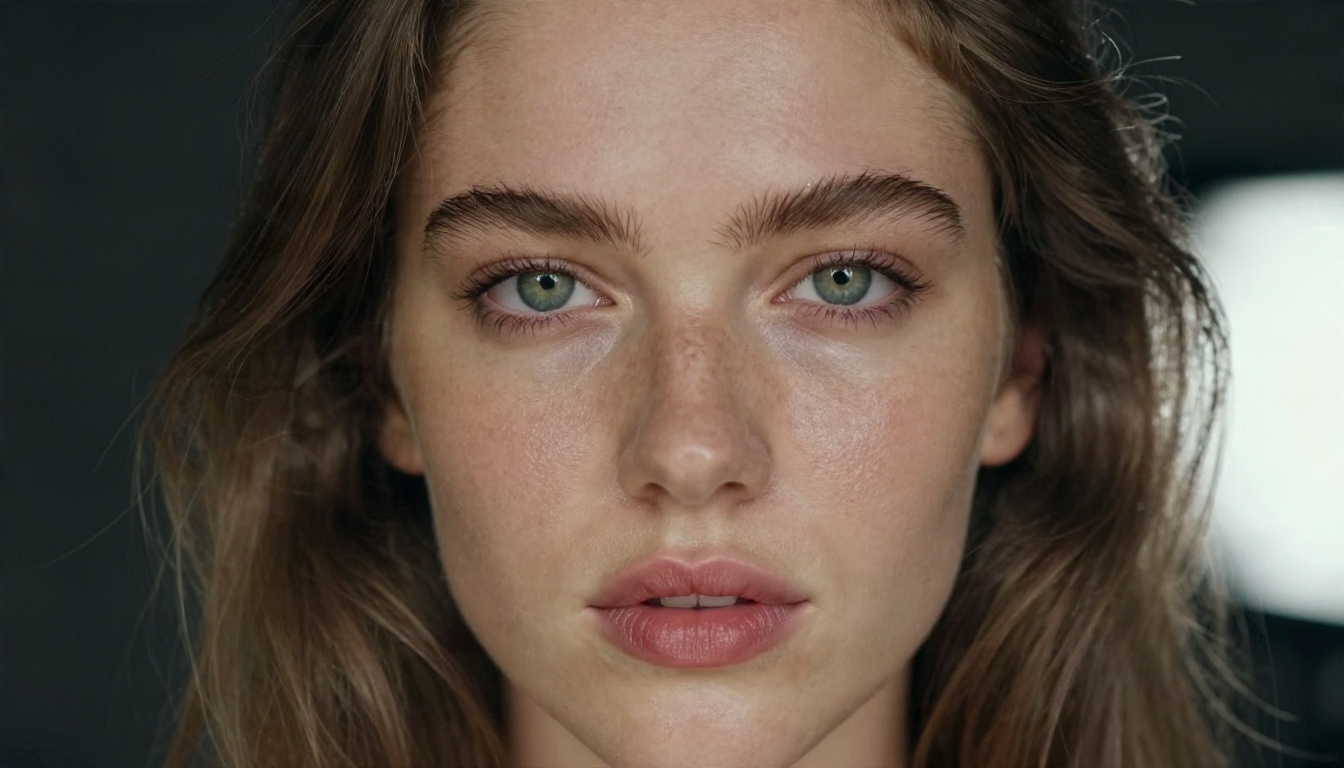
If I had to name one model for glamour and swimwear photography, it is Seedream 4.5. It produces skin that looks like skin: visible pores, soft shine on collarbones, believable fabric folds and natural light falloff. It also follows long, detailed prompts without losing track of the pose, the outfit or the setting.
For content in the bikini, evening gown and boudoir style range, it is the first model I reach for, and it does not choke on ordinary fashion vocabulary. It is the lead pick in this article and the one the tutorial below uses.
PicassoIA Image Editor Pro for volume
PicassoIA Image Editor Pro is where you go when you want unlimited generations without watching a credit counter. It handles text prompts and photo edits, so you can generate a base image, then change the outfit, the background or the lighting in the same place.
That matters for glamour work because the first result is rarely the best one. Being able to iterate twenty times without worrying about cost is how you land on the shot you actually wanted.
Qwen Image 3 Pro for detail
Qwen Image 3 Pro shines on prompt accuracy. Ask for a specific necklace, a window on the left and a shallow depth of field, and it tends to deliver all three. Its older sibling, Qwen Image 3, is a solid cheaper option for everyday work.
Z Image Turbo for speed
Z Image Turbo is the sketchpad. Images arrive in seconds, which makes it perfect for testing ten prompt variations quickly and keeping only the best wording for a slower, higher quality model.
Flux 2 Klein and Hidream for tinkering
The Flux 2 Klein 9B Base LoRA and Flux 2 Klein 4B Base models suit people who like to shape a look. LoRA support means you can steer style and character consistency. On the Hidream side, Hidream L1 Fast and Hidream L1 Full give you speed and quality tiers within one family.
Realistic Vision and Stable Diffusion
Older, but not obsolete. Realistic Vision v5.1 still produces warm, believable portraits, and the base Stable Diffusion model remains a flexible workhorse. Stable Diffusion 3.5 Large and Stable Diffusion 3 give you newer options in the same family when you want a bit more polish.
How to Use Seedream 4.5 on PicassoIA
Step by step
- Open the Seedream 4.5 page on PicassoIA.
- Paste your prompt into the text box. Aim for 50 to 80 words with a clear subject, setting, lighting and lens.
- Pick a 16:9 ratio for landscape scenes or 3:4 for portraits.
- Generate, then look at the skin, hands and fabric before anything else.
- If the framing is right but a detail is off, edit the prompt by one or two words and run it again instead of rewriting everything.
- Take the best result into PicassoIA Image Editor Pro for small changes such as outfit color or background.
Parameter tips that matter
- Be specific about light. "Soft golden light from the left" beats "nice lighting" every time.
- Name a lens. "85mm f/1.8" nudges the model toward flattering portrait compression and soft background blur.
- Add texture words. Pores, freckles, satin folds, wet hair, sand grains. They push the result away from the plastic look.
- Keep one subject. Crowded scenes lower anatomical accuracy.
- Use film language. "Kodak Portra 400, gentle grain" gives warm, natural skin tones.
Prompts That Actually Work
The glamour portrait formula
Every strong prompt I use follows the same order:
Subject and pose + outfit + setting + light direction + lens + texture + mood
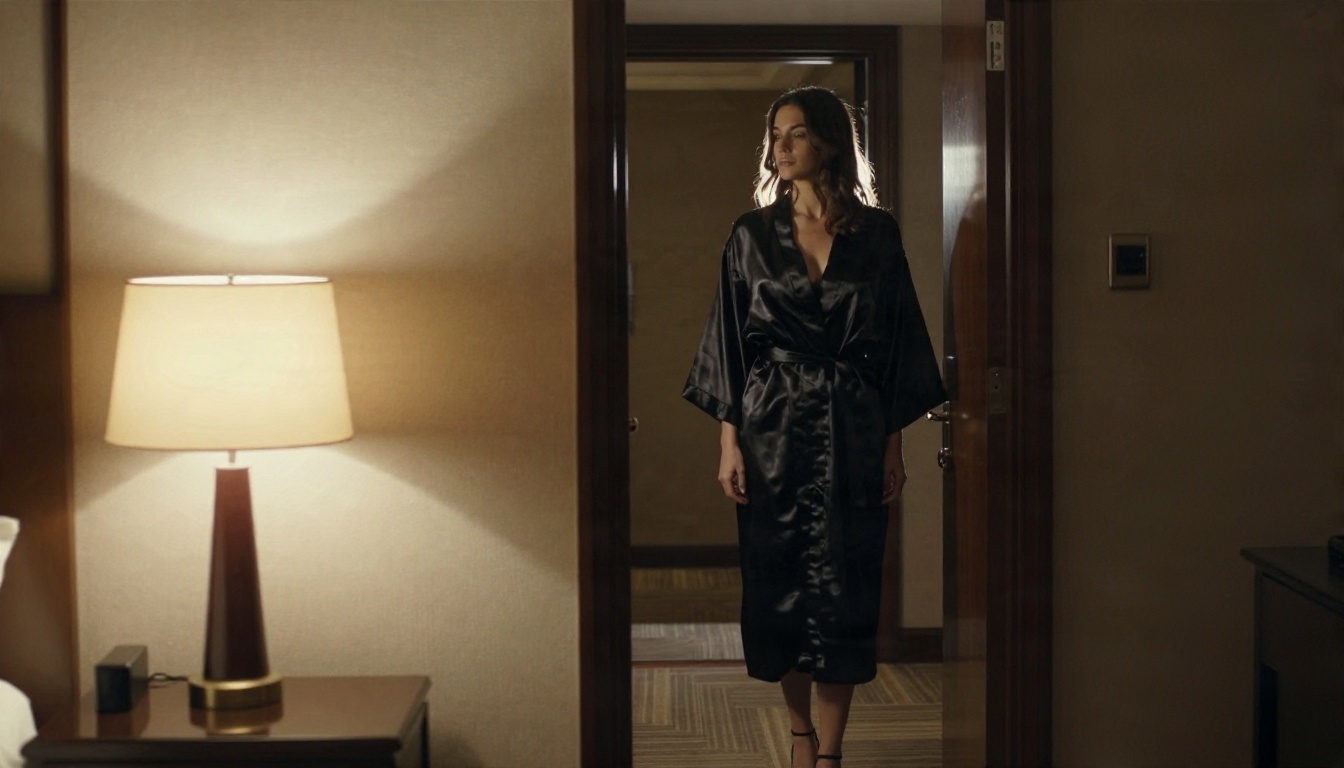
For example: "A woman in a black silk slip dress standing at a sunlit window, looking over her shoulder, loft bedroom with white linen bedding behind her, soft golden morning light from the left, 85mm f/1.8 shallow depth of field, visible skin pores and freckles, Kodak Portra 400 grain, intimate editorial mood."
That single line produced the cover image of this article.
Five prompts to paste today
💡 Swap the outfit or location and the same structure keeps working.
1. Beach golden hour
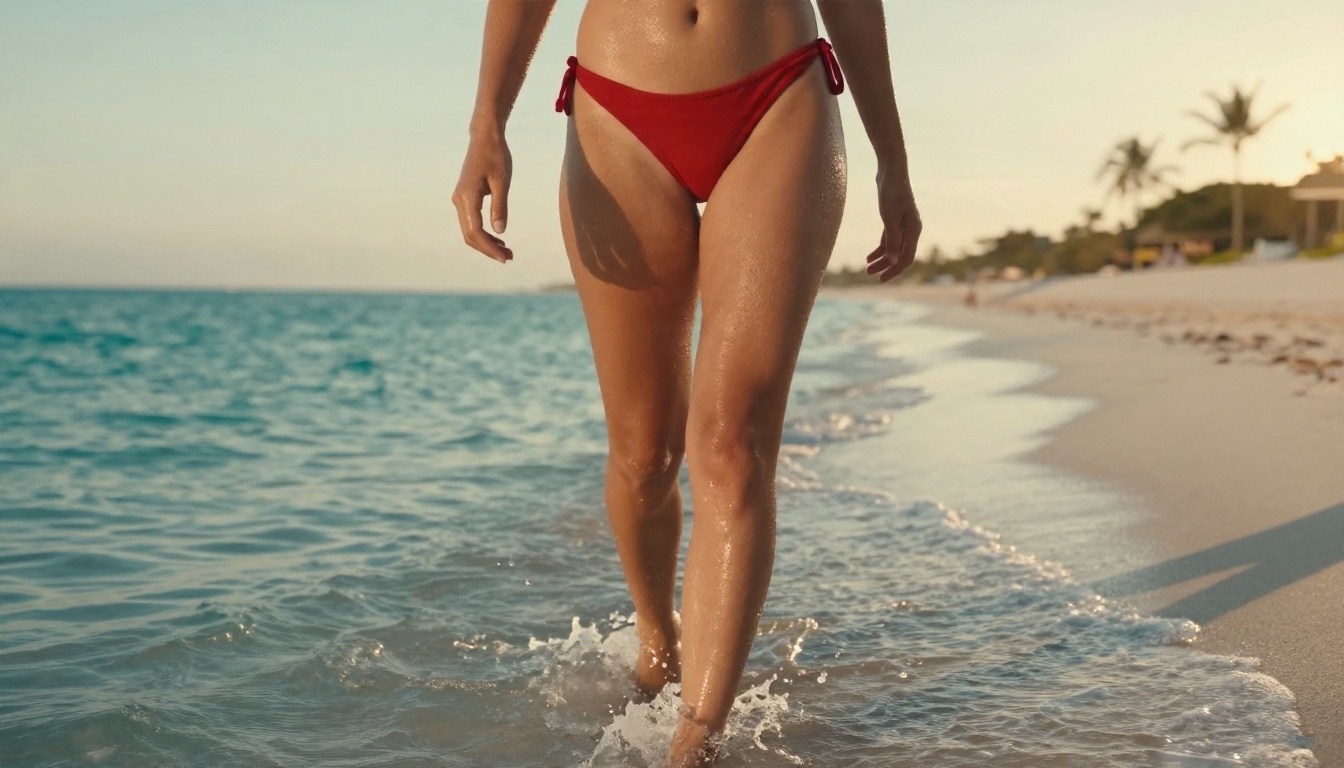
Low-angle photograph of a woman in a red bikini walking out of shallow turquoise water, wet hair slicked back, droplets on tanned skin, warm sunset light from the right, 35mm f/2, film grain, realistic skin texture.
2. Poolside villa
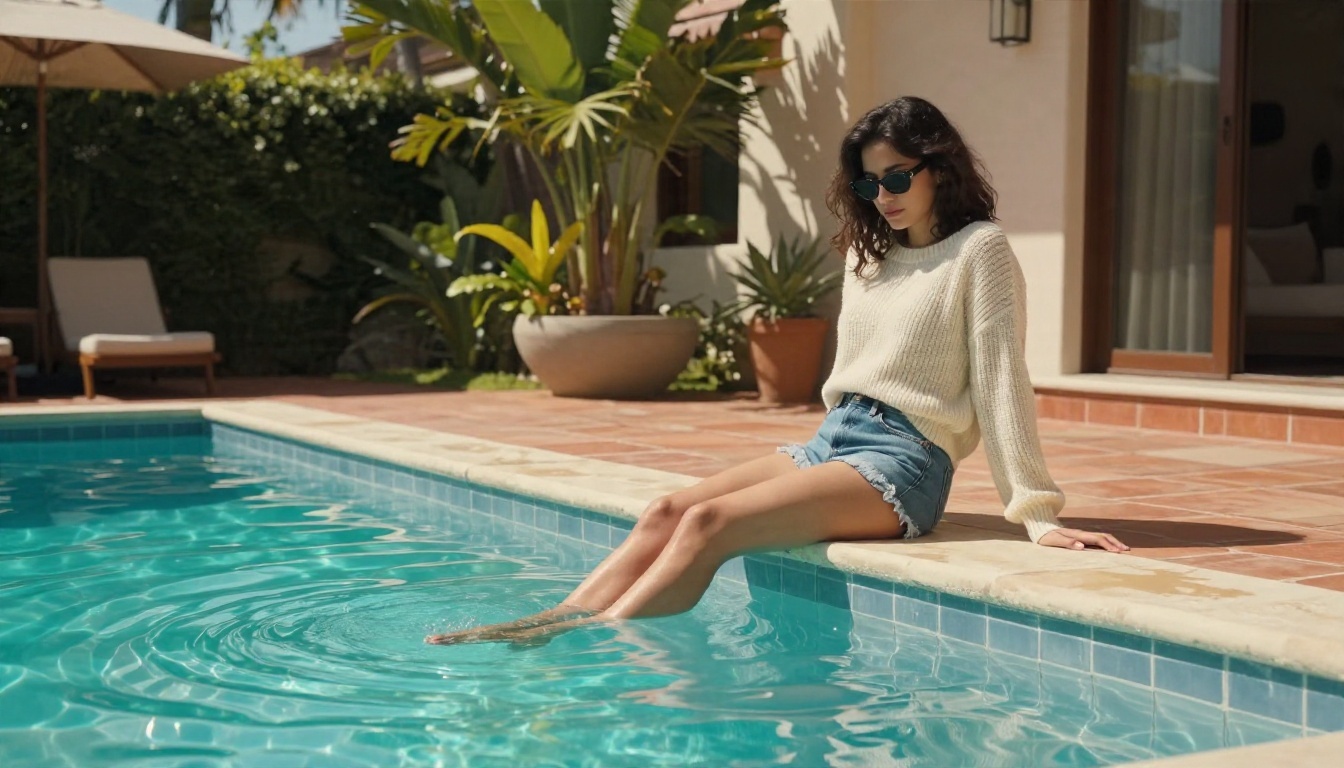
Wide shot of a woman in a cream sweater and denim shorts seated on a pool edge, feet in the water, ripples reflecting on her legs, sunglasses in her hair, terracotta tiles and tropical plants, bright midday sun, 28mm lens.
3. Evening terrace
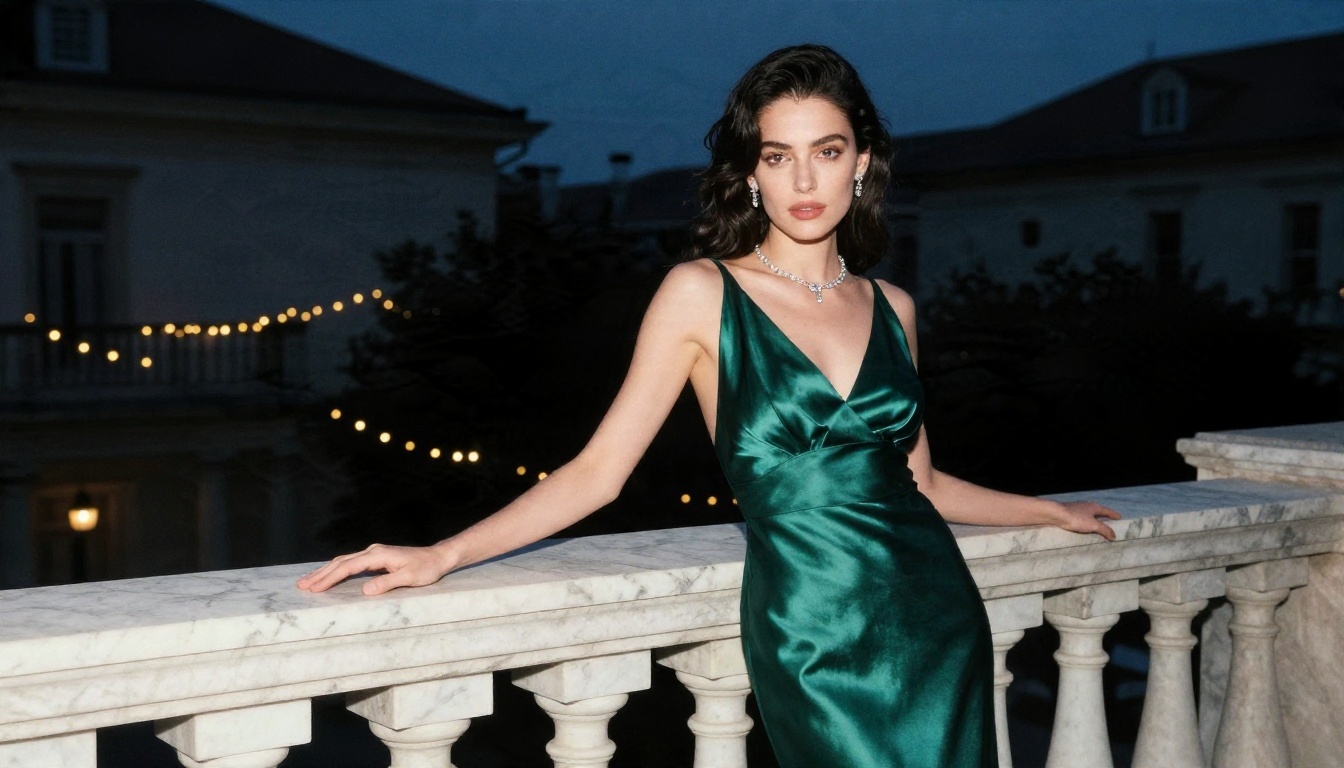
Medium shot of a woman in an emerald satin gown against a marble balustrade at blue hour, string lights blurred behind her, warm light on her face from the left, 85mm f/1.4.
4. Cozy overhead
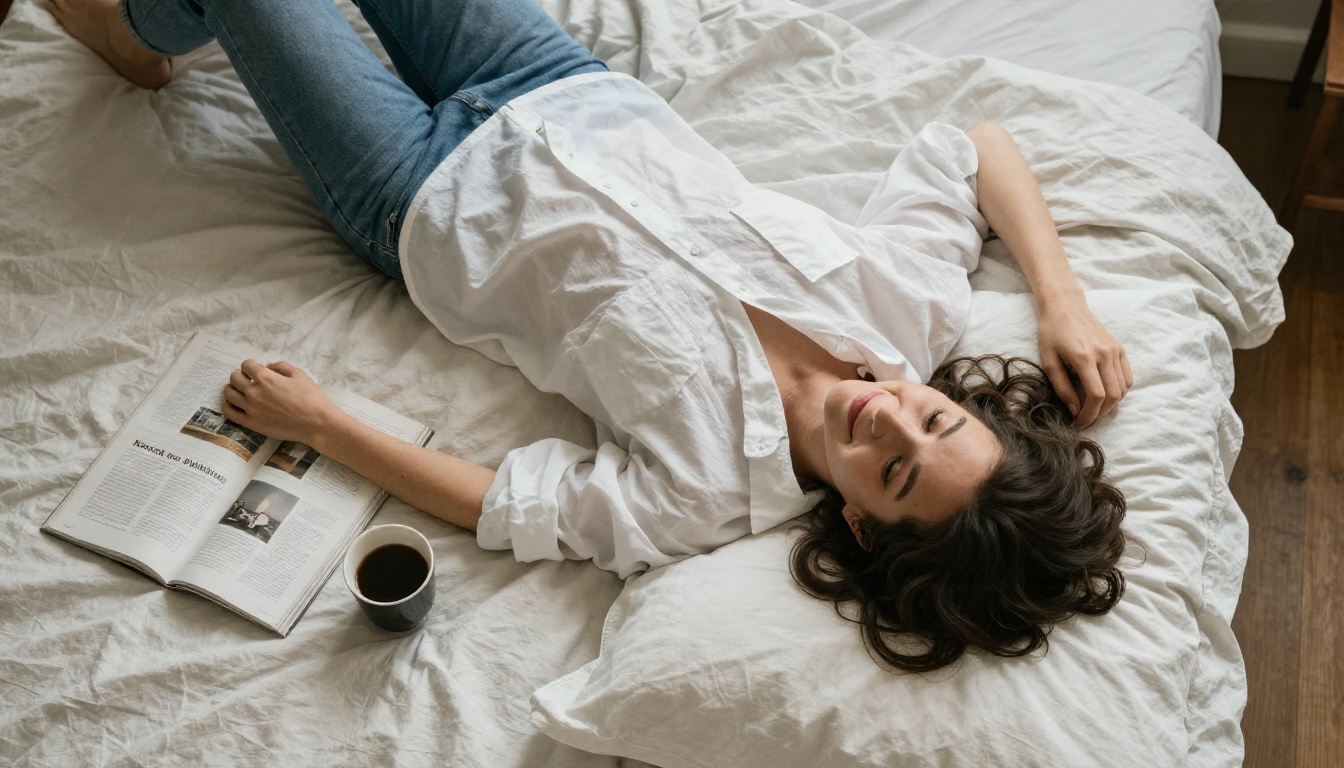
Aerial photograph of a woman in an oversized white shirt on rumpled linen bedding with a magazine and a coffee cup, soft window light from above left, 24mm overhead view.
5. Sailboat deck
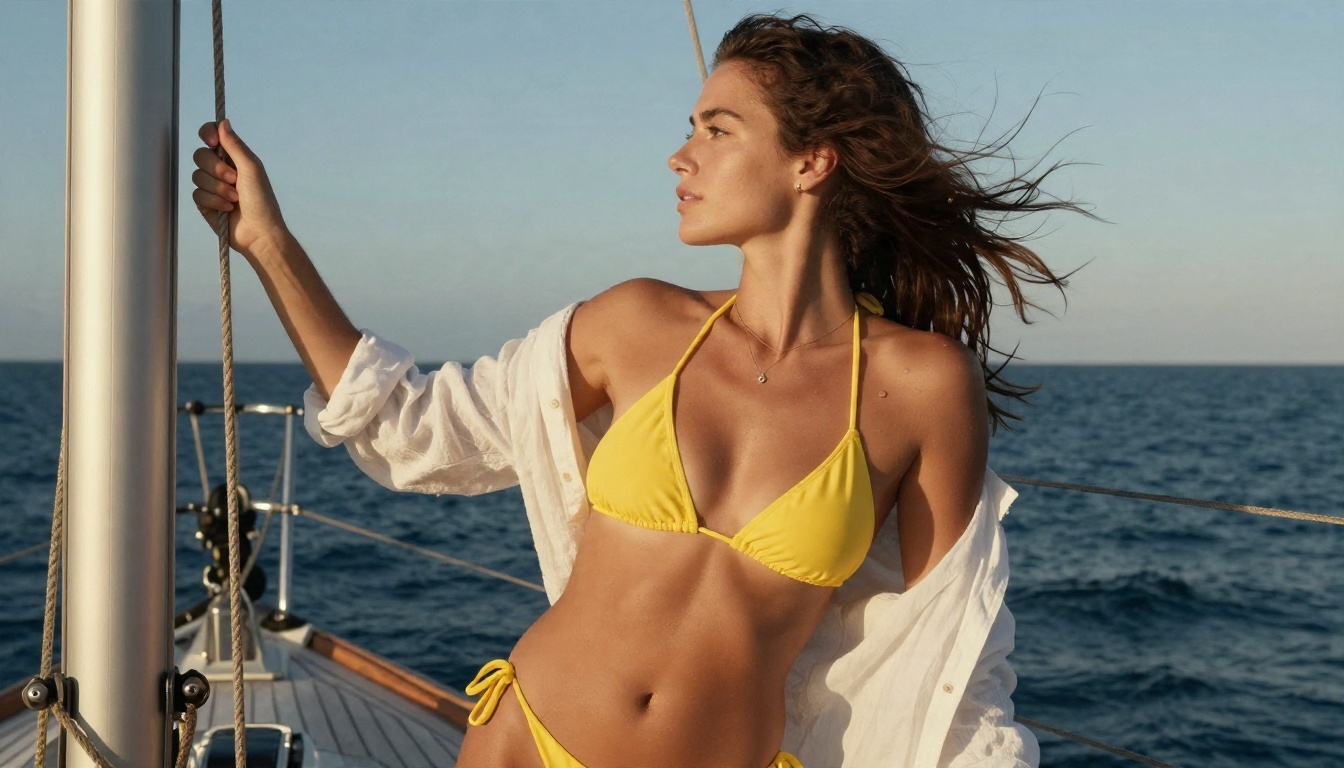
Three-quarter shot of a woman in a yellow bikini and open white linen shirt on a sailboat deck, hand on the rigging, wind in her hair, late-afternoon sun from the right, 40mm lens.
Words that trigger blocks
Some phrases get a prompt rejected even when the idea is harmless. If you hit a wall, try swapping:
| Instead of | Try |
|---|
| "sexy" | "glamorous", "confident", "editorial" |
| "naked" or "nude" | "bare shoulders", "silk robe", "implied, tasteful framing" |
| "seductive pose" | "relaxed pose, looking over the shoulder" |
| "lingerie" | "satin slip dress", "lace trim robe" |
| "wet body" | "water droplets on tanned skin" |
You are not tricking anything here. You are simply describing the photo the way a fashion photographer would, which is also what produces the best images.
Free Options and Limits
What free really gets you
Free tiers are useful, but they come with trade-offs: slower queues, lower resolution, watermarks or a daily cap. Several models in the table above are positioned as free or low cost on PicassoIA, including Z Image Turbo, Hidream L1 Dev, Flux 2 Klein 9B Base LoRA and Nano Banana Pro. Check the current limits on each page, since they can change.
Be careful with "free uncensored" claims on random sites. Some are slow, some are covered in ads, and some harvest your uploads. A trusted platform with clear rules is usually the better deal, even when the free allowance is smaller.
A cheap workflow that works
- Draft with Z Image Turbo to test ten prompt variations quickly.
- Polish the winner in Seedream 4.5.
- Fix small details in PicassoIA Image Editor Pro, where unlimited generations make retries painless.
- Sharpen the final file with a super resolution model if you need a print size.
This keeps your spending low and your hit rate high, because you only pay for quality on prompts you already know work.
💡 Models such as Nano Banana, Nano Banana 2 Lite and Seedream 5 Pro are strong for general photography, but for swimwear and glamour work, stick with the models above first. Their filters tend to be tighter.
Common Mistakes to Avoid
1. Writing short prompts. "Girl in bikini on beach" gives you a generic stock photo. Add light, lens and texture.
2. Fighting a strict filter. If a model blocks you three times, stop. Switch models instead of rewording endlessly.
3. Ignoring hands and fabric. Zoom in before you decide a shot is finished. Straps, rings and fingers are where flaws hide.
4. Overloading the scene. One subject, one setting, one light source. Complexity breaks realism.
5. Skipping the edit pass. A ten second inpaint or outfit change beats a thirty minute prompt rewrite.
6. Using real people's likeness. Never generate images of real, identifiable people without their consent. Stick to original, fictional subjects.
Make Your Own Images Today
The best way to judge any model is to run your own prompt through it. Start with Seedream 4.5 for the most realistic skin and fabric, then move to PicassoIA Image Editor Pro when you want unlimited tries and quick edits. Paste one of the five prompts above, change the outfit, change the location, and see how far a single good sentence can take you.
Want to compare more options side by side? Browse the full library at picassoia.com/en/all-models, pick a model, and make your first photorealistic image in under a minute.