You typed a perfectly normal anime prompt, a character in a swimsuit at the beach or a heroine in a leather jacket, and the generator replied with a blurred tile and a warning. Sound familiar? That is exactly why people search for an uncensored anime generator: not to break rules, but to stop fighting filters that flag ordinary glamour, fashion and fantasy art as a problem.
This article sorts the noise from the useful. You will see what "uncensored" means in practice, which free online options are worth your time, how to write prompts that produce sharp anime-inspired characters, and what real examples look like. Every example image below is a photorealistic, non-explicit take on anime styling, because that is the sweet spot where modern models shine and where you get results you can actually use.
💡 Quick answer: For the fewest false blocks and the best detail, start with Seedream 4.5, then switch to PicassoIA Image Editor Pro when you want unlimited edits and variations.
What "Uncensored" Really Means
The word gets thrown around loosely, so let's pin it down. Most people who search for an uncensored anime generator want one thing: a tool that does not refuse harmless, attractive, adult-oriented content. Think bikinis, lingerie-style fashion, glamour poses, battle outfits with a lot of skin, or romantic scenes.
Filters vs. Hard Limits
Every serious platform has two layers:
- Soft filters: keyword lists and classifiers that over-trigger. A prompt with "bath", "wet" or "schoolgirl" can get blocked even when the intent is innocent.
- Hard limits: content that is never acceptable anywhere, such as anything involving minors, real people without consent, or explicit sexual acts.
A good uncensored anime generator loosens the first layer and keeps the second one firmly in place. If a site advertises "no rules at all", treat that as a red flag, not a feature. Those sites tend to be slow, full of pop-ups, and careless with your data.
Lines That Stay Fixed
Whatever tool you use, keep these boundaries:
- Adults only. Every character should be clearly an adult. Write "adult woman" or "adult man" in the prompt, and avoid age-ambiguous wording.
- No real people. Do not generate lookalikes of celebrities, classmates or coworkers.
- Non-explicit output. Suggestive and stylish is fine. Pornographic is not, and it is also what gets accounts banned.
⚠️ Staying inside these lines also gives you better images. Models trained on professional fashion and portrait photography produce sharper skin, better hands and cleaner lighting than anything trained on low-quality adult material.
Free Online Options Compared
"Free" comes in three flavors: truly free with limits, free credits that run out, and free trials that want your card. The right choice depends on how much you plan to generate.
Quick Comparison Table
Here is how the models on PicassoIA stack up for anime-flavored work:
Free Credits vs. Unlimited Runs
Free credits sound generous until you burn through them testing one prompt. Anime generation is iterative: you rarely nail a character in the first attempt. You adjust hair color, tweak the outfit, change the angle, and try again. A tool with unlimited generations removes the pressure to get it right immediately, and that changes how you work. You experiment more, and your final images get better.
That is the real reason PicassoIA Image Editor Pro deserves a spot in your workflow. It is built around unlimited use, so you can keep refining one character across dozens of variations without watching a counter.
How to Use Seedream 4.5 on PicassoIA
Seedream 4.5 is the model to open first. It follows long, detailed prompts well, handles hair, fabric and skin texture with surprising accuracy, and outputs up to 4K. It also tends to block far fewer ordinary glamour prompts than many mainstream generators.
Step-by-Step Setup
- Open the model page. Go to Seedream 4.5 on PicassoIA.
- Write your subject first. Start with who is in the image: "adult woman, long silver wig with pink tips, black satin top, short pleated skirt".
- Add the setting. Name the place and the light: "sitting on a wooden windowsill in a Tokyo apartment, warm sunset light from the left".
- Choose the camera. A lens and angle gives you a believable frame: "85mm f/1.8, shallow depth of field, slight low angle".
- Pick the aspect ratio. Use 16:9 for scenes and wallpapers, 3:4 or 2:3 for character portraits.
- Generate, then iterate. Change one variable at a time so you can see what each edit does.
Settings That Matter
- Resolution: Draft at a lower size, then render the final at the highest setting.
- Aspect ratio: Match it to the destination, wallpaper, phone screen or print.
- Prompt length: Seedream rewards specificity. Aim for 50 to 100 words instead of a few vague tags.
- Seed: If you like a result, keep the same seed and change only the outfit or background to preserve the face.
💡 If a prompt gets blocked, rewrite it with fashion language instead of removing the idea. "Swimwear photo shoot at a pool" works better than blunt wording, and it usually produces a better image anyway.
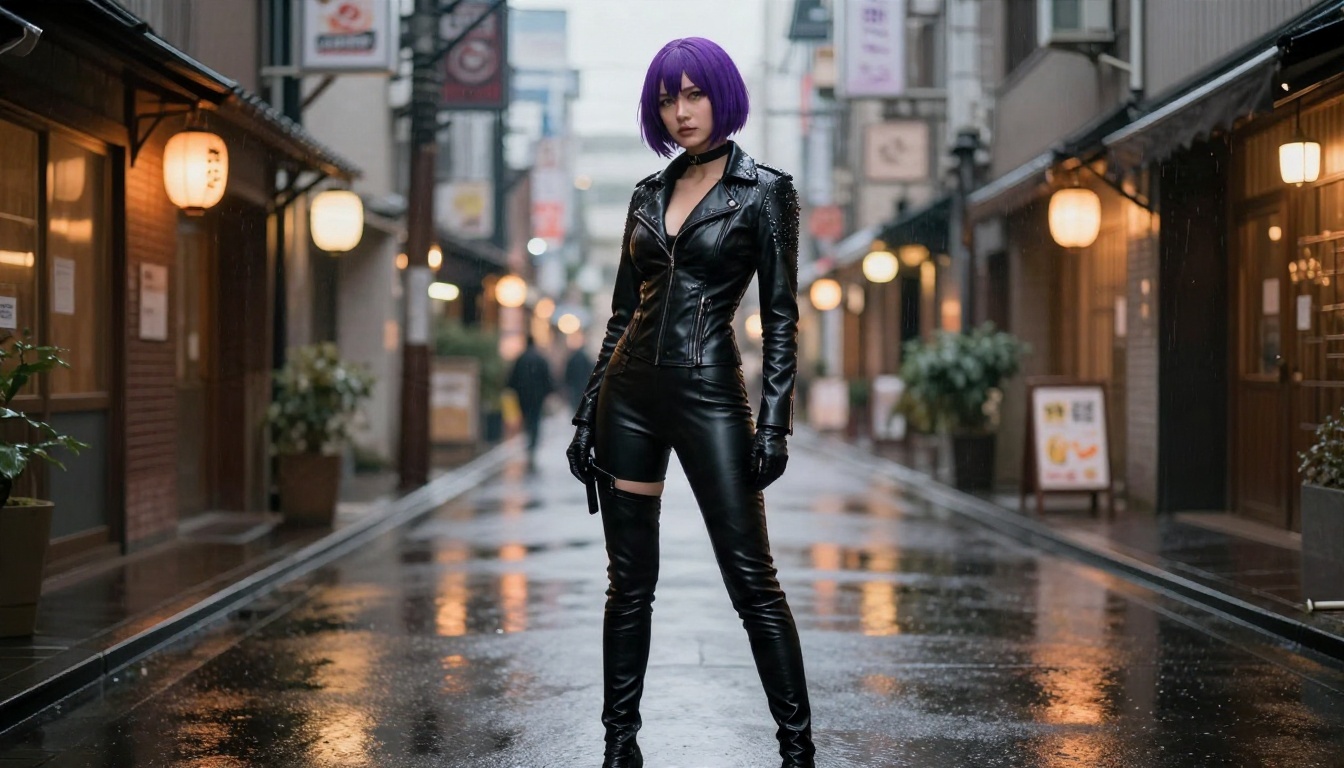
Image Editor Pro for Unlimited Edits
Generating a character is half the job. The other half is changing her: new outfit, new hair color, different background, a second pose. PicassoIA Image Editor Pro handles that with plain-language instructions, and you are not charged per attempt.
Best Uses
- Outfit swaps: "Change the black jacket to a red kimono-style wrap, keep the face and hair."
- Hair and wig changes: Try five colors in five minutes without redrawing anything.
- Background replacement: Move your character from a bedroom to a pier, a street or a forest.
- Pose polish: Fix a hand, soften a shadow or adjust the expression.
- Variations for sets: Build a consistent series of the same character for a portfolio or a social feed.
A Simple Two-Model Workflow
- Generate the base character in Seedream 4.5.
- Move the best result into Image Editor Pro for unlimited edits.
- Use Z Image Turbo when you only want fast drafts to test a new idea.
Prompts That Actually Work
Most weak results come from weak prompts. A tag soup like "anime girl, hot, sexy, 4k" gives the model nothing to build on. Specific, visual language wins every time.
The Character Prompt Formula
Use this order and you will get consistent results:
[Subject and outfit] + [Pose and expression] + [Setting] + [Lighting] + [Camera and lens] + [Texture details]
For example: "Adult woman in a fitted black corset-style top and pleated skirt, long silver wig with pink tips, glancing over her shoulder with a playful smile, sitting on a wooden windowsill in a Tokyo apartment, warm golden-hour light from the left, 85mm f/1.8 lens, visible skin pores, fine fabric weave, Kodak Portra 400 film grain."
Five Example Prompts
Copy these, then swap the colors, outfits and settings.
- Cosplay glamour: "Adult woman in a pastel pink wig and a white lace-trim top, sitting on a bed with a manga volume, soft morning window light, 50mm f/1.8, natural skin texture, film grain."
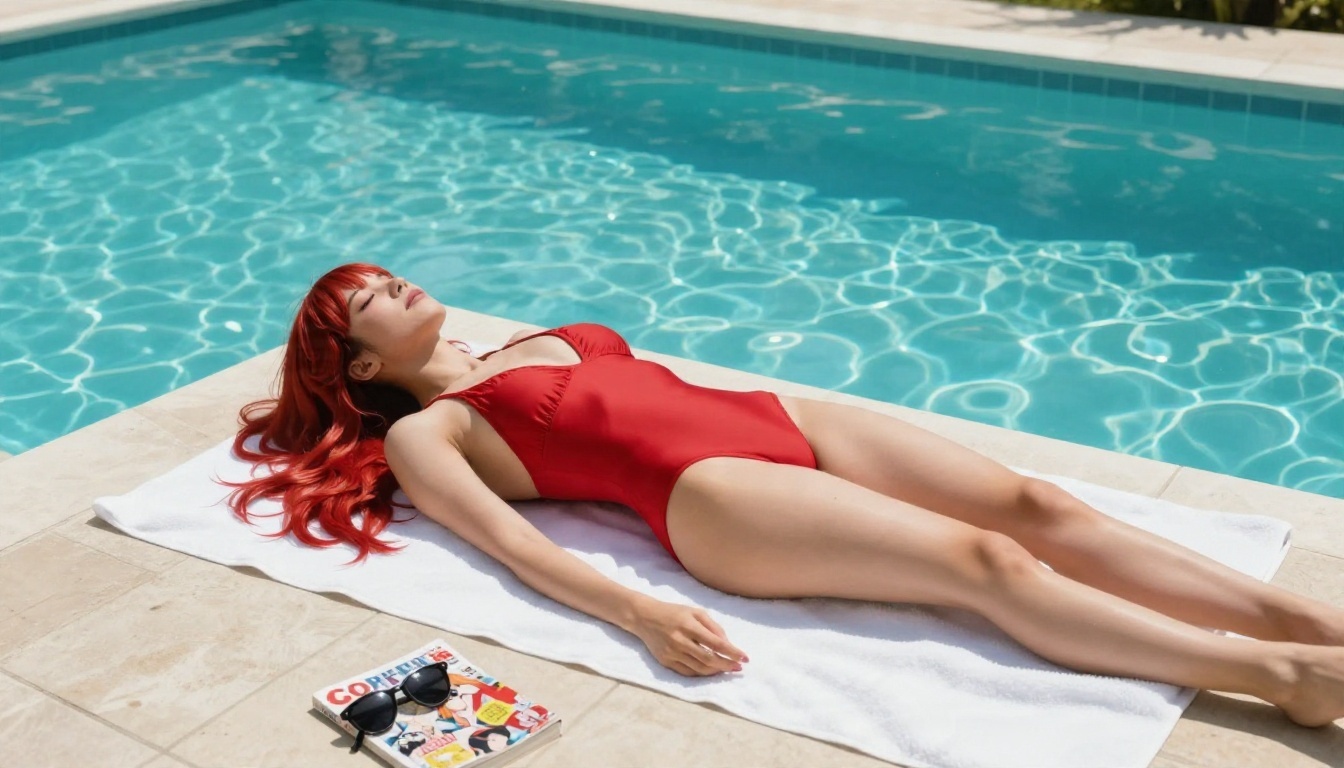
- Beach scene: "Adult woman in a red swimsuit with a long crimson wig, lying on a towel beside a turquoise pool, harsh midday sun, overhead angle, 35mm lens, crisp shadows."
- Action heroine: "Adult woman in a black leather jacket and a short violet bob wig standing in a rainy Tokyo alley at dusk, low angle, 35mm f/2, wet asphalt reflections."
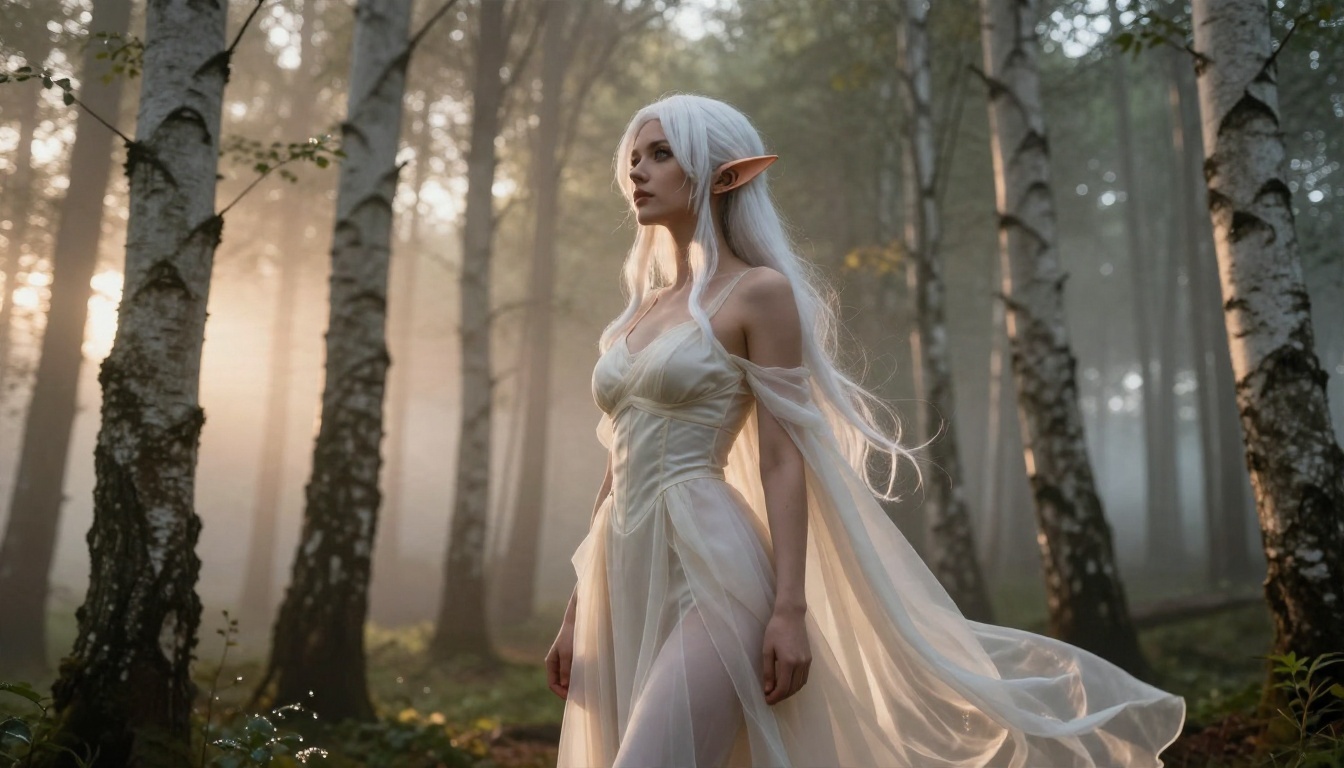
- Fantasy elf: "Adult woman with long white hair and pointed ears, sheer cream gown, misty birch forest at sunrise, light shafts through trunks, 85mm f/1.4."
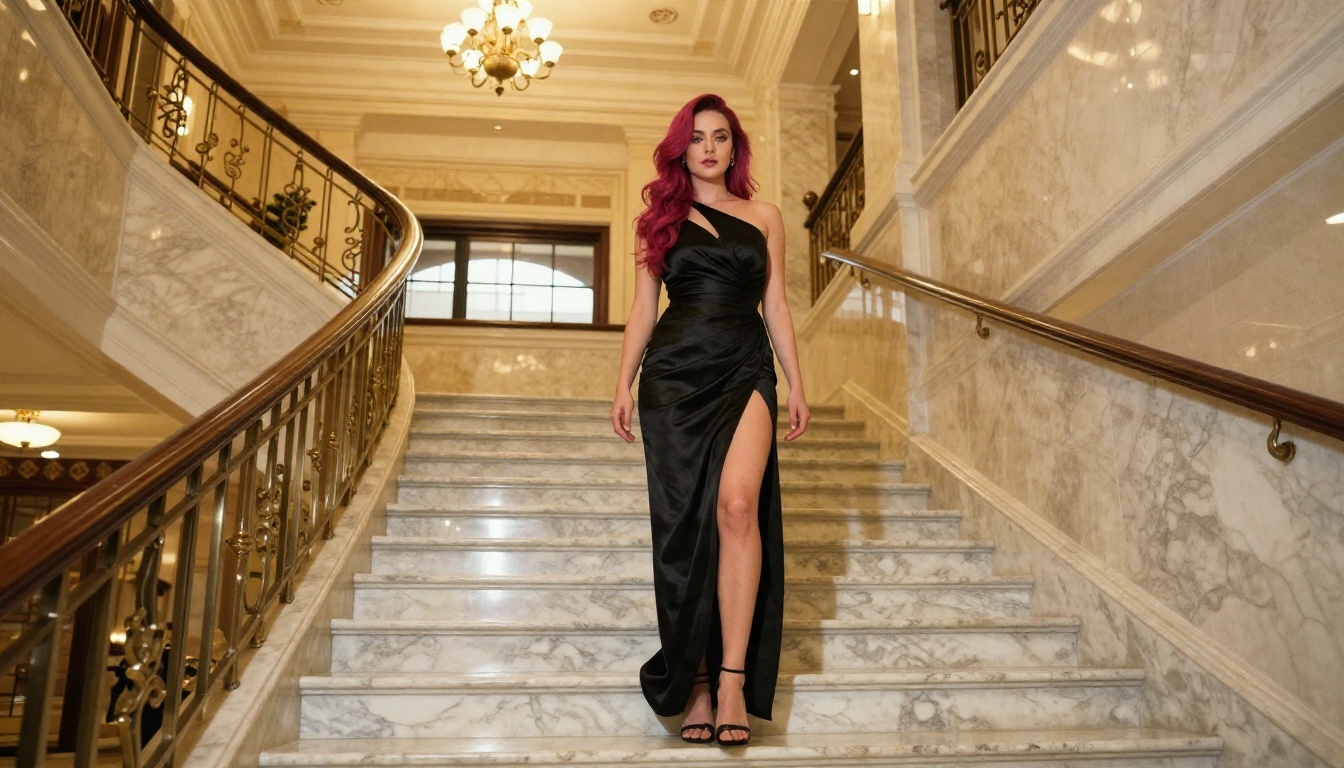
- Evening elegance: "Adult woman in a black gown with a high slit and a magenta wig walking down a marble staircase, chandelier light, 24mm wide shot, satin sheen."
Details to Leave Out
What you leave out matters as much as what you add:
- Vague age words. Always say "adult" and describe a mature appearance.
- Stacked filter triggers. Three borderline words in a row increase the odds of a block.
- Style contradictions. "Photorealistic" and "flat cel-shaded cartoon" in one prompt confuse the model.
- Overloaded scenes. One character, one setting, one light source. Add complexity gradually.
Anime Styles and Photoreal Looks
Here is something many people miss: the strongest results today often come from anime-inspired photorealism, meaning real-looking people dressed and styled like anime characters. Hair color, outfit design and mood come from anime; texture, light and anatomy come from photography.
Cosplay-Style Realism
Cosplay is the easiest bridge. Describe a wig color, a costume and a location, and the model produces something that looks like a professional convention shoot. Hands, fabric and hair fibers come out far cleaner than in pure illustration styles, which is a common weak point for older anime models.
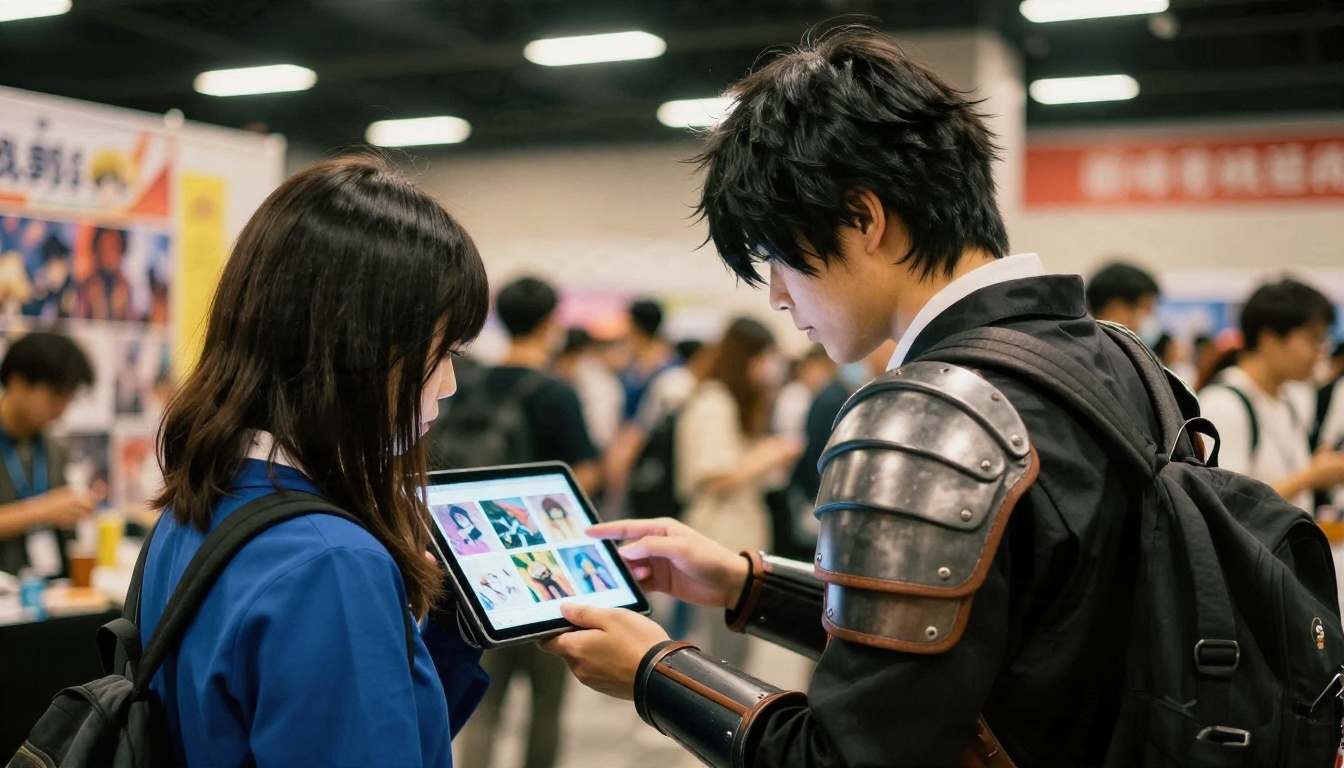
If you prefer the classic flat anime look, try Proteus v0.3 or Krea 2 Medium. For converting an existing photo into an anime version, Qwen Image Edit Plus LoRA Photo To Anime does exactly that.
Fantasy and Action Scenes
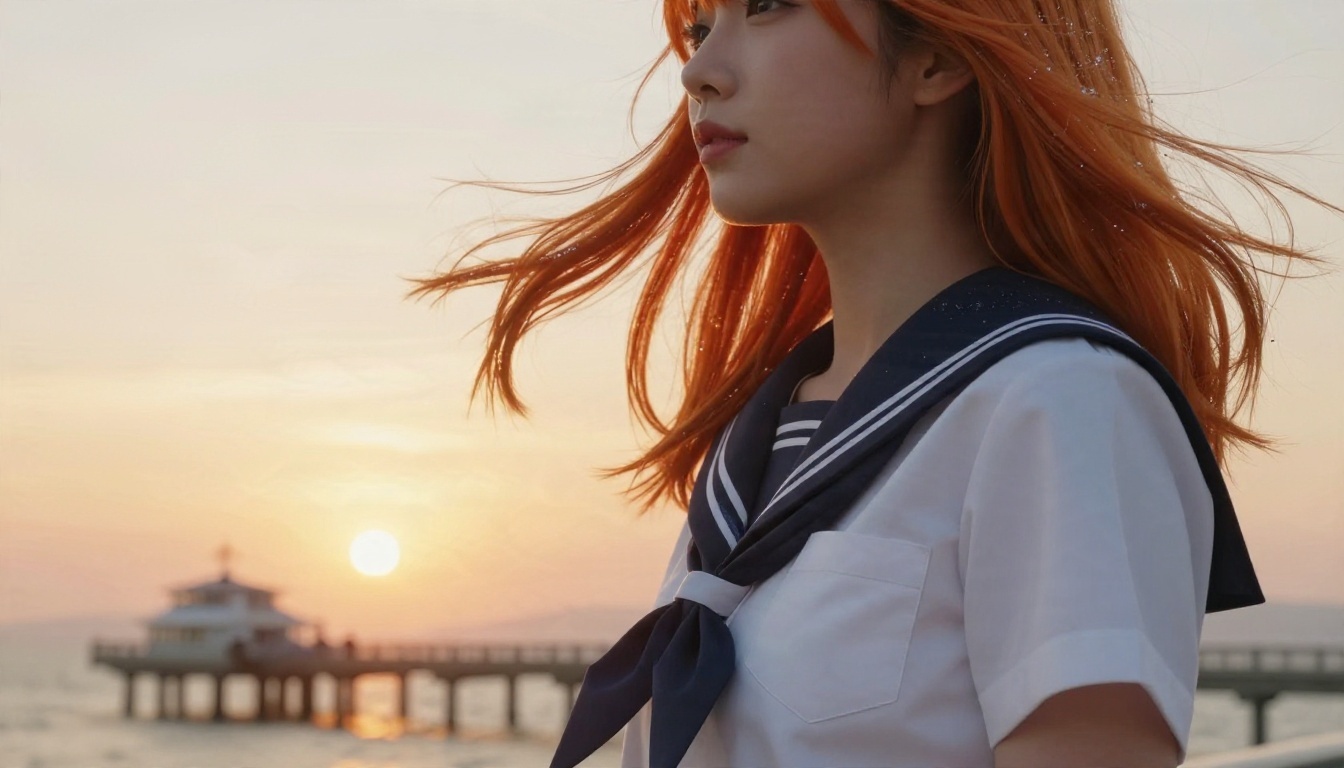
Fantasy and action settings give you the most freedom. Misty forests, rainy alleys, grand staircases and seaside piers all produce dramatic light that makes characters pop. Pair one strong light source with one strong color, and the image feels intentional rather than random.
Reference Images Speed Things Up
Not sure how to describe a look? Use a reference. Upload an image into PicassoIA Image Editor Pro or Nano Banana and ask for the same outfit in a different color or setting. This keeps the character consistent across a whole set.
Common Mistakes and Fixes
| Mistake | What happens | Fix |
|---|
| One-line prompts | Generic, flat faces | Write 50 to 100 words with light and lens |
| Changing everything at once | You cannot tell what worked | Edit one variable per run |
| Ignoring the aspect ratio | Cropped heads, stretched scenes | Pick the ratio before generating |
| Chasing "no filter" sites | Slow, low quality, risky | Use a reliable model with flexible limits |
| Skipping edits | Small flaws stay in the final image | Polish in Image Editor Pro |
The Hands and Fabric Check
Zoom in before you save. Count fingers, check where straps meet skin, and look at how fabric folds. If something is off, run the image through Image Editor Pro with a short fix instruction instead of regenerating the whole scene.
Keep a Prompt Library
When a prompt works, save it. Over a week you will build a small set of reliable starting points: a beach prompt, a night street prompt, a fantasy prompt. Swapping the wig color and outfit in a proven prompt is faster and more predictable than starting from nothing.
💡 Speed tip: Test a new idea in Z Image Turbo first. When the composition looks right, send the same prompt to Seedream 4.5 for the final render.
Creator Workflow at a Glance
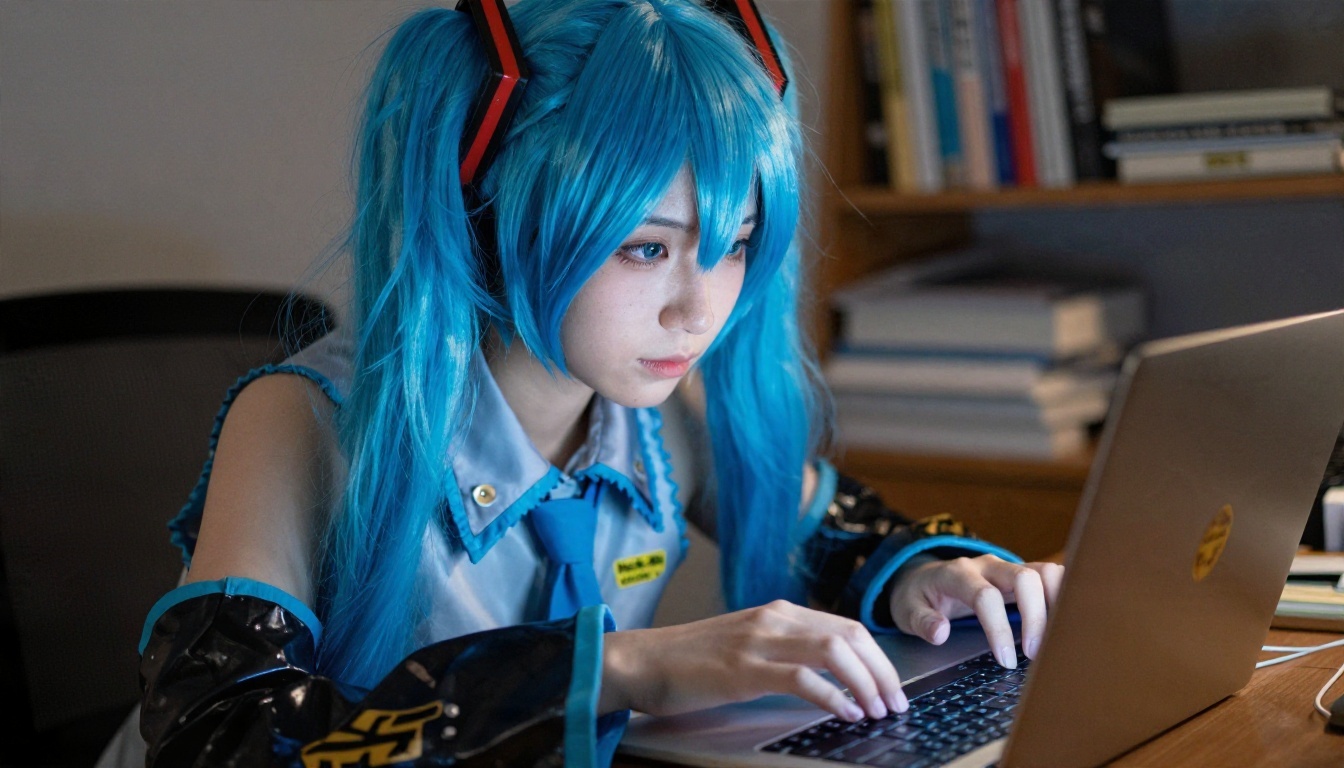
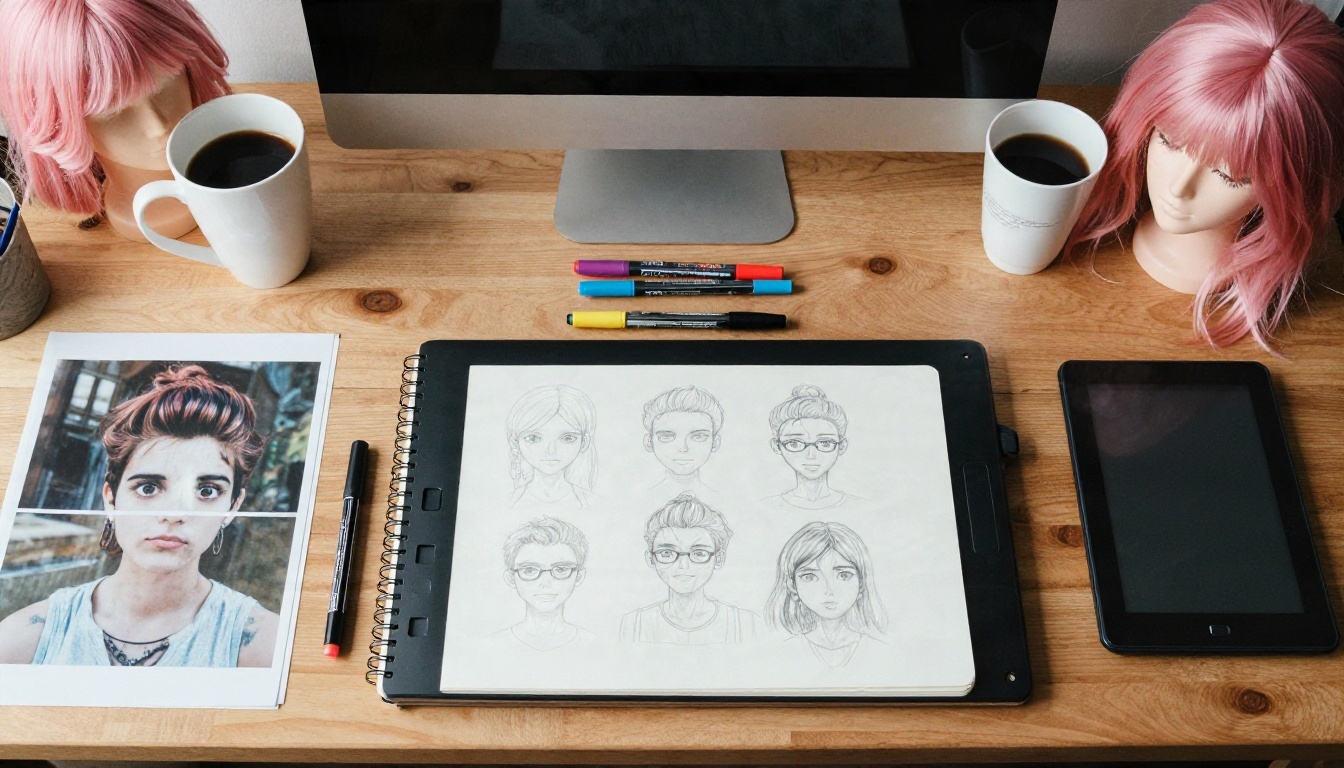
Many creators keep a simple routine. They sketch ideas on paper, write a one-paragraph prompt, run drafts, pick a winner and polish it. The desk below is a good reminder that the tool is only part of the process: the ideas still come from you.
Try It Yourself Today
You do not need ten tools or a stack of subscriptions. You need one model that respects detailed prompts, one editor that lets you iterate without limits, and a handful of good prompts.
Open Seedream 4.5, paste one of the five example prompts above, and change the hair color. Then take your favorite result into PicassoIA Image Editor Pro and try three outfit variations without worrying about a counter. Within half an hour you will have a small set of characters in your own style.
Want more choices? Browse the full catalog at picassoia.com/en/all-models and try the other image models side by side. Pick a prompt, press generate, and see what you make.


