Search for an "uncensored GPT Image" and you will find dozens of pages promising a hidden switch, a secret prompt or a free mirror that removes every filter. Almost none of them deliver. The honest answer is simpler: OpenAI's GPT Image models ship with moderation built in, and as of November 2026 I could not confirm any official setting that turns it off. What you can do is pick the right model, write prompts that avoid false blocks, and move to alternatives that give adult-leaning, non-explicit photography more room to breathe.
This article sorts out what is real, what is free, and what actually works. You will get prompt formulas, a settings table, a comparison of alternatives, and a step-by-step workflow you can run today on PicassoIA.
💡 Quick answer: GPT Image is moderated by design. For glamour, swimwear and boudoir-style photos, start with Seedream 4.5 or PicassoIA Image Editor Pro, and keep GPT Image for everything else.
What "Uncensored GPT Image" Really Means
The Moderation Layer Is Part of the Model
GPT Image models, from the first release to the newer 2.x and 2.5 generations, check both your prompt and the finished picture. A request can fail at the text stage, or a render can be discarded after generation. This is not a bug you can patch with clever wording. It is a product decision, and it applies in ChatGPT and through the API.
Recent news shows the rules do move. OpenAI relaxed some image restrictions, such as how public figures and certain sensitive themes are handled, and it has talked publicly about an adult mode for verified users. But reports on whether that applies to image generation are mixed, and explicit sexual imagery is still blocked by default. If a site claims otherwise, ask how it knows.
Why Fake "Uncensored" Sites Exist
Searching "free uncensored GPT image generator" mostly returns three types of pages:
- Wrapper sites that call a different, looser model and borrow the GPT name for traffic.
- Prompt jailbreak lists that worked briefly, if ever, and now trigger refusals.
- Subscription traps that charge for "unlimited" access and throttle you after a handful of renders.
A wrapper is not necessarily bad. The problem is the label. If the engine underneath is not GPT Image, you are better off knowing which model it is and choosing it directly.
Free Options That Actually Work
GPT Image Models on PicassoIA
Several GPT Image variants are available on PicassoIA, so you can compare them side by side instead of guessing:
These keep OpenAI's moderation behavior. Think of them as the right tool for portraits, product shots, lifestyle scenes, fashion and clothed glamour. They are not the right tool when you want a looser filter.
Free Tiers and Their Limits
Free access to GPT Image on OpenAI's own apps has usually meant lower daily limits and a fallback to an older model once you hit them. That is fine for testing a prompt, but it is awkward for any real batch work. The table below shows the trade-offs in plain terms.
| Option | Cost to try | Filter behavior | Best for |
|---|
| ChatGPT free tier | Free, capped | Strict | Quick single images |
| OpenAI API | Pay per image | Strict, verification may apply | Developers |
| GPT Image on PicassoIA | Free to start | Strict (OpenAI rules) | Comparing versions |
| Seedream 4.5 | Free to start | Far more flexible | Glamour, swimwear, boudoir style |
| PicassoIA Image Editor Pro | Unlimited edits | Flexible for photo edits | Outfit and scene changes |
💡 If a free option is capped, plan your session around it. Draft with a cheap model, then spend your limited renders on the final version only.
Prompts That Avoid False Blocks
Many "censored" results are really false positives. A vague prompt gets read in the worst possible light, while a precise photographic prompt usually passes. The goal is not to trick the filter. It is to tell the model exactly what a tasteful photograph looks like, so it has no reason to guess.
A Prompt Formula That Works
Use this order and keep each part concrete:
- Subject and pose: age range, expression, what they are doing.
- Wardrobe: fabric, cut, color. "Black satin slip dress" beats "sexy outfit".
- Setting: room, time of day, props.
- Light: direction and quality, such as "soft window light from the left".
- Camera: lens and distance, for example "85mm f/1.8, eye level".
- Texture and film feel: skin pores, fabric folds, Kodak Portra 400 grain.
Three Sample Prompts
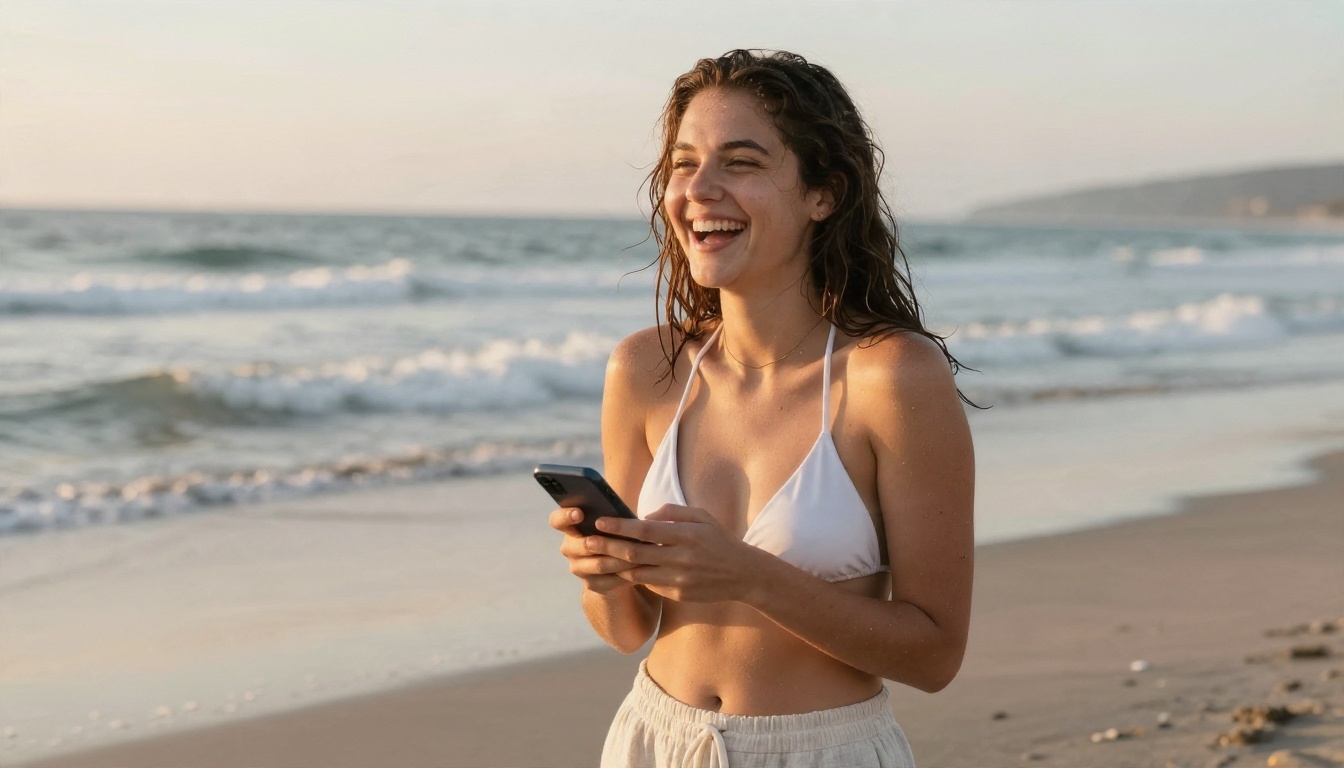
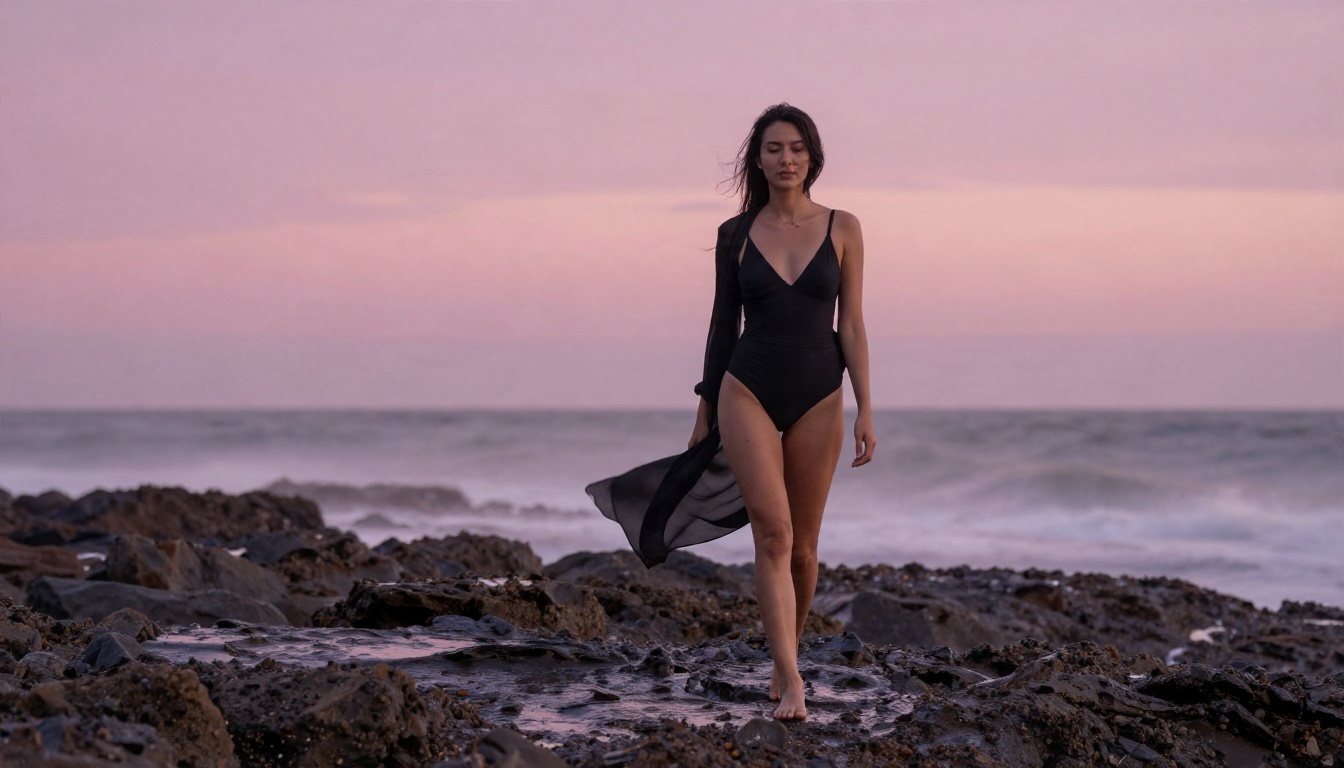
Beach lifestyle: A woman in her late twenties in a white bikini top and linen shorts, laughing as she holds a phone at arm's length on a quiet beach at golden hour, warm backlight in damp hair, 50mm f/1.8, natural skin texture, Kodak Portra 400 grain.
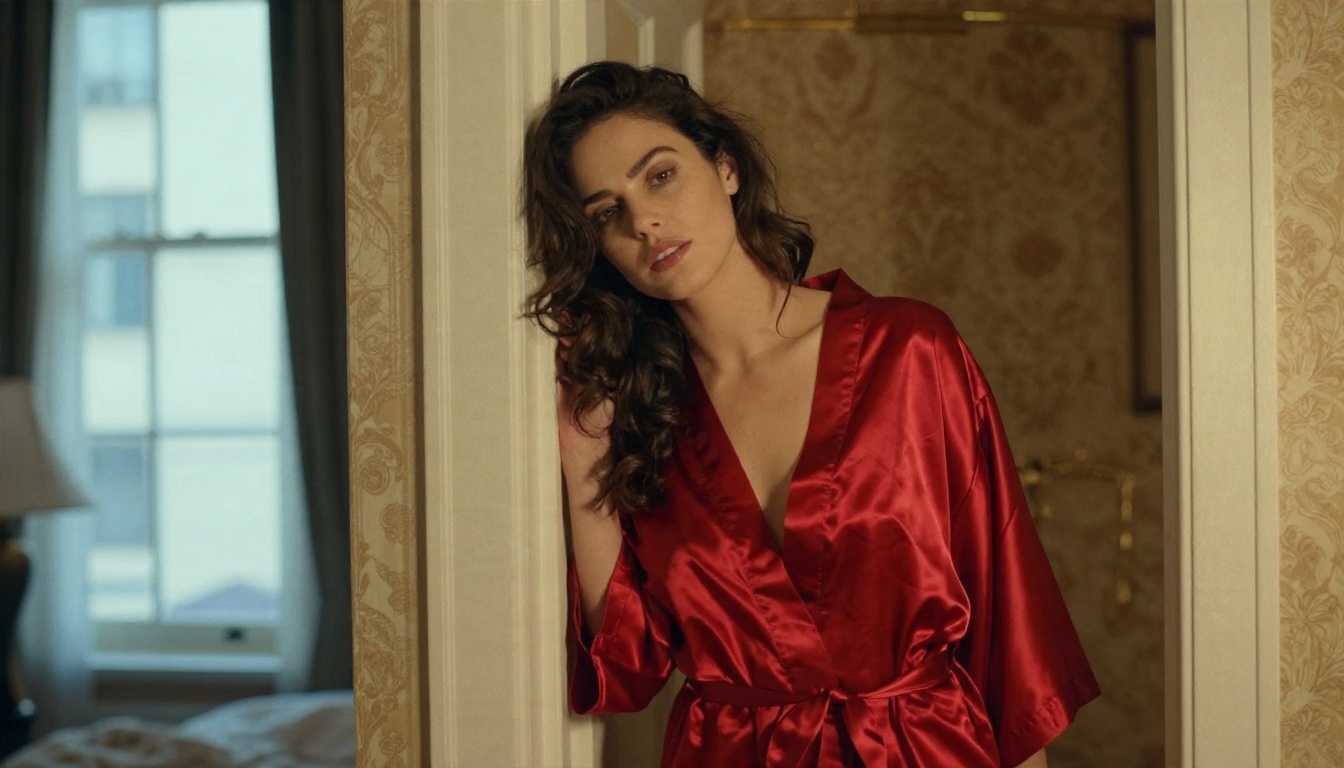
Hotel editorial: A woman in a red satin robe leaning on a doorway in a boutique hotel, warm lamp glow mixed with cool window light, 35mm f/1.4, silk sheen and soft folds, tousled dark hair, film grain.
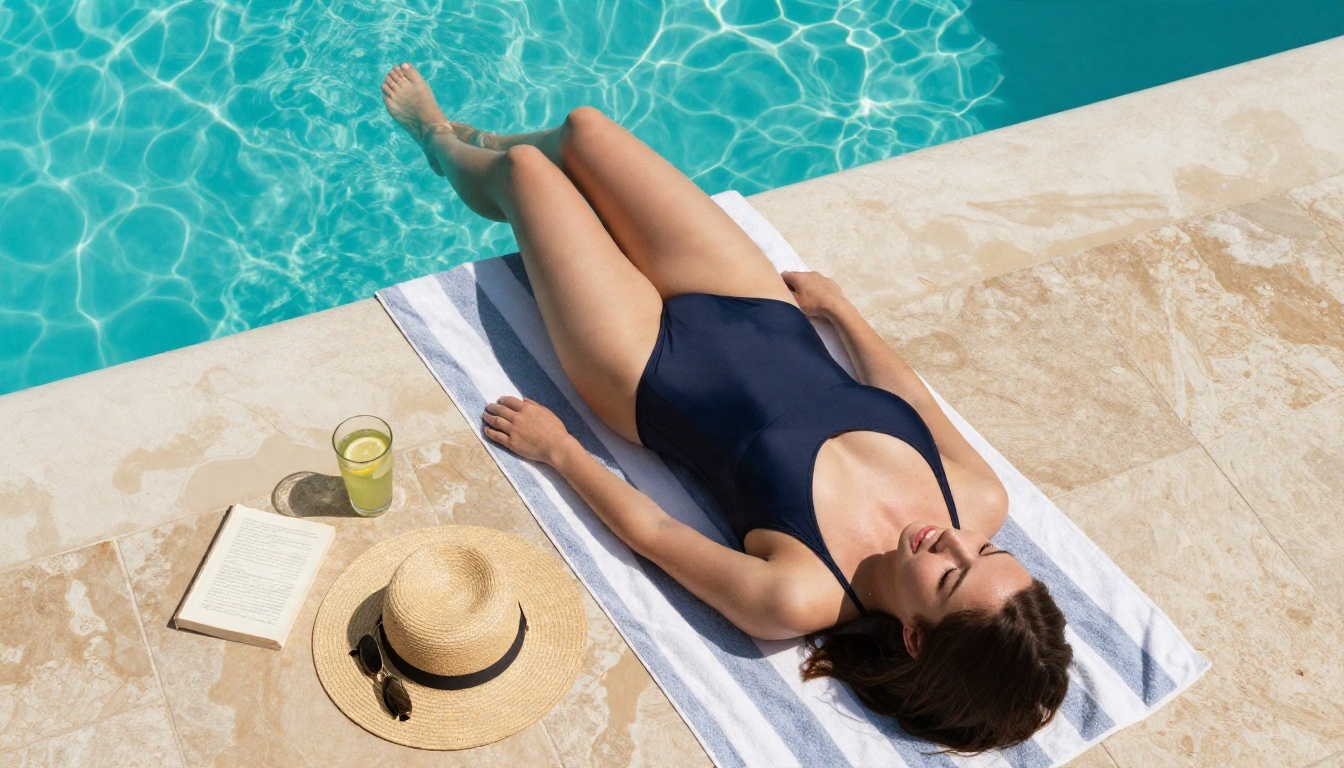
Pool day: Top-down view of a woman in a navy swimsuit on a striped towel by a turquoise pool, sunglasses and straw hat nearby, hard midday sun, 24mm, realistic shadows, sun-warmed skin.
Why Vague Wording Gets Blocked
Words like "hot", "nude", "sexy" or "revealing" give the filter nothing to work with, and they push the render toward the exact content it was trained to refuse. Describe the clothing, the light and the mood instead. You get a better photograph and fewer rejected requests.
Settings Worth Changing
Settings will not remove a filter, but they decide how sharp, consistent and usable your results are. Here is what matters most for photoreal portraits.
Aspect Ratio and Resolution
Pick the ratio before you write the prompt. Portraits read best at 3:4 or 2:3, scenery and lifestyle at 16:9 or 3:2, social posts at 4:5 or 9:16. On Seedream 4.5 you can choose 2K or 4K output, with nine aspect ratios including 21:9, so you can plan for print or for a wide banner without upscaling.
Seeds and Batches
When a composition is close to right, lock the seed (where the model supports one) and change one phrase at a time. Seedream 4.5 can also create up to 15 related images in a single run through its sequential mode, which is a fast way to explore poses and outfits with the same character.
Negative Prompt Habits
GPT Image models do not use a separate negative prompt box, so write the exclusions inside the prompt: "natural skin texture, no airbrushing, no plastic look, no extra fingers". Models that accept negative prompts handle this better, but a short, positive list of what you want still beats a long list of what you fear.
| Setting | Recommended value | Why |
|---|
| Aspect ratio | 3:4 portrait, 16:9 scene | Matches how the photo will be shown |
| Resolution | 2K for drafts, 4K for finals | Saves time and credits |
| Batch size | 4 to 6 drafts | Enough variety without waste |
| Lens in prompt | 35mm to 85mm | Keeps proportions natural |
| Film look | Kodak Portra 400 | Warm, believable skin tones |
Best Alternatives for Adult-Leaning Images
If you want glamour, swimwear or boudoir-style photography with fewer false refusals, move to models built for it. Here is the order I recommend.
Seedream 4.5 Comes First
Seedream 4.5 is the best starting point for this kind of work. It renders skin, fabric and light with real photographic restraint, outputs up to 4K, and supports up to 14 reference images for consistent characters. It also offers an option to relax input moderation so that only clearly illegal content is blocked. That setting is for adults working on legal content, and you are responsible for how you use it.
Do not confuse it with Seedream 5 Lite, which blocks adult content. Stick with 4.5.
PicassoIA Image Editor Pro for Edits
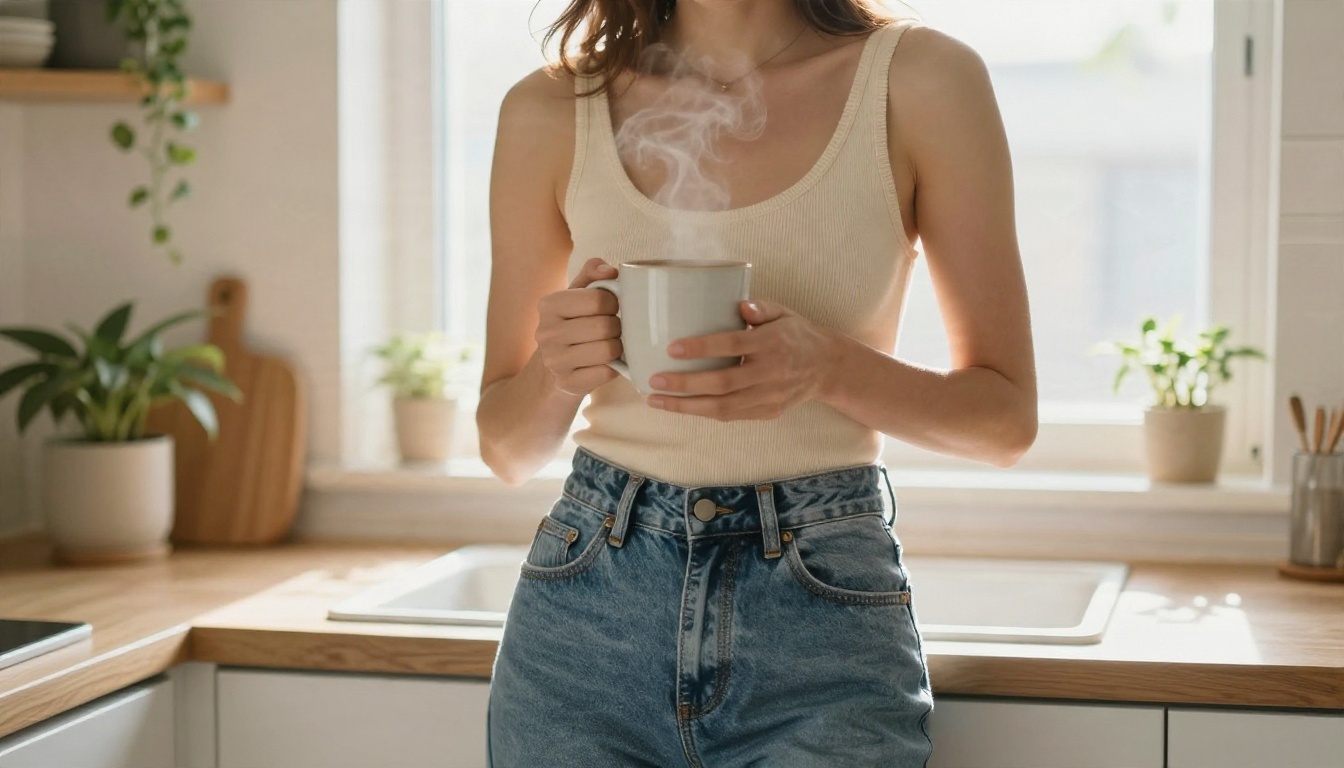
PicassoIA Image Editor Pro works differently. You upload a photo, describe the change, and it edits the picture. Edits are unlimited, finish in a few seconds, and you can supply up to three reference images. That makes it ideal for swapping an outfit, changing a location or adjusting lighting without regenerating the whole scene.
Other Models Worth Testing
Different engines have different personalities, so keep a short list:
💡 Test the same prompt on three models and keep the one whose skin, fabric and light look the most natural. A prompt that fails on one engine often works on another with no changes at all.
| Model | Strength | Moderation | Link |
|---|
| Seedream 4.5 | Photoreal skin, 4K, references | Flexible, adjustable | Open |
| Image Editor Pro | Unlimited photo edits | Flexible | Open |
| Flux 2 Klein 9B LoRA | Styled consistency | Model dependent | Open |
| Qwen Image 3 Pro | Portrait detail | Model dependent | Open |
| GPT Image 2 | Prompt accuracy | Strict | Open |
How to Use Seedream 4.5 on PicassoIA
Here is the workflow I use for a first batch of glamour or swimwear photos.
Step by Step
- Open the model page. Go to Seedream 4.5 on PicassoIA.
- Write the prompt. Use the formula above. The prompt box accepts up to 4,000 characters, so you can be as specific as you want.
- Choose the size. Pick 2K for drafts and 4K for finals.
- Set the aspect ratio. 3:4 for portraits, 16:9 for scenes, 21:9 for cinematic banners.
- Add references if needed. Upload one to fourteen images to keep the same face, outfit or setting.
- Pick batch mode. Set sequential generation to auto and raise the max images to create a set of related shots.
- Generate, compare, refine. Change one detail per round, such as the light or the lens, and keep the best version.
Parameter Tips
- Keep prompts between 80 and 200 words. Shorter prompts leave too much to chance, longer ones can fight themselves.
- Name the fabric. "Ribbed cotton", "silk satin" and "lace trim" all produce different, more realistic folds.
- Write the light first when mood matters most. "Soft window light from the left" changes the entire frame.
- For a consistent character, reuse the same reference image and the same descriptive phrase for the face.
- The safety checker toggle relaxes input moderation to block only illegal content. Use it only for adult subjects and lawful material.
Refining With Image Editor Pro
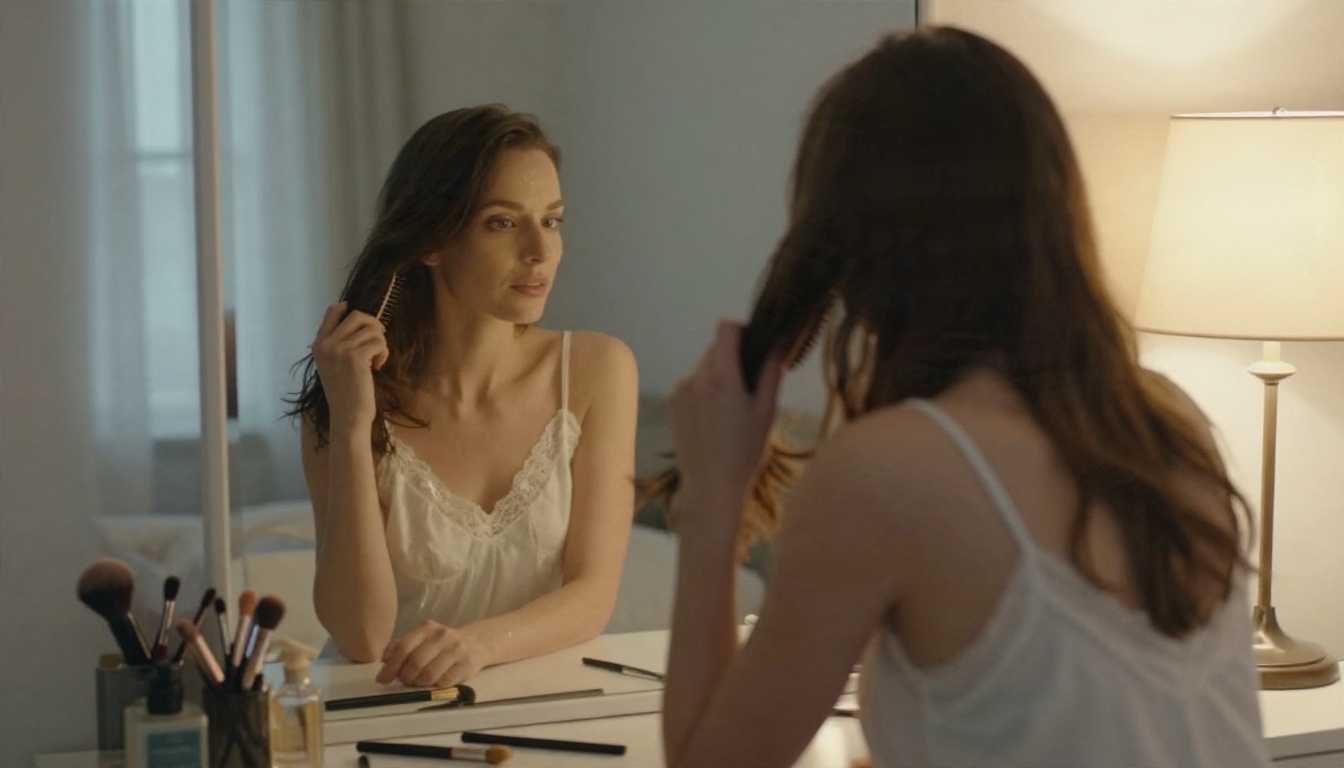
Once you have a render you like, send it to PicassoIA Image Editor Pro. Upload the image, then write a short instruction such as "Change the dress to emerald green satin and keep the face and pose identical". You can run as many edits as you need, so test freely.
Rules You Should Not Bend
Fewer filters means more responsibility. A few lines are non-negotiable, whichever model you use:
- Adults only. Every subject must be clearly an adult. No exceptions, no ambiguity.
- No real people without consent. Do not generate a recognizable person's likeness, and never upload someone's photo to edit it without their permission.
- No deception. Label AI images as AI when you publish them, especially on social platforms.
- Follow local law and platform rules. What is legal and allowed varies by country and by site.
- Stay non-explicit if you plan to publish. Most ad networks, marketplaces and social platforms will remove explicit content, and tasteful glamour travels much further.
💡 A good working test: if you would not be comfortable showing the image to the person it resembles, do not make it.
Common Mistakes to Avoid
Chasing jailbreak prompts. They stop working fast, waste credits and teach you nothing. Better prompts and a better model are far more reliable.
Writing one long paragraph of adjectives. "Gorgeous, stunning, perfect, beautiful" tells the model nothing. Name the light, the lens and the fabric.
Skipping drafts. Spending 4K renders on an untested prompt burns credits. Draft at 2K, then upscale your winner.
Forcing one model to do every job. GPT Image is excellent for text, clean product shots and strict prompt following. Seedream 4.5 is the stronger choice for skin and glamour. Use both.
Ignoring editing. A near-perfect image does not need a new generation. A single edit pass in Image Editor Pro is usually faster and keeps the composition you liked.
Try Your First Batch Today
There is no magic uncensored GPT Image, but you do not need one. A precise photographic prompt, the right model and a short edit pass will get you the portrait, swimwear or glamour shot you were after, without fighting a filter.
Open Seedream 4.5, paste one of the sample prompts above, and render four drafts. Then take your favorite into PicassoIA Image Editor Pro and change the outfit, the light or the location. If you want to compare more engines, browse everything at picassoia.com/en/all-models and run the same prompt on three of them. Your best image is usually one experiment away.


