You ask a hosted chatbot for a villain monologue, a blunt medical question, or a dark chapter of your novel, and it answers with a polite refusal. That is the moment most people start looking at uncensored local AI: a language model that lives on your own Windows PC, answers to nobody's content policy but your own, and works even with the Ethernet cable pulled out. The good news is that the software is free. The catch is hardware, and the numbers are less scary than the forums make them sound.
This article walks through what "uncensored" actually means, which free tools run these models, how to install them on Windows in about ten minutes, and exactly how much RAM, VRAM and disk space you need. It also covers the image side, where a hosted option can save you from buying a new graphics card.
💡 Quick answer: an 8 GB graphics card runs 7B to 8B models comfortably, 16 GB opens up 14B to 24B models, and 24 GB handles roughly 32B models. Everything in this article is free to download.
What "Uncensored" Really Means
The word gets thrown around loosely, so it helps to pin it down before you download anything.
Base models vs fine-tunes
Most popular open models ship in an "instruct" version that has been trained to refuse certain requests. An uncensored model is usually a fine-tune of one of those open models, retrained on data that removes the refusal habit. Community projects in the Dolphin and Hermes style are well known examples of this approach. The result is a model that follows instructions with far fewer lectures and disclaimers.
Abliteration in plain words
A newer method is called abliteration. Researchers found that refusals in many models travel along a single direction inside the network. Remove that direction from the weights and the model stops refusing, without a full retrain. The files you download are already modified, so you do not need to switch anything on. Search for "abliterated" or "uncensored" on a model hub and you will find hundreds of builds of the popular open models.
What you give up
Nothing is free in this process. Removing refusals can cost a little reasoning quality, and some builds feel slightly flatter or more repetitive than the original. Recent abliterated models lose only a small amount, but it is real. Also, "uncensored" does not mean "smarter". A small uncensored model still makes mistakes, and it will confidently write nonsense if you let it.
| Type | Refusals | Quality vs original | Best for |
|---|
| Standard instruct model | Frequent | Baseline | Work, coding, summaries |
| Fine-tuned uncensored model | Rare | Sometimes better for fiction | Roleplay, creative writing |
| Abliterated model | Rare | Small drop in reasoning | Same intelligence, fewer refusals |
You need two things: a runtime that loads the model, and a model file in GGUF format. Every runtime below is free.
Ollama
Ollama is the lightest option. It installs as a normal Windows program, runs quietly in the background, and you talk to it from a terminal or from any chat front end that supports its local API. It is the best choice if you like typing one command and being done.
LM Studio
LM Studio is a full desktop app with a built-in model browser. You type "abliterated" into the search box, pick a quantization, click download, and start chatting. It shows you how much memory a file will use before you commit, which saves a lot of wasted downloads. If you hate command lines, start here.
Jan, KoboldCpp, and llama.cpp
Jan is an open-source chat app with a clean interface. KoboldCpp is a single executable popular with fiction writers because it has story modes and long context handling. llama.cpp is the engine underneath most of these tools, and you can run it directly if you want maximum control. All of them load the same GGUF files, so you can switch tools without re-downloading models.
| Tool | Interface | Difficulty | Best feature |
|---|
| Ollama | Terminal and API | Easy | Lean install, one-line model pulls |
| LM Studio | Desktop app | Easiest | Model search and memory estimates |
| Jan | Desktop app | Easy | Open-source chat interface |
| KoboldCpp | Single executable | Medium | Story and roleplay modes |
| llama.cpp | Command line | Hard | Full control, newest features first |
Windows Setup, Step by Step

Check your hardware first
Press Ctrl + Shift + Esc, open the Performance tab, and click GPU. Note the "Dedicated GPU memory" figure. That is your VRAM, and it decides which models you can run quickly. Then click Memory and note your total RAM. If you own an NVIDIA card, update to a recent driver. AMD and Intel cards work too, usually through Vulkan, but NVIDIA still has the smoothest path on Windows.
Install Ollama
- Download the Windows installer from the Ollama site and run it. No admin tricks are needed.
- Open PowerShell and type
ollama run followed by a model name from the Ollama library.
- The first run downloads the file, then drops you into a chat prompt.
- Type
/bye to leave the chat. The model stays on disk for next time.
Pull an uncensored model from Hugging Face
Ollama can pull community GGUF files directly. The pattern is ollama run hf.co/username/repository:Q4_K_M, where the last part is the quantization you want. Pick a repository whose name includes "abliterated" or "uncensored", then check its model card for the recommended settings.
💡 Tip: newer model architectures need a recent runtime. If a download refuses to load, update Ollama or LM Studio before you blame the file.
Use LM Studio instead
- Install LM Studio and open the search tab.
- Type "abliterated" or "uncensored" and sort by downloads.
- Look at the memory badge next to each quantization. Green means it fits fully in your VRAM.
- Download, load the model, and open the chat tab.
- In settings, raise GPU offload to the maximum your card allows. This is the single biggest speed setting.
Computer Requirements Explained
VRAM is the number that matters
A model is a huge table of numbers, and the whole table has to be read for every word it writes. If it sits in fast graphics memory, you get smooth output. If it spills into regular RAM, speed falls hard. A simple rule: a 4-bit quantized model needs about 0.6 GB per billion parameters, plus one to three gigabytes for the conversation history.
| Model size | File size (Q4) | VRAM to run comfortably | Typical hardware |
|---|
| 7B to 8B | 4.5 to 5.5 GB | 8 GB | Entry level gaming card |
| 12B to 14B | 7.5 to 9 GB | 12 GB | Midrange card |
| 22B to 24B | 13 to 15 GB | 16 GB | Upper midrange card |
| 27B to 32B | 16 to 20 GB | 24 GB | High end consumer card |
| 70B | About 40 GB | 48 GB or split with RAM | Two cards or a workstation |
Treat these as ballpark figures. Always check the exact file size on the download page, since quantization variants differ.
Quantization in one paragraph
Quantization shrinks a model by storing each number with fewer bits. Q4_K_M is the sweet spot for most people: roughly a quarter of the original size with only a small quality loss. Q5 and Q6 are closer to the original but need more memory. Q2 and Q3 run on tiny hardware but start to produce visibly worse text. When in doubt, choose the largest model you can fit at Q4 rather than a smaller model at Q8.
System RAM and CPU-only runs
No dedicated graphics card? You can still run a small model on the processor alone. Expect a few words per second on an 8B model with fast dual-channel memory, which is readable but slow. For this route, 16 GB of RAM is the floor and 32 GB is comfortable. If a model is slightly too big for your VRAM, the runtime can offload some layers to system RAM. That works, but each layer moved off the card costs speed, so keep it to a few layers.
💡 Rule of thumb: memory bandwidth, not raw processor speed, sets how fast words appear. That is why a mid-range graphics card beats a flagship processor for this job.
Storage, power, and cooling
Model files are big. A single 8B file is about 5 GB, and a collection of five or six models quickly passes 100 GB. Put them on an NVMe SSD with at least 500 GB free, because loading from a hard drive takes minutes. Budget 1 TB if you want to experiment freely.
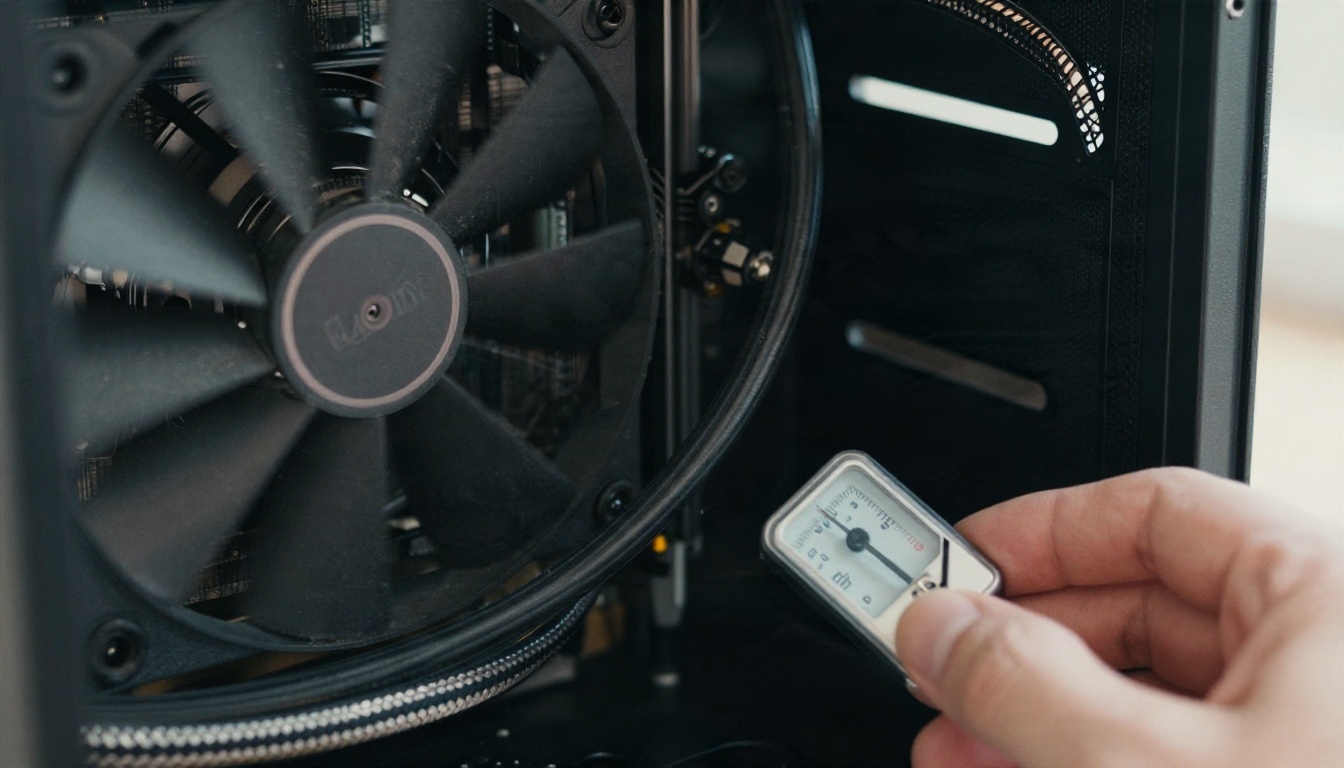
Long chats keep your graphics card under steady load, so check your power supply and airflow. A card that draws 300 watts needs a quality 650 to 750 watt supply. Make sure the case has at least two intake or exhaust fans. If your PC sounds like a hairdryer after twenty minutes, lower the GPU power limit a little. You will lose a few percent of speed and gain a quieter machine.
Choosing a Model Size
8 GB of VRAM or less
Stick with 7B to 8B models at Q4. They write decent fiction, handle casual chat, and respond fast. Quality is fine for roleplay and drafting, but they lose track of long plots and make factual errors more often than larger models.
12 to 16 GB of VRAM
This is the best value tier. Models in the 12B to 24B range are noticeably better at keeping characters consistent and following long instructions. A 16 GB card with a 24B model at Q4 is a setup many writers are happy to stay with.
24 GB and above
You can run 27B to 32B models at Q4 with a decent context window, and the jump in reasoning and writing quality is real. Beyond that, 70B models need either two cards or a lot of system RAM, and speeds drop. For most people, the extra cost is not worth it unless local work is your daily job.
Privacy and Responsibility

The strongest argument for local AI is not freedom from refusals. It is privacy. Your prompts, drafts and chat history never leave your machine, no account is needed, and nobody can change the rules overnight. You can test this yourself: disconnect from the internet and the model keeps working.
An uncensored model also has no safety net. It will write what you ask, including things that are false, harmful or illegal where you live. You are responsible for how you use the output, and the same laws apply whether the text came from a person or a model. Keep an eye on the model card, too: files from unknown uploaders deserve a quick check of the repository, its download count and its comments before you run them.
💡 Safety habit: download GGUF files from established repositories, read the comments for reports of broken builds, and avoid running executable files that claim to be "model installers".
Uncensored Images Without the Hardware
Text is only half the story. Image generation is far more demanding than chat: a local setup wants a strong NVIDIA card, plenty of disk space, and a lot of patience with settings. If you only want results, a hosted option is faster and costs nothing in hardware.

Seedream 4.5 for photorealism
Seedream 4.5 is the first model to try on PicassoIA when you want sharp, photorealistic portraits and glamour shots. It handles skin texture, fabric and lighting well, and it is relaxed about tasteful adult themes such as swimwear and boudoir style photography. Describe the lens, the light and the mood in your prompt, and keep the wording natural.
Image Editor Pro for unlimited edits
PicassoIA Image Editor Pro is the one to open when you want to refine a result without counting generations. It offers unlimited use, so you can change an outfit, fix a hand or adjust the background as many times as you need. That freedom to iterate is the same appeal that draws people to local AI in the first place, without a graphics card purchase.
Hosted language models to compare
Before you spend a weekend downloading files, you can test how a model family writes using hosted versions. GPT OSS 20B is an open-weight model small enough to run on a 16 GB card, so a quick test shows whether that size suits your writing. Granite 4.1 8B gives you a feel for what an 8B model can do on an entry-level GPU. For heavier reasoning, DeepSeek R1 and Qwen3.7-Plus are available to try. Keep in mind these hosted models follow their own provider settings. They are a way to compare sizes and styles, not a replacement for a local uncensored build.
| Goal | Best route |
|---|
| Private, unrestricted text | Local model with Ollama or LM Studio |
| Test a model size before downloading | Hosted open-weight models on PicassoIA |
| Photorealistic images, no GPU needed | Seedream 4.5 on PicassoIA |
| Unlimited image edits | PicassoIA Image Editor Pro |
Build Your Setup Today
Here is a plan you can finish this evening. Check your VRAM in Task Manager, install LM Studio or Ollama, and download one 8B to 14B model at Q4_K_M. Chat with it offline, then try a second build to see which one writes the way you like. Keep notes on what works, because the best model is the one that fits your card and your taste.
When you also want pictures to go with your stories or characters, open Seedream 4.5 on PicassoIA and generate your first photorealistic portrait, then polish it in Image Editor Pro. You can browse every image, video and language model in one place at picassoia.com/en/all-models, so start experimenting and see what your own prompts can produce.


