Most people who type "unfiltered AI image creator" into a search bar are not after anything extreme. They are tired of a refusal message appearing because their prompt included the word "bikini", "lingerie" or "boudoir". They want a generator that treats an adult as an adult, produces a glamorous, attractive photo, and does not lecture them about it. That is a reasonable thing to want, and the good news is that tools like this exist. The less good news is that the category is full of slow, ad-stuffed, watermarked sites that overpromise.
This article sorts the signal from the noise. You will see what "unfiltered" can and cannot mean, which online tools deserve a bookmark, how free options really behave, and the exact prompts and settings that produce believable, photographic results. Everything here stays on the tasteful side: suggestive, stylish, attractive, never explicit.
What "Unfiltered" Really Means
The word gets thrown around loosely, so it helps to define it before comparing tools. An unfiltered generator is not a lawless one. It is a generator whose safety layer does not trigger on ordinary adult themes like swimwear, lingerie, artistic glamour or a bare shoulder.
Filters vs. Hard Limits
Every serious image model has two layers of restriction. The first is a soft filter: a classifier that blocks or blurs prompts it considers sensitive. Mainstream assistants set this layer very tight, which is why a perfectly normal beach portrait can get rejected. The second is a hard limit: content no legitimate platform will produce under any setting, such as anything involving minors, non-consensual imagery, or real people's likeness used to humiliate them.
A good unfiltered creator relaxes the first layer and keeps the second one firmly in place. If a site claims to have no limits at all, treat that as a warning sign, not a feature. Those sites tend to be the same ones that harvest your prompts, push malware-laden downloads, or vanish after a few months.
Why People Search for It
The searches fall into a few clear groups:
- Photographers and models who want reference shots for lighting and posing without hiring a studio for each idea.
- Content creators building glamour, fashion or swimwear mockups for campaigns.
- Hobbyists who simply want attractive, stylish portraits without a refusal screen.
- Writers and game designers who need character portraits with an adult, confident look.
💡 Quick test: If a tool refuses "a woman in a red satin dress by a hotel staircase", the filter is too tight for glamour work. Move on.
The list below is based on what each tool does well with photorealistic, adult-leaning glamour prompts. All of them run in the browser, so there is nothing to install.
Seedream 4.5 Comes First
Seedream 4.5 is the model I reach for first. It renders skin with believable pores, handles fabric such as satin, lace and linen with real folds, and is relaxed enough that normal swimwear or boudoir-style prompts go through without a fight. It also reads long, descriptive prompts well, which matters because photographic detail is where unfiltered work lives or dies.
Its strengths for this kind of work:
- Natural skin texture instead of the waxy, over-smoothed look
- Strong lighting logic, so a window on the left actually lights the left side of the face
- Output up to 4K, which makes cropping and printing realistic
- Fast enough to iterate several times in a single session
Image Editor Pro for Unlimited Runs
The second tool is PicassoIA Image Editor Pro. Its main selling point is unlimited generations, which changes how you work. When every attempt costs a credit, you write timid prompts and settle for the second-best result. When it does not, you test ten variations of a pose, keep the best one, and move on.
It also doubles as an editor. You can upload a photo you own, change the outfit, shift the lighting, fix a hand, or extend the background, and the model keeps the subject consistent.
Other Models Worth Trying
Once you have your two main tools, a few others fill specific gaps:
💡 Workflow tip: Draft with Z Image Turbo, then re-run your favorite composition in Seedream 4.5 for the final render. You save time and still get the best skin and fabric detail.
Free Options That Actually Work
"Free" is the most common word in this search, and also the most misleading. Plenty of free generators exist, but they behave very differently once you use them for more than five minutes.
Free vs. Paid Trade-offs
| Feature | Typical free site | Better platform |
|---|
| Daily limit | 3 to 10 images | Generous or unlimited |
| Resolution | 512 to 768 px | 2K to 4K |
| Watermark | Large, in the corner | None or small |
| Queue time | Minutes | Seconds |
| Prompt privacy | Often public | Private |
| Face and hand quality | Hit or miss | Consistent |
The pattern is obvious. Free tiers that throttle you to a handful of images push you into rushed prompts. A platform with unlimited or generous runs gives you room to refine, and refinement is what separates a decent photo from a great one.
Red Flags in Free Generators
Before you paste a prompt into an unfamiliar site, check for these:
- No clear terms or privacy page. Your prompts may be stored or published.
- Forced downloads or browser extensions. A web generator should never need one.
- Claims of "zero rules". That is marketing, and often a sign of poor moderation and poor reliability.
- A login that asks for a phone number for a simple image tool.
- Results that look identical across prompts. Some sites recycle a small library of images.
If a site fails two or more of these, skip it. There is no image worth a compromised account.
How to Use Seedream 4.5 on PicassoIA
Since Seedream 4.5 is the lead recommendation, here is a practical walkthrough you can follow in a few minutes.
Step by Step
- Open the model page. Go to the Seedream 4.5 page on PicassoIA and choose the text to image mode.
- Write your prompt. Use the formula in the next section: subject, outfit, environment, light, lens.
- Set the aspect ratio. Use 16:9 for banners and wide scenes, 3:4 or 2:3 for portraits meant for social feeds.
- Pick the highest resolution you need. There is no reason to render small if you plan to crop.
- Generate and compare. Run at least four variations of the same prompt, change one detail each time, and keep a note of what worked.
- Upscale the winner. Send the best frame through an upscaler such as Clarity Pro Upscaler or P Image Upscale for print-ready sharpness.
Settings That Matter Most
| Setting | Recommended value | Why |
|---|
| Aspect ratio | 16:9 or 3:4 | Match your final placement |
| Resolution | Highest available | Cleaner skin and fabric detail |
| Seed | Fixed once you like a result | Lets you change only the outfit or the light |
| Prompt length | 60 to 120 words | Long enough for detail, short enough to stay coherent |
| Negative wording | Put "no text, no logos" in the prompt | Keeps the frame clean |
Prompts That Work
A good prompt reads like a photographer's shot list. It names the subject, the pose, the place, the light and the lens. Vague prompts give vague, plastic-looking people.
The Five-Part Formula
Use this order every time:
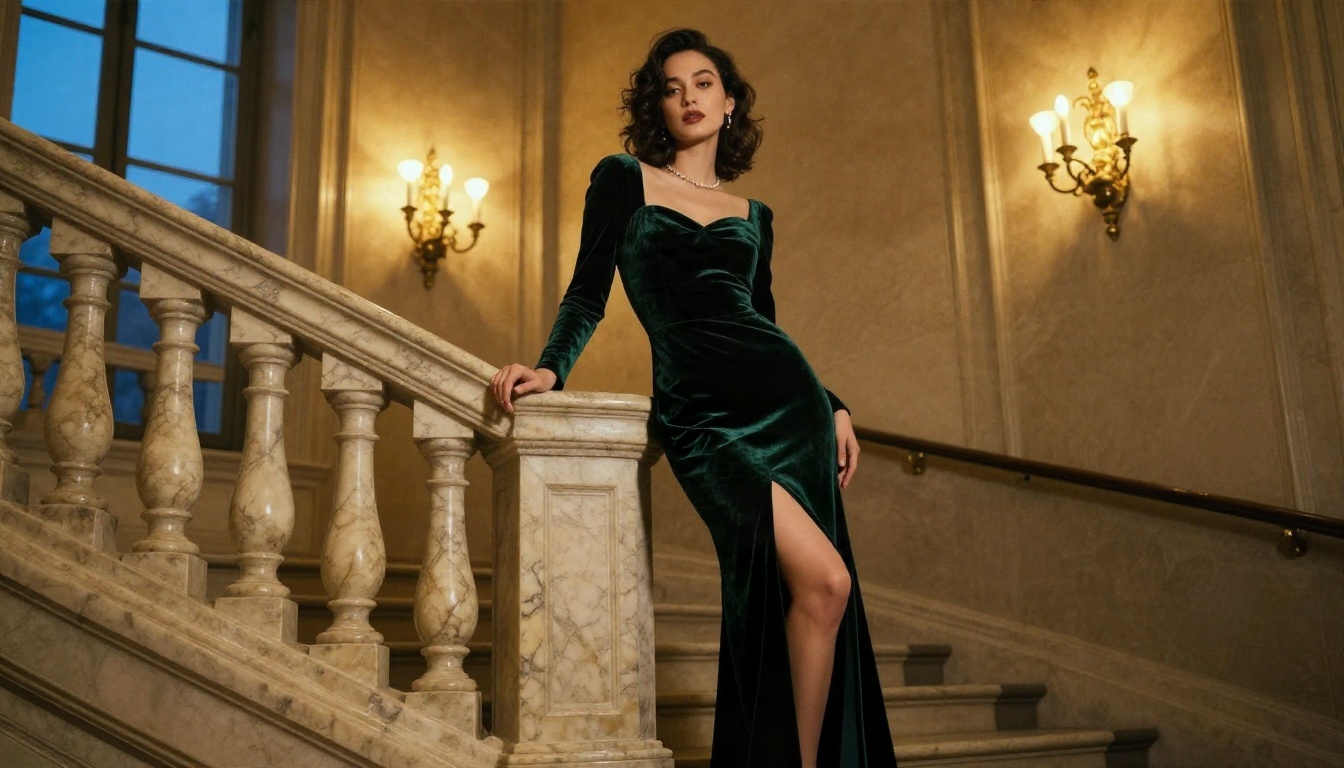
- Subject and pose: "a woman in her late twenties leaning on a marble balustrade, one hand resting on the rail"
- Outfit and fabric: "deep green velvet gown with a high slit, visible nap texture"
- Environment: "candle-lit hotel staircase at dusk, polished stone floor"
- Lighting: "warm tungsten chandelier from above, cool blue window light from behind"
- Camera: "35mm f/1.8 lens, shallow depth of field, Kodak Portra 400 film grain"
Add skin and surface detail at the end: "visible pores, faint freckles, fine peach fuzz catching the light". That single sentence does more for realism than any amount of "8K ultra HD" filler.
Five Prompts to Copy
Paste these as a starting point, then change the details to fit your idea:
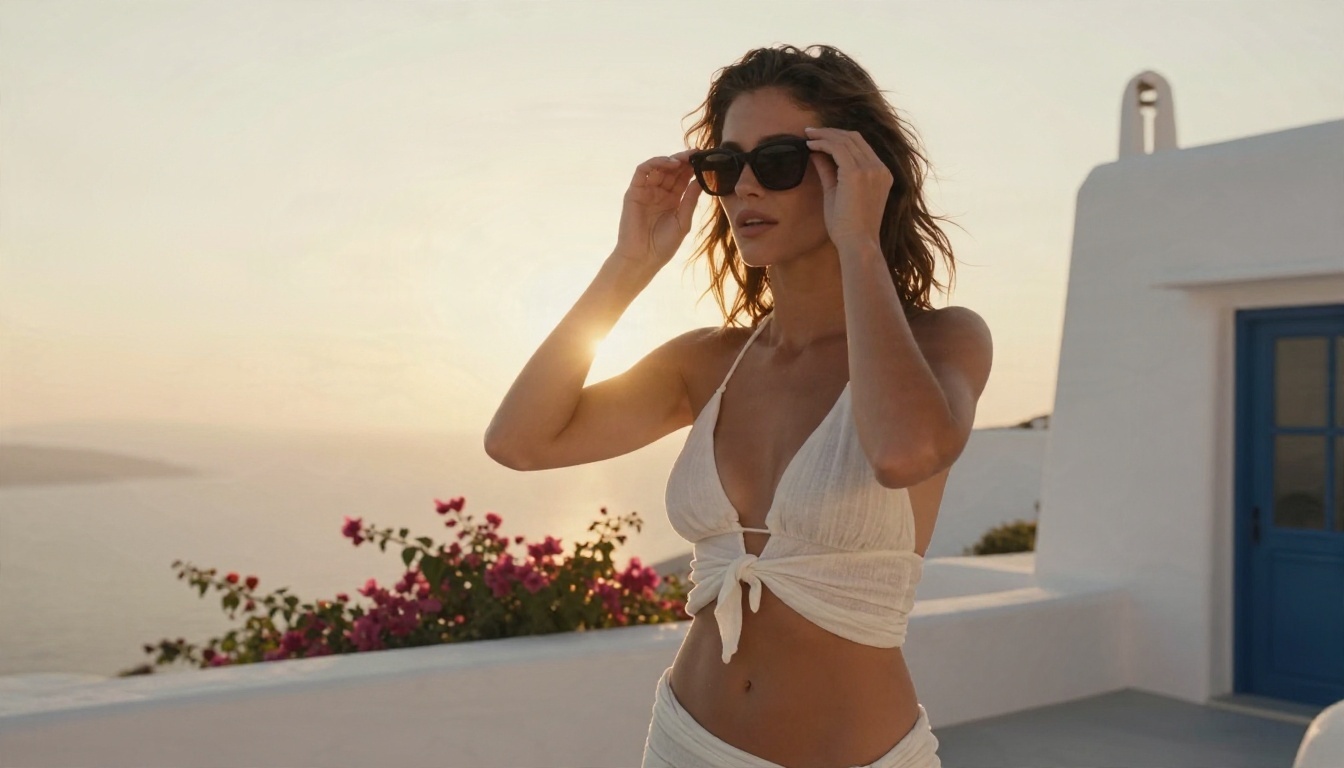
- Terrace glamour: "Low-angle shot of a woman in a white linen bikini top and sarong on a Mediterranean terrace at golden hour, adjusting her sunglasses, whitewashed walls, warm backlight creating a halo in her hair, 35mm f/2, Kodak Portra 400 grain."
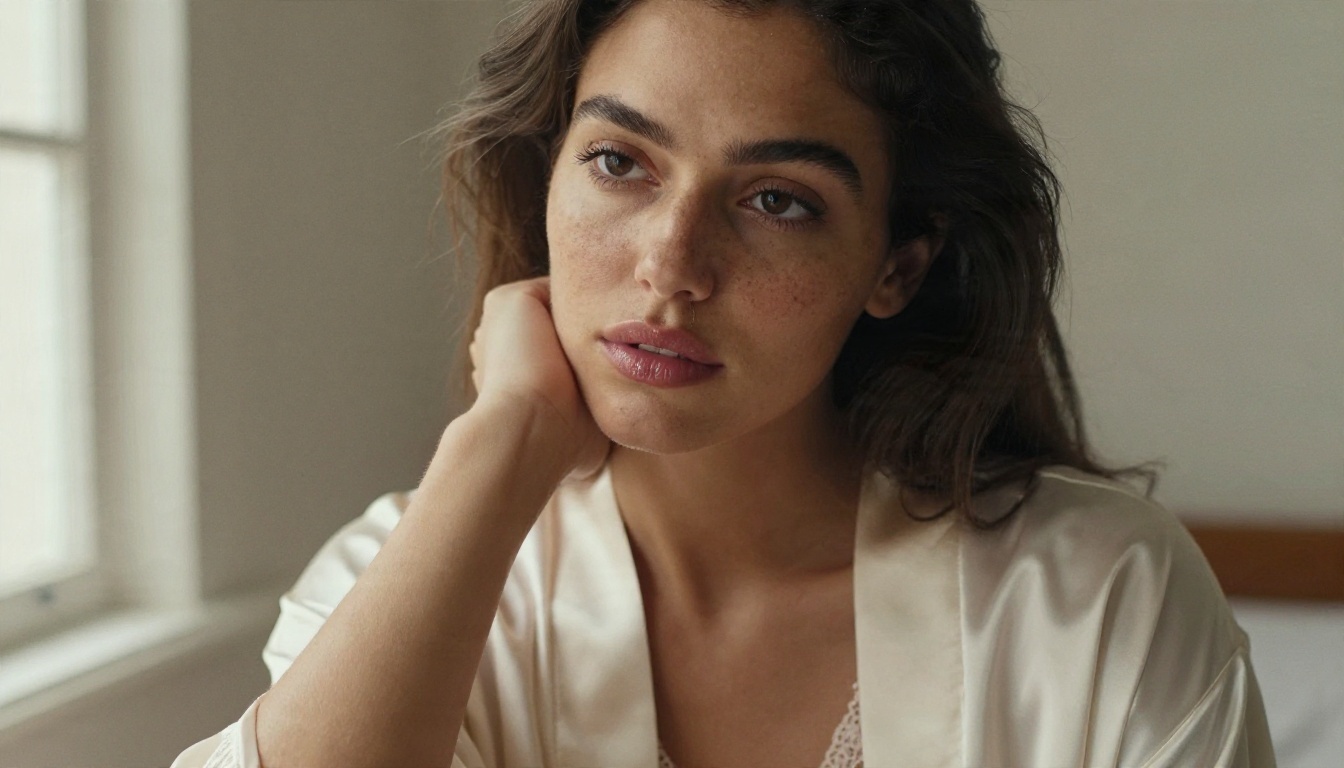
- Window portrait: "Close-up of a woman with natural freckles in a lace bralette under an open cream silk robe, chin on hand, soft side light from the left, visible pores, 105mm f/1.4."
- Beach sunrise: "Medium shot of a woman in a navy swimsuit and sheer wrap walking on wet sand at sunrise, low backlight from the right, wind in her hair, 70mm f/2.8."
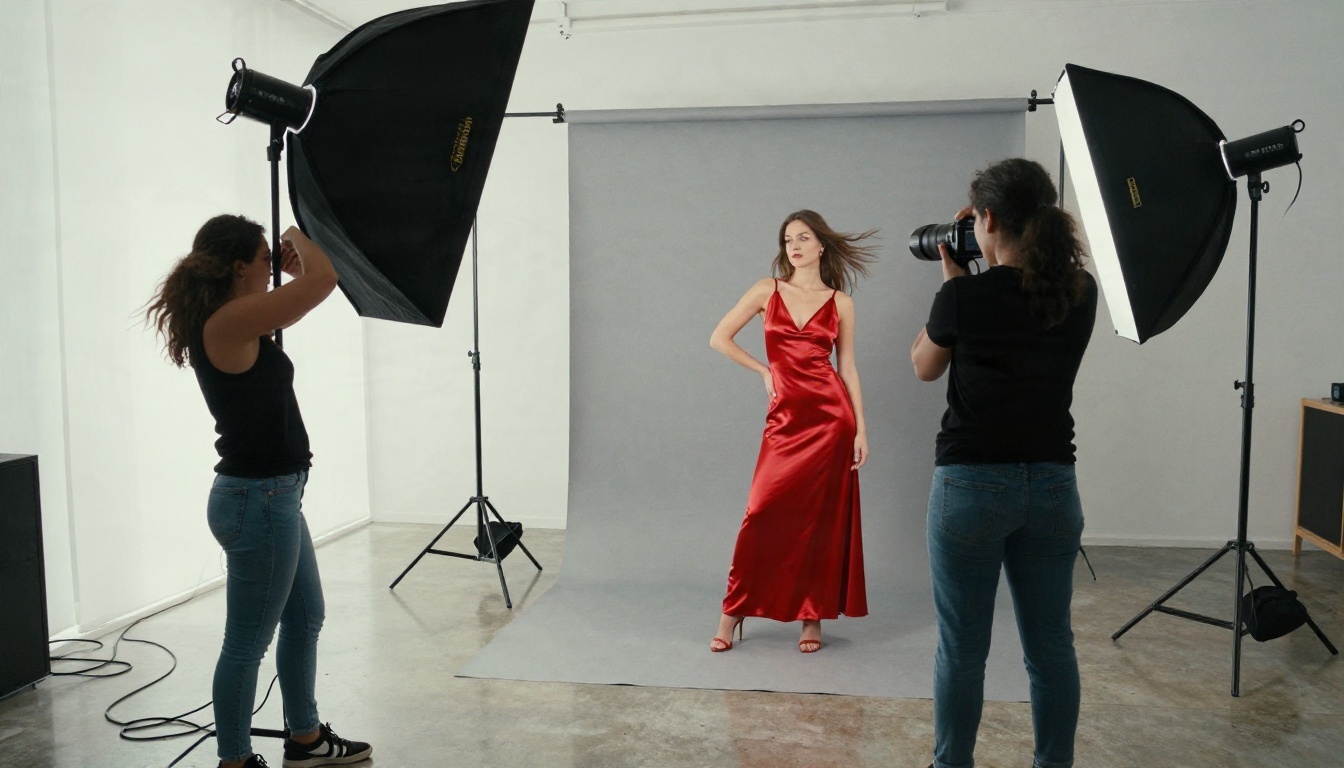
- Studio fashion: "Wide studio shot of a model in a red satin dress on a gray seamless backdrop, softbox light, specular highlights on the fabric, 28mm f/2.8."
- Loft editorial: "Woman in a black satin slip dress on a cream linen sofa in a sunlit loft, exposed brick, golden window light from the left, 85mm f/1.8."
Three Common Mistakes
- Stacking buzzwords. "Hyperrealistic, ultra detailed, masterpiece, 8K" adds nothing. Describe light and lens instead.
- Mixing lighting styles. Asking for "soft morning light" and "dramatic studio flash" in one prompt confuses the model.
- Skipping the environment. A subject with no setting floats, and the result looks pasted in.
Settings That Keep Results Sharp
Prompts get the idea right. Settings decide whether it looks professional.
Resolution and Aspect Ratio
Render at your final size from the start. A wide 16:9 frame suits beach scenes, hotel interiors and editorial banners, while a tall 2:3 frame suits fashion portraits. If you have to crop later, you lose pixels in exactly the area, the face and hands, where you need them most.
Seeds and Consistency
Once a result looks right, lock the seed. Then change one thing at a time: the dress color, the light direction, the lens. This is the fastest way to build a series of images that feel like the same shoot, which clients and followers notice immediately.
Upscaling and Cleanup
A final upscale pass sharpens eyelashes, fabric weave and hair strands without making skin look artificial. Clarity Pro Upscaler is the better choice for portraits, while P Image Upscale is quicker when you are processing a batch.
💡 Fix hands first. If a hand looks wrong, use the editing mode of PicassoIA Image Editor Pro to regenerate only that region instead of rerunning the full image.
Safe Use Rules Worth Following
Unfiltered does not mean consequence-free. A few simple rules keep your work legal and your accounts safe.
Rules That Are Not Optional
- Adults only. Every subject must clearly be an adult. No exceptions, no ambiguity.
- No real people without consent. Do not generate or edit images of a real person's likeness, whether a celebrity, a coworker or an ex, without their clear permission.
- No deception. Do not present generated images as real photos of a real event in order to mislead anyone.
- Respect local law. Rules about adult imagery and AI content differ between countries and platforms.
Where to Publish
Platforms differ widely in what they allow. Check the rules before you post, label AI-generated work where the platform asks for it, and keep your suggestive images inside spaces that permit them. Tasteful glamour tends to survive moderation far better than anything pushing the line.
If you want a fast decision, use this table:
Start Creating Your Own Images
You now have the full picture: a clear definition of what unfiltered really allows, two strong tools to begin with, free options judged honestly, a prompt formula you can reuse, and settings that keep every frame sharp.
The fastest way to improve is to run the experiment yourself. Open Seedream 4.5 on PicassoIA, paste one of the prompts above, and change a single detail: the outfit, the light, the lens. Then try the same idea in PicassoIA Image Editor Pro, where unlimited generations let you test as many variations as you like. Within an afternoon you will have a small portfolio of photographic, glamorous images that look like a real shoot.
Browse every available model at picassoia.com/en/all-models, pick the one that fits your idea, and start creating.


