Type "unfiltered AI video" into a search bar and you get a wall of promises: no filters, no limits, no watermark, no cost. Most of those promises fall apart the moment you press generate. The clip is four seconds long, the preview is blurred, or the "free" credits vanish after two tries. This article sorts the real from the noise. You will see what unfiltered actually means, which free online creators are worth your time, what the output looks like, and how long a clip can run before the tool cuts you off.
Everything here stays on the tasteful side of adult-leaning content: glamour, swimwear, fashion, sensual mood. Think magazine shoot in motion, not explicit footage.
What "Unfiltered" Really Means
Less Blocking, Not No Rules
An unfiltered AI video generator is a tool with a lighter moderation layer than the big consumer apps. Mainstream products often refuse prompts that mention swimwear, lingerie, a bedroom setting or even a slightly moody portrait. Unfiltered tools accept those prompts and render them instead of throwing a policy warning.
That does not mean anything goes. Reputable platforms still block illegal material, real people used without consent, and anything involving minors. If a site claims to have zero rules, treat it as a red flag, not a feature.
Why People Search for It
The demand is practical. Photographers, fashion brands, swimwear sellers, music video makers and adult-leaning storytellers all hit the same wall: a safe-for-everything model says no to a perfectly ordinary beach shoot. The search for unfiltered tools is mostly about getting a bikini editorial or a boudoir-style portrait to animate without a fight.
💡 Quick filter test: write a prompt for a model in a summer swimsuit walking along a shoreline. If the tool refuses that, it will refuse nearly everything glamour related.
Free Online Creators Worth Trying

What Free Usually Means
From the roundups and tool listings I checked, free tiers cap at least one of four things: daily credits, clip length, resolution, or a visible watermark. A typical free text-to-video plan gives you somewhere between 4 and 10 seconds per clip, often at 720p. Some paid plans advertise "unlimited length," but claims like that are marketing language until you test them.
Reported free-tier ceilings from mainstream tools sit in the same neighborhood. Google's Flow tool tops out around 8 seconds for Veo 3.1 clips, and other consumer apps hand out roughly 5 to 6 seconds on free accounts. Treat those figures as snapshots, because limits change often.
Seedance 2.5 Lite
Seedance 2.5 Lite is listed on PicassoIA as a free and unlimited generator for clips up to 10 seconds. That 10 second ceiling is more generous than the typical free tier, which makes it a practical first stop for glamour and fashion tests. Its bigger sibling, Seedance 2.5, is described as a 30 second option for longer scenes.
Other Free-Friendly Options
A few more models are worth keeping in a bookmark folder:
Real Examples of What You Can Make
Glamour and Swimwear Clips
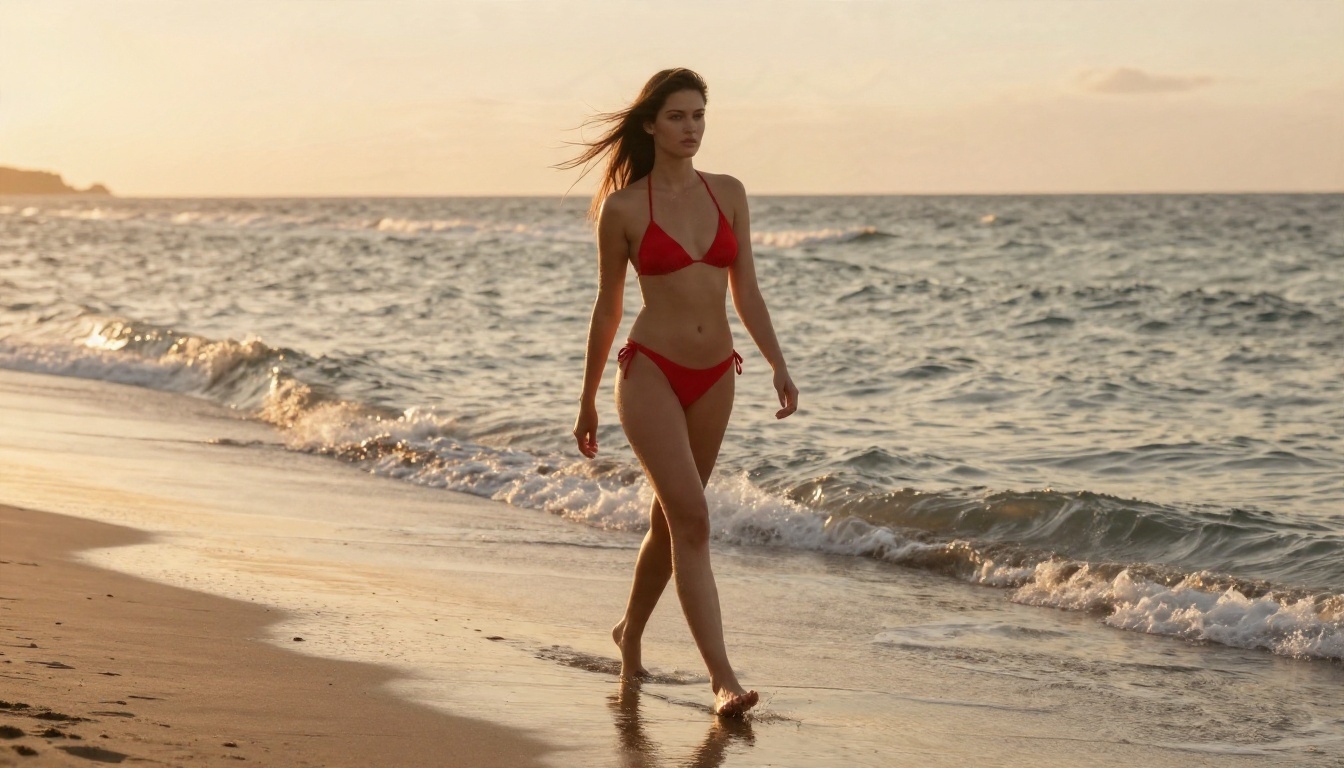
The most common use case is a short beach or poolside shot. Picture the frame above brought to life: a model in a red two-piece bikini walking through shallow surf at golden hour, hair lifting in the breeze, foam sliding over her ankles while the camera tracks low and slow. A good generator handles the three things that make this believable: fabric movement, wet skin highlights and the way light wraps around a moving body.
A prompt that works for this kind of scene reads like a director's note:
"A model in a red bikini walks along the shoreline at golden hour, gentle waves around her ankles, hair moving in a warm sea breeze, low tracking camera, shallow depth of field, soft film grain."
Fashion Editorials in Motion
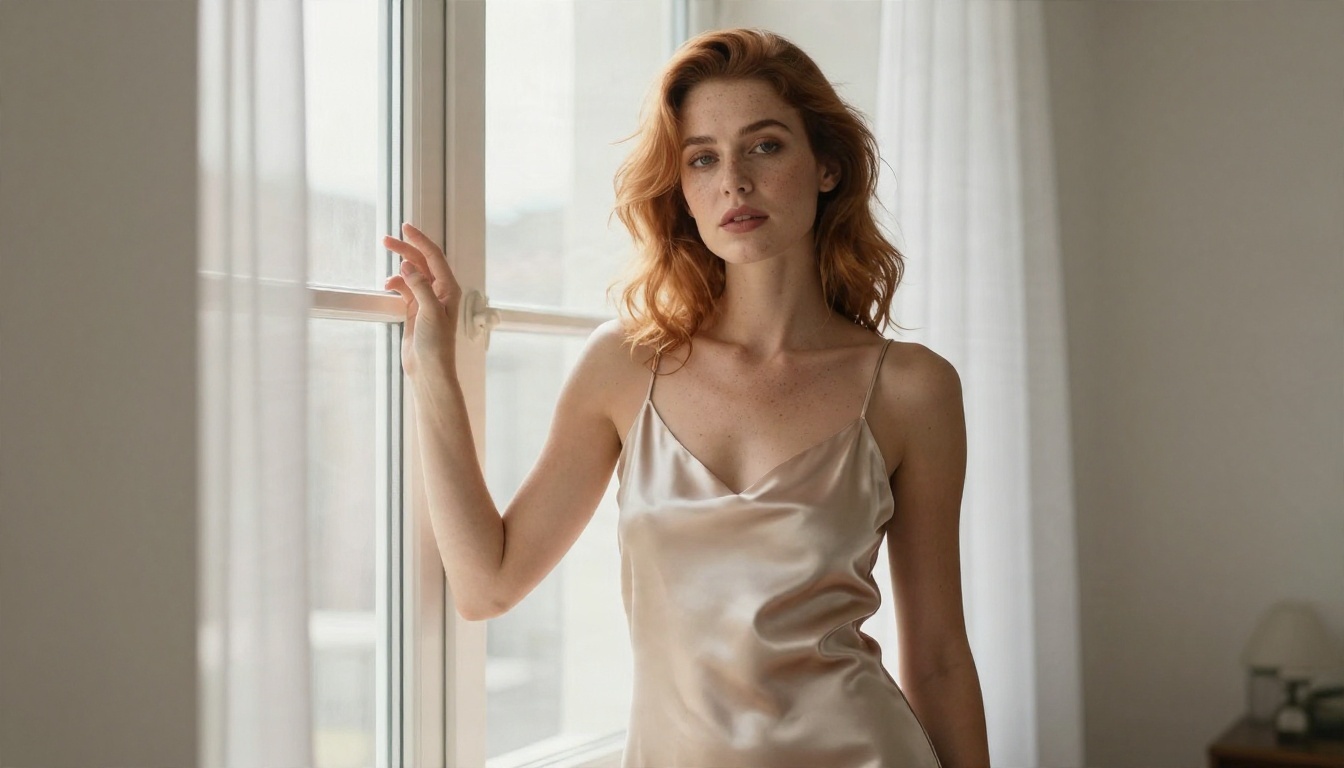
The second common example is the moving editorial. A silk slip dress by a window, a curtain shifting in the draft, a slow push-in on a face. These clips rarely need an unfiltered tool for explicit reasons. They need one because the subject is a body in sensual clothing, and cautious models tend to decline or water the result down.
Use these as short social loops, lookbook motion, music video interludes, or reference clips for a photographer pitching a concept.
Where Results Fall Short
Be honest with yourself about the weak spots:
| Problem | How it shows up | Fix |
|---|
| Hands and fingers | Extra or fused fingers in motion | Frame the shot so hands stay still or out of view |
| Fast action | Limbs smear, faces drift | Ask for slow, deliberate movement |
| Long continuity | Outfit or face changes across clips | Reuse the same starting image |
| Text in frame | Garbled lettering | Leave signs and logos out of the prompt |
Length Limits, Explained Plainly
Typical Caps by Tool Type
Length is the most misunderstood part of the topic. Here is how the landscape looks in practice, based on what tools publish and what the reviews report:
| Tool type | Typical clip length | Notes |
|---|
| Free trial on a random site | 4 to 6 seconds | Watermark and low resolution are common |
| Free tier of a mainstream app | 5 to 8 seconds | Strict filters on swimwear and sensual prompts |
| Free unlimited model on PicassoIA | Up to 10 seconds | Seedance 2.5 Lite |
| Premium long-form model | Around 30 seconds | Seedance 2.5 |
| Paid "unlimited length" plans | Varies | Check the actual output, not the banner |
Why Clips Stay Short
Video models have to keep a face, an outfit, a background and a lighting setup consistent across every frame. The longer the clip, the more chances for drift: a necklace that disappears, a hairstyle that changes, a shoreline that bends. Short clips also cost far less to render, which is why free tiers lean on them.
💡 Practical rule: plan every shot as a 5 second beat. A 10 second clip is a bonus, and a 30 second clip is a special occasion.
Longer Scenes with Seedance 2.5
When you truly need a longer take, Seedance 2.5 is the model to test first because it is positioned for 30 second output. For budget drafts, start in Seedance 2.5 Lite, settle the look and motion, then move the final prompt to the longer model.
Start With an Image First
The most reliable workflow for glamour video is not text to video. It is image to video. You build the exact still you want, then animate it. That gives you control over the face, the outfit, the pose and the lighting before a single frame moves.
Seedream 4.5 for Stills
Seedream 4.5 is the model to lead with for adult-leaning and glamour imagery. It produces sharp, photographic skin, handles swimwear and boudoir lighting without balking, and outputs up to 4K, which gives the video model plenty of detail to work from. Generate your hero frame here, then feed it to an image-to-video model.
Image Editor Pro for Fixes
PicassoIA Image Editor Pro comes next. It offers unlimited generations, so you can fix a strap, swap a background, adjust an outfit color or clean up a hand without paying per attempt. Spending five edits on a perfect start frame saves you from burning twenty video generations on a flawed one.
Other Image Models Worth Testing
If you want a second look, try Seedream 5 Pro or Qwen Image 3 Pro for the starting frame, and compare skin texture side by side.
A Simple Workflow That Works
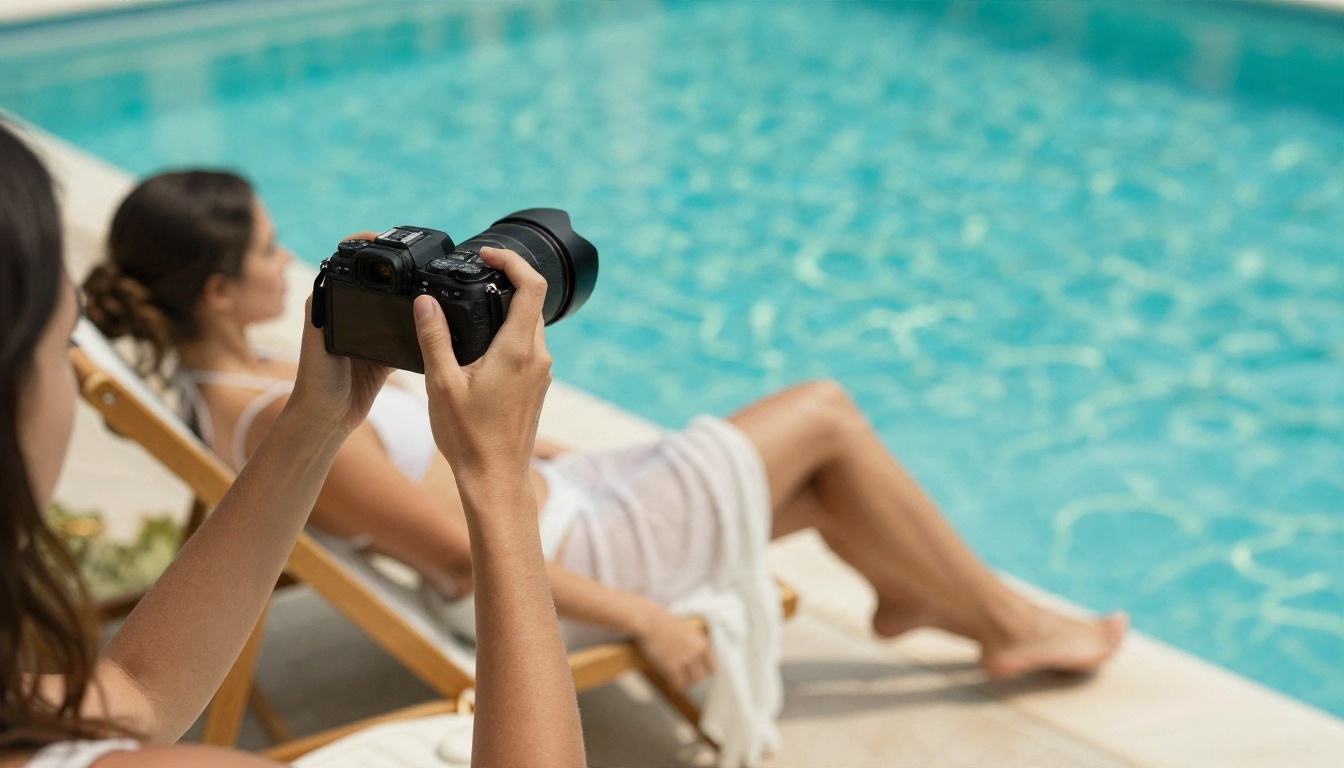
Here is the sequence I recommend, from blank page to finished clip.
- Write the shot like a photographer. Subject, wardrobe, location, light direction, lens. For example: "woman in a white string bikini on a teak deck chair, midday sun, soft shade, 85mm lens."
- Generate three stills in Seedream 4.5. Pick the one with the best face and the cleanest hands.
- Fix the details in Image Editor Pro. Adjust anything that looks off.
- Animate in Seedance 2.5 Lite. Upload the still, describe the motion in one or two sentences, and request a 5 second clip first.
- Review and iterate. If the motion is too fast, say so in the prompt and rerun. If it works, request a 10 second version.
- Upscale if needed. Use a super resolution or video enhancement model to sharpen the final export.
💡 Parameter tip: keep the aspect ratio matched to the source image. A 16:9 still animated at 16:9 avoids cropping the subject or adding odd borders.
Choosing the Right Video Model
Prompts That Hold Up
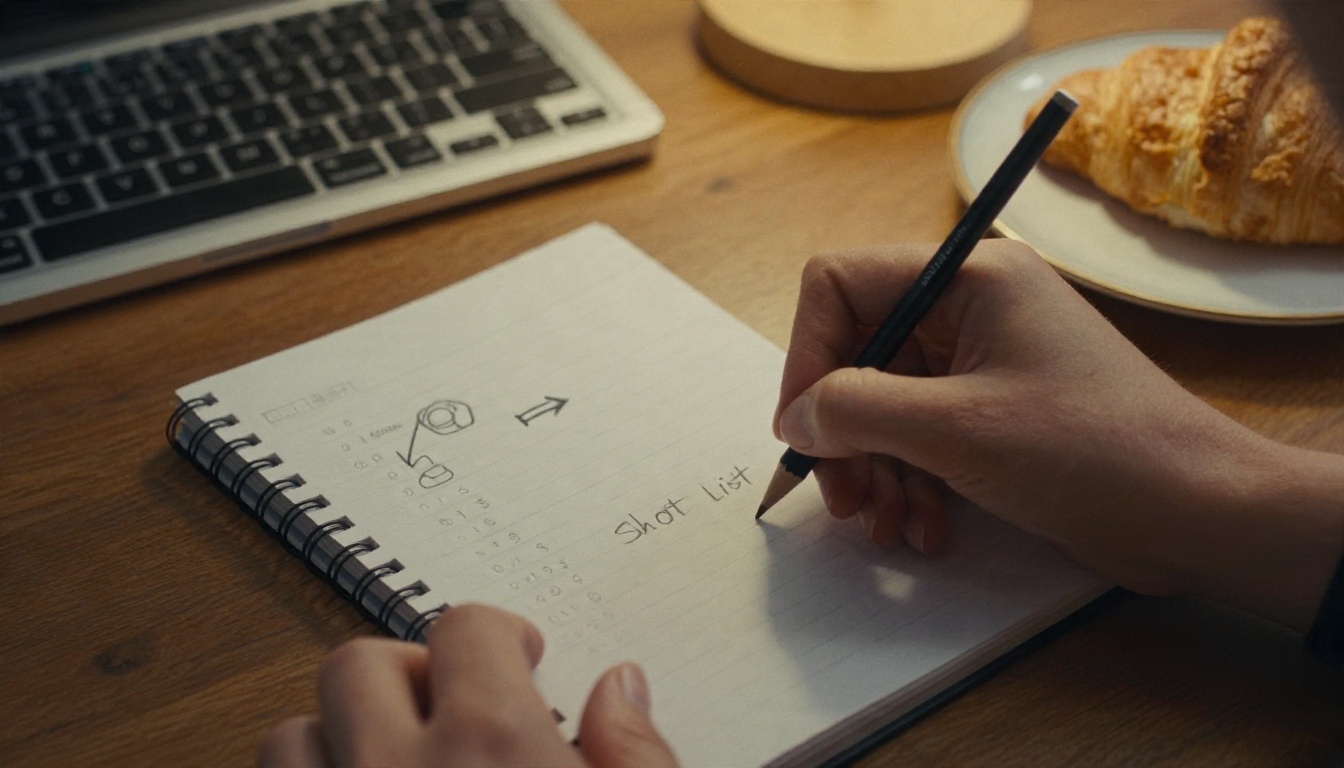
Describe Motion, Not Just Looks
The still already holds the look. The prompt should describe what moves. Name the subject, then the motion, then the camera. "The model turns her head toward the window, the curtain lifts in a slow breeze, the camera pushes in gently" beats a long list of adjectives every time.
Keep Movement Slow
Slow motion hides a lot of artifacts. Words like gentle, slow, drifting, subtle and steady keep faces stable and fabric believable. Avoid running, spinning, dancing fast and anything with complex hand actions.
Anchor the Light
Lighting words make clips look photographic instead of synthetic: soft window light from the left, golden hour rim light, overcast daylight, warm lamp glow. Pair them with a lens cue such as 85mm shallow depth of field and a grain cue such as film grain for the cinematic feel.
Common Prompt Mistakes
- Asking for too many actions in a single 5 second clip.
- Mixing contradictory lighting, such as "golden hour" and "studio flash."
- Putting readable text or logos in the scene.
- Switching outfits between clips instead of reusing the same start frame.
Stitching Clips Into a Longer Video
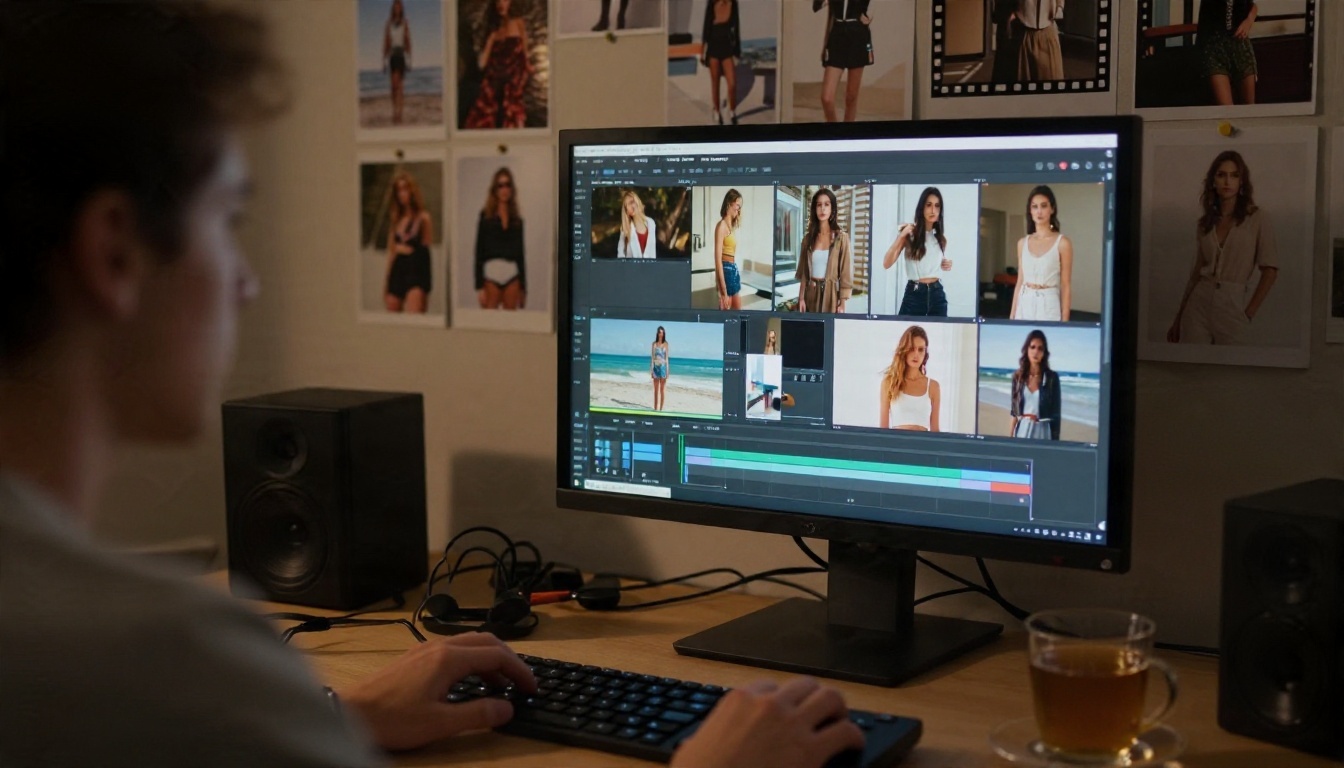
If your tool caps you at 5 or 10 seconds, the trick is to build a sequence rather than fight the limit. Real fashion films are cut from short shots anyway. A 30 second piece usually holds six to eight cuts.
A simple structure:
- Establishing shot: wide beach or pool with the model small in frame.
- Medium shot: the subject walking or turning.
- Detail shot: fabric, water on skin, sunglasses, a hand on a curtain.
- Close-up: a face with a gentle expression.
- Closing shot: slow pull-back or a look toward the horizon.
Generate each shot from its own matching still so the wardrobe and face stay consistent, then assemble them in any editor. A cut hides drift far better than a single stretched clip. If you need audio, models like Grok Imagine Video 1.5 and Seedance 2.0 include sound, and you can also add music or voice in a separate step.
💡 Editing tip: match motion direction across cuts. If the model walks left to right in shot two, keep that direction in shot three.
Try It Yourself

The gap between a frustrating free tool and a useful one is mostly workflow. Build a strong still, animate it in short beats, keep the motion slow, and stitch the shots when you need length. You can do all of it for free on PicassoIA, where the glamour-friendly models sit side by side.
Here is a five minute experiment. Generate one hero frame in Seedream 4.5, polish it in Image Editor Pro, and animate it in Seedance 2.5 Lite. Compare a 5 second clip with a 10 second one and see which feels right for your project.
When you want more options, browse the full catalog at picassoia.com/en/all-models. Pick a model, write one clear sentence, and see what your first clip looks like.


