You type a sentence, wait a minute, and a moving clip appears: a dog on a beach, a street in the rain, a product spinning on a table. That is what an AI video app does, and in 2027 there are dozens of them. The hard part is no longer finding one. The hard part is finding one that is actually free, produces something you would post, and does not stamp a watermark over the result.
So here is a straight answer to what AI app makes videos, which ones cost nothing, what the free versions hold back, and which prompts get you usable footage on the first or second try.
The Short Answer
Almost every major AI lab now ships a video generator, and most of them offer some kind of free entry point. The catch is that "free" usually means one of four restrictions: a small pool of credits, short clips, low resolution, or a visible watermark. Sometimes it means all four at once.

Apps vs. Models
People say "app" and "model" as if they were the same thing, but the difference helps you choose. A model is the engine that creates the pixels, such as Veo, Kling, Sora, Wan or Seedance. An app is the front end where you type the prompt, press a button and download the file. Some apps use one engine only. Others, like PicassoIA, put many engines in one place so you can switch when a result is not what you wanted.
That matters because no single engine wins every scene. One is better with faces, another with camera motion, another with speed. Having several under one login saves you from opening six accounts and burning six free trials.
The Best Free Pick Right Now
If your priority is making clips without watching a credit counter, look at the models built for unlimited use. PicassoIA Video is described as a free, unlimited generator that works from text or from an image. Seedance 2.5 Lite is listed as free and unlimited with clips up to 10 seconds. Those two are the easiest place to start if you just want to try prompts and see what happens.
💡 Quick rule: use a free unlimited model to draft and experiment, then move to a premium model only for the one clip that needs top quality.
Free Options Worth Trying
Here is how the landscape looks, based on what the major tools publicly offered at the time of writing. Treat every number as a snapshot, because these plans change often and the vendors adjust them without much warning.
Free Tiers From the Big Names
- Kling: the free plan has been reported to refill around 66 credits per day, which works out to a handful of short clips depending on the quality setting. Reports disagree on whether the free output carries a watermark.
- Runway: new accounts have been reported to receive a one-time pool of around 125 credits, and free exports are normally watermarked. Once the pool is gone, you pay.
- Dreamina from CapCut: daily credits have been reported for some regions, with the amount varying by country.
- Pika: a small monthly credit pool at 480p has been reported.
- InVideo AI: a weekly cap of a few exports at 720p with a watermark.
- Kapwing: free exports at 720p with a watermark that only a paid plan removes.
- Google's Veo family: free access exists through some Google tools, but it depends on region, account type and demand.
The pattern is clear. A daily refill is friendlier than a one-time pool, because a one-time pool disappears after a single afternoon of testing.
Free and Unlimited on PicassoIA
The second route is a platform with several engines, some of which are free to run without a counter. On PicassoIA you can try Seedance 2.5 Lite and PicassoIA Video for open-ended experimenting, then switch to premium engines such as Veo 3.1 Fast, Kling v3 Video or Sora 2 when a clip deserves it.

The Real Limits of Free Plans
Free is rarely "free forever with no strings." Knowing the four limits ahead of time keeps you from being surprised halfway through a project.

Credits and Queues
Credits are the most common brake. A single clip can cost anywhere from a few credits to dozens, depending on the model, the length and the resolution. Free users also wait longer. During busy hours a clip that takes 40 seconds for a paying user may sit in a queue for several minutes on a free account.
What to do: draft at the lowest cost setting, and only spend credits on a render when the prompt is already working.
Clip Length
Most generators produce between 4 and 10 seconds per clip. That is fine for a social post, a product loop or a B roll shot, but not for a story with a beginning and an end. Longer scenes are built by stitching several clips together, and the trick is keeping the same character, lighting and setting across each one.
Some models stretch further. Seedance 2.5 is described as capable of clips up to 30 seconds, which changes what you can do without editing.
Resolution and Watermarks
Free tiers lean on 480p or 720p. That is perfectly readable on a phone, but it looks soft on a large monitor. Watermarks are the other tax: a logo in the corner is fine for testing and unacceptable for a client or a brand account.
| Limit | What free plans often do | Workaround |
|---|
| Credits | Small daily or one-time pool | Use an unlimited model for drafts |
| Clip length | 4 to 10 seconds | Stitch clips with a shared first frame |
| Resolution | 480p to 720p | Upscale the final clip afterward |
| Watermark | Logo in the corner | Pick a tool that exports clean files |
| Commercial use | Often restricted | Read the terms before publishing |
💡 Check before you publish: license terms for free outputs differ from app to app. If the clip is going into an ad, confirm commercial rights first.
Prompt Examples That Work
A good prompt is the cheapest upgrade you can make. The same engine gives very different results depending on whether you wrote "a girl walking" or a proper scene description.
The Four Part Formula
Write your prompt in this order:
- Subject and starting pose: who or what is in the frame at second zero.
- Action over time: what moves, in what order.
- Camera movement: slow dolly in, handheld follow, static wide, gentle pan.
- Light and mood: golden hour, overcast, window light, dusk.
Keep it to two or three sentences. Long walls of text confuse most engines, and extra adjectives rarely help.
Six Prompts to Copy
Nature: A red fox stands at the edge of a snowy pine forest at dawn, then trots forward and pauses to look at the camera. Slow dolly in at ground level, soft pink light, breath visible in the cold air.
Product: A glass bottle of olive oil sits on a rustic wooden table beside fresh basil. Golden oil slowly pours into a small bowl. Static macro shot, warm side light, shallow depth of field.
Food: Hands knead soft dough on a floured counter, then lift it and fold it over. Overhead camera, bright kitchen window light, flour dust drifting in the air.
City: A woman in a yellow raincoat crosses a wet crosswalk as a bus passes behind her. Handheld camera follows from the side, overcast light, reflections on the asphalt.
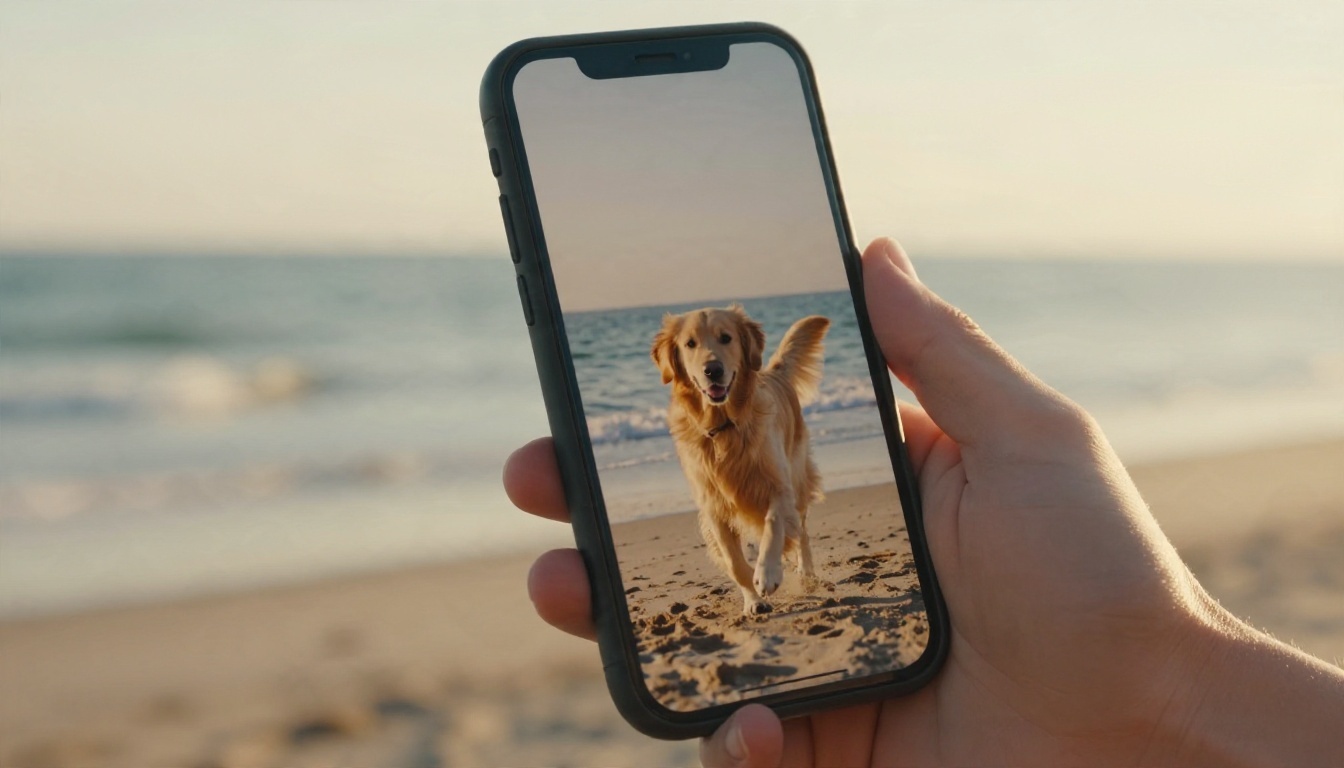
Travel: Waves roll onto a empty beach at sunset while a dog runs along the waterline. Low angle tracking shot, warm backlight, spray catching the light.
Portrait: A man in his fifties laughs quietly while pouring coffee in a sunlit kitchen, then looks out the window. Medium close up, slow push in, soft morning light.
Image to Video Prompts
When you start from a photo, do not describe what is already in the picture. Describe only what should move. For example: The curtains sway gently, steam rises from the cup, and the camera drifts a few centimeters to the right. Models such as Wan 2.7 I2V are built for this, and they stay closer to the original image because the first frame is already fixed.
💡 Pro tip: generate your starting still with Nano Banana Pro or Seedream 4.5, then animate it. You control the look of the first frame, which is the hardest thing to control from text alone.
How to Make Your First Video
You can go from nothing to a finished clip in under ten minutes. Here is the simple route on PicassoIA.

Text to Video in Five Steps
- Open the text to video collection and choose a model. For a first try, pick PicassoIA Video or Seedance 2.5 Lite.
- Paste one of the prompts above, or write your own using the four part formula.
- Set the length to the shortest option for your first test. Short clips render faster and cost less.
- Generate, then watch the result twice. First for the overall feel, then for glitches in hands, faces and text.
- Change one thing at a time in the prompt and run it again. Changing three things at once makes it impossible to tell which one helped.
Image to Video When Text Fails
If you cannot get the exact composition from words, build the first frame as an image, then upload it to an image to video model. Wan 2.7 I2V and Hailuo 02 are both good for this, and Veo 3.1 Fast adds sound when you need it.
Common Mistakes That Waste Credits
Asking for Too Much in One Clip
"A man runs through a market, buys fruit, argues with a seller and drives away on a motorbike" is four scenes. A five second engine will give you mush. Split it into four prompts and edit them together.
Writing Text Inside the Video
Signs, subtitles and logos still come out garbled in many models. If you need words on screen, add them afterward in an editor. Better still, leave the signs out of the scene.
Ignoring Hands and Faces
Close ups of hands and wide shots with many faces are where artifacts appear first. Frame the shot at medium distance, or keep hands out of the picture when the detail does not matter.
Judging From the Thumbnail
A clip can look perfect in a thumbnail and fall apart in motion. Play it at full size, watch the edges of the frame, and check whether the object at the start is the same one at the end.
Skipping the Reference Image
Characters drift between clips when you rely on words alone. A reference image keeps clothing, hair and setting consistent from one shot to the next.
Which App for Which Job
Your best choice depends on what you are making, not on which name is trending.
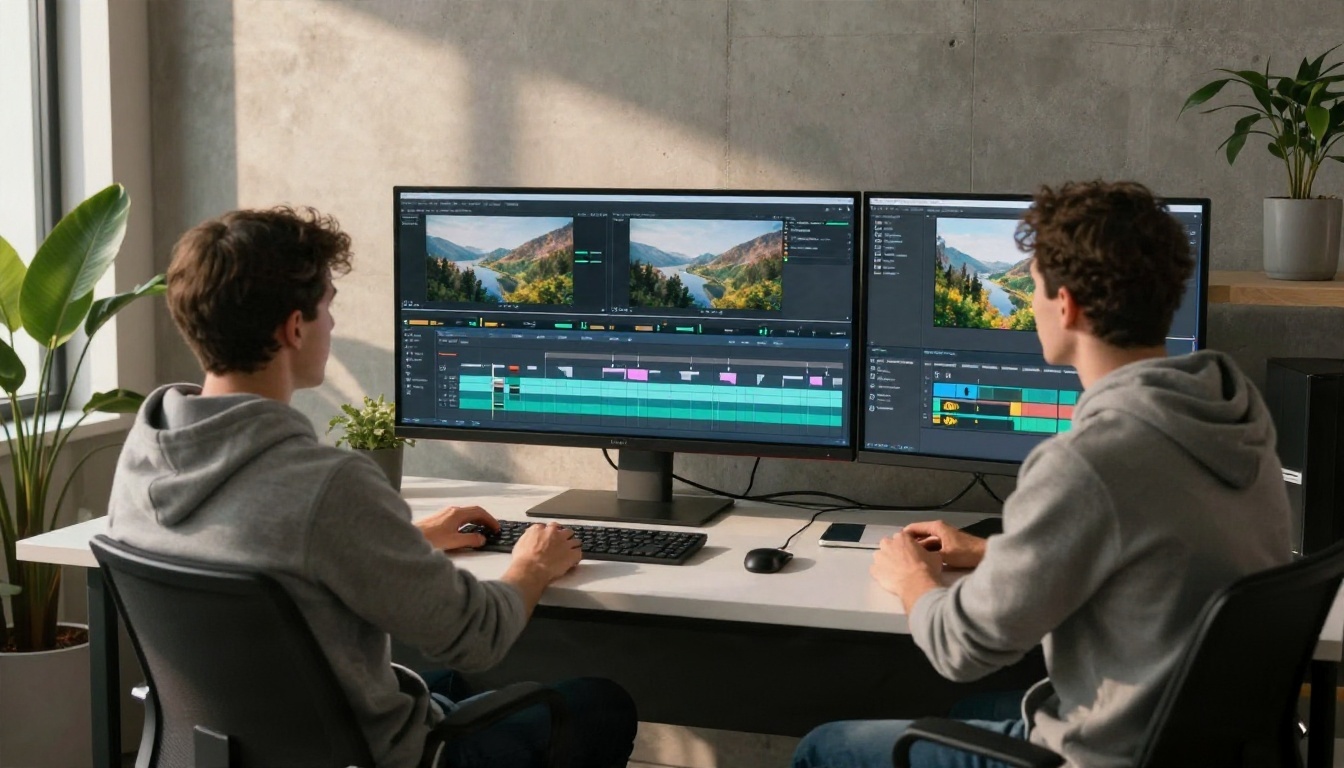
For a small shop, a creator or a team of one, a sensible workflow is a free model for ten or twenty drafts, one premium model for the final render, and a quick edit to add text and music. That keeps cost close to zero and still gives you a result that looks deliberate.
Make Your Own Videos Today
The honest answer to "what AI app makes videos" is that several do, and the free ones are good enough to test an idea, learn what prompts work and publish short clips. The limits are real, but they are manageable once you know them: draft cheaply, render once, keep clips short, and check the license before a commercial post.

The fastest way to see it for yourself is to try it. Open PicassoIA, pick PicassoIA Video or Seedance 2.5 Lite, paste one of the six prompts above, and press generate. Then change the camera move, swap the lighting, or start from your own photo. Every run teaches you something about how the engine reads your words. When you want to compare engines side by side, browse the full list at picassoia.com/en/all-models and run the same prompt through three of them. You will quickly see which one fits your style.


