You open a new AI app, type a few messages, and the first picture that comes back is blurred behind a padlock. That is the moment most people start searching for a Yume AI review, and it is exactly the question this article answers: what do you get for free, what does the paid plan cost, are the results any good, and is there something better for the same money or less?
I checked directory listings and comparison pages for Yume AI before writing this. Public information is thin, and some of the "review" pages out there are written to push a competing product. So I have separated what is reported from what I could not confirm, and I have flagged every number that you should verify on the official site before paying.
💡 Quick answer: Yume AI is described as a chat and image app with a limited free tier and a low-priced paid plan. If your main goal is high-quality photorealistic images and video without per-message caps, a dedicated generator on PicassoIA is the better fit. Details and links are below.
What Yume AI Actually Is

Yume AI is a consumer app built around conversation and generated pictures. Directory listings place it in the AI companion and character chat category, where you talk to a persona and the app produces images that match the scene. The name comes from the Japanese word for "dream," and the branding leans into that soft, romantic, anime-adjacent mood.
What Listings Say
Three things come up repeatedly across the pages I found:
- A free plan with basic features and restrictions
- Generated images that are blurred or locked until you upgrade
- Standard response times on the free tier, with priority handling on paid tiers
Nothing I found describes a public API, an open model, or a published technical report. Treat Yume AI as a closed app, not a model you can run or build on.
Who It Fits
Yume AI makes sense if you want a chat-first experience where pictures are a side effect of the conversation. It makes much less sense if you need controlled output: a specific outfit, a specific camera angle, a specific lighting setup, or a consistent look across twenty images. Chat apps decide the image for you. Image generators let you decide.
Yume AI Pricing Breakdown

Pricing is where the information gets shaky, so here is how I would read it.
| Plan | Reported price | What it reportedly includes |
|---|
| Free | $0 | Basic features, restricted use, blurred images, standard speed |
| Entry paid | From about $7 per month | Unlocked basics, higher limits |
| Premium | About $10 per month | Priority support and faster handling |
⚠️ These figures come from third-party directory listings, and the same listings tell you to check the vendor's site because prices and limits change. I could not confirm the official numbers, so please verify them before you enter a card.
Free Tier
The free tier works as a trial. You can open the app, chat, and see what the experience feels like. What you cannot do, according to the listings, is freely view or download every generated image. One comparison site calls the free plan a "trial," while a directory calls it a "$0 tier." Both can be true: a free plan that behaves like a trial.
Paid Plans
At roughly seven to ten dollars a month, the paid plans sit at the cheap end of the market. Cheap is not the same as good value, though. The questions that matter are:
- Is the monthly image count capped?
- Do images expire or get removed?
- Can you download in full resolution?
- Does the price rise after the first month?
Hidden Costs To Check
Subscription apps in this space often add costs outside the headline price. Look for:
- Credit packs sold on top of the subscription
- Annual billing presented as the default
- Renewal prices that differ from the intro price
- Content restrictions that change by plan
Screenshot the pricing page on the day you sign up. If the terms change later, you will have proof of what you agreed to.
Free Limits In Practice
I could not find a published number for daily messages or monthly images on the free tier. That absence is itself information. When a company hides the cap, it usually wants you to find it by hitting it.
Blurred Images
The most consistent complaint across listings is the blur. You request an image, the app generates it, and then you are asked to pay to see it clearly. For casual users this is annoying. For anyone trying to evaluate quality before paying, it is a real problem, because you are judging a product you cannot fully see.
Response Speed
Free users reportedly get standard response times, and paying users get priority. In practice that means waiting in a queue at busy hours. A few seconds does not matter for chat, but if you are generating ten variations of one scene, those waits stack up fast.
💡 Test before you pay: open the free tier at a busy hour, such as a weekday evening, and time how long one image takes. If it takes minutes, the paid plan's "priority" matters more than the price suggests.
Image Examples And Quality
Because the free output is gated, public examples mostly come from users and listing pages. What they show is a recognizable pattern: smooth, stylized portraits, soft lighting, and a consistent romantic mood. The look is attractive, but it is also generic. If you generate fifty images, you will recognize the same facial structure and the same glow in all of them.
Portraits
Portraits are the app's strongest category, since the whole product is built around characters. Faces are clean, and skin is usually smooth to the point of looking airbrushed. That is a style choice, not a flaw, but it means you will not get the pores, flyaway hairs and fabric weave that make a picture read as a real photograph.
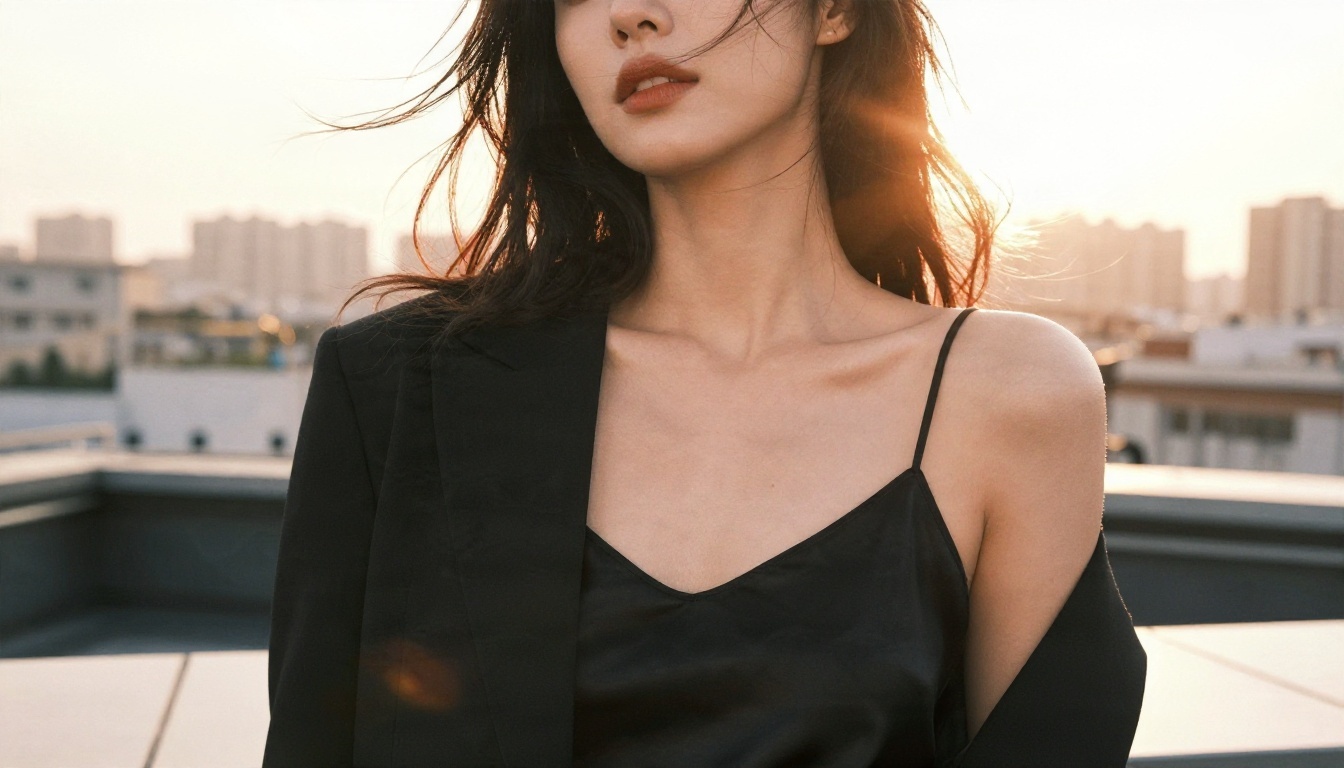
The image above is the kind of detail you can steer on purpose with a prompt-driven generator: silk sheen, rim light from the sun, visible skin texture, a believable skyline. A chat app rarely lets you ask for that level of control.
Scenes And Motion
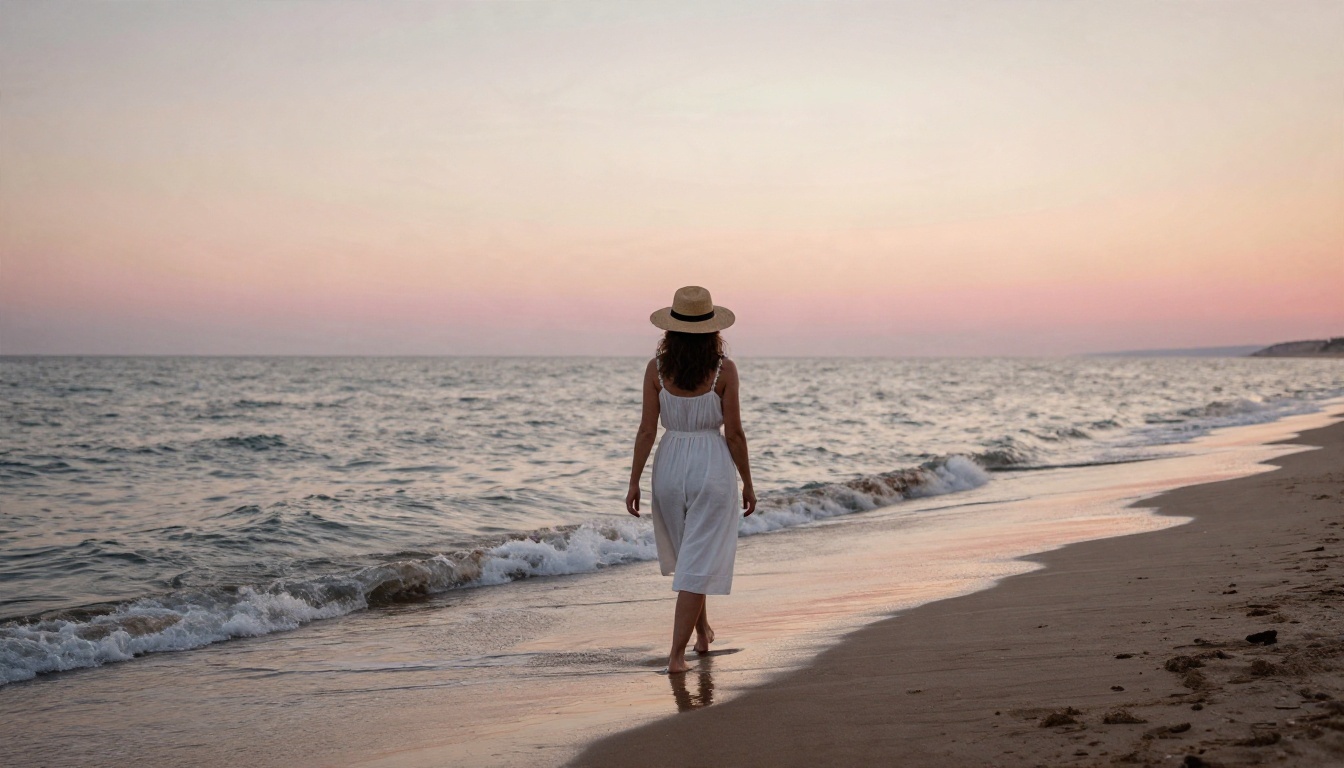
Full scenes, such as a character on a beach or in a city, are hit and miss. Hands, backgrounds and secondary objects tend to get less attention than the face. And there is no sign of a proper video generator in anything I found. If you want a five-second clip of a scene like the one below, you need a dedicated text-to-video or image-to-video model.
Where Yume AI Falls Short
After going through everything available, these are the weak points:
- Opaque limits. No clear free-tier numbers.
- Locked previews. You pay before you can judge quality.
- Little control. Chat decides composition, camera and lighting.
- No editing tools. No inpainting, outpainting, background removal or upscaling that I could find.
- No video. Nothing suggests real video generation.
- Closed ecosystem. No API or model access.
None of this makes the app bad. It makes it narrow. If you want conversation first and pictures second, the tradeoffs may be fine. If you came for images, you are paying for the wrong half of the product.
Best Yume AI Alternatives
Yume AI is not on PicassoIA, and I am not going to pretend otherwise. For similar results today, these are the models I would try, in this order.
| Model | Best for | Why it beats a chat app |
|---|
| Seedream 4.5 | Photorealistic portraits and glamour scenes | Sharp 4K output, strong skin and fabric detail |
| PicassoIA Image Editor Pro | Unlimited generations and edits | No per-image paywall, fast iteration |
| Nano Banana Pro | Precise edits and consistent characters | Strong instruction following |
| Wan 3 | Cinematic video | Real motion from text prompts |
Seedream 4.5
Seedream 4.5 is my first pick for anyone who wants people, fashion and glamour imagery that looks like a real photograph. It handles skin texture, hair and fabric well, and it follows long, detailed prompts without drifting. You can describe the lens, the light and the pose, and it respects them. For suggestive but tasteful content, such as swimwear, evening wear and boudoir-style editorials, it gives you the aesthetic control a companion app does not.
PicassoIA Image Editor Pro
PicassoIA Image Editor Pro is the practical answer to the blurred-image problem. Generations are unlimited, so you can iterate as many times as it takes to get one image right without watching a counter. It is also fast, which matters when you are testing ten variations of the same idea. Use it for retouching, outfit changes, background swaps and cleanup after a first draft from Seedream.
Nano Banana Pro
Nano Banana Pro is the one to pick when you already have an image and want to change a specific thing in it. It is also useful for keeping a character looking the same across several scenes, which is the one thing companion apps do well and generators often do badly. If you need lighter and cheaper runs, Nano Banana 2 Lite is a quick option.
Wan 3 For Video
Wan 3 creates cinematic clips from text, which is the gap Yume AI leaves open. For higher resolution output, Wan 3 Prime goes up to 1080p. If you want speed, LTX 2.5 Fast returns clips in seconds.
💡 Workflow that works: draft the still in Seedream 4.5, refine it in Image Editor Pro, then animate the final frame with Wan 3.
How to Get Similar Results on PicassoIA

Here is how to reproduce the polished portrait look people want from Yume AI, with far more control, using Seedream 4.5.
Step By Step
- Open the Seedream 4.5 page on PicassoIA.
- Write your prompt in this order: subject and pose, setting, lighting, camera and lens, texture details.
- Choose a 16:9 ratio for wide scenes or a portrait ratio for character shots.
- Generate a first batch and pick the closest result.
- Send that image to PicassoIA Image Editor Pro to fix outfit, background or small details.
- Optional: use the final still as the first frame in Wan 3 to add motion.
Prompt Tips
A short example you can copy and change:
A woman in a black silk camisole and tailored blazer on a rooftop terrace at golden hour, warm backlight on her shoulders, city skyline softly blurred, 85mm lens at f/1.8, visible skin texture, Kodak Portra 400 film grain.
Why this works:
- Lens and aperture control background blur and facial focus.
- Light direction gives the image depth and mood.
- Material words like silk, wool or linen push the model toward real texture.
- Film stock references add grain and natural color.
And a few mistakes to avoid:
| Mistake | Better approach |
|---|
| Vague prompts like "pretty woman" | Describe pose, light and lens |
| Asking for text inside the image | Add text afterward in an editor |
| Rewriting everything each time | Change one detail per run |
| Chasing perfection in one try | Generate a batch, then refine |
A Note On Content
PicassoIA models are built for tasteful, non-explicit imagery: glamour, swimwear, fashion and artistic portraits. Seedream 4.5 and Image Editor Pro give you the freedom to work in that space without the constant blur gate, so you can focus on aesthetics rather than on what the app will let you see.
The Verdict On Yume AI

Here is the short version, scored on what matters to someone who wants images.
| Category | Yume AI | Seedream 4.5 plus Image Editor Pro |
|---|
| Free limits | Unclear, restricted | Clear controls, unlimited generations in Image Editor Pro |
| Image visibility | Reported blur on free | Full view of every result |
| Photorealism | Stylized, smooth | Detailed skin, fabric, lighting |
| Prompt control | Low | High |
| Editing tools | Not found | Built in |
| Video | Not found | Available through Wan 3 and others |
| Price transparency | Third-party listings only | Published on the platform |
Choose Yume AI if you want a casual chat companion and you are comfortable with its limits. Choose a PicassoIA workflow if you care about how the image looks, how fast you can iterate, and whether you can actually see what you generate.
If you are still unsure, the cheapest test is also the most useful: write one detailed prompt, run it in both places, and compare what comes back.
Try It Yourself Today
You do not need a subscription decision to find out which approach suits you. Open Seedream 4.5, paste the rooftop prompt above, and see what a controlled photorealistic generator does with it. Then take the result into PicassoIA Image Editor Pro and change the outfit, the sky or the framing as many times as you like.
When you are ready to try other tools, browse the full catalog at picassoia.com/en/all-models, where image, video, upscaling and editing models sit side by side. Make your own images, run your own comparison, and let the results decide.


