A few years ago, turning an idea into a 3D model meant weeks of learning Blender, ZBrush or Maya. Today you can type a sentence or upload one photo and get a textured mesh back in a couple of minutes. That sounds almost too good, and it partly is. 3D modeling AI is fast and surprisingly capable, but free tiers are small, pricing is built on credits that vanish quickly, and the meshes still need cleanup before they are ready for a game engine or a printer.
This article sorts the real options from the hype. You will see what is truly free, what runs in a browser, what the plans cost in practice, where the technology breaks, and how to run your first generation on PicassoIA without installing anything.
💡 Quick take: For one-off models, a free online generator is enough. For regular production work, budget for a paid plan, and plan an hour of cleanup per model that matters.

What 3D Modeling AI Actually Does
Classic 3D modeling is manual. You push vertices, extrude faces, unwrap UVs and paint textures. AI tools skip most of that by predicting a full 3D shape from limited input, then generating surface color and sometimes physically based materials on top.
Two input styles dominate the market, and picking the right one saves a lot of credits.
Text to 3D
You describe an object in words and the model invents it. This is great for brainstorming: "weathered bronze lantern with a cracked glass panel" can produce several usable directions in minutes. The weakness is control. Text is vague about proportions, so the result often looks right from the front and odd from the sides.
Image to 3D
You upload a single photo or illustration and the model reconstructs the object. Because the shape is anchored to a picture, image to 3D is more predictable than text. Most professionals prefer it for exactly that reason, and many generate a clean reference picture first with an image model, then convert it.
| Input type | Best for | Main risk |
|---|
| Text prompt | Concept exploration, props, quick ideas | Odd proportions, invented details |
| Single image | Products, characters, matching a design | Guessed back side, baked-in shadows |
| Image plus geometry only mode | Printing, manual texturing | You paint the surface yourself |
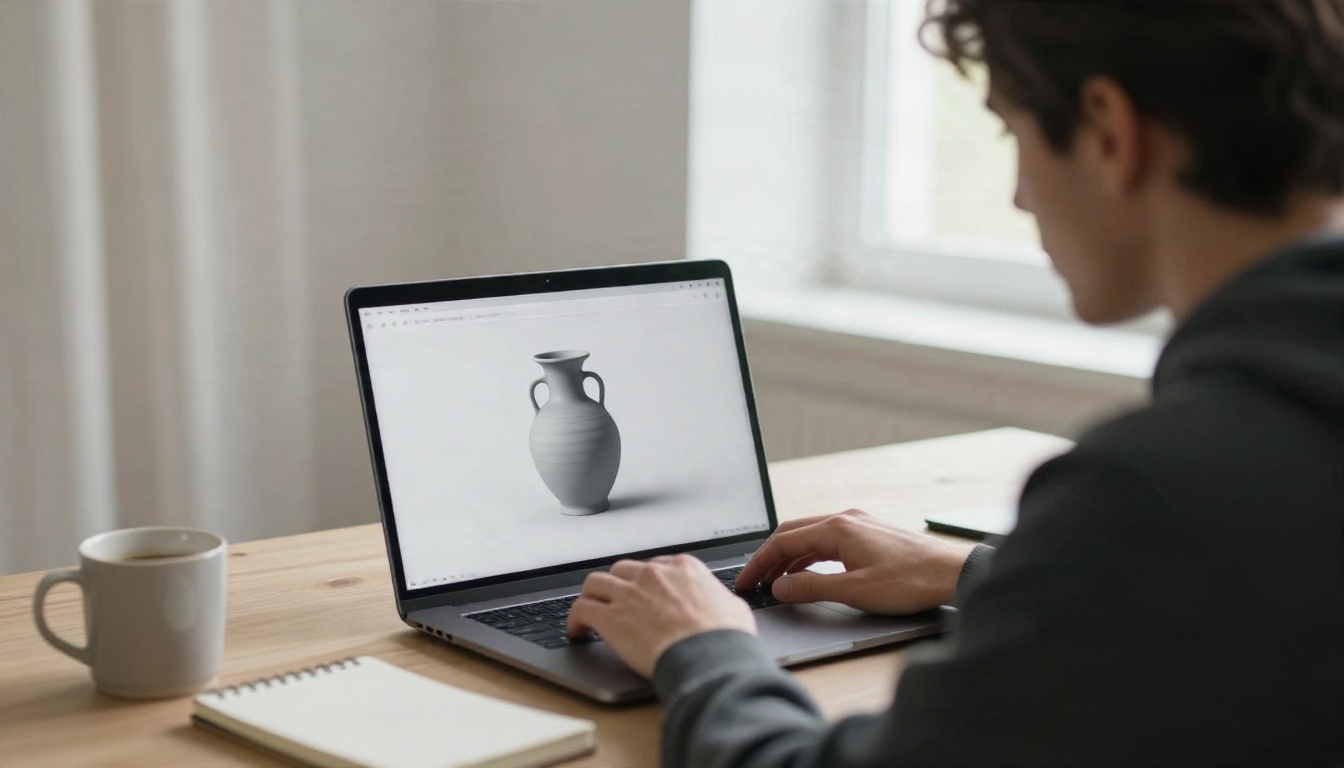
"Free" means three different things in this market, and mixing them up is how people end up with surprise bills or locked downloads.
Open-source models
The only truly unlimited option is an open-weights model you run yourself. Tencent's Hunyuan3D family is the best known example. There is no per-model fee, but you need a capable GPU, a working Python environment and patience with installation errors. For most people, the time cost is higher than a subscription would be.
If you want the same engine without the setup, Hunyuan 3D 3.1 on PicassoIA runs in the browser. You upload an image or type a prompt and get a downloadable model, with no 3D software required.
Free tiers with credit caps
Most commercial platforms give you a monthly pool of free credits. Reported numbers change often and differ between sources, but the pattern is consistent:
- Meshy: roughly 100 free credits a month, with limits on downloads and non-commercial use on the free plan.
- Tripo: a free monthly allowance reported somewhere between 200 and 300 credits, with a small cap on exports and attribution rules for free outputs.
- Aggregator sites: starter packs of around 100 credits that let you try several engines in one panel.
At around 20 credits for a single image to 3D run on some engines, a free pool translates to a handful of models per month, not dozens. Always check the vendor's own pricing page before committing, because these tiers shift every few months.
💡 Rule of thumb: If a free plan hides downloads, restricts commercial use or forces attribution, treat it as a trial, not a free tool.
Online Options Compared
You do not need a workstation for any of this. Every major service runs in a browser and handles the heavy compute on remote GPUs.
Browser generators
Browser tools suit anyone who wants a quick mesh without managing files. You pick a mode, upload a picture or type text, wait one to three minutes and download a GLB, OBJ or FBX file. The differences between services come down to mesh quality, texture sharpness, export formats and how many credits each attempt costs.
Aggregators and APIs
Aggregator platforms put several 3D engines behind one login so you can compare outputs from the same input. APIs go a step further and let developers plug generation into apps, product configurators or game pipelines. If you generate more than a few dozen models a month, an API or aggregator usually gives better value than juggling separate subscriptions.
| Option | Typical setup | Cost pattern | Good fit |
|---|
| Self-hosted open source | Own GPU, command line | Hardware and time | Developers, tinkerers |
| Single-vendor web app | Browser, account | Monthly credits | Occasional creators |
| Aggregator panel | Browser, one login | Shared credit pool | Comparing engines |
| API access | Code integration | Pay per generation | Apps and pipelines |
| PicassoIA 3D models | Browser, no install | Model-based generation | Fast image or text to 3D |
The Real Cost of Pricing Plans
Sticker prices look friendly. A typical entry paid plan sits around twenty dollars a month, and one widely quoted plan lists about $19.90 for roughly 3,000 credits. The trouble starts when you convert credits into finished models.
Credits are not models
Generating a textured model, regenerating after a bad result, adding PBR materials, remeshing and retexturing each burn credits separately. A realistic workflow looks like this:
- Generate a first draft (credits).
- Reject it because the back looks wrong and regenerate (more credits).
- Run a higher-detail or textured pass (more credits).
- Export, clean up, maybe retexture (even more credits).
Plan on three to five attempts per usable asset. A 3,000-credit pool that sounds like 150 models becomes closer to 30 or 40 finished ones.
License fine print
Pricing is only half the story. Check three things before using any output commercially:
- Commercial rights: many free tiers are personal use only.
- Attribution: some free exports require a credit line.
- Ownership of inputs: do not upload other people's artwork or branded products without permission, because the output inherits the problem.
Where AI 3D Still Falls Short
Here is the honest part that most tool roundups skip. The technology is impressive, yet specific weaknesses repeat across every service.
Topology and cleanup
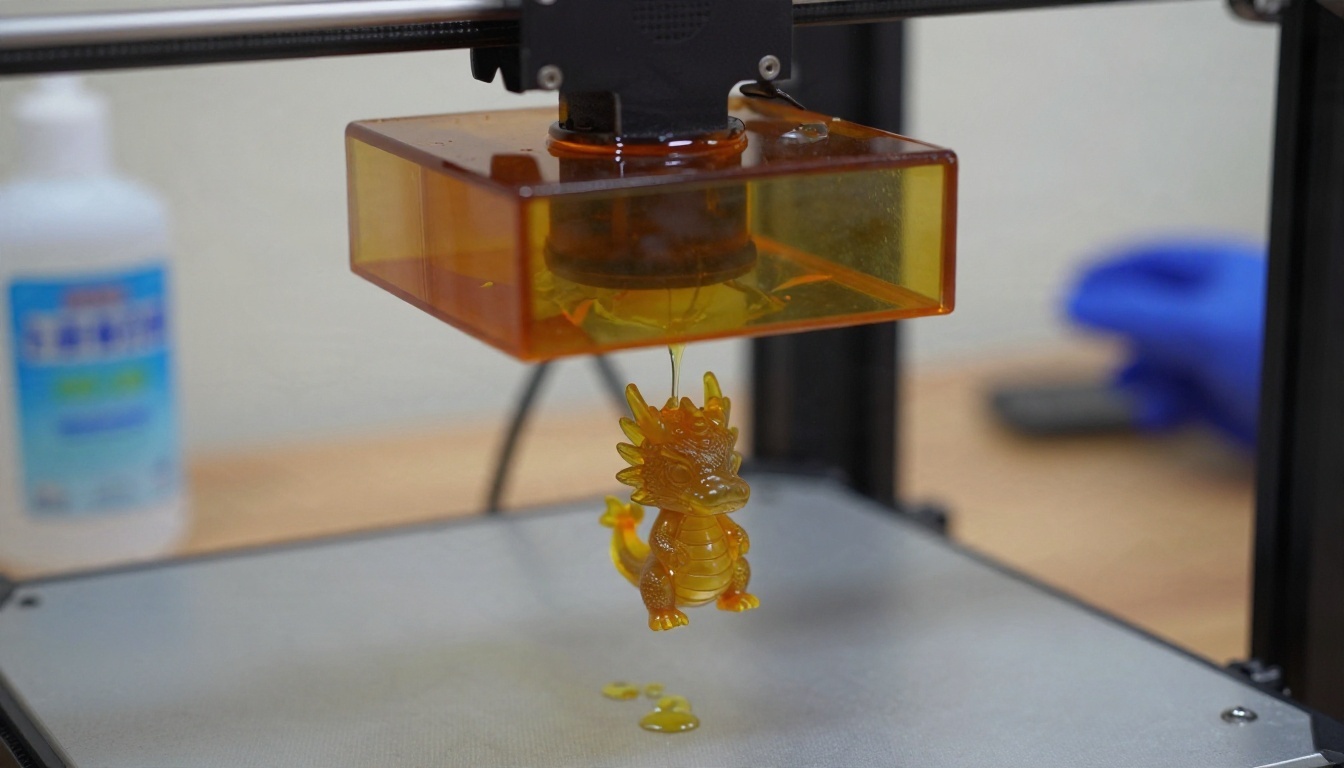
AI meshes are usually dense, triangulated and messy. They have no clean edge loops, so animation rigs deform badly and sculpting tools struggle. For a static prop or a print, this barely matters. For a character that must bend at the elbows, expect a retopology pass.
Hidden backs and thin parts
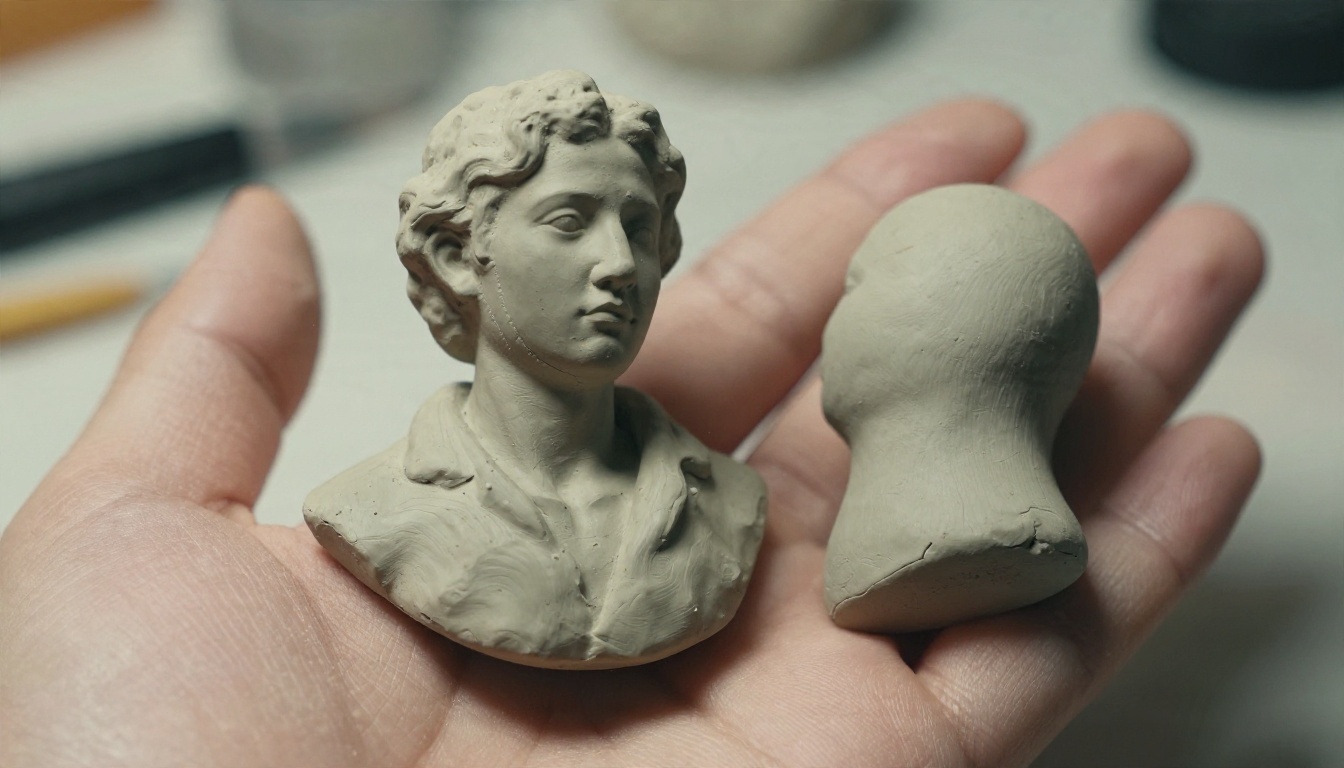
A single photo shows only one side. The model guesses the rest, and the guess is often bland or slightly wrong. Thin elements such as antennas, fingers, cables and handles frequently come out fused, broken or missing. Glass and mirrors are even harder, because reflections confuse depth estimation.
Print readiness
A beautiful viewport render does not guarantee a watertight mesh. Holes, non-manifold edges and floating fragments cause slicer errors. Run the file through a mesh repair step, check wall thickness and scale it to real dimensions before printing.
| Limit | What you see | Practical fix |
|---|
| Messy topology | Lumpy shading, poor rigging | Retopologize or use as static prop |
| Guessed back side | Blurry or generic rear | Use a multi-angle reference or paint it |
| Thin parts | Fused or missing details | Model those parts by hand |
| Baked lighting | Shadows stuck in texture | Photograph on flat, even light |
| Non-watertight mesh | Slicer errors | Mesh repair before printing |
How to Use Hunyuan 3D 3.1 on PicassoIA
Hunyuan 3D 3.1 turns a photo or a text description into a detailed 3D model with full textures. It runs entirely online, so there is nothing to install and no 3D software to buy.
Step by step
- Open the Hunyuan 3D 3.1 model page.
- Choose your input. Provide either an image or a text prompt, never both. The model accepts one or the other.
- If you use an image, upload a JPG, PNG or WEBP file between 128 and 5000 pixels per side, under 6 MB.
- If you use text, describe the object in up to 1024 characters: material, shape, era, wear and finish.
- Pick the generate type: Normal for a textured model, or Geometry for a plain white mesh.
- Set the face count and decide whether to turn on PBR materials.
- Run the generation, rotate the result and download it.
Parameter tips
| Setting | Default | When to change it |
|---|
| Face count | 500,000 | Lower it for web and mobile, keep it high for print or film |
| Enable PBR | Off | Turn on if the model goes into a game engine or renderer |
| Generate type | Normal | Switch to Geometry if you plan to texture by hand |
| Input | Image or prompt | Use an image whenever proportions matter |
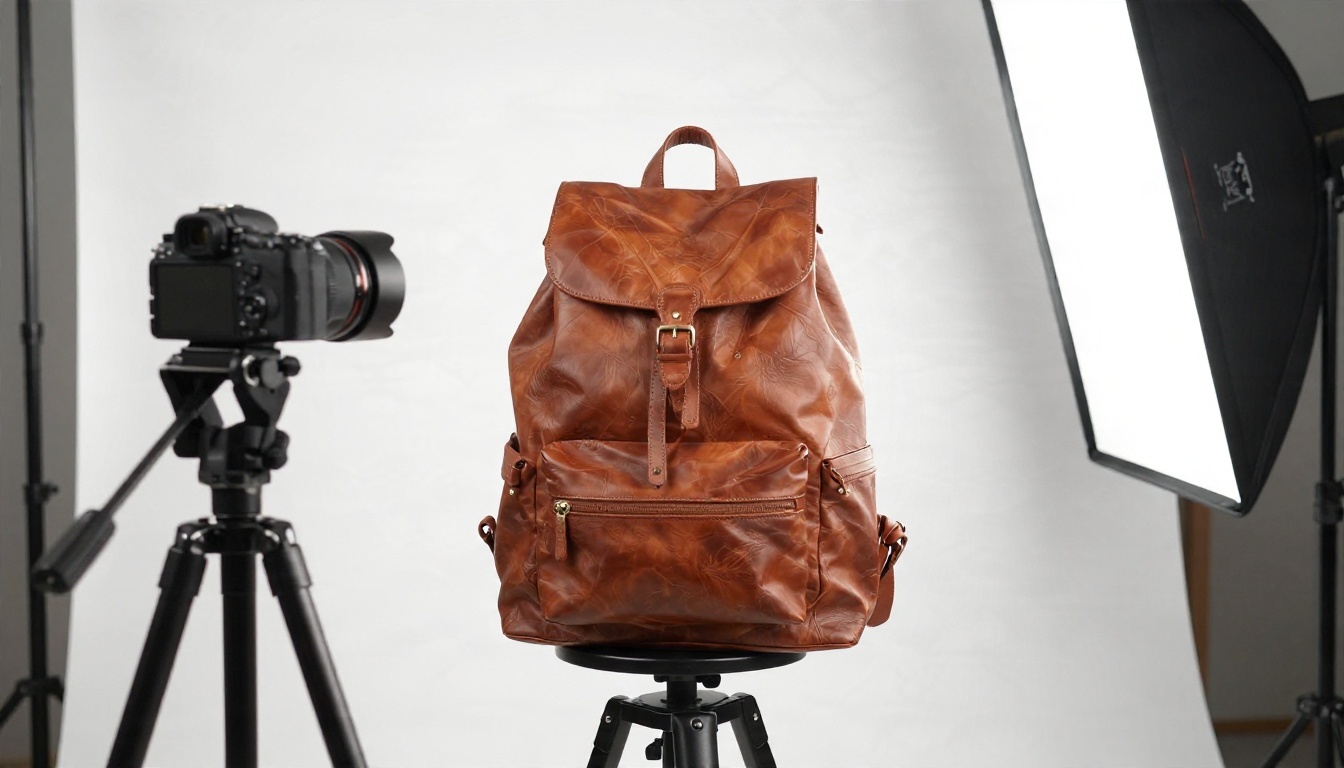
💡 Input checklist: simple background, no text in the picture, a single object, and the object filling more than half of the frame. Following these four points fixes most bad generations before they happen.
Better inputs with image models
The quality of an image to 3D result depends on the picture you feed in. If you do not have a good photo, create one. Seedream 4.5 and Nano Banana Pro both produce clean, well-lit single-object images that make excellent reference pictures. Ask for a neutral three-quarter view, soft even lighting and a plain backdrop. If your source photo has a messy background, run it through Remove Background first so the model sees only the subject.
The best choice depends on what the model is for, not on which service has the longest feature list.
For game assets
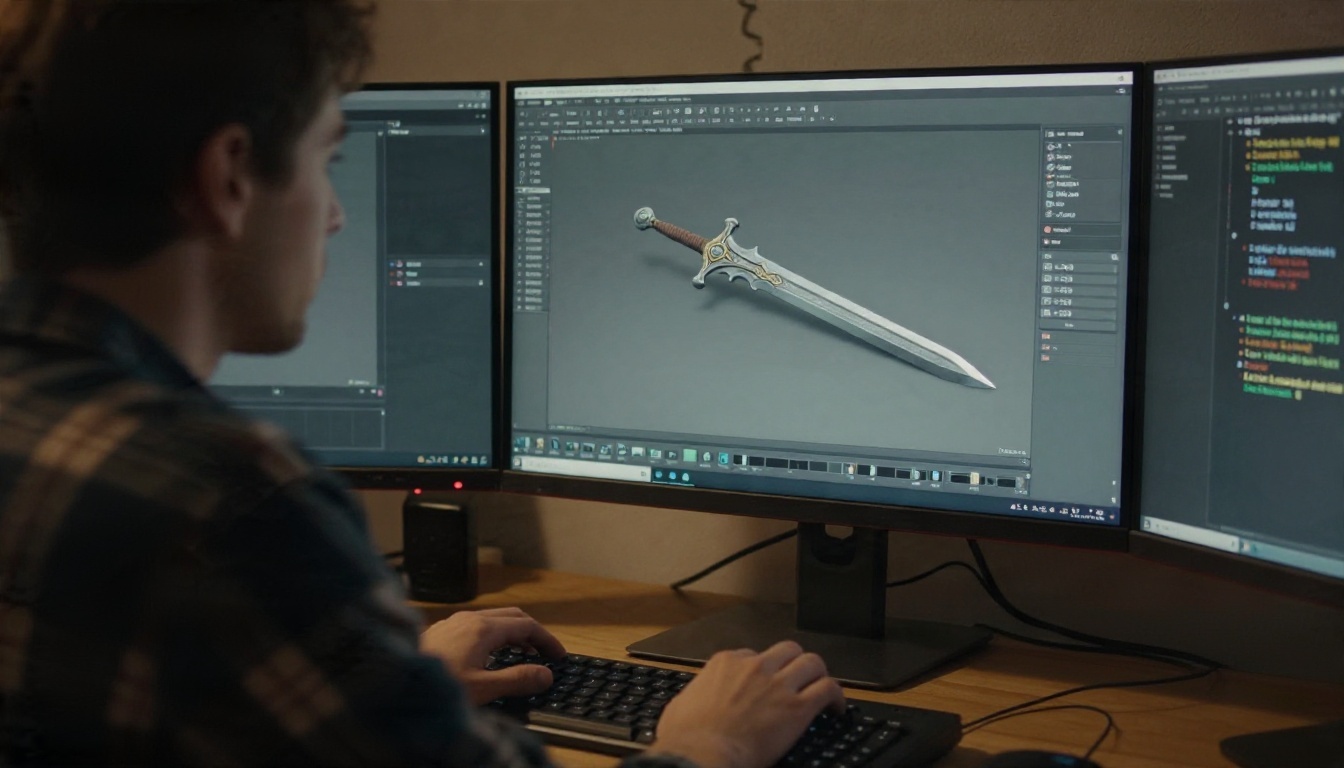
Background props, set dressing and prototypes are the sweet spot. Generate with PBR on, a moderate face count, then decimate and bake in your engine. For animated characters, pair a cleaned mesh with motion from Text To Motion Diffusion v2, which generates 3D character animation from a text description.
For 3D printing
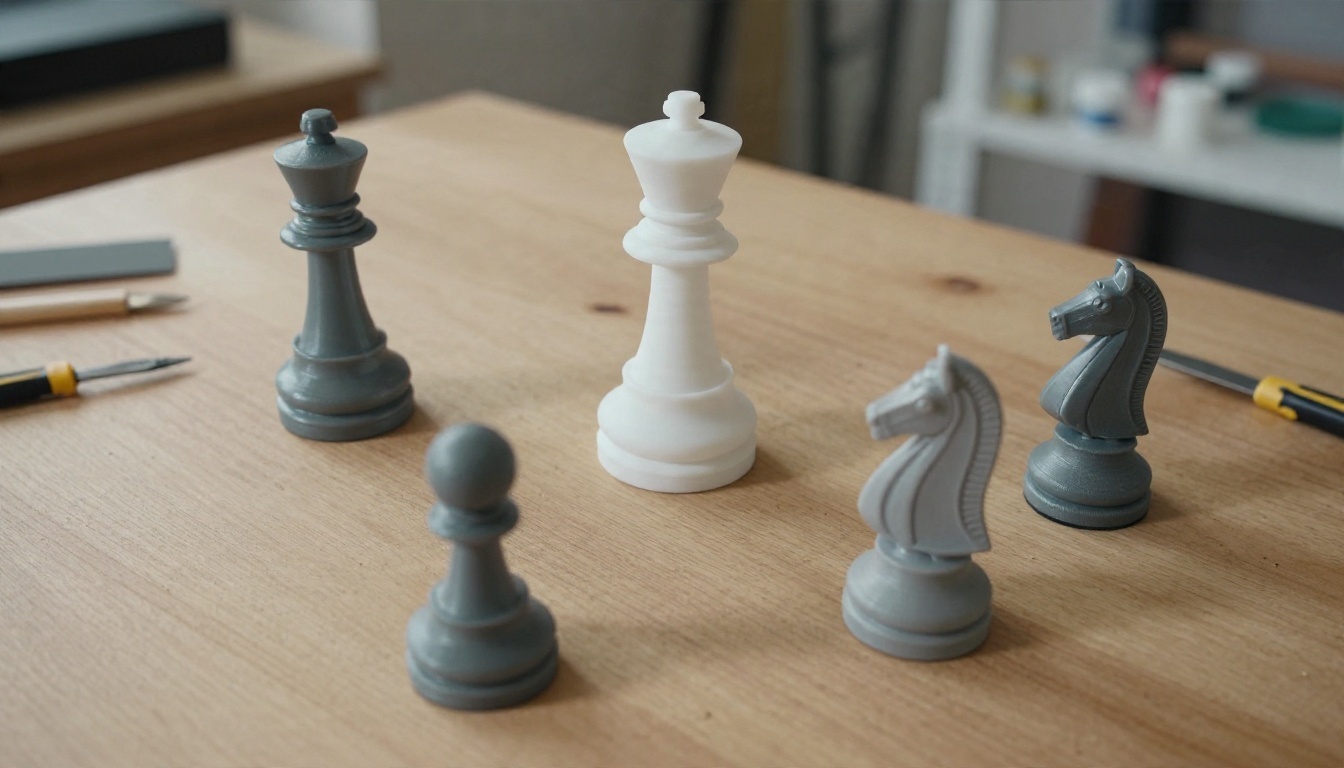
Use geometry only mode or a high face count, then sand and prime the result. Raw prints show layer lines, so budget time for finishing. Painted and sanded pieces look dramatically better than straight-off-the-bed output.
For product visuals
Marketing teams use AI 3D to mock up packaging, gadgets and furniture before any physical sample exists. Accuracy matters less than speed here. A fast generation, a render and a quick edit often replace a week of back-and-forth with a modeler.
Prompt and reference habits that save credits
Whatever you pick, a few habits cut wasted attempts:
- Describe material and finish: "brushed steel", "matte ceramic", "worn leather".
- Mention the viewing angle for image inputs: three-quarter view works best.
- Keep one object per image. Groups confuse the reconstruction.
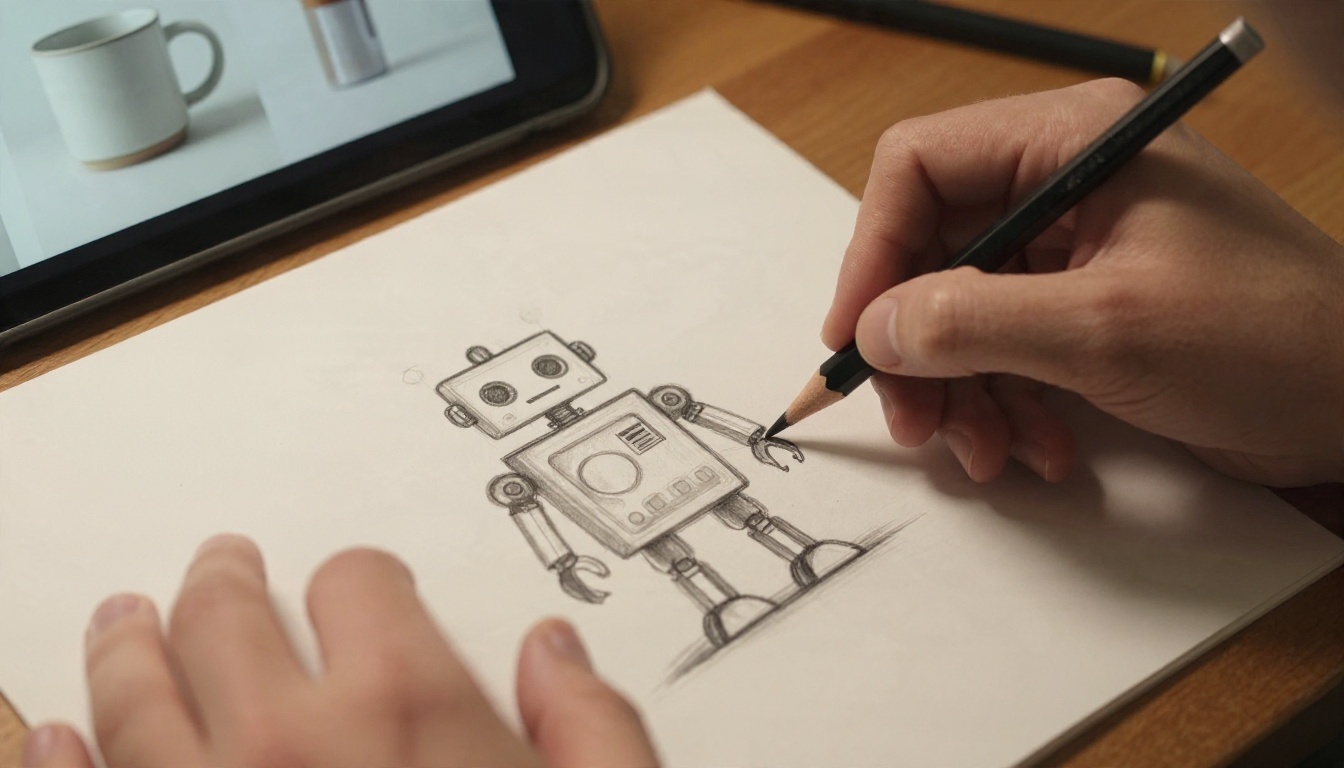
- Sketch the idea first if the shape is unusual. A rough drawing clarifies proportions before you spend a credit.
What to Choose and Why
Here is a plain decision list you can use in about thirty seconds:
- You want to try it once: use a free browser generator and accept the cap.
- You make a few models a month: a single online tool with a modest plan is enough.
- You compare engines or build a product: an aggregator or API lowers the cost per model.
- You have a GPU and technical skill: self-host an open-source model for unlimited runs.
- You want speed without setup: run Hunyuan 3D 3.1 in the browser on PicassoIA.
In a design team, the gap between a rough prototype and a presentable one is often a single afternoon of cleanup. That is the real shift: AI does not remove the craft, it removes the blank page.
Make Your First Model Today
The fastest way to judge 3D modeling AI is to run your own test. Take one product photo, one sketch or one sentence, and generate a model. Compare the textured result with the geometry only version, check the back side, then decide whether the mesh is good enough or needs cleanup.
On Picasso IA you can do all of it in one place. Create a clean reference picture with Seedream 4.5, isolate the subject with Remove Background, then send it to Hunyuan 3D 3.1 and download your model. Browse everything else the platform offers at picassoia.com/en/all-models, and start experimenting with your own idea.


