Most people run their first AI video prompt and immediately wonder what went wrong. The output looks nothing like the cinematic reel they pictured. Characters move unnaturally. The scene switches lighting mid-clip. Everything looks like someone smeared Vaseline over a low-budget VHS tape from 1993. Sound familiar?
The thing is, this rarely has anything to do with the tools themselves. Modern AI video generators like Seedance 2.0, Kling v3, and Veo 3 are genuinely capable of stunning output. The problem is almost always the approach. People make the same five mistakes repeatedly, get frustrated, and conclude that AI video is not ready.
It is ready. You are just doing it wrong.
Why 90% of AI Videos Fall Flat
The Gap Between Expectation and Output
When people first try text-to-video tools, they treat them like search engines. They write "a dog running in a park" and expect something that looks like a stock footage clip. What they get instead is a morphing, flickering mess that has the dog's legs turning into grass at frame twelve.
The tools are not broken. The mental model is wrong. AI video generation is closer to directing a shot than typing a search query. The more specific your input, the more controlled the output.
💡 Think of AI video prompts the way a director thinks about a shot list: exact subject, exact motion, exact camera angle, exact lighting. Ambiguity breeds chaos.
This article breaks down the five specific errors that separate bad AI video from professional-looking results, and exactly how to fix each one.
Mistake 1: Vague Prompts That Kill Motion Quality
What a Weak Prompt Looks Like
A weak AI video prompt describes what exists, not what moves. "A woman walking in a city" tells the model nothing about how she walks, what the camera does, or how the scene transitions. The model has to guess. And when models guess, they hallucinate.
Here is what the difference looks like in practice:
| Weak Prompt | Strong Prompt |
|---|
| "A city at night" | "Aerial slow-motion flyover of a rain-slicked downtown street at 2am, fog drifting between buildings, camera tilting from rooftops down to street level" |
| "A man cooking" | "Close-up of a chef's hands adding herbs to a cast iron pan, steam rising in slow motion, warm kitchen light from above, camera slowly pulls back to reveal the full stove" |
| "Ocean waves" | "Low-angle shot from the shoreline, a large wave cresting and crashing toward the camera in slow motion, golden hour backlight, seafoam tracing across wet sand in the foreground" |
The right column produces cinematic results. The left column produces generalized blur.
How to Write Prompts That Actually Work
There are four components every effective AI video prompt needs:
- Subject with action: Who or what is moving, and what specifically is the motion?
- Camera behavior: Is the camera static, panning, dolly-in, aerial, handheld?
- Lighting conditions: Time of day, direction, color temperature, atmosphere.
- Mood and texture: Film grain? Slow motion? Shallow depth of field?
For models with audio like Seedance 2.0 or Veo 3.1, you can also describe the sound: "footsteps on wet pavement, distant car horns, low ambient hum."
💡 Write your motion first, then your camera. If you know the subject is running left-to-right, pick whether the camera is static, panning, or tracking. The model will combine them far more naturally.
Useful descriptors to weave into prompts: cinematic motion, photorealistic movement, natural lighting, temporal consistency, frame-to-frame coherence, shallow depth of field, slow dolly-in, handheld stabilized.
Why Resolution Setting Matters More Than You Think
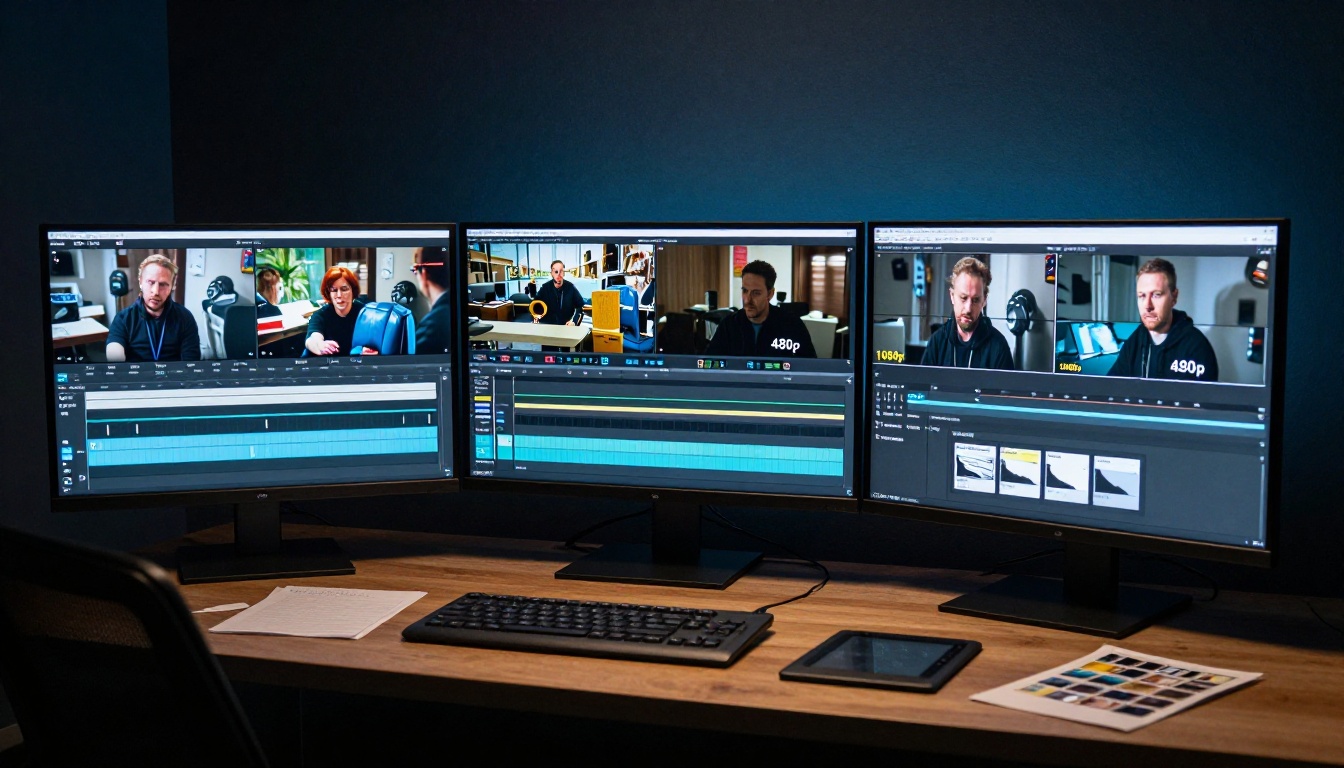
Most people never touch the resolution settings. They generate at whatever default the model uses, then wonder why their video looks pixelated when full-screened on a monitor or uploaded to YouTube.
Every platform has different resolution requirements. TikTok and Instagram Reels want 9:16 at 1080p. YouTube horizontal wants 16:9 at 1080p minimum, with 4K preferred for algorithmic priority. Presentations typically need 16:9 at 720p minimum. Generating at 480p and stretching it is one of the fastest ways to destroy credibility.
Match Your Resolution to the Destination
Here is a practical resolution breakdown by use case:
| Use Case | Minimum | Recommended |
|---|
| YouTube horizontal | 720p | 1080p or 4K |
| TikTok / Reels | 1080p vertical | 1080p |
| Presentation slide | 720p | 1080p |
| Website background loop | 720p | 1080p |
| Client deliverable | 1080p | 4K |
LTX 2.3 Pro and Wan 2.7 T2V both support up to 4K output. Kling v3 and Pixverse v5 output stable 1080p. For fast iteration at lower cost, Hailuo 02 Fast at 512p works well for rough draft passes before committing to a high-res final render.
💡 Draft at lower resolution, finalize at target resolution. This saves generation credits during the iteration phase and prevents you from committing to a bad composition at full cost.
Mistake 3: Ignoring Reference Images Entirely
What Reference Images Do for AI Video
Most people use AI video in text-to-video mode and wonder why their character looks different in every clip. The face changes. The outfit shifts. The background color palette drifts. This is called temporal inconsistency, and it is the number-one immersion-killer in AI-generated content.
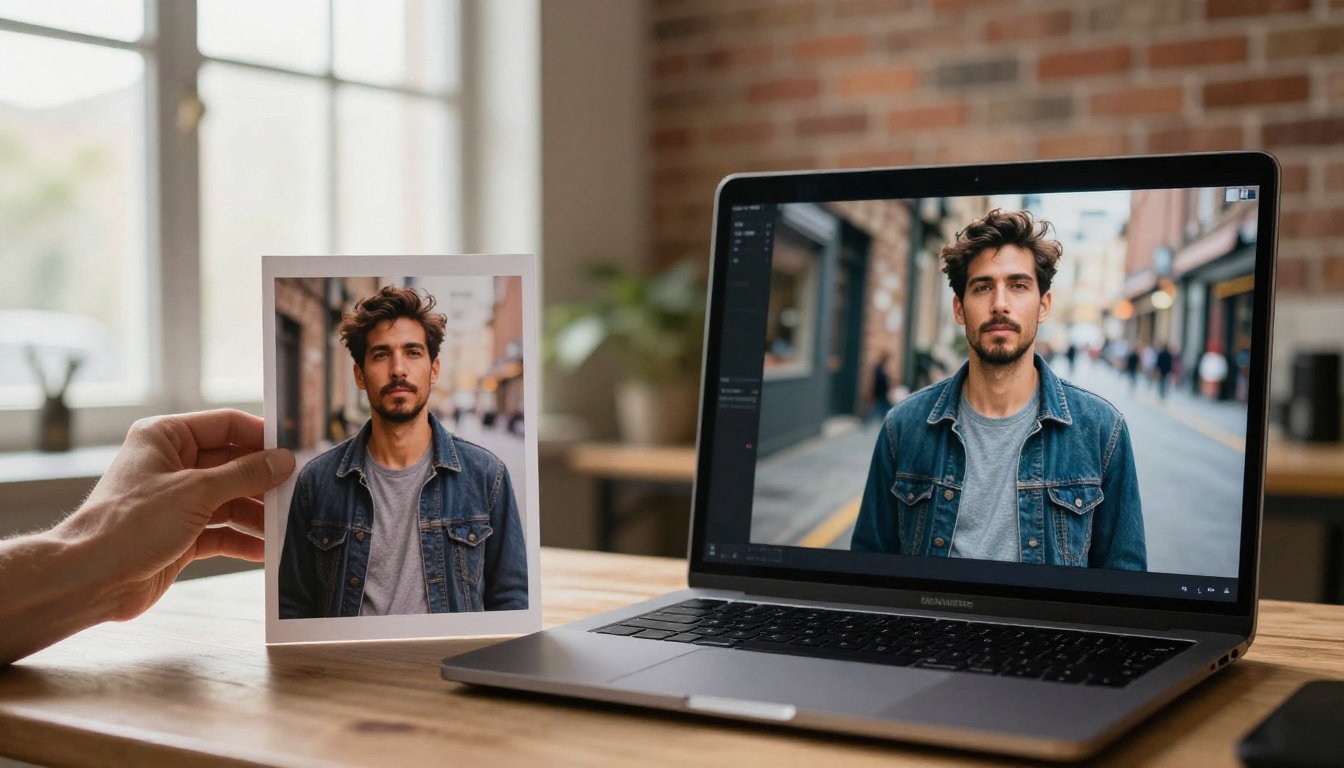
The fix is image-to-video generation. Instead of describing a subject from scratch, you provide the model with an existing image as the first frame. The model then animates forward from that starting point, maintaining visual consistency throughout the clip.
Which Models Handle Image-to-Video Best
Not all models accept reference images equally. Here is a breakdown of the top image-to-video options available now:
| Model | Strengths | Best For |
|---|
| Wan 2.7 I2V | Strong subject retention, smooth motion | Product shots, portraits |
| Kling v2.6 | High temporal consistency, 1080p output | Brand content, scenes |
| Seedance 2.0 | Built-in audio sync, cinematic output | Social content |
| Ray 2 720p | Fast iteration, solid 720p output | Rapid prototyping |
| Pixverse v5.6 | Creative motion effects | Stylized content |
The workflow is straightforward: generate or source a high-quality image that matches your desired character, scene, or product, then feed that image as the starting frame. The model animates forward from there.
💡 The stronger your source image, the better your video. A photorealistic, well-lit reference image will always outperform a blurry or poorly composed one. If needed, run your source image through a super-resolution upscaler before using it as a reference.
Using the Free PicassoIA Video Tool to Test First
PicassoIA Video is the platform's free unlimited video generator, which makes it ideal for testing your reference image workflow at no cost before committing to premium model credits. Use it to validate your composition and subject placement before running the same prompt through Wan 2.7 I2V or Kling v2.6.
Mistake 4: Skipping Video Post-Processing
Why Raw AI Output Needs a Final Pass
Even a great AI video prompt on a capable model does not always produce ready-to-publish output. AI-generated clips often have minor issues: slight softness, low contrast in dark areas, mild flickering at transitions, or motion blur on fast-moving subjects.
These are not failures of the model. They are characteristics of current generation technology that dedicated processing tools are built to fix.
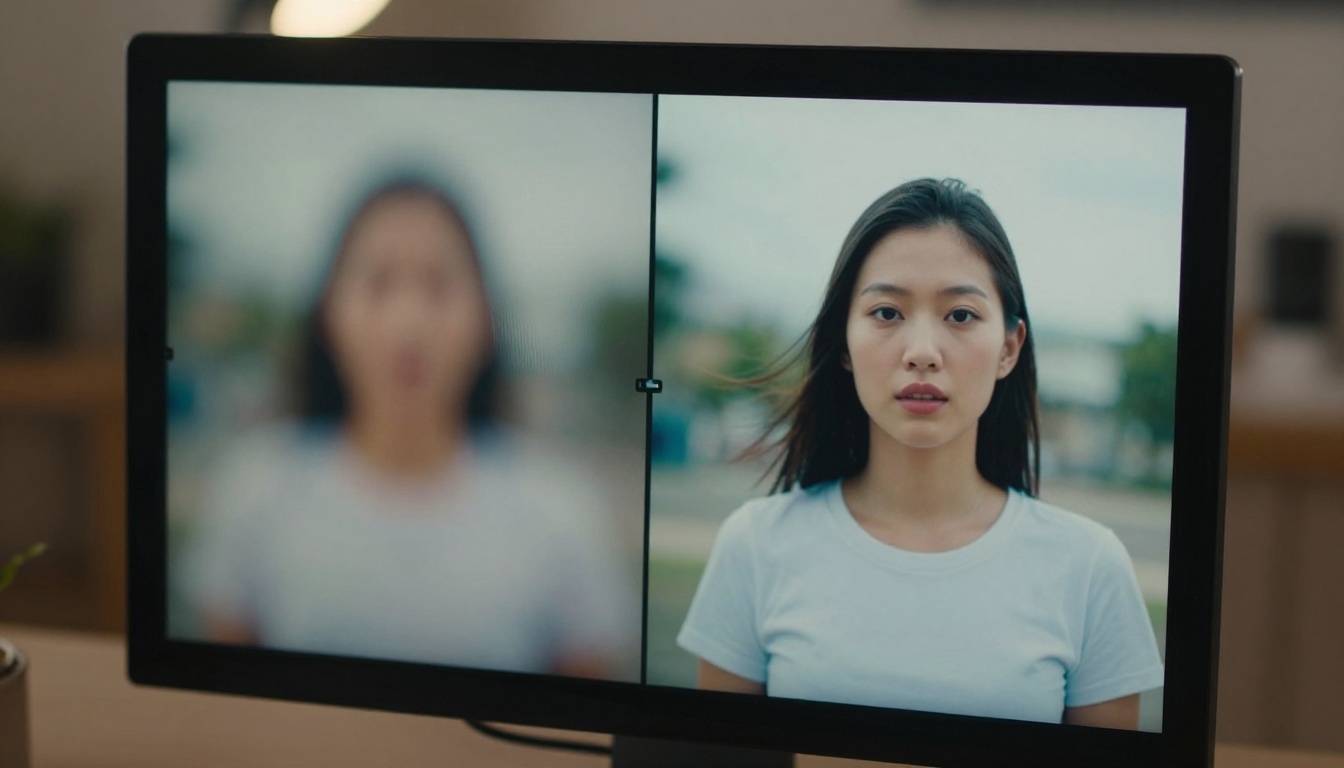
The Right Tools for Post-Processing AI Video
Three dedicated tools are worth building into your workflow:
Crystal Video Upscaler: Upscales footage to 4K while preserving motion detail and sharpening edges. Excellent for taking a 720p draft to a 4K final.
Video Upscale by Topaz Labs: Trained specifically on video artifacts. It handles noise reduction, motion deblur, and upscaling to 4K at up to 120fps in one pass. The go-to tool for client-ready output.
Upscale v1 by Runway: A fast, clean upscaling solution integrated into the Runway ecosystem. Best for quick resolution boosts without heavy artifact correction.
The standard production pipeline for professional AI video creators looks like this:
- Generate draft at 720p using a fast model
- Adjust prompt based on what worked, regenerate if needed
- Final generation at 1080p with the best-fit model
- Run through upscaler for artifact cleanup and sharpness
- Export and publish
This approach delivers near-4K quality from models that output at 1080p, because the processing stage adds real texture and sharpness that the generative model left unrendered.
💡 Never skip the processing step on client work. The difference between a raw 1080p AI video and an upscaled, artifact-cleaned version is immediately visible to non-technical viewers.
Mistake 5: Using One Model for Every Job
Why All-in-One Thinking Limits Output Quality
There is no single AI video model that does everything well. Some models are fast but lose consistency over longer clips. Some produce stunning slow motion but handle dialogue poorly. Some output 4K but struggle with realistic human motion.
Creators who lock into one model for every use case end up compromising on quality for most of what they produce.
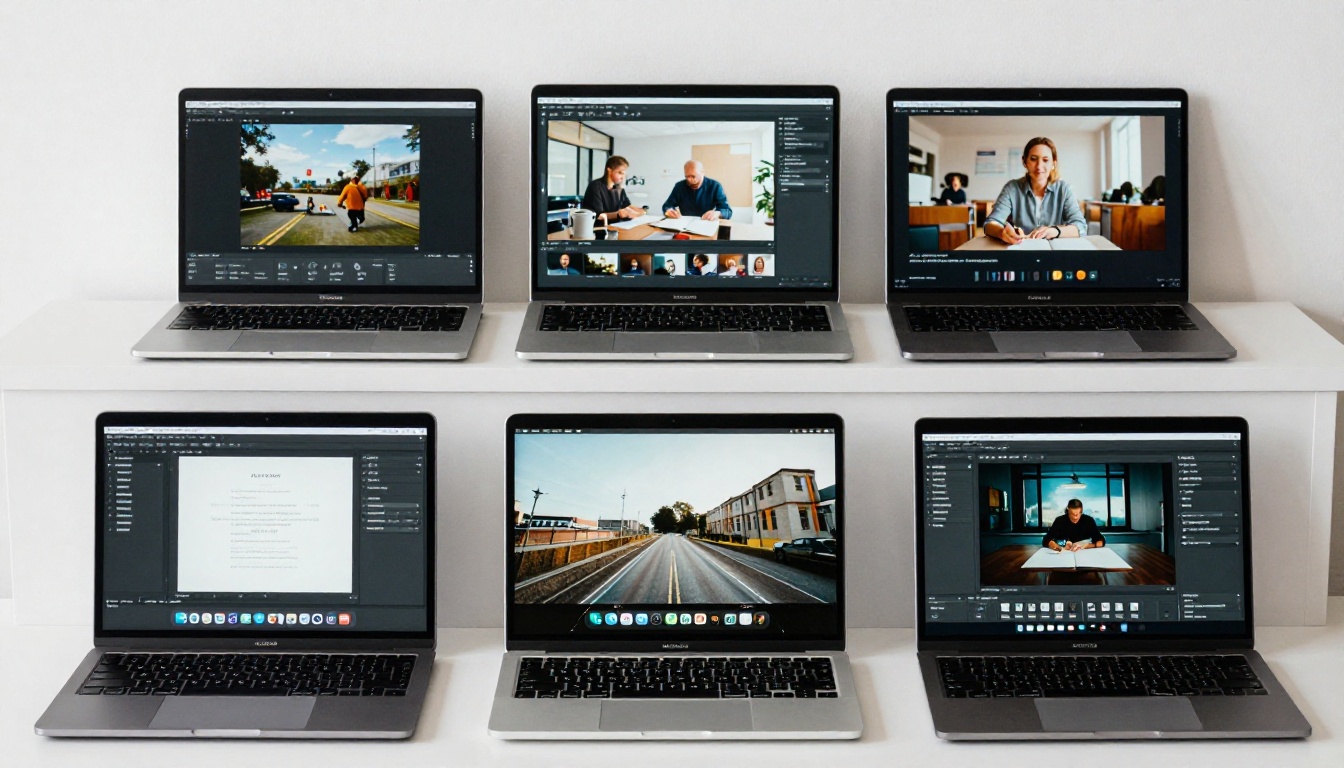
Build a Model Stack, Not a Model Habit
Experienced AI video creators maintain a small stack of two to four models, each selected for specific use cases. Here is a practical framework:
For cinematic, narrative content:
Sora 2 and Veo 3 lead here. Both handle complex scene compositions, realistic human motion, and extended clip coherence better than most alternatives.
For fast social content:
Seedance 2.0 and Pixverse v5.6 are built for speed and platform-ready output. Seedance includes synchronized audio, which cuts post-production time significantly for social-first content.
For product and brand video:
Kling v3 and Wan 2.7 I2V are the strongest choices for maintaining product appearance consistency across frames. Critical for e-commerce and brand materials.
For high-resolution deliverables:
LTX 2.3 Pro and Gen 4.5 by Runway for clients needing 4K output with cinematic motion quality.
For cost-effective prototyping:
Ray Flash 2 720p and Wan 2.7 T2V at lower resolution tiers. Work out your composition and prompts before committing to premium model runs.
💡 Your model stack should answer three questions: What is the use case? What is the resolution target? What is the budget per clip? Map each combination to a specific model and you will stop compromising on quality.
How to Use PicassoIA for Better AI Videos
Step-by-Step: Your First Serious AI Video
PicassoIA gives you access to over 100 text-to-video models from a single interface. Here is a repeatable workflow that applies every fix from this article:
Step 1: Write a detailed prompt first.
Before opening any tool, write your video prompt in a separate document. Include subject, action, camera motion, lighting, and atmosphere. Aim for at least four to six descriptive sentences.
Step 2: Choose your model based on use case.
Use the model stack breakdown above as your reference. For general-purpose work, start with Seedance 2.0 for its audio integration and cinematic defaults.
Step 3: Set your resolution before generating.
Most models default to a mid-range setting. Before hitting generate, check the resolution parameter and set it to match your target platform.
Step 4: Generate a draft, then iterate.
Your first output is a draft. Adjust the prompt based on what worked and what did not. Keep the specific elements that worked verbatim in the revised prompt.
Step 5: Use image-to-video for character consistency.
If you need the same character or product across multiple clips, generate a strong reference image first, then use it as the input for Wan 2.7 I2V or Kling v2.6.
Step 6: Run a processing pass on the final output.
Take your approved clip through Crystal Video Upscaler or Video Upscale by Topaz before publishing.
Using Hunyuan Video for Maximum Realism
Hunyuan Video from Tencent is worth a specific mention for creators who prioritize photorealism above all else. Its motion generation is among the most physically accurate available, particularly for scenes involving natural movement: water, fabric, hair, and body mechanics.
Pair it with a prompt that includes physical descriptors ("hair catching a slight breeze from the right," "cotton fabric with a slight wrinkle at the elbow") and the results often pass visual inspection as real footage on a first watch.
Stop Repeating These Errors
The five mistakes above account for the vast majority of bad AI video output:
- Vague prompts that give the model nothing concrete to work with
- Wrong resolution that destroys quality at the delivery stage
- No reference images that result in inconsistent characters and drifting scenes
- Skipping post-processing that leaves avoidable quality improvements off the table
- Single-model thinking that limits every project to the weakest average
Each one has a direct fix. Write more specific prompts. Set resolution before generating. Use image-to-video for visual consistency. Run your finals through a processing pass. Build a model stack for different use cases.
The gap between amateurish AI video and professional-looking output is almost entirely about workflow, not access to better tools. Every model referenced in this article is available right now on PicassoIA, alongside over 100 additional text-to-video and image-to-video options.
Pick one mistake from this list, fix it in your next session, and watch what changes in your output. Then work through the rest.