Getting better results from AI image generation comes down to deliberate choices at every step. Most people type a few words, hit generate, and feel disappointed. The gap between a mediocre output and a stunning one is almost never about the tool. It is about how you communicate with it.
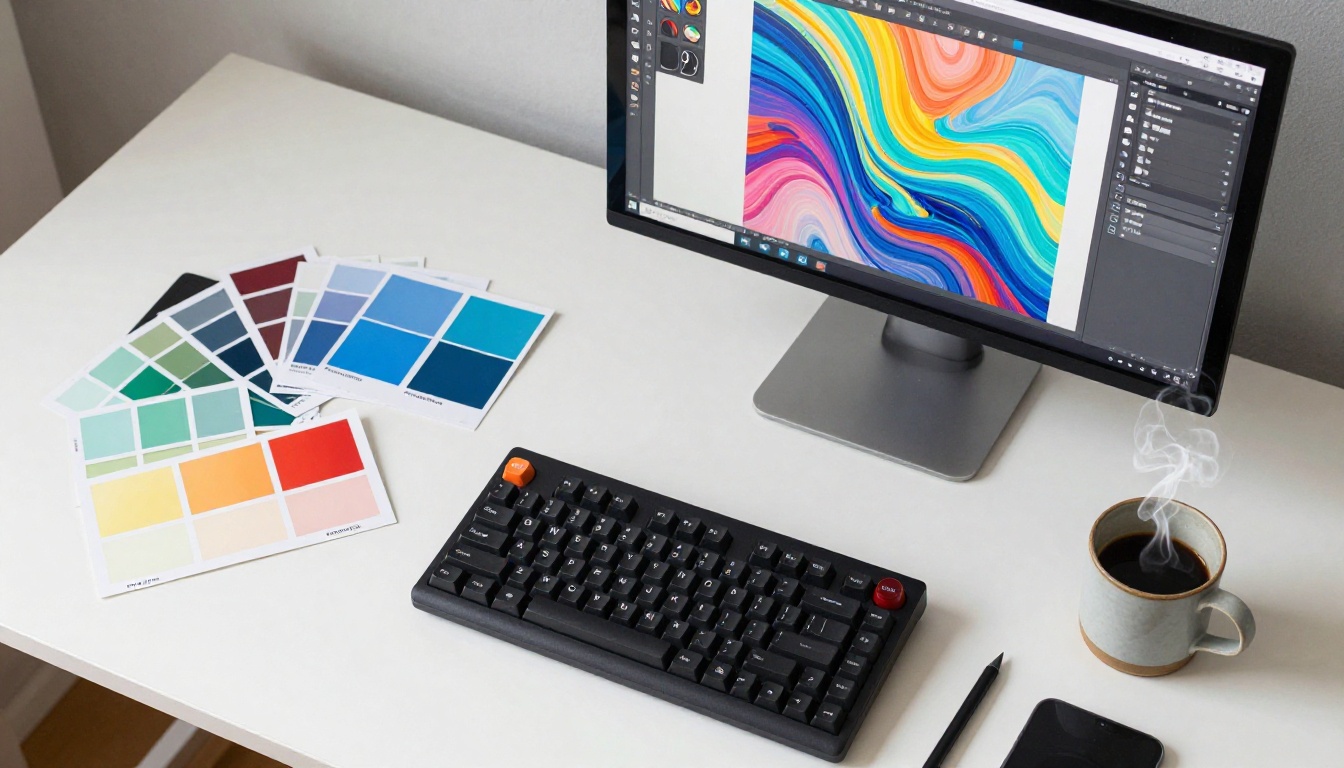
These 6 tips work across every major AI image platform and every generation style. Apply even two or three of them and the quality jump is immediate.
1. Write Prompts That Actually Work
A vague prompt produces a vague image. "A woman in a city" means nothing to an AI model. But "a 30-year-old woman in a red wool coat standing on a rainy Paris street at dusk, shallow depth of field, natural street lighting" tells the model exactly what you need.
The Subject Problem
Most people write prompts from general to specific. That is backwards. Start with your core subject first, then layer on modifiers. The model reads prompts from left to right, weighting earlier tokens more heavily.
Wrong approach: "Beautiful, dramatic, cinematic, moody, photorealistic portrait of a woman"
Right approach: "Portrait of a woman, natural window lighting, 85mm f/1.8, cinematic mood, photorealistic, film grain"
That small shift changes the model's priority hierarchy entirely.
Layers Make the Difference
The most effective prompts work in structured layers:
- Subject (who or what)
- Action or pose (what are they doing)
- Environment (where is it happening)
- Lighting (where does light come from)
- Camera (lens, angle, distance)
- Style or mood (photorealistic, film grain, Kodak Portra)
💡 Pro tip: Think of your prompt like a film director's brief to a cinematographer. Every word should answer a real question about the scene.
| Layer | Weak Version | Strong Version |
|---|
| Subject | woman | 28-year-old woman, dark curly hair |
| Environment | outside | rooftop terrace at golden hour |
| Lighting | nice light | volumetric warm backlight, lens flare |
| Camera | portrait | 85mm f/1.4, shallow depth of field |
Specificity Beats Length
Adding more words does not automatically improve results. Adding more specific words does. "Volumetric morning light from the left" is more useful than "amazing beautiful dramatic cinematic light." The model has strong associations with real photography and cinematography terminology. Lean into that.
The more precisely you describe real-world physical conditions (lens type, aperture, lighting direction, subject distance, fabric texture), the more grounded and realistic the output becomes.
2. Pick the Right Model for Your Goal
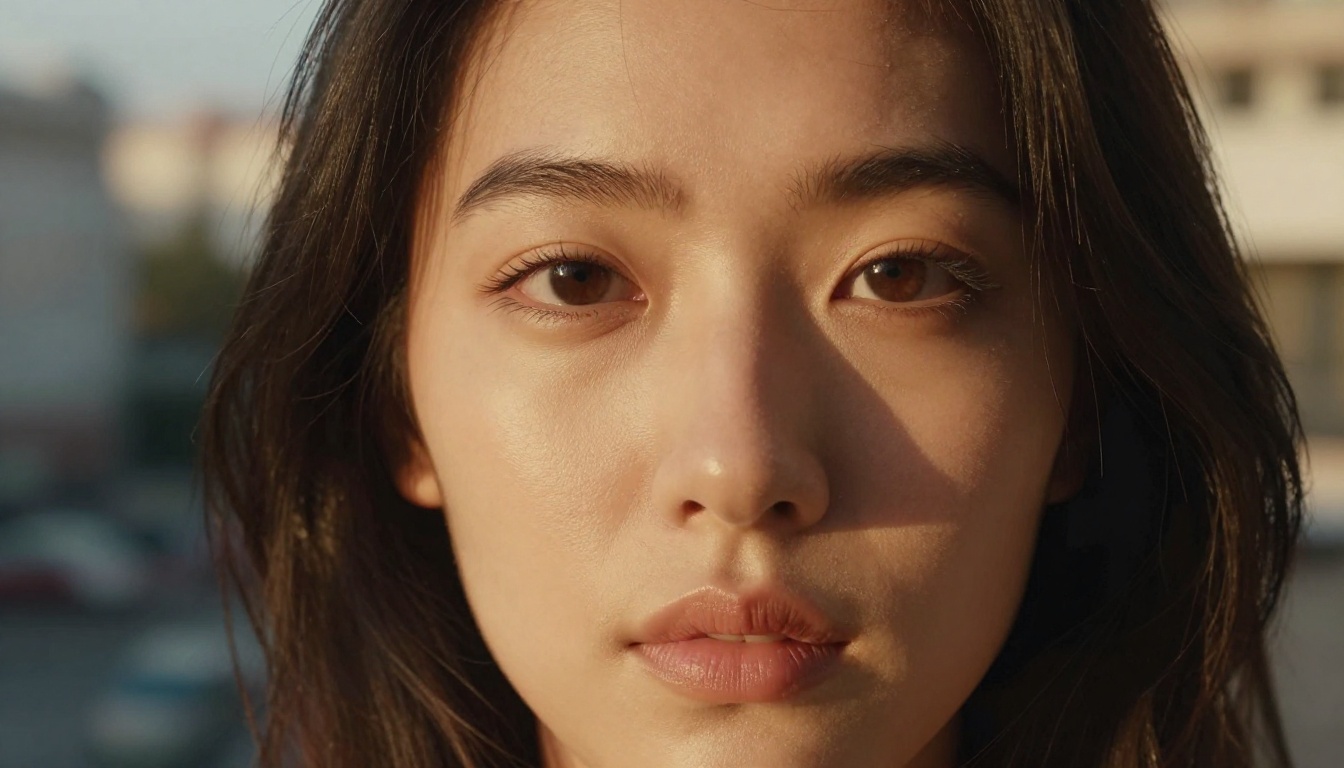
Not all AI image models are built for the same purpose. Some specialize in photorealism. Others are tuned for illustration, architecture, or fashion photography. Using the wrong model for your subject type is like asking a watercolor painter to produce a technical blueprint.
What Each Style Does
On PicassoIA, you have access to over 91 text-to-image models spanning every creative direction. The important thing is matching the model to your intended output type.
Photorealistic photography needs a model trained on real-world photography data, with outputs that hold texture detail in faces, fabric, and environments at high resolution.
Illustrative or stylized content benefits from models trained on artistic datasets. These excel at characters, concept art, graphic design, and stylized visual outputs.
Architectural or product visualization needs models that understand structure, geometry, light behavior on surfaces, and material properties.
💡 Before spending time refining a prompt, ask yourself: "Is this model built for what I am trying to do?" A mismatched model creates friction that prompt-writing alone cannot fix.
Testing Models Systematically
A useful practice when starting a new project: run the same prompt through two or three different models in the same category. Look at how each one handles skin texture, edge sharpness, background coherence, and lighting behavior. This takes 90 seconds and saves hours of guessing later.
Once you find the model that fits your subject, stay with it for that project. Consistency in model choice creates visual cohesion across a set of images.
3. Lighting Is Everything
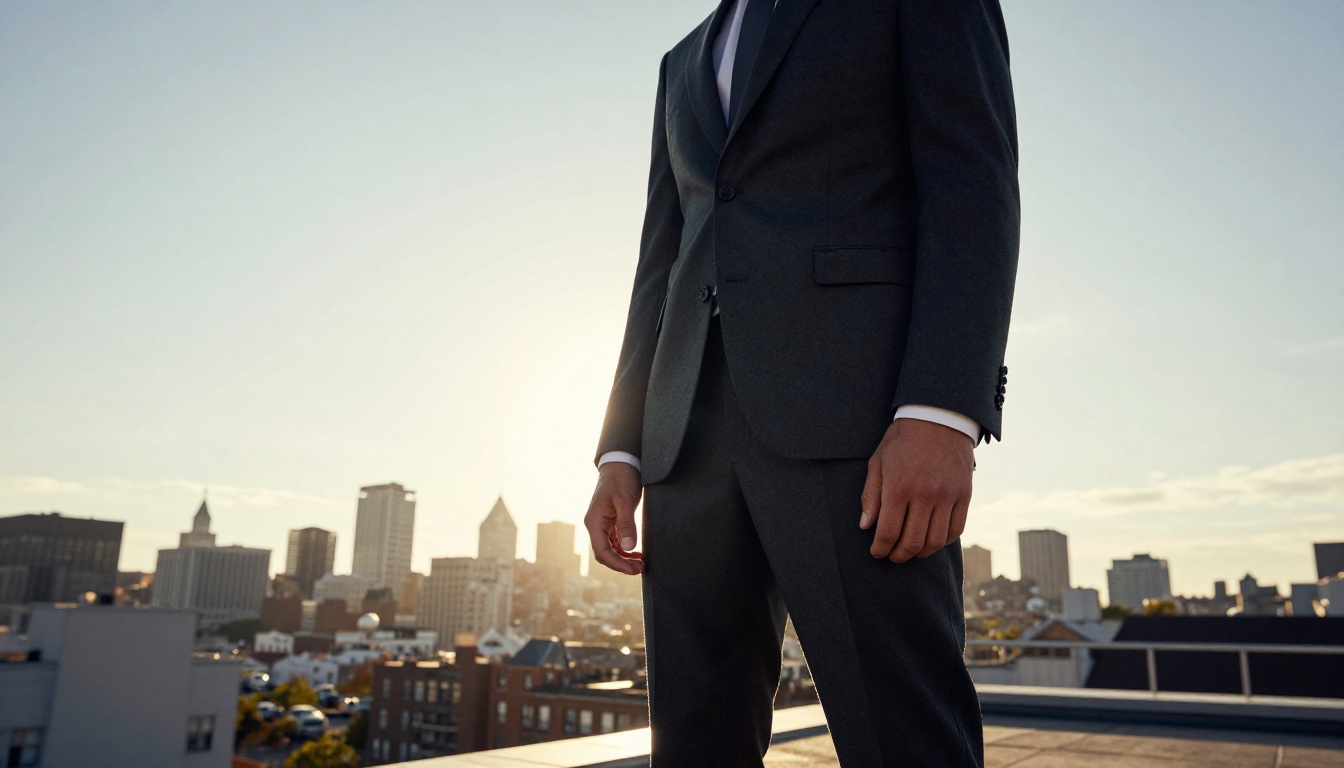
Of all the variables you can control in an AI image, lighting is the one that professionals obsess over the most. Lighting defines mood, realism, depth, and focus. Change only the lighting description in a prompt and you will see just how dramatically the entire feel of an image shifts.
Natural vs. Studio Lighting
There are two core paradigms for photorealistic AI images:
Natural lighting draws from real-world sources: sunlight, golden hour, overcast sky, moonlight, reflected light from water or snow. It reads as authentic and organic.
Studio lighting is controlled and deliberate: softboxes, ring lights, rim lighting, three-point setups. It reads as polished and commercial.
Neither is superior. But you have to choose intentionally.
| Light Type | Best For | Prompt Language |
|---|
| Golden hour | Portraits, lifestyle | "late afternoon sun from the left, warm rim light" |
| Overcast | Architecture, products | "diffused grey sky, even flat light" |
| Studio softbox | Fashion, beauty | "large octabox from above-left, soft catchlight" |
| Natural window | Interior portraits | "window light from right, white diffusion curtain" |
Time of Day Matters
AI models carry a thorough understanding of how light behaves at different times of day. Use this vocabulary precisely.
- Dawn: Cool blue tones, mist, long horizontal light
- Morning: Warm yellow, long shadows, sharp contrast
- Midday: Harsh overhead light, strong shadows, bright highlights
- Golden hour: Orange glow, soft shadows, atmospheric haze
- Blue hour: Cool deep blue, city lights beginning, quiet mood
- Night: Artificial sources, rim lighting, high contrast
💡 Writing "shot at blue hour" adds 10 layers of implicit mood and color information to a prompt automatically.
4. Composition Starts in the Prompt
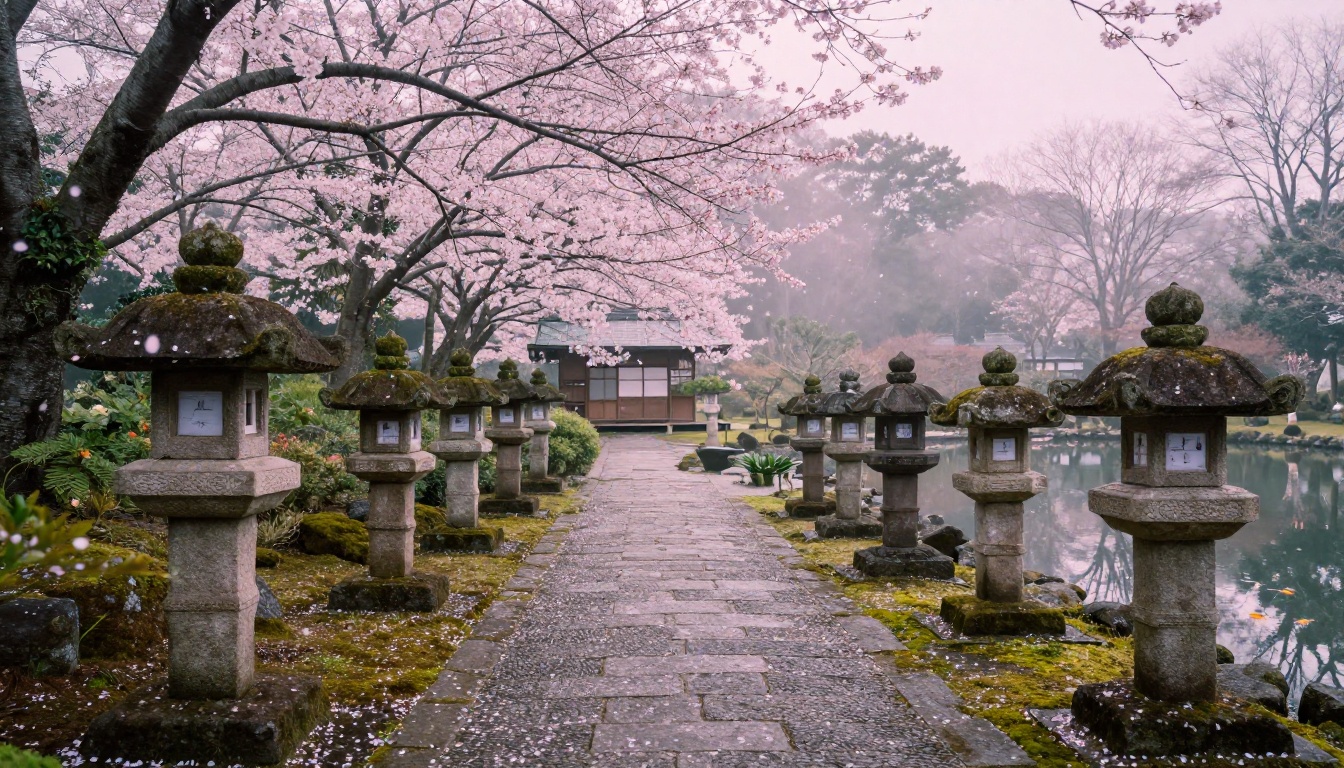
Most people think of composition as something you adjust in post-processing. With AI image generation, composition is decided at the prompt level. If you want a specific visual structure, you have to ask for it.
Camera Angles and Distance
AI models have a thorough understanding of real photography vocabulary. Use it directly in your prompts.
Camera angles:
- Low-angle: Makes subjects appear powerful and dominant. Good for architecture and hero shots.
- Aerial or bird's eye: Conveys distance, scale, and context. Great for landscapes and environments.
- Eye-level: Neutral and relatable. Standard for everyday portraits.
- Dutch angle: Tilted frame, creates psychological tension.
Shot distances:
- Extreme close-up (ECU): Texture, emotion, fine detail
- Close-up (CU): Face, hands, objects in isolation
- Medium shot: Waist up, conversational space
- Wide shot: Full body within environment
- Establishing shot: Full location with context
Using these terms precisely gives you far more compositional control than describing the scene abstractly.
Depth of Field Control
Depth of field (DoF) is one of the most powerful composition tools in photography, and it translates directly into AI prompt writing.
Wide aperture (f/1.2, f/1.8, f/2.0) creates shallow DoF, blurring the background into smooth bokeh for an intimate and cinematic feel.
Narrow aperture (f/8, f/11, f/16) keeps everything in focus for a documentary or architectural look.
💡 Adding "85mm f/1.4 portrait lens, subject in sharp focus, background creamy bokeh" to any portrait prompt will produce a noticeably more professional result.
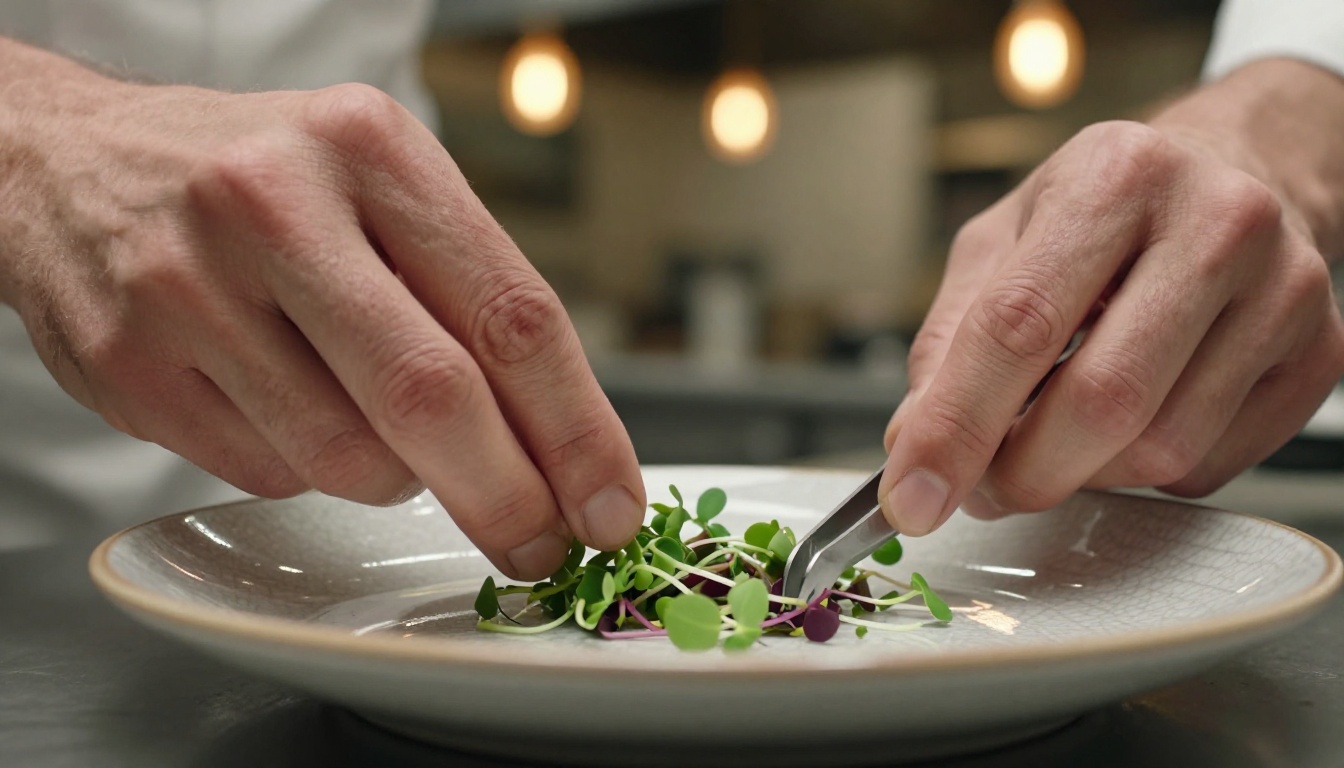
The image above demonstrates extreme close-up composition at work. The macro lens choice, shallow depth of field, and controlled ambient light all specified in the prompt came through in the output.
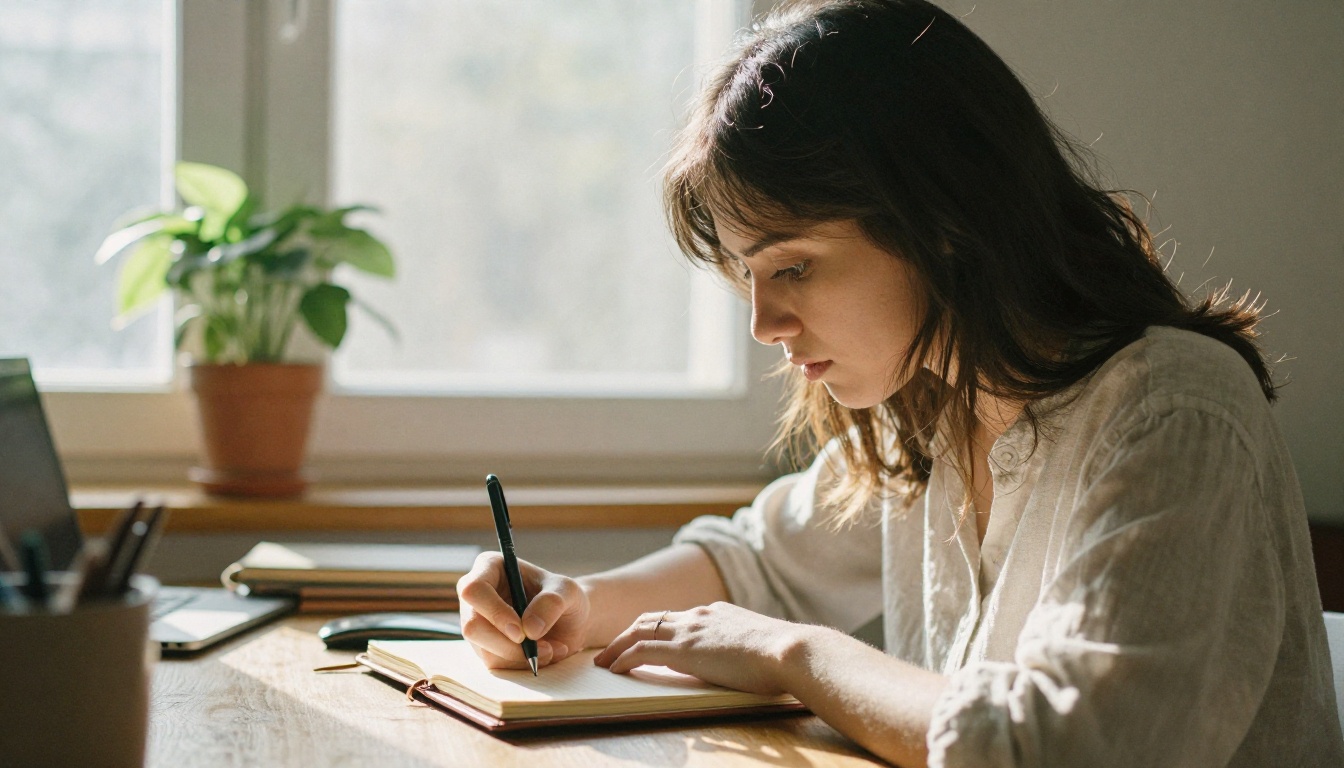
5. Negative Prompts Are Not Optional
Negative prompts tell the model what to avoid generating. They are just as important as positive prompts, and most beginners either skip them entirely or use them too loosely.
What to Always Block
For photorealistic images, these negative prompt entries almost always improve results:
cartoon, illustration, CGI, 3D render, painting, drawing (prevents non-photorealistic outputs)blurry, out of focus, soft, hazy (when sharpness is required)extra fingers, extra limbs, deformed hands (prevents anatomy errors)watermark, text, logo, signature (produces clean images)overexposed, underexposed, blown highlights (controls exposure quality)flat lighting, harsh shadows, ugly lighting (improves overall lighting)
💡 A practical negative prompt baseline: cartoon, illustration, CGI, 3D render, blurry, deformed hands, extra fingers, watermark, text, overexposed, flat lighting
Save this as a template and paste it as the starting point for every generation. Modify from there based on your subject.
Fine-Tuning by Category
Different subject types benefit from targeted negative prompt additions:
Portraits: bad skin, plastic skin, doll-like, uncanny valley
Architecture: fisheye distortion, curved walls, impossible geometry
Landscapes: artificial look, HDR tonemapping, oversaturated
Products: shadow on background, reflections on surface, cropped view
These small adjustments shift the probability distribution of the output toward exactly the qualities you need. A portrait with uncanny valley blocked will consistently produce more human, natural faces. An architectural render with impossible geometry blocked stays grounded in real spatial logic.
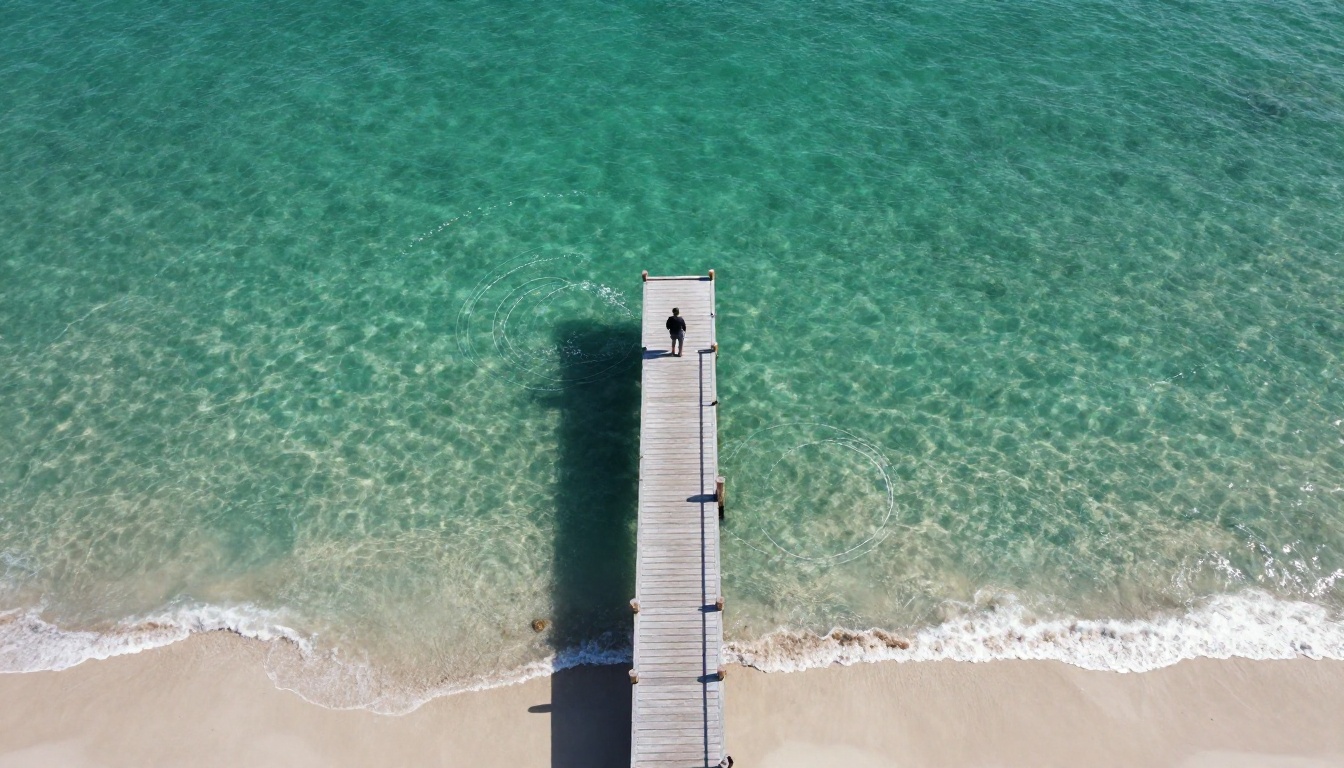
6. Upscale, Refine, Then Upscale Again
Your initial generation is a draft, not a final. Even when the composition, lighting, and subject are all right, the resolution and fine detail of a raw AI output often need a final pass. That is where super-resolution tools close the gap between a good image and a great one.
When to Use Super-Resolution
Use an upscaler when:
- The generated image has soft or inconsistent fine details (hair, fabric, skin texture)
- You need the image at a larger output size for print, billboard, or large-format display
- Fine textures in the background look inconsistent with the subject
- You want to add micro-detail that prompt iteration alone cannot produce
The process is straightforward: generate at standard resolution, review composition and lighting, upscale to 2x or 4x, review detail quality.
Choosing the Right Upscaler
Not all upscalers produce the same results. The differences come down to sharpening style, detail behavior, and how they handle faces versus objects.
On PicassoIA, the super-resolution collection includes specialized tools for every use case:
- Clarity Pro Upscaler: Best for photorealistic photography. Adds micro-detail while preserving natural texture. Excellent for portraits and skin.
- Real ESRGAN: A reliable general upscaler at 4x. Handles landscapes and architectural shots well.
- Topaz Image Upscale: Professional-grade upscaling at up to 6x without detail loss. Ideal for print-ready outputs.
- Crystal Upscaler: Specialized for portrait upscaling. Recovers facial detail and skin texture with impressive fidelity.
- Recraft Crisp Upscale: Sharpens edges and adds crispness without halos. Works well on product and commercial images.
- Google Upscaler: Enlarges any photo up to 4x with balanced, natural output.
- Recraft Creative Upscale: Adds depth and interpretive detail during upscaling. Useful when the base image needs more visual richness.
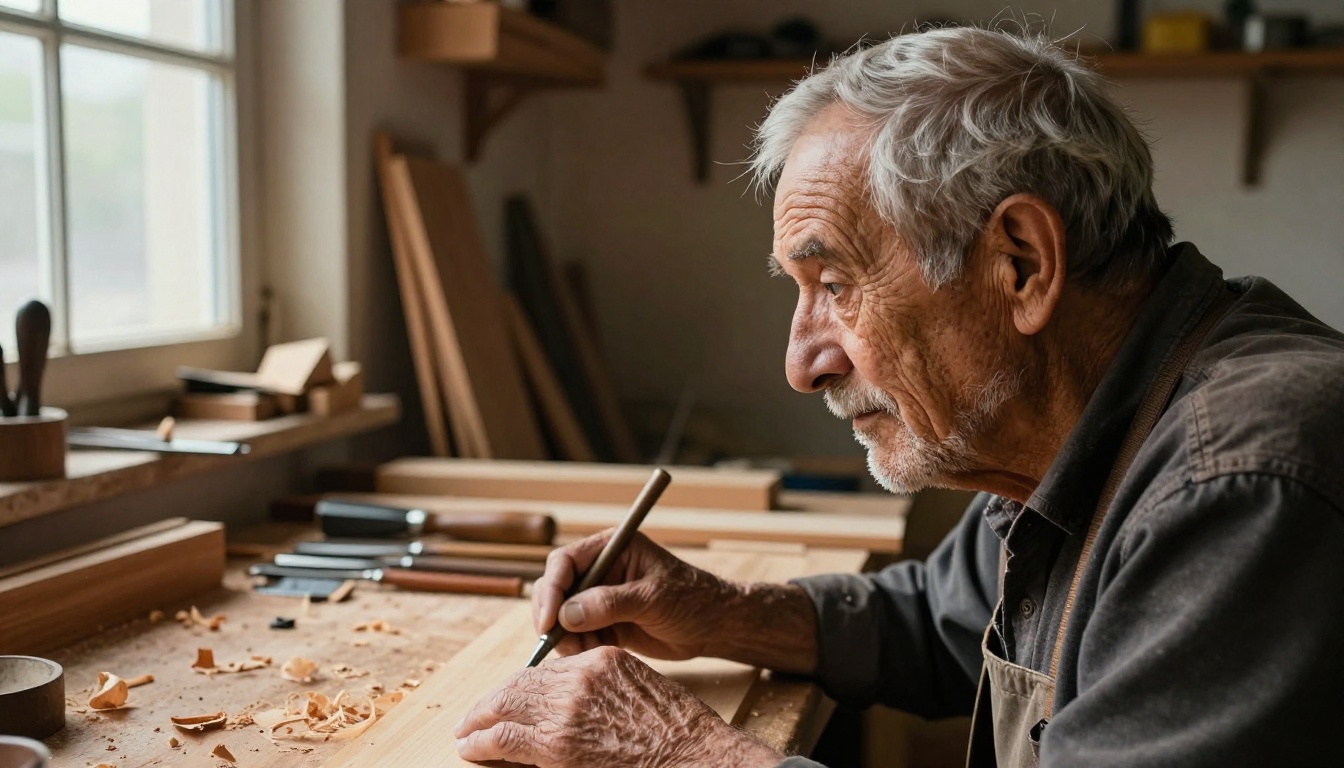
A practical workflow: generate your base image at 1024x576, check the composition and lighting, then feed the best version through Clarity Pro Upscaler or Topaz Image Upscale for the final output. The improvement is consistently visible in every category of subject matter.
Putting the Tips Together
These six areas work best as a system. Prompt writing improves your raw material. Model selection ensures the style matches your vision. Lighting defines the mood. Composition structures the visual hierarchy. Negative prompts remove the noise. Upscaling finishes the detail.
The biggest shift in output quality comes from treating each generation as one step in a workflow, not as a finished product. The best AI image creators iterate fast, adjust one variable at a time, and use post-processing tools to close the gap between "good" and "exactly right."
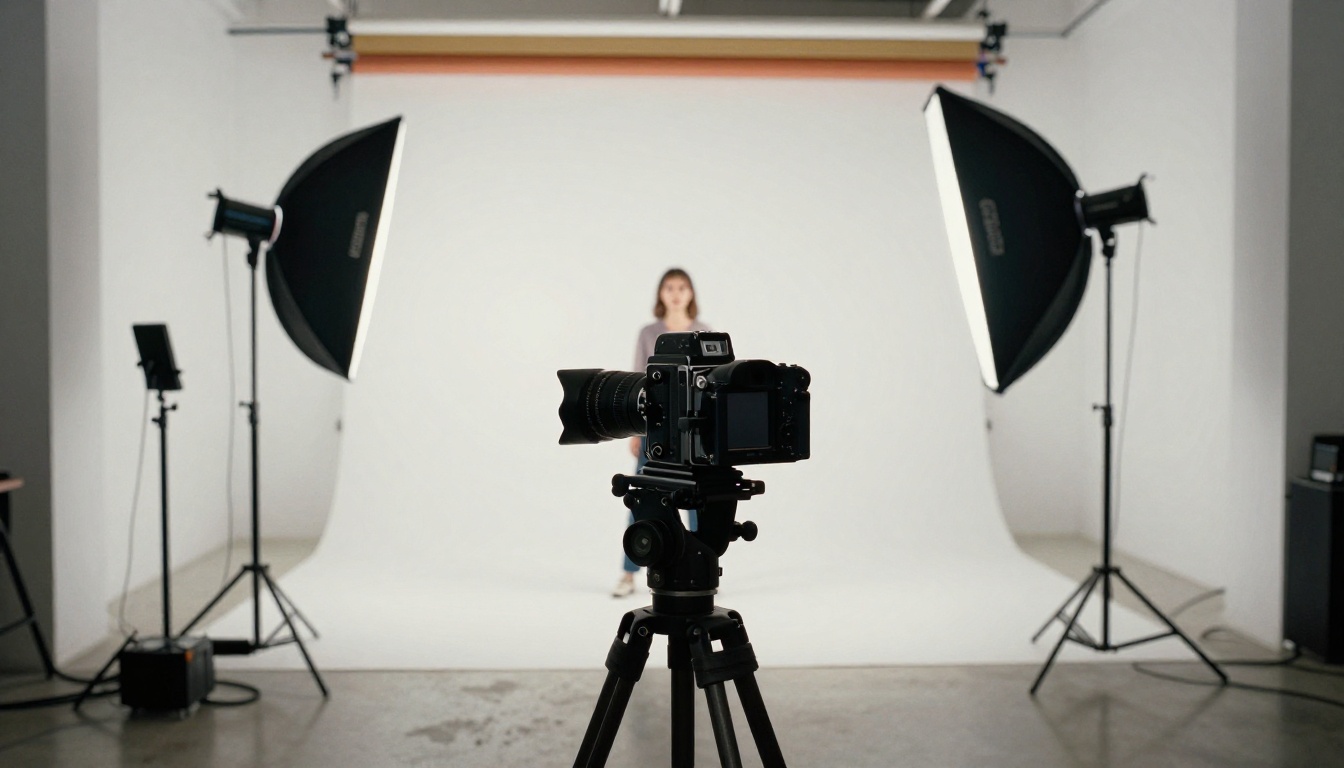
Combine all six tips in a single session and the difference is striking. An image that would have taken 20 frustrating iterations now comes together in three or four deliberate ones.
Try It for Yourself on PicassoIA
Knowing the tips is one thing. Seeing them work in real time is another. PicassoIA gives you access to 91 text-to-image models, a full suite of super-resolution tools, visual effects, and image editing capabilities in a single platform.
Pick one of the six tips above and apply it to your next generation. Compare the result to what you were getting before. The improvement is measurable from the very first session.
Whether you want to produce commercial photography-grade portraits, cinematic landscapes, or polished product shots, the tools are already there. The only variable is how precisely you communicate with them.
Start creating at picassoia.com.


