Video editing used to be a straightforward trade-off: creative output on one side, hours of mechanical labor on the other. Every professional editor knows what it feels like to spend three hours manually captioning footage, hunting for B-roll that does not exist, or painstakingly rotoscoping an object that should never have been in the shot. In 2027, that math is changing. A practical intro to AI for video editors is not about replacing the craft. It is about identifying which parts of your workflow should not require a human at all.
What Editors Get Wrong About AI
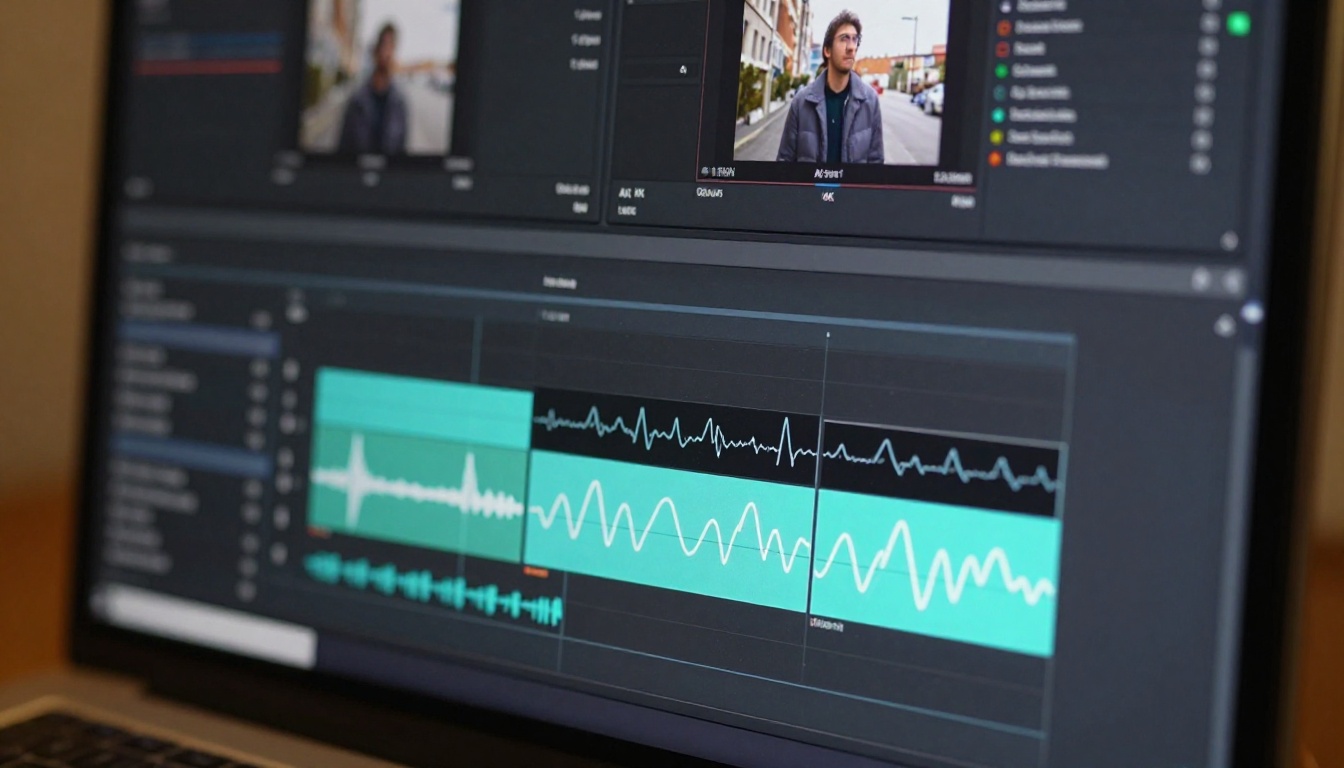
The loudest voices in post-production circles tend to fall into one of two camps: AI is existential, or AI is useless. Both are wrong, and both are expensive positions to hold.
The Fear vs. Reality
No AI model can tell you whether a cut at frame 14 serves the story better than frame 16. It cannot intuit that the best moment in an interview happens in the seconds just before the speaker finds the words they were looking for. Those decisions are irreducibly editorial. They require someone who understands what the footage means.
What AI handles exceptionally well is everything that does not require that understanding: syncing audio to picture, generating captions, removing unwanted objects, upscaling old footage, generating filler B-roll, producing sound effects that match on-screen action. These tasks have objective correct outputs. AI produces those outputs faster than any human.
Where AI Actually Saves Time
Here is an honest breakdown of what AI delivers in a real post-production workflow:
| Task | Time Without AI | Time With AI | Savings |
|---|
| Adding captions | 45–90 min | 3–5 min | ~95% |
| Object removal | 2–4 hours | 10–20 min | ~85% |
| Background removal | 30–60 min | 2–4 min | ~93% |
| Video upscaling | Hours (manual) | Automated | ~90% |
| Sound effects sync | 1–3 hours | Automated | ~88% |
| B-roll sourcing | Days | Minutes | Variable |
The pattern is not subtle. AI wins on repetitive, time-intensive tasks with objective outputs. Creative decisions remain human.
Editing Footage with Text Commands
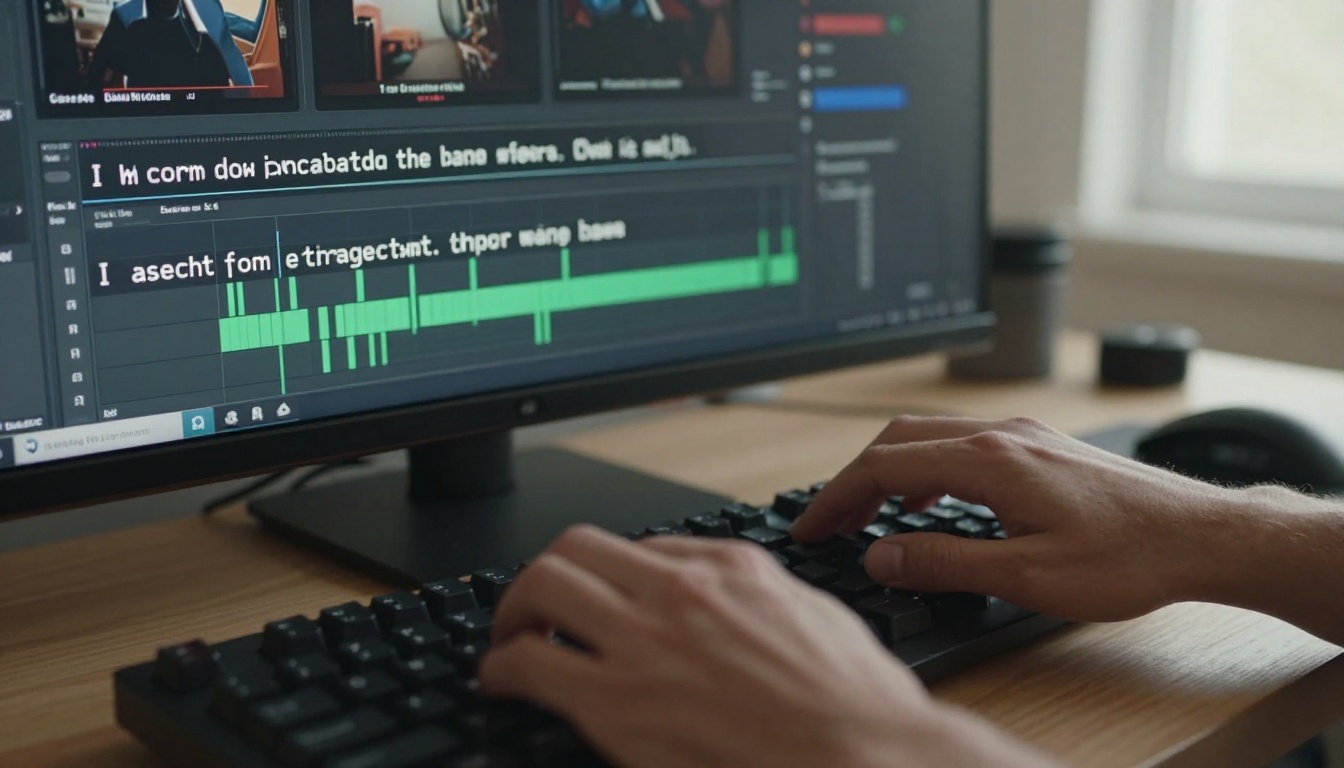
Text-based video editing is the AI capability that most editors encounter first and underestimate longest. You describe the change you want in plain language, the model applies it across every frame, and you receive a modified clip. It sounds simple because it is.
Text-Based Video Editing Tools
Lucy Edit 2 is one of the strongest tools in this category. Upload a clip, type an instruction ("change the jacket to navy blue" or "replace the background with an office environment"), and the model propagates that change frame by frame with temporal consistency. It handles appearance changes, environmental swaps, and detail modifications with minimal setup.
Wan 2.7 Videoedit takes a broader approach, accepting scene-level instructions and applying them to the full visual composition of the clip. It is particularly effective for restyling outdoor footage, modifying the look of environments, and restructuring backgrounds.
For complete aesthetic overhauls, Gen4 Aleph from Runway and Kling o1 both offer restyle pipelines that can take rough footage and apply cinematic visual treatments entirely through text instruction.
💡 Text-based edits produce the most consistent results on clips under 10 seconds. For longer clips, process in segments and reassemble. The AI maintains better coherence across shorter windows.
LTX 2 Retake from Lightricks serves a different function: isolated section editing. Rather than applying changes to a full clip, it targets a specific region and re-generates just that portion, leaving surrounding footage untouched. This is the right tool when a specific moment needs correction while the rest of the clip is clean.
Object Removal and Scene Cleanup
Before AI, removing a microphone boom from 200 frames meant manual rotoscoping in After Effects. Video Erase Object from Bria handles the same task in minutes, tracking the object across frames and filling in the background with content that matches the surrounding pixels.
Video Remove Background does what used to require a green screen setup, segmenting the foreground subject from any background in real footage. No controlled environment, no additional shoot day.
AI Captions and Subtitles
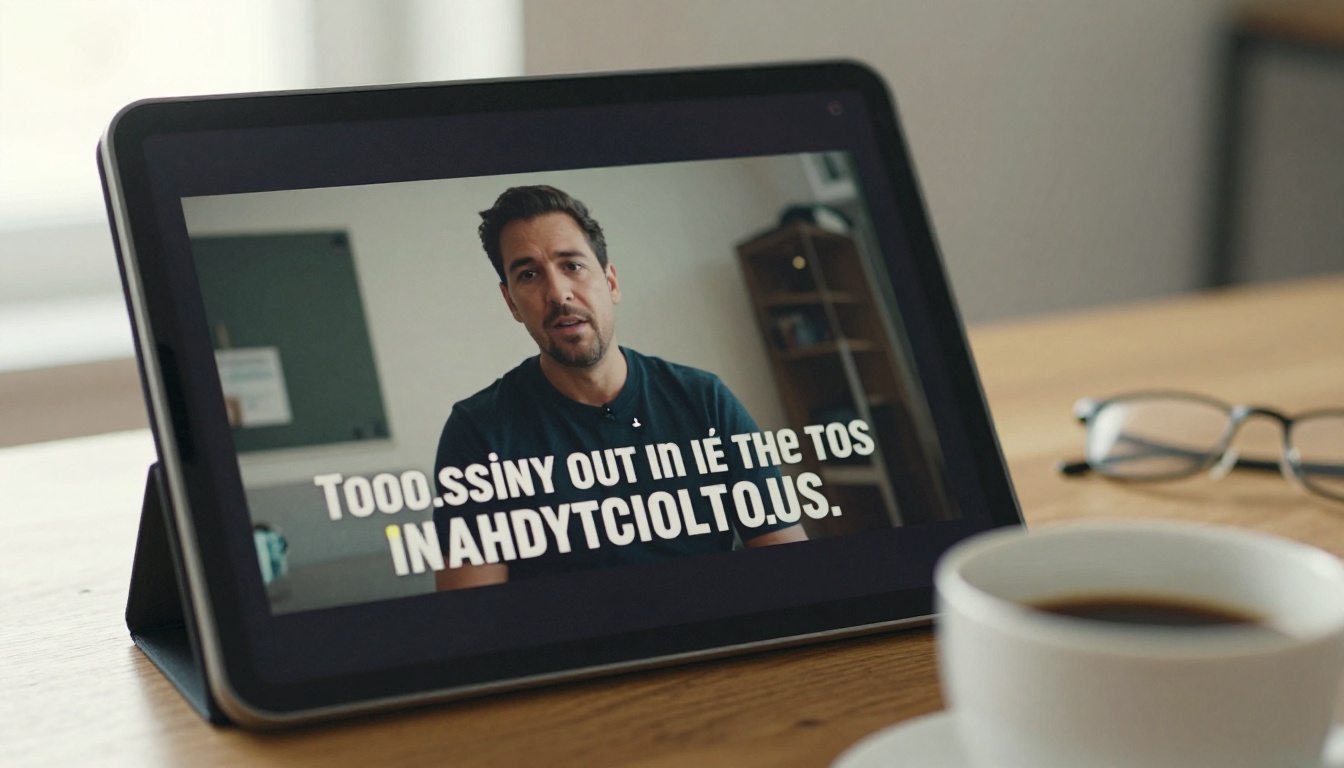
If you produce content for social platforms, accessibility compliance, or international audiences, captioning is a permanent fixture in your workflow. It is also the most automatable task in post-production, and the results from current AI tools are good enough to deploy with minimal review.
One Click, Perfectly Synced
Autocaption generates accurately synced subtitle tracks from any video containing speech. The model handles varying accents, overlapping speakers, and fast speech with word-level timing precision. Each word is pinned to the exact frame it was spoken.
What separates current AI captioning from older transcription tools is the granularity of that timing data. Manual correction, when needed, is a spot check rather than a full rebuild.
💡 For social content: Burning captions directly into the video file increases viewer retention on platforms where autoplay runs silently. AI-generated captions make this a default part of every export rather than an optional extra.
Platforms That Get This Right
Beyond captioning, utility tools like Trim Video, Video Split, and Video Merge round out a complete editing toolkit inside a single platform. These are not glamorous AI tools, but they are genuinely productive ones that handle timeline operations without requiring a full NLE session for simple cuts.
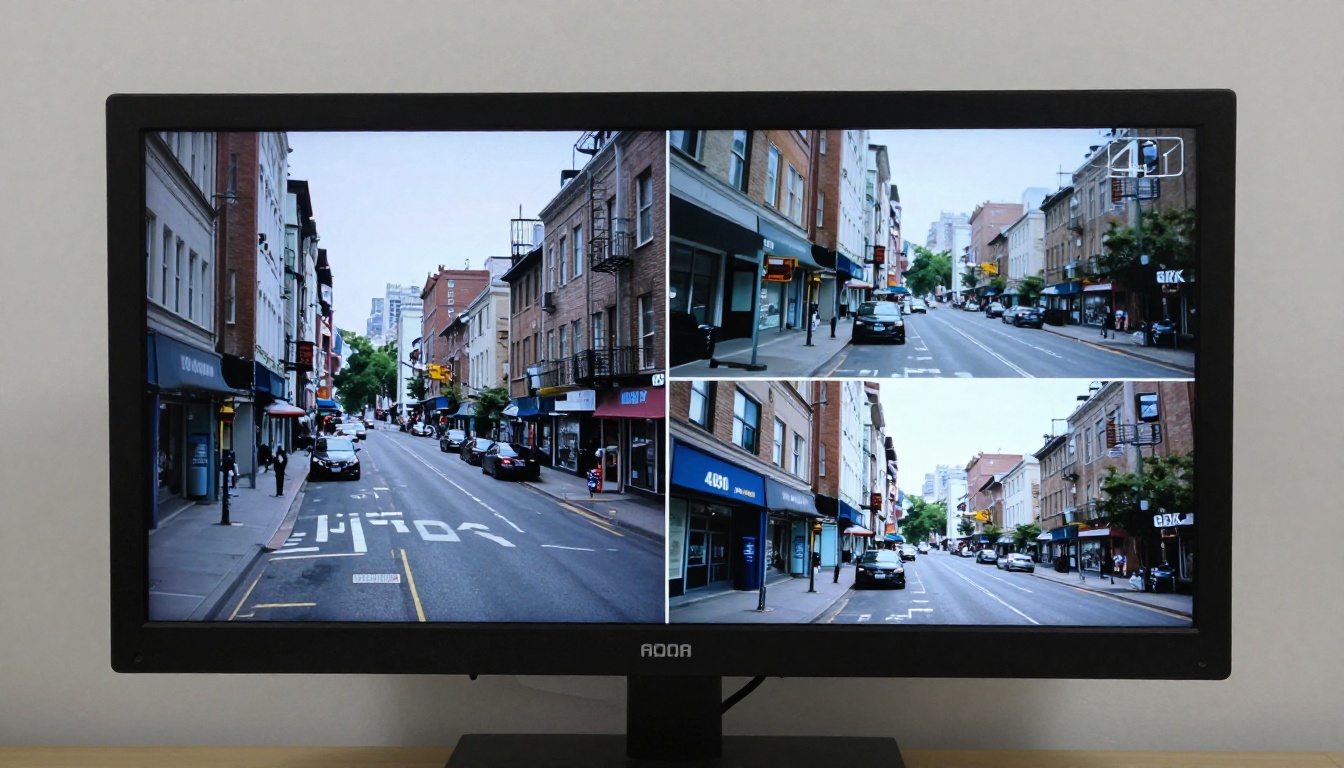
Every editor eventually faces archival material: a client's decade-old product video, documentary interview footage shot on DV tape, or press assets from an event that no longer exists. The old answer was "do your best in post." The AI answer is to restore it.
4K from SD Source Material
Real ESRGAN Video uses a neural network trained on video degradation patterns to recover detail from compressed, low-resolution footage. It adds sharpness in areas where compression artifacts exist and reconstructs texture that low bitrate recording lost.
For broadcast-quality output with sharp edge preservation and fine surface texture, Crystal Video Upscaler delivers 4K upscaling without the softness or smearing that earlier upscalers introduced on motion footage.
Video Upscale by Topaz Labs pushes further, combining spatial upscaling with frame interpolation to deliver 4K output at up to 120fps. This is the right choice when a client needs both resolution and motion smoothness from older material.
Frame Rate Boosting
AI frame interpolation synthesizes new intermediate frames from existing ones, effectively boosting 24fps footage to 48fps or 60fps without the soap-opera effect of traditional interpolation. The synthesized frames account for motion vectors rather than simply blending adjacent frames, which is what makes the result actually usable.
Video Increase Resolution from Bria takes upscaling to its practical ceiling, combining spatial scaling with frame-level refinement for output that approaches 8K. On large display deliverables, the difference against non-upscaled source material is significant.
AI Audio: Sound Effects and Repair
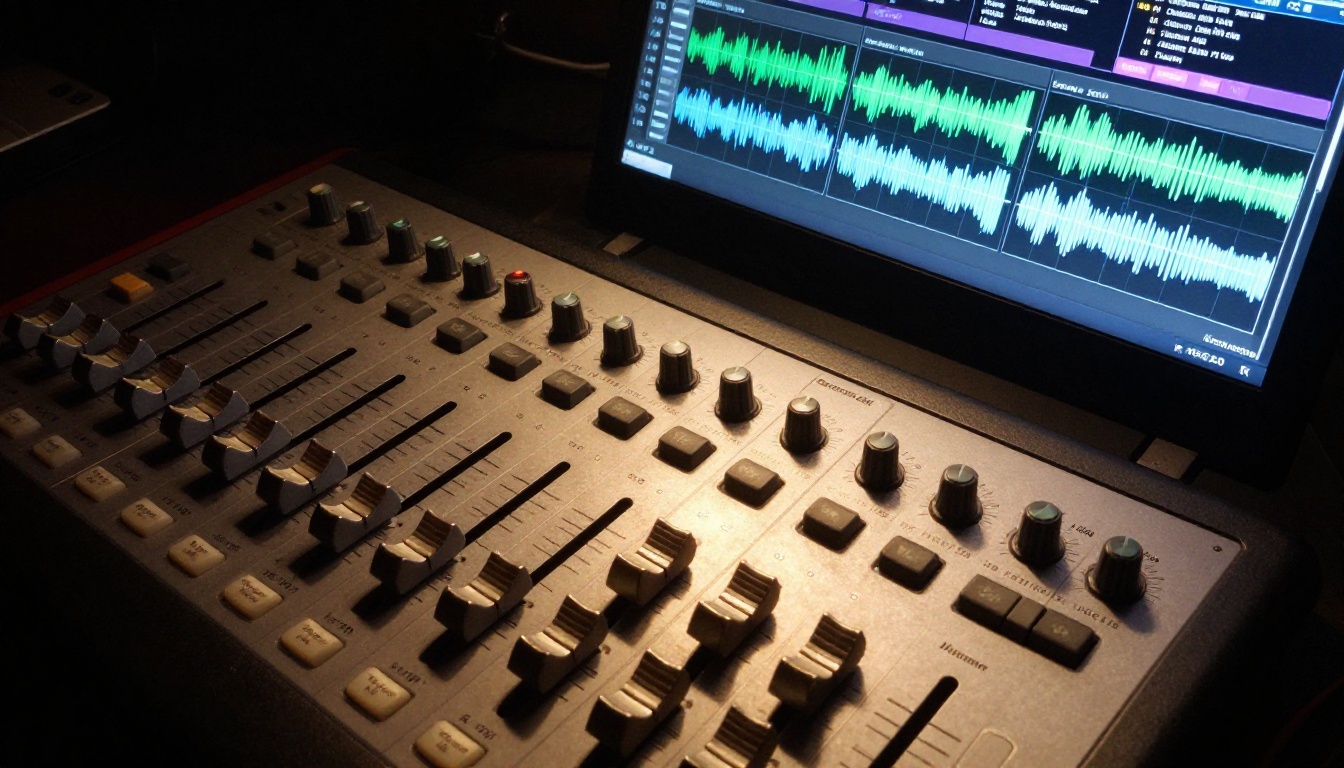
Sound is half the edit. Poor audio kills viewer retention faster than shaky camera work, and good audio can make rough-looking footage feel professional. AI audio tools now handle what previously required a dedicated sound designer or lengthy library search sessions.
Auto Sound Effects from Video
Video To SFX v1.5 analyzes the visual content of each frame and generates synchronized sound effects that match on-screen events. A door closing, footsteps on gravel, a car accelerating: the model reads the frame and creates audio that fits it, locked to timecode.
Thinksound layers environmental awareness on top of event-specific effects, generating ambient sound beds that situate the scene before individual sound events occur. The result is a richer audio mix without a recording session.
MMAudio accepts a text prompt alongside the video and generates audio that matches both the visual content and a described mood. This is the right tool when you have a specific sonic atmosphere in mind that a general SFX library would not cover.
💡 Run AI audio generation on your rough cut before working with a sound designer. You will arrive at the session with a scratch audio bed that communicates exactly what the scene needs, cutting the briefing and revision cycle significantly.
Music Generation for Your Cut
AI music generation tools produce original underscore tracks from descriptions of mood, tempo, and instrumentation. The output is original composition, which means no sync licensing, no clearance, and no royalty exposure. A track generated to your specific brief is production-ready immediately and costs a fraction of library licensing.
B-Roll Generation with AI Video

The most expensive part of many editing projects is not the edit. It is the footage gap: the cutaways that do not exist, the establishing shots that were never captured, the B-roll that no stock library has in the right frame or style. AI video generation changes the economics of that problem entirely.
Text to Video for Missing Shots
Seedance 2.0 from Bytedance produces photorealistic video with native synchronized audio directly from text prompts. You describe the shot: the framing, the subject, the camera movement, the time of day. The model delivers a clip that fits the brief. It is fast, the output holds up on 1080p timelines, and the audio is generated natively rather than added as a separate layer.
Veo 3 from Google is particularly strong for naturalistic outdoor and environmental shots: city streets, landscapes, crowd scenes, establishing exteriors. These are exactly the categories of footage that cost the most to acquire and are now generatable in minutes.
Wan 2.7 T2V delivers 1080p output with high temporal consistency, meaning objects and subjects stay visually stable across the full clip without flickering or warping between frames.
Kling v3 Video and Gen 4.5 round out the top-tier options when cinematic motion quality and stylistic control are the priority.
Blending AI and Real Footage
The most important factor in seamless AI B-roll integration is matching the technical characteristics of your production footage. Before generating, consider three things:
- Color profile: Describe the lighting conditions of your real footage in your prompt. "Overcast flat light" or "warm golden-hour backlight" will produce footage that grades to match without heavy lifting in color correction.
- Resolution: Generate at or above your delivery resolution, then scale down if needed. Never scale up AI-generated footage after the fact if you can avoid it.
- Camera motion: If your real footage was handheld, describe subtle movement in your prompt. If it was locked off, specify a static camera. Matching motion style is what makes the cut invisible.
💡 AI-generated B-roll works best as 2-5 second cutaways. Anything longer invites comparison. Use it where the edit would naturally cut anyway, and your audience will not notice the seam.
PicassoIA hosts more than 80 video-related models in a single platform, organized by category so you are not managing five different tool subscriptions and five separate upload workflows.
First Steps on PicassoIA
The video editing category includes everything from basic utilities like Trim Video, Video Split, and Video Merge to advanced AI edits like Lucy Edit 2 and Gen4 Aleph.
Upload your clip, select the model that matches your task, and each model page includes example outputs and parameter descriptions so you can evaluate what you are working with before committing a clip to it. For most editing tasks, the default settings produce usable results on the first pass.
Recommended Workflow for Editors
Here is a practical end-to-end workflow for a talking-head video project using AI tools across every stage:
- Rough cut: Standard editing in your NLE of choice.
- Object cleanup: Video Erase Object for anything that entered frame accidentally.
- Background removal: Video Remove Background if you need to composite onto a different background.
- Upscaling: Crystal Video Upscaler for any lower-resolution clips in the cut.
- AI B-roll: Seedance 2.0 or Wan 2.7 T2V to fill coverage gaps.
- Captions: Autocaption for the final version before export.
- Audio: Video To SFX v1.5 for ambience and effects, MMAudio for music beds.
This entire pipeline runs without leaving the platform. Every model charges only for what you use.

What the Timeline Looks Like Now
The shift AI brings to video editing is not about making the work easier in a vague sense. It is about making specific tasks that used to take hours take minutes instead. Creative decisions, story instincts, the sequencing choices that make a cut feel right: none of that changes. What changes is how much time you spend on work that was always mechanical.
The models doing the most work in professional pipelines right now:
Editors who adopt these tools spend more time on the decisions that actually matter. The ones who do not spend the same hours they always have on tasks that are now optional.
Try It on Your Next Project
You do not need to overhaul your entire workflow at once. Pick the one bottleneck in your current project that costs the most time. If it is captioning, start with Autocaption. If it is an object in the background you missed on set, test Video Erase Object. If you are short on B-roll for a narration sequence, run a description through Seedance 2.0 or Veo 3 and see what comes back.
Every tool referenced in this article is available at picassoia.com/en/all-models, organized by category. Each model page includes example outputs so you can see what the quality looks like before committing any footage to it.
The editors already using this stack are delivering more work, in less time, on the same projects. The tools are there. The only question is whether you use them on the next job.


