A Prompt Checklist for AI Video That Actually Works
Writing AI video prompts that produce cinematic, consistent results requires more than describing what you want. This checklist breaks down every element, from scene composition and camera movement to lighting cues and pacing, so your next video generation hits on the first try.
The prompt field sitting empty in front of a text-to-video model is deceptively simple. You type something, press generate, and two minutes later you have a video. Except it looks nothing like what you imagined.
The gap between "I described it clearly" and "it came out right" is almost always a prompt problem. Not because you wrote the wrong words, but because text-to-video models need a very specific type of information in a very specific order, and most people skip half of it without realizing. This checklist covers every element that belongs in an AI video prompt, organized so you can run through it before every generation.
Why Most AI Video Prompts Fall Short
The difference between image and video prompting
Image prompts describe a single frozen moment. You can be loose with time and motion because the model only needs to synthesize one frame. Video prompts describe a sequence. The model needs to know what starts the scene, how it changes across 5 or 10 seconds, and what the camera is doing throughout. Leave those out and the model fills in the blanks however it wants, usually with random camera drift, subject jitter, and a midpoint that looks nothing like the opening frame.
What the model actually needs to know
Most AI video models are trained on millions of clips with professional cinematography conventions baked in. They respond well to the language of that craft: specific camera terms, lighting vocabulary, motion verbs. Vague adjectives like "cool" or "nice" give the model nothing concrete to work with.
Models like Seedance 2.0, Kling v3 Video, and Veo 3.1 all respond significantly better to structured, specific prompts. Let's break down every section of one.
The Scene Foundation Checklist
Before any camera or motion detail, a good AI video prompt establishes the who, what, and where. These three anchors give the model a stable starting point for every frame.
Subject: who or what is in the frame
Define your subject with enough specificity that a casting director could find them. Instead of "a woman," try "a woman in her 30s with short dark hair wearing a cream-colored raincoat." Instead of "a car," try "a black 1960s muscle car with chrome trim and rear exhaust pipes."
This level of detail serves temporal consistency. When the model has a precise subject description, it holds that description stable across all frames rather than drifting.
Weak
Strong
"a man walking"
"a bearded man in a gray suit, mid-40s, walking with hands in his pockets"
"a city"
"a narrow cobblestone street in a rainy European city, wet storefronts, evening"
"nature scene"
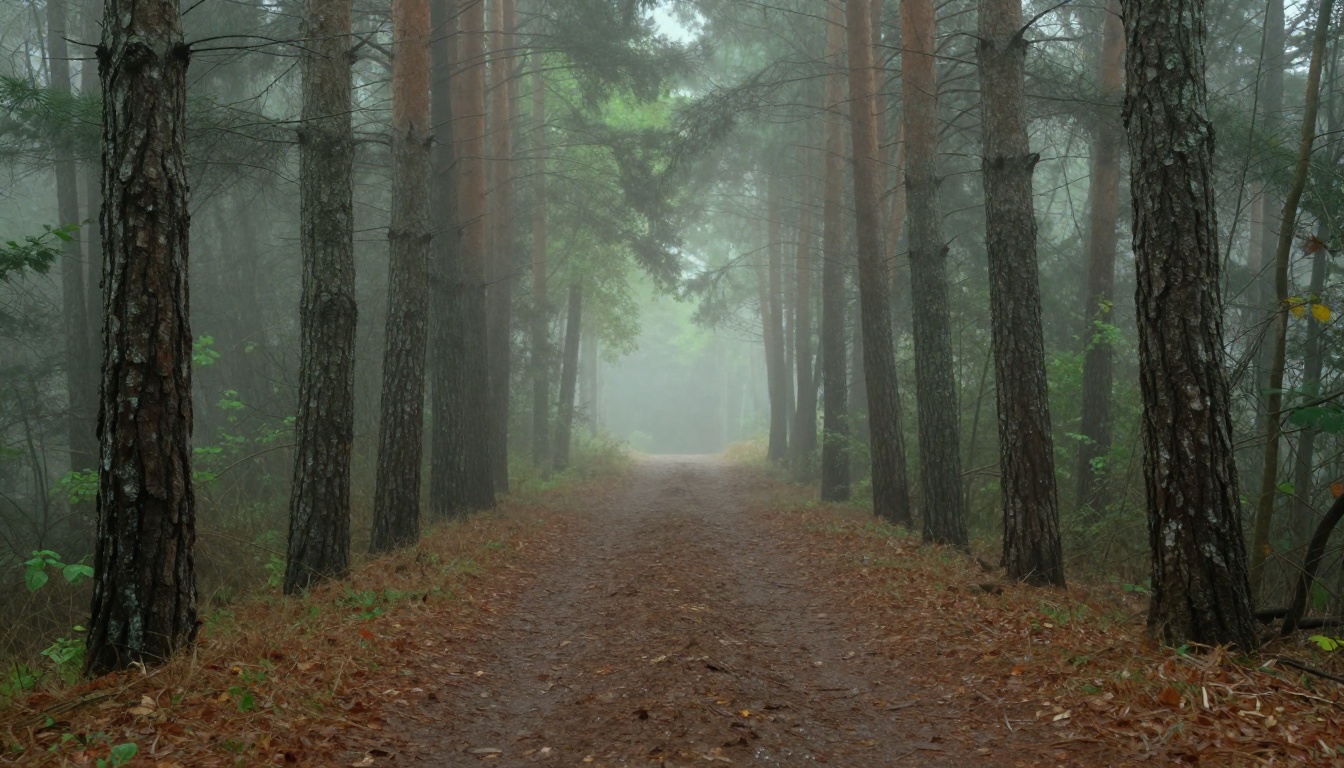
"a pine forest clearing at dawn, mist at ground level, back-lit by rising sun"
Environment: where the action takes place
The environment needs the same specificity as the subject. "In a coffee shop" is thin. "Inside a small independent coffee shop with exposed brick walls, mismatched wooden chairs, warm Edison bulb lighting, and rain visible on the street window behind" gives the model a real space to populate. The richer the environment description, the more stable the background will remain across frames.
Time of day and weather
These two parameters do more work than almost any other element in your prompt. They determine light direction, color temperature, shadow hardness, and atmospheric diffusion. "Early morning fog," "harsh midday sun," "overcast afternoon," "blue-hour dusk": each of these sets a completely different visual world in motion. Never leave time of day unspecified.
Camera and Composition Cues
Angle and distance
AI video models respond well to standard cinematography terms for angle and distance. Use them directly:
Distances: extreme close-up (ECU), close-up (CU), medium shot (MS), full shot (FS), wide shot, extreme wide shot (EWS)
Combining them ("low-angle medium shot") tells the model exactly where to place the camera relative to the subject.
Movement instructions that work
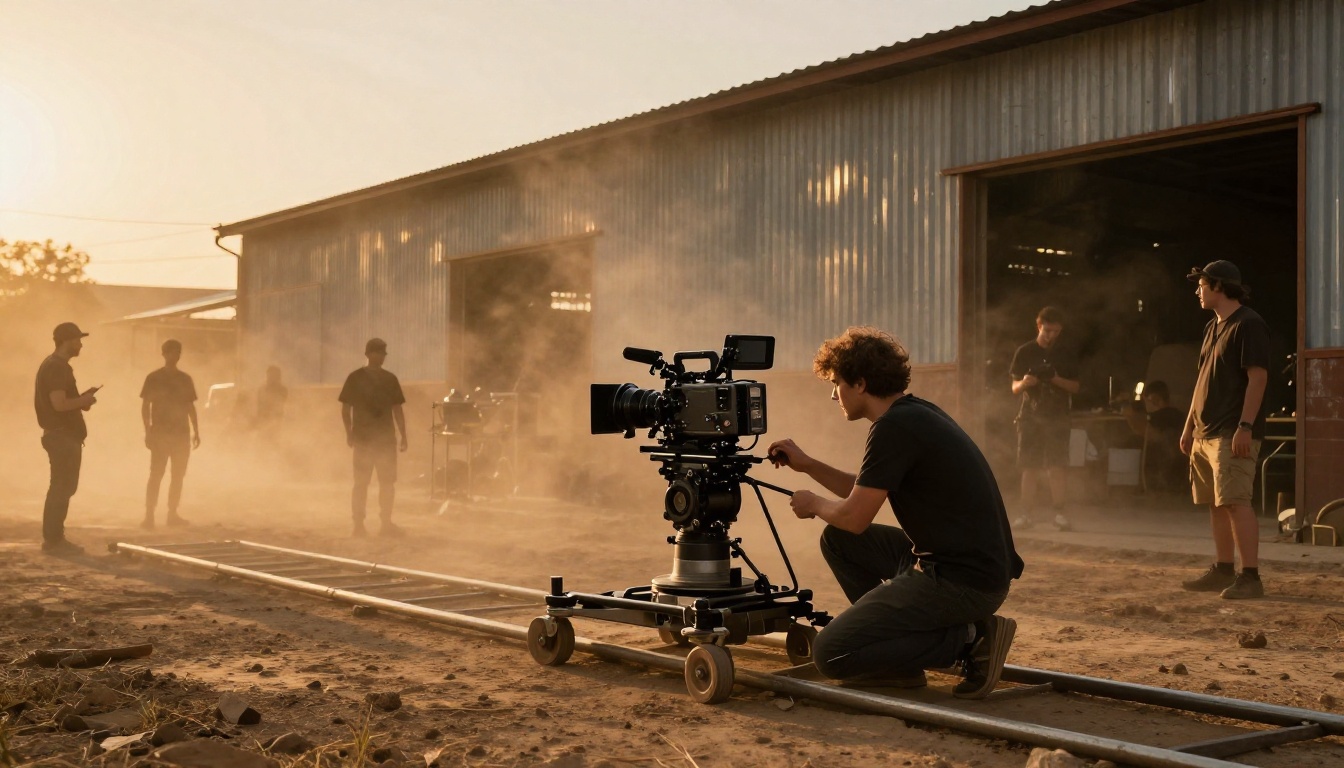
Camera movement is one of the most impactful levers in video prompting, and one of the most commonly neglected. A few reliable movement descriptions that most models respond to well:
"slow dolly-in": camera physically moves toward subject
"gentle pan right": camera rotates horizontally
"tilt up": camera rotates vertically upward
"tracking shot": camera follows the moving subject
"static locked-off shot": no movement, very stable
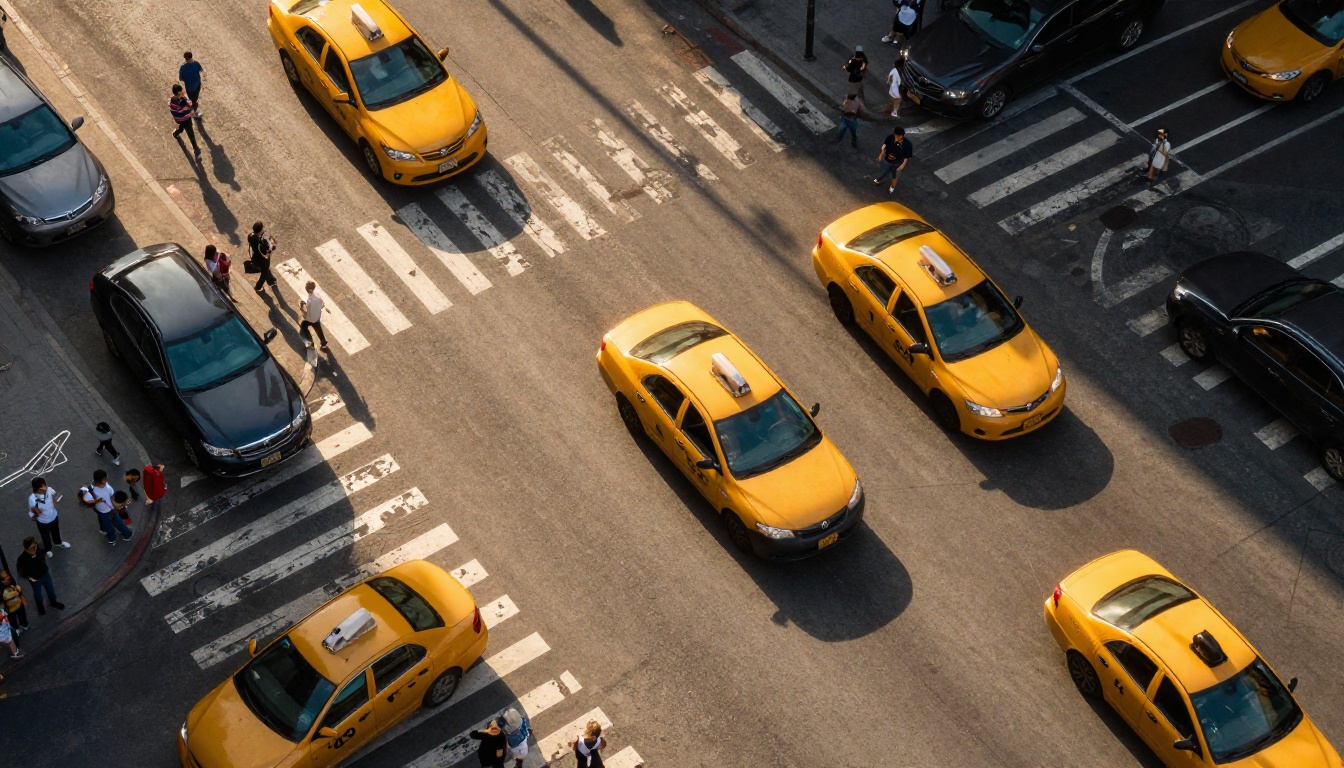
"slow aerial descent": bird's-eye moving downward
💡 For models like Kling v2.6 and Kling v3 Omni Video, specifying camera movement directly in the prompt produces more intentional, directed results than leaving it unspecified.
Lens and depth of field notes
If you know the focal length you want, include it. "85mm portrait lens with shallow depth of field" produces a different result from "28mm wide angle, everything in focus." These aren't arbitrary numbers: they encode specific visual aesthetics that appear consistently in the training data. A 28mm wide angle creates environmental context. An 85mm compresses space and isolates the subject. A 200mm telephoto flattens layers and creates dramatic subject isolation from busy backgrounds.
Motion and Action Description
Describing movement with precision
The most common mistake in motion description is stating what something is rather than what it does.
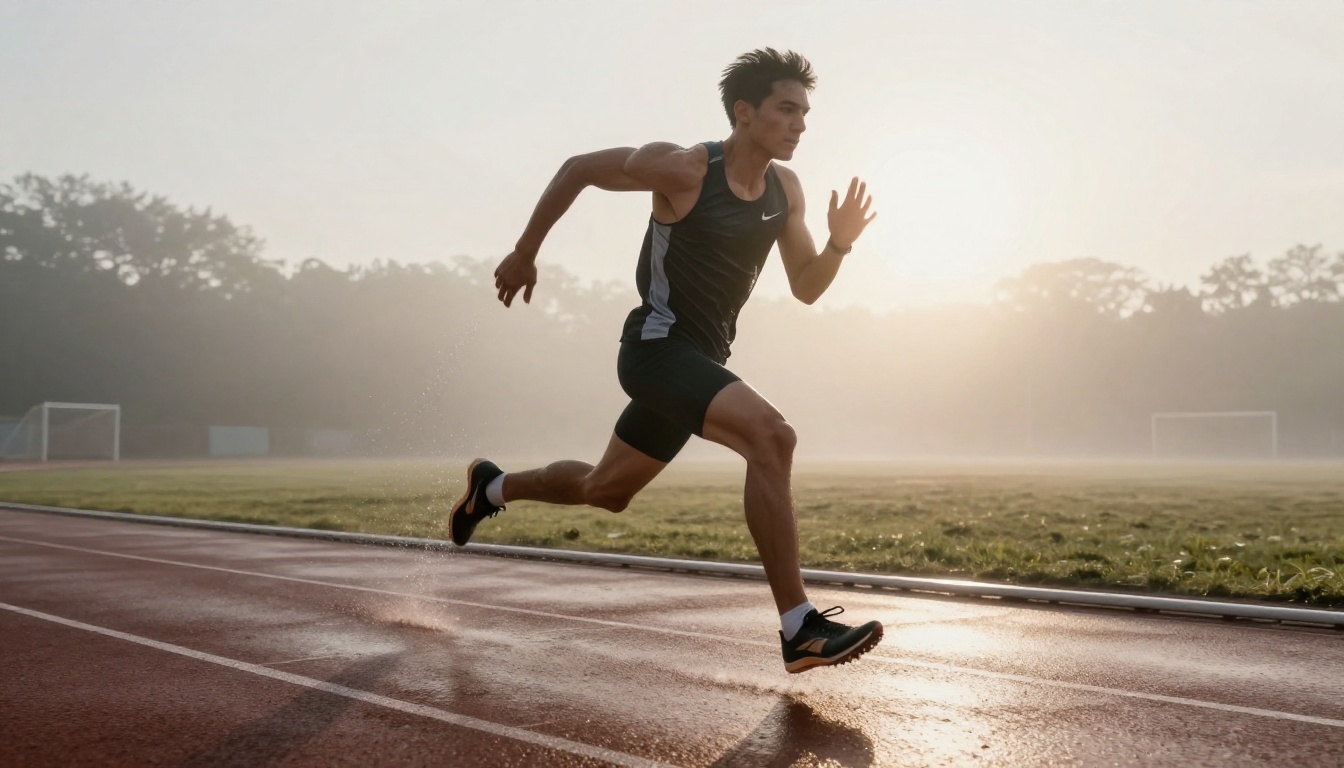
"A running person" tells the model the subject is in motion. It doesn't tell the model the quality, speed, direction, or physical detail of that motion. "A woman sprinting at full speed toward the camera, arms pumping, gravel scattering behind her feet, expression focused" tells the model all five.
Use active verbs and observable physical details: crumbling, swaying, sparkling, tilting, spinning, rippling, billowing. These generate more consistent motion than general terms like "moving" or "animated."
The pacing problem
Five-second videos need a single, clear action arc. Ten-second videos can hold two beats. Generators like Wan 2.7 T2V, LTX 2.3 Pro, and Hailuo 02 produce better clips when the prompt describes a single continuous action rather than multiple separate events.
If you write "she opens the door, walks in, sits down, and picks up the phone," you're describing a 30-second scene compressed into a 5-second clip. The model will skip frames or produce disjointed jumps. Instead: "she slowly opens the heavy wooden door, pausing at the threshold, golden light streaming in behind her."
What temporal consistency actually means
Temporal consistency is the stability of visual elements across frames: the subject's face, the background, the lighting, the color palette. When it breaks down, you see flickering textures, morphing faces, or environments that change mid-clip.
Improving it requires giving the model stable anchors. Long, specific subject descriptions help. Strong scene lighting descriptions help. Avoiding too many simultaneous moving elements helps. Models like Pixverse v6 and Gen 4.5 have built-in stability improvements, but the prompt still drives the baseline.
Lighting and Atmosphere
Natural vs. artificial light
Natural light descriptions carry strong associations in training data. "Golden hour backlight," "overcast diffused daylight," "blue-hour street light," "noon sun overhead casting hard shadows": each immediately sets the visual context for the model.
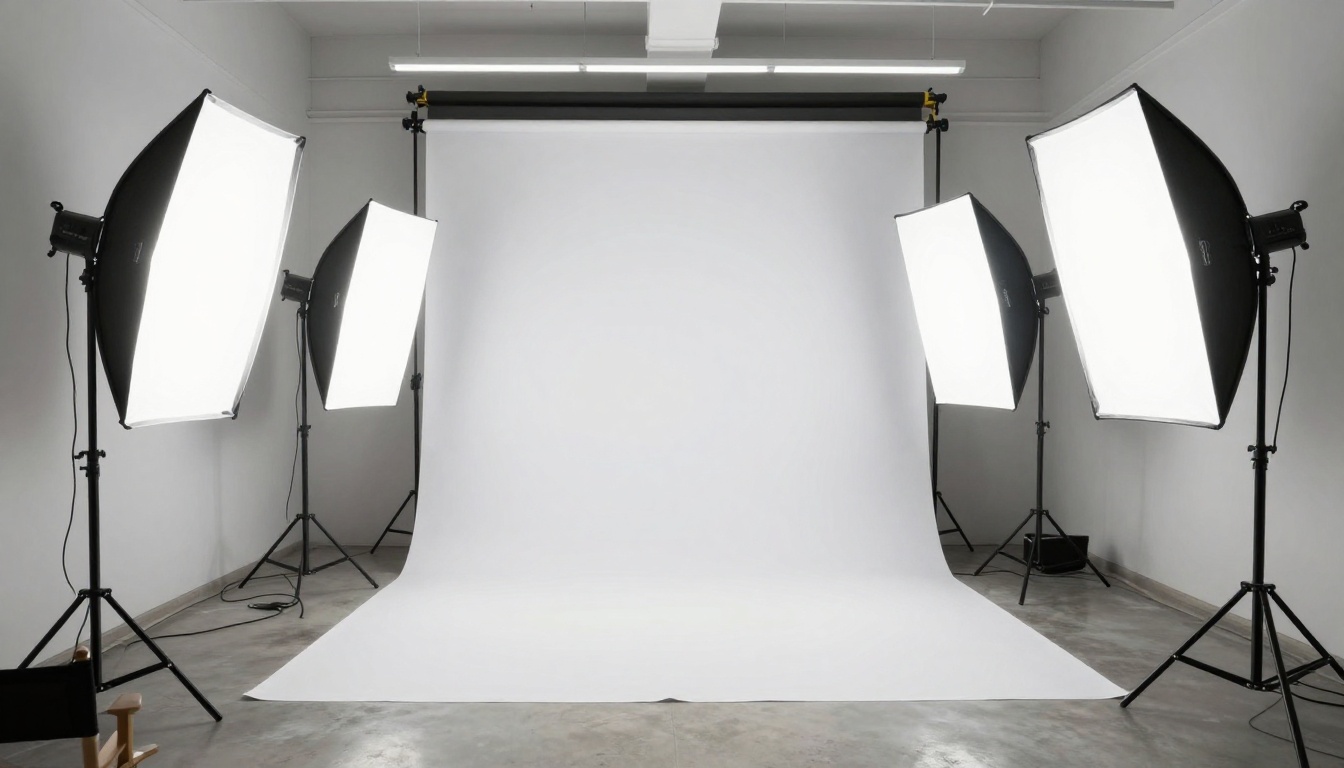
Artificial light gives you more precision. "Single overhead tungsten bulb," "neon sign reflected on wet pavement," "three-point studio setup with soft fill," "flickering fluorescent in a hallway": all of these encode specific cinematographic moods with high consistency.
Mood through color temperature
Color temperature affects the emotional read of a scene as much as anything else in your prompt. Use these terms directly:
Mixed: cinematic and dramatic (e.g., "warm interior light spilling into cool blue exterior")
Avoiding the flat video problem
Flat, underlit videos often result from prompts with no lighting description at all. The model defaults to a mid-gray average. To avoid this:
Always name a light source (window, sun, lamp, streetlight, screen)
Name the direction (from the left, from above, back-lit, side-lit)
Name the quality (hard, soft, diffused, direct, scattered)
Even one sentence of lighting description ("warm window light from the left, casting soft shadows across the subject's face") dramatically changes the visual output of any generation.
Style, Negative Prompts, and Final Checks
Style modifiers that actually work
The best style modifiers for AI video are drawn from real cinematographic references. They encode specific visual systems the model has absorbed from actual films and photography:
Avoid synthetic-sounding terms like "hyper-realistic digital" or "cinematic 3D render." These often pull the model toward CG aesthetics even when you want live-action photography.
Negative prompts: what to exclude
Not all video models have a separate negative prompt field. When they do, use it. Standard exclusions that improve most videos:
blurry, out of focus (unless intentional)
watermark, text overlay, logo
cartoon, illustration, animated, anime
low quality, pixelated, compression artifacts
excessive camera shake (unless requested)
multiple people (if your scene needs a single subject)
The final read-through test
Before submitting any prompt, read it back and answer these six questions:
Can you visualize exactly what the first frame looks like?
Do you know what changes between the first and last frame?
Is there a named light source?
Have you named the camera angle?
Have you described camera movement, or explicitly left the camera still?
Is the subject described specifically enough to stay consistent across frames?
If you answer "no" to any of these, fill that gap before generating.
Prompt Checklist by AI Video Model
Different models respond differently to the same prompt. Tailoring your language to the model's characteristics gets better results than a one-size-fits-all approach.
Seedance 2.0 for motion and audio
Seedance 2.0 produces native audio alongside video, making it ideal for scenes where ambient sound matters. Its motion quality handles fast-moving subjects well. For Seedance, describing audio context in the prompt improves the generated soundscape: "waves crashing on rocky shore," "city traffic hum at rush hour," "footsteps on gravel path."
Kling v3 for cinematic control
Kling v3 Video responds particularly well to specific camera language. Naming movement types ("slow push-in," "crane shot rising") produces noticeably more controlled results than generic descriptions. Kling v3's 1080p output makes it a strong choice when output quality matters more than generation speed. Kling v2.6 offers a good balance of speed and control for faster iteration.
Wan 2.7 for longer sequences
Wan 2.7 T2V handles 1080p generation and is a strong choice for longer clips with good temporal stability. Its image-to-video variant, Wan 2.7 I2V, takes a reference image as the starting frame, reducing consistency issues significantly since the model has a concrete pixel-perfect starting point rather than building from text alone.
Veo 3.1 for audio-synced content
Veo 3.1 generates video with synchronized native audio. For dialogue scenes or music-driven content, including sound descriptions in your prompt gives the audio generation more to work with: "upbeat acoustic guitar playing softly in the background," "dialogue in a tiled bathroom with natural reverb," "wind through pine trees."
Pixverse v6 and Hailuo 02 for fast iteration
When iteration speed matters more than maximum quality, Pixverse v6 and Hailuo 02 offer fast turnaround at good resolution. They work well for testing prompt variations: write three versions of the same scene with different lighting or motion descriptions, generate all three quickly, then take the strongest version to a higher-quality model for the final output.
How to Use PicassoIA for AI Video Prompting
PicassoIA gives you access to all the models above from a single interface, without needing separate API keys or accounts for each one. Here's how to put this checklist to work on the platform:
Environment (where, with architectural or natural detail)
Time of day and weather
Camera angle and distance
Camera movement, or "static locked-off shot"
Action or motion (single arc, active verbs)
Lighting (source, direction, quality)
Style modifiers (photorealism standard, film stock if needed)
Exclusions (at the end, or in the negative field if available)
Step 3: Start at 5 seconds, then extend
Generate a 5-second clip first. Review the first frame and the consistency across the clip. If the first frame is wrong, fix the scene description. If consistency breaks mid-clip, add more subject specificity and reduce the number of simultaneous moving elements. Only extend to a longer clip once the 5-second version holds together.
Step 4: Use image-to-video for maximum consistency
If you have a specific first frame in mind, generate it first with a text-to-image model, then pass that image to Wan 2.7 I2V, Wan 2.5 I2V, or Hailuo 2.3 for animation. This eliminates most temporal consistency problems because the model has a real pixel-perfect starting point rather than building everything from text.
Start Generating Now
The checklist is not meant to be memorized. It's meant to be run through quickly before you hit generate, the same way a pilot runs a pre-flight check: not because they've forgotten how the systems work, but because systematic checks catch the element you'd otherwise skip.
Copy this structure into a notes file and fill it in before each generation:
Subject: [who or what, described precisely]
Environment: [where, with specific detail]
Time and weather: [lighting context]
Camera angle: [low / eye / high / aerial + distance]
Camera movement: [named movement or "locked-off"]
Action: [single motion arc, active verbs]
Lighting: [source + direction + quality]
Style: [photorealistic, film stock, etc.]
Exclude: [what the model should avoid]
Every field filled means fewer wasted generations and faster results. The difference between a prompt that produces a flat, jittery clip and one that produces something worth keeping often comes down to three or four specific words you hadn't added yet.
PicassoIA puts over 100 text-to-video models in one place with no setup overhead. Pick a model, run through this checklist, and generate. Your first structured prompt is waiting at picassoia.com.