Getting a voiceover recorded used to mean one of two things: hiring a voice actor and waiting days for availability and revisions, or sitting in front of a microphone hoping you sound more polished than you feel. Neither option works when you need audio fast, affordably, and at scale. AI text-to-speech has genuinely changed that equation. The workflow is simpler than most people think, and the output quality has crossed a threshold where, with the right model and a well-crafted script, most listeners cannot tell the difference.
This article walks through the exact four-step process for producing AI voiceovers that sound natural, breaks down which voice models to use for which content type, and shows you how to run the entire thing from a single platform.

Why Most People Get AI Voiceovers Wrong
The biggest mistake creators make is treating AI voiceovers like a paste-and-download button. You copy your blog post or script, drop it into a text-to-speech tool, hit generate, and wonder why it sounds flat or robotic. The issue is almost never the AI model. It is the input.
AI voice generators are highly sensitive to punctuation, sentence rhythm, and pacing. A long run-on sentence that reads fine as copy sounds breathless when spoken aloud. A comma placed incorrectly creates an odd, unnatural pause. Missing punctuation at the end of a thought produces a flat, trailing tone that signals "machine" to any listener.
The second mistake is choosing the wrong model for the job. A casual YouTube video and a corporate compliance training module call for entirely different voices. Using a theatrical, emotionally expressive model for dry instructional text sounds absurd. Using a flat, neutral news-anchor voice for a fitness motivational video sounds dead. The mismatch itself is what gives AI voiceovers away.
Fix both inputs (the script and the model selection) and the result becomes close to indistinguishable from a real recording for most content use cases.
The 4-Step AI Voiceover Workflow
The process below is the actual workflow that produces consistent, professional-sounding AI audio. No shortcuts.
Step 1: Write a Clean Script First
Do not paste raw written copy into a TTS tool. Written language and spoken language follow different rules. Write a purpose-built narration script following these principles:
- Short sentences. Aim for 15 words or fewer. Long sentences force the AI to make breathing decisions it was not designed for.
- Spell out numbers. Write "three hundred and fifty dollars" instead of "$350." Many models mispronounce symbols and numerals unpredictably.
- Use punctuation for pacing. Commas create brief pauses. Periods create full stops. Ellipses (...) signal a dramatic beat or trailing thought.
- Avoid nested clauses. "The tool, which was released last year, when most platforms were still catching up, produces..." is a TTS nightmare. Break it into three separate sentences.
- Read it aloud yourself first. If you stumble, the AI will too. Rewrite until it flows without effort.
💡 Tip: For model names, brand acronyms, or unusual words, phonetically rewrite them directly in the script. If "DALL-E" gets mispronounced, write "DAH-lee" in the narration copy. You are writing for a reader that interprets text literally.
Step 2: Pick the Right Voice Model
The model selection determines the final character, quality, and natural feel of the audio. Here is a decision table based on common use cases:
| Use Case | Recommended Model | Strength |
|---|
| YouTube and social content | ElevenLabs V3 | Emotional range, human inflection |
| Corporate and explainer | MiniMax Speech 2.8 HD | Studio-quality, neutral and polished |
| Podcast episodes | Chatterbox Pro | Voice cloning, consistent long-form tone |
| International content | Gemini 3.1 Flash TTS | 70+ languages, fast rendering |
| Dialogue and interview formats | Play Dialog | Built for two-speaker conversations |
| Real-time or livestream | ElevenLabs Flash v2.5 | Ultra-low latency, near-instant output |
| Custom or brand voice | Qwen3 TTS | Voice design from scratch or cloning |

Step 3: Generate, Listen, Adjust
Generate your first pass. Then listen back with headphones, not laptop speakers. You are specifically checking for:
- Unnatural word-level pauses: the AI inserted a gap where none belongs. Fix by removing the comma or punctuation that triggered it.
- Mispronounced words: rewrite them phonetically in the script and regenerate.
- Rushed passages: break the offending sentence into two.
- Flat sections: the sentence lacks punctuation variety. Add a comma or restructure with a stronger verb at the end.
- Wrong emphasis: if the AI stresses the wrong word, try capitalizing it or placing it at the end of the sentence.
The difference between a first-pass AI voiceover and a polished one is almost always script edits, not model changes. Most professional-sounding AI audio results come from the second or third generation, not the first.
Step 4: Export and Drop It In
When the audio sounds right, export as MP3 for web, social, and podcast distribution. Use WAV if you are bringing it into a video editor or DAW for further production work.
Most AI audio produced by the models listed above is clean enough to use without post-processing. For professional productions, a light high-shelf EQ boost around 8-10kHz adds presence, and gentle compression at a 2:1 ratio with a soft knee evens out any volume inconsistencies across the recording.
The Best AI Voice Models Right Now
The text-to-speech space has matured significantly. These are the models worth building a workflow around in 2027.

ElevenLabs V3: For Emotional Range
ElevenLabs V3 remains the benchmark for expressive, human-sounding AI speech. It handles emotional shifts within a single passage naturally, moving from warm and conversational to urgent without sounding stitched together. For YouTube creators, narration-driven social content, and video essays where the voice needs to carry viewer attention across several minutes, V3 is the strongest option available.
Its sibling, ElevenLabs v2 Multilingual, extends that quality across 30+ languages. For teams producing Spanish, Portuguese, French, or German content alongside English, this is the model to standardize on rather than switching tools per language.
For speed-sensitive workflows, ElevenLabs Turbo v2.5 delivers the same voice quality at faster rendering speeds across 32 languages. ElevenLabs Flash v2.5 is designed for real-time applications and low-latency contexts like livestreaming or interactive tools.
MiniMax Speech 2.8 HD: For Studio Quality
MiniMax Speech 2.8 HD produces audio that sounds like a professional recording booth. The voice is clean, warm, and free of the digital "thinness" that marks lower-quality TTS outputs. For corporate training videos, e-learning modules, product explainer content, and anything requiring a neutral-professional register, this is the natural first choice.
When rapid iteration matters more than peak fidelity during drafting, MiniMax Speech 2.8 Turbo offers faster generation with comparable quality for most applications. For projects already using earlier versions, MiniMax Speech 2.6 HD and MiniMax Speech 2.6 Turbo remain available and perform well.
Chatterbox Pro: For Voice Cloning
Chatterbox Pro by Resemble AI is built specifically around voice replication. Feed it a short reference audio clip and it reproduces that voice consistently across any script. For podcasters who want AI narration in their own voice, for brands that have an established voice actor they want to scale without scheduling additional sessions, or for course creators who need to update a single sentence without re-recording an entire lesson, this is the most practical solution.
Chatterbox is the standard version with emotion control built in. Chatterbox Turbo prioritizes generation speed, making it suitable for higher-volume workflows where turnaround time matters as much as fidelity.
Gemini 3.1 Flash TTS: For Speed and Language Range
Gemini 3.1 Flash TTS by Google supports 30 distinct voice options across more than 70 languages. For international content teams, having a single model that handles English, Japanese, Hindi, Arabic, and Portuguese without switching platforms is a significant operational advantage. The Flash designation means generation is fast, making it practical even for daily publishing at scale.
Play Dialog: For Conversational Formats
Play Dialog is engineered specifically for dialogue rather than monologue. Most TTS models assume a single speaker reading continuous text. Play Dialog handles multi-speaker scripts with natural conversational rhythm, making it the right choice for interview-format podcasts, two-character explainers, customer service training simulations, and any content involving a back-and-forth exchange rather than a lecture.
Qwen3 TTS: For Voice Design
Qwen3 TTS takes a different approach: it lets you design a completely custom synthetic voice from scratch, or clone from a reference recording. This is particularly useful when you want a unique voice for a brand that does not want to sound like any existing AI model on the market.
How to Use AI Voiceovers on PicassoIA
PicassoIA gives you access to all of the models above through a single interface. No account switching, no tool-hopping between platforms.
Here is the workflow inside the platform:
1. Open the Text to Speech collection. Go to picassoia.com/en/all-models and filter by "Text to Speech." You will see every available model with description previews.
2. Select your model. Use the table from Step 2 above to pick based on your use case. When in doubt, ElevenLabs V3 is a reliable starting point for general content.
3. Choose a voice preset. Most models include multiple voices: male, female, different ages, different regional accents. Play the preview clips and select one that matches your content's tone and audience.
4. Paste your script. Paste the narration-ready version of your script (short sentences, spelled-out numbers, correct punctuation for pacing).
5. Generate and preview. The audio generates in seconds. Listen back with headphones and apply the adjustment checks from Step 3 of the workflow.
6. Iterate. Adjust your script based on what sounds off, and regenerate. Good results typically appear by the second or third pass.
7. Download. Export the final audio file and drop it into your video editor, podcast software, or presentation tool.
💡 For voice cloning specifically, use MiniMax Voice Cloning or Chatterbox Pro. A clean 30-second recording of the target voice, made in a quiet room at normal speaking pace, gives the best cloning results.
Voice Cloning: Your Own Voice, Everywhere
Voice cloning used to require hours of recorded audio and a full machine-learning pipeline managed by engineers. Today it needs about 30 seconds of clean source audio and a few clicks.
The practical applications are broader than most people initially consider:
- Podcasters can pre-record one session of source audio and use voice cloning to produce shorter segments, intros, or ad reads without re-recording for every episode.
- Course creators can update individual sentences or paragraphs in existing lessons without reshooting or re-recording entire modules.
- Brand teams can license a real voice actor's recordings once, then scale that voice to hundreds of scripts without scheduling additional sessions.
- Multilingual creators can speak in their own voice across Spanish, French, German, and Japanese without speaking those languages at a native level.
MiniMax Voice Cloning and Chatterbox Pro both handle this well. The critical variable in clone quality is always the source audio. Record in a quiet room with no background noise, speak at a natural pace without performance affectation, and aim for 30 to 60 seconds of clean, uninterrupted material.
Matching Voice Tone to Content Type
This is where most creators leave quality on the table. The wrong pairing makes both the voice and the content sound worse than either actually is.
Corporate vs. Casual
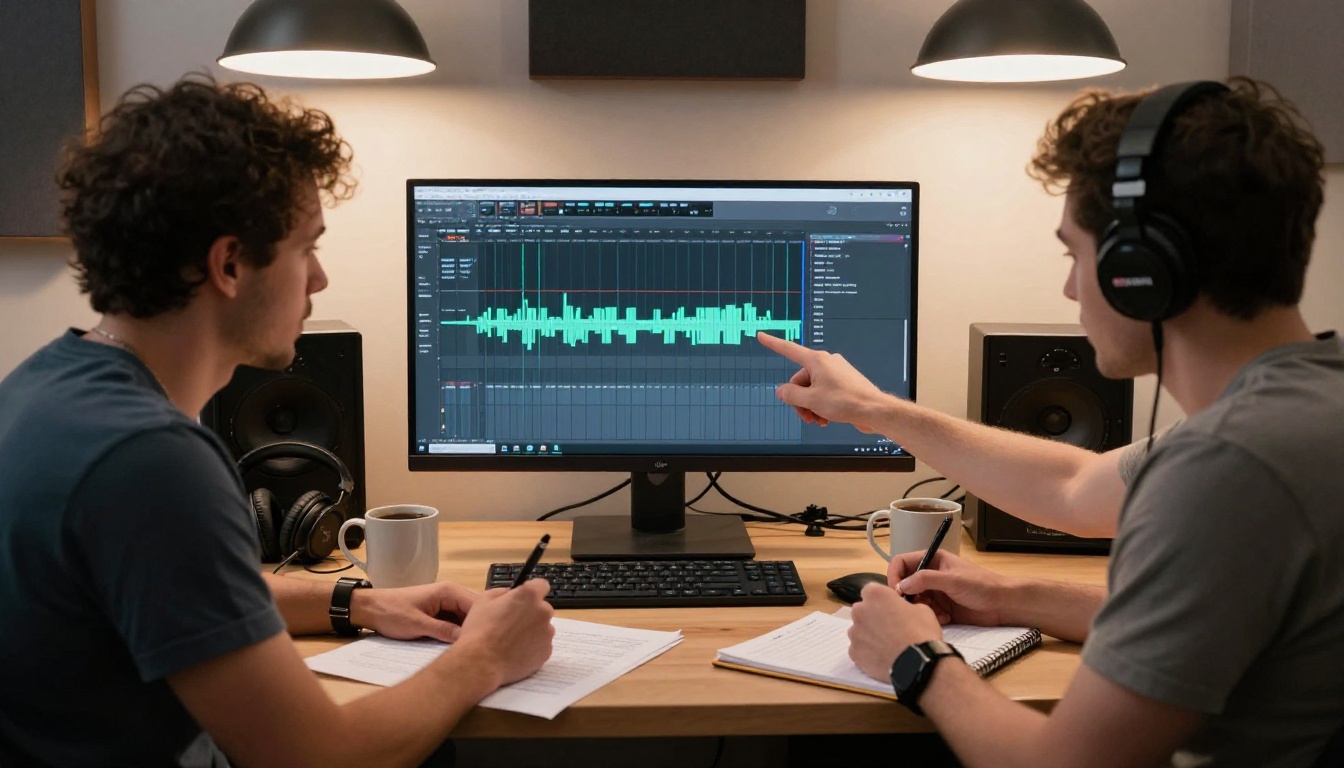
Corporate content, including training videos, product demos, compliance modules, and investor-facing materials, calls for measured, authoritative delivery without emotional variance. MiniMax Speech 2.8 HD and Grok Text To Speech both perform well in this register.
Casual content, including YouTube videos, social media narration, and personal brand storytelling, benefits from warmth, slight emotional variation, and a conversational pace. ElevenLabs V3 and ElevenLabs Turbo v2.5 handle this register without crossing into theatrical overexpression.
YouTube vs. Podcast vs. Ad
3 Mistakes That Kill the Effect
Most AI voiceover failures come down to one of three predictable errors.
Leaving in written-language punctuation. Written prose and spoken narration use punctuation differently. A sentence like "However, if you look at the data, you will notice, quite clearly, that..." sounds chopped and unnatural when spoken. Cut down to only the pauses that serve the listener, not the reader.
Using an expressive voice for neutral content. A high-emotional-range model reading dry technical documentation sounds almost parodic. The mismatch signals "AI" to any listener immediately. Match the emotional register of the model to the content. Instructional text needs neutral. Motivational content needs expressive. A wrong pairing makes both worse.
Shipping the first pass. Most people generate once and move on. Creators whose voiceovers sound genuinely professional almost always iterate. Generate, listen critically with headphones, rewrite the specific sentences that sound off, and generate again. Two rounds is usually sufficient to move from "clearly AI" to "this sounds like a real person."
💡 For fast iteration specifically, TTS 1.5 Max by Inworld produces near-instant output across 15 languages, making it practical for rapid-cycle testing when you need to hear multiple script variations back-to-back.
Your First AI Voiceover
The tools exist. The workflow above works. The only remaining variable is whether you sit down and run it.
Start with something you already have: a script, a blog post, a tutorial outline. Open ElevenLabs V3 on PicassoIA, paste a section, pick a voice, and generate. That first output will teach you more about the process than reading about it ever could. From there, test a different model, adjust the punctuation in your script, try the voice cloning feature with a short reference clip.
The full text-to-speech collection on PicassoIA gives you access to every model in this article from one place. No switching between platforms, no separate accounts, no per-tool subscriptions. The workflow above scales from a single YouTube video to a weekly podcast to a full multi-language e-learning course. The scope changes. The four steps do not.


