Every video editor knows the feeling. You have a solid talking-head clip, sharp audio, a clear message, and then you hit the timeline and realize you need 90 seconds of B-roll to cover a cut, illustrate a point, or just break the monotony of a static face on screen. So begins the stock footage spiral: opening three browser tabs, searching the same overused keywords, previewing clips that almost work but never quite do, and burning 45 minutes on something that should take five.
AI has a direct fix for this. Text-to-video models now generate photorealistic B-roll clips from written descriptions in under a minute. No licensing fees, no watermarks, no compromises on style or subject. This is how to actually use them.
What B-Roll Is (And Why It Eats So Much Time)
B-roll is any footage that plays over your primary video track, typically used to illustrate what the speaker is saying, cover a jump cut, or create visual variety. In a cooking video, B-roll is the close-up of hands chopping onions. In a travel vlog, it is the drone shot over the city. In a corporate interview, it is the wide shot of the office floor.
The problem is not that B-roll is hard to shoot. The problem is that you often need footage of places, situations, or scenarios you simply cannot film yourself. A founder talking about their supply chain needs visuals of warehouses and shipping containers. A health content creator needs footage of someone exercising, sleeping, or cooking. A documentary filmmaker needs archival-style rural scenes from three different continents.
The Time Cost Nobody Talks About
The average editor spends 20 to 40 percent of their post-production time searching for and licensing B-roll. That is not an exaggeration. Stock libraries have millions of clips, but finding the right clip, at the right angle, with the right color temperature, in a style that matches your primary footage is a genuinely difficult search problem. Most of the time, you settle.
Why Stock Sites Fall Short
Stock footage is produced for the average use case. You get the generic city skyline. You get the handshake stock clip. You get the laptop-on-a-coffee-table office shot that appears in approximately 40 percent of all corporate videos made in the last decade. What you do not get is footage of a beekeeper working a hive in Tuscany, a coastal town at blue hour, or a macro close-up of water droplets on a specific variety of fern.
AI generates exactly what you describe.
How AI Creates B-Roll from a Prompt
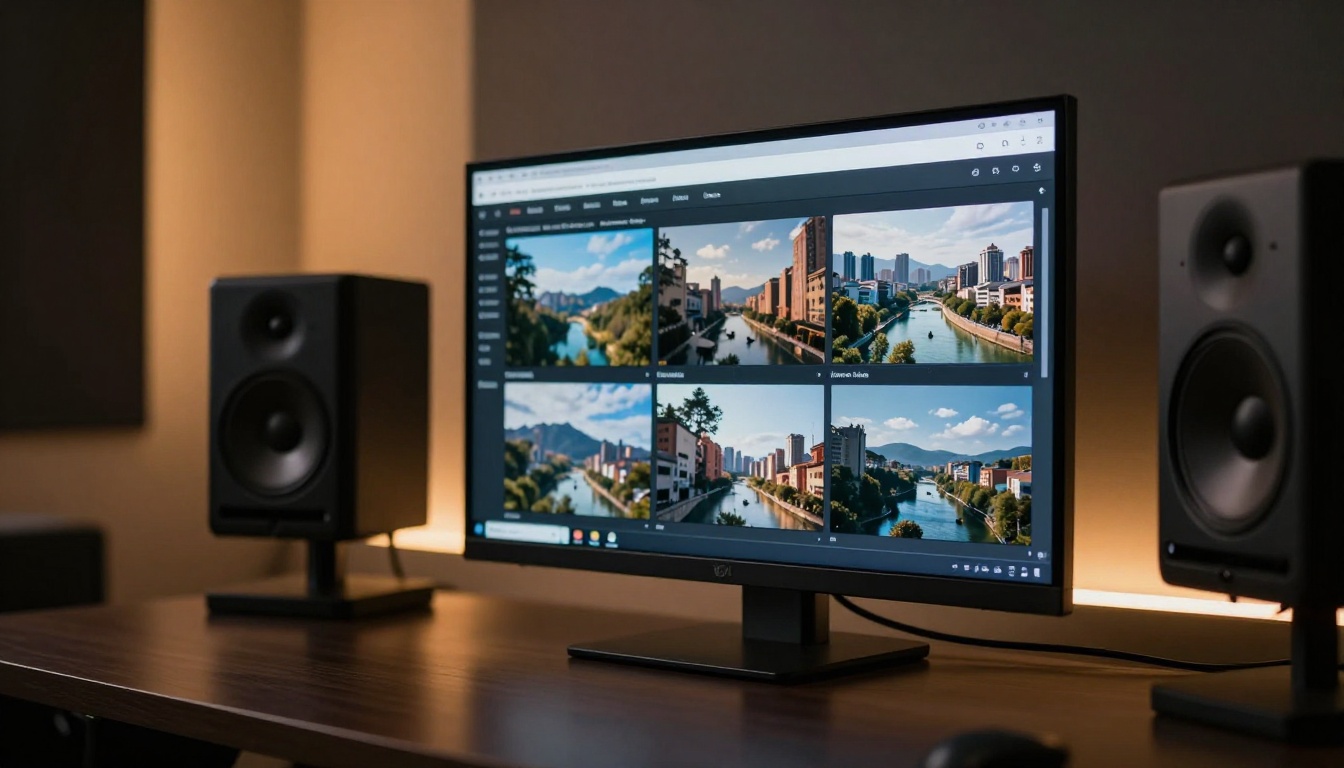
The workflow is simpler than most people expect. You write a description of the shot you need, the AI model interprets that description and renders a short video clip, usually between 5 and 10 seconds long, in the resolution and style you specified. The output lands in your downloads folder ready to drop into your editing software.
The quality gap between stock footage and AI-generated footage has closed significantly in 2027. Models like Wan 2.7 T2V generate 1080p video from text with convincing camera movement, natural lighting, and photorealistic subjects. Kling v3 Video handles cinematic motion with impressive stability. Veo 3 from Google produces clips with native synchronized audio, which means ambient sound design comes built in.
What the Model Actually Does
When you type "aerial shot of morning commuters crossing a busy intersection in Tokyo, golden hour light, low angle," the model does not pull from a database. It renders that scene from scratch. Every pixel is generated. This means:
- You own the output by default (no stock licensing)
- The shot is unique to your project
- You can iterate on the description until the clip matches your vision
- You can generate the same scene in different weather, times of day, or color palettes
The Prompt Is the Shot List
The biggest shift in thinking for editors coming from stock footage is that you write prompts the same way you would write a shot list for a cinematographer. Be specific about angle, subject, movement, lighting, and atmosphere.
Vague prompt: "city street"
Effective prompt: "low-angle wide shot of a rain-slicked Amsterdam canal street at dusk, cobblestones reflecting amber lamplight, a cyclist in motion passing, shallow depth of field, cinematic, 8K"
The specificity is what separates generic output from usable B-roll.
The Best Models for AI B-Roll Generation
Not every text-to-video model is equally suited for B-roll work. Here is what actually matters for this use case: temporal consistency (subjects that do not morph or flicker between frames), realistic motion, and resolution suitable for a finished production.
Wan 2.7 T2V
Wan 2.7 T2V outputs 1080p video from text descriptions with strong scene coherence. It handles wide exterior shots well, particularly landscapes, cityscapes, and environmental footage, which are the most common B-roll categories. Generation is fast, making it the practical default for batch B-roll work.
Kling v3 Video
Kling v3 Video is purpose-built for cinematic output. Camera motion feels deliberate rather than random. It handles slow dolly-style movements and rack focus effects with more control than most models. Good for beauty shots, product reveals, and atmospheric inserts where the camera movement itself tells part of the story.
Seedance 2.0
Seedance 2.0 includes native audio generation alongside video, which is a practical advantage for B-roll. A clip of a busy market scene will include ambient crowd sound. A forest clip will include birdsong and wind. This removes a separate audio sourcing step from the workflow.
Veo 3
Veo 3 from Google sits at the high end of photorealism. Human subjects, fabric movement, and environmental lighting render with notable accuracy. The model handles complex multi-element scenes without the subject drift that affects lower-tier models. For productions where visual quality is non-negotiable, this is the benchmark.
LTX 2 Pro
LTX 2 Pro outputs at 4K resolution, which matters if your primary footage is shot in 4K and you want B-roll that holds up in color grading without upscaling artifacts. It also generates quickly for its resolution class.
How to Add B-Roll Automatically with AI on PicassoIA
PicassoIA gives you access to all of these models in one place, without needing to manage separate API keys or accounts for each one. The process is straightforward.
Step 1: Build Your B-Roll Shot List
Before generating anything, go through your script or rough cut and mark every point where you need to cover a cut or add illustrative footage. Write one line per shot describing what you actually need to show. Be specific: angle, subject, environment, time of day, mood.
This shot list becomes your prompt list. If you have 20 cut points, you will write 20 prompts.
Step 2: Write Your Prompts
Take each item from your shot list and expand it into a full generation prompt. Add camera angle, lighting conditions, and a style note at the end. A reliable template:
[Subject and action] in [environment], [time of day and lighting], [camera angle and lens], photorealistic, cinematic, 8K
For example: "close-up of a barista's hands tamping espresso grounds in a warm-lit independent coffee shop, morning light from a side window, shot at counter level with 85mm shallow depth of field, photorealistic, cinematic, 8K"
Step 3: Select Your Model
On PicassoIA, open the text-to-video category and select the model that fits your production requirements:
Paste your prompt, run the generation, and download the output.
Step 4: Generate in Batches
For a 10-minute video, you might need 15 to 25 B-roll clips. Run several prompts while you continue other editing tasks. The generation time per clip is typically 30 to 90 seconds depending on resolution and model.
Step 5: Drop Into Your Timeline
Import your generated clips the same way you would import any other footage. Trim to the exact length you need, color match to your primary footage using your editing software's scopes, and place them at the marked cut points.
💡 Tip: Generate clips slightly longer than you need. A 10-second clip gives you more cut flexibility than a 5-second clip when working with a specific moment in the audio.
The difference between a usable clip and a throwaway clip usually comes down to prompt construction. These patterns produce reliable results across most models.
| B-Roll Type | Prompt Formula | Example |
|---|
| Establishing shot | Wide [location] at [time], [weather], [mood] | Wide shot of a Lisbon rooftop at dusk, warm amber sky, quiet and cinematic |
| Action insert | Close-up of [subject] [doing action], [lighting], [lens] | Close-up of hands typing on a keyboard, morning side light, 85mm shallow DOF |
| Nature cutaway | [Animal/plant] in [environment], [season], macro or wide | Honey bee on lavender in full bloom, late afternoon backlight, macro 100mm |
| Atmosphere | [Environment] [time of day], [specific light quality], slow pan | Empty cobblestone street at blue hour, amber lantern glow, slow left pan |
| Character insert | [Person type] [action], [setting], [emotional tone] | Young woman reading at a cafe window table, rainy afternoon, calm and focused |
Avoid prompts that describe contradictory elements. Internally consistent prompts produce consistent output. If the lighting you describe does not match the time of day you describe, the model will resolve that contradiction in ways you did not intend.
When AI B-Roll Beats Stock Every Time
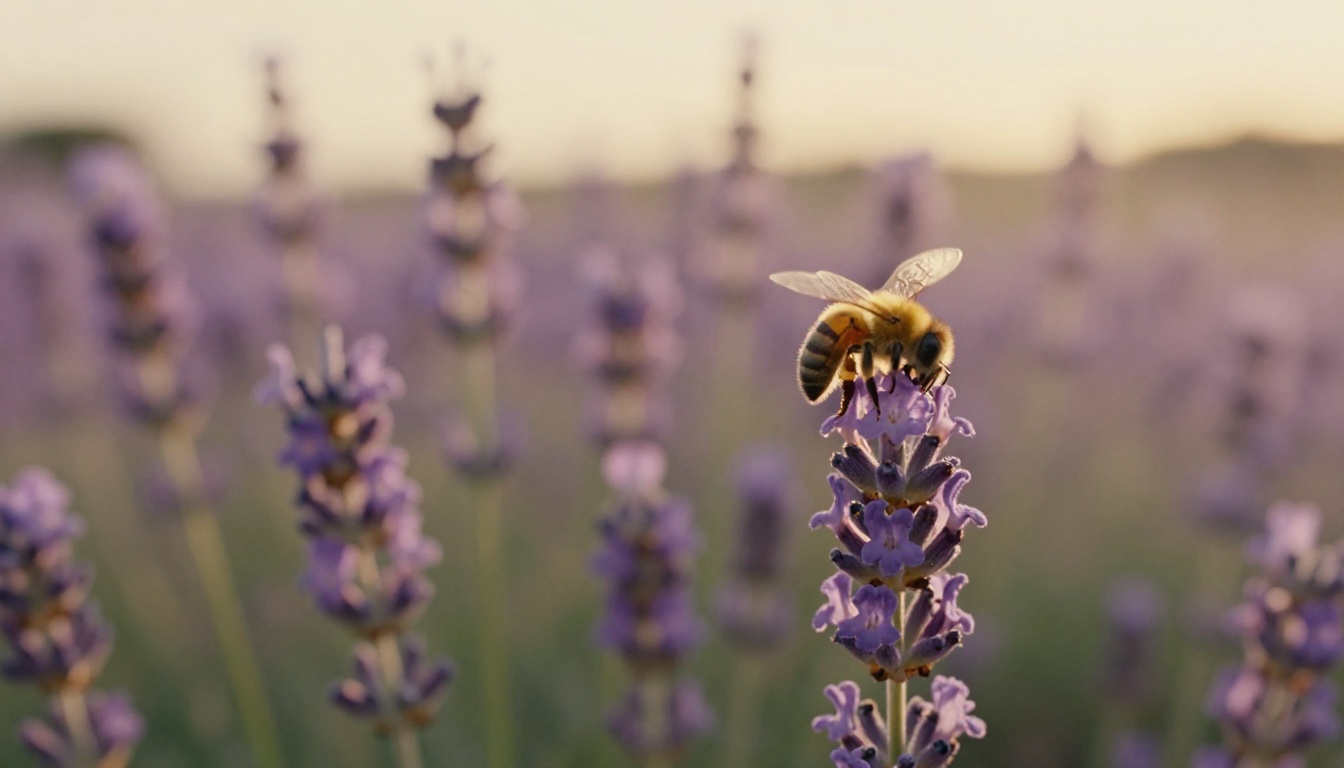
There are specific categories where generating B-roll beats searching for it, without exception.
Niche Scenarios with No Stock Coverage
Stock libraries skew toward generic, Western, metropolitan content. If you need footage of a night market in Southeast Asia, a traditional fishing village on a specific type of coastline, an unusual angle on a rural agricultural scene, or anything that does not fit into the top 100 most-searched stock categories, generating it is faster than searching for it.
You will spend more time searching than the AI takes to render.
Brand-Safe and Rights-Free by Default
AI-generated footage does not require licensing. There are no model releases to worry about, no location agreements, and no risk of finding out a clip you used has been pulled from the library after your video went live. The clip is unique to your project.
Style Matching
This is the practical advantage that editors notice immediately. When you generate B-roll with the same style descriptors as your primary color grade, the footage integrates naturally. Type "warm amber tones, Kodak film look, soft contrast" into every prompt and your B-roll will carry the same color science as your graded A-roll, cutting the color matching work in post significantly.
Editing AI B-Roll Into Your Videos
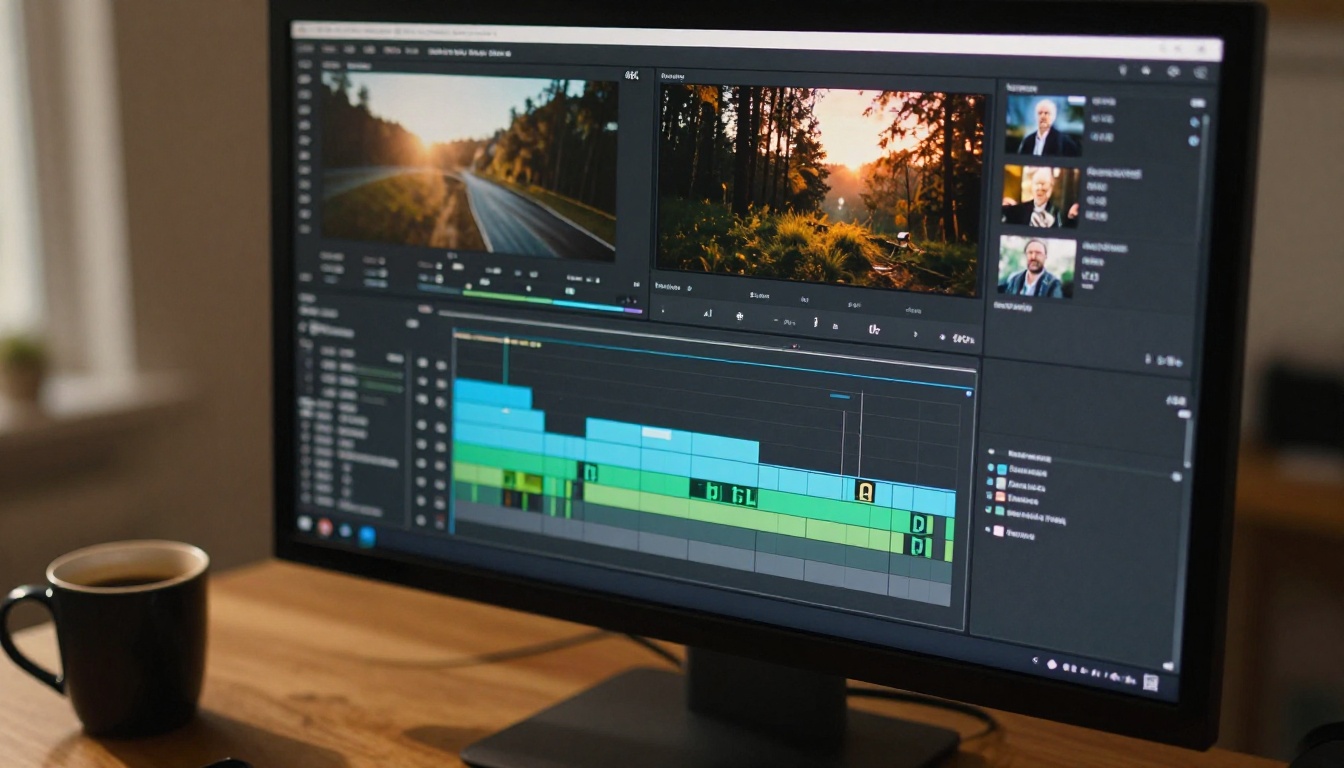
The generation step is only half the process. Here is how to integrate AI B-roll cleanly into a finished edit.
Pacing and Cut Timing
AI clips are typically 5 to 10 seconds. B-roll cuts work best when they land on audio beats or phrase endings. Cut in when the speaker finishes a sentence, cut out before the next one begins. Avoid holding a single B-roll clip on screen for more than 4 to 5 seconds unless it has significant motion to hold attention.
Color Matching
Even with matching style prompts, you will often need a slight color correction pass to align AI footage with your camera footage. Use your editing software's color wheels to match the shadow lift and highlight rolloff. A quick LUT applied at low opacity can also unify the look across all clips.
Splitting and Merging Clips
For complex sequences, use Video Split to cut longer clips into timed segments and Video Merge to combine multiple generated clips into a single asset. Both tools work directly on PicassoIA without needing a separate application for this step.
If you want to restyle an existing clip or modify the look of a generated one, Lucy Edit 2 and Wan 2.7 Videoedit both accept text instructions to modify video content. Gen 4 Aleph handles recuts and visual restyling across the full clip duration.
Upscaling for Broadcast
If your output target is broadcast or large-screen display, generated 1080p clips may need upscaling. Real ESRGAN Video upscales footage to 4K with texture preservation. For the highest fidelity result, Crystal Video Upscaler and Video Upscale by Topaz Labs produce broadcast-ready output with minimal artifacting.
3 Common Mistakes That Hurt the Result
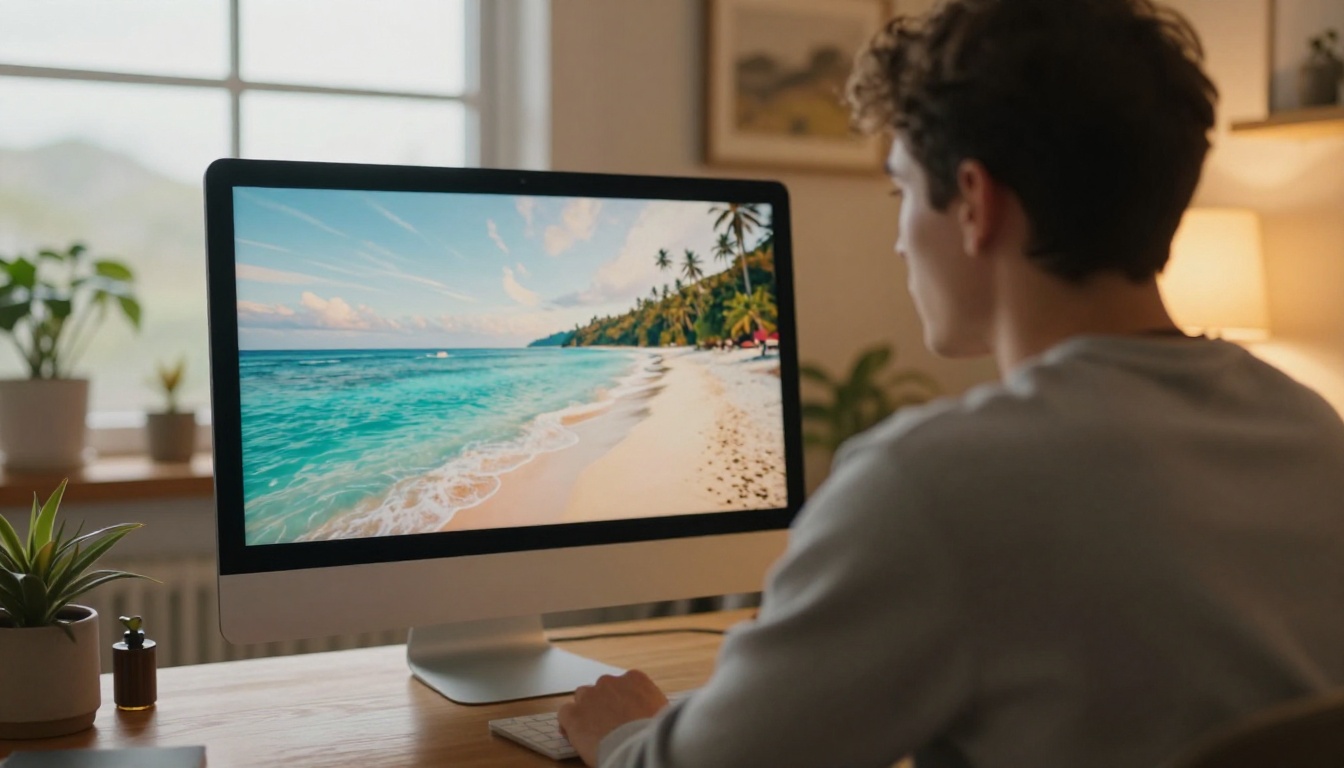
Even with the right tools, the same errors come up repeatedly. Here is what to watch for.
💡 Mistake 1: Prompts that are too short
A three-word prompt produces a generic clip. Specific prompts with camera angle, lighting direction, subject detail, and style produce footage you can actually use. Spend 90 seconds writing a real prompt. The generation output reflects the effort you put into describing the shot.
💡 Mistake 2: Generating one clip per scene
Generate at least two to three variations of each shot. AI output is non-deterministic; the first result is not always the best one. With three takes, you pick the strongest one and often find an unexpected angle that improves the cut.
💡 Mistake 3: Ignoring ambient audio
If you are using Seedance 2.0, the generated audio can serve as your ambient track directly. If you are using a model without audio, plan your ambient sound design separately. Silence under B-roll cuts feels wrong to the viewer even when they cannot articulate why.
What Your Workflow Looks Like with AI B-Roll
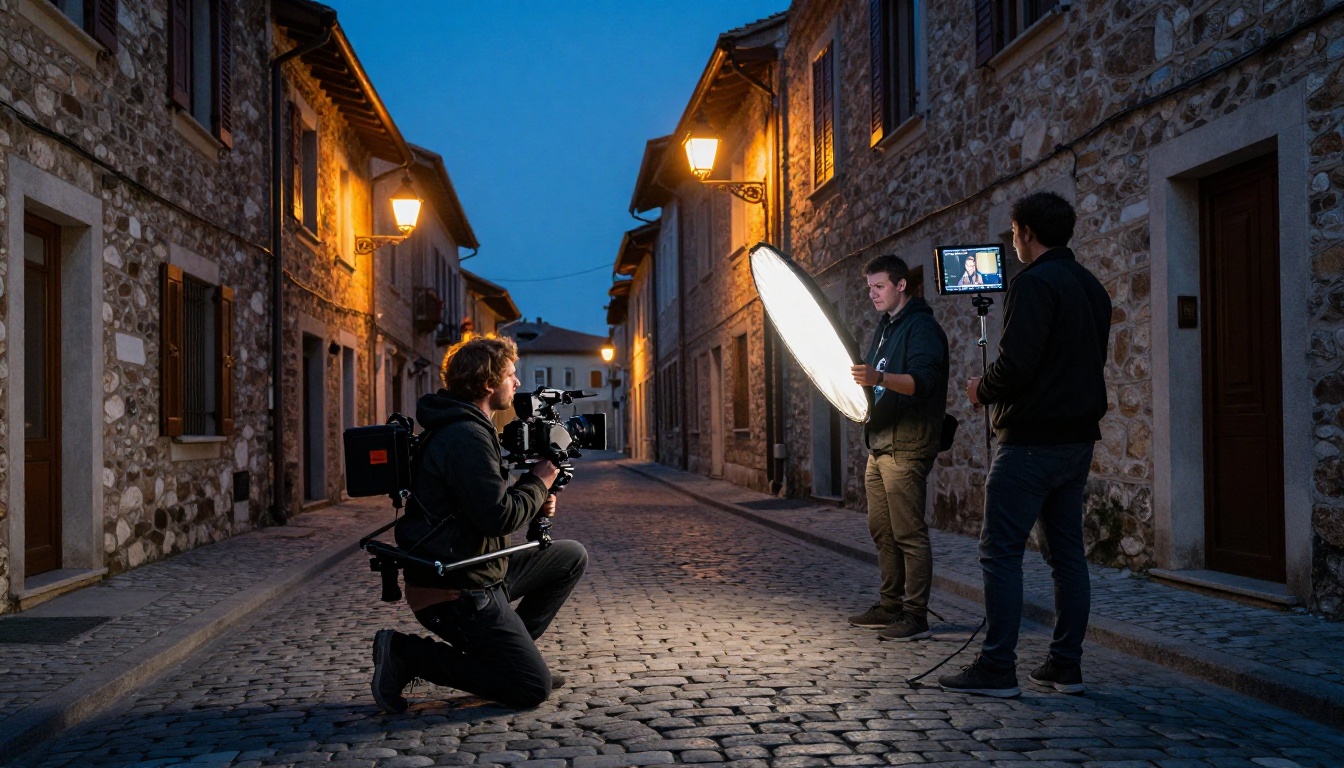
The practical workflow shift is significant. Before AI, the process looked like this: script, shoot A-roll, search stock for B-roll, license clips, edit. The stock search was a variable time drain that could consume an entire afternoon.
With AI, the workflow becomes: script, shoot A-roll, write B-roll prompts from the script, generate during downtime, edit. The B-roll step is now predictable, fast, and produces footage that actually fits your project instead of footage you settled for.
For solo creators, this closes the resource gap between a one-person operation and a larger production with a dedicated researcher and a footage licensing budget. For agencies and production companies, it removes a billable hour drain that clients never see the value of paying for anyway.
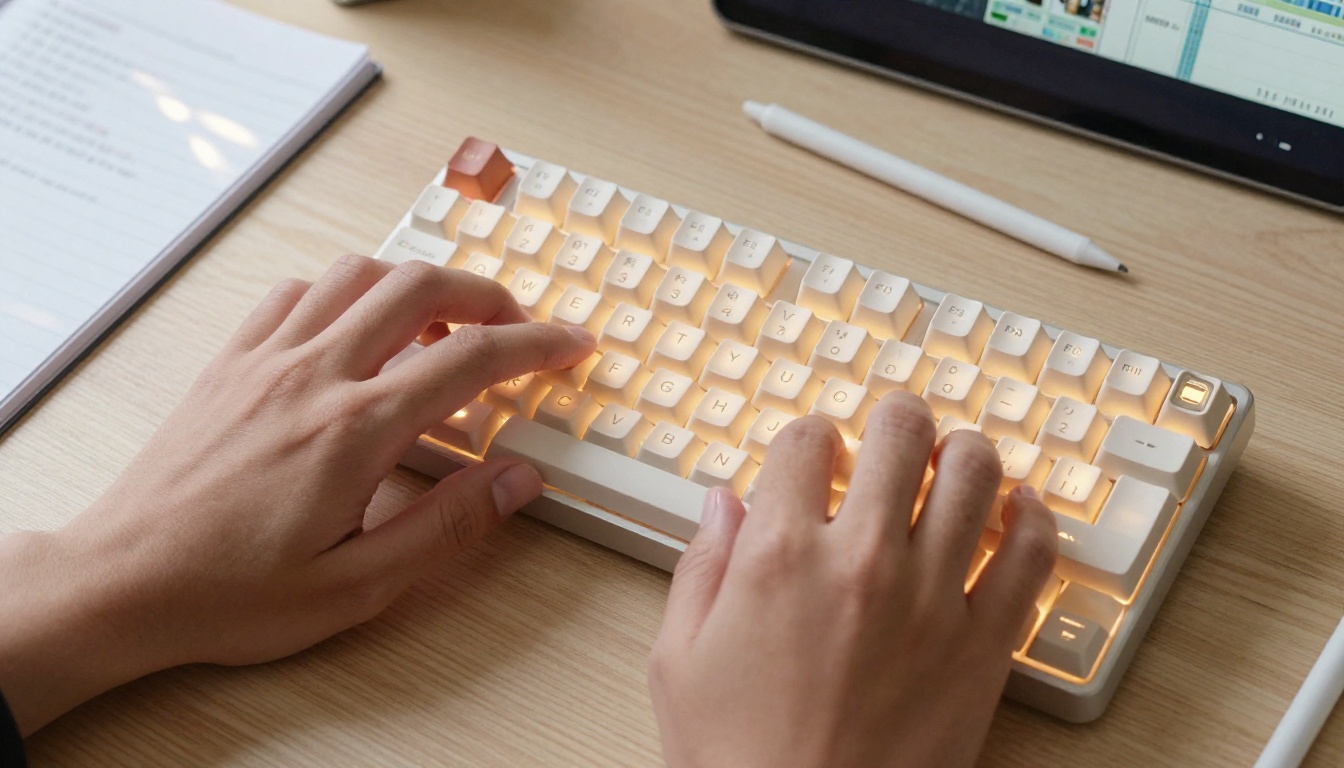
Start Creating Your Own AI B-Roll Right Now
The models are available now. The quality is production-ready. The only thing between your current workflow and a faster, more flexible one is writing your first prompt.
Open PicassoIA, pick your model from the text-to-video category, describe the shot you have been unable to find on any stock site, and generate it. Start with something specific: a real location, a real time of day, a real lighting condition. See what comes back.
Then write the next prompt. And the one after that.
Your B-roll library is one prompt away from being exactly what your project actually needs, not what the stock library happened to have available. Every model on PicassoIA is ready to build it with you.


