How to Add Captions to Videos Automatically with AI
Stop wasting time adding captions manually. AI tools now transcribe, sync, and burn subtitles into your videos in minutes, boosting watch time, accessibility, and reach on every platform where viewers scroll in silence.
Most videos lose half their audience in the first 10 seconds when there are no captions. That's not an opinion; it's backed by platform data showing that 85% of Facebook videos are watched on mute, and TikTok's own research confirms captions increase watch time by an average of 12%. If your video content is not captioned, you are actively handing viewers away.
The good news: adding captions to videos automatically with AI is no longer a technical skill. It takes minutes, not hours, and the tools available today are accurate enough for professional use right out of the box.
Why Captions Are Not Optional Anymore
The case for captions goes far beyond accessibility, though accessibility alone is reason enough. More than 466 million people worldwide have disabling hearing loss. For them, captions are the only way to consume video content. But for the remaining audience, captions serve a different purpose: they make videos watchable in any environment.
Offices, public transport, waiting rooms, late-night bedroom viewing with the volume off. The modern viewer switches contexts constantly, and a video that requires audio to make sense loses attention the moment the volume goes down.
The Silent Video Problem
Silent autoplay is the default across every major social platform. Instagram Reels, TikTok, YouTube Shorts, LinkedIn video all begin playing without sound. A viewer scrolling through their feed sees motion and reads captions before they ever decide to tap for audio. Without captions, your video is literally speechless in that first critical moment.
Without captions, a typical video loses:
Up to 80% of potential viewers who watch on mute
Search indexing from platforms that read caption text for SEO
Accessibility compliance for branded and corporate content
Retention on platforms that algorithmically reward watch time
Accessibility, SEO, and Real Reach
Search engines cannot watch videos. They can read transcripts and captions. When you add captions to a video, you are essentially creating a text version of your spoken content that search algorithms can index. YouTube explicitly states that captions help with search ranking. The same applies to on-page SEO when video is embedded with a transcript.
💡 Closed captions vs. open captions: Closed captions can be toggled on or off by the viewer. Open captions (also called burned-in or hardcoded captions) are permanently baked into the video frame. For social media, hardcoded captions are almost always the better choice because they display automatically regardless of platform settings.
How AI Caption Generation Works
The process of generating automatic captions has three stages: audio extraction, speech recognition, and text alignment. AI handles all three without you needing to understand any of it. The output is either an SRT file (a timed text file for soft captions) or a new video with captions burned directly into the frame.
Speech Recognition in Real Time
Modern AI speech-to-text models are trained on hundreds of thousands of hours of real-world audio. They recognize accents, background noise, fast speech, overlapping conversations, and technical vocabulary. The best models, like GPT-4o Transcribe and Gemini 3 Pro, achieve word error rates below 5% on clean audio, which is within the margin of a professional human transcriptionist.
What used to take a transcription service 24 hours and significant cost now takes under 60 seconds. The accuracy difference between AI and human transcription at this point is negligible for most content types.
From Audio Track to SRT File
Once the speech is recognized, the AI model aligns each word with its timestamp in the audio track. This alignment is what makes captions display in sync with spoken words rather than appearing as a static block of text. The output timestamps are precise to the millisecond.
The resulting SRT file format looks like this:
1
00:00:01,200 --> 00:00:03,800
This is the first caption block.

2
00:00:04,100 --> 00:00:06,500
And this is the second one.
That file can be uploaded to YouTube, Vimeo, social platforms, or burned into the video itself. AI auto-caption tools handle this entire pipeline without you ever seeing the raw SRT.
How to Use Autocaption on PicassoIA
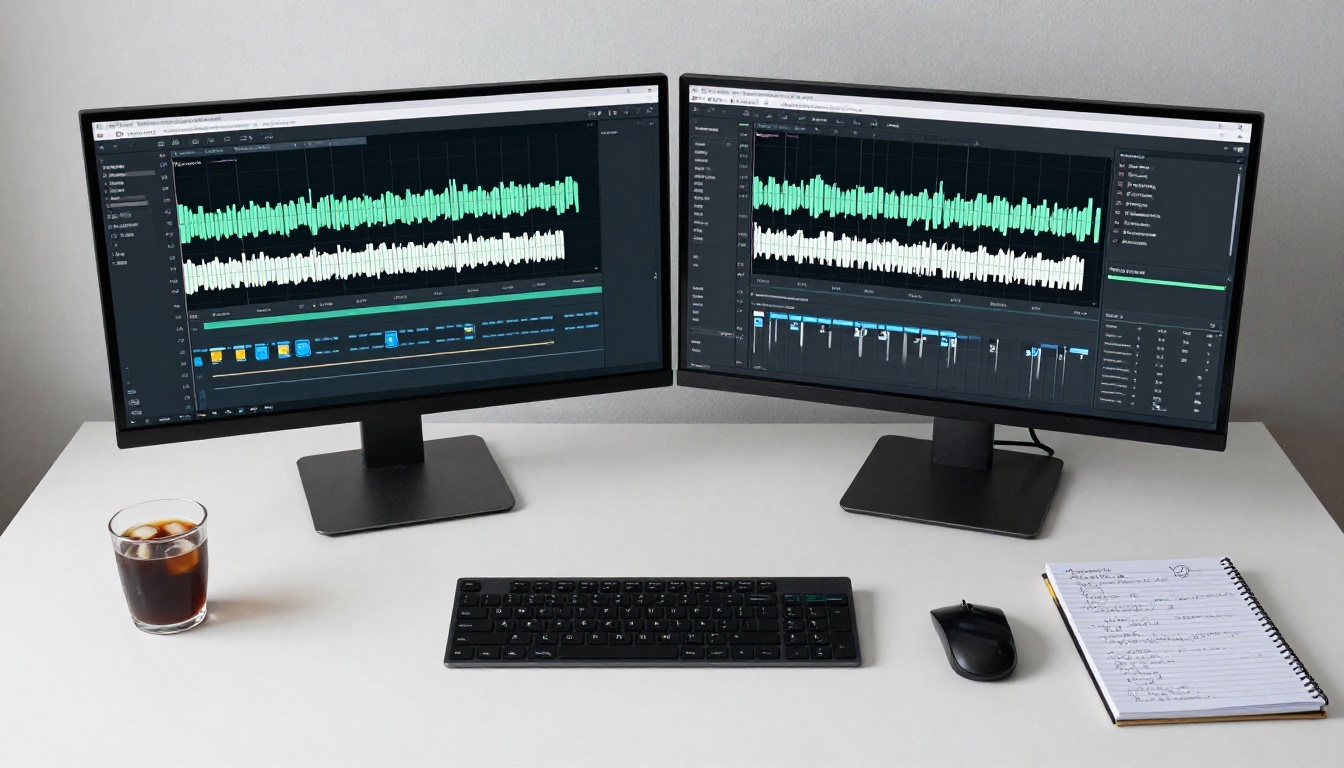
The Autocaption model on PicassoIA is one of the most direct tools available for adding captions to videos automatically with AI. It handles the transcription, timing, and caption rendering in a single pass, outputting a new video with styled captions embedded directly in the frame.
Step 1: Upload Your Video
Go to the Autocaption page and upload your video file. The model supports common formats including MP4, MOV, and WebM. Short-form content under 10 minutes works fastest, though longer videos are supported with extended processing time.
Supported formats: MP4, MOV, WebM, AVI
Recommended resolution: 1080p or higher for clean caption rendering
Audio quality tip: Clear audio with minimal background noise produces the highest caption accuracy
Step 2: Set Language and Style
Autocaption lets you specify the spoken language in your video for maximum accuracy. The model supports English, Spanish, French, Portuguese, German, and several other widely spoken languages. If your content is bilingual or code-switching between languages, set the primary language and the model will handle the transitions.
Caption styling is adjustable. You can control:
Font size to match your platform's viewing environment
Position (bottom third is standard; top placement is common for TikTok to avoid UI overlap)
Color and background for readability against varied video backgrounds
Step 3: Review and Download
Once processing completes, preview the output video. Autocaption renders the captions directly onto the video frame as hardcoded text, which means they appear on every platform without any configuration. Download the output and it is ready to upload.
💡 Pro tip: If you notice a word is misread, the most efficient fix is to re-run with a short edited clip rather than trying to manually time-correct an SRT file. For single words, accuracy is usually correct on a second pass if you trim silence at the start of the clip.
Speech-to-Text Models for Transcription-First Workflows
Sometimes you need the raw transcript before you decide how captions will be applied. Maybe you are repurposing spoken content for a blog post. Maybe you need to translate captions into multiple languages before burning them in. In those cases, starting with a dedicated speech-to-text model gives you more control.
GPT-4o Transcribe for Accuracy
GPT-4o Transcribe from OpenAI is the highest-accuracy option available on the platform. It handles accented speech, technical terminology, and overlapping dialogue better than most alternatives. If your video includes interviews, multiple speakers, or domain-specific language, this is the model to run first.
For faster processing with slightly reduced accuracy, GPT-4o Mini Transcribe covers most straightforward transcription needs at significantly lower cost and latency.
Granite Speech for Multi-Language Content
IBM's Granite Speech 4.1 2B and Granite Speech 3.3 8B models are optimized for multilingual transcription across six languages. They perform particularly well on structured speech content like presentations, explainer videos, and tutorials where the speaker articulates clearly.
Gemini 3 Pro rounds out the speech-to-text offering with Google's latest multimodal architecture, which understands audio context at a deeper level than pure speech recognition models.
Generating accurate captions is only half the equation. A technically correct caption that is hard to read, positioned poorly, or styled inconsistently with the platform hurts more than it helps. Caption design is a real craft, and the choices you make directly affect retention.
Font, Color, and Placement
The most-watched captioned videos on TikTok and Instagram share a consistent visual language: white text with a thin black drop shadow or a semi-transparent background bar. This combination reads clearly on both light and dark video backgrounds without obscuring the frame.
What works:
White or yellow text on semi-transparent black bar
Sans-serif fonts (Helvetica, Arial, Montserrat) for screen readability
28-36px size for 1080p vertical video
Bottom third placement for landscape/horizontal video
Top placement (avoiding UI) for vertical short-form content
What to avoid:
Script or serif fonts that lose legibility at small sizes
Pure black text without shadow on dark video
Centered placement that obscures action in the frame
Full blocks of text (keep to 3 words per line maximum for short-form)
Hardcoded vs. Soft Subtitles
The choice between burned-in (hardcoded) and soft (SRT-based) captions depends entirely on distribution. For social media, hardcoded is non-negotiable since you cannot guarantee a viewer's platform will display soft captions. For YouTube and Vimeo, soft captions give viewers control and allow you to upload multiple language tracks without re-rendering the video.
💡 Workflow tip: Generate hardcoded captions for social distribution using Autocaption, and use GPT-4o Transcribe to generate the raw SRT for YouTube and long-form platforms. Two outputs, one video file, maximum reach.
Common Mistakes With Auto-Captions
AI caption tools are powerful but not infallible. Most errors fall into predictable patterns that are easy to avoid once you know what causes them.
Wrong Language Detection
If your video begins with music or non-speech audio, some models default to the wrong language before the first word is spoken. Fix: trim the video to start within 1-2 seconds of first speech, run the transcription, then restore the intro in the edit. Alternatively, always specify the spoken language manually rather than relying on auto-detection.
Speaker Overlap and Background Noise
Two people speaking simultaneously is the hardest problem for any speech recognition model. No AI handles this perfectly yet. The practical solution is not technical: record with a moderator structure (one speaker at a time), or plan your captions to acknowledge overlapping speech with [crosstalk] markers in the transcript before burning them in.
Background noise sources that degrade accuracy:
Music beds at over 20% of voice volume
Outdoor wind noise (use a windscreen or de-noise in post)
Echo in large rooms (close-mic the speaker if possible)
Keyboard clatter for screen-recorded content (mute keyboard audio track)
Caption Line Length
Auto-generated captions sometimes produce very long lines that hang off-screen or require the viewer to read too fast. The ideal caption block is 32-42 characters per line, two lines maximum per caption card. If your AI tool generates longer lines, break them manually or look for a line-length setting in the caption style options.
Where Captions Have the Highest Impact
Not all video platforms respond equally to captions. Knowing where captions drive the most measurable difference helps prioritize your workflow.
TikTok, Reels, and Shorts
Short-form vertical video is where captioning has the clearest, most documented ROI. These platforms autoplay at zero volume, push content to cold audiences, and compete at the scroll speed of half a second per video. A captioned video communicates instantly. An uncaptioned one does not.
TikTok's native auto-caption feature exists but produces noticeably lower accuracy than running your audio through GPT-4o Transcribe and burning in professional captions. The difference in perceived quality is visible and influences how viewers rate content credibility.
YouTube and Long-Form Content
YouTube auto-generates captions for all videos, but the quality on specialized content (tutorials, technical explanations, non-native English speakers) is often poor. Uploading a manually reviewed SRT from a clean AI transcription replaces YouTube's auto-captions with accurate text, which directly improves search ranking and the watch experience for viewers who use closed captions.
For long-form content over 20 minutes, captions also make videos searchable within the YouTube player itself. Viewers can search for a specific word or phrase mentioned in your video and jump to that timestamp.
Platform
Caption Type
Priority
TikTok
Hardcoded (burned-in)
Critical
Instagram Reels
Hardcoded
Critical
YouTube Shorts
Hardcoded
High
YouTube (long form)
SRT upload
High
LinkedIn Video
Hardcoded
Medium
Website/embedded
SRT or hardcoded
Medium
The Real Speed Advantage
The clearest argument for AI captions is not accuracy. It is speed. A 5-minute video would take a human transcriptionist 20-30 minutes to caption correctly with proper timing. Autocaption processes the same video in under 3 minutes. For creators publishing daily or weekly, that time difference compounds into hours every month.
At scale, the math becomes even more compelling. A brand publishing 20 videos per month saves the equivalent of a full workday just on captioning. Those hours go back into scripting, filming, and editing work that actually requires human judgment.
💡 Batch processing tip: Upload multiple short clips back-to-back in separate Autocaption sessions. While one video processes, start the next upload. By the time you have uploaded three clips, the first one is done. Real-world throughput is significantly faster than waiting for each video sequentially.
Captions Are the Baseline Now
The era of captions as a nice-to-have feature ended around 2021. They are now the baseline expectation for any video content that wants to perform on modern platforms. Viewers have been conditioned by years of auto-play muted feeds to read before they listen, and content without captions registers as incomplete.
The tools to add captions to videos automatically with AI exist, they are fast, they are accurate, and they require no technical skill. There is no longer a valid reason to publish uncaptioned video.
If you want to start right now, Autocaption on PicassoIA is the fastest path from raw video to captioned output. Upload your clip, specify your language, and get a caption-ready video back in minutes. For transcript-first workflows, GPT-4o Transcribe and Granite Speech 4.1 2B give you clean SRT files that work across every platform.
Every video you publish from this point forward should have captions. PicassoIA gives you everything you need to make that happen automatically.