There is a photo on your phone right now that almost moves. A candid shot of someone laughing, hair mid-toss. A landscape caught just before the wind picked up. A portrait where the light was so perfect it feels like it should breathe. Still photos freeze these moments, but they do not have to stay frozen. AI can add motion to still photos in seconds, turning a JPG into a living, breathing clip that plays exactly the way you imagined it. That is what image-to-video AI does, and in 2027, it has gotten remarkably precise.
Why Static Photos Miss Something
The Problem with Frozen Frames
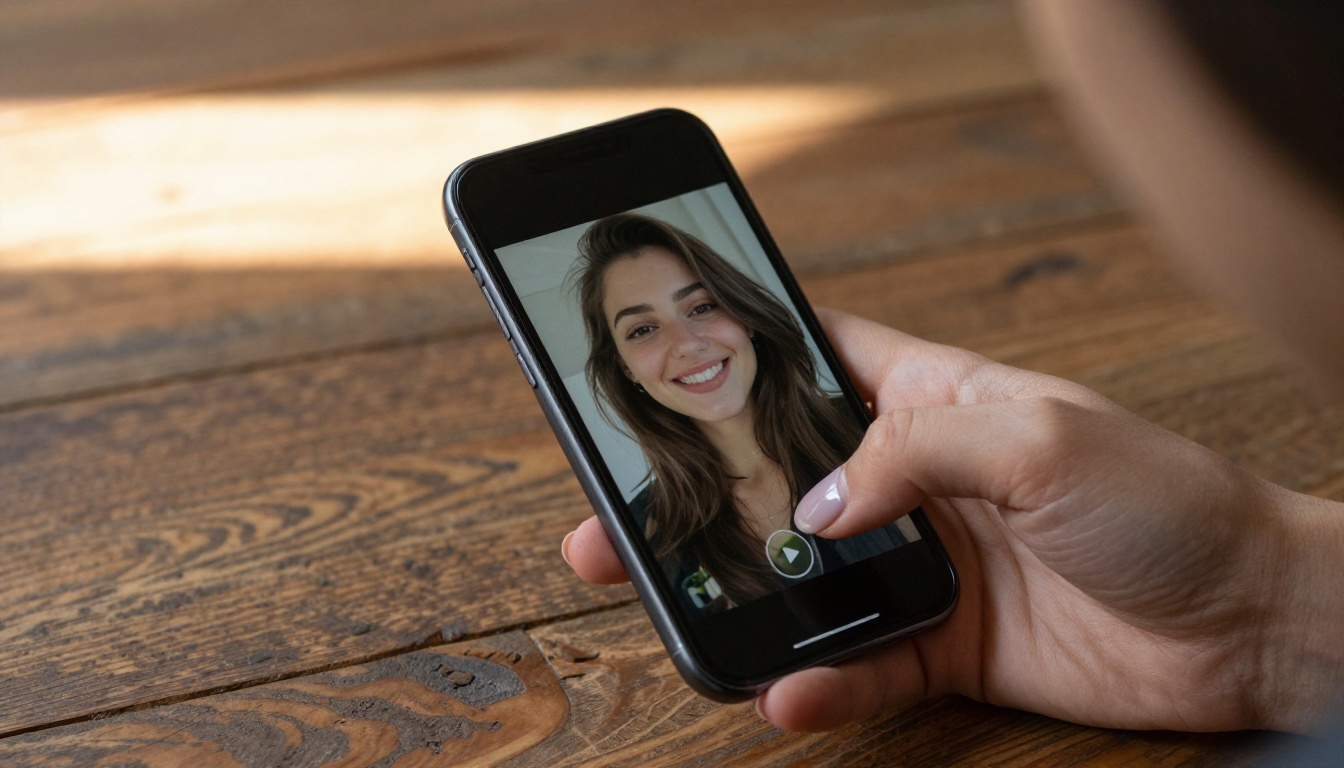
A photograph captures a fraction of a second. The brain fills in the rest, imagining the moment before and after. When you see a photo of waves crashing, you almost hear the sound. When you see someone mid-laugh, you almost feel the energy of the room. That psychological gap is exactly where AI motion lives. By generating the frames that would logically come before and after the shutter clicked, AI closes the loop between imagination and reality.
Living photos are not a new idea. Cinemagraphs (photos where one element loops in motion while everything else stays still) became popular years ago because they exploited this same psychology. But making a cinemagraph by hand took hours of masking, rotoscoping, and manual animation work. AI now does a version of this, and far beyond it, in under a minute.
What Changes When a Photo Moves
Motion adds three things that a still image simply cannot deliver on its own:
- Emotional weight: A smile that slowly forms feels more genuine than one already displayed
- Environmental depth: Wind in trees, rippling water, and drifting clouds create a genuine sense of place
- Attention: Moving images hold the eye 3 to 5 times longer on average than static ones in social feeds
For content creators, marketers, and photographers, the ability to add motion to still photos with AI is not a novelty. It is a production tool.
How AI Reads and Animates an Image
The Depth Map First
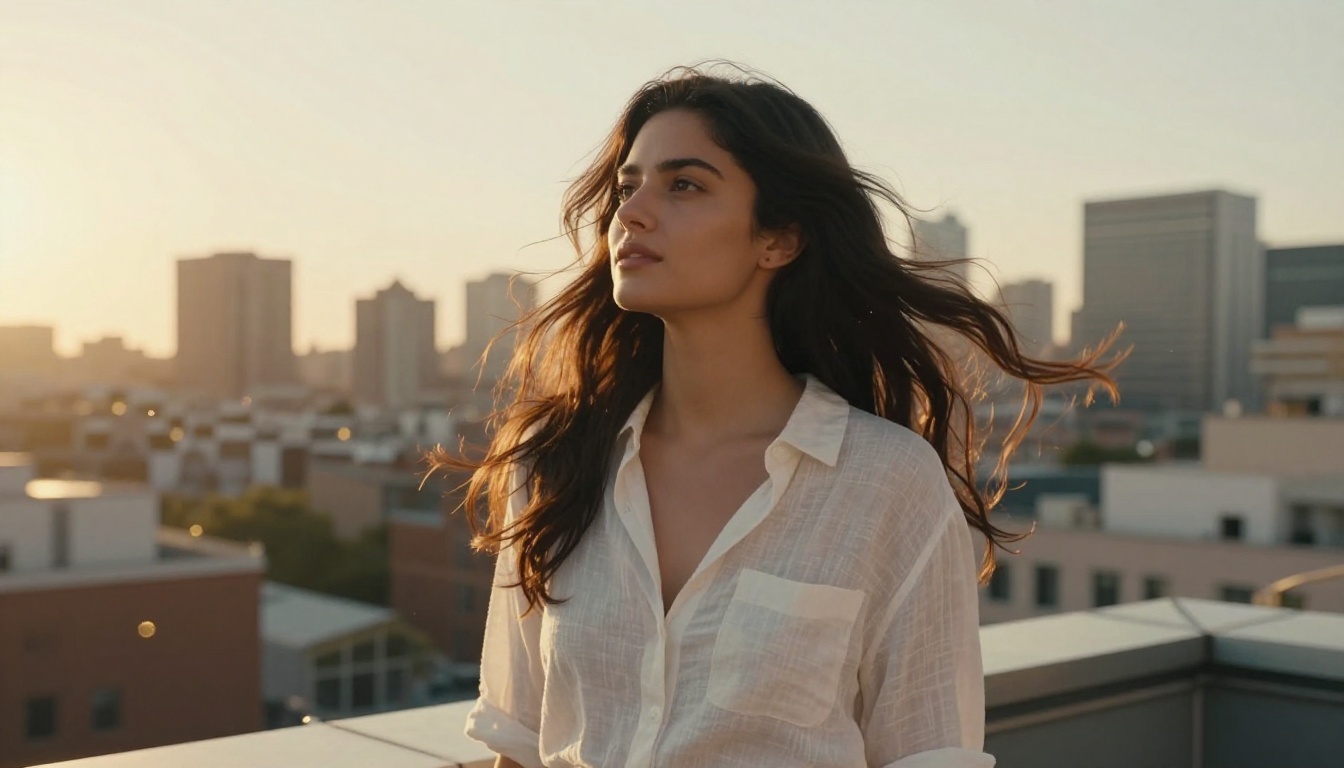
The AI does not just slide pixels around. It builds a spatial understanding of your photo before generating a single frame of movement. Using depth estimation, the model creates a rough 3D map of the scene: what is close, what is far, which elements overlap, and how lighting suggests volume. This is why good animation models handle subjects at different distances believably. The background does not warp when the foreground moves.
Optical Flow and Motion Synthesis
Once the model understands the scene geometry, it predicts optical flow, the direction and velocity each region of the image would logically move. Hair blows in the direction the light suggests wind is coming from. Water ripples away from an implied disturbance. A person's chest rises and falls with a synthesized breathing rhythm. This is not random. Modern image-to-video models have been trained on millions of real video clips, so they have internalized how objects in the real world actually move over time.
Temporal Coherence: Why It Matters
The hard part of animating a still photo is not generating one frame of motion. It is generating 30, 60, or 120 frames that flow naturally without flickering or warping. Temporal coherence is the technical term for this quality, and it is where models differ dramatically. Older or cheaper models produce animation that shimmers at the edges or shows artifacts after a few frames. Top-tier models like Wan 2.7 I2V maintain stable textures, consistent lighting, and believable physics across the entire generated clip.
Types of Motion Worth Adding
Subtle vs. Full Motion
Not every photo needs a lot of movement. The effect you want depends on the subject and the platform where the result will be shown.
| Motion Type | Best For | Ideal Output Length |
|---|
| Breathing / micro-movement | Portraits, headshots | 2-4 seconds |
| Hair and clothing flow | Fashion, lifestyle shots | 3-6 seconds |
| Environmental animation | Landscapes, cityscapes | 4-8 seconds |
| Full body movement | Dance, action, glamour | 4-10 seconds |
| Camera drift (Ken Burns) | Architecture, travel | 3-8 seconds |
Motion by Subject Type
Different subjects respond to different animation approaches:
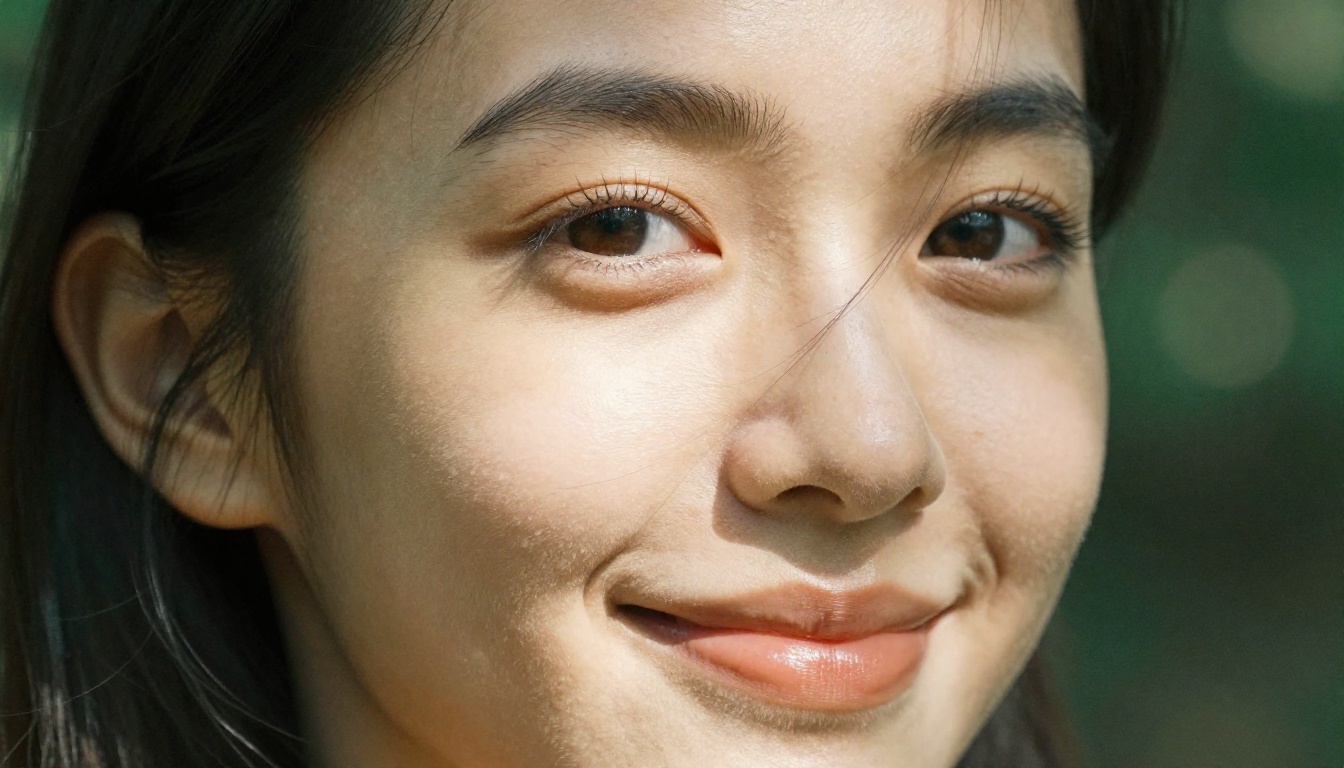
Portraits: Focus motion on hair, slight head turns, and natural blinking. A subtle breathing effect on the chest area adds realism without feeling unnatural. Models like Video 01 Live excel here, producing fluid and naturalistic facial animation that preserves likeness.
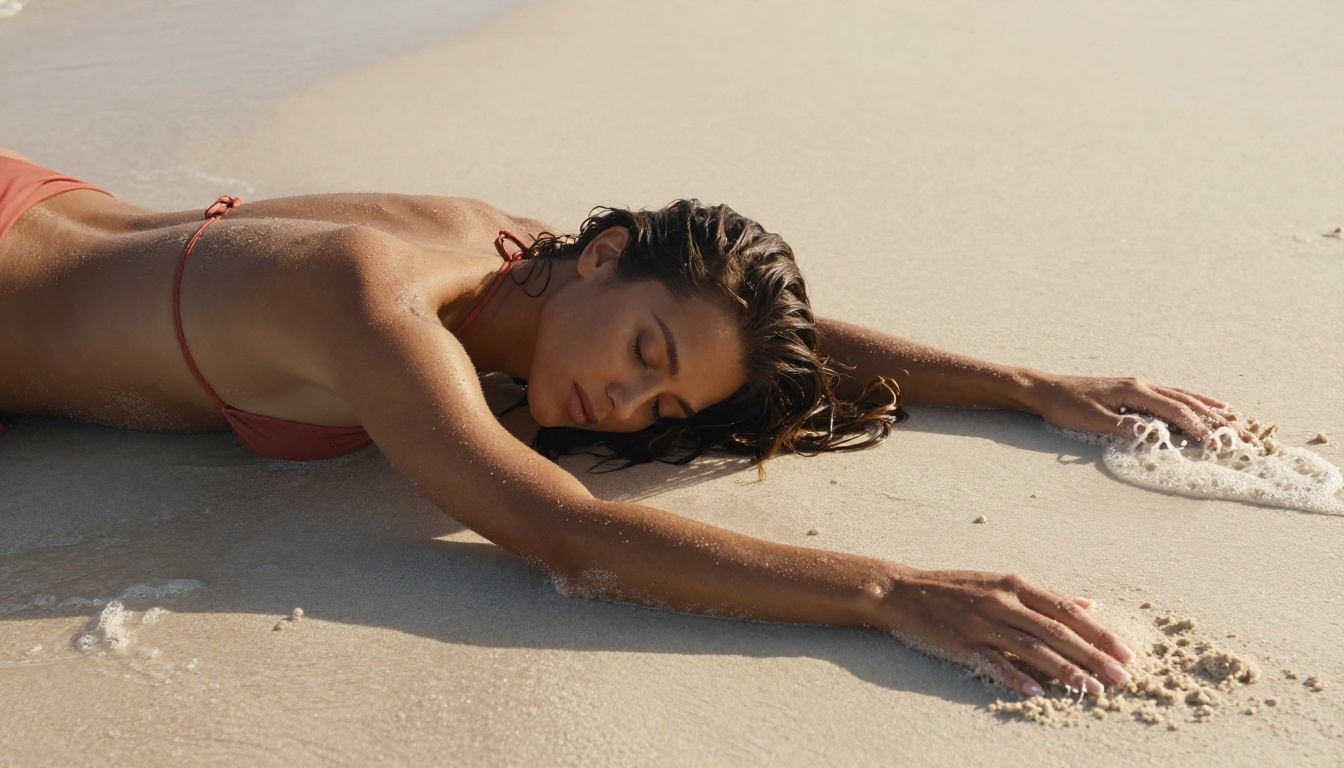
Landscapes: Water, clouds, and foliage are the natural motion targets. Even a 3-second clip of a beach photo with animated waves completely changes the emotional register of the image. Wan 2.6 I2V handles environmental scenes with impressive physical accuracy.
Fashion and Glamour: Clothing fabric, wind-blown hair, and confident posture shifts work well together. Kling v2.6 Motion Control gives fine-grained control over where and how much motion appears, which is essential when you want movement in a dress but stillness in the background.
Group Photos: These are the hardest. Multiple faces animating simultaneously can produce inconsistencies in likeness. Start with single-subject photos for the most convincing results.
💡 Photos with strong directional lighting animate better. The AI uses light and shadow to estimate depth. A flatly lit photo gives the model less geometric information, so results are less convincing.
Best Models for Animating Photos on PicassoIA
Wan 2.7 I2V: The Current Standard
Wan 2.7 I2V is, as of 2025, one of the most capable image-to-video models available anywhere. "I2V" stands for Image-to-Video, meaning it takes a single still image as input and generates a video clip from it. The 2.7 version represents a significant jump in temporal consistency and motion naturalness over its predecessors. Hair, fabric, and water all behave with a physics accuracy that earlier models struggled to match consistently.
Its predecessor, Wan 2.6 I2V, remains a strong choice for users who want faster generation times. And Wan 2.5 I2V Fast sits in the sweet spot for quick iterations when you are testing a photo before committing to a full-quality render.
Kling v3 Motion Control: Precision First
Kling v3 Motion Control takes a different philosophy from the Wan series. Rather than inferring all motion automatically, it lets you specify which parts of the image should move and in what direction. This is invaluable for controlled creative work. You can anchor the background, isolate a subject's hair for wind animation, or restrict movement to just the fabric of a dress.
Kling v2.6 Motion Control offers similar control at a slightly lower processing cost. Both Kling motion control models produce cinematic output with smooth motion arcs and strong subject preservation across all frames.
Other Strong Performers
Several other models on PicassoIA deliver excellent results for specific animation needs:
- Ovi I2V: Generates video with ambient audio from a still photo. If your animated photo needs sound alongside the movement, this is a distinct advantage.
- Hailuo 2.3 Fast: Speed-optimized for quick previews. Ideal when you are working through a batch of photos and need rapid results before choosing which to render at high quality.
- Gen4 Turbo by Runway: Converts images to video with strong stylistic consistency. A good choice when you need cinematic camera movement layered on top of a still photo.
- I2VGen XL: A reliable general-purpose animation model with accessible settings and consistent output for straightforward animation tasks.
- PIA: Specifically designed to turn photographs into animated video, with particular strength in preserving facial likeness during animation sequences.
- Wan 2.2 I2V Fast: A fast-track version for portrait animation with solid results on well-lit single subjects.
- Wan 2.1 I2V 720p: 720p output with free access, good for testing animation workflows without consuming credits.
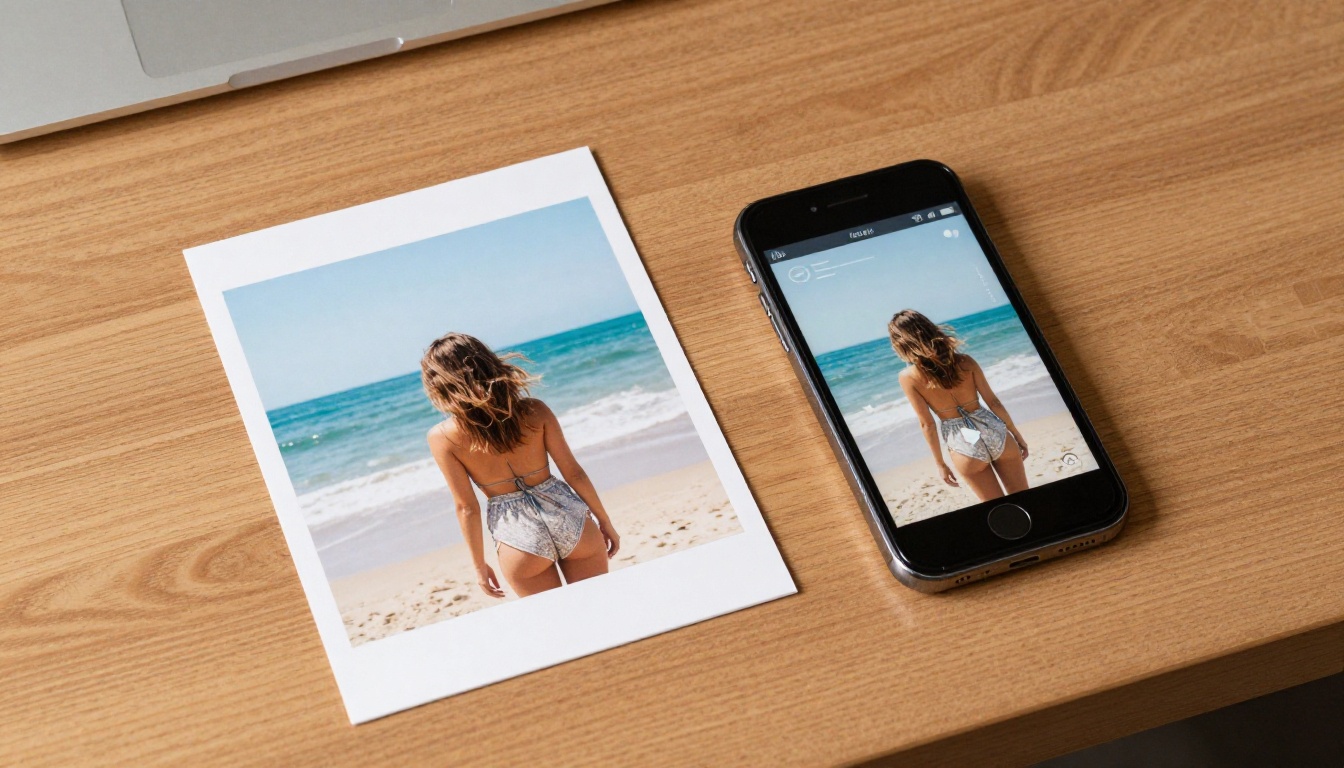
💡 Run Hailuo 2.3 Fast first to preview how a photo will animate. Then use Wan 2.7 I2V for the final quality output. This two-pass workflow saves significant time and credits.
How to Use Wan 2.7 I2V on PicassoIA
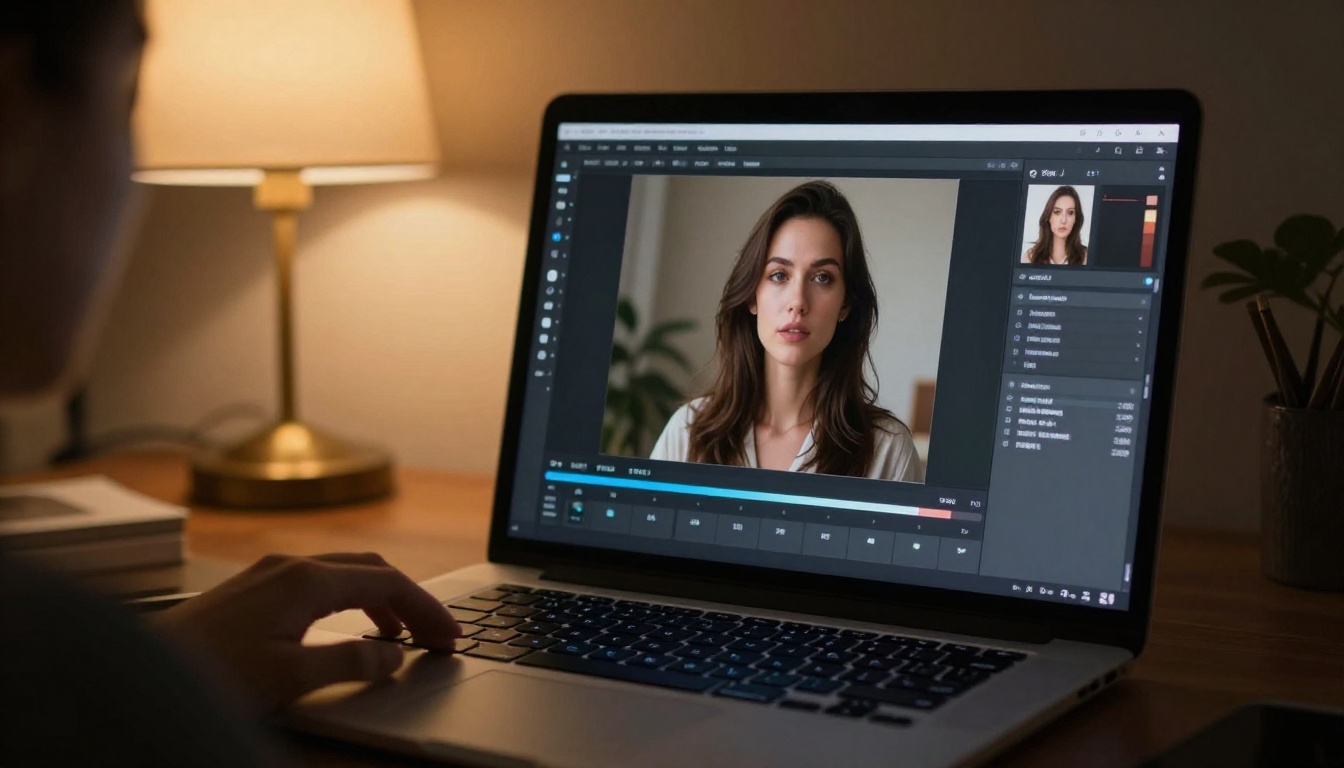
Wan 2.7 I2V is the recommended starting point for anyone who wants to add motion to still photos with AI for the first time. Here is exactly how to use it.
Step 1: Choose and Prepare Your Photo
Photo quality going in directly determines animation quality coming out. Before uploading, check these points:
- Resolution: Use the highest resolution version you have. 1080p or higher gives the model more detail to work with during depth estimation.
- Composition: Single-subject photos with clear depth separation (subject sharp, background softer) animate more convincingly than flat compositions.
- Lighting: Natural directional light works best. Avoid heavily filtered or over-edited photos, as the model interprets color shifts as spatial information.
- Format: JPG and PNG are both supported with no quality difference in the output.
Photos that already feel like they have implied motion, wind in the hair, a figure mid-step, water at the edge of the frame, will produce the most dramatic animation results.
Step 2: Upload, Prompt, and Configure
Once your photo is ready:
- Go to Wan 2.7 I2V on PicassoIA
- Upload your still image using the image input field
- Write a motion prompt: describe the movement you want, not the subject itself. Example: "hair blowing gently in a warm breeze, slight head tilt, dress fabric moving softly to the left"
- Set video length (4-6 seconds is ideal for most portrait animations)
- Choose your resolution (720p for speed, 1080p for quality output)
- Hit generate and wait for processing
The motion prompt is the most critical field. The more specific you are about what moves and how, the closer the output will be to your intent. Avoid vague prompts like "animate this" and instead describe the physics directly: direction of movement, intensity, speed.
Step 3: Review and Iterate
Your first result is rarely your final one. If the motion is too aggressive, reduce intensity in the prompt (use words like "subtle," "slight," "gentle"). If the animation feels stiff, add more descriptive motion language ("flowing," "drifting," "natural sway").
💡 If Wan 2.7 I2V produces too much background distortion on a particular photo, try Wan 2.2 I2V Fast with a more constrained prompt. Different model versions have different default motion amplitudes.
What Real Results Look Like
When It Works Brilliantly
The best animation results come from photos where the AI has strong visual cues to work with:
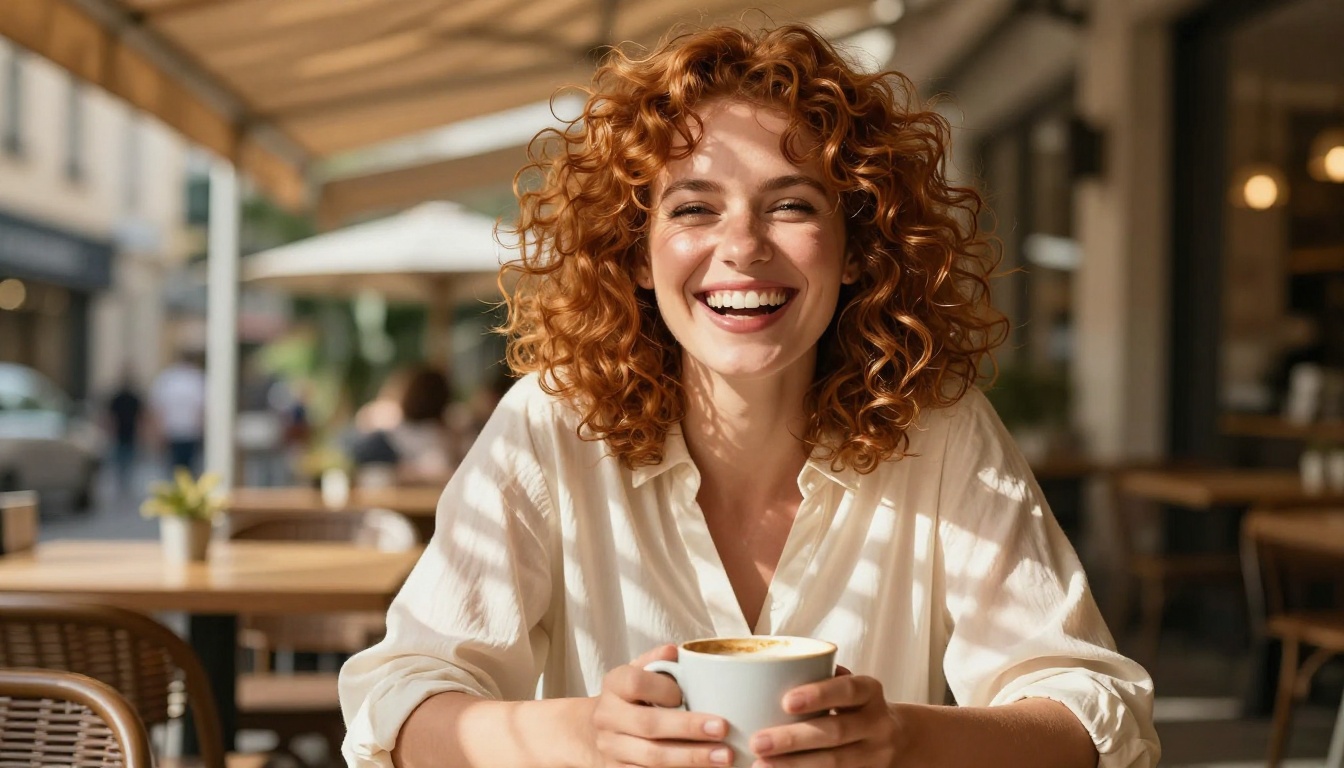
- Outdoor portraits in natural light: The depth separation and lighting direction give the model everything it needs. Hair, clothing, and the background environment all animate naturally.
- Beach and water scenes: Water is a near-perfect animation subject. It moves in predictable, physics-consistent patterns that current models handle with impressive accuracy.
- Close-up faces: Modern models preserve facial likeness well during animation. Micro-expressions, natural blinking, and subtle head movement add remarkable realism to portrait shots.
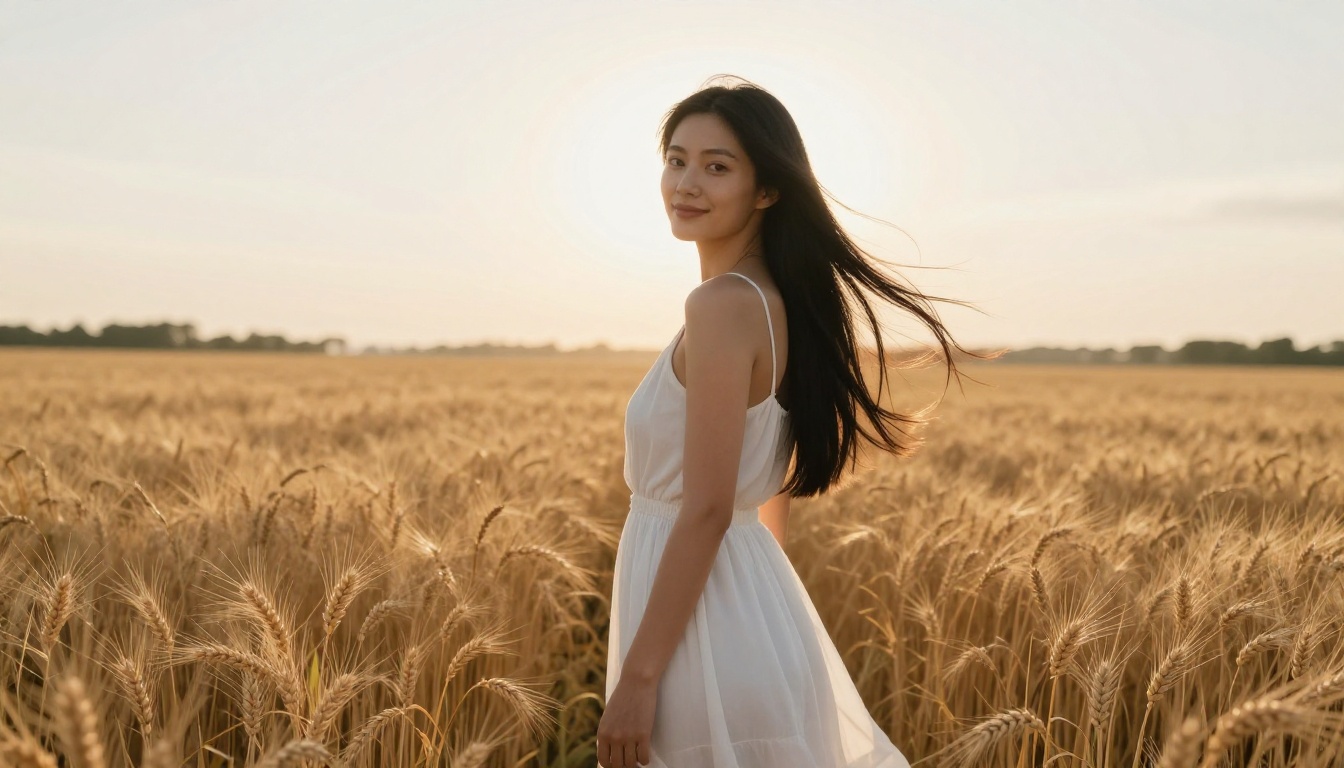
- Fashion shots with flowing fabric: Lightweight fabric, sheer material, and loose clothing animate with beautiful fluidity, especially with Kling v3 Motion Control.
When to Adjust Your Approach
Some photos work against good animation. If you run into these situations, adjust accordingly:
- Flat studio lighting: Without depth cues from shadow and highlight, the model struggles to separate foreground from background. Results often show unnatural warping at the edges.
- Complex group shots: Multiple faces with similar depths cause the model to blur or blend features incorrectly. Crop to a single subject when possible.
- Heavy filters or presets: Aggressive color grading confuses the depth estimation step. Remove filters before uploading and let the model work with the natural tonal range.
- Very low resolution: Anything under 512px wide will produce blurry, artifact-heavy animation regardless of which model you use.
3 Mistakes That Kill the Effect
Using the Wrong Prompt Strategy
The biggest mistake is treating the motion prompt like a photo caption. Do not describe what is in the photo. Describe what moves and how. "A woman on a beach" tells the model nothing useful about motion. "Hair flowing left in wind, ocean waves moving forward, fabric rippling at the hem" gives it actionable physics to work from. The more mechanical your motion description, the better the output.
Skipping Photo Selection
Any photo will technically process through the model. But not every photo animates well. Photos taken with shallow depth of field, strong directional light, and clear subject-background separation are the ones that produce output worth sharing. Spending five minutes choosing the right source photo saves significant iteration time and credits later.
Expecting Perfection on the First Run
AI animation is iterative by nature. The first output shows you what the model understands about your photo's physics. Use it as diagnostic feedback: if the hair moves in the wrong direction, your prompt was unclear about direction. If the background warps, switch to a motion control model like Kling v3 Motion Control that lets you constrain which regions animate at all.
💡 Save your best motion prompts. When you find a description that works well for a particular type of photo (outdoor portrait, beach scene, fashion shot), that prompt is directly reusable across similar photos without modification.
Your Next Photo Deserves to Move
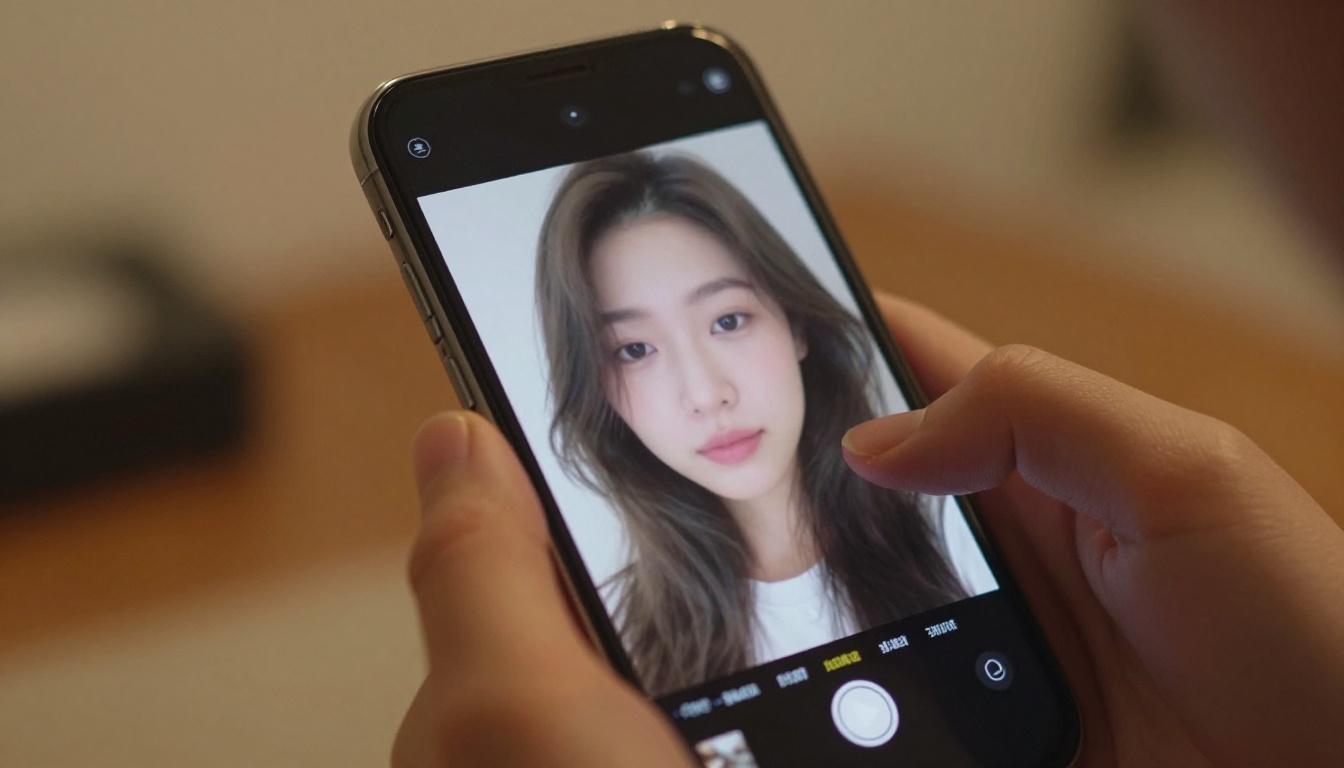
There is a photo in your library that should not be sitting still. The tools to bring it to life are already available, no animation experience required, no complex software to install. Models like Wan 2.7 I2V, Kling v3 Motion Control, and Video 01 Live are available directly on PicassoIA, ready to run on any photo you upload right now.
Start with a portrait you love. Write a motion prompt that describes what should move and in what direction. Hit generate. The first time a static photo starts to breathe, shift, and come alive, the difference between a frozen moment and a living memory becomes immediately clear.
PicassoIA has over 100 image-to-video models covering every need: quick portrait animation with Hailuo 2.3 Fast, sound-synced animation with Ovi I2V, motion-mapped animation with Wan 2.2 Animate Animation, and precision motion control with Kling v2.6 Motion Control. Pick the photo. Pick the model. See what happens when a still image finally gets to move.


