The world of AI image generation has evolved dramatically, and GPT Image 1.5 stands out as a powerful tool for creators working with adult content. This model offers refined controls and high-quality outputs that cater to photographers, digital artists, and content creators who need professional results.
In this article, we'll explore how to use GPT Image 1.5 effectively for creating tasteful adult imagery, from understanding its core features to practical tips for getting the results you want.
What Makes GPT Image 1.5 Different
GPT Image 1.5 brings several capabilities that make it particularly useful for adult content creation. The model allows you to control image quality, background transparency, and output formats while maintaining artistic integrity.
Unlike many other AI image generators that restrict adult content, open-source models available on platforms like PicassoIA provide more creative freedom. You can work with prompts that would otherwise be filtered out, giving you the flexibility to create boudoir photography, artistic nudes, and sensual illustrations without limitations.
The model processes text descriptions and transforms them into visual outputs. You describe what you want, set your parameters, and receive results that match your creative vision. The quality often rivals traditional photography and digital art, making it a viable option for professional projects.
Writing Effective Prompts for Adult Content
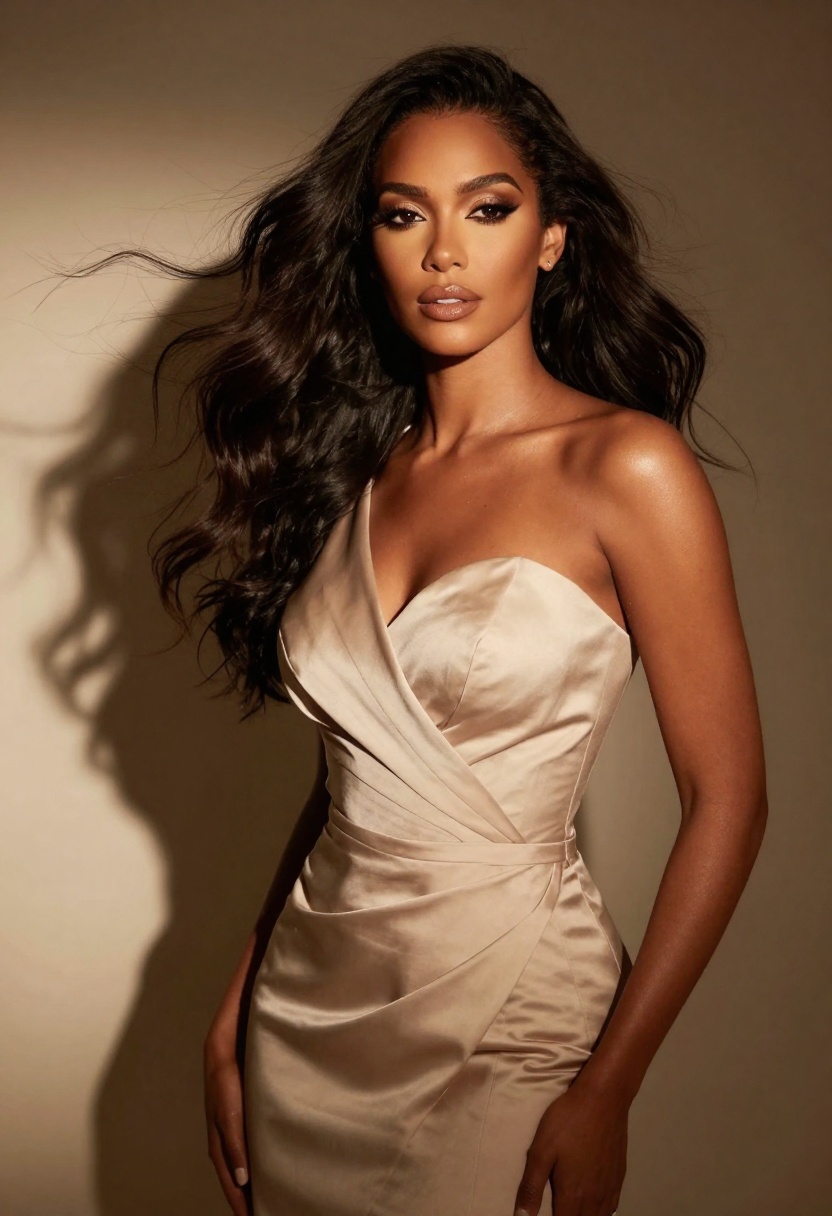
Creating quality adult imagery starts with how you describe your vision. The more specific your prompt, the better your results. Vague descriptions like "attractive woman" won't give you much control, while detailed prompts produce images that match your exact requirements.
Consider these elements when writing prompts:
- Lighting style: Specify whether you want soft studio lighting, dramatic shadows, or natural window light
- Pose and composition: Describe the position, angle, and framing you're after
- Artistic style: Mention if you want photorealistic results, painted aesthetics, or illustrated looks
- Mood and atmosphere: Include words that convey the feeling you want to create
- Technical details: Add photography terms like "shallow depth of field" or "golden hour lighting"
For example, instead of writing "sexy photo," try "elegant boudoir portrait with soft diffused lighting, intimate atmosphere, professional photography, shallow depth of field, warm tones." The difference in results will be significant.
Choosing the Right Quality Settings
GPT Image 1.5 offers multiple quality levels: low, medium, high, and auto. Each setting affects both the generation time and the final output detail.
For quick previews and concept testing, low quality works fine. You'll see the general composition and can decide if you want to refine the prompt before committing to a high-quality render.
Medium quality provides a good balance for most projects. The images have enough detail for social media posts, website content, and general use. Generation times remain reasonable while delivering solid results.
High quality should be your choice for professional work that requires maximum detail. These outputs work well for print, large displays, and situations where every pixel matters. The trade-off is longer generation times, but the results justify the wait.
The auto setting lets the model decide based on your prompt complexity. It's convenient when you're not sure which quality level suits your needs best.
Exploring Different Artistic Styles
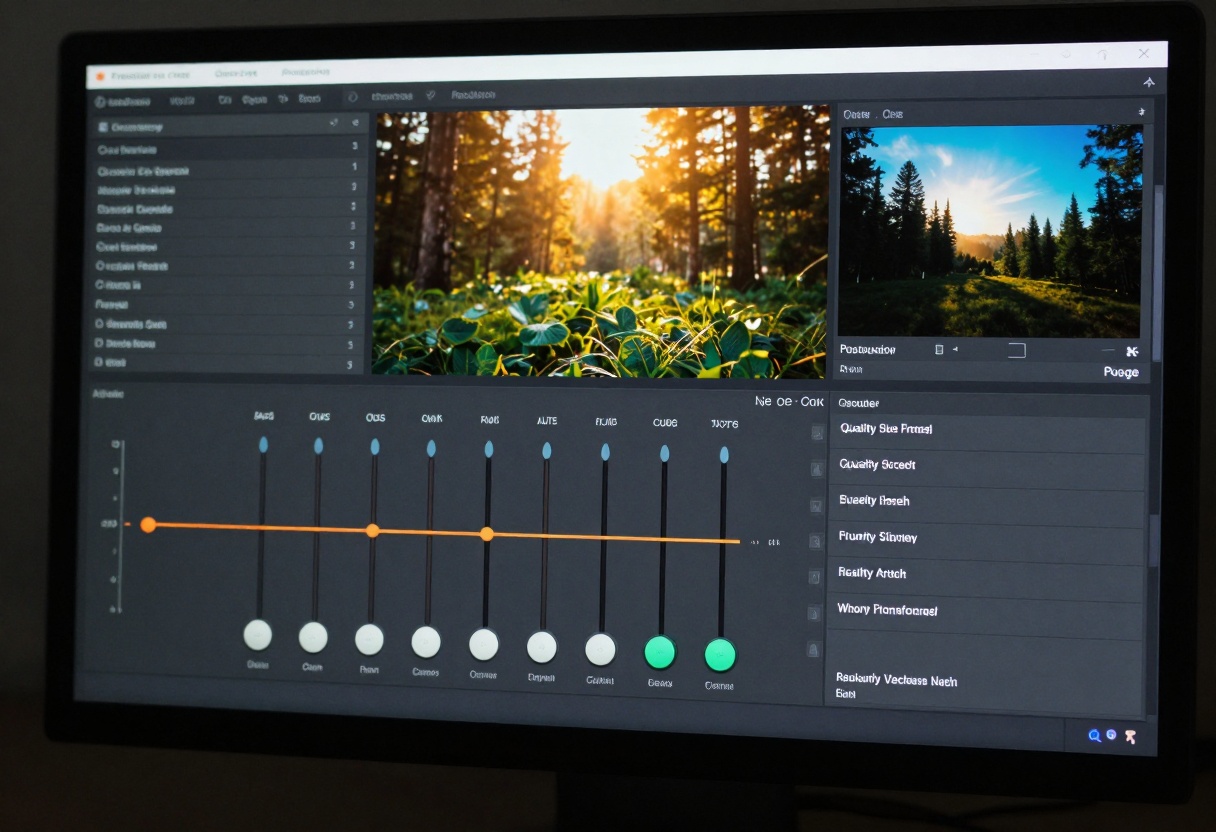
One of GPT Image 1.5's strengths is its ability to generate images across various artistic styles. You're not limited to photorealistic outputs.
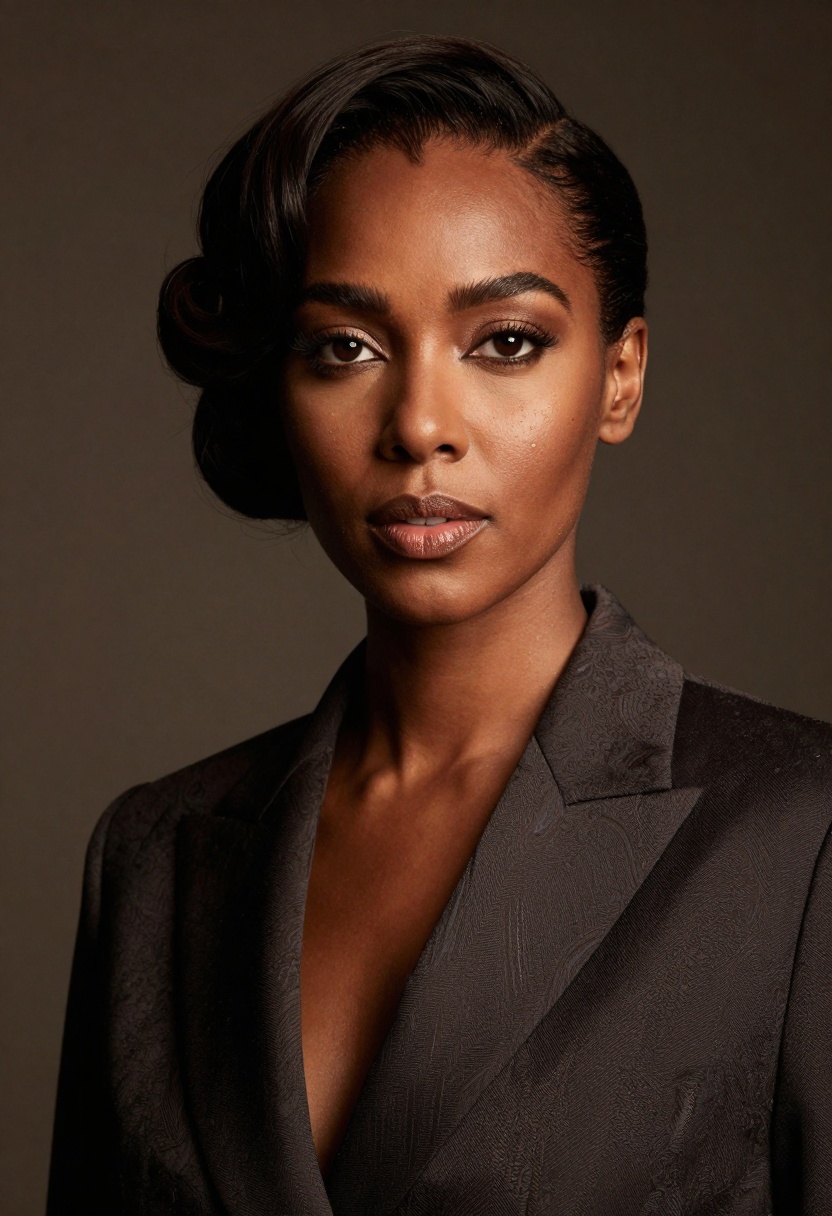
Photorealistic style mimics professional photography with accurate lighting, skin tones, and textures. This works well for creating images that look like they came from an actual photoshoot. Include terms like "professional photography," "8k resolution," and "high detail" in your prompts.
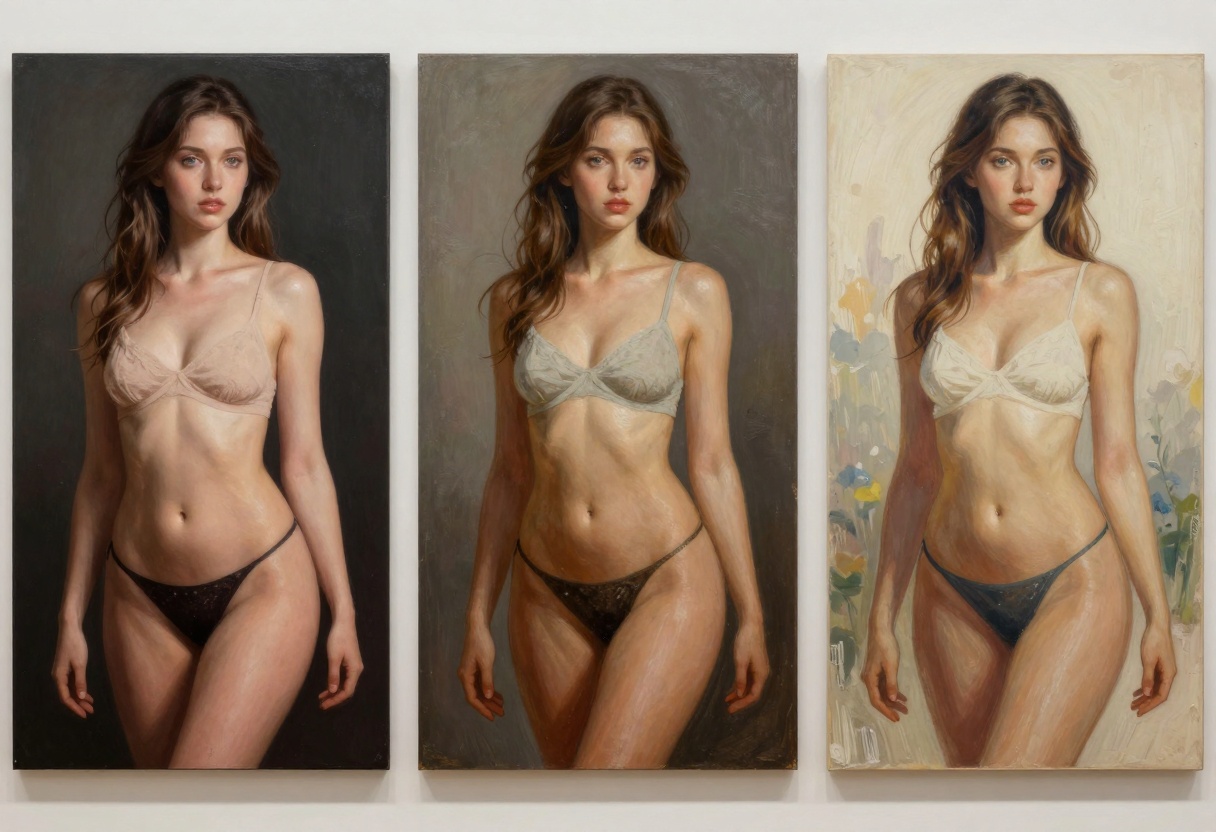
Painted aesthetics give your images a handcrafted, artistic feel. Reference specific art movements or painters if you want particular looks. Phrases like "oil painting style," "impressionist," or "Renaissance portrait" push the model toward those aesthetics.
Illustrated looks create more stylized, graphic results. These work great for character art, comic-style images, or fashion illustrations. Mention "digital illustration," "anime style," or "vector art" to achieve these effects.
You can also blend styles by combining descriptors. "Photorealistic portrait with impressionist background" creates interesting hybrid results that wouldn't exist in traditional media.
Working with Background Controls
Background handling can make or break an adult content image. GPT Image 1.5 offers three background options: auto, transparent, and opaque.
Auto mode lets the model decide what background fits your prompt. If you describe a setting like "bedroom" or "studio," it generates an appropriate background. This works well when you want a complete scene without additional editing.
Transparent backgrounds give you maximum flexibility for post-processing. The subject appears without any background, allowing you to place them in different environments later. This proves useful for creating composite images or when you need to match specific brand aesthetics.
Opaque backgrounds always generate solid backgrounds, even when your prompt doesn't specify one. Use this when you want finished images ready to use immediately without additional editing work.
For most adult content creation, transparent backgrounds offer the most versatility. You can test different background options after generation and choose what works best for your project.
Understanding Aspect Ratios
The aspect ratio you choose affects how your final image looks and where you can use it. GPT Image 1.5 supports three ratios: 1:1, 3:2, and 2:3.
Square images (1:1) work perfectly for social media platforms like Instagram, where square formats are standard. They also fit well in grid layouts and profile pictures. Use this ratio when you need images that work across multiple platforms without cropping.
Landscape orientation (3:2) suits website headers, blog covers, and horizontal displays. This ratio provides space for environmental context and works well when you want to show more of a scene beyond just the subject.
Portrait orientation (2:3) excels for full-body shots, fashion photography styles, and vertical content. Social media stories and mobile-first designs benefit from this ratio. It's also the natural choice for traditional portrait photography aesthetics.
Choose your aspect ratio based on where you'll display the final image. Starting with the right ratio saves you from awkward cropping later.
Using Reference Images for Style Consistency
GPT Image 1.5 accepts input images that guide the generation process. This feature helps maintain consistent visual styles across multiple images.
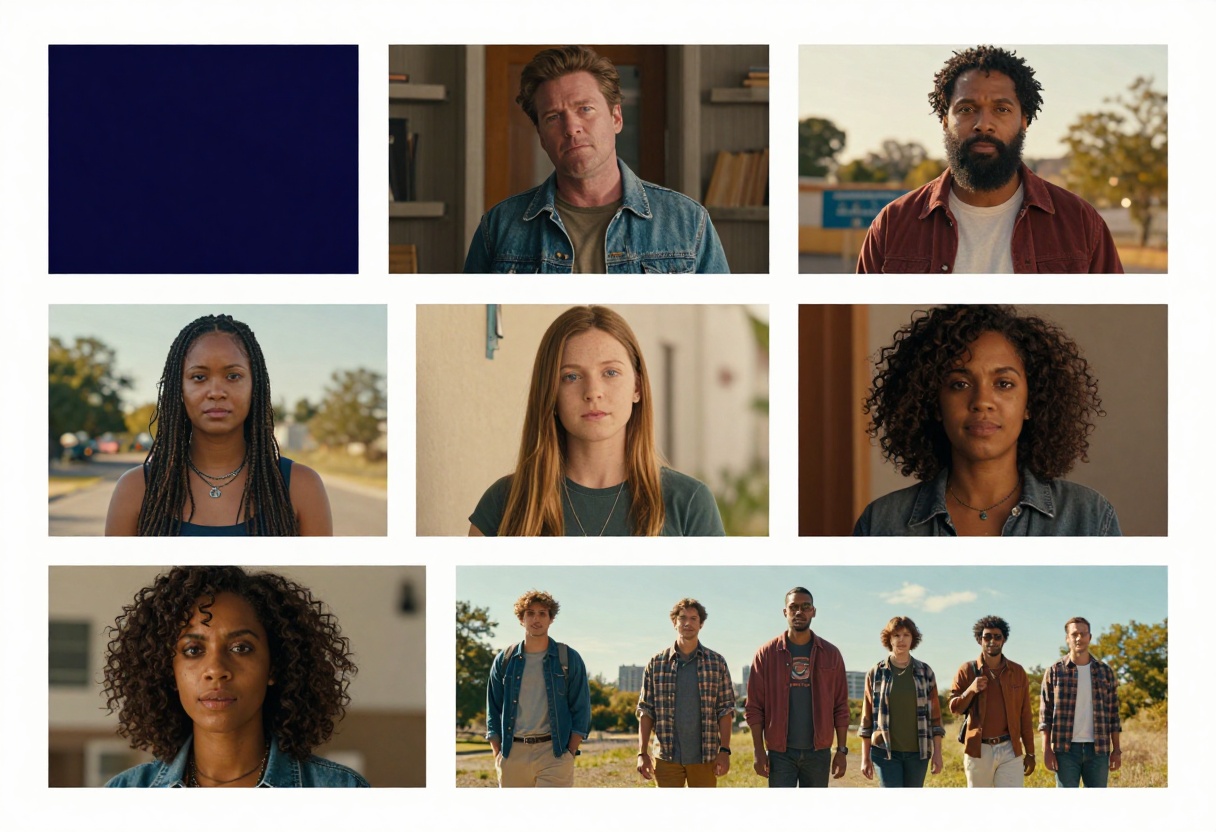
Upload a reference image that demonstrates the lighting, composition, or aesthetic you want. The model analyzes these references and incorporates similar elements into new generations. This proves valuable when creating series of images that need to feel cohesive.
Input fidelity controls how closely the model matches your reference images. Low fidelity takes inspiration from references but allows more creative freedom. High fidelity tries to match the reference more precisely, particularly for facial features and styling details.
When working with adult content, reference images help maintain tasteful aesthetics. Show the model examples of the mood and composition you're after, and it will generate new images that feel similar without copying directly.
You can use multiple reference images together. Combine a lighting reference with a pose reference to get exactly the look you want. The model considers all inputs when generating your final image.
Technical choices about file formats and compression affect your final image quality and file size. GPT Image 1.5 supports PNG, JPEG, and WebP formats.
PNG files maintain maximum quality with lossless compression. Choose this format when quality matters more than file size, or when you need transparent backgrounds. PNG works well for images you'll edit further or use in professional contexts.
JPEG offers smaller file sizes with acceptable quality loss. It's the standard for web use and works well when you need to upload multiple images without bandwidth concerns. Most social media platforms convert to JPEG anyway, so starting with this format makes sense for those use cases.
WebP provides modern compression that often beats both PNG and JPEG in file size while maintaining quality. Not all platforms support WebP yet, but it's becoming more common. Use this when you want the best balance of quality and file size for web delivery.
Compression level settings range from 0-100%, with 90% as the default. Lower numbers create smaller files but reduce quality. For most purposes, 80-90% compression provides excellent quality with reasonable file sizes.
Common Mistakes to Avoid
Even with powerful tools, certain approaches lead to disappointing results. Understanding what doesn't work saves you time and frustration.
Being too vague is the most common mistake. Prompts like "hot girl" or "sexy photo" give the model too little information. Add specific details about lighting, pose, style, and mood. The model needs direction to match your vision.
Ignoring technical terms limits your results. Photography vocabulary like "bokeh," "rim lighting," or "three-point lighting" communicates exactly what you want. These terms carry specific meanings that help the model understand your requirements.
Not testing different quality settings wastes time. Start with low quality to verify your prompt works, then move to high quality for final outputs. Generating high-quality images from vague prompts teaches you nothing about what works.
Overlooking the aspect ratio until after generation creates problems. Decide where you'll use the image first, then choose the appropriate ratio. Cropping square images into portrait format often loses important elements of your composition.
Expecting perfection on the first try leads to frustration. AI image generation involves iteration. Generate several versions, refine your prompts based on what you see, and gradually dial in on your desired result.
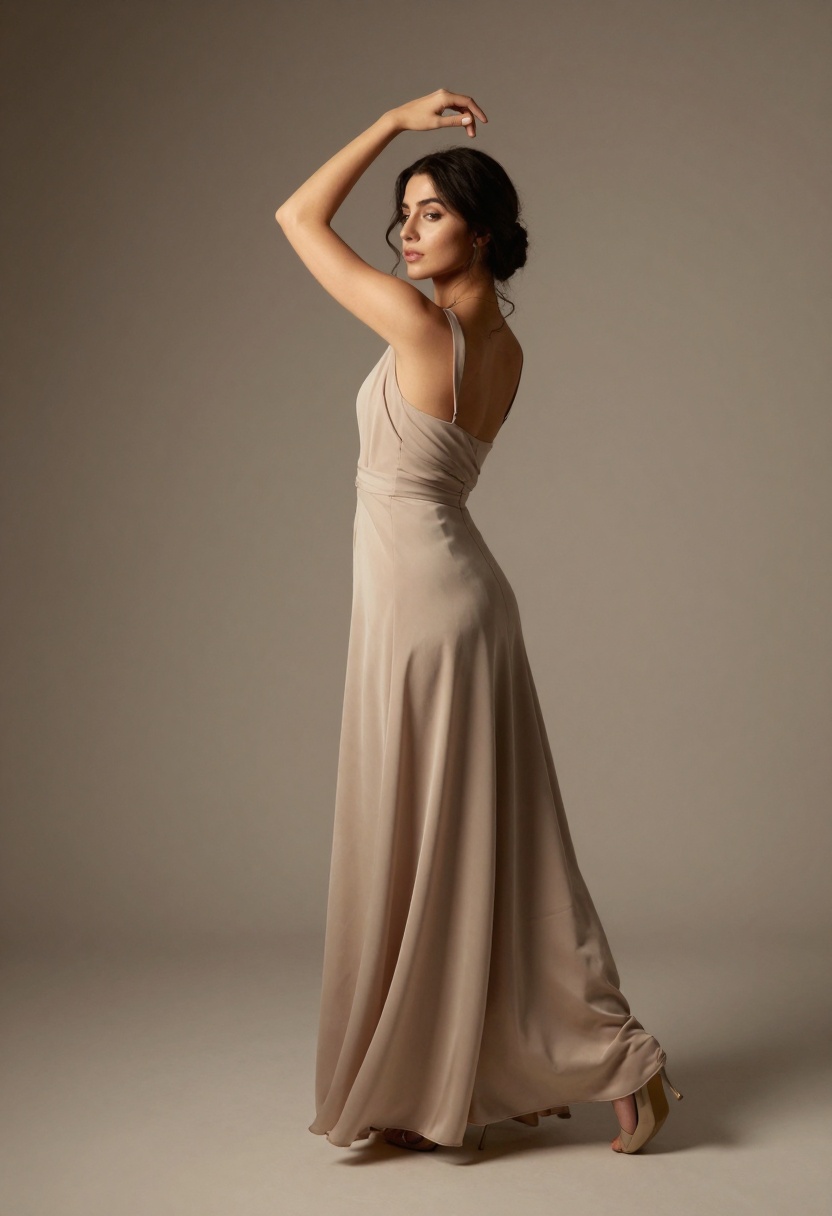
Creating Professional Adult Content on PicassoIA
PicassoIA provides access to open-source models that support adult content creation without the restrictions found on many mainstream platforms. This makes it an ideal choice for professionals working in this space.
The platform includes several models suitable for adult imagery:
p-image-edit handles image editing and transformations. Use this when you want to modify existing images or refine generated content. It processes edits quickly and maintains quality throughout the editing process.
prunaai-wan-2.2-image specializes in realistic image generation from text. This model excels at photorealistic outputs and works well for creating images that look like professional photography.
Wan 2.2 I2v Fast converts static images into video content. If you want to add motion to your generated images, this model creates smooth animations that bring your work to life.
These models give you creative freedom while maintaining professional quality standards. The open-source nature means you're not subject to arbitrary content restrictions that might limit your artistic vision.
How to Use GPT Image 1.5 on PicassoIA
Let me walk you through the actual process of creating adult images with GPT Image 1.5 on the PicassoIA platform.
Accessing the Model
Visit the GPT Image 1.5 model page on PicassoIA. The interface shows you all available parameters and settings in one place.
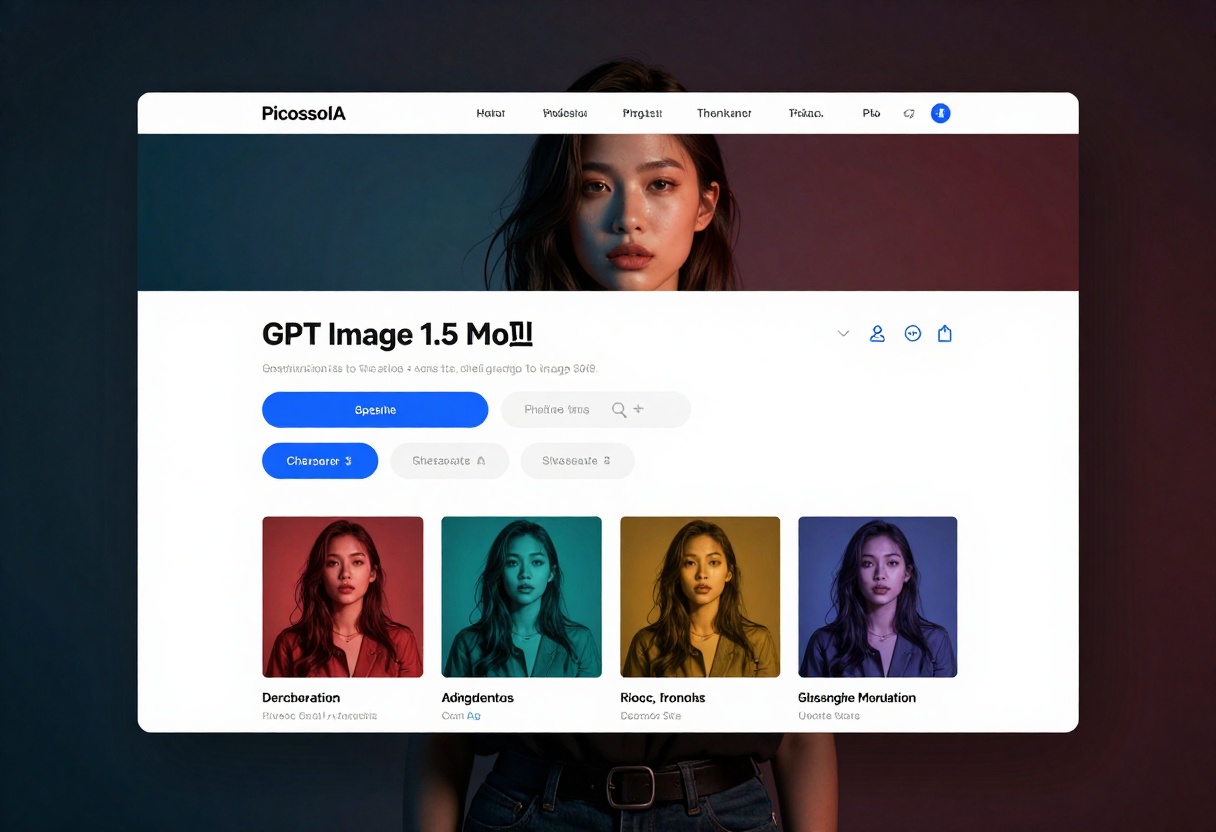
Setting Up Your Generation
Prompt is the only required field. Write a detailed description of what you want to create. Remember to include lighting, mood, style, and composition details for best results.
Quality setting defaults to low, which works for testing. Change this to medium or high for production work. Auto lets the model decide based on your prompt complexity.
Aspect ratio defaults to 1:1 (square). Select 3:2 for landscape or 2:3 for portrait based on where you'll use the final image.
Background control defaults to auto. Choose transparent if you need the subject isolated, or opaque for complete scenes with backgrounds.
Output format defaults to WebP, which balances quality and file size. Switch to PNG for maximum quality or JPEG for smaller files.
Output compression sits at 90% by default. This provides excellent quality with reasonable file sizes. Lower it if you need smaller files, raise it if quality matters more than size.
Optional Advanced Settings
Input images let you provide reference photos that guide the generation. Upload examples of lighting, poses, or styles you want to match.
Input fidelity controls how closely the model follows reference images. Low gives more creative freedom, high matches references more precisely.
Number of images allows generating up to 10 variations at once. Start with 1-2 to test your prompt, then generate more variations once you're satisfied with the direction.
User ID helps PicassoIA monitor usage patterns. This optional field doesn't affect your outputs.
Moderation level defaults to auto. Set to low if you find the automatic content filtering too restrictive for your adult content needs.
Generating Your Image
Once you've configured your settings, click the generate button. Processing time depends on your quality setting and the complexity of your prompt. Low quality generations complete in seconds, while high quality outputs take longer.
The generated image appears on the platform once processing finishes. You can download it immediately or generate additional variations with adjusted parameters.
Refining Your Results
If the first generation doesn't match your vision, adjust your prompt and try again. Pay attention to what the model got right and what missed the mark. Modify specific elements in your prompt to guide the next generation closer to your goal.
Testing different quality settings helps you understand the trade-offs. Sometimes medium quality provides enough detail for your needs while saving time. Other projects demand high quality for maximum impact.
Why Choose Open-Source Models for Adult Content
Mainstream AI platforms often restrict adult content creation, limiting what artists and professionals can produce. Open-source models on PicassoIA offer creative freedom without arbitrary censorship.
These models don't filter your prompts or block certain types of content. You can create boudoir photography, artistic nudes, and sensual illustrations without worrying about content policies that don't align with professional adult content creation.
Privacy matters when working with adult content. Open-source models let you generate images without sending your data to platforms that might flag, restrict, or save your work. Your creative process remains private and under your control.
The quality matches or exceeds restricted commercial alternatives. Open-source models have access to the same underlying technology that powers mainstream platforms. The difference is in usage policies, not technical capabilities.
Access to multiple models gives you options. If one model doesn't produce what you need, try another. The variety of available models means you can find the right tool for each specific project.
Technical Considerations for Best Results
Getting consistent, high-quality outputs requires understanding a few technical details.
Prompt length matters. Very short prompts leave too much to chance. Extremely long prompts can confuse the model. Aim for 20-40 words that cover the essential elements: subject, lighting, style, composition, and mood.
Keyword placement affects results. The model pays more attention to words at the beginning of your prompt. Place your most important descriptors early. "Elegant boudoir portrait with soft lighting" works better than "soft lighting in an elegant boudoir portrait."
Negative prompts help refine outputs. While GPT Image 1.5 doesn't have a dedicated negative prompt field, you can include terms like "avoiding harsh lighting" or "without cluttered background" to guide what you don't want.
Batch generation reveals prompt effectiveness. Generate 3-5 images with the same prompt to see how consistent the results are. If you get wildly different outputs, your prompt might need more specificity.
Reference image quality affects guidance. Upload high-quality reference images when using the input image feature. Low-resolution or compressed references give the model less information to work with.
Results You Can Expect
Setting realistic expectations helps you evaluate whether GPT Image 1.5 fits your needs.
Quality matches professional digital art. When properly prompted, the outputs rival hand-crafted digital illustrations and professional photography. You won't see obvious AI artifacts in most cases.
Consistency requires prompt refinement. Your first attempt might not nail exactly what you want. Plan to iterate on your prompts 3-5 times to dial in on your desired aesthetic.
Style versatility opens creative options. You can generate photorealistic boudoir photography one moment and painterly artistic nudes the next. The same model handles diverse aesthetic requirements.
Generation speed supports iterative workflows. Testing different variations happens quickly enough that you can explore multiple creative directions in a single session.
Professional use cases work well. Content creators, photographers, and digital artists use these tools for client work. The quality and control available make it viable for commercial projects.
The model won't perfectly replicate specific real-world photography techniques every time. But it gets close enough that most viewers can't tell the difference between AI-generated images and traditional photography.
Creating Content That Stands Out
With so many people using AI image generation, making your work distinctive requires strategy.
Develop a consistent style. Instead of generating random images, establish aesthetic guidelines you follow across projects. Use similar lighting setups, color palettes, and compositional approaches to build recognizable work.
Combine AI with traditional skills. Generate base images with GPT Image 1.5, then enhance them with photo editing software. Adding final touches by hand creates results that pure AI generation can't match.
Focus on storytelling. Technical quality matters, but compelling subjects and narratives make images memorable. Think about what you're communicating beyond just "attractive person in attractive lighting."
Study photography principles. Understanding real-world lighting, composition, and posing helps you write better prompts. The model responds to photography terminology because it learned from real photographs.
Experiment with unusual combinations. Most people stick to obvious prompts. Try mixing unexpected elements: "noir film lighting with pastel color palette" or "Renaissance painting composition with modern fashion."
Quality adult content balances technical excellence with artistic vision. Use GPT Image 1.5 as a tool that enables your creativity rather than replacing it.
Getting Started Today
The best way to learn GPT Image 1.5 is by using it. Start with simple prompts and gradually add complexity as you see what works.
Try these starter prompts to get familiar with the model:
- "Elegant boudoir portrait, soft window lighting, intimate atmosphere, professional photography, shallow depth of field"
- "Artistic nude study, dramatic side lighting, classical composition, fine art photography, black and white"
- "Sensual fashion photography, studio lighting, high fashion aesthetic, professional quality, magazine style"
Generate each prompt at low quality first. Note what works and what doesn't. Adjust specific elements and try again. Once you're happy with the direction, switch to high quality for final outputs.
The GPT Image 1.5 page on PicassoIA provides immediate access without complex setup. Create an account, navigate to the model, and start generating.
Remember that mastering any creative tool takes practice. Your first images might not match your vision perfectly, but each generation teaches you how to communicate better with the model. Within a few sessions, you'll develop an intuitive sense of what prompts produce the results you want.
Ready to create professional adult content with AI? Visit PicassoIA to start generating with GPT Image 1.5 and explore other open-source models that support your creative vision without restrictions.


