You have probably seen the photos: someone uploads a selfie, and seconds later an eighty-year-old version of them looks back with silver hair, laugh lines and a knowing smile. The part nobody mentions is that most apps behind those photos want a subscription, a watermark fee, or a long list of phone permissions. You do not need any of that. One clear photo, one short prompt and a free editing model are enough to age a face convincingly, and the same photo can then become a short moving clip.
This article walks through the whole process on Picasso IA: which model to pick, what to type, which mistakes ruin the result, and how to turn your older self into a video you can share. Every prompt below is ready to copy and paste.
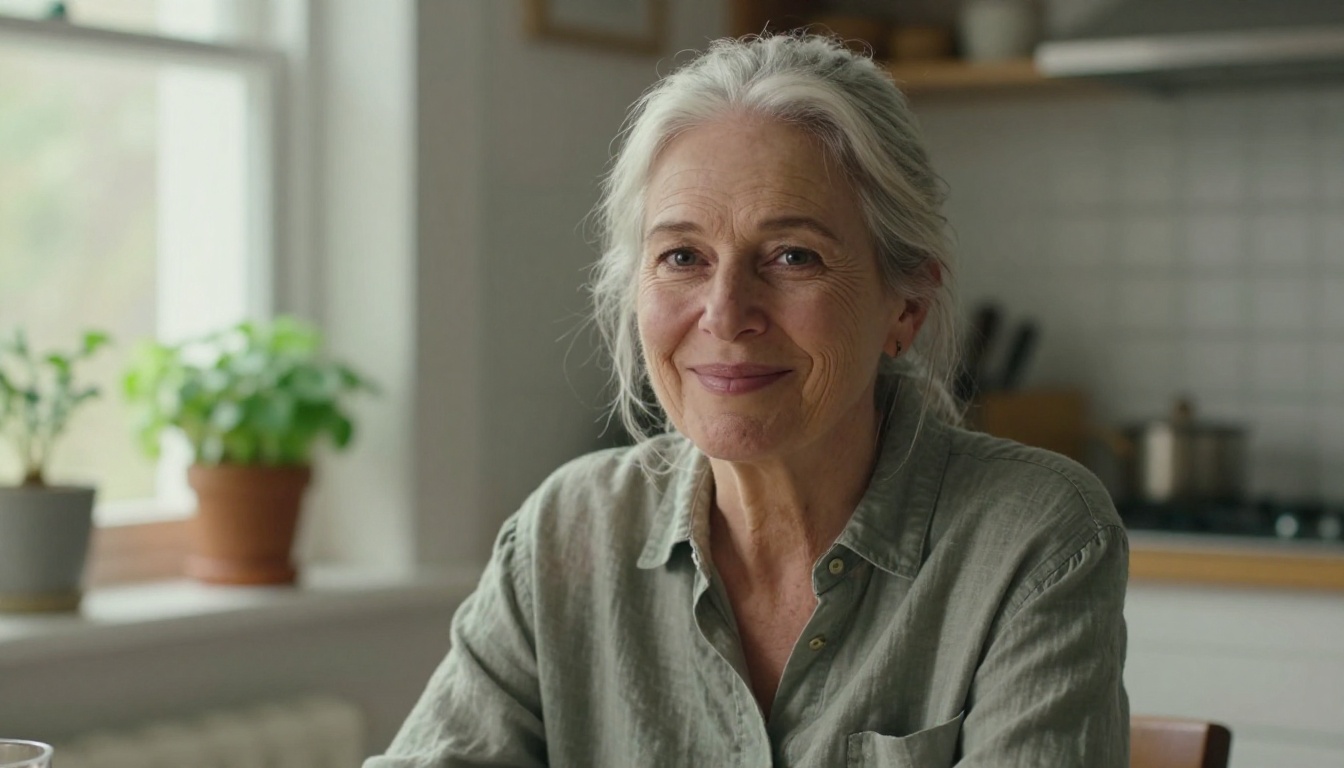
What AI Age Progression Actually Does
AI age progression takes a photo of a face and predicts how that same face could look at a later age. The idea is old. Forensic artists have aged photos of missing children by hand for decades, and film studios spend hours in the makeup chair to turn a thirty-year-old actor into a grandfather. What changed is the speed. A modern image editing model does the same job in a few seconds, from a text description alone.
People use it for very different reasons:
- Family fun: compare your face with a parent's at the same age, or show a child their grandparent-to-be self.
- Character design: writers, actors and illustrators need a believable older version of the same person across a story.
- Social content: the "see yourself at 80" format is a reliable crowd pleaser.
- Motivation: researchers have shown people aged portraits of themselves in studies about saving for retirement, and the effect on attention is real.
How the Model Reads Your Face
Image editing models are trained on enormous collections of photos, so they hold a strong sense of how faces change over decades. When you upload a picture and ask for an older version, the model keeps the anchors that make you recognizable, such as eye shape, nose bridge, jawline and the spacing between features. Then it rewrites the surface: skin texture, hair color, wrinkle patterns, brow weight and the way light sits on the cheeks.
That is why the source photo matters so much. The model can only keep what it can see. A sharp, front-facing picture gives it clean anchors. A blurry, tilted or heavily filtered picture gives it guesses.
Photo Aging vs Video Aging
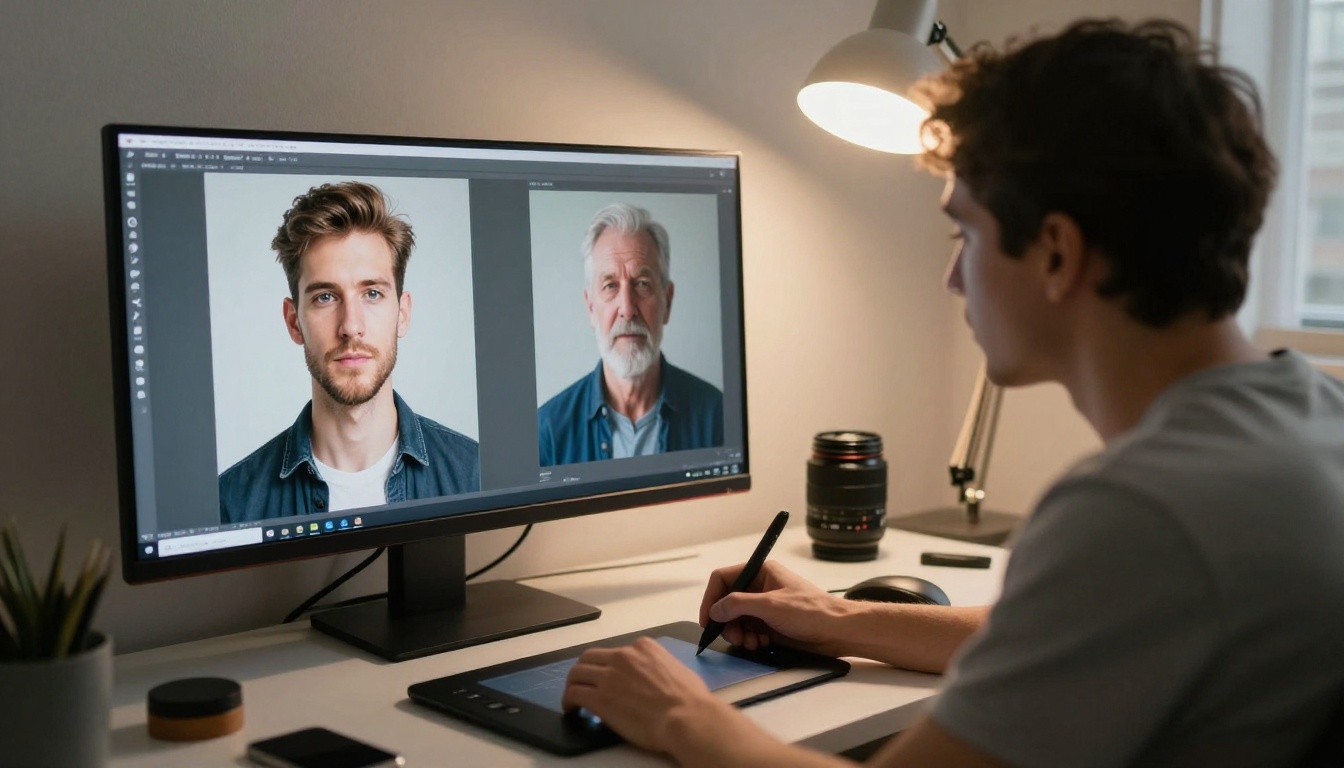
Aging a still photo is a single edit. Aging a video is a harder problem, because every frame has to agree with the next one. If each frame were aged separately, the wrinkles would flicker and the face would drift from one frame to the next.
The practical workaround is a two-step route that works well today:
- Age one strong still frame with an image editing model.
- Animate that frame with an image-to-video model, so the older face stays consistent for the whole clip.
You get a short moving portrait of your older self, with blinking, head turns and natural expressions, instead of a flickering filter.
Free Ways to Age a Photo
Several models on Picasso IA can get you a good result, but they do not all behave the same way. Some follow edit instructions closely. Others reimagine the whole scene. For age progression you want the first kind.
Why Image Editor Pro Leads the List
PicassoIA Image Editor Pro is the native editing model, and it fits this job for three reasons:
- It is unlimited. There is no per-edit cap and no daily quota, so you can run dozens of age variations on one face without counting credits.
- It follows plain-language instructions. You describe the change and refer to your upload as "image 1".
- It returns two variations per run. Set the number of outputs to 2 and compare two takes side by side.
Because aging is a matter of trial and error, unlimited attempts matter more than raw power. Your first result is rarely your best one.
💡 Tip: Treat the first run as a draft. Change one phrase at a time, such as the hair color or the wrinkle depth, so you know exactly what caused each difference.
Other Models Worth Trying
When Image Editor Pro returns a result that drifts from your face, a second model gives you a useful comparison:
| Model | Strength | Input | Best for |
|---|
| PicassoIA Image Editor Pro | Unlimited edits, up to 3 reference images | Photo and prompt | Everyday age progression and quick variations |
| Qwen Image Edit 2511 | Edited areas blend into the original without visible seams | Photo and prompt | Edits that must look seamless |
| Seedream 4.5 | 2K and 4K output, accepts 1 to 14 reference images | Photo or photos and prompt | High resolution portraits for print |
| Topaz Image Upscale | Enlarges photos up to 6x | Finished photo | Sharpening the final aged portrait |
Run the same prompt on two models and keep the version that looks most like you at that age.
How to Age a Photo on PicassoIA
Here is the exact workflow with Image Editor Pro. It takes about two minutes.
- Open the PicassoIA Image Editor Pro page.
- Upload your photo in the Images field. The first image is treated as the main one.
- Type your aging prompt in the Prompt field and mention "image 1".
- Leave Aspect ratio on
match_input_image so the framing stays identical to your original.
- Set Number of outputs to 2 to get variations.
- Pick PNG or JPG as the output format and leave quality at its default of 95.
- Run it, compare both results with the original, and save the one you like.
Pick the Right Source Photo
Good inputs make good outputs. Before you upload, check this list:
- Face forward or a slight three-quarter angle. Extreme profiles hide half the anchors.
- Even light. Hard shadows across the eyes confuse the aging pass.
- No filters. Beauty filters smooth the skin, and the model then ages the smoothed version, which looks fake.
- No sunglasses, masks or hands over the face.
- At least 1000 pixels on the long side. Small, compressed pictures lose detail.
Write the Aging Prompt
A reliable prompt has four parts: the instruction, the target age, the visible changes and a protection clause that keeps the identity intact.
Age the person in image 1 to about 75 years old. Add white hair, deep smile lines, fine wrinkles around the eyes, soft age spots on the cheeks and slightly thinner skin. Keep the same face shape, eye color, nose and expression. Keep the clothing, background and lighting unchanged.
The last two sentences matter most. Without them, the model feels free to change the shirt, the room and sometimes the face itself.
Lock the Seed and Compare
When a result is close but not quite right, set the Seed field to a fixed number. The model then reproduces the same base result each time, so any change you see comes from your prompt rather than from randomness. Change one phrase, rerun, and compare.
Here is a quick settings cheat sheet:
| Setting | Recommended value | Why |
|---|
| Aspect ratio | match_input_image | Keeps the framing of your original |
| Number of outputs | 2 | Gives you two takes per run |
| Output format | PNG or JPG | Safe for every app and social network |
| Output quality | 95 (default) | Sharp without a huge file |
| Seed | Fixed once you like a result | Makes edits repeatable |
Prompts That Give Believable Results
Believable aging is specific. "Make me old" produces a generic grandparent. Describing what changes at each decade produces your grandparent version.
Age Ladder: 40, 60 and 80
| Target age | What actually changes | Words to put in the prompt |
|---|
| 40 | Faint lines at the eyes, slight fatigue, hair mostly unchanged | "subtle expression lines, a few early gray strands at the temples" |
| 60 | Visible wrinkles, graying hair, softer jawline | "salt and pepper hair, defined smile lines, mild softening along the jaw" |
| 80 | White hair, deep wrinkles, age spots, thinner skin | "white hair, deep wrinkles around the eyes, age spots, thin skin with visible veins at the temples" |
Run all three from the same source photo and you get a quick timeline of your face, which is the version people love to share.
Name the Features You Want
Models respond to anatomy. The more precisely you name a region, the more precisely it changes:
- Eyes: "crow's feet", "heavier eyelids", "slightly clouded irises"
- Mouth and cheeks: "deep nasolabial folds", "softer cheek volume"
- Forehead: "horizontal forehead lines", "thinning eyebrows"
- Hair: "receding hairline", "thin white hair", "silver bun"
- Skin: "age spots", "uneven tone", "fine texture with visible pores"
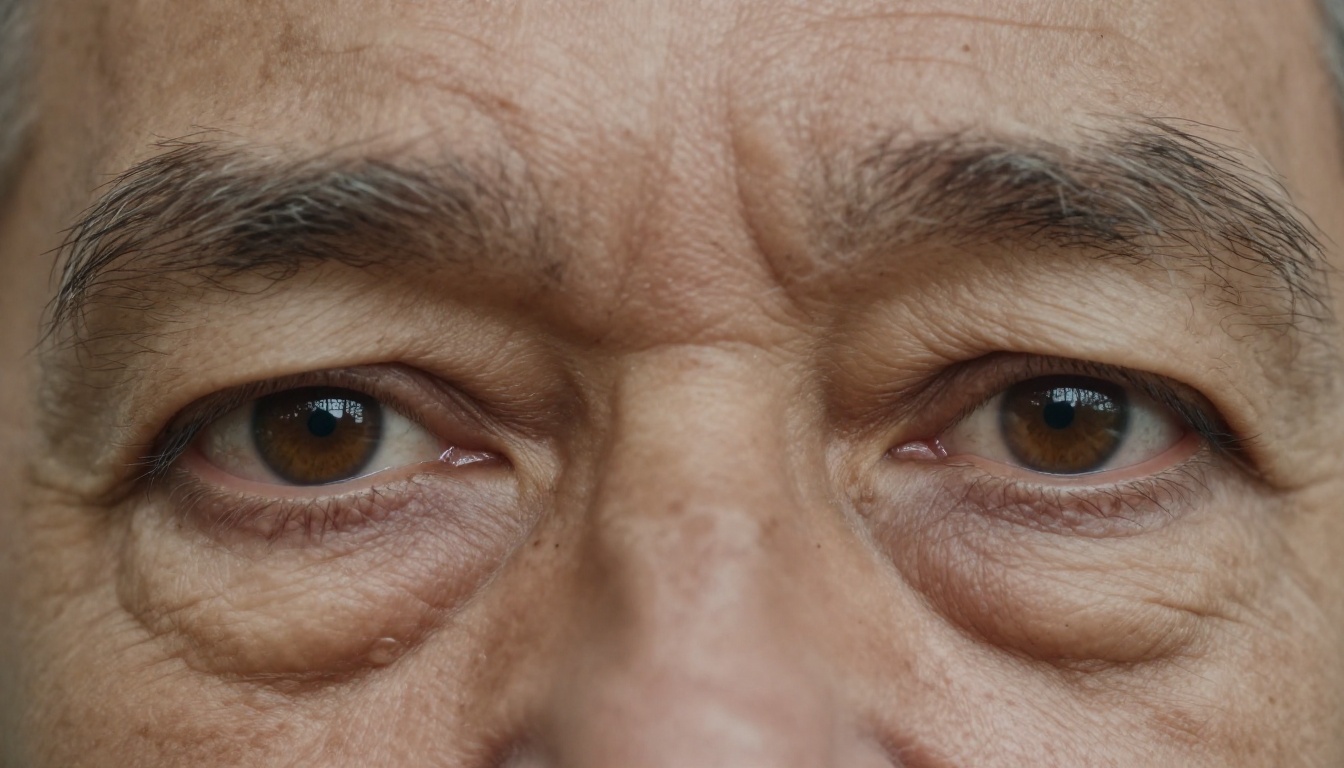
💡 Tip: Add "natural, unretouched skin with visible pores" to every prompt. It is the fastest fix for the waxy look that many aged faces have.
3 Common Mistakes
- Asking for too many changes at once. Age, outfit, background and mood in one prompt dilutes all four.
- Skipping the protection clause. Without "keep the same face shape, eye color and nose", the person who comes back may not be you.
- Aging a low-quality photo. A tiny, blurry selfie produces a soft, generic result. Start with the best photo you have.
Turn the Aged Photo Into Video
A still portrait is nice. A portrait that blinks, breathes and smiles is the one people replay.
Animate with Seedance 2.5 Lite
Seedance 2.5 Lite accepts an image as the opening frame and returns a clip of 5 or 10 seconds with synchronized audio. Wonder members can run it without limits, which suits the same try-and-compare habit you used on the photo.
- Open the Seedance 2.5 Lite page.
- Upload your aged portrait in the Input image field. The clip inherits its aspect ratio.
- Describe the motion in the Prompt field.
- Choose a Duration of 5 or 10 seconds and a Resolution of 480p or 720p. 720p is the default and the sharper option.
- Leave Save audio on for synchronized sound, or turn it off for a silent clip.
- Run it, and repeat with a new seed if the first take is not right.
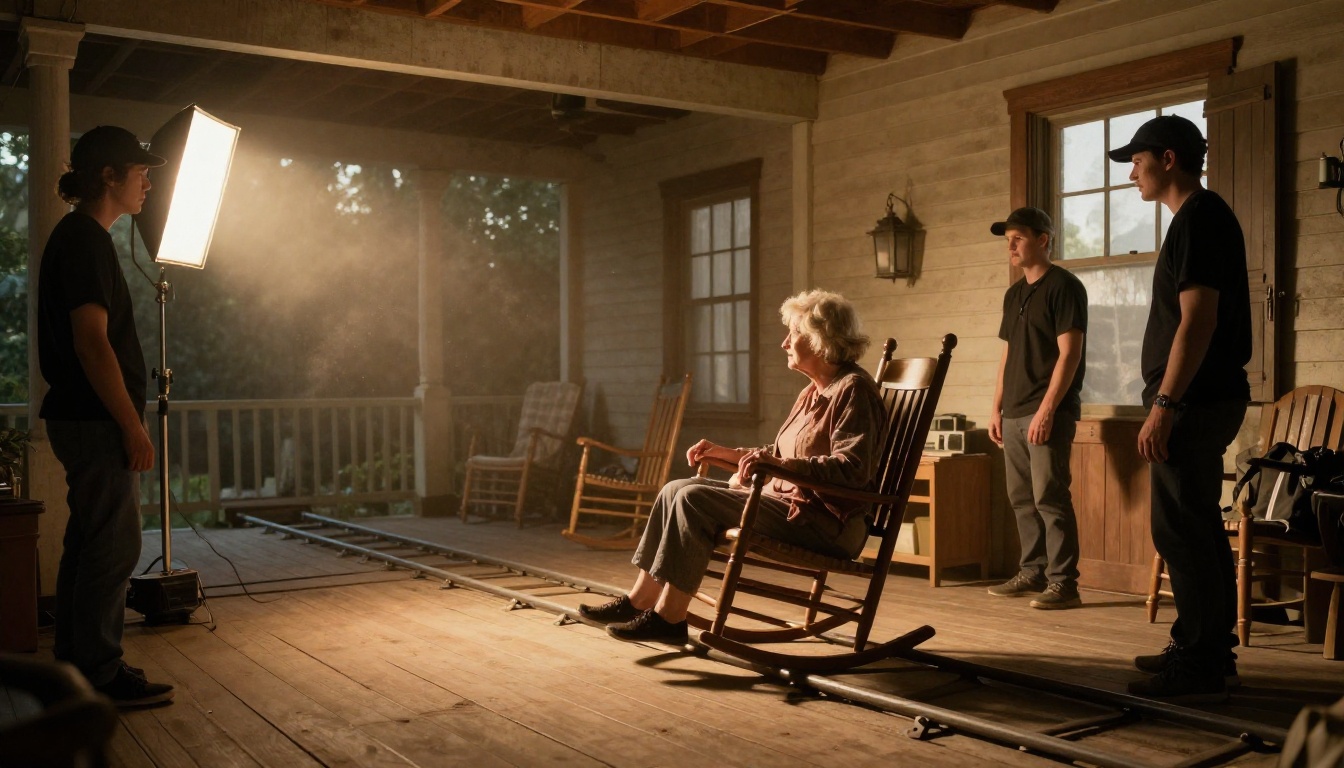
There is one more field worth knowing about: Last frame image. Upload your original photo as the first frame and the aged version as the last frame, and the clip animates from one to the other. That is the closest thing to a true age progression video, with the face moving from young to old inside a single shot. It works best when both images share the same framing, pose and lighting, which is exactly what you get when you edit with match_input_image.
Motion Prompts That Work
Cinematic, chronological sentences work best. Say who moves first, what the camera does and how the light behaves. Copy one of these:
- The older man slowly turns his head toward the camera and breaks into a warm, surprised smile. Soft window light, shallow depth of field, slow push-in.
- The woman blinks, takes a breath and gives a gentle half smile. Her silver hair moves slightly in a light breeze. Static camera, golden afternoon light.
- The camera drifts from left to right across the portrait while the person looks down, then up at the lens with a quiet laugh.
Prefer a fixed format? Picasso IA Video produces a 5-second clip at 24 frames per second from a photo, with 480p and 720p options. Wan 2.7 I2V and Kling v2.1 also animate a photo into video, and running the same aged portrait through two of them is a cheap way to find the most natural motion.
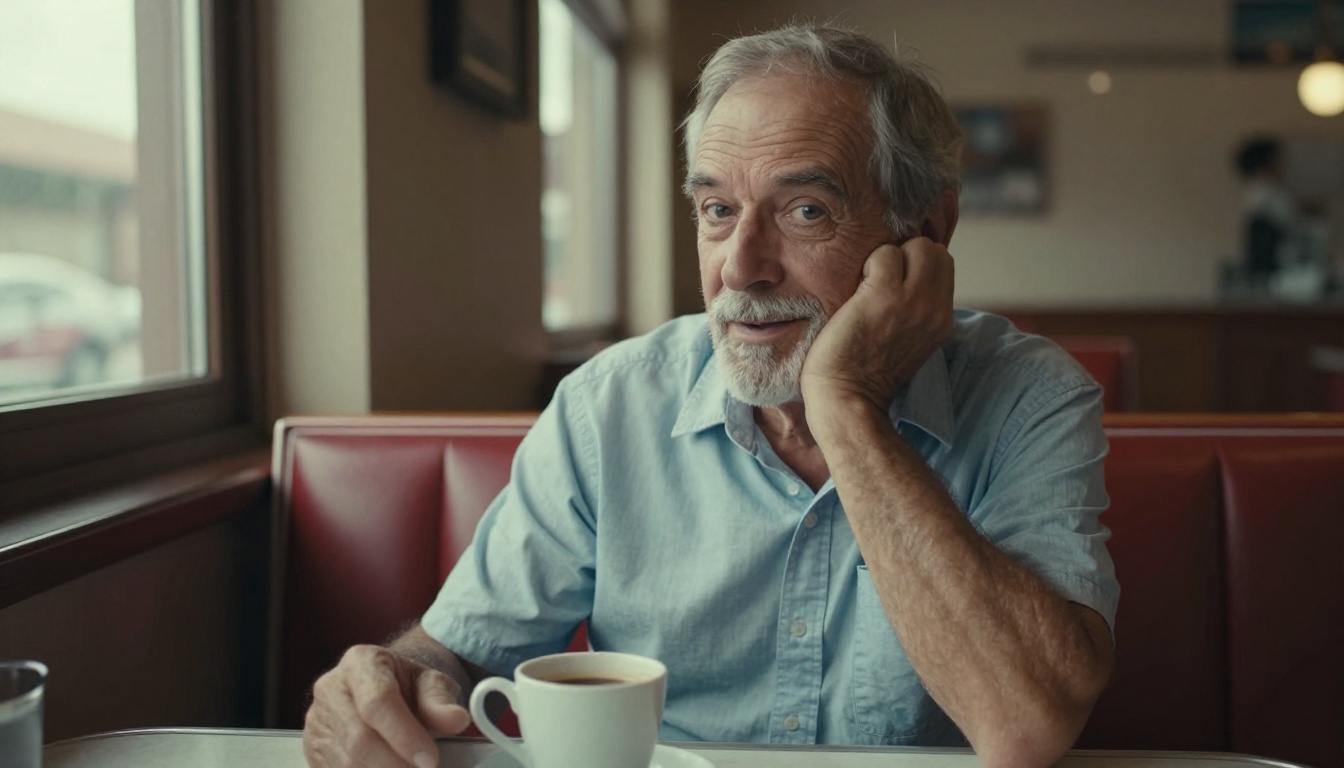
💡 Tip: Keep motion small. Big head turns and wide smiles stretch the face, and a stretched face drifts away from the source. Blinks, small nods and slight smiles keep the identity stable.
Fix Problems Fast
Even a good prompt sometimes returns a face that is off. These are the two problems you will meet most often.
The Face Looks Like a Stranger
This is identity drift. The model changed the structure of the face instead of only the surface.
- Strengthen the protection clause: "Keep the exact same face shape, eye shape, nose, lips and expression."
- Lower the target age. Going from 30 to 80 asks for a bigger change than going from 30 to 60.
- Use a sharper source photo with the face centered.
- Try Qwen Image Edit 2511 with the same prompt as a second opinion.
Skin Looks Plastic or Waxy
Aged skin has texture: pores, uneven tone, fine lines that cross each other. A smooth result usually means the prompt never asked for them.
- Add "visible pores, uneven skin tone, natural fine lines, no retouching".
- Remove words like "beautiful" or "flawless", which push the model toward smoothing.
- Run the final photo through Topaz Image Upscale to bring back fine detail.
- Sharpen the portrait before you animate it, so the first frame of your clip already carries fine skin detail.
Privacy and Consent Rules
Aging a face is playful when it is your own face, and it needs care when it belongs to somebody else. Follow these rules:
- Use your own photos, or photos of people who agreed. A friend, partner or relative should say yes before you edit and share their face.
- Never post aged photos of children who are not yours.
- Do not use aged images to impersonate someone. An older version of a real person, presented as real, can mislead others.
- Label shared results as AI-edited so nobody mistakes them for photographs.
- Keep originals private. Upload only what you need, and delete test files you no longer want.
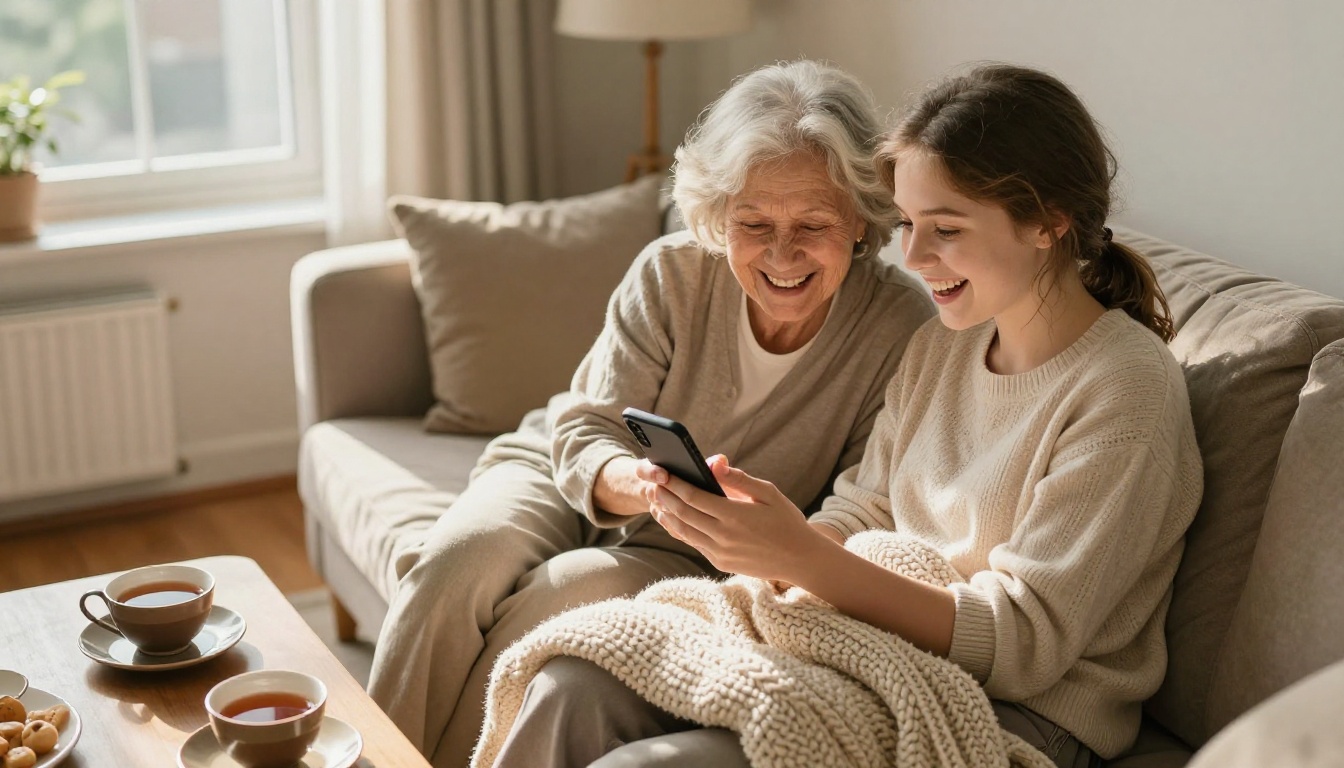
Done with permission, this is a lovely family activity. A grandmother watching her granddaughter's 80-year-old self move on a phone screen is a great reason to laugh together.
Try Your Older Self Today
You now have everything you need: a clear photo, a four-part prompt, a protection clause, a seed to compare results and a route from photo to video. The whole process takes minutes, and the first attempt is often a surprise.
Open PicassoIA Image Editor Pro, upload a photo of yourself and run the 60-year-old prompt from the age ladder. Then change the target age to 80, compare the two, and send the winner to Seedance 2.5 Lite to watch it move. Try the same face at 40, 60 and 80, try friends and family with their permission, and see how far a single sentence can go. Browse the rest of the editing and video models at picassoia.com/en/all-models, then create your own older self on Picasso IA today.


