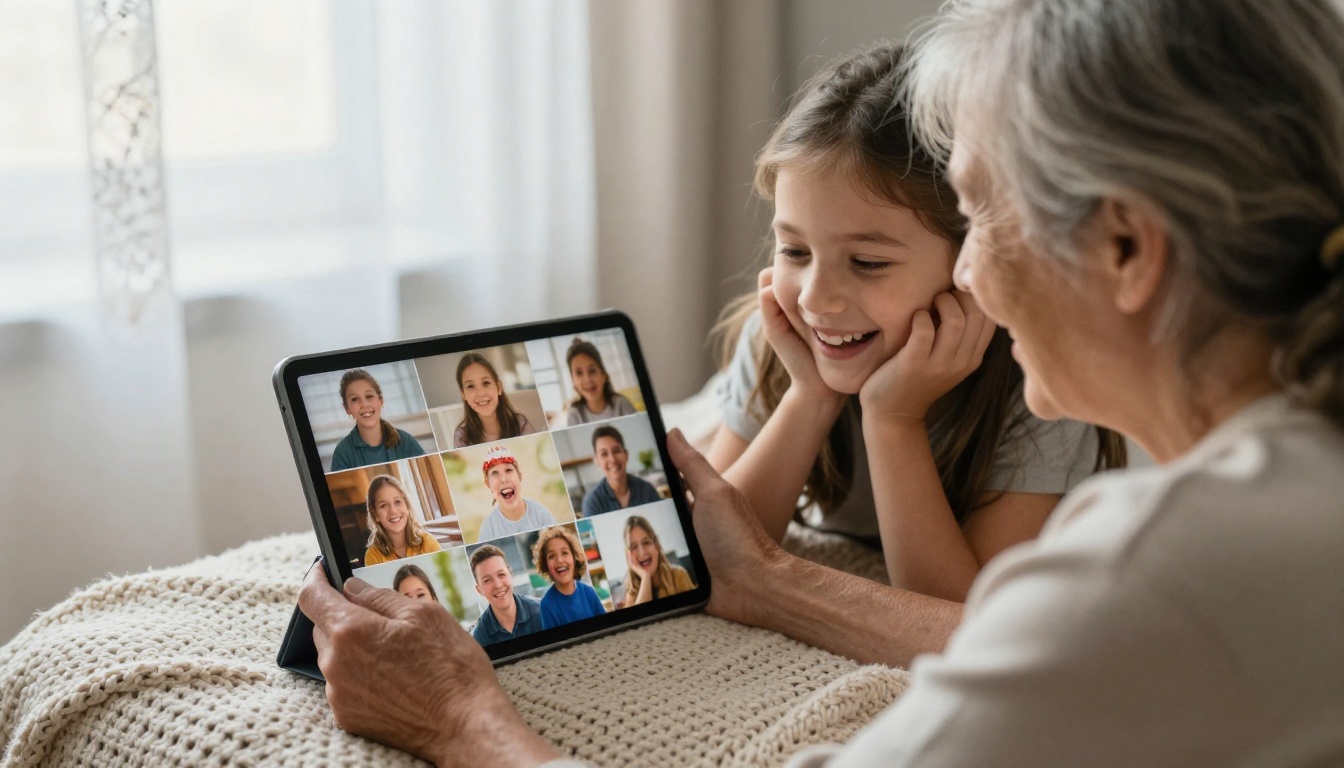
AI Birthday Video Maker Free With Photos and Music: From Camera Roll to Finished Video
Make a birthday video from your own photos and an original song without paying for a video editor. This article walks through picking photos, animating them with free AI models on PicassoIA, writing music, and assembling the pieces so the result feels personal.
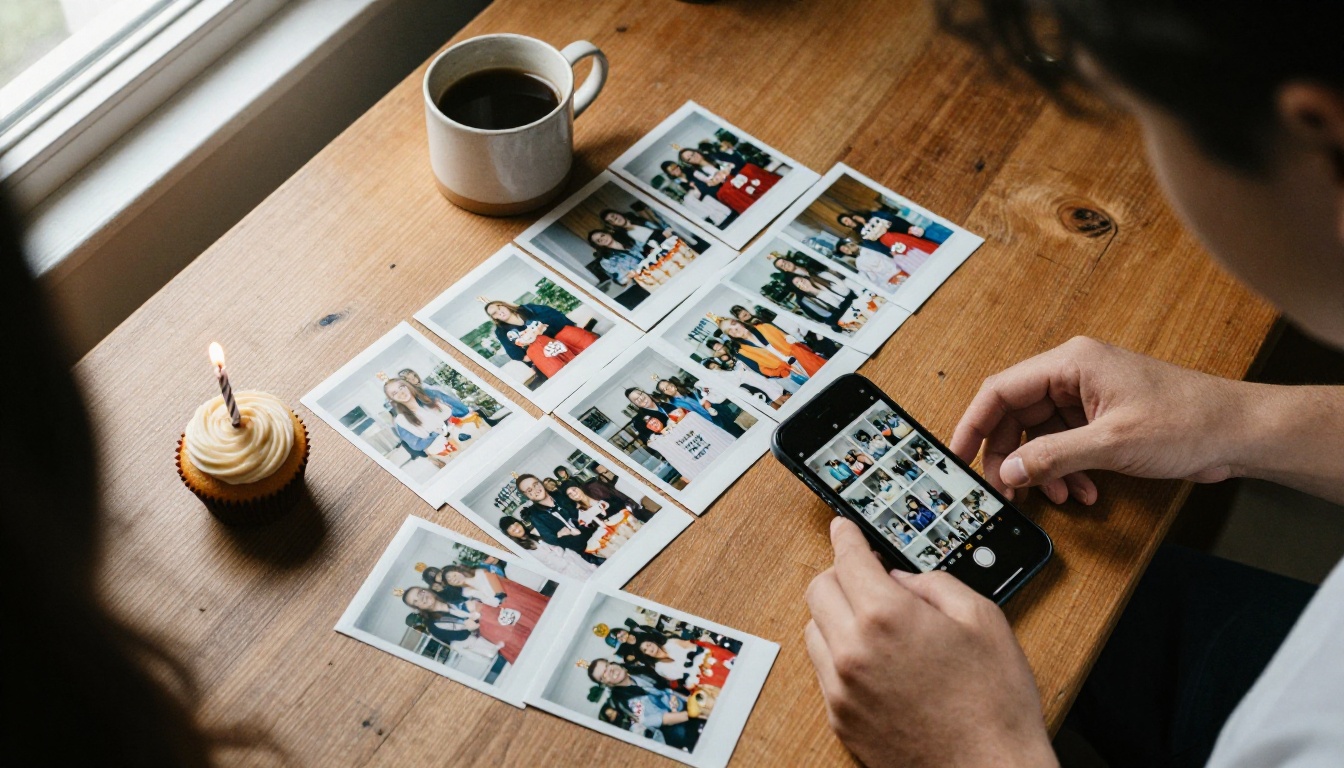
Every birthday video starts the same way: forty photos on a phone, one person who wants to make something thoughtful, and no clear idea how to turn that pile into a story. An AI birthday video maker free with photos and music solves the slow part. You feed it your pictures, it animates them into short clips, a music model writes a song for the person being celebrated, and you join the pieces in whatever editor you already own. Below you will find the exact workflow, the prompts that work, the limits you will hit, and the mistakes that make these videos feel generic.
What Free Really Means Here
Plenty of "free" birthday video apps stamp a watermark on the export or lock the soundtrack behind a subscription. The workflow in this article avoids that trap by splitting the job into three parts, and each part uses a model built for exactly one task. You keep the files, you pick the song, and nobody puts a logo across your grandmother's face.
The Three Pieces of a Birthday Video
Every good birthday video, AI or not, needs the same three ingredients. Here is how each one maps to a tool.
Piece
Job
Model on PicassoIA
What to expect
Photos
Real pictures, or a new image for a missing moment
Full songs from a text prompt, with or without vocals
The assembly step happens in a basic video editor, and that includes the free one built into most phones and laptops. PicassoIA creates the raw material. You decide the order.
Where the Limits Sit
Be clear about the ceiling before you start. A single clip lasts 5 or 10 seconds, so a 90 second video means somewhere between 9 and 18 clips. That is not a flaw, it is how the format works, and it is the reason the photo selection below matters so much.
The second limit is audio. Clips come with generated sound by default, and that sound will fight with the song you add later. The tutorial section shows the one setting that fixes it.
💡 Plan check: The no per-clip cost applies to Wonder members. On other plans, count your clips before you begin so a 20 clip video does not surprise you at the end.
Pick the Right Photos First
The model can only work with what you give it. A sharp, well lit photo of a face produces a believable smile. A blurry screenshot produces mush. Spend ten minutes on selection before you generate anything, because every weak input wastes a generation.
How Many Photos You Need
Plan one photo per clip, and plan clips around the length you want. Each clip runs 5 or 10 seconds, so the math is simple.
Video length
Photos needed
Clip mix
30 seconds
6
Six 5 second clips
60 seconds
12
Twelve 5 second clips, or six 10 second clips
90 seconds
15 to 18
Mostly 5 second clips with a few 10 second ones
2 minutes
20 to 24
A mix, with the cake moment held for 10 seconds
Variety matters more than quantity. Pull from four buckets:
Faces carry the emotion. Choose the shots where the person laughs or looks straight at the camera.
Groups show relationships. Pick pictures where every face is large enough to read, since tiny faces tend to animate poorly.
Places and objects give the eye a rest: a favorite mug, the old front door, the dog's bed by the window.
Milestones such as a first bike, a graduation, or a wedding day give the video its spine.
Skip heavily filtered images and anything saved from a chat app. Those files are compressed twice and the lost detail shows up as shimmering skin in the animation.
Fix Old or Small Prints
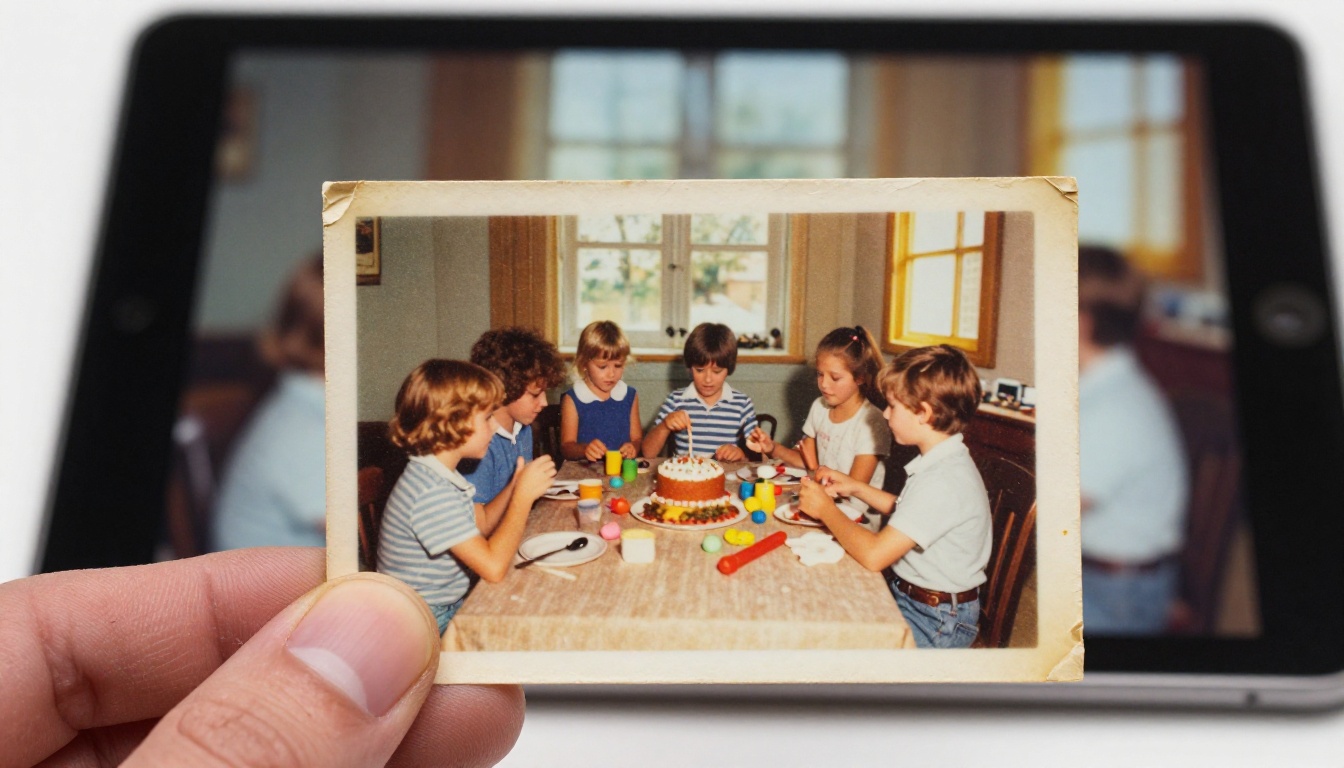
Old prints are the emotional core of most birthday videos, and they need a little care. Photograph or scan them near a window in daylight, with the print flat and no glare across the surface. Crop to the picture itself, because a strip of table around the edge distracts the model. If the photo is tiny or soft, upscale it with a super resolution model before animating, since the clip inherits whatever detail the first frame has.
Fill Gaps With a New Image
Sometimes the best moment was never photographed: the decorated table before guests arrive, the balloons in the doorway, the cake with its candles unlit. Describe the scene in plain language to P Image and you get a photorealistic still that you can animate like any other picture.
Keep generated images for rooms, food, and decorations. Real faces should come from real photos, because viewers notice at once when the birthday person looks slightly off.
Turn Photos Into Moving Clips
Motion is what separates this from a slideshow, and it is the step where the video starts to feel alive.
Why Short Clips Beat Slideshows
A classic slideshow applies the same slow zoom to every picture. By photo eight, nobody is watching the people anymore, they are watching the zoom. An image to video model reads the scene and moves what should move: candle flames flicker, hair shifts in a breeze, a smile opens. Five seconds is long enough for one gesture and short enough to keep the pace up.
Prompts That Work for Birthdays
The model page for Seedance 2.5 Lite recommends cinematic, chronological descriptions. Say what happens first, what happens next, and what the camera does. These starting points suit the photos you will use most.
Photo type
Prompt to try
Close-up portrait
The woman laughs softly and tucks her hair behind her ear, the camera pushes in slowly, warm window light
Cake and candles
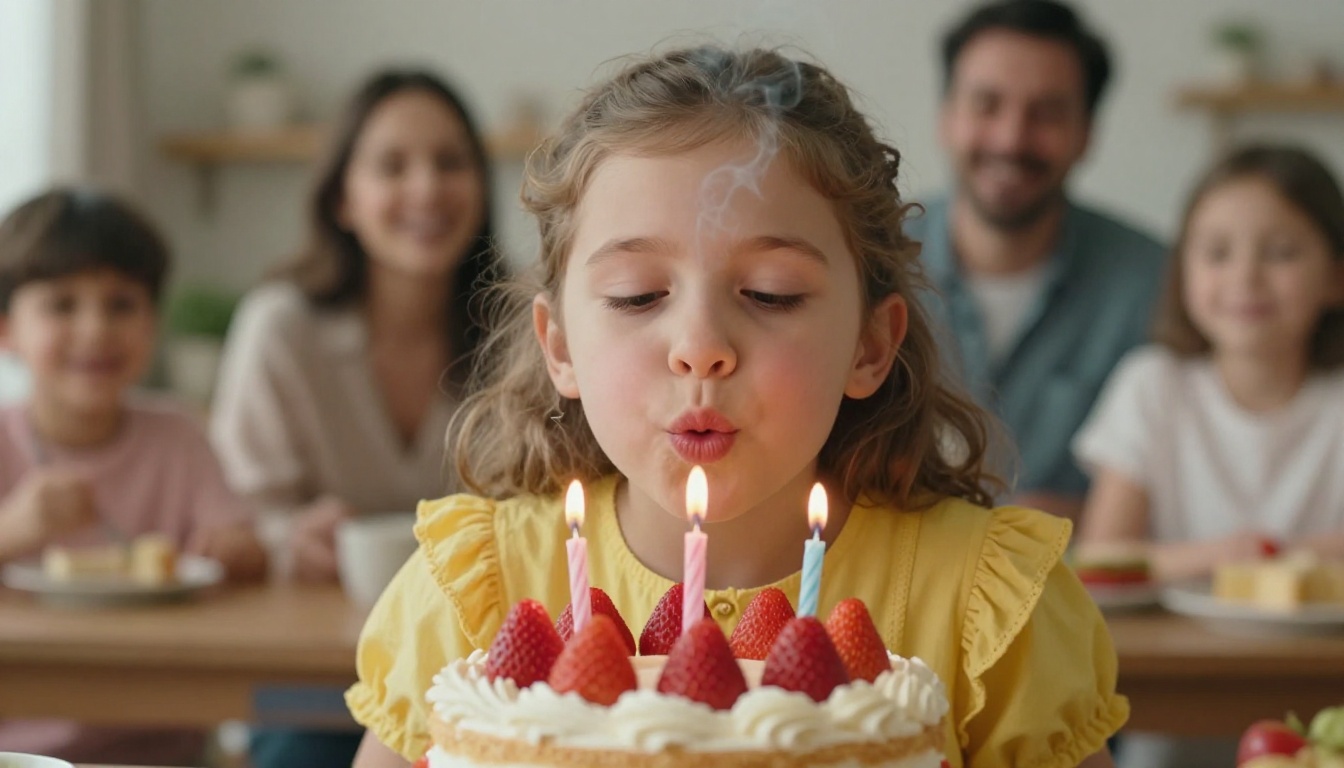
Candle flames flicker, then a small puff of smoke rises as the candles go out, the camera holds steady
Group photo
Everyone leans in and smiles, a gentle handheld sway, soft daylight
Pet
The dog tilts its head and wags its tail, slow dolly in, natural light
Decorations
Balloons drift gently, string lights twinkle, slow pan to the left
💡 Keep it photographic: Add words like "natural light" and "handheld" so the clip reads as a real recording instead of a rendered animation. Keep the motion small too. A laugh or a head turn holds a face together, while big movements make features drift.
Seedance 2.5 Lite is the model to start with for birthday work, for two reasons. It accepts an image as the opening frame, and Wonder members run it without a per-clip cost, which matters when you regenerate the same photo three times to get the smile right.
Open the model page and choose image to video by adding your photo as the Input image. The clip uses it as the opening frame and inherits its aspect ratio.
Write the prompt in order: first action, second action, camera movement, light.
Set the duration to 5 seconds for a quick beat or 10 seconds for a moment that deserves room, like the candles.
Pick the resolution. Use 480p for fast test runs and 720p for the clips you plan to keep.
Turn off save audio if you are adding your own song. The generated sound is on by default.
Lock a seed once a result looks right, so you can recreate it with small prompt changes.
Generate, download, repeat for every photo on your list.
Settings Worth Changing
Setting
Recommended value
Why
Resolution
480p to test, 720p to finish
Faster drafts, sharper final clips
Duration
5 for most photos, 10 for the cake
Keeps the video moving
Save audio
Off when you add music
Avoids two soundtracks colliding
Seed
Fixed after a good result
Makes small edits predictable
Aspect ratio
Leave on match input image
Ignored when you upload a photo anyway
A Then and Now Trick
The model also takes an optional Last frame image. When you add one, the clip animates from the first frame to the last. Upload a childhood photo as the start and a recent picture of the same person as the end, and you get a short morph from then to now. It works best when both photos share a similar pose and framing, so pick pairs carefully.
Want to compare results? Wan 2.7 I2V and Veo 3.1 Lite are also available for animating photos, and Picasso IA Video is listed as a free unlimited generator from text or image. Run the same photo through two models and keep the better take.
Add Music That Fits the Person
Music decides how the video feels. The same twelve photos play as a gentle tribute with a piano and as a party reel with a funk bassline. Choose on purpose.
Write a Song With Music 2.6
Music 2.6 turns a text description into a finished song with melody, instruments, and vocals. You have two routes:
Describe the style only. Write something like warm acoustic pop, 96 BPM, female vocal, cheerful, handclaps, a birthday for a best friend, and switch on the Lyrics Optimizer so the model writes lyrics from your prompt.
Bring your own lyrics. Paste them in with structure tags such as [Verse] and [Chorus] to control the arrangement.
A short lyric with a name in it makes the whole video personal:
[Verse]
Thirty candles on a lopsided cake
Maya makes a wish and the whole room shakes

[Chorus]
Happy birthday, Maya, look how far you came
Every photo in this song knows your name
Download the result as MP3, or choose WAV if you plan to edit the audio further.
Instrumental or Vocals
Vocals suit short videos where the song is the message. Instrumentals suit longer videos, especially when you plan to record a spoken greeting or let guests laugh over the top. Turn on Is Instrumental and write a style prompt, for example gentle piano, warm strings, slow build, nostalgic, and the model skips lyrics entirely.
Match Beats to Photo Changes
Here is a small trick that saves editing time. At 96 BPM, one bar of four beats lasts 2.5 seconds. Two bars last exactly 5 seconds, which is the length of a standard clip, and four bars last 10 seconds. Ask for 96 BPM in your prompt and every clip change lands on a bar line without any nudging.
If you want other flavors, Lyria 3, ElevenLabs Music, and Stable Audio 2.5 all generate music from a text prompt. For a different approach, Audio To Video animates an image with any sound you supply, so the song itself drives the motion.
Put It All Together
You now have a folder of clips and one song. The last stretch is editing, and it is quicker than it sounds.
Order the Clips
A birthday video works like a short story: where the person started, how they got here, who is around them now, and a warm ending. For a 60 second video, this timeline holds up well.
Time
Section
What goes here
0:00 to 0:10
Opening
Oldest photo or baby picture, quiet intro
0:10 to 0:30
Growing up
Milestones, school years, family
0:30 to 0:45
Friends and fun
Group shots, trips, inside jokes
0:45 to 0:55
Now
The most recent photos
0:55 to 1:00
Finale
The cake and candles, held for the last beat
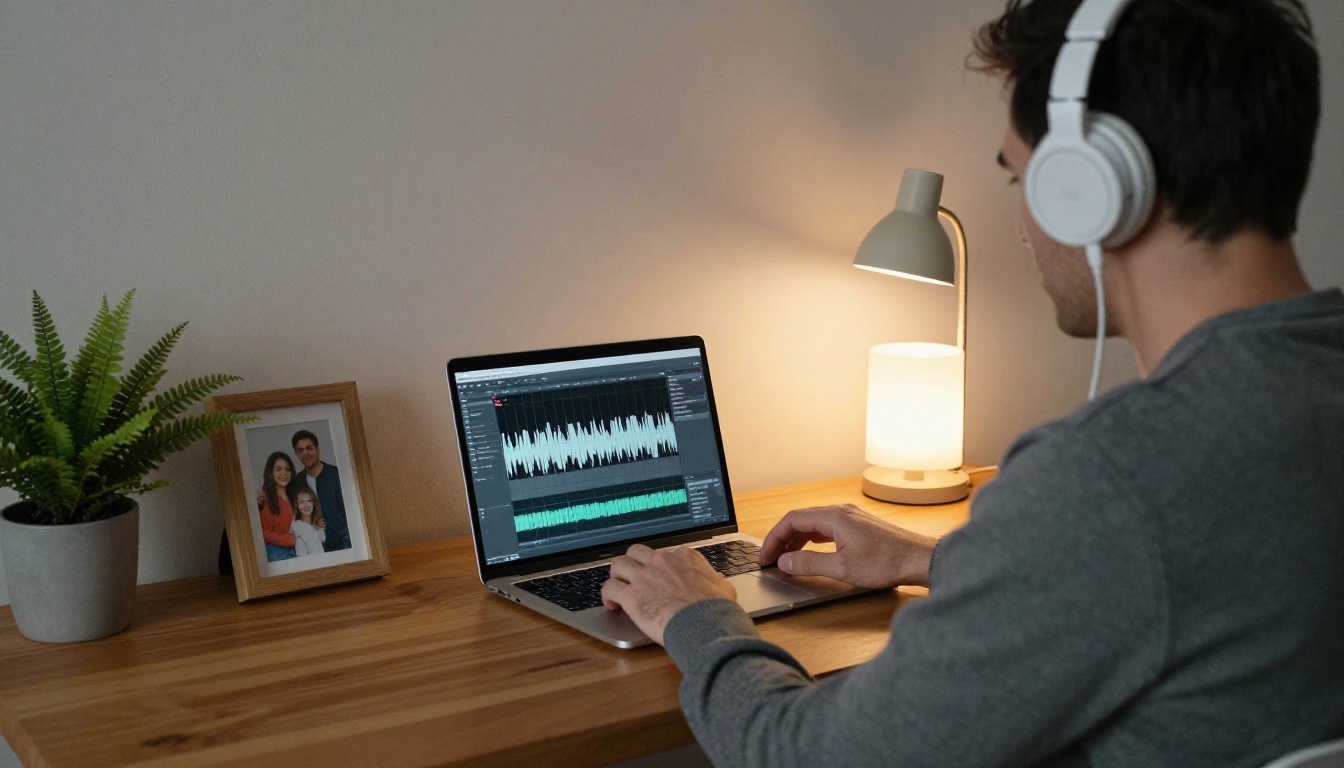
Drop the clips onto the timeline in that order, lay the song underneath, and trim each clip so changes fall on the beat. Mute any clip that still carries its own sound. If you add titles, keep them to a name and an age, one or two words, and let the pictures do the talking. End with a one second fade.
Export for Phones and TVs
Decide where people will watch before you generate, because the aspect ratio is fixed by your starting photo. For a living room TV or a projector, use landscape 16:9 photos. For stories and phone messages, crop your photos to vertical 9:16 first and generate from those, since the clip matches the image you upload.
Export at 720p for sharing in chat apps. It keeps the file small enough to send without heavy compression and still looks sharp on a phone screen.
Where to Share It
The video is only half the gift. How it arrives is the other half.
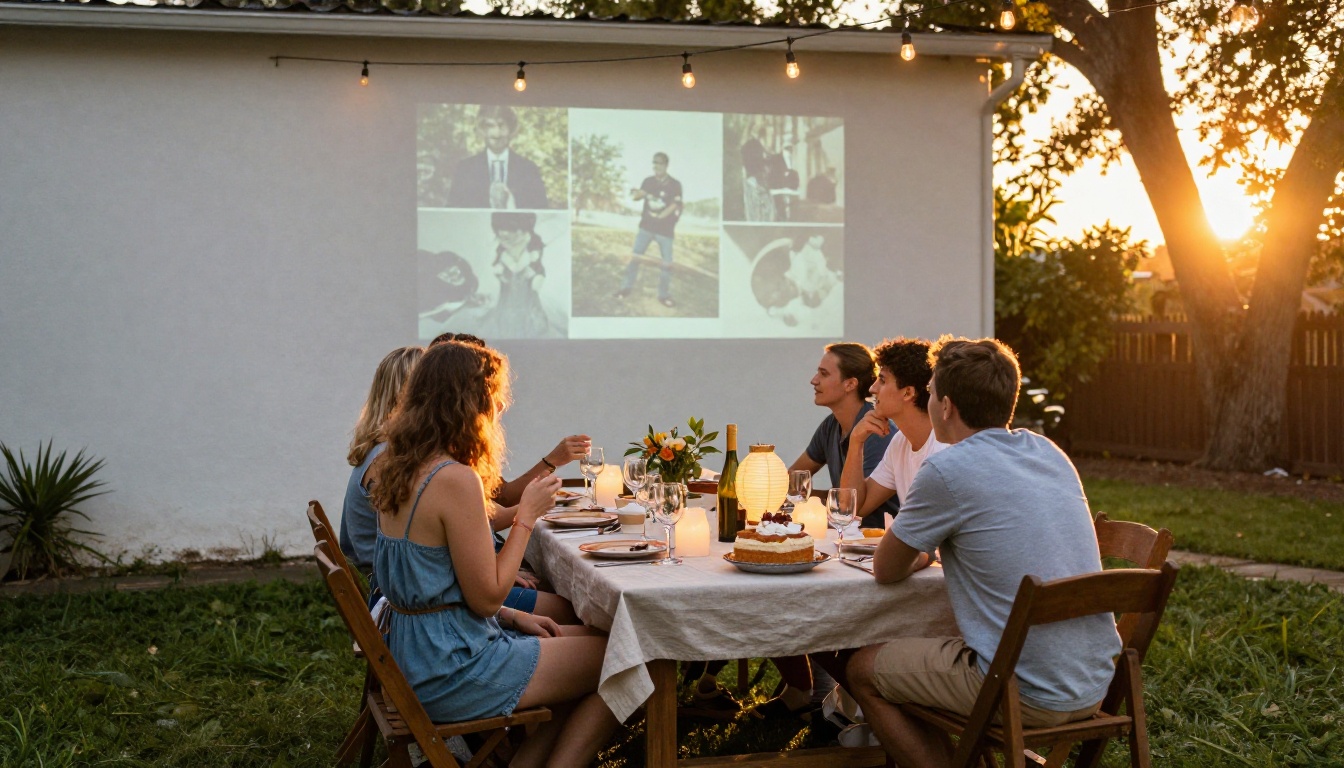
At the party: Project it on a wall after the cake is cut. Test the sound the day before, because a silent screening kills the mood.
In the family group chat: Post it at midnight so it is the first thing the birthday person sees. Add a short note instead of a long caption.
For someone far away: Send it on the morning of the birthday, then call. Watching together on a screen beats any reaction emoji.
On social media: Cut a 15 second vertical teaser and keep the full version for family.
Five Mistakes That Ruin These Videos
Leaving the clip audio on. Two soundtracks at once sounds like a mistake. Turn off save audio or mute the clips in the editor.
Giving every photo the same motion. If each prompt says "slow push in," the video feels like the old slideshow again. Vary the camera: pan, hold, pull back.
Going too long. A party screening has a short attention window. Aim for 60 to 90 seconds unless the person is likely to watch twice.
Using compressed photos. Pictures pulled from chat apps lose detail, and the animation exposes it. Go back to the original file on the phone or the scan.
Writing a generic song. A track with no name and no detail could belong to anyone. One line about an inside joke, a favorite food, or a nickname turns it into theirs.
Make Your Own Birthday Video
Nothing here needs a studio or a budget. Pick twelve photos, write a few honest prompts, ask for a song with the person's name in it, and give yourself an afternoon. The first clip is the slowest one, and by the fifth you will be directing the scene instead of testing the tool.
Open Picasso IA and start with a single photo. Animate it with Seedance 2.5 Lite, then write a short song with Music 2.6 and see how it feels next to the picture. Try a different prompt, a different tempo, a different photo. The best birthday videos come from people who experiment a little and then press play for someone they love.