There is a shoebox in almost every family home. Inside are prints with bent corners, a wedding portrait from 1978, a beach photo where everyone is squinting, a grandfather who died before anyone thought to film him. A still photo holds a single second. AI family photo to video tools give that second a few more: a smile that finishes, a hand that waves, hair that moves in the wind.
This article shows you how to do it for free, which settings change the result, which models are worth trying, and 12 ideas you can try tonight. Everything here runs on a phone or a laptop, and you don't need editing skills.
What AI Family Photo to Video Does
An image-to-video model takes one photo as the first frame and predicts how the scene would move over the next few seconds. You describe the motion in a short text prompt, the model generates the frames, and many current models add synchronized sound as well.
For family photos, that usually means small, believable motion: blinking, a slow head turn, a breeze through a dress, a child laughing, a camera that drifts gently closer. The best results look like a live photo, not a special effect.
Who Searches for This
The search intent here is mostly practical and emotional at the same time. People want a free app that works, and they want it to treat a photo of someone they love with care. Typical situations:
- A scan of an old print from a parent or grandparent
- A recent holiday portrait that looks too stiff
- A memorial tribute or a birthday surprise
- A family tree project with dozens of faded portraits
- A short clip for a family group chat
What It Cannot Do
Be honest with yourself about the limits. The model invents motion. It does not know how your grandmother actually laughed, so the clip is an interpretation, not a record. Some people find that moving, others find it unsettling, so think about who will watch it before you share it widely.
💡 Tip: Show the result to one relative first. A private preview avoids an awkward moment in a big group chat.
Free Apps and Models to Try
You can find plenty of "free" tools online, but many give you a watermark, a single trial clip, or a daily cap. What matters is whether you can iterate. Family photos rarely work on the first attempt, so you need room for five or six tries on the same picture.
Picasso IA Video
Picasso IA Video is built for exactly this workflow. It generates free and unlimited short clips from a text prompt or an image. You upload your photo as the opening frame, describe the motion, and get a 5-second clip at 24 frames per second with native synchronized audio. You can pick 16:9, 9:16 or 1:1, which is handy for phone screens and for group chats.
Seedance 2.5 Lite
Seedance 2.5 Lite is the lighter version of Seedance 2.5. It runs at 480p and 720p and can produce clips up to 10 seconds long. Wonder members can run it without a per-clip cost or a daily counter. The longer length is useful when you want a slow, quiet moment rather than a quick burst of motion.
Other Models Worth Testing
Different models read faces and motion differently. If one gives you a stiff result, try another with the same photo and the same prompt.
| Model | Best for | Notes |
|---|
| Picasso IA Video | Fast, free everyday clips | 5 seconds, audio, several ratios |
| Seedance 2.5 Lite | Longer, calmer shots | Up to 10 seconds, 480p and 720p |
| Wan 2.7 I2V | Faithful animation of a single image | Good for portraits with simple motion |
| Kling v3 Video | Cinematic camera work | Strong on natural body movement |
| Hailuo 2.3 Fast | Quick tests of old photos | Made to animate photos into video |
| Veo 3.1 Fast | Scenes with ambient sound | Native audio, 1080p output |
| LTX 2.5 Fast | High resolution in seconds | Useful for final, sharper versions |
💡 Tip: Run the same photo through two or three models before you decide. The difference in how each one handles eyes and hands is bigger than the difference in resolution.
Prepare the Photo First
Most disappointing results come from the source image, not the model. Ten minutes of preparation saves a lot of retries.
Scan or Photograph Correctly
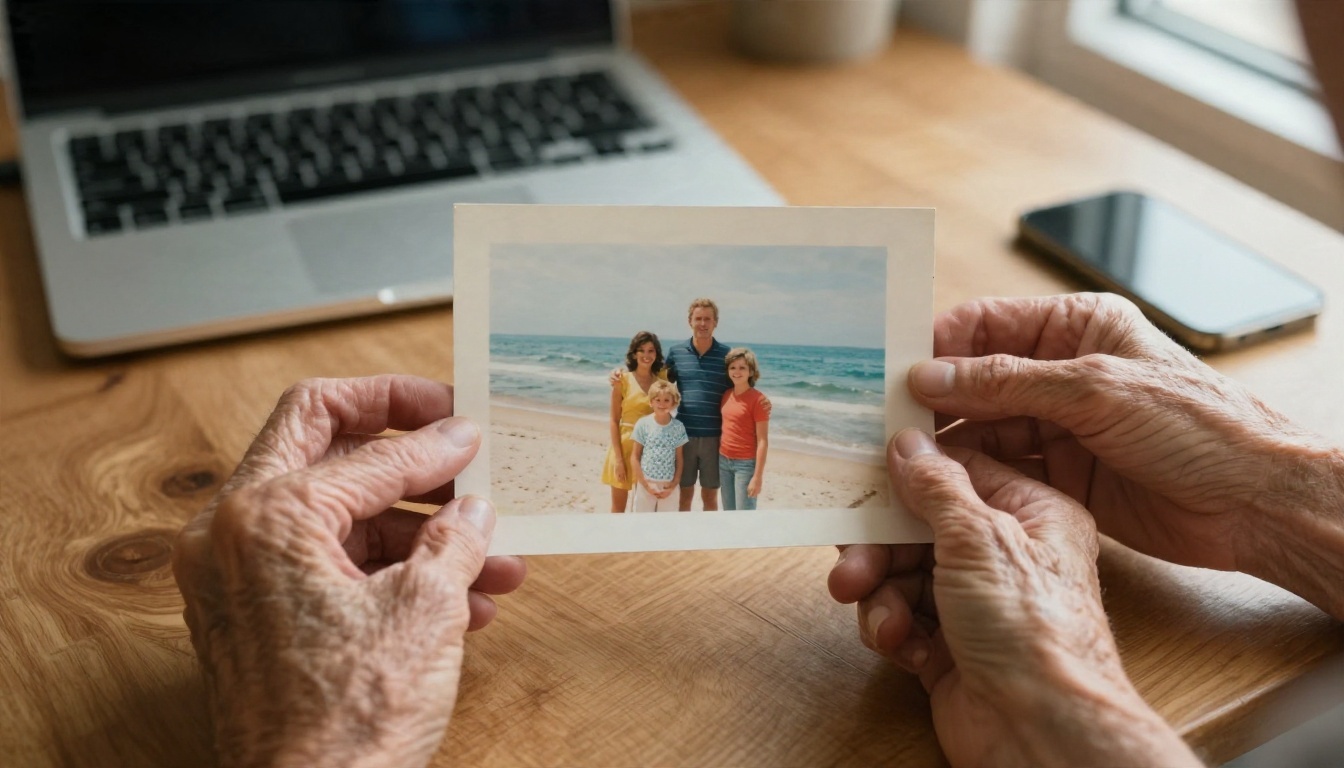
If you start from a printed photo, a flatbed scan gives the cleanest result. If you only have a phone, follow these steps:
- Lay the print flat on a table near a window.
- Turn off the flash, because it creates a bright hotspot that the model will treat as part of the picture.
- Hold the phone directly above the print so the edges stay square.
- Take two or three shots and keep the sharpest.
- Crop away the table and the white border.
Clean Up Damage Before Animating
Scratches, fold lines and dust spots tend to move with the scene once the model animates the image, which looks strange. Repair them first with an AI restoration or inpainting tool, then run the clean image through video generation. If the photo is small or soft, an upscaling step before animation gives the model more facial detail to work with.
Check the Faces
The model needs to see each face clearly. Before you upload, check this short list:
- Every face is at least about 100 pixels wide
- Eyes are open and not hidden by glare on glasses
- No one is cut off at the edge of the frame
- The photo is not heavily compressed or filtered
If a group shot has one blurry face, expect that person to wobble or morph. Crop to the sharpest subgroup instead of fighting it.
Settings That Change the Result
Every app words its controls a little differently, but the same few choices decide whether the clip looks natural or odd.
Duration and Frame Rate
Short clips are more believable. Five seconds is plenty for a smile and a head turn, and the longer a clip runs, the more time the model has to drift away from the real faces. If you use a model that allows 10 seconds, such as Seedance 2.5 Lite, reserve the extra time for slow motion like a gentle camera push, not for big gestures. Twenty-four frames per second gives a film-like feel that suits memory footage.
Aspect Ratio and Resolution
Match the ratio to where people will watch.
| Where it will be seen | Ratio | Resolution |
|---|
| Family TV or laptop | 16:9 | 720p or higher |
| Phone messages and stories | 9:16 | 720p |
| Square social post | 1:1 | 720p |
| Quick test | Any | 480p |
Do your experiments at 480p, then render the winning version at 720p. It saves time and keeps the iterations cheap.
Motion Strength and Camera Movement
If your model has a motion slider, keep it low to medium for faces. High motion is where eyes drift and mouths warp. For the camera, three simple options work best:
- Static: the person moves, the camera stays still. Safest choice.
- Slow push in: a gentle dolly toward the subject. Adds emotion.
- Slight parallax: the background shifts a touch. Adds depth to flat prints.
Seeds and Variations
If the app exposes a seed, keep a note of the one that worked. When a result is almost right, rerun with the same seed and a small prompt change instead of starting from zero.
Prompts That Work for Family Photos
A good motion prompt is short, specific and calm. Describe what moves, how fast, and what the camera does. Leave the faces alone: don't describe features, because the photo already defines them.
A Simple Prompt Formula
Use this structure: subject + small action + camera + light or sound.
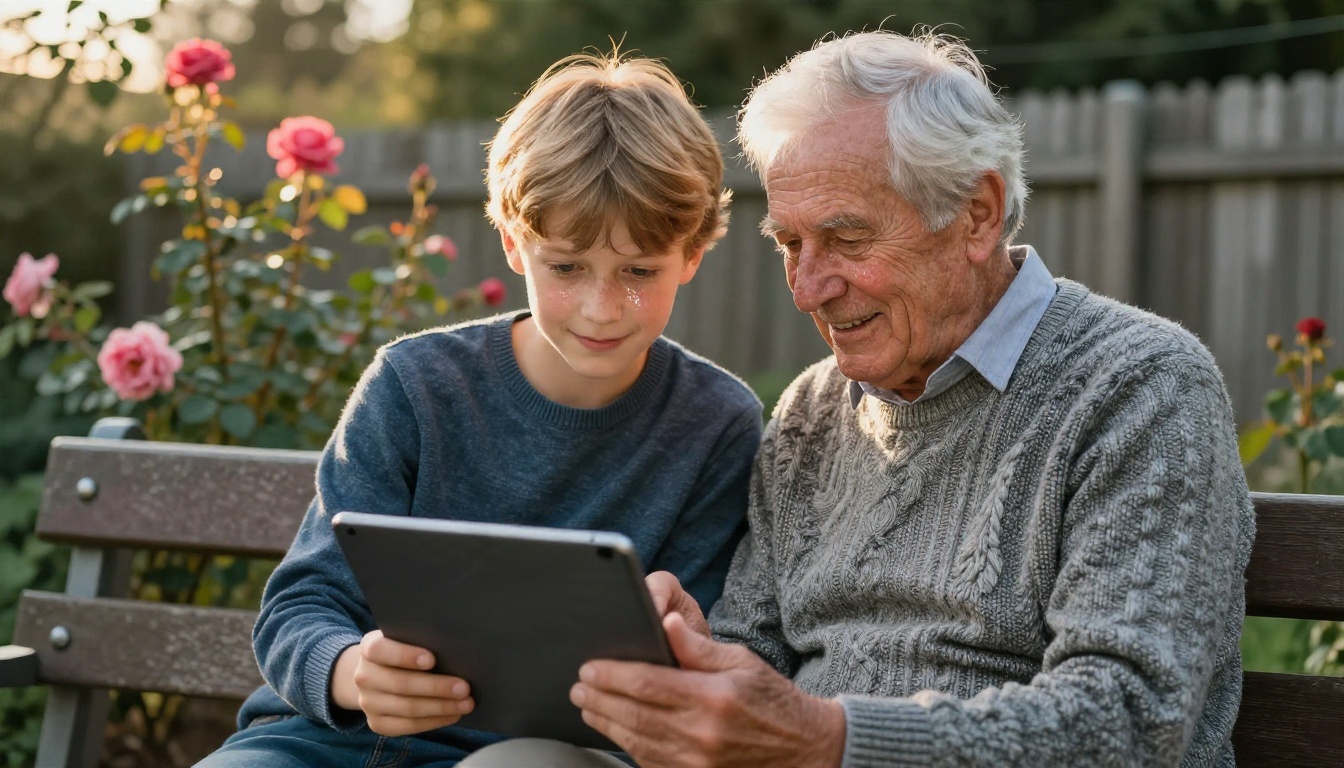
Example: The grandfather smiles softly and looks toward the boy, who laughs and points at the screen. The camera pushes in very slowly. Warm evening light, faint birdsong.
Prompts You Can Copy
- Group portrait: "Everyone smiles naturally and a few people turn to look at each other. Slow push in, soft daylight."
- Wedding photo: "The couple glances at each other and smiles. A light breeze moves the veil. Static camera, warm tones."
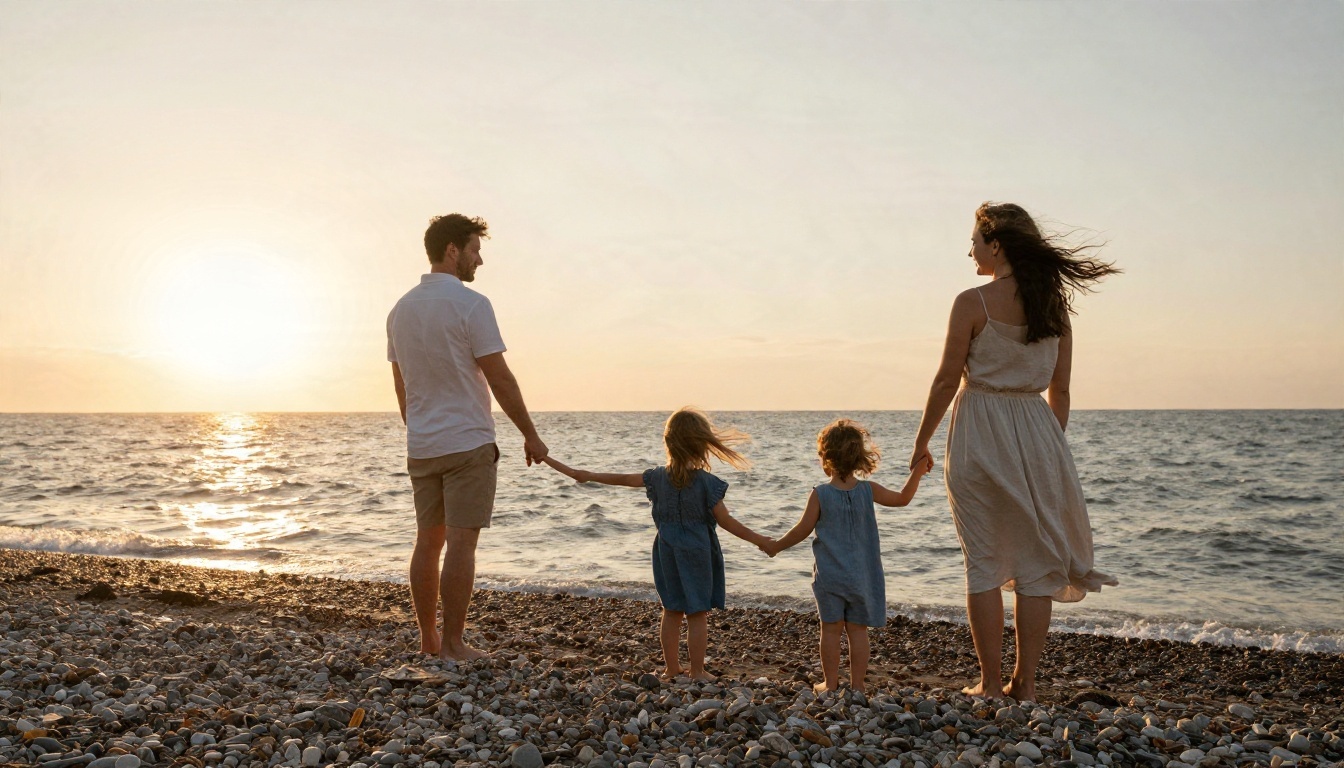
- Beach photo: "Wind lifts the hair and clothes, waves move gently behind the family. Slow pan to the right."
- Old black and white print: "The woman blinks and gives a gentle smile, shoulders relax. Static camera, film grain."
- Kids at play: "The children laugh and wave at the camera. Handheld feel, bright afternoon sun."
Words to Avoid
Skip words like "dramatic", "explosive" or "epic". They push the model toward exaggeration, and a family portrait needs the opposite. Also avoid prompts that ask for talking unless you actually want a lip-synced clip, since the model will guess what the person said.
💡 Tip: Keep each prompt under about 40 words. Long prompts give the model more room to contradict the photo.
How to Use Picasso IA Video
Here is the full workflow for a single photo, using Picasso IA Video.
- Open the model page. Go to the Picasso IA Video page and choose the image-to-video option.
- Upload your photo. Use the cleaned, cropped version from the preparation step. The uploaded image becomes the opening frame.
- Write a short motion prompt. Use the formula above: subject, small action, camera, light or sound.
- Choose the aspect ratio. Pick 16:9 for a TV or laptop, 9:16 for a phone, or 1:1 for a square post.
- Generate. The clip arrives as 5 seconds at 24 frames per second with synchronized audio.
- Watch it twice. The first time you look at the faces, the second time you look at the hands, the edges and the background.
- Adjust one thing at a time. If the smile looks forced, change the action. If the camera feels jumpy, switch to static. Never change everything at once, or you won't know what helped.
- Download and share. Save your best version and send it to the family.
Troubleshooting Common Problems
| Problem | Likely cause | Fix |
|---|
| Face changes or morphs | Motion too strong or source blurry | Lower motion, upscale the photo first |
| Eyes look glassy | Glare or low resolution | Crop in, repair the eyes before animating |
| Background wobbles | Scratches or texture in the print | Clean the print, use a static camera |
| Hands look odd | Hands partly hidden in the photo | Ask for no hand movement |
| Clip feels fake | Prompt too busy | Reduce to one action and one camera move |
If a free clip is nearly right, try the same photo with Wan 2.7 I2V or Kling v3 Video. A second model often fixes what the first one missed.
12 Ideas for Your Family Photos
Once the process is familiar, the interesting part begins. Here are ideas that work well because the motion is small and the emotion is big.
Ideas for Old Prints
- The wedding portrait. A glance, a smile, a veil moving in a breeze.
- Great-grandparents. One gentle blink and a soft nod is enough.
- Childhood school photo. A shy grin that finally arrives.
- A parent as a young adult. Show your kids who their mom or dad was at 20.
- The family tree wall. Animate one portrait per branch and play them in order.
Ideas for Recent Photos
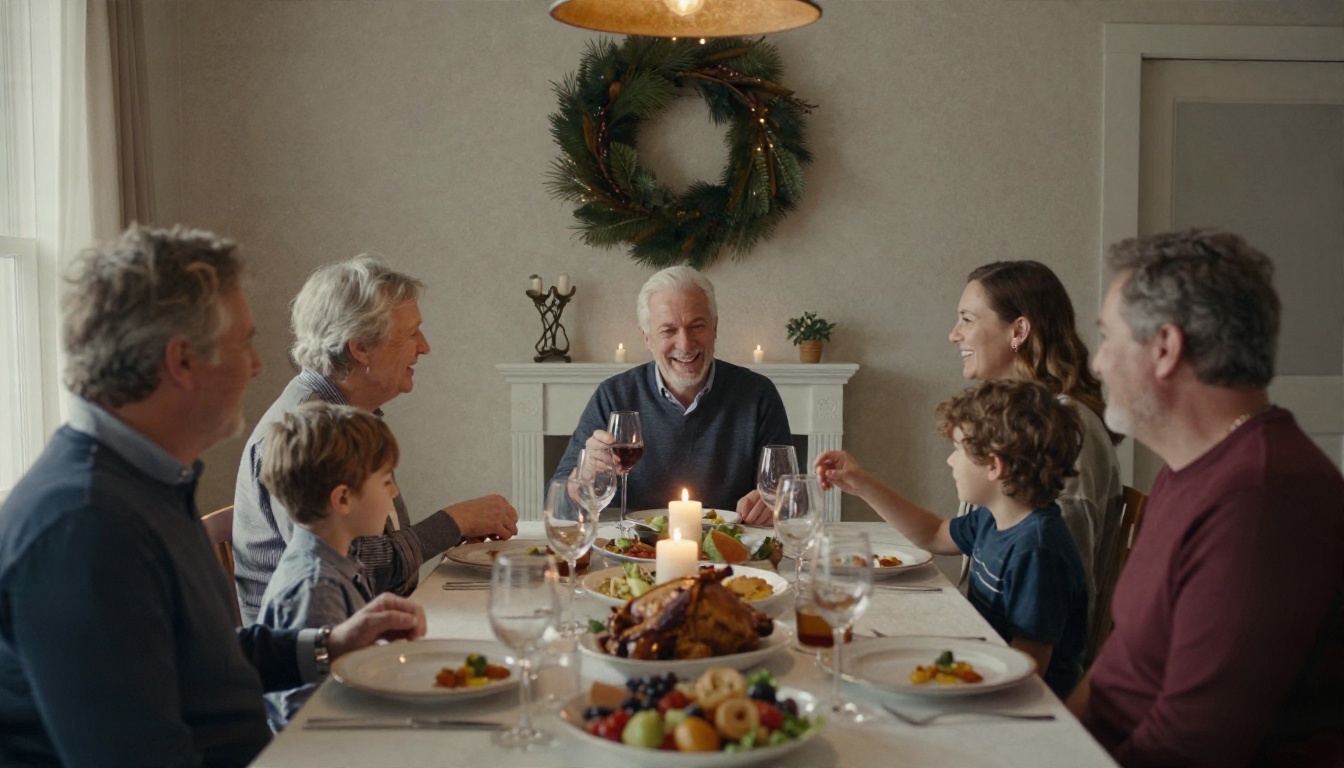
- Holiday card. Turn the annual portrait into a 5-second greeting for relatives.
- Vacation snapshot. Add waves, wind and a slow pan across the beach.
- New baby announcement. A slow push in and a tiny yawn, with soft room tone.
- Pet and family. The dog's ears twitch and everyone laughs.
- Birthday surprise. Combine a few clips into a video and play it at the party.
Ideas for Sharing
- A memorial slideshow. A few quiet clips, a gentle song and no dialogue. Keep it simple and respectful.
- A gift for grandparents. Print a QR code on a card that opens a clip of the family waving.
💡 Tip: For a longer film, generate several 5-second clips and cut them together in any editor. Add a soft music track and the result feels like a small documentary.
Respect the People in the Photo
A short word on taste. Animating a photo of someone who has died can be a gift or a shock, depending on the person watching. Ask first, especially with older relatives. Only use photos you have the right to use, avoid putting words in anyone's mouth, and tell viewers the clip was made with AI so no one mistakes it for real footage. Keep the originals safe, too: the animated version is an addition, never a replacement.
Make Your First Family Clip Today
You already have the hard part: the photo. The rest takes a few minutes. Pick one picture that matters, scan it carefully, write a 30-word prompt, and run it through Picasso IA Video. If you want longer, calmer shots, try Seedance 2.5 Lite. If something feels off, change one setting and run it again.
Then show it to the person in the photo, or to the people who miss them. That moment is the real reason this technology exists. When you want to try more tools, browse the full model list at picassoia.com/en/all-models and see which one handles your family's faces best. Start with a single photo and experiment from there.


