A model turns her head, the hem of a silk dress catches the wind, and the whole thing was built from one still photograph and a two-line prompt. That is what an AI fashion model video generator does now, and the gap between a convincing clip and a rubbery, melting one comes down to three decisions: which model you pick, what source image you feed it, and how you set motion. This article walks through all three, with a close look at Runway clips, the free options worth your time, and the settings that actually change the result.

What an AI Fashion Video Generator Does
Most tools in this space work in one of two ways. Text to video invents a model, outfit and scene from words alone. Image to video starts from a photo you already have and adds motion. For fashion work, image to video wins almost every time, because the garment, the cut, the color and the face are already locked in. You are only asking the model to move, not to design.
The typical output is a 5 to 10 second clip. That sounds short, but it is exactly the length of a product page loop, a story slide or a lookbook transition.
Who Uses These Clips
- Small brands that cannot afford a full shoot for every drop
- E-commerce teams adding motion to product pages that used to be static
- Stylists and creators testing a look before booking a photographer
- Agencies pitching a concept with moving mood boards
What They Cannot Do Yet
Be honest with yourself about the limits. Complex hand movement, fast spins, layered transparent fabric and exact logo reproduction still break. A model walking toward camera in a simple coat works. A model changing outfits mid-clip does not.
💡 Rule of thumb: If a human stylist would need three takes to get the move right, the AI will need several more.
Start With a Strong Source Still
Your first frame decides roughly 70 percent of the final quality. A soft, over-retouched or awkwardly cropped photo gives the video model nothing to hold onto, and it will invent details to fill the gaps.
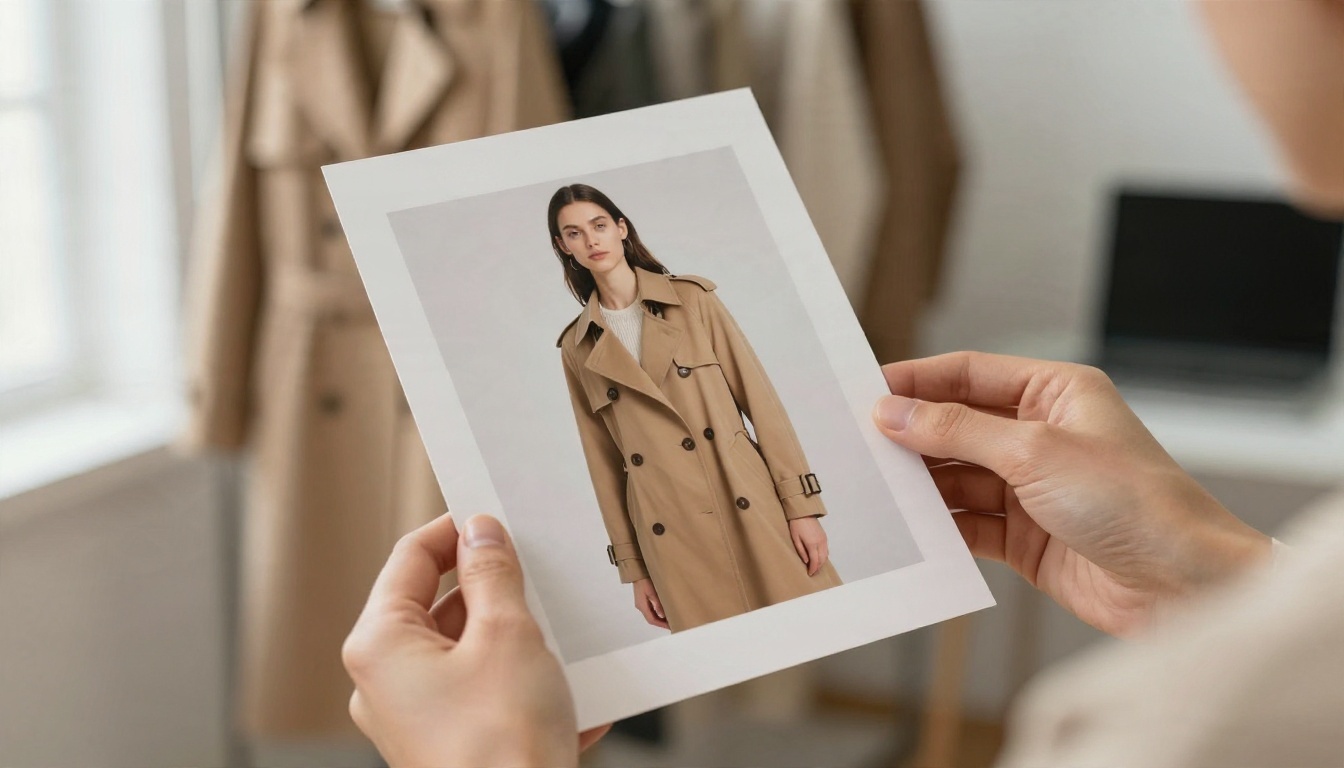
What Makes a Good First Frame
| Source quality | Why it matters | Result in video |
|---|
| Sharp face, visible pores | Gives the model identity data | Face stays stable |
| Clear fabric texture | Shows weave and drape | Cloth moves believably |
| Full or three-quarter body | Leaves room for natural motion | Fewer warped limbs |
| Simple background | Less to track | No wobbling walls |
| Neutral pose, hands visible | Easy to extend | Natural gestures |
Common Source Mistakes
- Heavy skin smoothing. Plastic skin turns waxy once it moves.
- Hands hidden in odd positions. The model guesses fingers and often guesses wrong.
- Text and logos on garments. Letters will swim and distort.
- Cropped feet or head. Walking clips then drift or invent anatomy.
If your photo is low resolution, upscale it before animating. A clean 2x or 4x pass with a super resolution model gives the video model sharper edges to follow.
Runway Clips: What Works and What Costs
Runway is the name most people search first, and for good reason. Its newer models handle cloth, hair and camera movement better than most rivals, and its interface is built around short image to video clips.
Gen-4.5 vs Gen4 Turbo
You can use both of Runway's current options directly on PicassoIA: Gen 4.5 and Gen4 Turbo.
| Feature | Gen 4.5 | Gen4 Turbo |
|---|
| Best for | Final, polished fashion clips | Fast drafts and pose tests |
| Motion quality | Smoother cloth and camera paths | Good, slightly less nuanced |
| Speed | Slower | Faster |
| Cost on Runway's own site | Around 12 credits per second | Around 5 credits per second |
| Typical clip length | 2 to 10 seconds | 5 to 10 seconds |
💡 Budget tip: Draft with Gen4 Turbo, then spend your premium generations on the one or two takes you will actually publish. Credit prices change, so check Runway's current pricing before planning a campaign.
The Runway Free Plan, Honestly
Runway's free tier gives a one-time credit allowance rather than a monthly refill. At the Gen-4.5 rate, that buys roughly ten seconds of footage in total, and exports carry a watermark and a lower resolution cap. That is enough to test whether the model understands your garment. It is not enough to produce a lookbook.
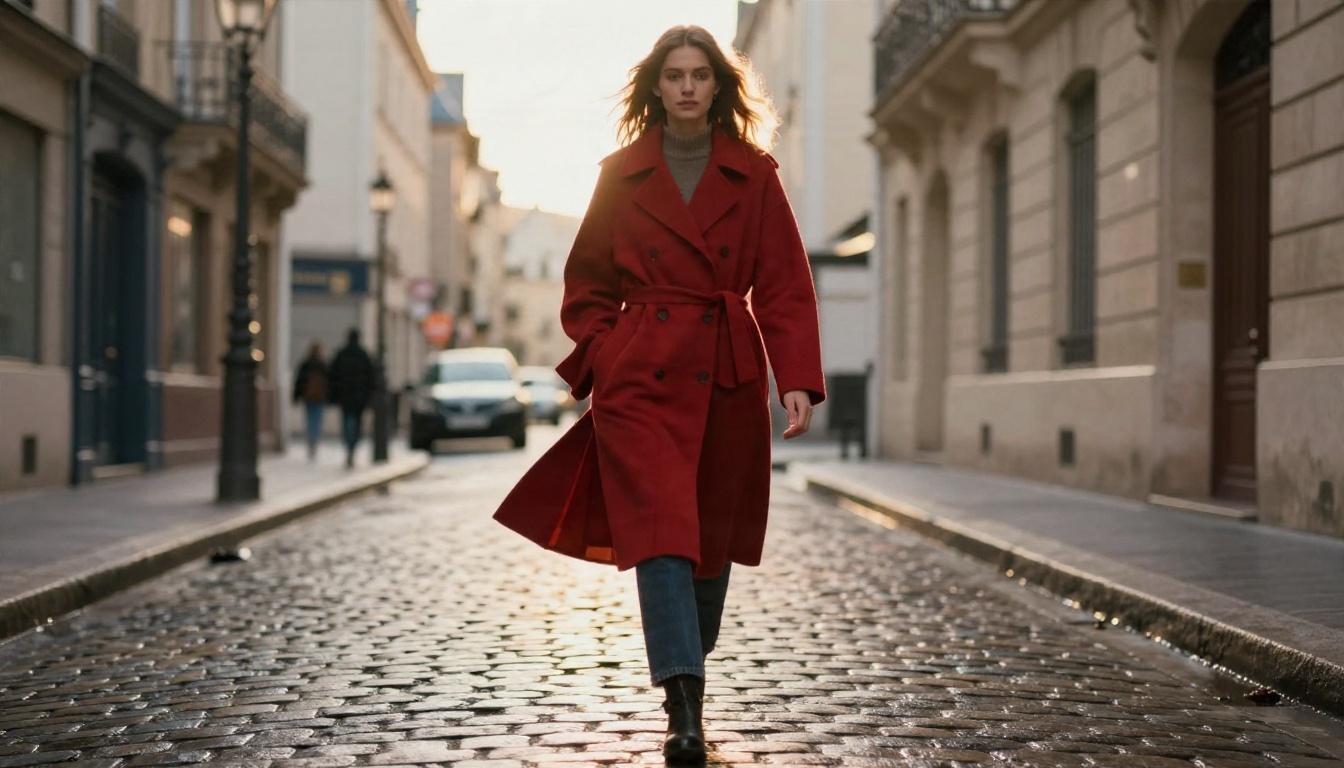
A walking shot like this one, with a coat hem swinging and warm backlight, is the sort of first frame Runway handles well. The motion is simple, the subject is large in frame, and the lighting direction never has to change.
Free does not have to mean useless. The trick is knowing which free option fits which job.
Unlimited Options on PicassoIA
Seedance 2.5 Lite is positioned as a free and unlimited generator with clips up to 10 seconds. For fashion testing, that changes how you work. You can run ten variations of the same walk, compare them and keep the best, without watching a credit counter.
Other fast, lower-cost choices:
Free vs Paid: What You Give Up
| Factor | Free or unlimited tools | Paid premium models |
|---|
| Cost per clip | None or very low | Per second pricing |
| Iteration | Unlimited tries | Each try costs |
| Fabric realism | Good on simple garments | Better on complex drape |
| Resolution | Often up to 720p or 1080p | Up to 1080p and above |
| Best use | Drafts, social, concept tests | Hero shots, ads |
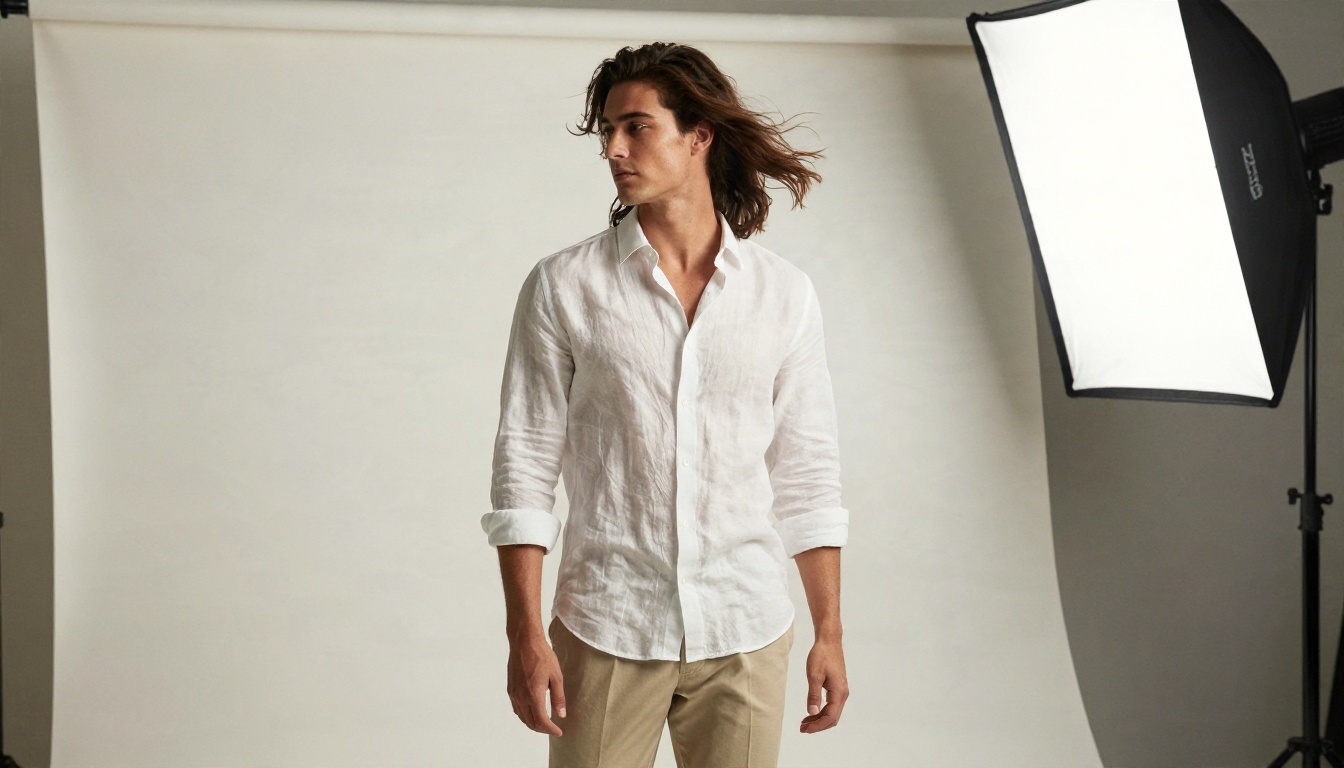
A clean studio turn like this is ideal for free tools. The seamless backdrop gives the model almost nothing to misread, and the linen shirt has strong, readable texture.
Settings That Change the Result
This is where most people lose quality. They write a long, poetic prompt and leave every other control on default.
Aspect Ratio
Match the platform before you generate, because cropping afterward cuts into the garment.
| Use | Ratio |
|---|
| Instagram Reels, TikTok, Shorts | 9:16 |
| Product page loop | 1:1 or 4:3 |
| Website hero or lookbook film | 16:9 |
| Cinematic brand teaser | 21:9 where supported |
Duration
Shorter is safer. A 5 second clip holds identity better than a 10 second one, because errors compound over time. If you need a longer sequence, stitch two or three 5 second clips in an editor instead of asking for one long take.
Motion Strength
Low motion keeps the garment faithful. High motion adds drama but also warps seams and hands. For fashion, start low. Raise it only when the clip feels stiff.
Camera Movement
Pick one move per clip:
- Slow dolly in for portraits and jewelry
- Gentle pan for walking shots
- Static camera with subject motion for fabric and wind
- Orbit only on simple outfits, since it exposes the back of the garment the model never saw
Seed and Consistency
If your tool exposes a seed, reuse it when you change only the prompt. That keeps lighting and face behavior close between takes, which matters when you are building a set of clips for one campaign.
How to Use Gen 4.5 on PicassoIA
Here is the workflow for a first fashion clip.
- Open the Gen 4.5 page.
- Upload your source still. Use a sharp photo with a visible face and clean edges.
- Write a motion prompt that describes only movement and camera, not the garment. Example: "The model walks forward slowly, coat hem swinging, soft wind in her hair, slow dolly in, warm golden hour light."
- Set the aspect ratio to match your platform.
- Choose a short duration, around 5 seconds, for the first attempt.
- Generate and review. Check the face in the last frame, then the hands, then the hem.
- Adjust one thing at a time. Change the prompt or the motion level, never both.
- Switch to Gen4 Turbo for fast drafts when you are still testing poses, then return to Gen 4.5 for the final render.
💡 If the first result feels stiff, add a verb that describes the fabric, such as "silk ripples" or "wool swings", rather than making the whole movement bigger.
Prompts That Work for Fashion Motion
Describe what moves, then how the camera behaves, then the light. Keep it chronological.
Four Prompt Patterns
- Runway walk: "The model strides toward camera, shoulders relaxed, fabric swaying with each step. Slow dolly back. Soft window light."
- Fabric detail: "A breeze lifts the hem of the dress, the silk catches light and settles. Camera static."
- Portrait beat: "The model looks down, then slowly up to the lens with a slight smile. Gentle push in."
- Lifestyle moment: "The model leans on the wall, adjusts the jacket collar, glances to the side. Handheld feel, subtle sway."
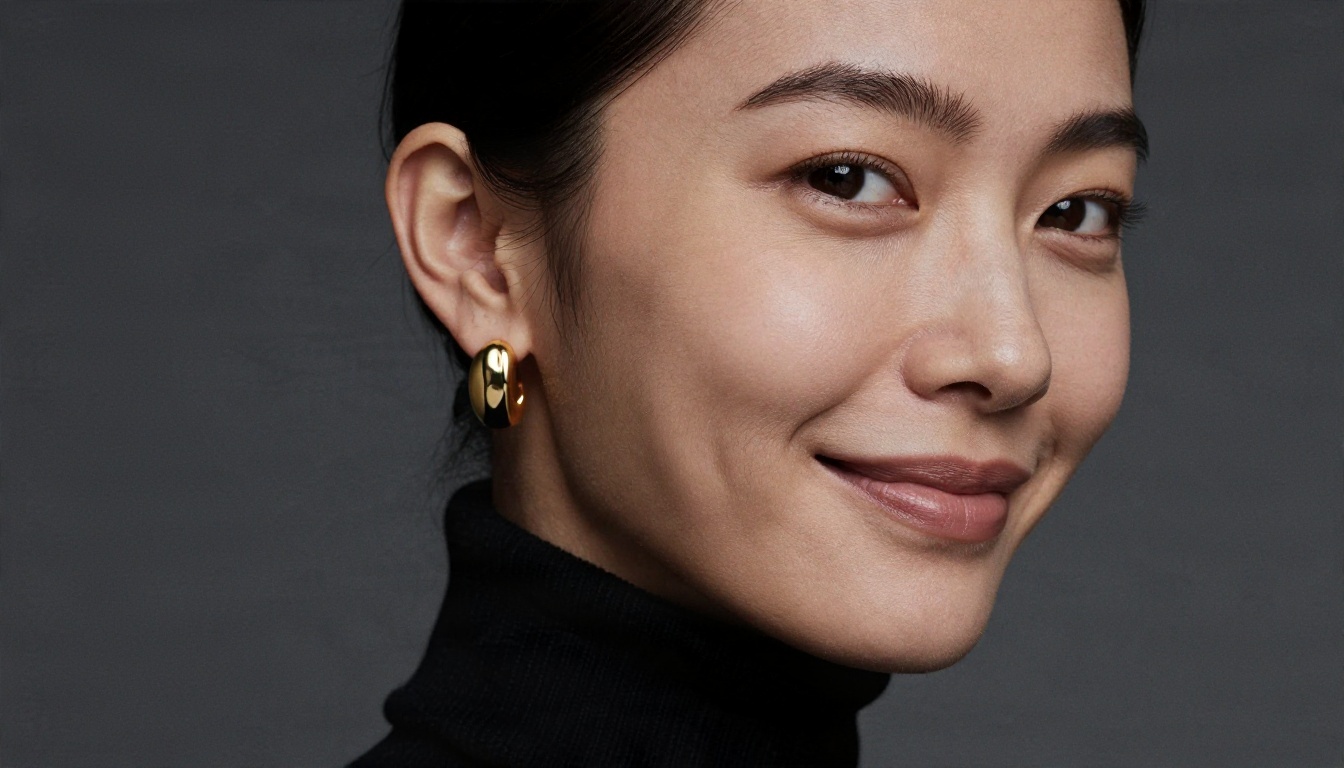
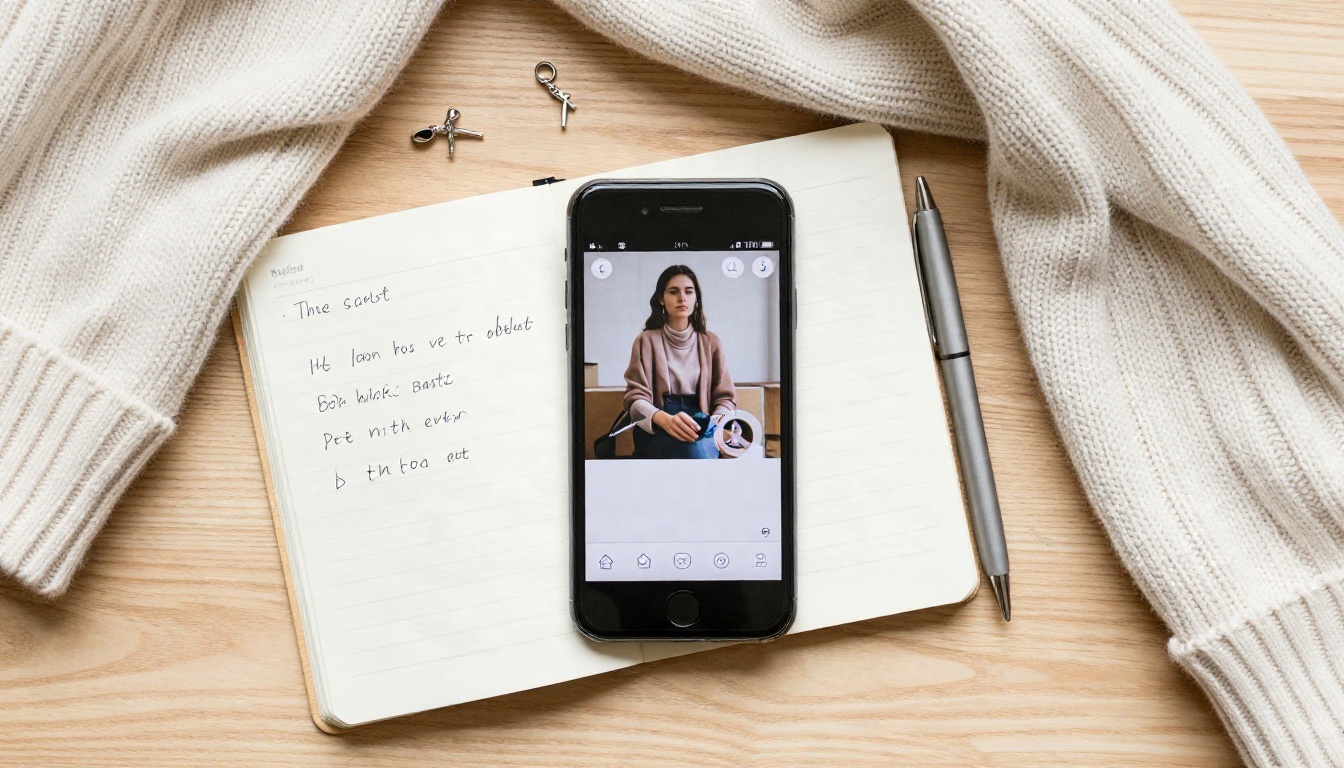
Close portraits like this reward tiny motion. A blink, a smile, a head tilt. Resist the urge to ask for more.
What to Leave Out
Skip words like "epic," "hyper," or "ultra." They push the model toward exaggerated motion and glossy skin. Also avoid listing the outfit again. The image already contains it, and repeating it can cause the model to reinterpret the clothes.
Other Models Worth a Test
Different models have different strengths, and fashion work often needs two or three of them.
| Model | Strength for fashion | When to pick it |
|---|
| Kling v3 Video | Cinematic motion and cloth physics | Brand films and hero clips |
| Kling v3 Motion Control | Copies a reference movement onto your model | Specific walks and poses |
| Veo 3.1 Fast | Native audio and 1080p output | Clips with ambient sound |
| Seedance 2.5 | Long clips up to 30 seconds | Extended lookbook scenes |
| Hailuo 02 | Crisp 1080p detail | Product-focused shots |
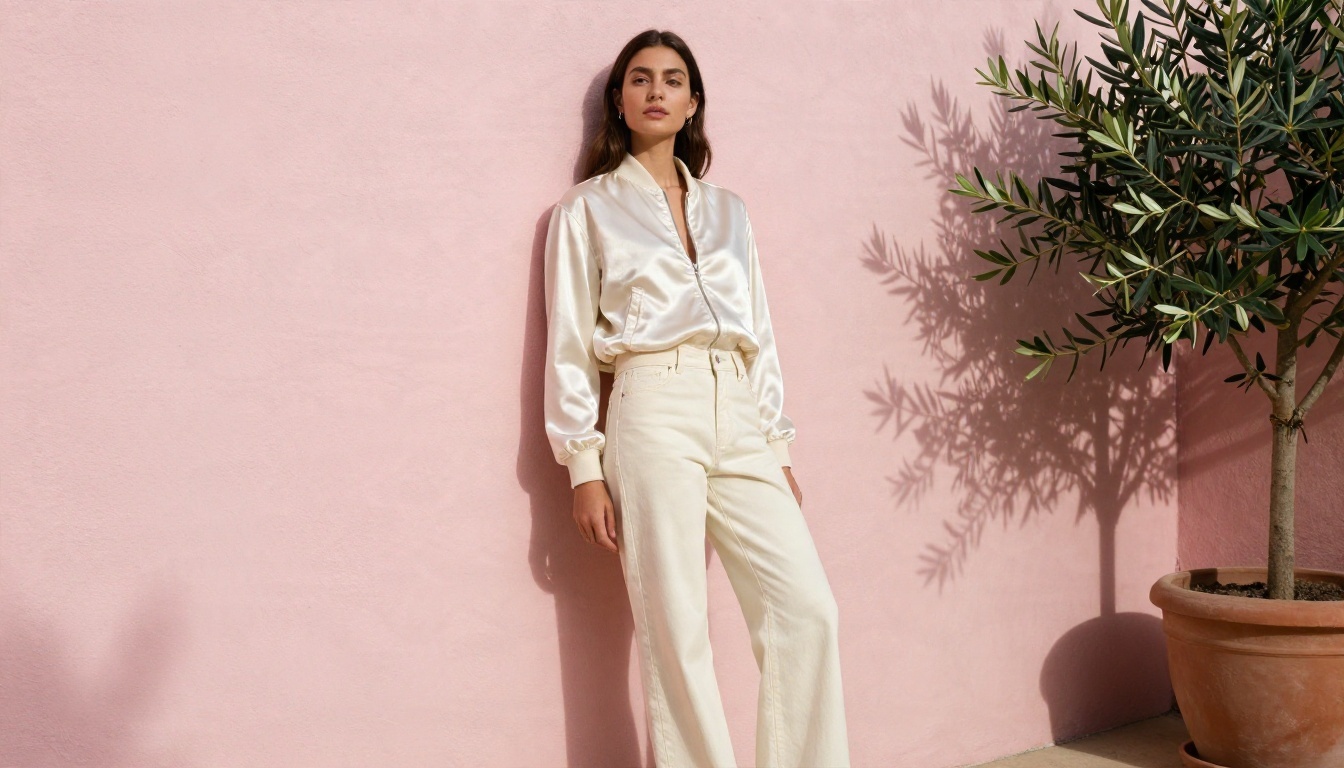
Kling v3 Motion Control deserves a special mention for fashion. If you have a reference video of the walk or pose you want, it transfers that movement onto your own model image, which gives you far more control than describing motion in words.
Fixing Common Problems
The Face Drifts
Use a sharper source and a shorter clip. Reduce motion strength. Avoid dramatic head turns.
The Fabric Looks Rubbery
The prompt probably asked for too much motion. Describe a single gentle cloth movement, like a breeze, instead of a full body action.
Hands Look Wrong
Choose a source image where hands are relaxed and clearly visible, or in pockets. Avoid close-ups of fingers.
The Background Wobbles
Simplify the setting. Studio paper, plaster walls and open sky are far more stable than busy streets or patterned interiors.
The Clip Feels Too Fast
Add the words "slow" and "gentle" to both the subject motion and the camera move.
A Practical Workflow for a Small Brand
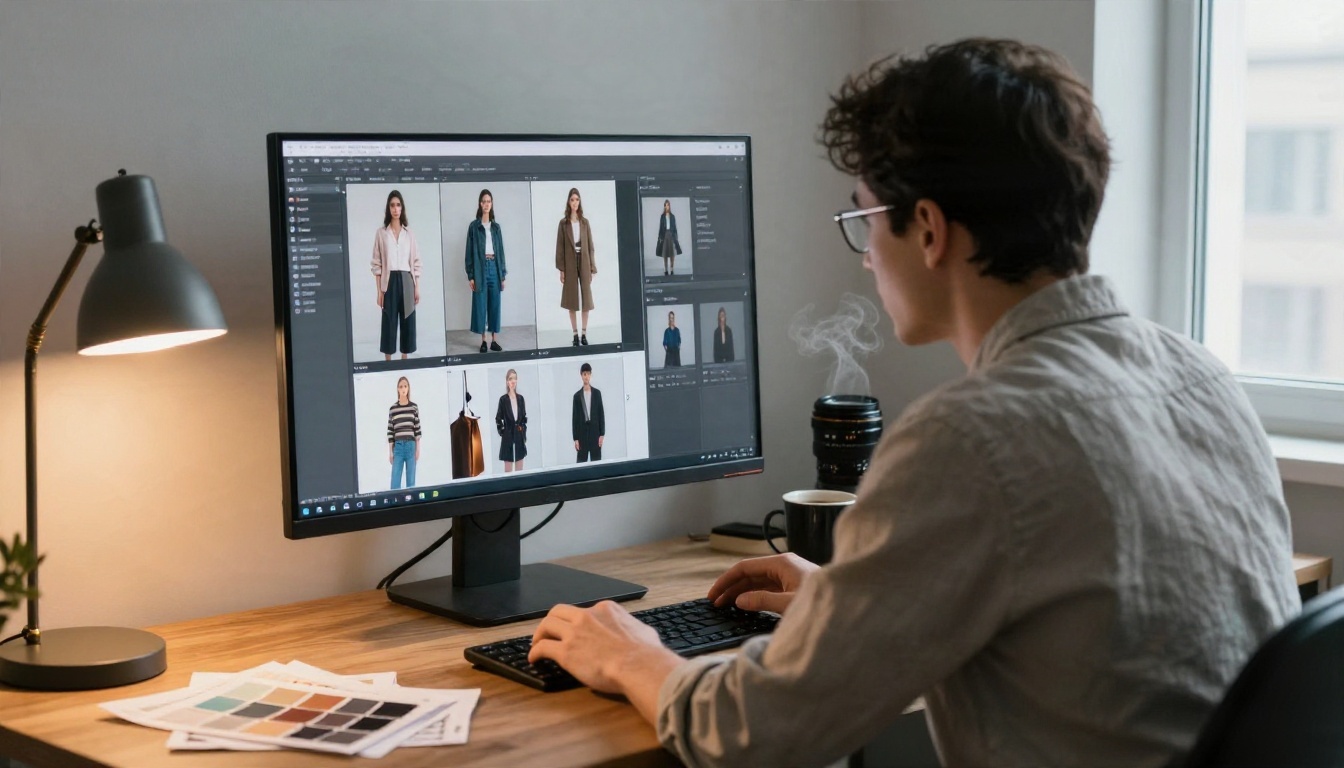
Here is a process that keeps costs low and quality high.
- Shoot or generate 6 to 10 strong stills of the same model and outfits.
- Draft every still with a free or fast model such as Seedance 2.5 Lite or Gen4 Turbo.
- Pick the best three drafts and rerun them on a premium model like Gen 4.5 or Kling v3.
- Upscale the chosen clips with a video enhancement model if you need sharper output.
- Edit in sequence, cutting between 5 second clips with a simple fade or hard cut.
- Add sound. Use native audio models, or add music from an AI music generator.
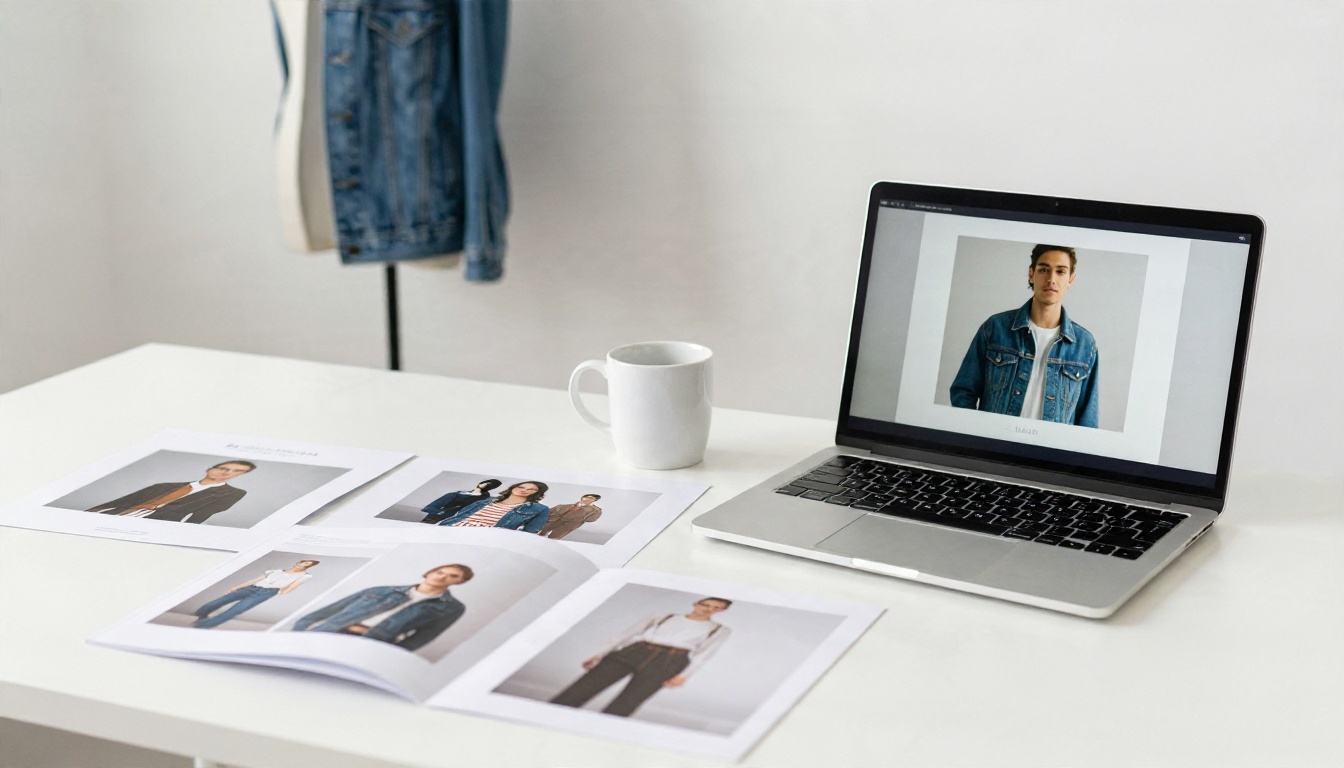
Teams that adopt this routine usually stop treating AI video as a gamble and start treating it as a draft room: cheap, fast and disposable until a take earns its place.
Disclosure and Rights
Be clear about what is AI generated, especially when a clip shows a realistic person. If you use a real model's photo as your source, make sure your agreement covers synthetic motion. If you build a fictional model, keep a record of the source image and settings so the look stays consistent across a campaign.
Try Your Own Fashion Clip
The fastest way to see how this works is to run one yourself. Take a single sharp photo of a model, upload it to Seedance 2.5 Lite for a free draft, then run the same still through Gen 4.5 and compare the cloth, the face and the camera path side by side. Change only one setting between runs, and keep notes.
You will learn more from five short test clips than from any comparison chart, including this one. Open PicassoIA, pick a model from the full model list, and start making your own AI fashion model videos today.


