AI GIF Generator Free: Make GIFs From Images or Text
Make a GIF from a text prompt or a single photo without drawing a single frame. See the three routes that work, the exact Hotshot XL settings, how to loop a still image, and how to shrink the file so it loads fast anywhere.
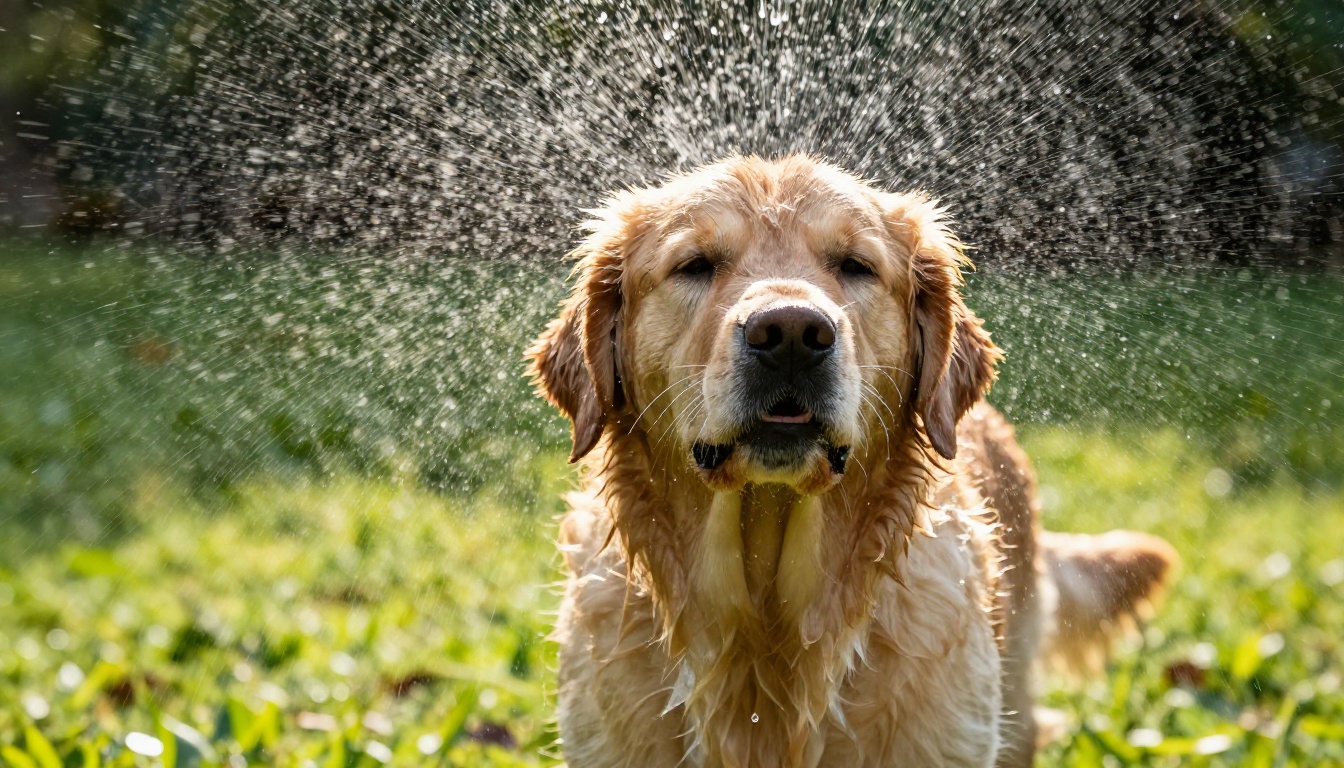
A GIF is the shortest story you can tell online: two seconds, no sound, no play button, and it loops until someone scrolls away. The old way to make one meant shooting footage, trimming it in an editor, and fighting a converter that turned your colors to mud. The new way is a sentence. You type "a golden retriever shaking water off its fur in the morning sun," press generate, and a looping clip comes back in about a minute. Or you drag in a photo you already own and ask it to move.
This article shows how to do that without paying for a stock library or picking up an animation program. You will see three routes that work for making a GIF with AI, the exact settings to use in Hotshot XL, how to animate a still photo with Picasso IA Video, Wan 2.7 I2V and Seedance 2.5 Lite, and the single command that turns an MP4 into a small, clean GIF. Every choice below serves one goal: a loop that looks smooth and loads fast.
What an AI GIF Generator Does
An AI GIF generator takes words or a picture and produces a short run of frames that play on repeat. Under the hood it is a video model that happens to export a small file. That is why the same technology behind cinematic clips can also make a reaction GIF for a group chat, an animated product teaser, or a looping header for a newsletter.
The format itself is old. GIF dates back to 1987, and its limits explain a lot about how to prepare a clip: at most 256 colors per frame, no audio track, and file sizes that balloon as width and frame rate go up. A good AI GIF workflow respects those limits from the first prompt, because a clip that is already small and simple converts cleanly.
Text to GIF in Plain Terms
You describe the motion and the model invents every frame. Strong prompts name a subject, an action, and sometimes a camera or lighting note. The example gallery on the Hotshot XL page shows the pattern: "a cat laughing," "teddy bear writing a letter," and "go-pro video of a polar bear diving in the ocean, 8k, HD, dslr, nature footage." Each one has a clear subject and one simple movement.
Text to GIF is the fastest route, and the right call when you have no source picture at all. The trade-off is control: the model decides what the cat, the bear or the puppy looks like, so expect to run a prompt a few times before one lands.
Image to GIF in Plain Terms
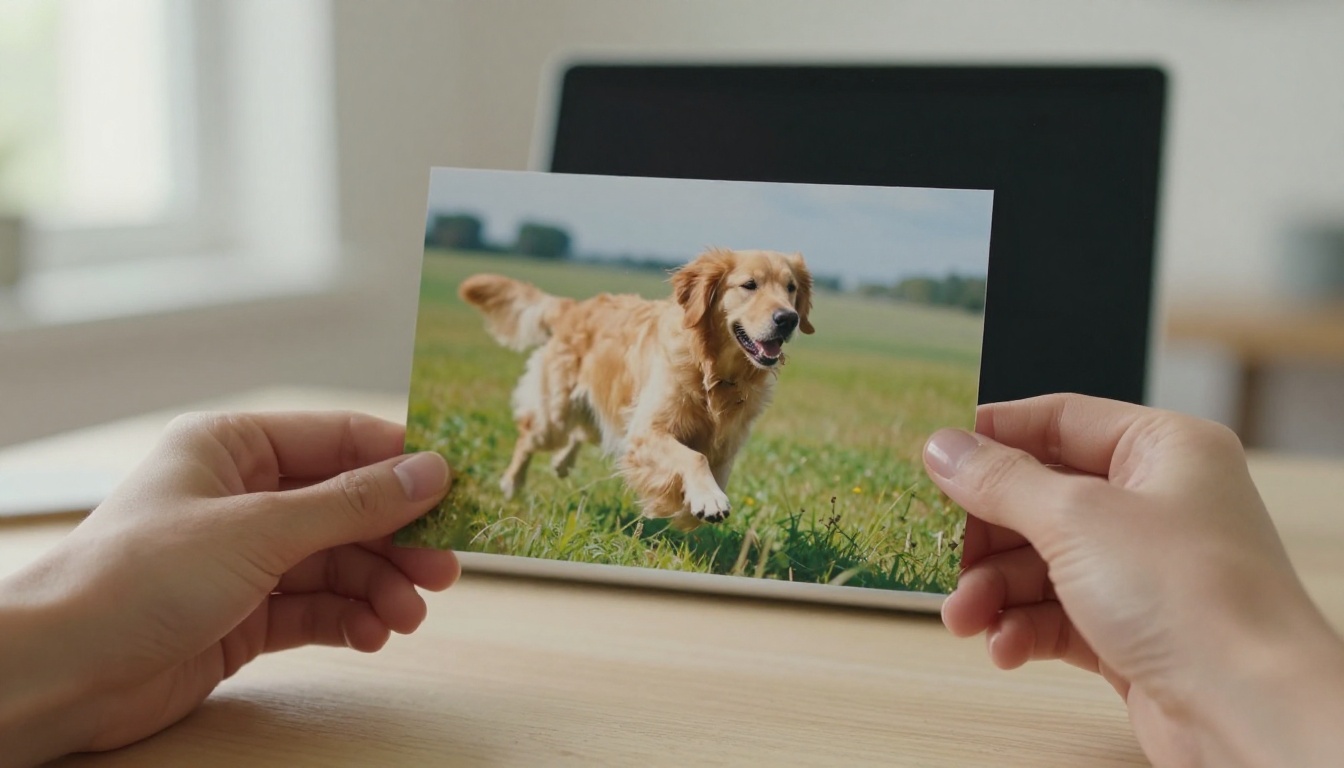
Here you supply the first frame, usually a photo, and the model decides how it moves. It keeps the faces, colors and composition you already like and adds motion: hair lifting in a breeze, steam curling off a cup, a head turning toward the lens.
Image to GIF is the safer choice when the subject has to look like a specific person, product or place. The model starts from your picture instead of inventing one, so the result stays recognizable from the first frame to the last. It is also the route that gives you the most believable motion, because the model only has to animate what is already there.
Three Ways to Make a GIF
Not every route ends in a .gif file, and that matters. Some models export a GIF directly. Others export an MP4 that you convert in one extra step. Here is how the three routes compare.
Route
Input
Output
Best for
Extra step
Prompt straight to GIF
Text only
GIF or MP4
Reaction GIFs, quick drafts
None
Photo to short video to GIF
Photo and a motion prompt
MP4
Faces, products, places you already own
Convert the MP4
Seamless loop from matching frames
One photo used as first and last frame
MP4
Endless loops with no visible jump
Convert the MP4
Route 1: Prompt Straight to GIF
Hotshot XL is the direct route. A single setting switches its output between a looping GIF and an MP4, and it offers 14 output sizes from 256px up to 1024px. In the sample runs shown on its model page, generations finished in anywhere from about ten seconds to a couple of minutes, depending on the size and the scheduler.
This is the route to pick when speed matters more than polish: a quick reaction, a concept sketch, or a test of whether an idea moves well at all.
Route 2: Photo to Video to GIF
Models such as Picasso IA Video animate an existing image into a 5-second clip at 24 frames per second, with a choice of 480p or 720p. You then convert the MP4 into a GIF. The footage tends to look more cinematic than text-only GIF models because these video models are newer and larger, and starting from your own photo keeps the subject consistent from clip to clip.
Route 3: Loop From Two Matching Frames
Wan 2.7 I2V accepts both a first frame and a last frame. Give it the same photo for both and the clip has to end where it began. The model page lists this exact trick for building a clean, continuous loop from a portrait. It is the closest thing to a one-click seamless GIF, and it removes the small jump most AI clips show when they restart.
Hotshot XL is the most direct answer to "make a GIF from text," so it earns a proper walkthrough. Open its model page and set the controls in this order.
Step 1: Write the Motion Prompt
Write one sentence with one subject and one action. "A cute puppy running wild in the backyard" and "a cat laughing" both come from the model's own examples, and both work because the movement is simple. Add camera language only when you need it, for instance "go-pro video" or "nature footage" for an underwater shot.
💡 One action per prompt. "A woman walks, waves and spins" asks the model to invent three movements in a handful of frames, and the middle one tends to blur. Pick the single movement you care about.
Step 2: Pick Size and Output Format
Leave Mp4 switched off to get a GIF, or switch it on for an MP4. The default size is 672 by 384, a wide frame. Use 640 by 640 for a square feed post and 384 by 672 for a vertical story; all three sizes appear in the model's sample runs. Smaller sizes render faster and give lighter files.
Setting
Default
What it does
Mp4
Off (GIF)
Switch on for an MP4 file instead
Width and height
672 by 384
14 sizes between 256 and 1024 pixels
Steps
30
More steps for sharper frames, fewer for fast drafts
Scheduler
EulerAncestralDiscreteScheduler
7 options that change how the motion is built
Negative prompt
blurry
Describes what to steer away from
Seed
Random
Lock it to repeat a result exactly
Step 3: Tune Steps, Scheduler, Seed
Keep steps at 30 for the first run. Once a prompt gives you a movement you like, copy the seed and change one thing at a time. The model page shows the same polar bear prompt and seed run with two different schedulers, Euler Ancestral and DDIM, which is exactly the experiment worth repeating: same seed, different scheduler, then compare the motion side by side.
If frames wobble or faces melt, add words like "distorted, deformed, extra limbs" to the negative prompt. If the clip looks soft, raise the steps a little and accept a slower render.
Animate a Photo With Video Models
When a face or a product must stay recognizable, start from a photo. Three models on Picasso IA handle this, and each has a different strength.
The Free Everyday Option
Picasso IA Video is the platform's own model and is listed as a free, unlimited video generator. Describe the shot, or upload an image to use as the opening frame. Every clip is a fixed 5 seconds at 24 frames per second, in 480p or 720p, and the clip inherits the aspect ratio of your image.
Pick 720p for anything you plan to post. The model page notes that 480p renders fastest, which makes it handy for testing a prompt before you commit to the sharper version.
The Seamless Loop Specialist
Wan 2.7 I2V takes a first frame, an optional last frame and a text prompt, with output up to 1080p. Prompt expansion is on by default and rewrites short prompts into detailed instructions, and a negative prompt field lets you exclude what you do not want.
For a loop, upload the same picture as both the first frame and the last frame. Then describe a movement that returns to rest: "her hair lifts in a gentle breeze and settles back, soft studio light, static camera." Because the clip must land on the starting image, the restart looks natural.
The Longer Shot Option
Seedance 2.5 Lite offers 5 or 10 seconds at 480p or 720p, accepts an optional last frame, and is described as unlimited for Wonder members. Use it when the action needs room, such as a full head turn or a dog crossing a yard.
A 10-second clip makes a heavy GIF, so plan to trim it to the best two or three seconds after conversion.
💡 Switch audio off. Both Picasso IA Video and Seedance 2.5 Lite render synchronized audio by default, and a GIF cannot carry sound. Turning the save audio option off gives you a cleaner file to convert.
Turn the Clip Into a GIF File
If your model gave you an MP4, one conversion step finishes the job. The no-cost route is Picasso IA Video for the clip and ffmpeg, which is free software, for the conversion.
One ffmpeg Command
This command keeps the ratio, lowers the frame rate and builds a custom color palette for your clip:
fps=15 drops the frame rate to 15, which keeps the file light while the motion still reads as smooth.
scale=480:-1 sets the width to 480 pixels and keeps the original proportions.
palettegen and paletteuse build a 256 color palette from your clip and apply it. Skip this step and the converter falls back on a generic palette, which is what causes banding and muddy skin tones.
-loop 0 makes the GIF repeat forever.
Add -t 3 to keep only the first three seconds. If you prefer clicking over typing, any video to GIF converter does the same job, as long as it lets you set the width and frame rate.
Size and Color Trade-offs
File size is the price of a GIF, so choose settings on purpose. These are rules of thumb that work for most clips:
Setting
Lighter file
Better look
Width
320 to 480 px, fine for chat
720 px and up, slow to load
Frame rate
10 to 12 fps, slightly choppy
20 to 24 fps, smooth but heavy
Duration
2 to 3 seconds, ideal for a loop
8 seconds or more, consider MP4
Colors
64 to 128, some banding
256, best quality and biggest file
Scenes with a calm background and one moving element, like steam over a cup or rain on glass, compress far better than busy street scenes. When the destination accepts it, an MP4 or an animated WebP is usually much smaller than the same GIF, and animated WebP also supports full color and transparency.
Prompts That Produce Good Loops
A loop works when one thing moves and everything else holds still. These prompts follow that rule, and you can paste them into Hotshot XL or use them as the motion line for a photo.
Motion Words That Work
Verbs with a natural return make the best loops: sways, drifts, ripples, flickers, rises, shakes, blinks, pulses. Pair one of them with a single subject.
A wet golden retriever shakes water off its fur in morning sun, droplets flying, low camera.
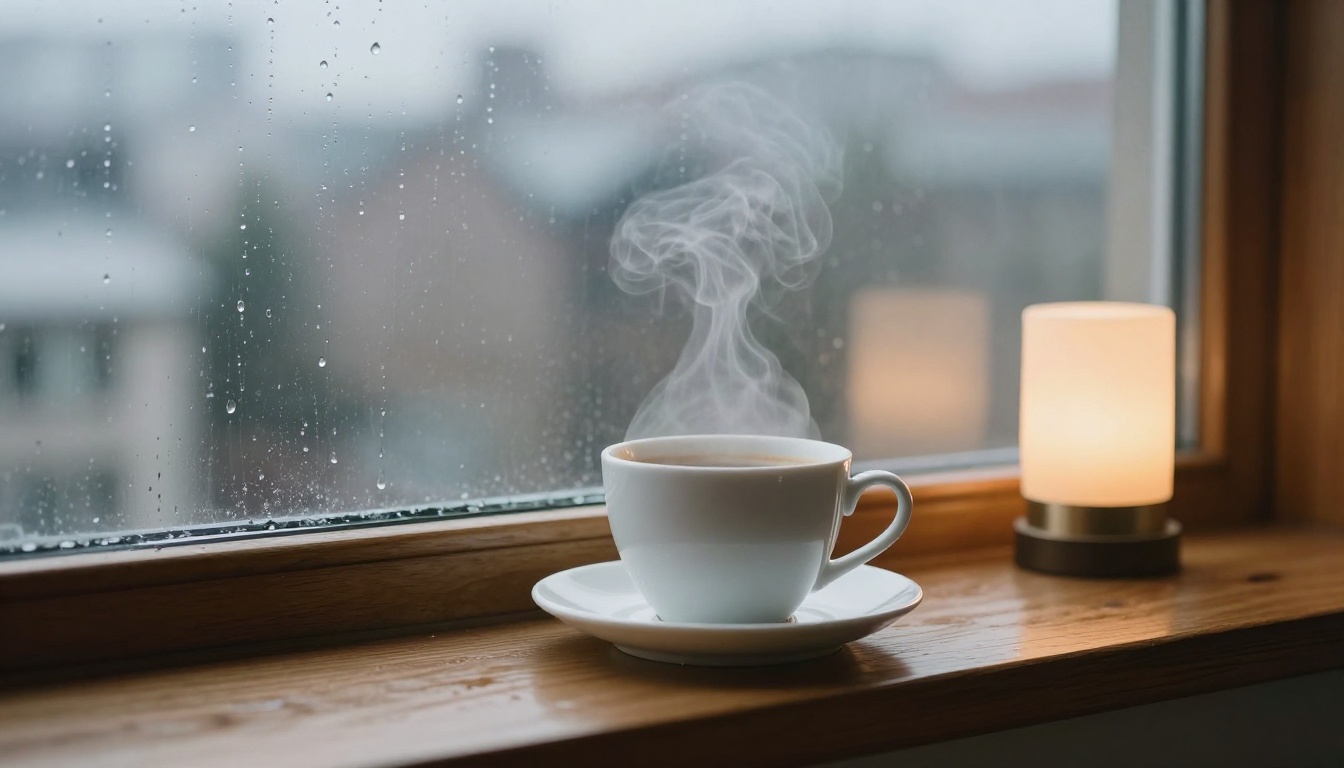
Steam curls up from a white coffee cup on a rainy windowsill, raindrops sliding down the glass, static camera.
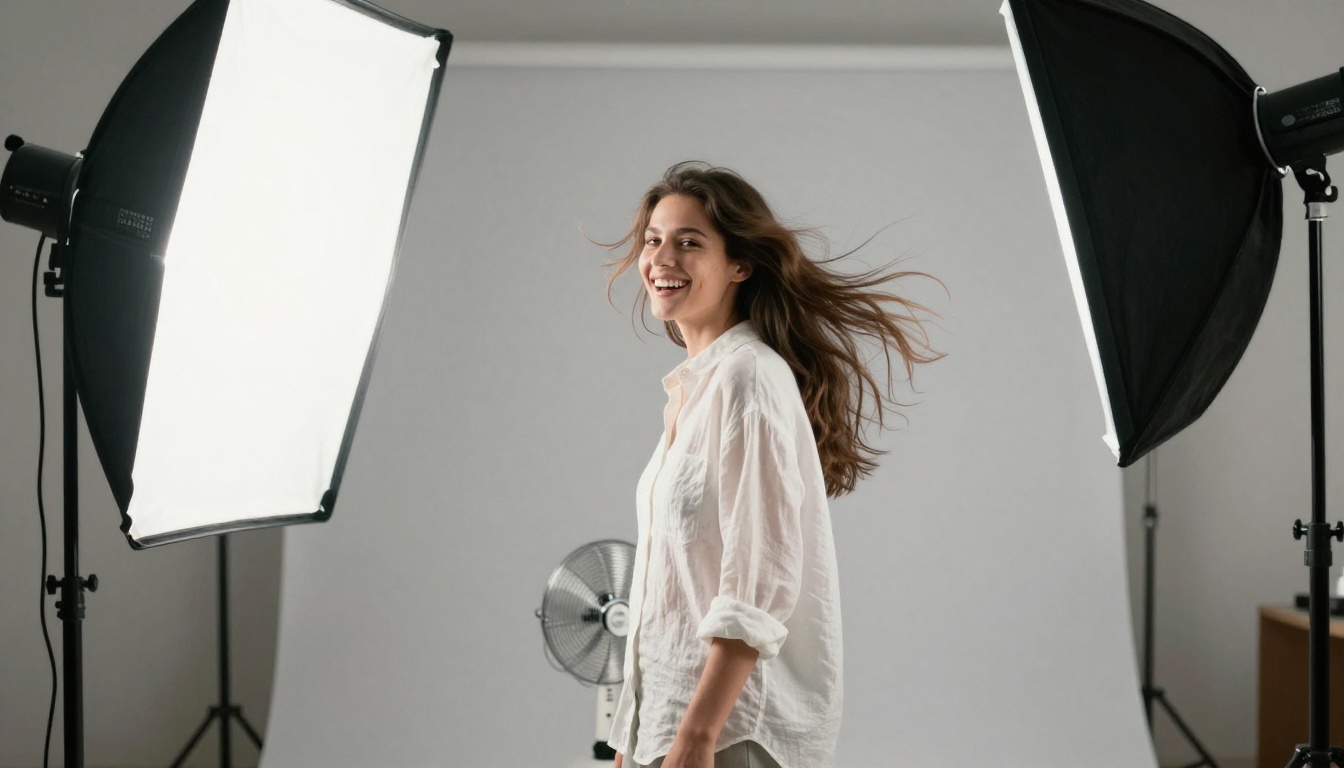
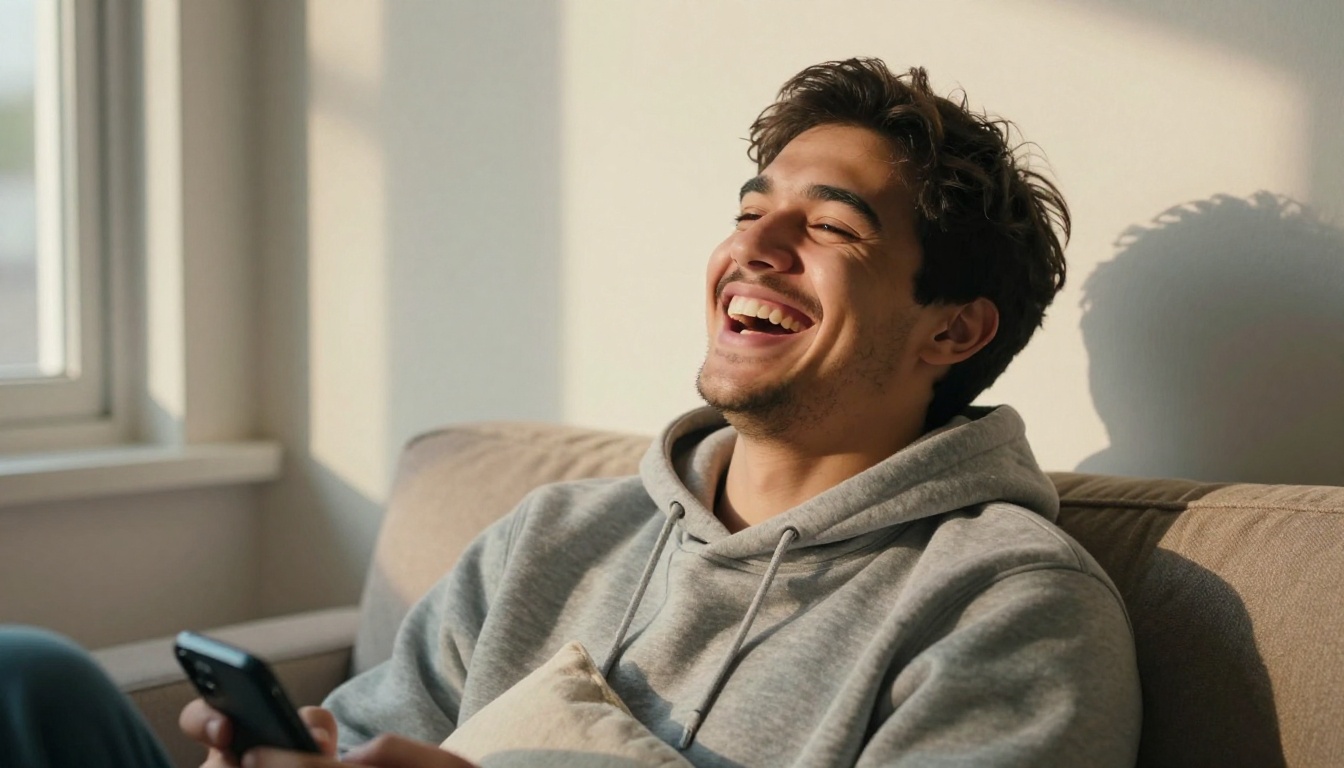
A woman in a white shirt laughs as a breeze lifts her hair, then it settles, soft studio light.
A cat laughing. Short prompts like this are the style used in the gallery on the Hotshot XL page.
Mistakes That Ruin a Loop
Too many actions. One subject, one movement. Extra actions turn into blur.
Text inside the frame. AI video models still bend and garble letters, and a GIF replays every flaw over and over.
A camera that keeps moving one way. A long push-in cannot loop. Use a static camera for anything that has to repeat.
Converting at full resolution. A 1080p GIF is huge. Scale down before you convert, not after.
Forgetting the seed. When a run looks great, save the seed so you can reproduce it and change only one setting.
Where GIFs Still Win
Video is everywhere, yet GIFs hold their ground for three reasons: they play on their own without a play button, they loop forever, and they work in places that block or ignore video.
Reactions and messaging. A two-second laugh, a thumbs up, a slow blink. Text to GIF makes these in seconds, and you can build a small set that matches your own style instead of reusing the same popular loops as everyone else.
Email, docs and support pages. Most email clients animate GIFs, though some desktop versions of Outlook show only the first frame. Put the main message in frame one and the fallback still works. In help articles, a short looping GIF of a button being clicked often beats three paragraphs of text.
Product and social content. A steam curl over a coffee cup, a fabric moving in a breeze, a package opening. These are small movements that make a still look alive. Photo to GIF fits here, because the product in your photo stays exactly as shot.
Teams also use GIFs for quick design reviews. Animate a still mockup for three seconds and everyone sees the intended motion without opening a prototype.
Make Your First GIF Today
Pick one sentence from the prompt list above, open Hotshot XL on Picasso IA, leave Mp4 switched off and press generate. If the loop looks close, copy the seed and change one setting at a time. If you would rather make a photo move, upload it to Picasso IA Video, describe a single movement, and convert the result with the ffmpeg command above. For a perfectly seamless loop, give Wan 2.7 I2V the same photo as first and last frame.
Within a few attempts you will know which route fits your content, and every GIF after that takes minutes instead of hours. Open Picasso IA, try a prompt of your own, and see what your next image can do once it starts moving. You can also browse every model on the all models page to find another way to animate your idea.