You have a mirror, a handful of saved photos, and one nagging thought: what would I look like with bangs? Booking a cut to find out is a gamble, and dye is even less forgiving. An AI hairstyle changer takes a different route. You upload one selfie, pick a cut or a color, and get a realistic preview of your own face with new hair in a few seconds, before a single strand hits the floor.
This article shows how these tools work, how to shoot a photo that gives believable results, which styles tend to flatter which face shapes, and exactly how to run the Change Haircut model on Picasso IA. By the end you will know how to try on hairstyles for your face without paying for a throwaway haircut.
What an AI Hairstyle Changer Does
A hairstyle changer is an image editing model trained to rewrite one part of a photo while leaving the rest alone. Your face, skin tone, clothes, and background stay put. The hair is what changes: its length, texture, parting, and color.
How the Photo Edit Works
The model reads your picture, finds the hair region, and redraws it based on the style you choose. A good one respects your hairline, the shape of your forehead, and the way light falls across your head, so the new hair looks attached instead of pasted on.
Three things decide whether a preview feels believable:
- Hairline match: the new style should start where your real hair starts, not float above it.
- Lighting match: highlights on the new hair need to come from the same direction as the light on your face.
- Texture match: straight, wavy, curly, and coily hair each behave differently, and the edit has to respect that.
Where Free Tools Fall Short
Search for a free hairstyle try-on and you will find plenty of apps. Many of them share the same problems:
- A watermark stamped across the result
- Low-resolution exports that look soft when you zoom in
- A short list of presets, often only five or ten styles
- Daily caps that lock you out after two or three tries
- Hair with hard edges that looks like a wig
A try-on is only useful if you can run dozens of variations, so limits hurt more here than in most tools. Change Haircut offers over 100 styles and more than 30 colors, and it returns clean PNG or JPG files with no watermark. For open-ended edits, PicassoIA Image Editor Pro has no per-edit cap and no daily quota, so you can keep iterating until the preview feels right.
💡 Tip: Treat the first result as a draft. Run the same photo through three or four styles before you decide anything.
Start With the Right Photo
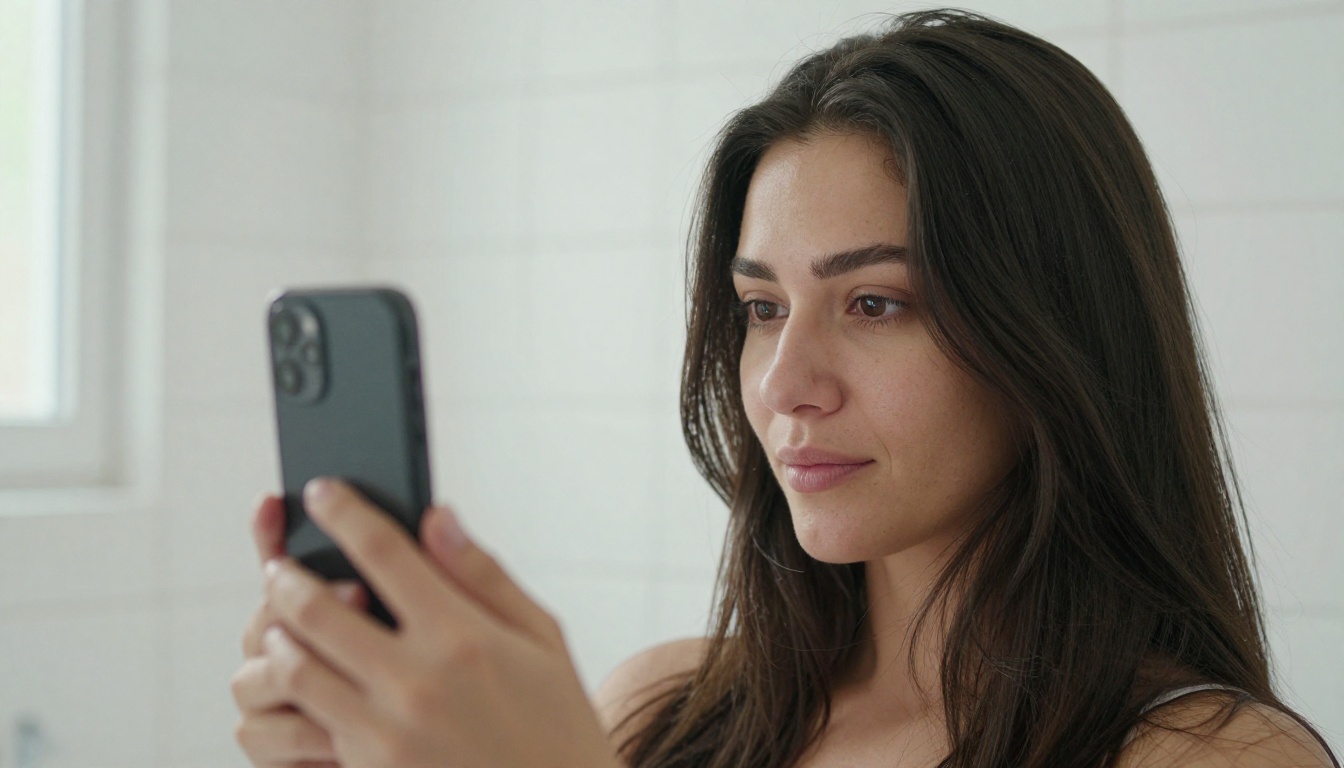
The photo you upload sets the ceiling for the result. A sharp, front-facing picture gives the model clean information about your hairline, ears, jaw, and neck. A blurry or tilted one forces it to guess, and guesses show up as odd edges around the temples.
Here is a quick checklist that takes thirty seconds:
| Do this | Skip this |
|---|
| Face the camera straight on, at eye level | Tilted head or extreme angles |
| Stand beside a window with soft daylight | Harsh flash or a bright window behind you |
| Tuck hair behind your ears or pull it back | Strands hiding half your face |
| Remove hats, headbands, and sunglasses | Accessories that hide the hairline |
| Hold the phone at arm's length | Wide-angle close-ups that stretch your features |
Wearing a plain top in a neutral color also helps, because the model has less visual noise to confuse with hair. If your current hair is long and you want to test a short cut, pulling it back tightly gives the edit more room to work.
💡 Tip: Prop the phone on a shelf and use the rear camera with a timer if you can. Front cameras on some phones soften skin and flatten detail, which makes the new hair look sharper than your face.
Match Styles to Your Face Shape
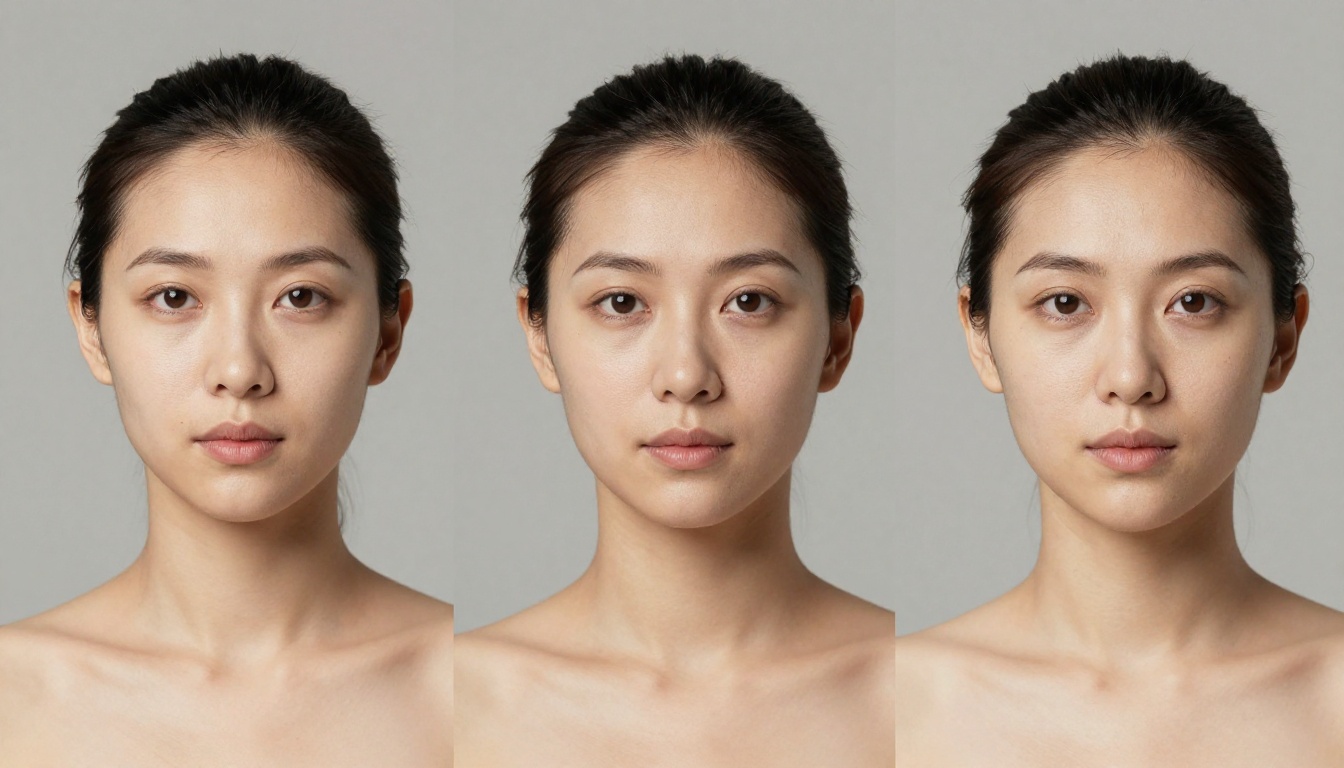
Stylists talk about face shape constantly, and for good reason. A cut changes where the eye lands on your face, and the same bob can sharpen one jawline and soften another. Think of the list below as a starting point for what to test, not a rulebook.
Oval, Round, and Square Faces
Oval faces are balanced, so nearly everything works. This is the easiest shape to experiment on, which makes it a good place to try bolder ideas like a blunt fringe or a sharp pixie.
Round faces usually look best with length and height. Long layers, a deep side part, and a lob that falls past the chin stretch the face vertically. Chin-length blunt bobs tend to add width right where the face is already full.
Square faces benefit from softness. Loose waves, side-swept bangs, and textured layers round off a strong jaw.
Heart and Long Faces
Heart-shaped faces have a wider forehead and a narrower chin. Chin-length bobs, side-swept fringe, and waves that build volume near the jaw balance the proportions.
Long faces respond well to width. Bangs shorten the forehead, and waves or curls at the sides add the horizontal fullness that straight, long hair takes away.
| Face shape | Styles worth testing | Styles to compare against |
|---|
| Oval | Pixie, blunt bangs, shag | Long layers |
| Round | Lob, long layers, side part | Chin-length bob |
| Square | Soft waves, side-swept bangs | Sharp blunt cut |
| Heart | Chin-length bob, side fringe | Short pixie |
| Long | Bangs, curls, cheekbone bob | Very long straight hair |
The point of an AI preview is that you do not have to trust a chart. Run the "worth testing" column and the "compare against" column on the same photo, then look at both.
Short Cuts, Long Waves, and Braids
The dropdown in Change Haircut is where the real fun starts, because it holds more than 100 named styles. Here is how to approach the main families.
Pixie and Bob Tests
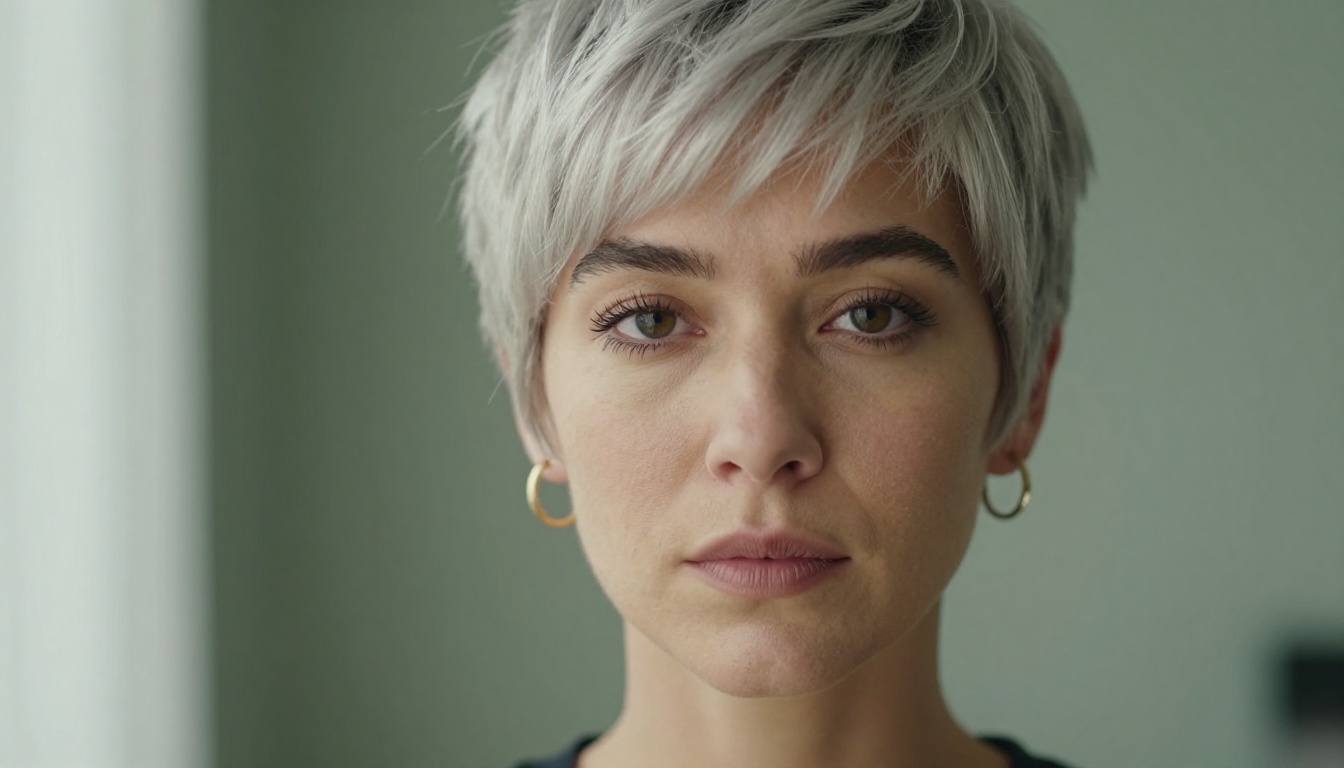
Short hair is the highest-stakes decision, which makes it the best candidate for a preview. A pixie that looks sleek on a model can look severe on you, and you cannot undo it for months.
Try these from the list, one at a time:
- Pixie Cut and Sideswept Pixie for the shortest option
- Bob, Angled Bob, A-Line Bob, and Inverted Bob to see how length at the front changes your jaw
- Lob for a safer step between long and short
- Choppy Layers and Shag for movement without losing length
Pay attention to the ears, the nape, and the fringe in the result. If the preview makes you pause on any of those, that is useful information.
Braids and Protective Styles
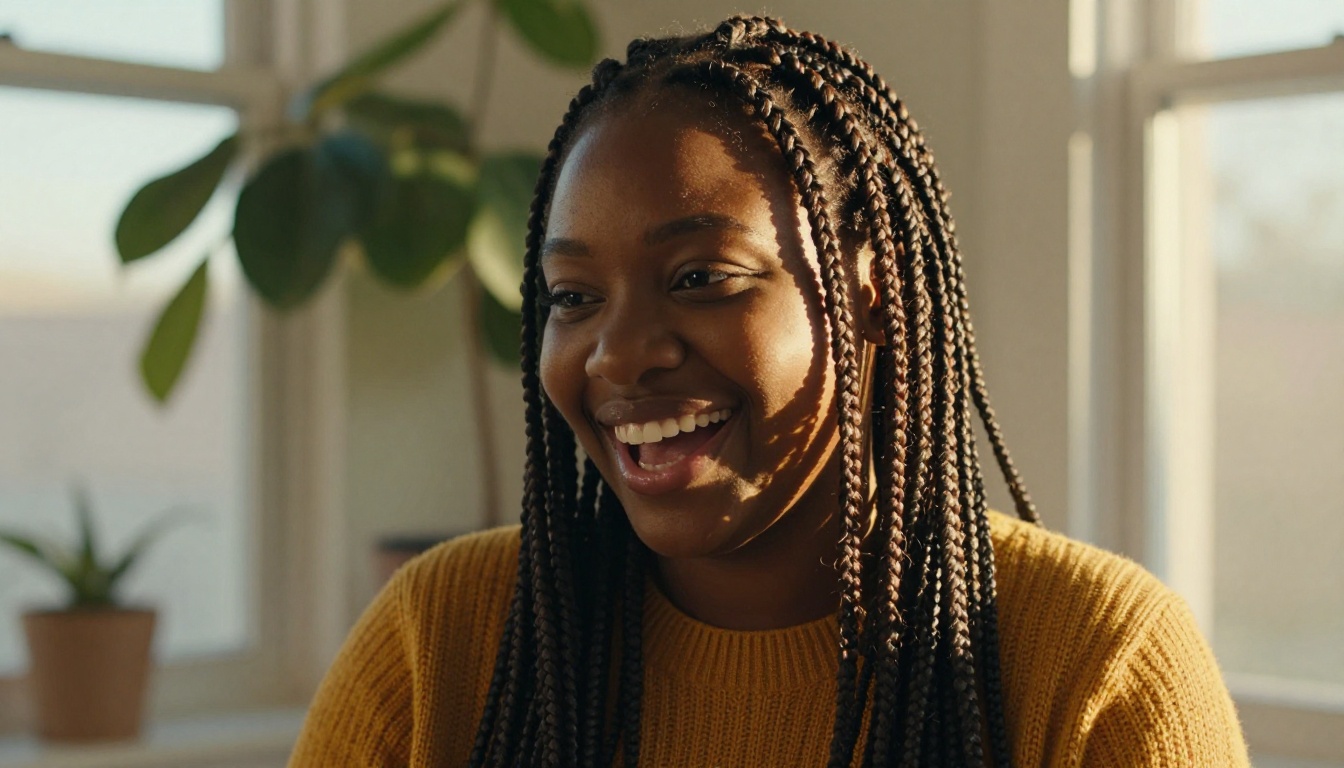
Braids and twists can take hours to install and days to remove, so seeing the result first saves real time. The style list includes Box Braids, Cornrows, Crochet Braids, Bantu Knots, Twist Out, Dreadlocks, and a long run of French, Dutch, fishtail, and crown braids.
Use the preview to answer practical questions. Does the length suit your frame? Do thick box braids feel right with your features, or do you prefer a smaller parting? Does a crown braid frame your face the way you imagined? You will still need a skilled braider for the real thing, but you walk in with a clear target.
Men's Fades and Crops
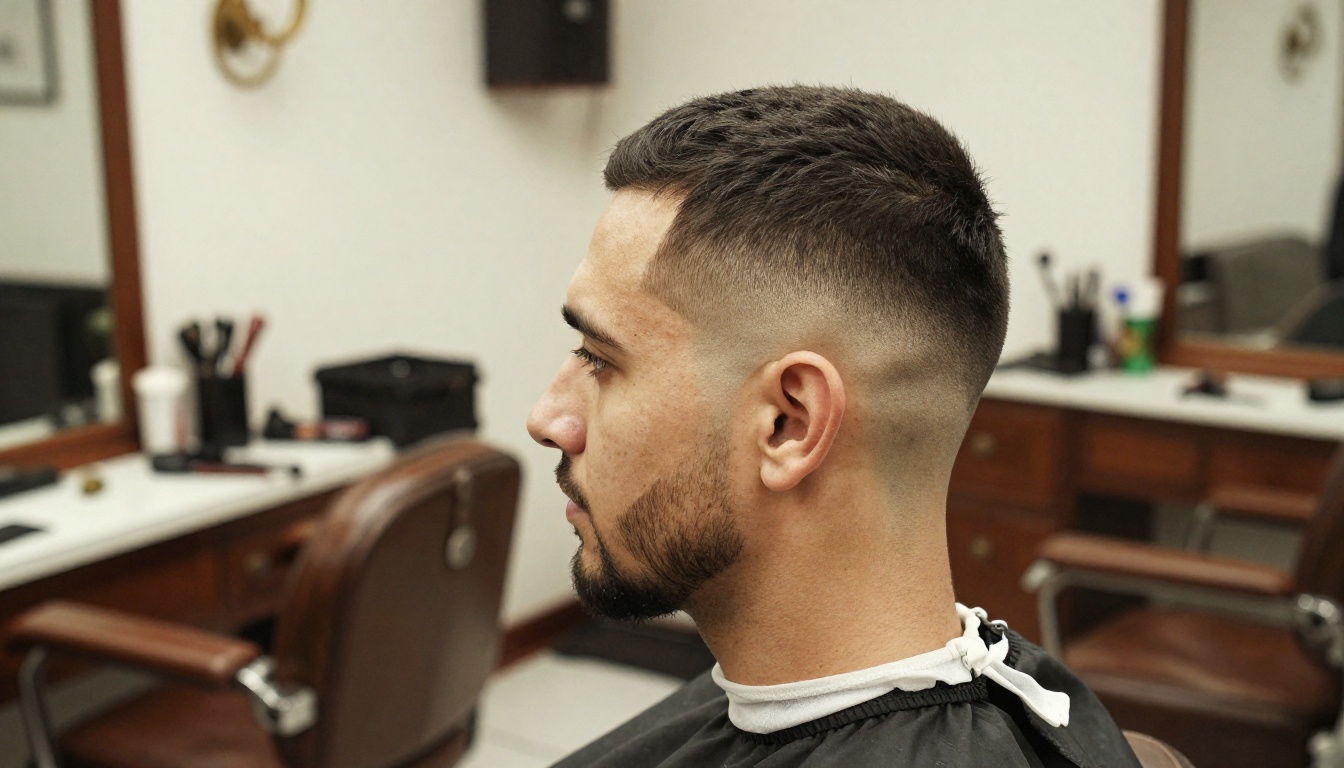
Men's cuts live and die by details: how high the fade starts, how much is left on top, where the hairline sits. Set the gender option to male for better matches, then test Undercut, Crew Cut, Faux Hawk, Slicked Back, Mohawk Fade, and Side-Parted.
A fade is easy to misjudge in your head because the gradient is what makes it work. Seeing it applied to your own head shape, with your own beard line, tells you more than a reference photo of someone else.
💡 Tip: If you have a receding hairline, test the same style twice: once with the preview as is, and once after you describe the real hairline to your barber. The honest version helps you both.
Test Hair Color Before You Dye
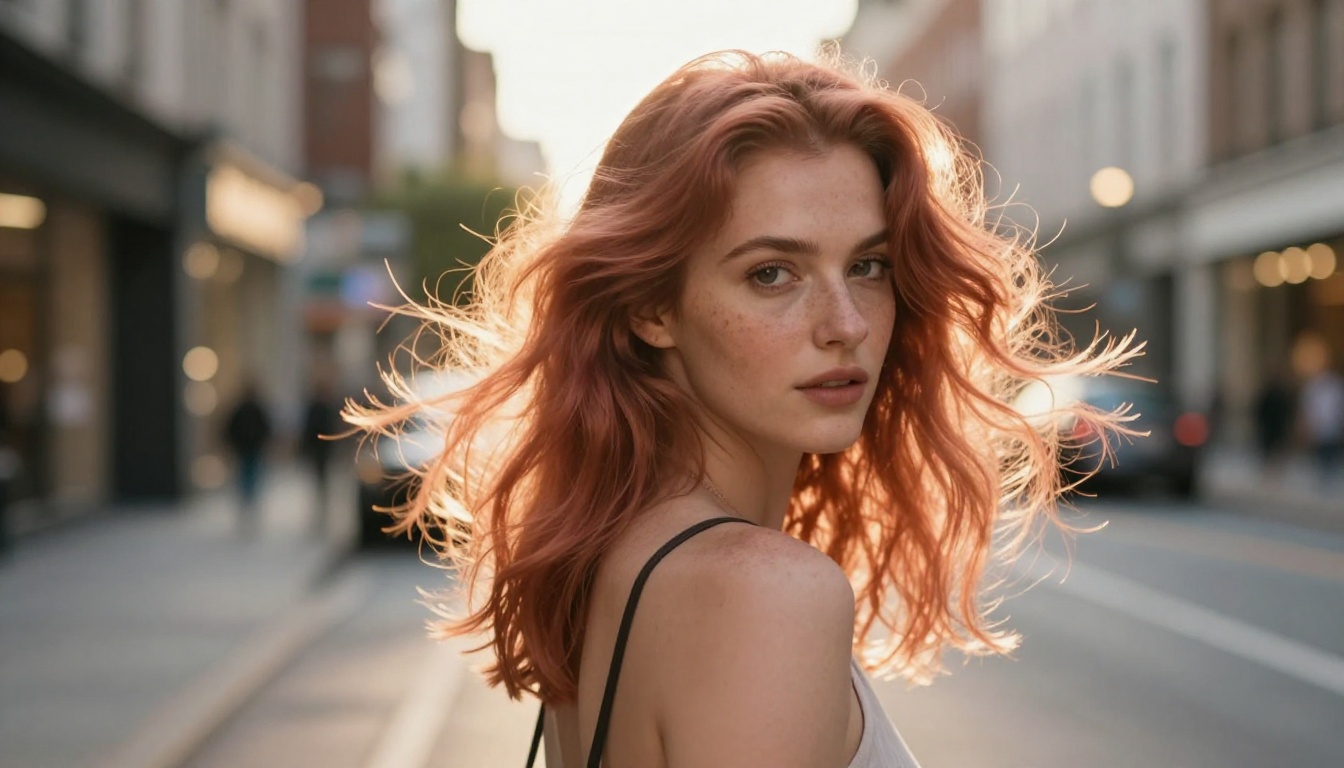
Color is the other half of a makeover, and it is harder to reverse than a cut. Change Haircut separates the two settings, so you can change the shade without touching the style, or the other way around. The color list runs from natural tones like Dark Brown, Chestnut, and Honey Blonde to bold picks like Blue, Purple, Pink, and Green.
Warm Tones vs Cool Tones
Skin undertone does most of the work here. A quick rule: if gold jewelry flatters you, you lean warm. If silver looks better, you lean cool.
| Your undertone | Shades to try | Shades to question |
|---|
| Warm | Copper, Caramel, Golden Blonde, Auburn | Ash Blonde, Silver |
| Cool | Ash Brown, Platinum Blonde, Burgundy, Blue-Black | Strawberry Blonde, Copper |
| Neutral | Rose Gold, Medium Brown, Chestnut | Very few, so be adventurous |
Natural Shades vs Bold Shades
Run a natural shade first, then a bold one. Comparing Light Brown to Rose Gold on the same face shows how much of the change comes from color alone.
One honest caveat: a screen preview shows the finished color, not the process. Going from jet black to platinum takes lightening, and that has a cost in time, money, and hair health. Use the preview to pick a target, then ask your colorist how many sessions it will take to get there.
How to Use Change Haircut
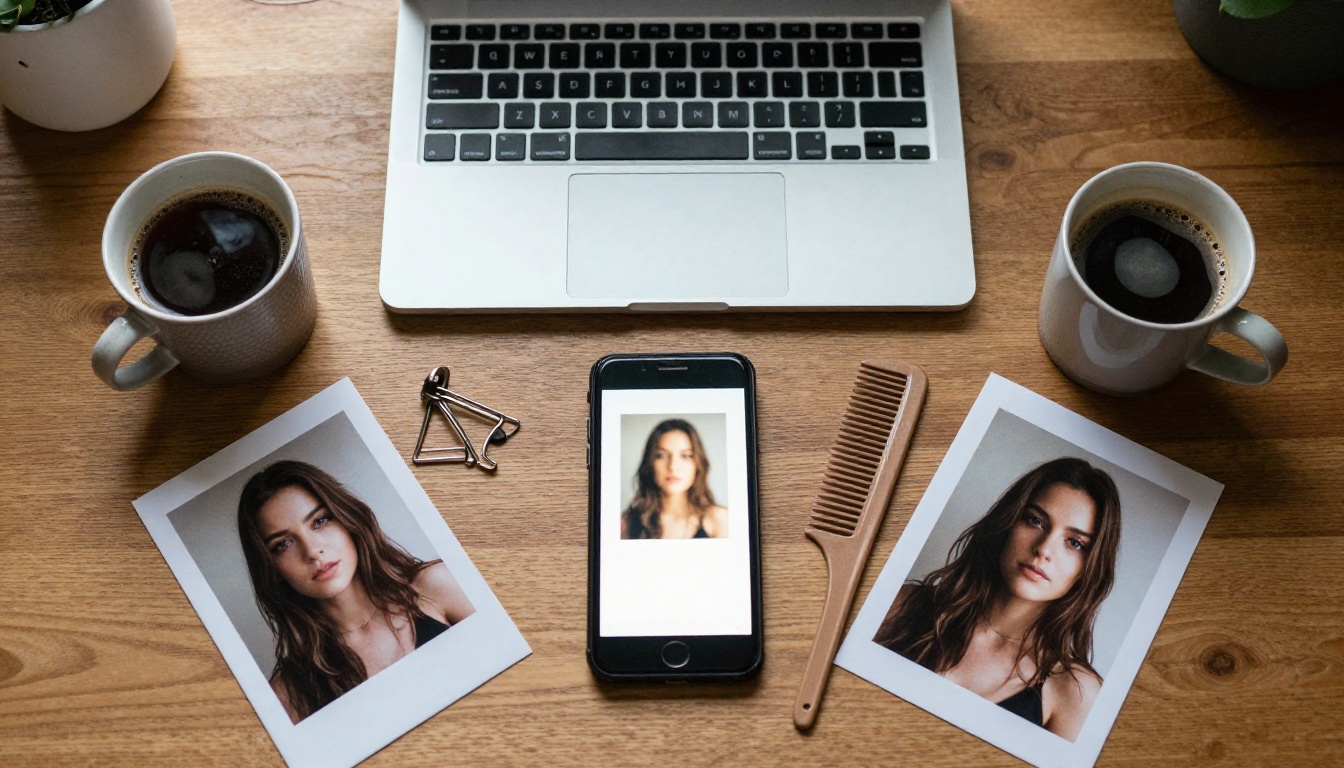
The Change Haircut model is the fastest route from selfie to preview. It takes one photo and two dropdown choices, and it answers in a few seconds.
Step by Step
- Open the model page on Picasso IA and find the input panel.
- Upload your photo. JPEG, PNG, GIF, and WebP files all work.
- Choose a haircut from the dropdown. Leave it on No change if you only want to test a color.
- Choose a hair color. Leave it on No change if you only want to test a cut.
- Set the gender to male or female when the default result feels off. None is the default.
- Pick an aspect ratio. Match input image keeps your original framing.
- Run the model and wait a few seconds for the result.
- Download the PNG or JPG, then change one setting and run it again.
Settings Worth Adjusting
| Setting | Options | Best use |
|---|
| Haircut | 100+ styles, plus No change and Random | Test one style per run |
| Hair color | 30+ shades, plus No change and Random | Change color separately from the cut |
| Gender | None, male, female | Nudge results toward the right styles |
| Aspect ratio | Match input plus 13 ratios | Keep the original for fair comparisons, use 9:16 for stories |
| Output format | PNG or JPG | PNG for the sharpest detail, JPG for lighter files |
| Seed | Any whole number | Save it to reproduce a result exactly |
Random is worth a few runs. It surfaces combinations you would never pick on purpose, and some of them end up as favorites.
💡 Tip: Write down the seed of any result you like. Rerunning with the same seed and settings gives you the same output, which makes side-by-side comparisons honest.
Fine Tuning With Image Editor Pro
Sometimes the dropdown does not have the exact cut in your head. That is where PicassoIA Image Editor Pro fills the gap. It accepts up to three reference images and a plain-language prompt, and since it is unlimited, you can keep adjusting.
A prompt that works well with a reference photo:
Give the person in image 1 the haircut shown in image 2. Keep the face, skin tone, clothes, and background unchanged.
Describe specifics when you have them: "curtain bangs that start at the cheekbones," "a tapered nape," "warm honey highlights framing the face." Other editing models on the platform, such as Flux Kontext Pro and Seedream 4.5, also take an image plus an instruction, so it is worth running the same request through two of them when a result looks slightly off.
When you want to print or post a favorite preview, Crystal Upscaler enlarges portraits up to 4x and keeps skin and hair detail sharp.
Take the Preview to Your Stylist
A good preview does not replace a stylist. It gives you and your stylist a shared picture, which is where most haircut disappointments start: two people nodding at different mental images.
Bring Three Angles
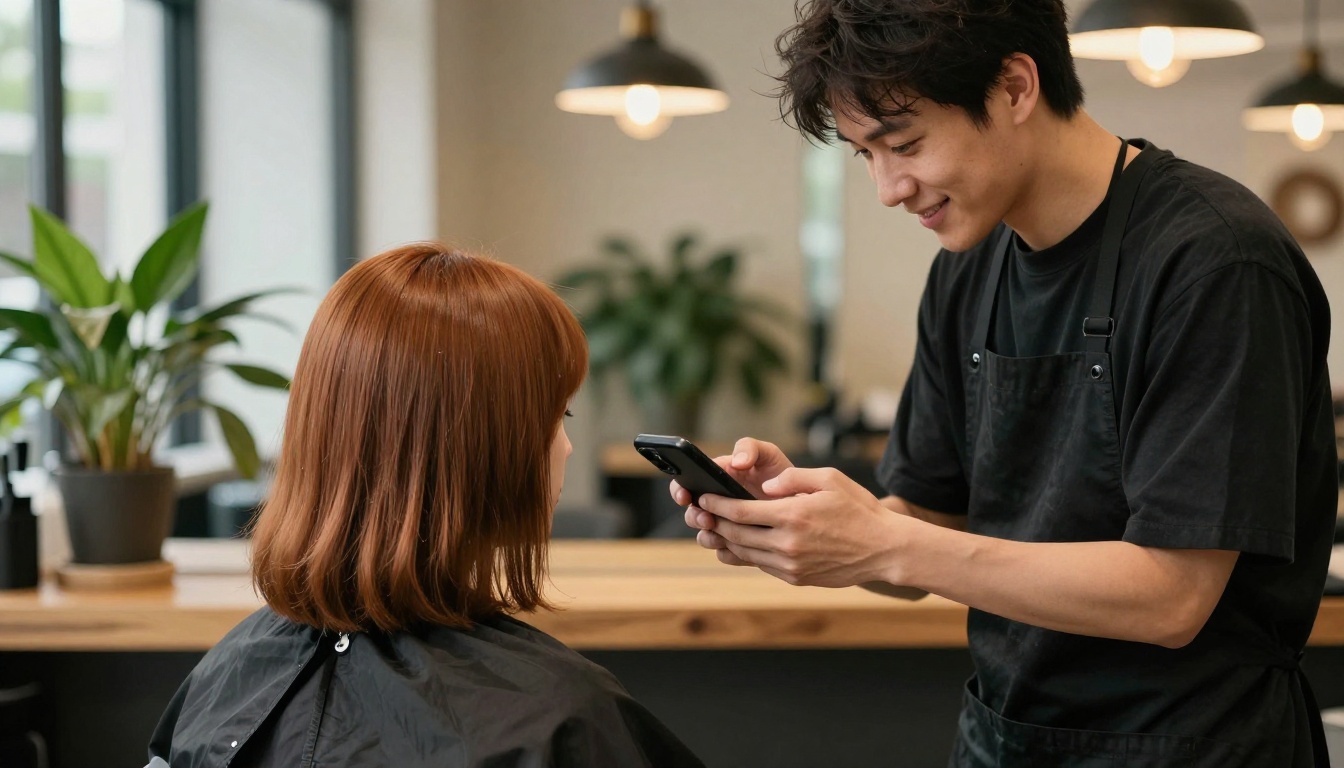
Show your stylist the preview on your own face, plus two reference photos of the cut on other people, ideally from the side and back. The AI result shows the front. Reference photos fill in what the front view cannot.
Then ask the questions only a professional can answer:
- Will my hair density and natural wave pattern hold this shape?
- Do I have a cowlick or growth pattern that fights this cut?
- How often will I need a trim to keep it looking this way?
- How long will styling take each morning?
A preview shows a polished moment. Your stylist knows what the hair does on a Tuesday.
Event Styles Need a Trial
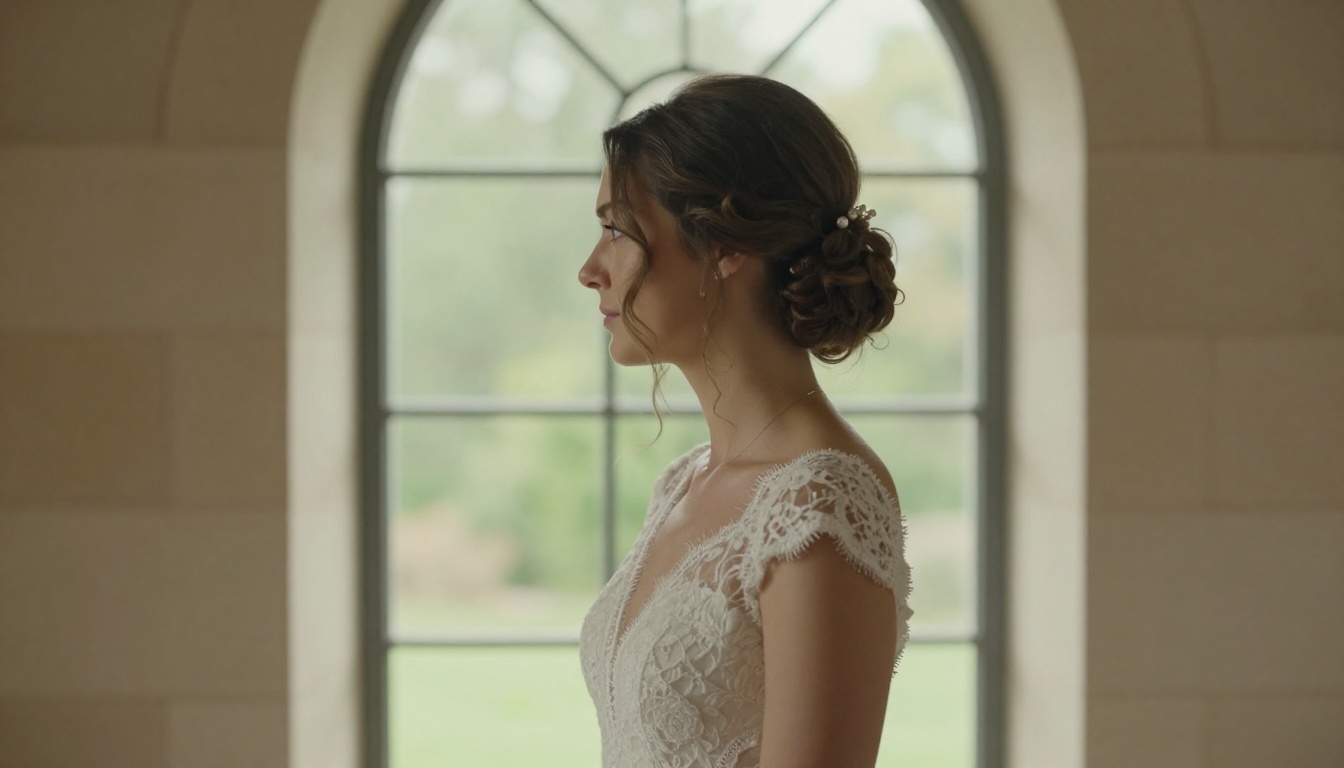
Weddings, graduations, and formal dinners call for updos, and updos reward planning. The list includes Chignon, French Twist, Beehive, Halo Braid, Ballerina Bun, and Half-Up, Half-Down, so you can compare several in one sitting.
Run your shortlist weeks before the event. Save the two you like most, then book a trial with your stylist and bring those images along. If you are wearing a veil, tiara, or hairpin, mention it, because accessories change how an updo has to be built.
Try Your Own Look on Picasso IA
You now have everything you need: a photo that gives clean results, a sense of which styles suit your face shape, and a repeatable process for testing cuts and colors without commitment.
Pick a recent selfie and open Change Haircut. Run three styles in a row: one safe, one bold, and one you are almost afraid to try. Add a color change to your favorite, then take it to PicassoIA Image Editor Pro to adjust the details, such as bangs, parting, or highlights. Save the seeds, compare the results side by side, and send your top two to a friend for a second opinion.
The haircut you have been thinking about for a year takes about thirty seconds to preview. Try it on Picasso IA, see what looks like you, and walk into the salon with a plan.


