It is the last week of October, you have a party on Saturday, and you still have no idea what to wear. You scroll through costume shops, order something that looks great on the model, and when it arrives it makes you look like a deflated bag of fabric. Sound familiar? An AI Halloween costume try on fixes that problem before you spend a cent. You upload one photo of yourself, describe the outfit, and the AI shows you wearing it: the hat, the cape, the face paint, even the lighting of a spooky garden.
This article shows exactly how that works, which free tools are worth using, what to type so the result looks like a real photograph instead of a plastic filter, and how to test five or six ideas in the time it takes to drink a coffee.
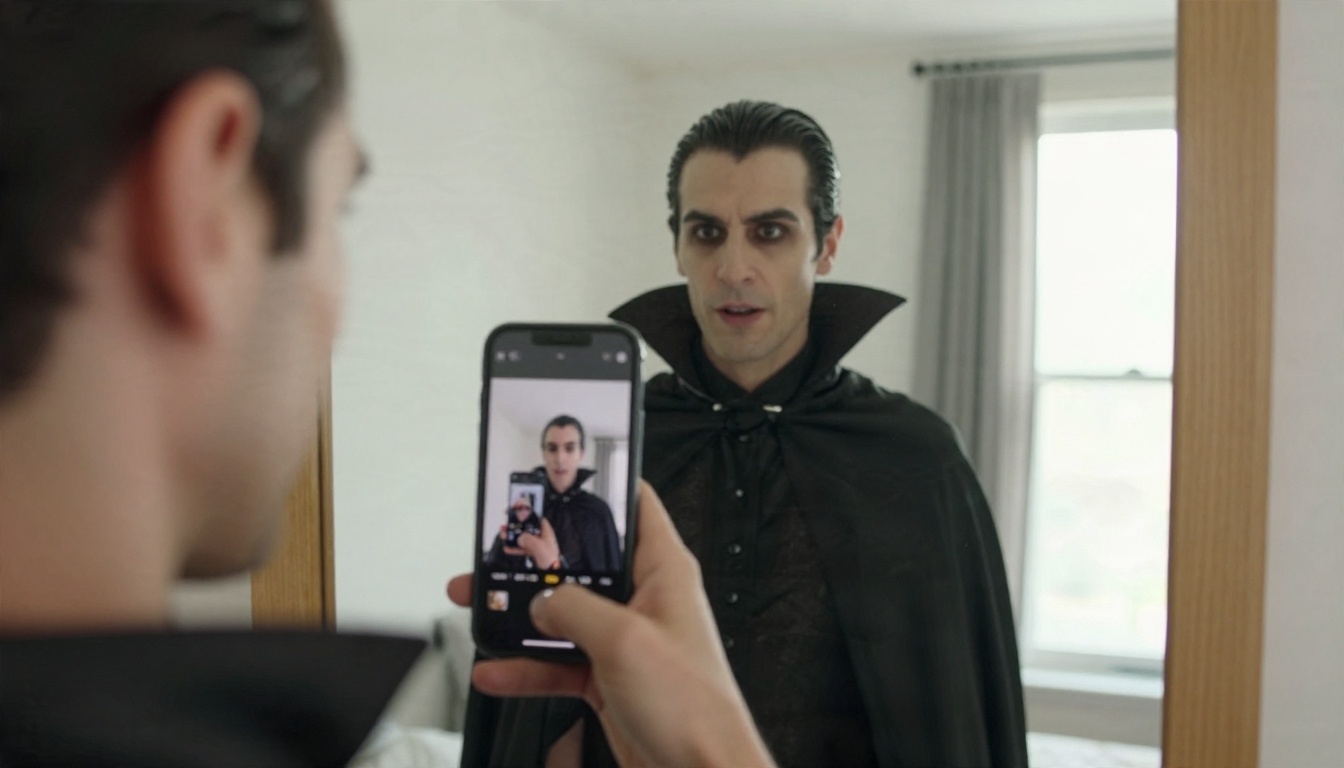
What an AI Costume Try On Does
A virtual costume try on takes two inputs: a photo of you and a written description of the outfit. The model reads your face, pose, skin tone, and hair, then redraws the picture so you appear to be wearing the costume while still looking like yourself. Old-style photo apps pasted a flat hat or a cartoon mask on top of your head. Modern image models rebuild the whole scene, so the shadows from a witch hat fall across your forehead the right way and the velvet of a cloak folds around your shoulders.
Photo Editing vs. Text Generation
There are two ways to get a costume preview, and they behave differently:
- Photo editing: you upload your selfie and ask for a change ("dress this person as a pirate"). Your face stays recognizable because the model starts from your real picture.
- Text-to-image: you describe a person from scratch. The result can look gorgeous, but it will not be you.
For a try on, you almost always want photo editing. Text generation is useful for a second job: building mood boards and background scenes once you have picked your costume.
Why It Beats a Mirror in a Shop
Trying things on in a store has real limits. The fitting room has bad lighting, the wig is crushed from forty other people, and you can only test what the store stocks. An AI preview has no stock limits. You can ask for a Victorian ghost bride, a 1920s gangster, a scarecrow, or a mummy in the same ten minutes, and nothing needs returning.
💡 Tip: Treat the preview as a decision tool. If you love how the witch version looks and feel nothing for the pirate, you just saved yourself a shopping trip.
Who Actually Uses This
The idea sounds like a novelty until you see how many situations it fits.
Solo Planners and Last-Minute Shoppers
If you are buying a ready-made outfit online, the preview tells you whether the color suits you. A deep green cape and a black one read very differently against pale skin. Seeing it first prevents the classic returns-window panic.
Couples and Friend Groups
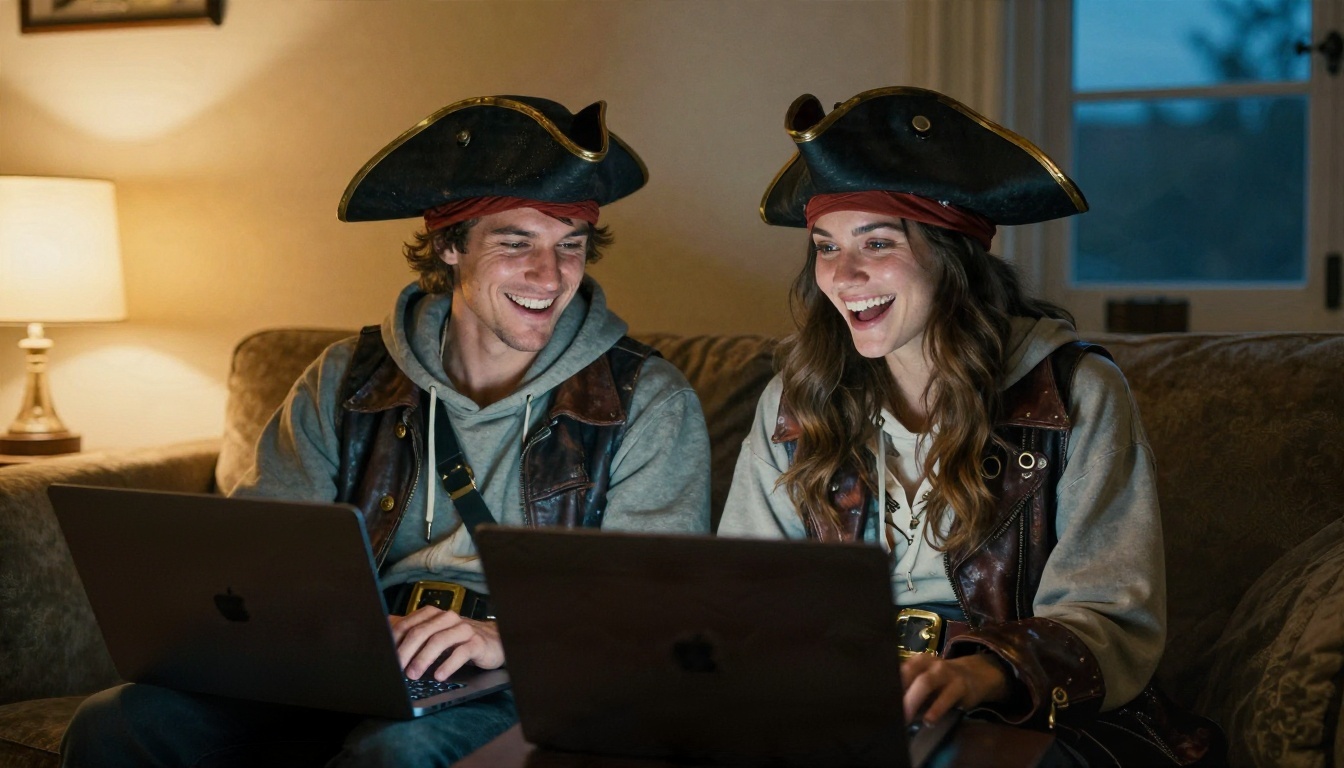
Group costumes only work when everyone looks good together. Upload two selfies, try matching pirates or a pair of vampires, and check the pairing before ordering two sets.
Parents and Kids
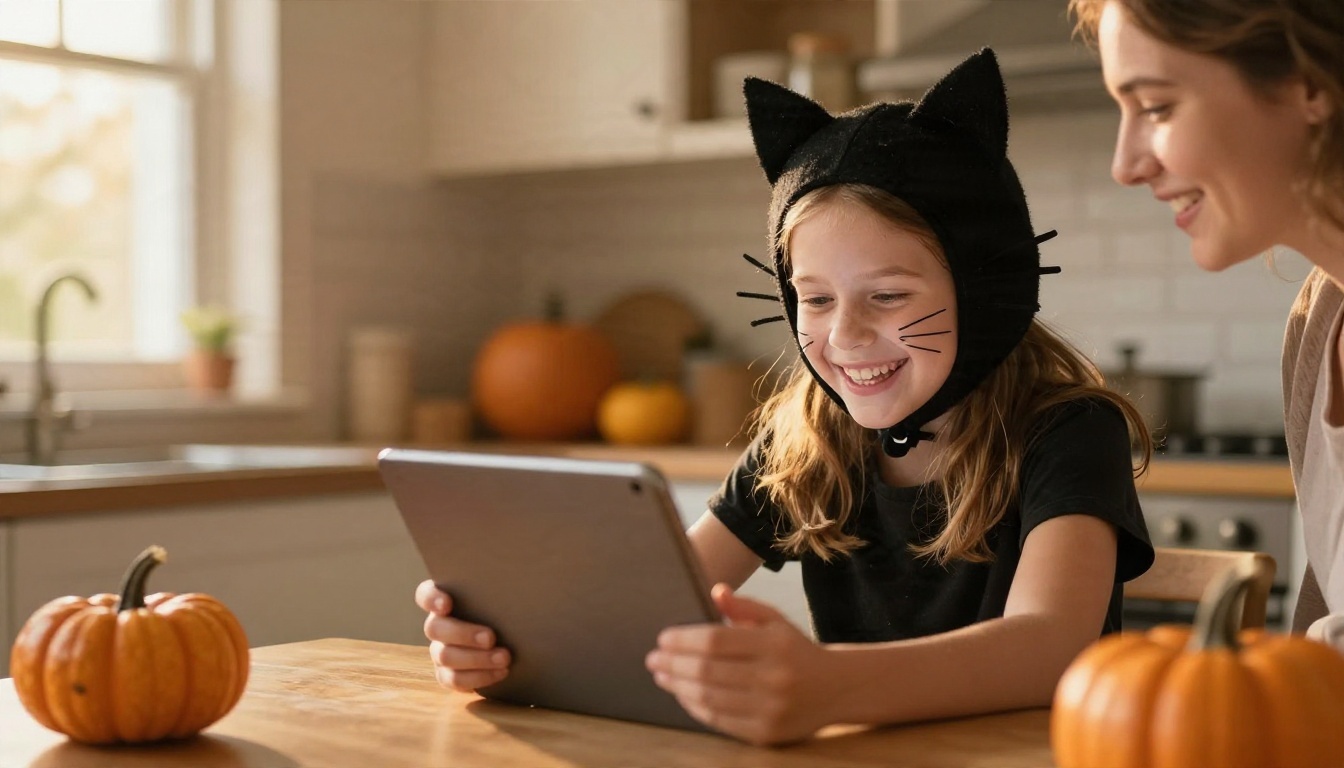
Children change their minds hourly. Show a child three versions of themselves as a cat, a dinosaur, and a wizard, and the decision tends to land in under a minute. It also gives you a reference photo for makeup or a homemade sewing project.
DIY Makers
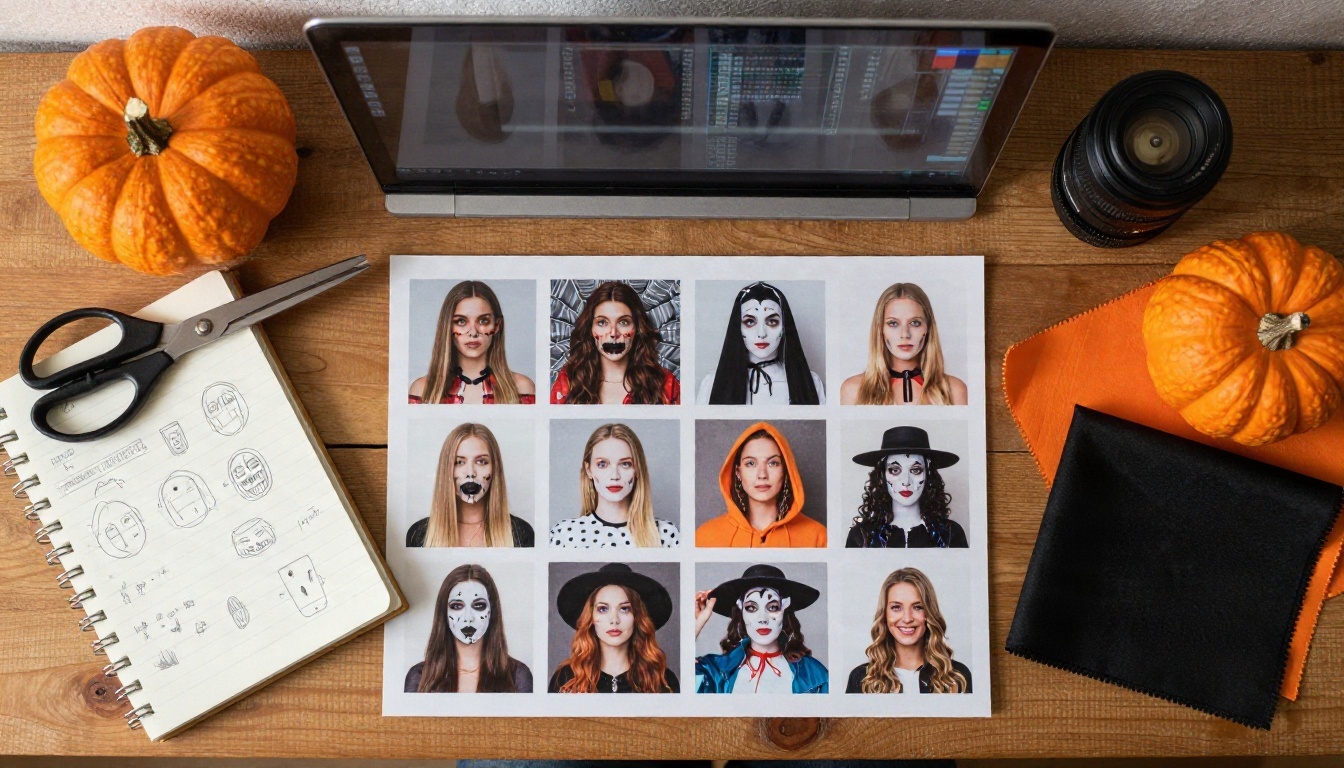
If you sew or thrift your costumes, an AI preview works like a sketch. You see the silhouette, the color palette, and the accessories you need to hunt for before you cut any fabric.
Plenty of apps promise costume swaps, but many bury the free option behind watermarks or tiny daily limits. On PicassoIA, several image models handle photo editing well, and each has a slightly different personality.
| Tool | Best for | Strength | Watch out for |
|---|
| PicassoIA Image Editor Pro | Trying dozens of looks | Unlimited generations, so you can keep iterating | Needs a clear, specific prompt |
| Seedream 4.5 | Polished, photographic results | Fine fabric, skin, and lighting detail | Slower to iterate if you rush |
| Nano Banana | Quick edits that keep your face | Strong identity consistency | Complex costumes need extra words |
| Nano Banana Pro | High resolution finals | Sharp 4K output | Overkill for first drafts |
| Flux Kontext Fast | Fast, targeted changes | Edits one thing at a time cleanly | Less dramatic full-scene rebuilds |
A Simple Way to Choose
Start with Image Editor Pro for volume. Use it to run through ten ideas without worrying about running out of tries. When you pick a winner, send that same selfie and prompt to Seedream 4.5 or Nano Banana Pro for the polished final image you will actually print, share, or use as a makeup reference.
💡 Tip: Keep your original selfie unchanged and re-upload it for each new costume. Editing an already edited image slowly drifts your face away from the real you.
How to Use Image Editor Pro for Costumes
Here is the exact workflow that gives the cleanest results with PicassoIA Image Editor Pro. The same steps work with Nano Banana and Seedream 4.5.
Step 1: Pick the Right Selfie
The photo matters more than any setting. Choose a picture with:
- Your face clearly visible, no sunglasses and no heavy shadows
- Soft, even light (a window works perfectly)
- A pose where your shoulders and upper chest show, so the costume has somewhere to sit
- A plain or simple background
A three-quarter angle usually gives the model more information about your face shape than a flat passport style shot.
Step 2: Upload and Write the Prompt
Open the model page, upload the selfie, and type your costume description. Be specific about the garment, the material, the colors, and the setting. Compare these two:
- Weak: "Make me a witch."
- Strong: "Dress this person as a witch wearing a wide-brimmed black felt hat and a deep plum velvet cloak, standing in a candlelit living room, warm window light from the left, realistic photograph, keep the face and hair the same."
The strong version tells the model what to change and what to keep. That final sentence is the most useful phrase in the whole process.
Step 3: Generate, Compare, Adjust
Run the prompt and look at three things: does it still look like you, does the costume look physically believable, and does the lighting match the original photo? If the face drifts, add "keep the face identical to the uploaded photo." If the fabric looks flat, name the material: velvet, felted wool, aged leather, lace, cotton gauze.
Step 4: Save the Finalists
Pick your top two or three. Sharing them with whoever is going to the party (or the one friend who tells you the truth) gives you honest feedback before you commit.
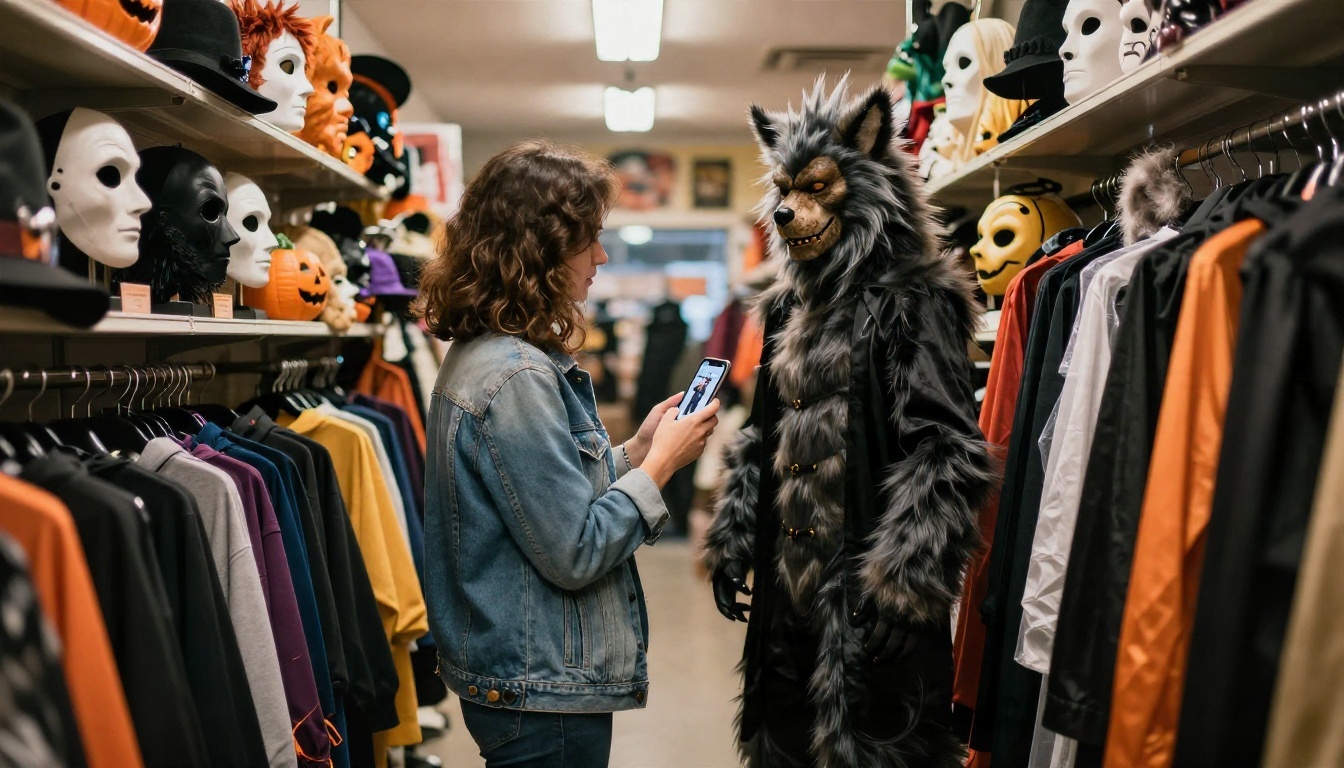
Prompts That Actually Work
Good prompts read like short photo briefs. Here are tested starting points you can paste and adjust. Swap in your own colors and settings.
Classic Monsters
- Vampire: "Dress this person as a vampire in a black high-collared cape with a deep red lining, slicked back hair, pale skin, indoor evening light, realistic photo, keep the face recognizable."
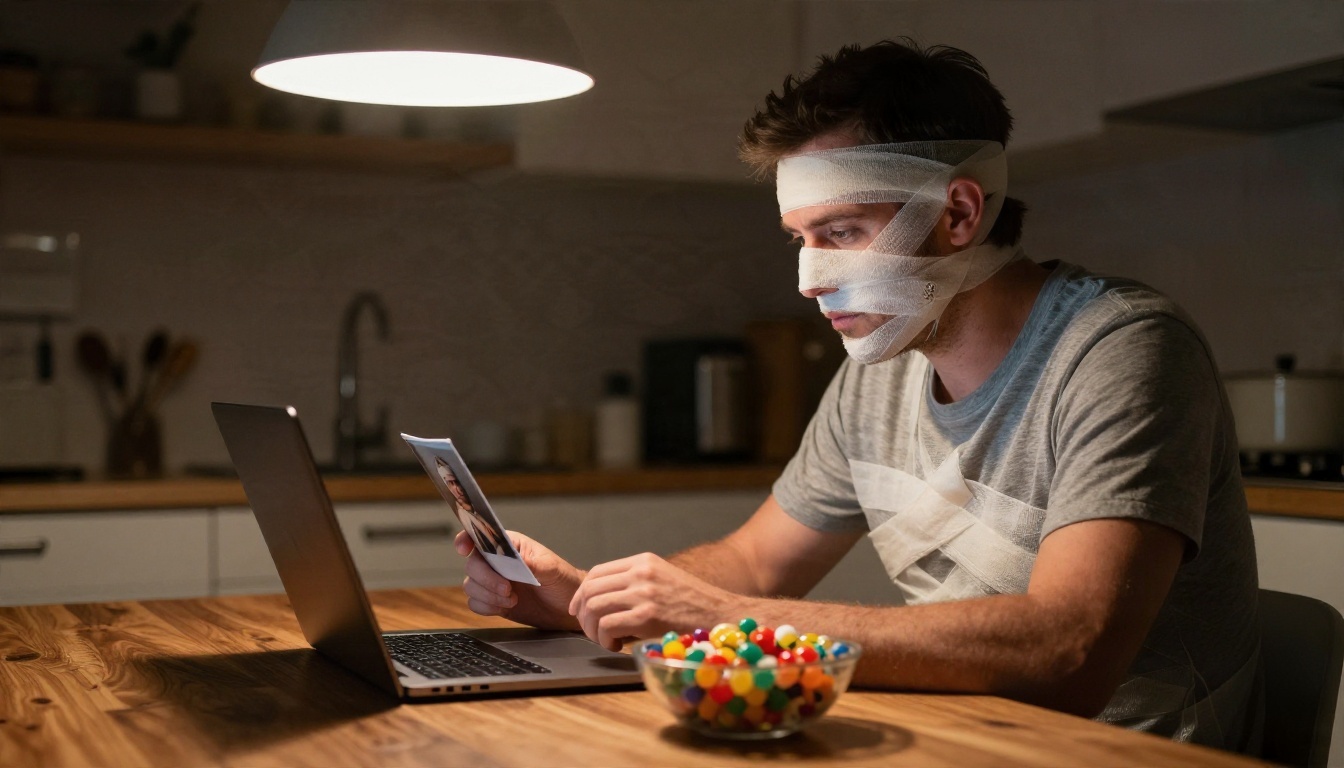
- Mummy: "Dress this person as a mummy wrapped in aged gauze bandages, with eyes visible and dust on the fabric, warm lamp light, realistic photograph."
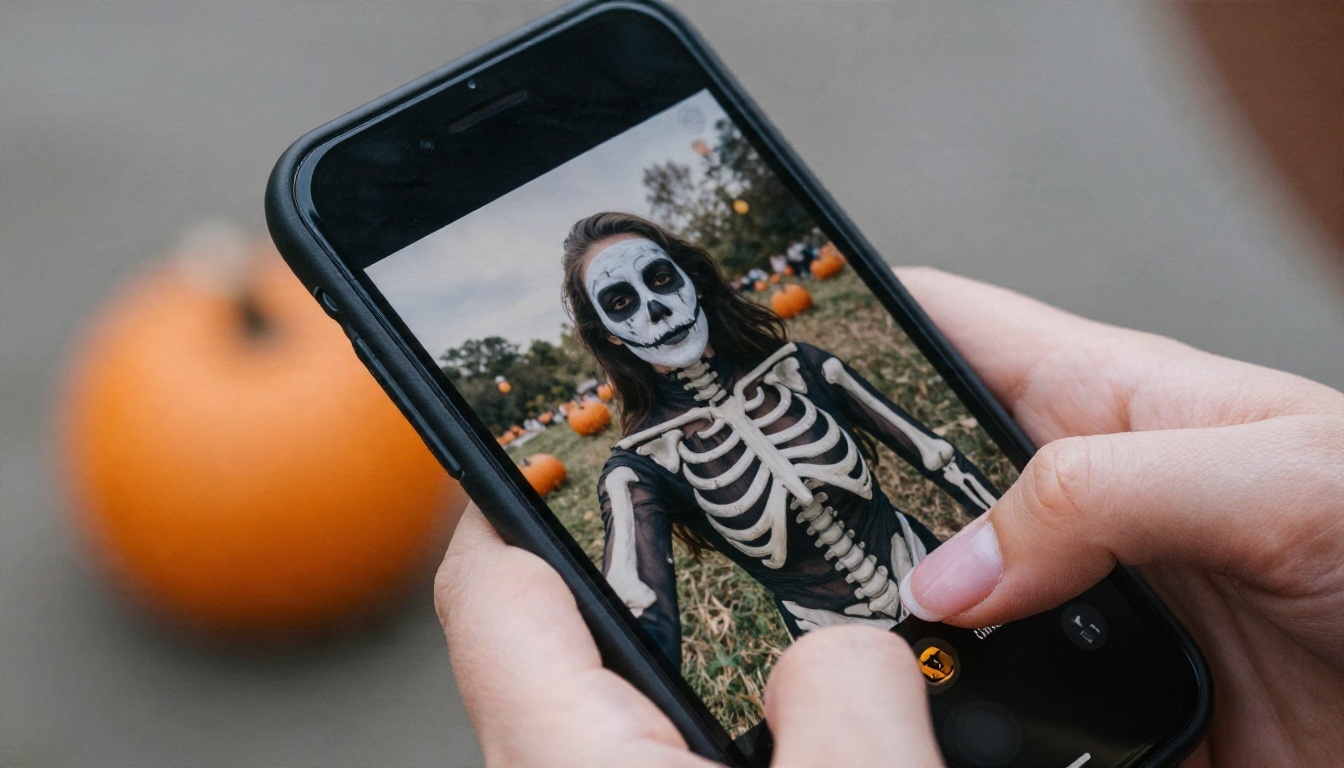
- Skeleton: "Dress this person in a bone-pattern bodysuit with white skull face paint, overcast outdoor daylight, realistic texture, keep the eyes and hairline the same."
Elegant and Eerie
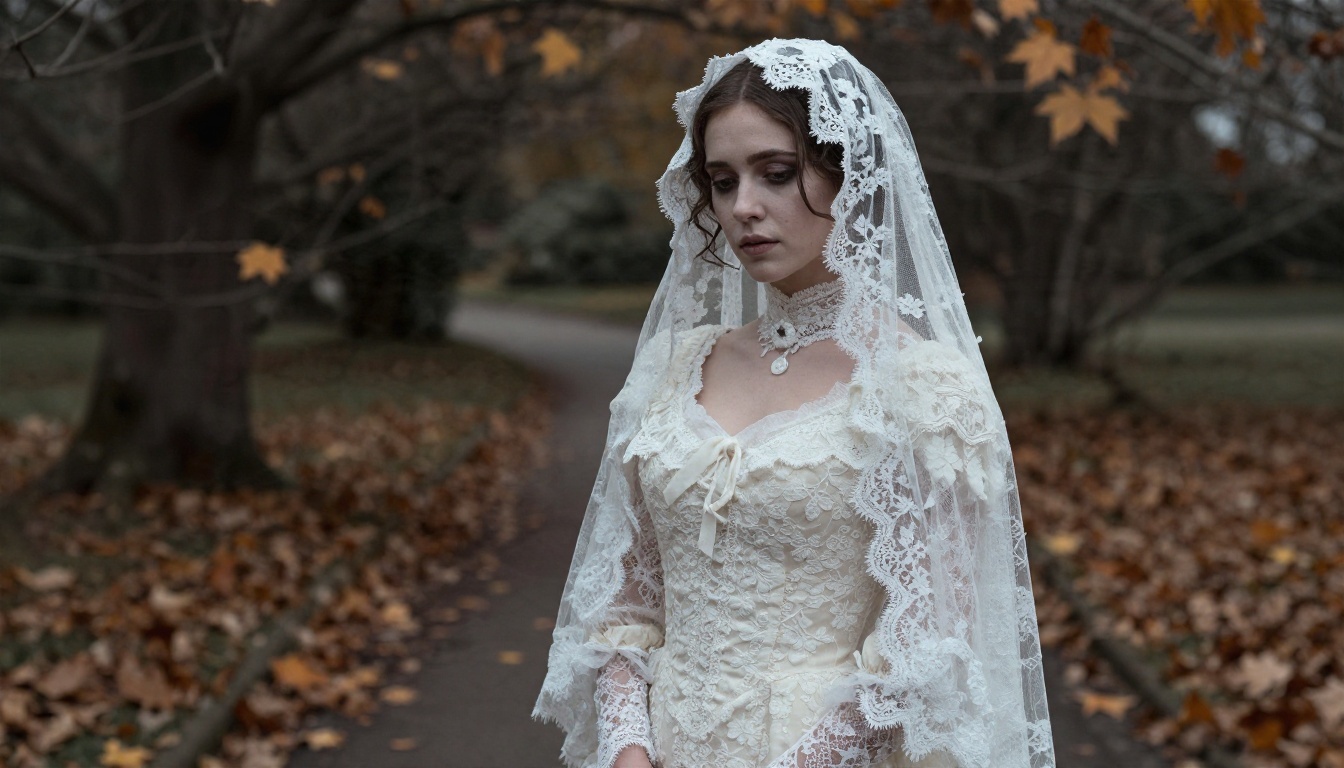
- Ghost bride: "Dress this person in an ivory Victorian lace gown with a tattered veil and pale makeup, standing in an autumn garden, soft overcast light, editorial portrait."
- Gothic noble: "Dress this person in a black brocade coat with a high collar and silver buttons, candlelit room, realistic skin and fabric detail."
Funny and Easy
- Pirate: "Dress this person as a pirate with a tricorn hat, a weathered leather coat, and a white linen shirt, dusk light, realistic photograph."
- Scarecrow: "Dress this person as a scarecrow with patched flannel, straw poking from the sleeves, and a stitched burlap hat, warm golden hour light."
Words That Improve Realism
| Add this | What it does |
|---|
| "realistic photograph" | Pushes the model away from illustration |
| "soft window light from the left" | Gives believable shadows |
| "visible fabric texture" | Avoids a smooth, plastic look |
| "keep the face identical" | Protects your likeness |
| "35mm or 85mm lens, shallow depth of field" | Adds natural background blur |
Making the Preview Look Real
Even great models can produce small giveaways. A few habits remove most of them.
Watch the Hands and Edges
Hands, hat brims, and the edge where a cape meets your neck are the places where errors hide. If something looks off, regenerate with a short fix such as "natural hands, correct number of fingers" or crop the area and refine it separately.
Match the Lighting
If your selfie was taken under harsh overhead light but your prompt says "candlelit castle," the mismatch makes the image feel pasted together. Either pick a selfie with neutral light or describe the lighting from your photo in the prompt.
Use Props Sparingly
Three props are usually the limit. A witch with a hat, a cloak, and a broom looks natural. Add a cat, a cauldron, a spellbook, and a raven and the image becomes cluttered, which also makes the likeness worse.
Upscale the Final Pick
Once you choose your look, run it through an upscaler for crisp detail. PicassoIA also offers super resolution models that raise a small preview into a sharp, printable image, which helps if you are showing a makeup artist or a tailor what you want.
💡 Tip: Save the prompt text alongside the image. If you decide a week later that the cloak should be green instead of purple, you can change one word and rerun it.
From Preview to Real Costume
A preview only helps if it leads to a decision. Here is a practical path from screen to party.
Turn the Image Into a Shopping List
Look at the picture and write down every item you can name: hat, cape, boots, belt, gloves, makeup. Search for those exact pieces, or check your closet and thrift shops first. The AI gave you the design, so the shopping becomes a matching game rather than a guessing game.
Show the Reference to a Makeup Artist or Tailor
A photo says more than a paragraph. If you are getting face paint done or alterations made, a reference image keeps everyone aligned on colors and proportions.
Build the Backdrop for Your Photos
Once the costume is ready, you can also generate a spooky background for party photos or invitations with a text-to-image model, such as Seedream 4.5, and keep everything looking consistent. If you want to swap in a different setting behind your real photo, the background tools on PicassoIA can help with that too.

Common Mistakes to Avoid
Most disappointing results come from the same handful of errors.
- Using a low-quality selfie. Blurry, dark, or tiny photos give the model little to work with. Use the sharpest, best-lit picture you have.
- Writing vague prompts. "Cool costume" gives random results. Name the garment, the material, and the setting.
- Forgetting the likeness instruction. Without "keep the face the same," the model may redesign your features.
- Overloading the prompt. Ten accessories confuse the model. Pick three.
- Stopping at the first result. The second or third run is often better. This is where unlimited generations really help.
- Using someone else's photo without asking. Only upload pictures of yourself, or of people who agreed to it. A fun costume preview should never become a way to embarrass a friend.
A Quick Reality Check
An AI image shows how a costume looks, but it does not know the real fabric, the true fit, or the price of the product you plan to buy. Use it for style, color, and mood, then check size charts and reviews before ordering.
Try Your Own Look Tonight
You do not need a design degree, a sewing machine, or a fitting room. You need one good selfie, a clear description, and ten minutes. Open PicassoIA Image Editor Pro, upload your photo, and run through the witch, the vampire, the pirate, and the ghost bride. Keep the one that makes you grin at your own screen. When you want a sharper final image, send the same prompt to Seedream 4.5 or Nano Banana Pro.
Want to see what else is possible? Browse the full catalog at picassoia.com/en/all-models, and start building your Halloween look today. Your costume is only a few prompts away, and this year nobody at the party will have a better one.


