Generate imagesLarge Language ModelsVisual Effects
AI Headshot Prompt: Professional LinkedIn Photos With ChatGPT and Gemini
A practical walkthrough of the AI headshot prompt that turns one selfie into a professional LinkedIn photo. You get a six-part formula, copy-paste prompts for ChatGPT and Gemini, industry variations, selfie tips, and fixes for plastic skin and odd details.
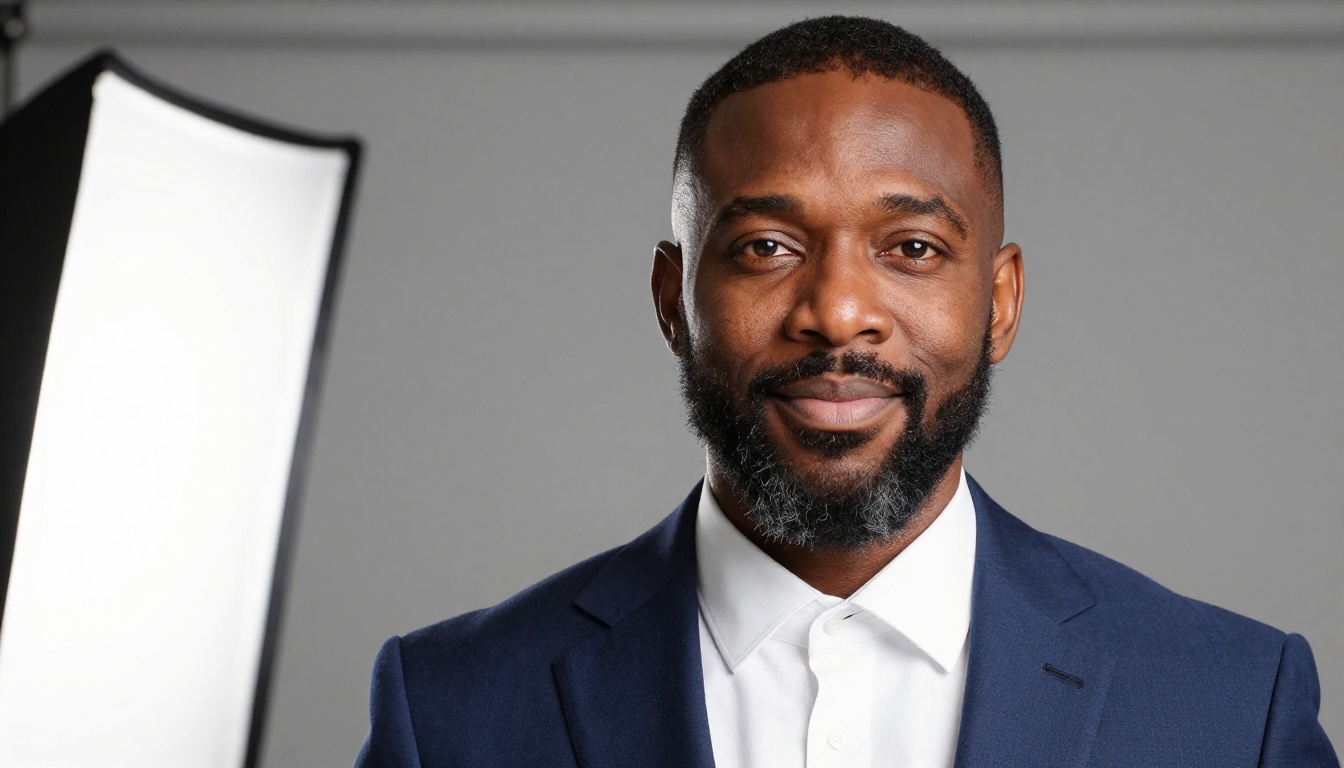
Most LinkedIn profile photos are a cropped wedding picture, a car selfie, or a conference snapshot with a stranger's elbow in the frame. A good AI headshot prompt fixes that in about two minutes. You upload one clear photo to ChatGPT or Gemini, say exactly what should change (clothes, background, light) and exactly what must stay (your face), and you get a portrait that looks like it came out of a studio session. The catch is the wording. A vague request like "make me look professional" gives you a stranger with glossy skin. A precise prompt gives you you, on your best day.
This article gives you a six-part prompt formula, two copy-paste prompts (one for each tool), variations by industry, and fixes for the problems that ruin AI headshots: plastic skin, a changed face and odd collars. It also shows a faster route on PicassoIA, where a dedicated model turns a single photo into a LinkedIn-ready headshot in a few clicks.
💡 Quick answer: lock the identity ("same face, same hair, same age"), change only the clothes, the background and the lighting, and ask for visible skin texture. Those three habits matter more than any fancy adjective in the prompt.
Why Your LinkedIn Photo Matters
Your profile photo is the smallest image on the page and the first one people see. It sits next to your name in search results, comments, messages and connection requests, usually at thumbnail size. At that size a face has to read in half a second: eyes visible, expression friendly, background calm.
What People Notice First
Nobody expects a fashion editorial. Viewers scan for four things:
A clear face. Eyes open, no sunglasses, nothing cutting off the forehead.
A calm background. Soft grey, a blurred office or a tidy outdoor scene.
Neat, role-appropriate clothes. A blazer for finance, a linen shirt for a design studio.
A natural expression. A relaxed half smile beats a forced grin every time.
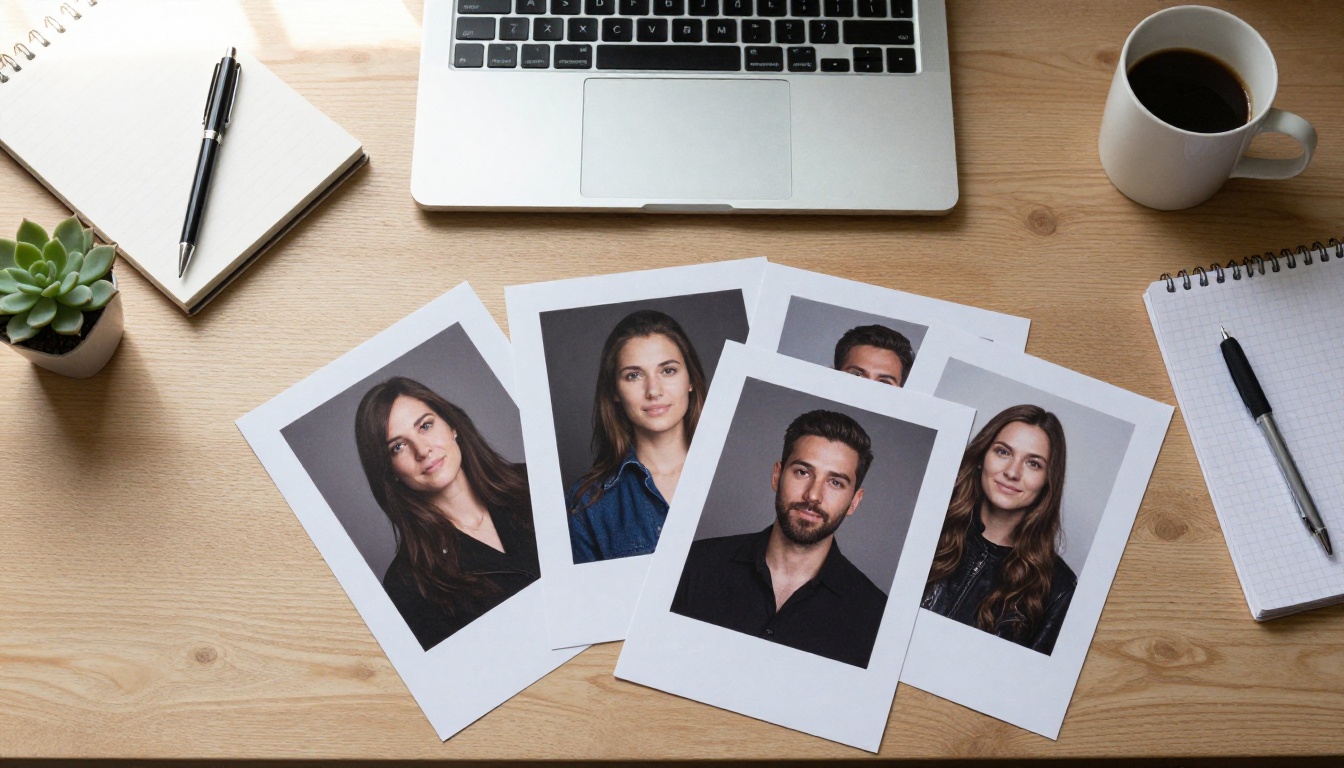
Consistency matters too. When every person on a company page shares the same background and crop, the whole team looks organized, and that is one of the best uses of a repeatable AI headshot prompt.
Where AI Headshots Go Wrong
Most failures come from three habits:
Asking for beauty instead of accuracy. Words like "stunning" and "flawless" push the model toward smooth, doll-like skin.
Changing too much at once. Hair, face shape, outfit and setting in a single instruction invite drift in the face.
Starting from a weak photo. A blurry, dark or heavily filtered selfie gives the model very little real information.
All three are fixed with better wording and a better source photo, which is what the rest of this article addresses in detail.
The Core AI Headshot Prompt
The Six-Part Prompt Formula
Every strong headshot prompt has the same six parts, in this order:
Part
What to write
Example
Identity lock
What must not change
"Keep my face, hairstyle, skin tone and age exactly the same"
Clothing
One outfit, described plainly
"navy blazer over a white open-collar shirt"
Background
Simple and softly blurred
"soft grey studio backdrop"
Lighting
Direction and softness
"large softbox from the left, gentle fill from the right"
Camera
Lens, distance and crop
"85mm lens, eye level, chest-up, 4:5 portrait"
Skin and mood
Realism and expression
"visible pores, no smoothing, relaxed half smile"
The order is deliberate. When the identity lock comes first, it is the most prominent instruction, and everything after it reads as an edit to your photo instead of a request for a new person.
💡 Tip: name one outfit, not three. "Navy blazer or grey cardigan" forces the tool to guess, and guessing is where faces start to drift.
Copy-Paste Prompt for ChatGPT
Attach a clear photo, then paste this:
Use the attached photo to create a professional LinkedIn headshot of this exact person. Keep my face, hairstyle, skin tone, age and facial proportions exactly the same. Dress me in a navy blazer over a white open-collar shirt. Background: soft grey studio backdrop with a gentle blur. Lighting: large softbox from the left, subtle fill from the right, natural catchlights in both eyes. Camera: 85mm lens at f/2, eye level, chest-up crop, 4:5 portrait. Keep realistic skin texture with visible pores and no beauty smoothing. Relaxed, natural half smile. No text, no logos, no added jewelry.
ChatGPT works as a conversation, so follow up with one change at a time: "Same image, but make the background slightly lighter" or "Reduce the smile a little." One change per message keeps the face stable. If the result drifts, say "Go back to the previous version and only change the background."
Copy-Paste Prompt for Gemini
Gemini responds well to direct editing language. Attach the photo and paste this:
Edit this photo into a professional LinkedIn headshot. Change only my clothing, the background and the lighting. Do not alter my face, hairstyle, eye color or age. Clothing: dark charcoal blazer, light blue shirt, no tie. Background: neutral warm grey, softly blurred. Lighting: soft window light from the left, even exposure, natural highlights on the cheeks. Framing: chest-up, eye level, slightly tighter than a passport photo. Keep natural skin texture, fine lines and pores visible. Calm, confident expression.
The phrase "change only" does the heavy lifting. It tells the tool this is an edit of your photo, not a fresh generation from a text description. Google's Nano Banana image models sit behind Gemini's image editing, and you can try the same prompt on Nano Banana Pro on PicassoIA, which accepts up to 14 reference images.
ChatGPT vs Gemini Side by Side
Both tools accept an uploaded photo plus a written instruction, and both can produce a usable LinkedIn photo. The differences show up in workflow and in the small habits of each tool. Results vary by version and by photo, so treat this table as a starting point, not a rule.
Factor
ChatGPT
Gemini
Prompt style that works
Detailed paragraph with lens and light
Short edit command with a "change only" list
Iteration
One tweak per message in the same chat
One tweak per message, "keep everything else"
Watch for
Skin turning too smooth, face slightly idealized
Colors drifting warmer, background getting busy
Best for
Controlled studio looks
Quick edits that stay close to the original photo
Likeness and Edit Control
Run the same source photo and the same prompt through both tools, then keep the version that looks more like you at thumbnail size. Shrink the image to the size of a LinkedIn avatar before you decide, because that is how people will actually see it. If the jawline, nose width or eye spacing looks off, add a line such as "Do not slim the face or change the jaw."
Generate four to six variations and lay them out next to each other. The best one is rarely the first. It is usually the one where a friend says "that looks like you, just well rested."
💡 Tip: if a colleague looks at the result and instantly says "that is you," you have a winner. If they hesitate, regenerate.
Prompt Variations by Industry
The six-part formula stays the same. You only swap the clothing, background, lighting and mood lines. Here are three versions that suit most careers.
Corporate and Finance
Clothing: dark navy suit jacket, white shirt, tie optional
Background: plain mid-grey backdrop
Lighting: large softbox from the left, subtle fill from the right
Mood: composed and calm, slight head tilt
Formal roles reward restraint. Skip bright colors and busy patterns, which look distracting at thumbnail size.
Creative and Freelance
Clothing: open-collar linen shirt, no jacket
Background: bright cafe window or soft brick wall, blurred
Lighting: warm window light from the side
Mood: friendly, candid smile
Creative clients hire a person, not a logo, so a little warmth helps. A relaxed expression and a lived-in setting say "easy to work with" faster than a stiff studio pose.
Founders and Outdoor Roles
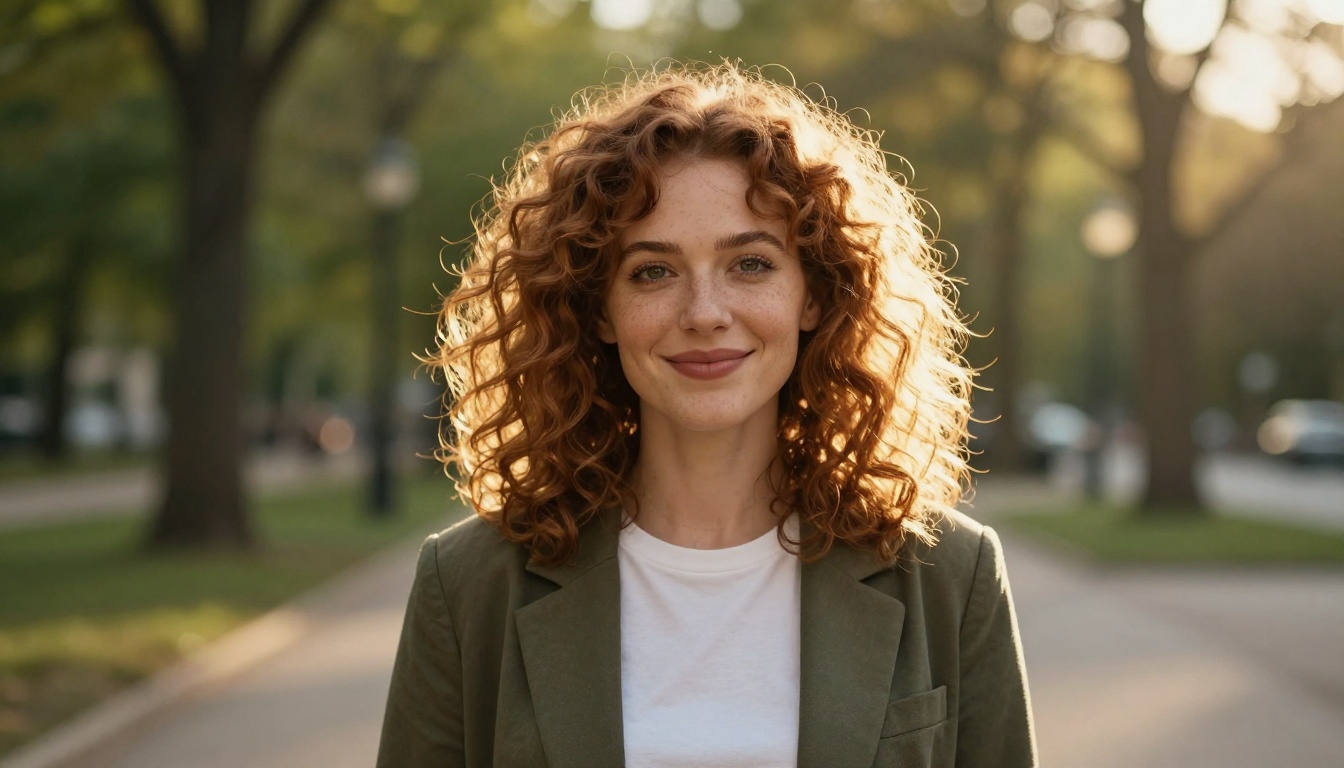
Clothing: olive or camel blazer over a plain tee
Background: tree-lined path at golden hour, heavily blurred
Lighting: warm backlight with a soft rim on the hair
Mood: relaxed and approachable
Outdoor portraits suit founders, coaches and consultants. Ask for a "105mm lens at f/2" so the background melts away and the face stays the focus.
💡 Tip: need a prompt for a niche role? Ask an LLM such as GPT-5.4 or Gemini 3.1 Pro on PicassoIA: "Rewrite this headshot prompt for a nurse practitioner. Keep the identity lock and the skin texture line unchanged."
Pick the Right Source Selfie
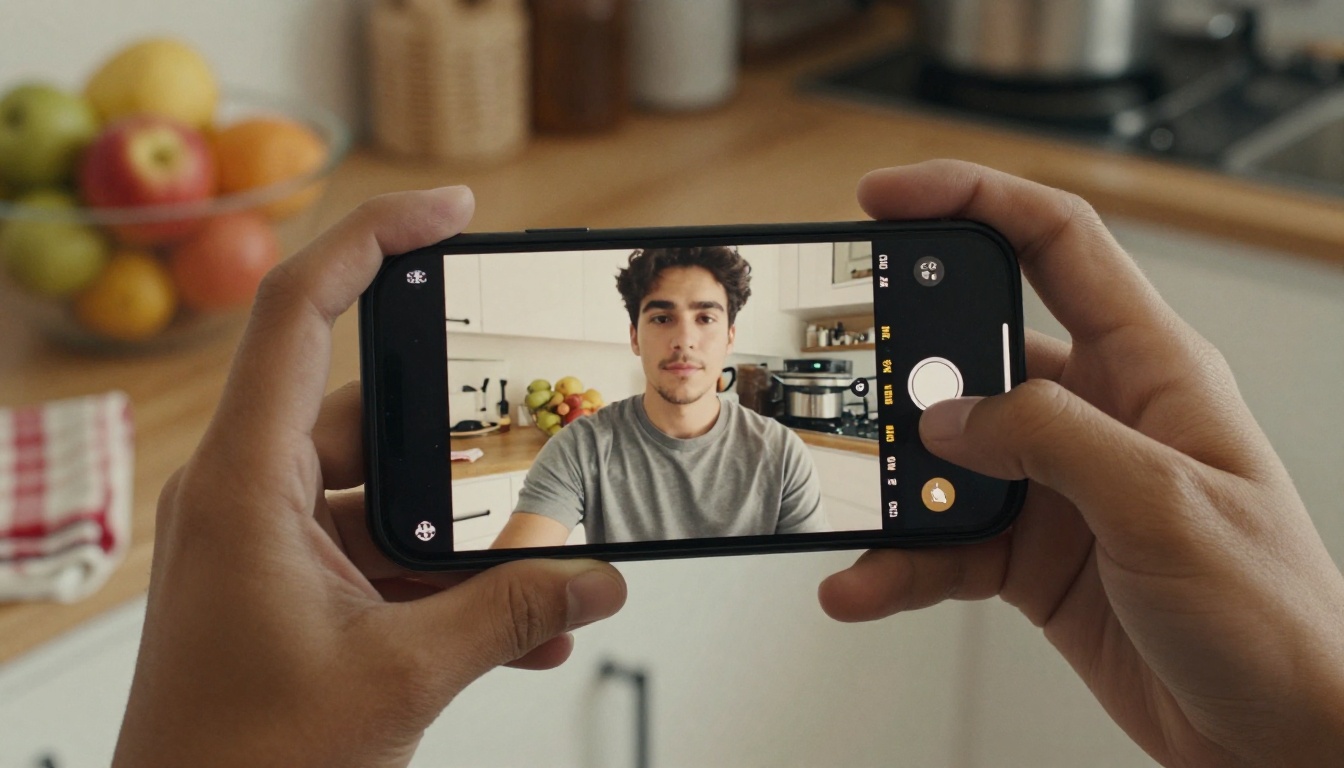
The source photo sets the ceiling for quality. A sharp, well-lit selfie gives the model real information about your face. A dim, filtered one forces it to invent details, and invented details are what make a headshot look like someone else.
Lighting and Angle
Face a window. Soft daylight from the front or slightly to the side flatters almost everyone.
Keep the camera at eye level. Low angles add a double chin, high angles shrink the eyes.
Step back. Close selfies stretch the nose. Use a tripod, a timer or a friend, and shoot from arm's length or farther.
Relax your mouth. Let the prompt add the smile.
Turn off filters and beauty mode. They bake smoothing into the source, and the AI will happily keep it.
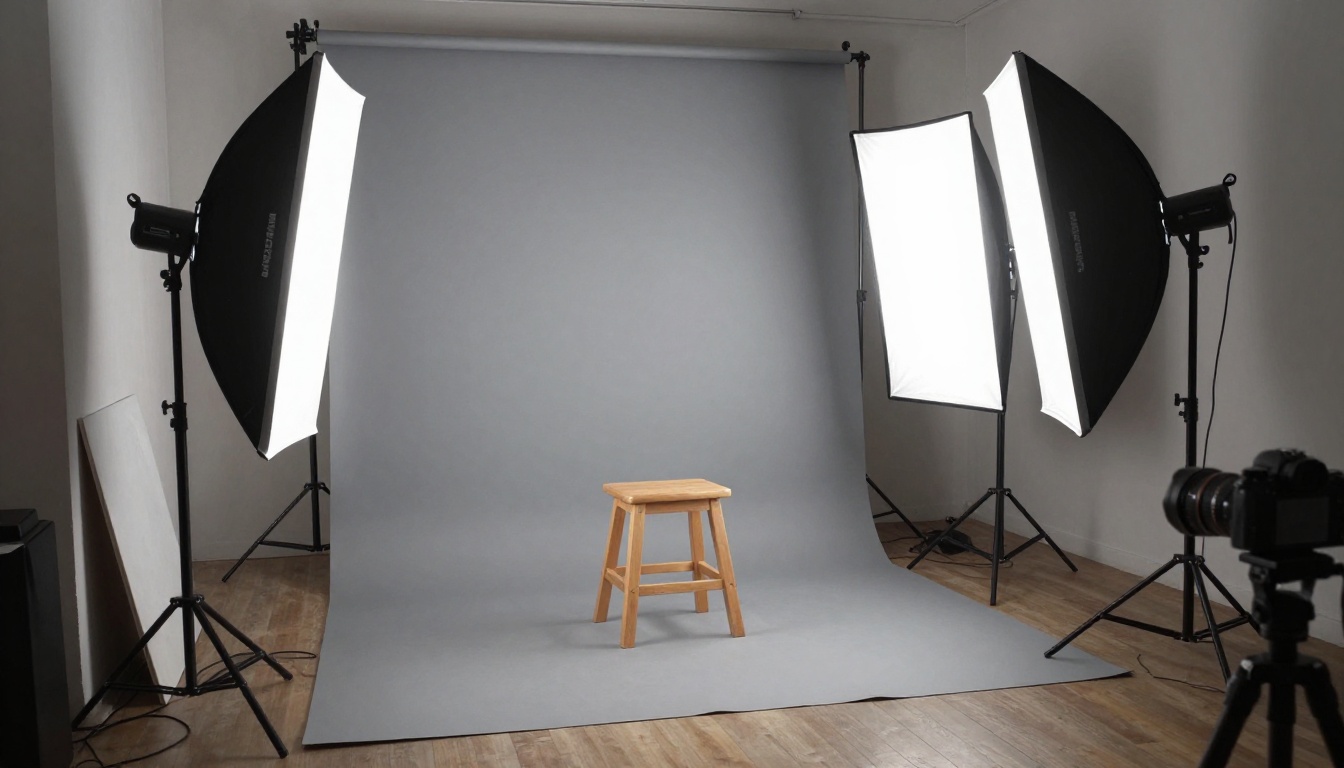
A real studio is just a soft main light, a bit of fill and a plain backdrop. A window and a white wall give you a free version of the same setup.
Clothes and Background
Wear solid colors. Fine stripes and tight patterns can shimmer.
Stand in front of a plain wall. Even a messy room is easier to replace than a cluttered one.
Tidy your hair and tilt your head slightly down to reduce glasses glare.
Show your shoulders and the top of your chest so the tool has room to draw the new clothing.
How to Use Professional Headshot on PicassoIA
If you would rather not write a prompt at all, PicassoIA has a dedicated model: Professional Headshot. You upload one photo and get a studio-style portrait back in seconds, with no watermark. It offers five background options (white, black, neutral, gray and office), 14 aspect ratio options, PNG or JPG output and a seed value for reproducible results.
Step-by-Step Setup
Open the Professional Headshot model page on PicassoIA.
Upload your source photo. JPEG, PNG, GIF and WebP files all work.
Pick a background. Neutral is the default and the safest choice for LinkedIn.
Set the aspect ratio. 1:1 suits LinkedIn's round avatar, while 4:5 leaves room for cropping later.
Set gender to male or female if it applies. This helps the model get facial details right. Leave it on none if you prefer.
Choose PNG for maximum quality or JPG for a smaller file.
Run the generation and download the result. The model's own examples finish in about six seconds.
Save the seed if you like the result, so you can reproduce it with identical settings.
Settings That Change the Result
Setting
Options
Best pick for LinkedIn
Background
white, black, neutral, gray, office
Neutral, or office for sales roles
Aspect ratio
14 options, including match the input
1:1 or 4:5
Gender
none, male, female
Match the person for accuracy
Output format
PNG, JPG
PNG while editing, JPG for upload
Seed
any integer
Reuse to repeat a result
When you need a specific outfit or a custom backdrop, switch to a prompt-based model. GPT Image 2 and Nano Banana Pro both accept reference images, so the ChatGPT and Gemini prompts from earlier work as written. A solid routine is to build a clean base with Professional Headshot, then refine clothing or background with one of these two.
Fix Plastic Skin and Odd Details
Skin Texture Fixes
Plastic skin is the number one giveaway of an AI headshot. Three fixes work well together:
Rewrite the prompt. Add "visible pores, fine lines, natural skin texture, no airbrushing" and delete words like "flawless", "glowing" and "perfect".
Run a texture pass.Qwen Image Edit Plus LoRA Skin is built to bring back pores and tonal variation on over-smoothed portraits. It offers a fast 8-step preview and a detailed 40-step run, plus an adjustable strength.
Check the edges. Zoom in on ears, hairline, collar and glasses frames. Small warping there is the second most common problem, and a single re-run with the same prompt usually fixes it.
Upscale and Relight
Two finishing steps lift a good result into a great one:
Relight flat photos. If the light looks dull, Qwen Image Edit Plus LoRA Relight repaints it with soft window light or warm golden-hour tones without touching the subject.
Upscale the final pick.Image Upscale enlarges a photo 2x, 4x or 6x and has a separate face sharpening toggle. Keep the face sharpening strength moderate so it refines detail without inventing new features.
💡 Tip: run the texture pass first, relight second, upscale last. Each step works on the output of the one before it.
Your Turn: Make Your Headshot on PicassoIA
Before you upload anything to LinkedIn, run this quick check:
Thumbnail test. Shrink the photo to avatar size. Is it still clearly you?
Video call test. Would a client recognize you from this photo when you join a call?
Skin test. Can you see pores and fine lines at full size?
Edge test. Are ears, collar, hairline and glasses clean?
Background test. Is it calm enough that your face stays the first thing people see?
Pass all five and you have a headshot that works. A photo that looks like you on a good day is the goal. A photo that looks like a different person is a problem the first time someone meets you.
Ready to try it? Open the Professional Headshot model on PicassoIA, upload a clear selfie and generate your first LinkedIn photo in seconds. Then paste the ChatGPT or Gemini prompt from this article into GPT Image 2 or Nano Banana Pro and compare the results side by side. Four or five experiments will show you which look fits your industry, and every one of them takes less time than finding a photographer's phone number.