The ability to create a photorealistic image from a single sentence is no longer reserved for programmers or designers with years of experience. Today, anyone with a browser and a bit of curiosity can generate a convincing portrait, a product shot, or a sweeping landscape, all from typed words alone. This is AI image generation, and it has changed the way people think about visual content.

What AI Image Generation Actually Does
At its core, AI image generation is the process of converting a text description, called a prompt, into a visual image using a machine learning model. You type what you want to see. The model produces it. The whole process takes anywhere from two to fifteen seconds, depending on the model and settings you choose.
The outputs can range from abstract compositions to photographs so realistic they are indistinguishable from camera images. Whether you want a portrait of a woman on a rainy street, a product shot for an e-commerce listing, or a vibrant tropical scene, the model interprets your words and builds the image pixel by pixel.
How Diffusion Models Work
Most modern AI image generators use a process called diffusion. The model is trained on billions of images paired with text descriptions. During training, it builds connections between visual features and words. When you write a prompt, the model starts with random noise and progressively refines it, step by step, until a coherent image emerges.
This is different from earlier AI methods that worked like databases. A diffusion model is not retrieving an existing image. It is synthesizing something new each time, drawing on patterns it internalized from its training data. That is why two identical prompts can produce slightly different images on each run.
Why Prompts Matter More Than You Think
Think of a prompt as a camera operator's brief. The more specific your brief, the more predictable and precise the output. "A woman smiling" gives the model enormous creative latitude. "A woman in her 30s with freckles and curly auburn hair, smiling softly, photographed outdoors in golden hour light, 85mm lens, Kodak Portra 400" gives it very little latitude and very specific direction.
💡 Prompt tip: Longer, more specific prompts almost always outperform short, vague ones. Describe the subject, environment, lighting, mood, and camera settings together.
The Models Worth Knowing Right Now
The AI image generation space has several models worth knowing. Each has distinct strengths, and choosing the right one for the task saves a lot of trial and error.
Flux Series (Black Forest Labs)
The Flux family is among the most capable text-to-image systems available today. Flux Redux Dev specializes in image variations, letting you take an existing image and produce multiple coherent alternatives from it. For rapid iteration, Flux Schnell LoRA combines fast generation speeds with style-tuning capabilities through LoRA (Low-Rank Adaptation) weights. If you want consistent styled output at scale, Flux is the go-to family.
Stable Diffusion 3
Stable Diffusion 3 from Stability AI remains a cornerstone of the open-source image generation world. Its strengths lie in prompt adherence and output sharpness, particularly for scenes with multiple elements. It handles complex compositions better than many predecessors and is a solid pick for anything requiring detailed environmental rendering.
GPT Image 2 (OpenAI)
GPT Image 2 brings OpenAI's language reasoning directly into image synthesis. Because it draws on deep contextual processing, it handles nuanced prompts particularly well. Descriptions that involve abstract emotional states or complex scenarios tend to produce more coherent results here than with other models.
Seedream 4.5 (ByteDance)
Seedream 4.5 delivers native 4K output resolution, making it a strong option for anyone who needs print-quality images. The model handles a wide style range but excels with cinematic and fashion-oriented prompts.
Wan 2.7 Image Pro
For 4K photorealistic generation, Wan 2.7 Image Pro is a top performer. It handles skin texture, fabric, and environmental detail at a level that makes outputs suitable for commercial use straight out of the model.
| Model | Best For | Output Quality |
|---|
| Flux Redux Dev | Image variations | Up to 2K |
| Flux Schnell LoRA | Styled fast outputs | Up to 2K |
| Stable Diffusion 3 | Complex compositions | Up to 2K |
| GPT Image 2 | Nuanced contextual prompts | Up to 2K |
| Seedream 4.5 | 4K photorealism | Native 4K |
| Wan 2.7 Image Pro | Commercial 4K output | Native 4K |
How to Write Prompts That Actually Work
Prompt writing is a skill, but not a complicated one. It follows a predictable logic that anyone can apply within a few sessions.
The Anatomy of a Strong Prompt
A well-structured prompt covers five elements:
- Subject: Who or what is in the image (a woman, a red sports car, a bowl of ramen)
- Environment: Where the subject exists (outdoor market, studio, mountain road)
- Lighting: How the scene is lit (golden hour, overhead studio light, overcast natural light)
- Camera and Lens: How the shot is framed (85mm portrait lens, aerial drone shot, macro close-up)
- Style and Quality: What finish the image should have (photorealistic, 8K, Kodak Portra 400, film grain)
These five elements work together. You do not need all five on your first attempt. Start with one or two and expand from there.
Negative Prompts: What to Leave Out
Most models accept negative prompts, a separate field where you describe what you do not want in the output. Common entries include:
blurry, out of focus, low resolutionwatermark, text, logocartoon, anime, illustration, digital artoversaturated, HDR, unrealistic skin
Negative prompts shift the model's probability distribution away from unwanted features. They do not guarantee absence, but they consistently push outputs in the right direction.
5 Prompt Mistakes to Avoid
Many first-time users run into the same set of issues. Here is what to watch for:
- Being too vague: "A nice photo of a person" gives the model nothing to work with.
- Contradicting yourself: Asking for "dark moody lighting" and "bright cheerful colors" in the same prompt creates incoherent outputs.
- Stacking too many styles: Mixing "Kodak Portra, film noir, HDR, neon, oil painting" pulls the model in too many directions at once.
- Ignoring aspect ratio: For wide cinematic shots, always specify 16:9. Portrait shots work better at 9:16.
- Skipping the camera lens detail: Adding "85mm f/1.4 portrait lens" instantly shifts any portrait toward a more professional look.
💡 Quick win: Add "photorealistic, 8K, natural lighting, Kodak Portra 400" to almost any prompt and you will immediately see a quality jump in the result.
How to Use PicassoIA Image
PicassoIA Image is the platform's own text-to-image model, built for unlimited generation with no session restrictions. Here is how to use it from start to finish:
Step 1: Write Your Prompt
Go to the PicassoIA Image model page and type your prompt in the input field. Be specific. Include subject, environment, lighting, and camera details.
Step 2: Set Your Aspect Ratio
Select your output ratio based on your use case:
- 1:1 for social media squares
- 16:9 for web banners, blog headers, YouTube thumbnails
- 9:16 for stories and vertical content
- 4:3 for traditional landscape photographs
Step 3: Adjust Quality Settings
Most models offer a steps parameter that controls how many refinement passes the model takes. Higher steps (40-50) produce sharper, more detailed results. Lower steps (10-20) generate faster with less precision.
Step 4: Run and Iterate
Hit generate. If the output does not match what you pictured, adjust one element at a time. Change the lighting description first, then the subject pose, then the background. Changing one variable at a time gives you cleaner feedback about what is actually driving the result.
Step 5: Edit and Refine
If the base image is close but not perfect, move to PicassoIA Image Editor Pro for targeted edits. Repaint specific areas, adjust colors, or swap out elements without regenerating the entire image from scratch.
💡 Pro tip: Generate 3-4 variations of the same prompt at once and pick the best. The model behaves differently on each run, so a small sample size dramatically improves your hit rate.
Resolution, Ratios, and Output Quality
One question beginners always ask: what settings actually affect output quality? The answer depends on which model you are using, but there are some universal principles worth knowing.
Resolution and Upscaling
Raw model output is often in the 1024x1024 range. For print or large-screen use, that is not enough. Running an image through a super-resolution model can push a 1K output to 4K without visible quality loss, sharpening textures and preserving fine detail.
Wan 2.7 Image Pro and Seedream 4.5 both generate natively at higher resolutions, making them preferable when you already know upfront that you need high-resolution output.
Steps vs. Guidance Scale
Two parameters control output character on most diffusion-based models:
- Steps: More steps means more refinement passes. 30-50 is the sweet spot for most use cases.
- Guidance Scale (CFG): Higher values make the model stick more closely to your prompt. Lower values give it more creative freedom. Values between 7-10 tend to produce the most balanced results.
Output Sharpness and Film Grain
Adding "film grain" or "Kodak Portra 400" to a prompt does not just affect style. It reduces the over-smooth, plastic look that synthetic images can have. It signals to the model that the output should feel like a physical photograph rather than a rendered asset.
Going Beyond Text to Image
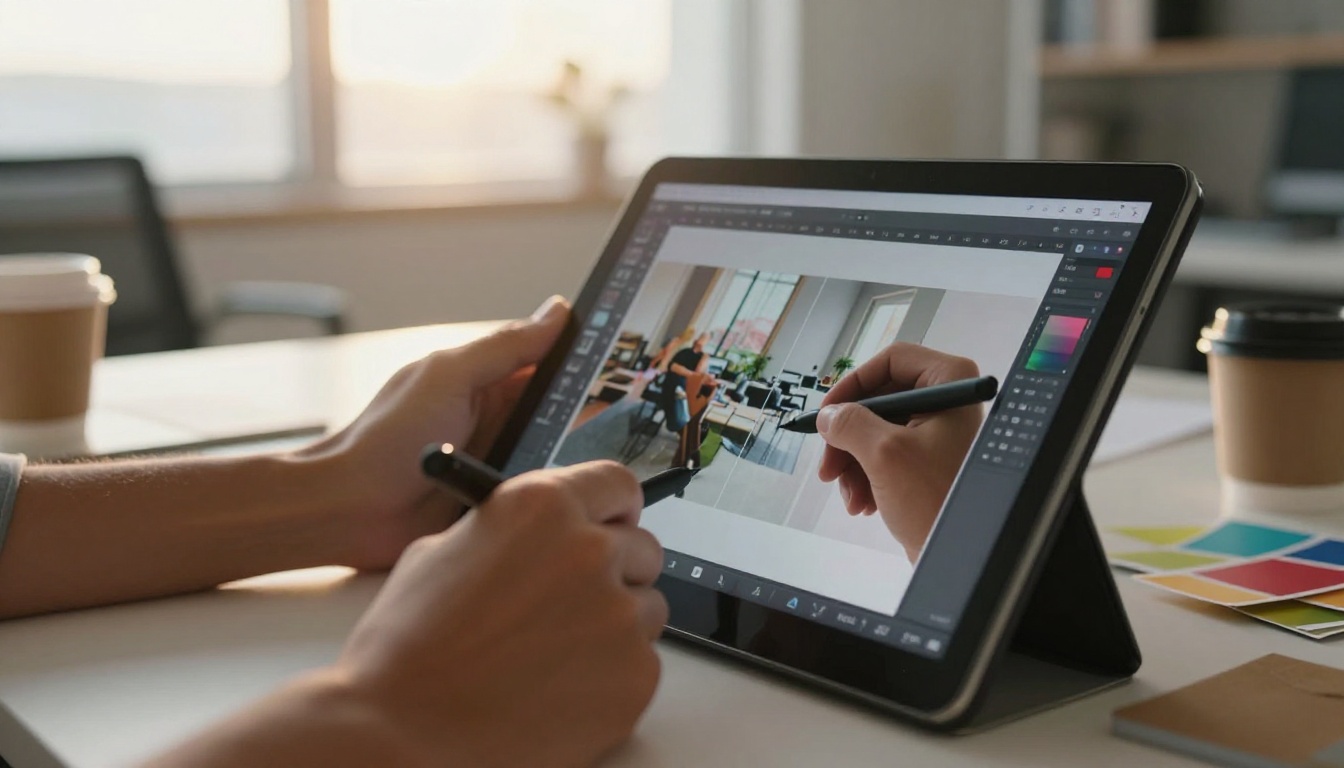
Text-to-image is the starting point, not the ceiling. Once you have a base image, a range of additional capabilities opens up.
Editing and Inpainting
Inpainting lets you paint over a specific region of an existing image and replace it with something new, without touching the rest of the scene. It is how you swap a background, change what a subject is wearing, or remove a distracting element from a generated scene. PicassoIA Image Editor Pro handles this directly in-browser.
Outpainting takes a different approach: it extends an existing image beyond its original borders, generating new content that blends naturally with what is already there.
Image Variations with Flux Redux Dev
Sometimes you have an image you like but want to see it interpreted differently. Flux Redux Dev takes an existing image as input and produces coherent variations that preserve the subject while changing lighting, angle, or environment. This is valuable for brands that need multiple versions of the same visual concept without reshooting from scratch.
Working with Recraft 20B and Reve Create
Recraft 20B and Reve Create both support rich style application. You can shift a realistic photograph toward an oil painting aesthetic, or push an illustrative prompt into photorealistic territory. The approach is to give these models specific style descriptors rather than relying on vague requests.
💡 Try this: Take a generated portrait and run it through Flux Redux Dev at 0.7 variation strength. You will get multiple coherent variations on the same face and composition, each with different lighting and angles.
What You Can Actually Create
Knowing what AI image generation is capable of helps you decide where to invest your prompting effort.
Portrait Photography
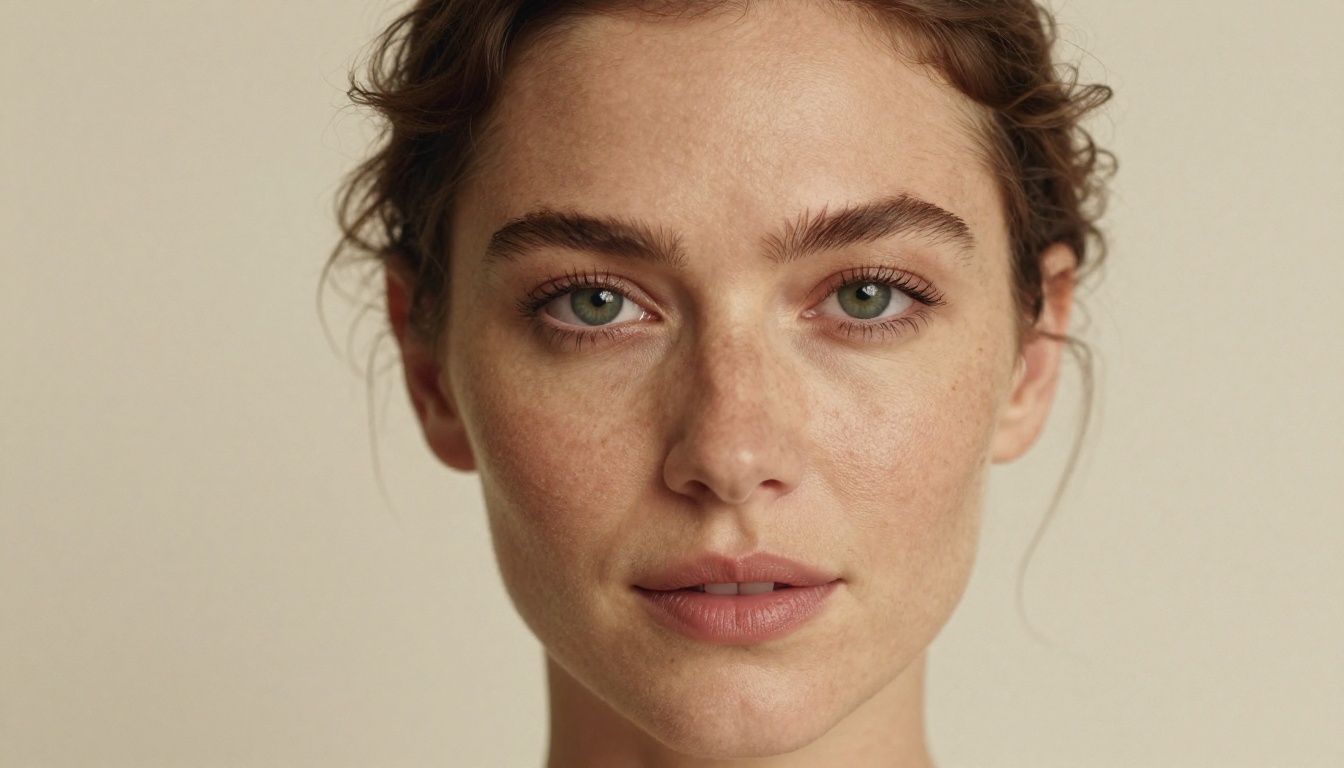
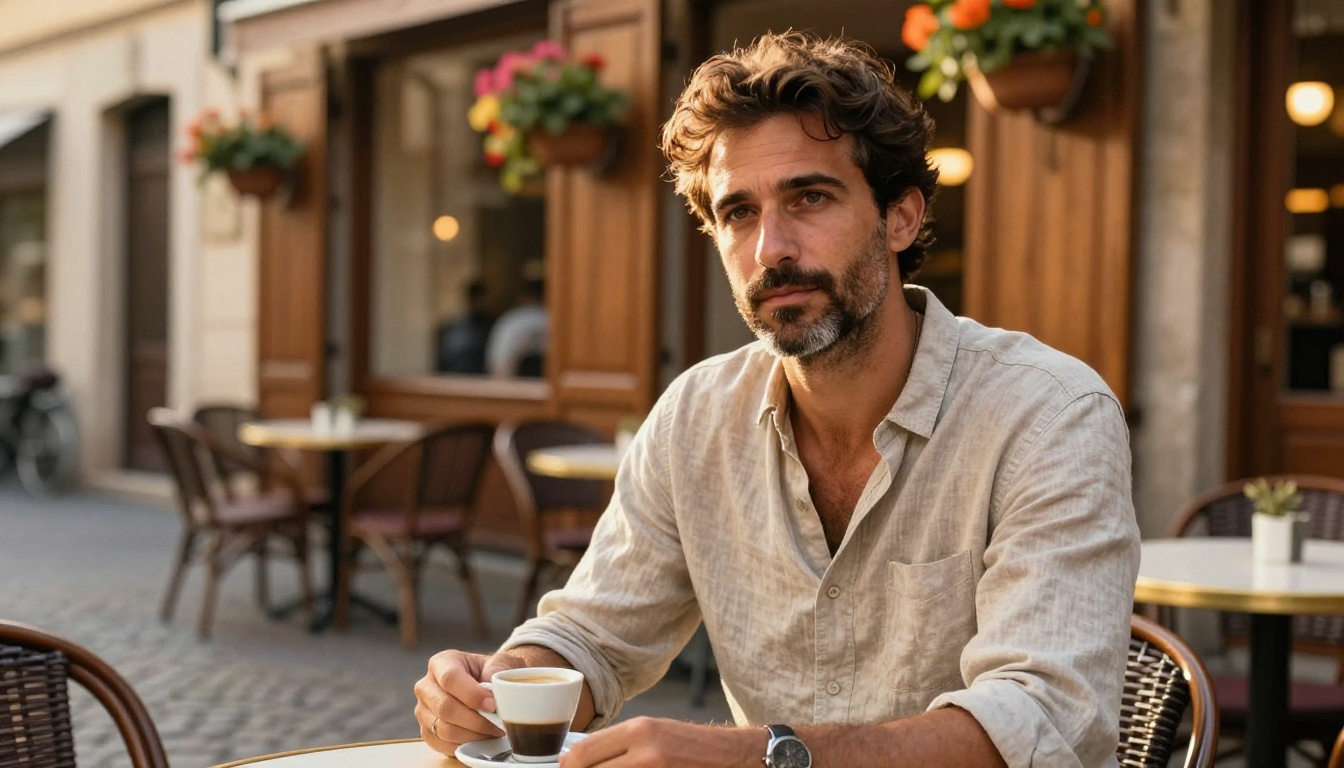
AI portrait generation has reached the point where outputs regularly pass the "is this real?" test. The models handle skin texture, catchlights, hair strands, and expression with accuracy that would have seemed impossible a few years ago.
For portraits, Seedream 4.5 and Wan 2.7 Image Pro produce some of the most convincing skin and hair detail currently available. Pair them with an 85mm f/1.4 lens description and soft natural lighting for best results.
Product Photography
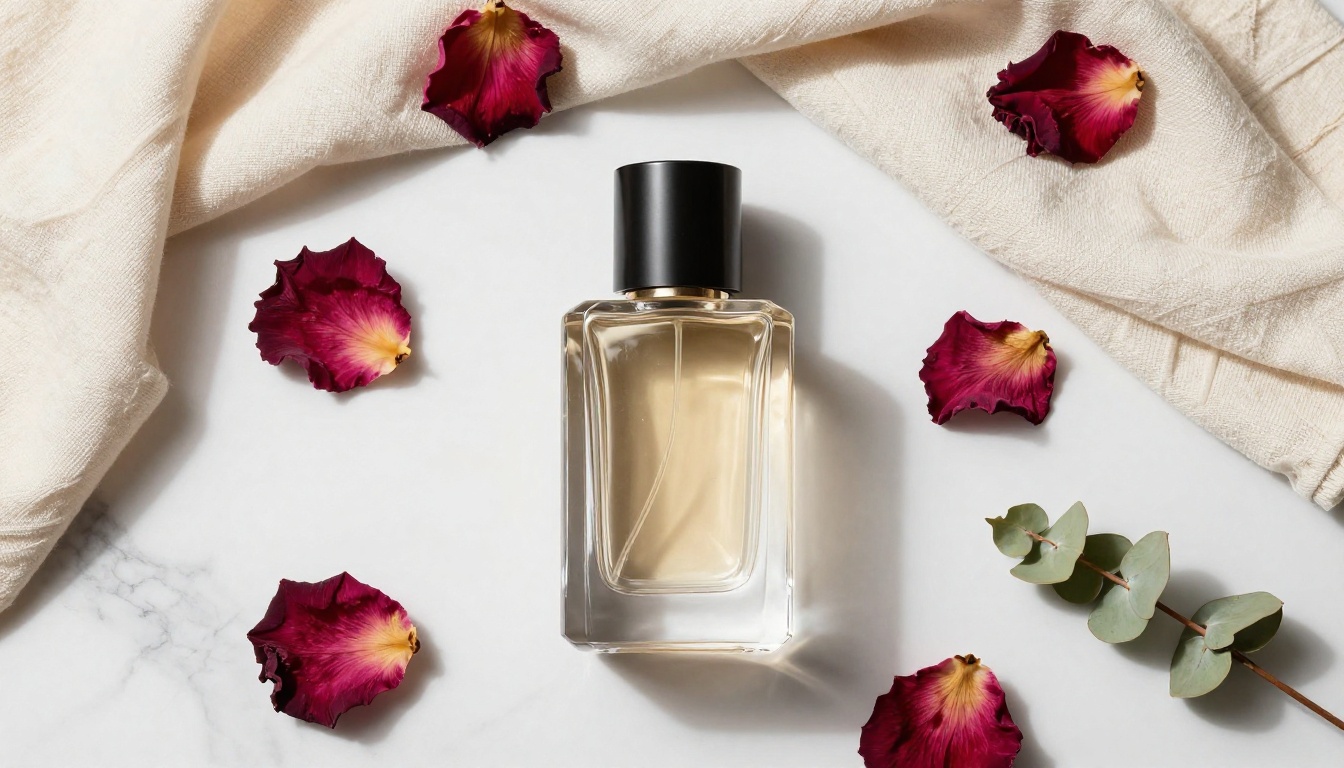
Commercial product photography is one of the clearest wins for AI image generation. Creating a clean product shot with the right lighting, surface texture, and background no longer requires a physical studio setup. Brands use this workflow for catalog images, social ads, and concept testing before committing to physical shoots.
A detailed product description combined with a marble or linen backdrop prompt produces results that are commercially usable straight out of the model.
Concept Art and Scene Building
For scene building, descriptive environmental prompts work best. Describe the time of day, the architecture, the weather, and the emotional tone you want the scene to carry. Stable Diffusion 3 handles complex multi-element scenes with strong spatial coherence.
Fashion and Glamour Photography
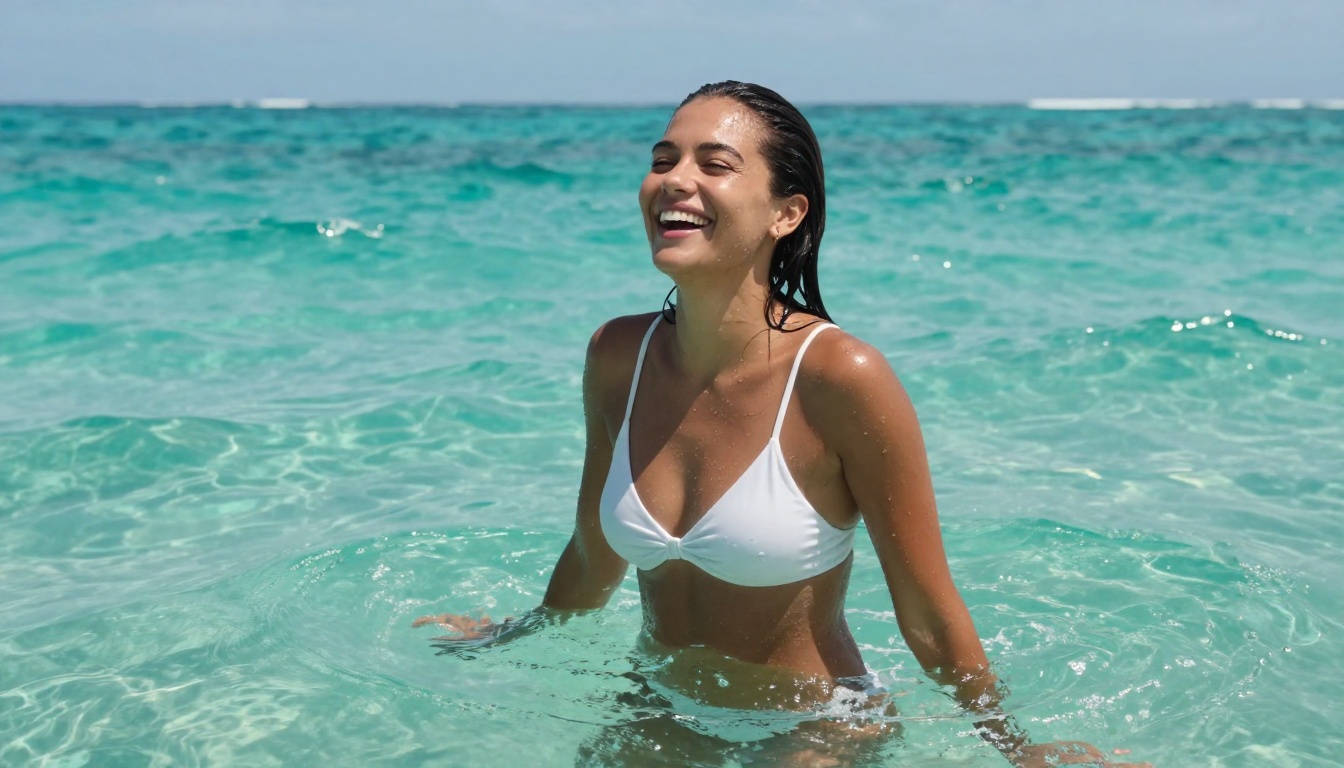
AI image generation handles fashion well, particularly for lookbook-style imagery. Describe the garment, the subject's pose and expression, and the shooting environment. Natural outdoor settings, golden hour on a rooftop or late afternoon in a courtyard, tend to produce the most visually compelling results.
The important thing with glamour photography is to be specific about what you want the image to suggest without being explicit. Aesthetic appeal comes from deliberate choices in lighting, framing, and mood description.
Why Model Choice Affects Everything
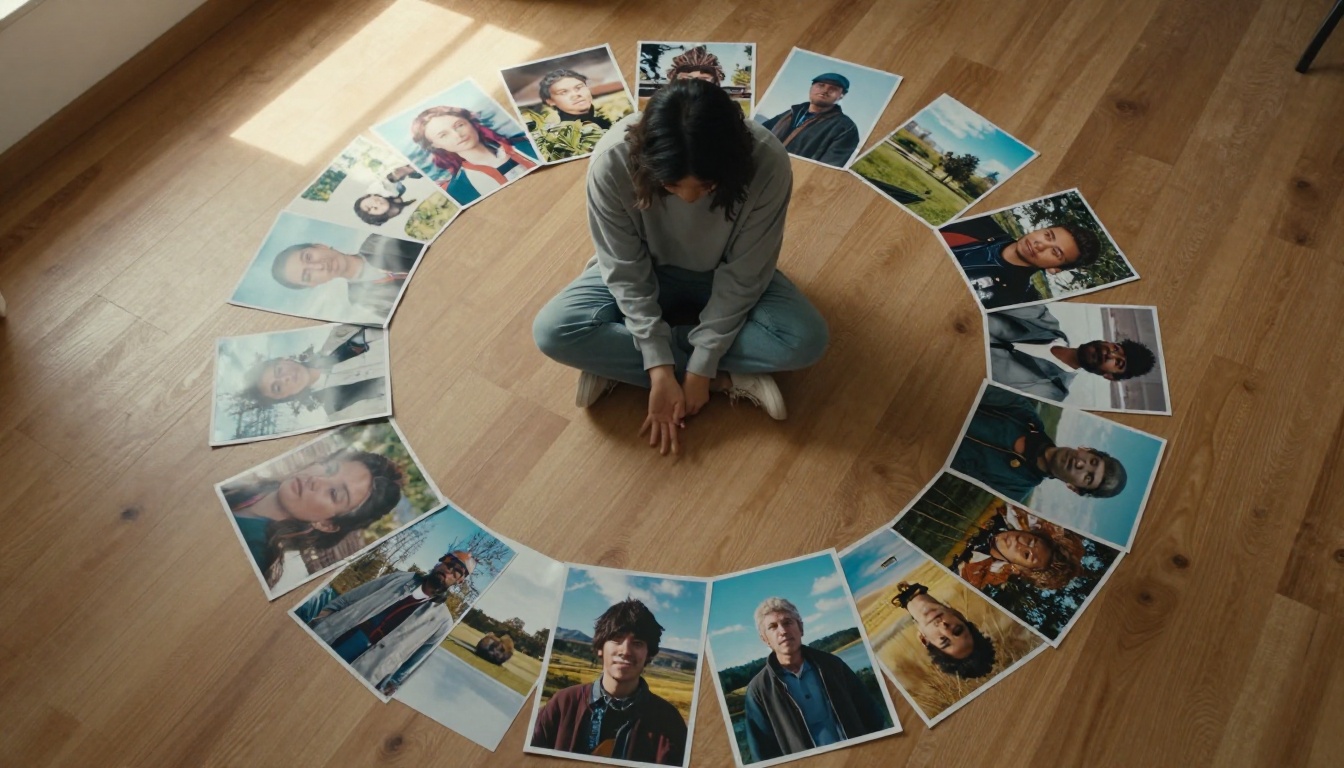
The same prompt run on three different models will produce three substantially different results. Each model has a distinct character shaped by its training data and architecture. This is a feature of the ecosystem, not a problem to work around.
GPT Image 2 tends toward clean, commercially polished outputs. Recraft 20B produces outputs with richer stylistic character. Stable Diffusion 3 handles complex multi-object scenes with stronger structural accuracy than many single-model alternatives.
Spend time running the same prompt across different models and build an instinct for which one handles which type of visual. That instinct is what separates someone who generates mediocre images from someone who consistently produces outstanding ones.
The Role of LoRA Fine-Tuning
LoRA (Low-Rank Adaptation) weights are small add-on files that shift a base model's behavior toward a specific style, subject, or aesthetic. They are what allows Flux Schnell LoRA to produce consistently styled outputs across an entire series.
If you need a brand's visual language to carry through a full content library, applying a LoRA on your preferred base model is the most efficient path to that consistency. P Image Trainer makes LoRA training accessible without requiring any machine learning background.
Start Making Images Today
AI image generation is one of those capabilities where the fastest path to skill is through volume. Reading about prompts helps. Running a hundred prompts and observing what works is better.
PicassoIA Image offers unlimited generation directly in your browser. No installation, no setup required. Type your first prompt, hit generate, and iterate from there. Every model covered in this article, Flux, Stable Diffusion 3, GPT Image 2, Seedream 4.5, and Wan 2.7 Image Pro, is available on the platform with no technical configuration.
Start simple. Pick a subject you genuinely care about. Describe it in detail. See what comes back. Adjust one element at a time. Within a few sessions, you will have a solid instinct for what makes a prompt work, and you will be producing images that look nothing like the generic AI output most people associate with the term.
The models are powerful. The interface is simple. The only thing between you and a great image is a well-written sentence.


