You type a prompt, wait a few seconds, and the image looks great. Then you notice a logo stamped in the corner, or a message saying you have used up today's credits. That is the everyday reality of the free AI image generator, and it is why so many people search for one with no watermark. The good news: clean, usable images are possible without paying. The catch is that every service draws its limits in a different place, and the marketing rarely tells you where.
This article lays out how watermarks, daily limits and resolution caps actually work, which online options hold up in practice, and how to get sharp, clean files without burning your allowance in the first ten minutes.
💡 Quick answer: No mainstream hosted generator offers truly unlimited free use with zero strings attached. Most give you a daily credit pool, a resolution ceiling, or a licence restriction. Pick the one whose limit hurts you least.
Why Free Images Get Watermarks
A watermark is not there to annoy you. It is a cheap way for a service to turn a free generation into advertising, and to push you toward a paid plan. If your free image carries the platform logo, every person who sees it becomes a potential customer. Removing the logo is the first thing the paid tier sells.
What the mark actually protects
Visible marks do three jobs. They advertise the tool, they separate "free" outputs from "paid" outputs, and they discourage resale of images produced on a no-cost plan. For a casual user making a birthday card, none of that matters. For a freelancer building a client mockup, a logo in the corner makes the image unusable.
Visible versus invisible marks
Here is where people get confused. A visible watermark is the logo you can see and, in theory, crop. An invisible watermark is a signal embedded in the pixels, designed to survive resizing and compression so that software can later detect that an image was machine made. Several large providers add this kind of hidden marker to every output, including paid ones.
So "no watermark" can mean two different things:
| Type | Can you see it? | Common on free plans? | Can you remove it? |
|---|
| Visible logo or text | Yes | Very common | Only by upgrading |
| Invisible signal in pixels | No | Common across big providers | Not realistically |
| Metadata tag in the file | No | Common | Stripped by re-saving |
When you search for a generator with no watermark, you almost always mean the first row. That is the standard worth checking before you commit to a tool.
Daily Limits Explained
Daily limits are the second wall you hit. Services describe them in confusing ways, so it helps to translate the wording into something you can plan around.
Credits versus images
Most sites do not give you a number of images. They give you credits, and each generation spends some. A fast, low-resolution draft might cost one credit. A high-resolution render, a longer prompt run or a multi-image batch can cost five or ten. Ten daily credits sounds generous until you realize a single premium render can swallow half of them.
Always check three things on a pricing page:
- How many credits you receive per day, and when the counter resets.
- How many credits a standard generation costs at the resolution you want.
- Whether unused credits roll over or vanish at midnight.
What free allowances look like
Reported numbers change constantly, and different review sites disagree, so treat these as ballpark figures and confirm on each pricing page. Roughly, in late 2026:
| Service style | Typical free allowance | Watermark on free output |
|---|
| Chat assistant with built-in image model | A small daily cap, often a handful of images | Often a visible mark plus a hidden one |
| Text-focused design tool | Around 10 credits per day | Often none, with licence terms stated |
| Creative suite style generator | A larger daily credit pool, around 150 reported | Varies by plan |
| Playground style site | A batch of images every few hours | Often none |
| Image sites built on open models | Queue based, sometimes unlimited but slow | Depends on the host |
One more thing to watch: some figures from review blogs come from the vendors themselves. If a number looks too generous, it probably is, or it is a promotional window.
Queues and peak throttling
Even a service marked "unlimited" can slow you down. At busy hours, free users wait in a queue behind paying customers. A single image that takes four seconds at night can take two minutes at midday. If you create images for work, speed is a hidden cost, and it matters as much as the credit count.
💡 Tip: Spend your daily credits on final renders. Draft with a fast, cheap model such as Z Image Turbo or Flux Schnell, then move to a heavier model only when the composition is right.
Resolution: What Free Really Gives

Resolution is the limit people notice last, usually when they try to print or post a banner. A free plan that hands you a 1024 by 1024 file is fine for a social post and useless for a poster.
Pixels versus usable size
A pixel count on its own tells you little. What matters is how large you can display or print the image before softness appears. As a rule of thumb:
| Pixel size | Good for | Print size at 300 DPI |
|---|
| 1024 x 1024 | Social posts, avatars, blog thumbnails | About 3.4 inches square |
| 1920 x 1080 | Slides, video thumbnails, web banners | About 6.4 x 3.6 inches |
| 2048 x 2048 (2K) | Detailed web art, small prints | About 6.8 inches square |
| 4096 x 4096 (4K) | Large prints, wallpapers, product shots | About 13.6 inches square |
Several models on PicassoIA are built for higher output. Seedream 4.5 targets 4K images from a text prompt, Seedream 5 Pro focuses on sharp 2K output, and Nano Banana Pro is listed for 4K generation. Check each model page for the current options and any usage limits before you plan a batch.
Upscaling instead of paying more
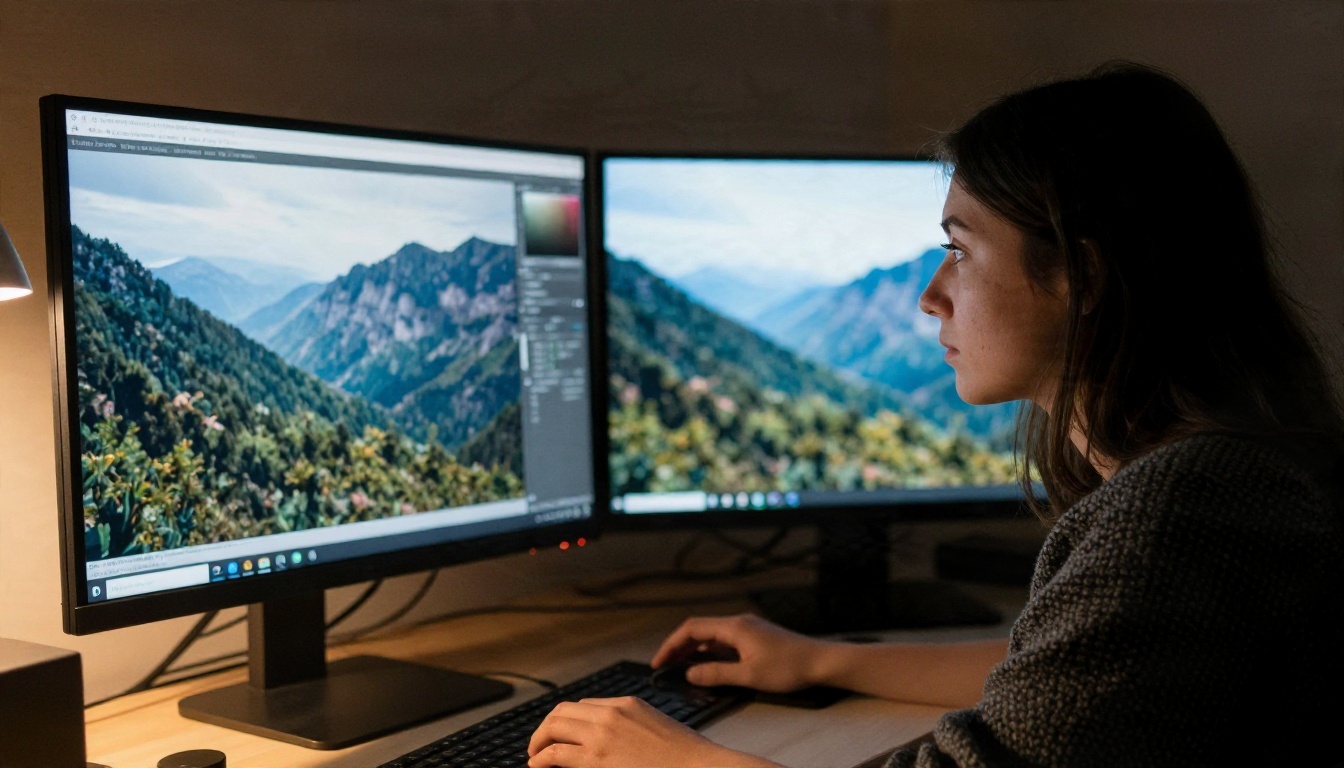
If a free plan caps you at a low resolution, you do not have to accept the cap. Generate the composition you like, then run it through an upscaler. Real ESRGAN enlarges images up to 4x and sharpens edges, which turns a 1024 pixel draft into something you can print at a decent size.
Upscaling has limits. It adds believable detail, but it cannot invent facts. Faces, small text and fine patterns can drift, so compare the enlarged version against the original before you use it. Do it last, after you have chosen the final image, so you only pay the extra processing once.
Free Online Options Compared
Free generators fall into a few families. Knowing the family tells you what to expect before you sign up.
Chat assistants with image tools
Large chat assistants now draw pictures inside the conversation. Google's Gemini, powered by a Nano Banana model, and similar assistants from other big companies are the easiest to try because you probably have an account already. The trade-off is a tight free cap, and reports mention visible marks on some free outputs plus a hidden provider signal on everything. They are great for a quick idea, poor for volume.
If you want the same model family with more control over output size, Nano Banana and Nano Banana 2 Lite are both listed on PicassoIA, along with the larger Nano Banana Pro.
Dedicated image sites
Websites built only for image generation tend to give a daily credit pool and cleaner exports. Ideogram is known for strong text rendering in posters and logos. Leonardo style platforms offer a larger daily pool with a gallery and editing tools. Playground style sites give a batch of images every few hours. These are the sites most people mean when they search for a free generator with no watermark, and their terms change often, so reread the plan page every few months.
Open models you can pick yourself
The third family hosts open and commercial models side by side and lets you choose. That matters, because the best model for a portrait is not the best model for typography or a product mockup. On PicassoIA you can switch between many options:
Commercial Use Rules
A clean file is not the same as a file you may sell. This is where free plans quietly trip people up.
Personal versus business use
Some free tiers restrict output to personal, non-commercial projects. Others, according to their own terms, allow commercial use even on the free plan. If you plan to put an image on a product, a client site or an ad, check the licence wording before you generate, not after. Moving a finished project to a new tool because of a licence problem wastes far more time than reading a terms page.
What to check before you publish
Run through this list before you use any free AI image in public:
- Licence: Does the free plan allow commercial use in writing?
- Watermark: Is the export clean at the size you need?
- Ownership: Does the service claim any rights over your output?
- Disclosure: Does the platform you publish on require an AI label?
- Likeness and brands: Does your image include a real person or a trademark you do not own?
💡 Tip: Keep a screenshot of the licence terms on the day you generate. Terms change, and a dated record protects you if a client asks.
Steps for Clean Images
Here is a simple workflow that stretches a small daily allowance and keeps your exports sharp. It works with any of the models above.
Write a tight prompt
Vague prompts waste credits because you keep regenerating. Describe the subject, the setting, the light and the camera in one or two sentences. For example: "A ceramic mug on a wooden table by a window, soft morning light from the left, 50mm lens, shallow depth of field, natural film grain." Concrete words like lens, light direction and surface texture steer the model toward photographic results.
Pick the model for the job
Match the model to the task. Use Flux Schnell or Imagen 4 Fast to test ideas, then switch to Seedream 4.5 or Imagen 4 Ultra for the final render. For edits to an existing photo, Nano Banana accepts a reference image.
Generate, review, then upscale
- Open the model page on PicassoIA and paste your prompt.
- Set the aspect ratio you actually need, such as 16:9 for banners or 1:1 for posts.
- Generate two or three drafts, not ten.
- Choose the best composition and re-run it at the highest size the model allows.
- Send the winner to Real ESRGAN if you need a larger file.
- Save in PNG for editing, or JPG for the web.
Fix small flaws without starting over
A stray finger or an odd reflection does not need a full regeneration. Use an editing pass to change one region, which costs less than a new image and keeps the rest of the composition. A model like Nano Banana handles targeted edits well when you describe only what should change.
Quick Sessions on Your Phone
Most people make images in short bursts: a commute, a lunch break, a coffee queue. That changes what matters. On a phone browser you want fast models, simple settings and files that do not need desktop editing. Stick to a speed-focused option such as Z Image Turbo, keep prompts short, and save the upscaling for when you are at a larger screen.
Common mistakes to avoid
- Regenerating without changing the prompt. The same words give similar results, so adjust something each time.
- Ignoring the aspect ratio. Cropping a square into a banner throws away pixels.
- Chasing "unlimited." A free tier with no cap is often slow or lower quality. Decide which you value more.
- Skipping the licence. A clean image can still be off limits for client work.
- Upscaling too early. Enlarge only the final pick.
How to stay inside the limits
Plan your session before you open the site. Write three prompts in a notes app, run each once, pick the best, and upscale only that one. This habit alone can double the number of finished images you get from the same daily credits. When the allowance runs out, switch to a different model rather than waiting for midnight, because different tools count their limits separately.
Make Your Own Clean Images Today
A clean, high-resolution picture without a logo in the corner is not a luxury. It comes down to choosing the right tool, reading the limits before you commit, and spending your credits where they count. Start with a fast draft model, move to a sharper one for the final version, and upscale the winner.
Open PicassoIA and try the same prompt on two or three models. Run it through Seedream 4.5, then Imagen 4, then Z Image Turbo, and compare the results side by side. You will see within minutes which one fits your style and your budget. When you want to try even more options, browse the full catalog at picassoia.com/en/all-models and build your own set of go-to models for clean, shareable images.


