Resolution is the first thing photographers argue about and the last thing most people actually grasp. You've seen the numbers: 12MP, 4K, 300 DPI. These figures only tell half the story. When AI enters the picture, the rules shift entirely, and the gap between a sharp image and a blurry one comes down to factors most creators overlook. This breakdown covers everything from pixel math to AI upscaling, with real tools you can use today on PicassoIA.
What Resolution Actually Is
Before anything else, resolution needs a clear definition. The word gets used to describe pixel count, print size, file size, and output quality all at once. They're related, but they're not the same thing.
Pixels and How They Stack Up
A pixel is the smallest unit of a digital image. Every photo you take or generate is a grid of pixels, each carrying one color value. More pixels mean more data. A 4000x3000 image contains 12 million pixels, commonly written as 12 megapixels (MP).
That grid determines how much detail the image can hold at full size. Zoom in on a 2MP photo at 100 percent and you'll hit visible squares quickly. Do the same with a 48MP image and the detail holds far longer before the individual pixels become apparent.
The critical point: pixel count is a capacity limit, not a quality guarantee. A 50MP image shot in poor light with a cheap lens will still look worse than a 12MP image from a quality sensor with proper exposure.
DPI vs PPI: The Real Difference
Two terms cause constant confusion:
- PPI (Pixels Per Inch): a screen measurement. A monitor running at 220 PPI packs 220 pixels into each inch of screen space. Higher PPI means sharper text and images on screen.
- DPI (Dots Per Inch): a print measurement. A printer at 300 DPI lays down 300 ink dots per inch. Below 200 DPI, printed photos show visible grain.
The same image file at 72 PPI looks fine on a laptop screen. Print it at 72 DPI and it looks poor. Nothing changed in the file. Only the output medium changed.
💡 For web use: 72-96 PPI is standard. For print: 300 DPI minimum. For large-format prints viewed from a distance: 150 DPI can suffice because viewing distance compensates for lower density.
Why Megapixels Are Misleading
The megapixel race peaked around 2010 when smartphone manufacturers competed on raw numbers. A 108MP phone sensor sounds impressive on spec sheets. Often, the real-world results tell a different story.
The Quality vs. Size Trap
A 108MP image from a small sensor produces 108 million tiny, noisy pixels. Each pixel on a small sensor captures less light than a pixel on a larger sensor. Less light means more noise, and more noise means less perceived sharpness even at high resolution.
This is why a well-lit 24MP photo from a full-frame camera often looks sharper than a 108MP photo from a cramped 1/1.7-inch phone sensor in identical lighting conditions.
What actually determines image sharpness:
- Sensor size relative to pixel count
- Lens optical quality and construction
- Exposure settings (ISO, shutter speed, aperture)
- Post-processing (sharpening, noise reduction)
- Output medium (screen vs. print)
Sensor Size Changes Everything
Camera sensor size determines how much light each pixel receives. Standard sizes from largest to smallest:
| Sensor Format | Approximate Size | Typical Use |
|---|
| Full Frame (35mm) | 36 x 24mm | Professional cameras |
| APS-C | 23.6 x 15.7mm | Enthusiast cameras |
| Micro Four Thirds | 17.3 x 13mm | Mirrorless systems |
| 1-inch | 13.2 x 8.8mm | Premium compacts |
| 1/1.7-inch | 7.6 x 5.7mm | High-end phones |
| 1/2.3-inch | 6.2 x 4.6mm | Standard phones |
A full-frame sensor at 24MP will consistently out-resolve a phone sensor at 64MP in low light. Physics, not marketing.
How AI Generates Images at Different Resolutions
AI image generators work differently from cameras. They don't capture photons. They calculate pixel values based on training data and your text prompt. This changes how resolution and quality interact fundamentally.
Native Output Size Explained
Most AI image models have a native output resolution. Models trained on 512x512 images produce their best results at that size. Models trained at 1024x1024 handle that resolution natively. When you push a model outside its native range, the output often shows repeating patterns, blurry regions, or structural inconsistencies.
Common native outputs by model type:
- Stable Diffusion 1.5: 512x512
- SDXL-based models: 1024x1024
- Flux models: up to 1440x1440
- Ideogram, Recraft: variable, optimized for higher resolutions natively
Running inference at 768x512 on a 1024-native model is not simply a crop operation. The model tries to fill a different aspect ratio than its training distribution, often producing mixed results at the edges of the frame.
The Upscaling Problem
A 1024x1024 image looks decent on screen. Print it at 8x8 inches at 300 DPI and you need a 2400x2400 image minimum. The gap has to come from somewhere.
Traditional upscaling methods (Lanczos, bicubic) fill missing pixels by averaging neighboring values. The result is soft edges and a blurry, washed-out appearance at high zoom. This was the state of image scaling for decades.
AI upscaling works differently. Instead of averaging, it predicts what the missing pixels should look like based on patterns learned from millions of images. The result is a sharpened image with plausible added texture rather than blurry guesswork.
Compression Artifacts and What Kills Quality
Pixel count matters. But compression is what destroys image quality in practice. You can have a 50MP RAW file and ruin it in seconds with the wrong export settings.
JPEG vs PNG vs WebP
Each format makes different trade-offs:
| Format | Compression | Transparency | Best For |
|---|
| JPEG | Lossy | No | Photos, web images |
| PNG | Lossless | Yes | Graphics, screenshots |
| WebP | Both modes | Yes | Web with modern browsers |
| TIFF | Lossless | Yes | Print, professional archiving |
| AVIF | Lossy/Lossless | Yes | Next-gen web delivery |
JPEG uses a block-based algorithm called DCT (Discrete Cosine Transform). At high quality settings (90-95), the artifacts are invisible. Drop below quality 60 and you'll see blocky squares, color smearing, and edge ringing, especially in areas with sharp color transitions like text on backgrounds or hair against sky.
Bit Depth: The Hidden Quality Factor
Alongside resolution, bit depth determines how many color values each pixel can represent:
- 8-bit color: 256 values per channel (R, G, B) = 16.7 million possible colors
- 16-bit color: 65,536 values per channel = 281 trillion possible colors
In practice, you won't see 281 trillion distinct colors on any current display. The difference shows when you edit. Push the shadows up 3 stops in an 8-bit file and you'll see banding in gradients and color posterization. Do the same in 16-bit and the gradients remain smooth because there's enough data to absorb the edit without information loss.
AI image generators output in 8-bit by default. For web use, this is sufficient. For serious print work or heavy post-processing, work in 16-bit TIFF until the final export step.
💡 RAW files contain no compression of captured data. Every pixel value is preserved exactly as the sensor recorded it. This is why photographers shoot RAW for anything requiring serious editing.
How to Spot Artifact Damage
Three artifact types appear most frequently:
Blocking: Squares of uniform color in high-frequency areas. Common in JPEG files saved below quality 50.
Ringing (Gibbs effect): Dark halos around high-contrast edges, most visible around text rendered on solid backgrounds.
Color banding: Gradients that should be smooth show as visible steps, most obvious in skies and shadow regions.
Once these artifacts exist in a file, no amount of sharpening reverses them cleanly. AI upscalers can reduce the visual impact, but the original data is permanently gone.
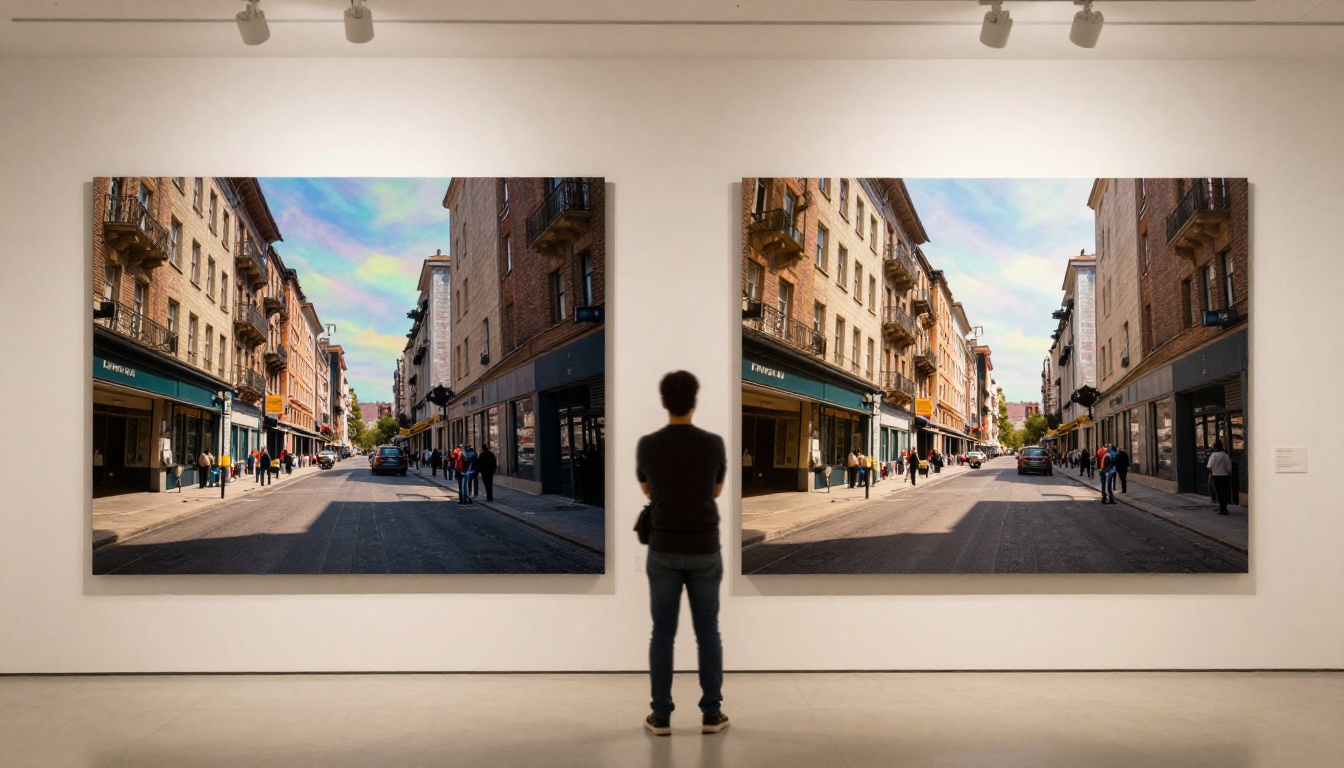
Several tools on PicassoIA handle upscaling with noticeably different results depending on subject matter. Here's a practical breakdown of what's available and when to use each:
Clarity Pro Upscaler
Clarity Pro Upscaler is built for photorealistic images where texture fidelity matters. It runs a diffusion process over the upscaled image, adding micro-details in skin pores, fabric weave, and surface texture that simpler upscalers leave flat and indistinct.
Best for: portraits, product shots, fashion photography, and any image where fine surface texture defines the quality of the result.
Real ESRGAN for Batch Work
Real ESRGAN is fast and reliable for batch processing. Developed through extensive training on degraded image pairs, it handles noise removal and sharpening simultaneously. The output is clean without the occasional over-smoothing that plagues some diffusion-based upscalers.
Best for: old scanned photos, screenshots, low-resolution social media images, and quick batch processing jobs.
Crystal Upscaler for Portraits
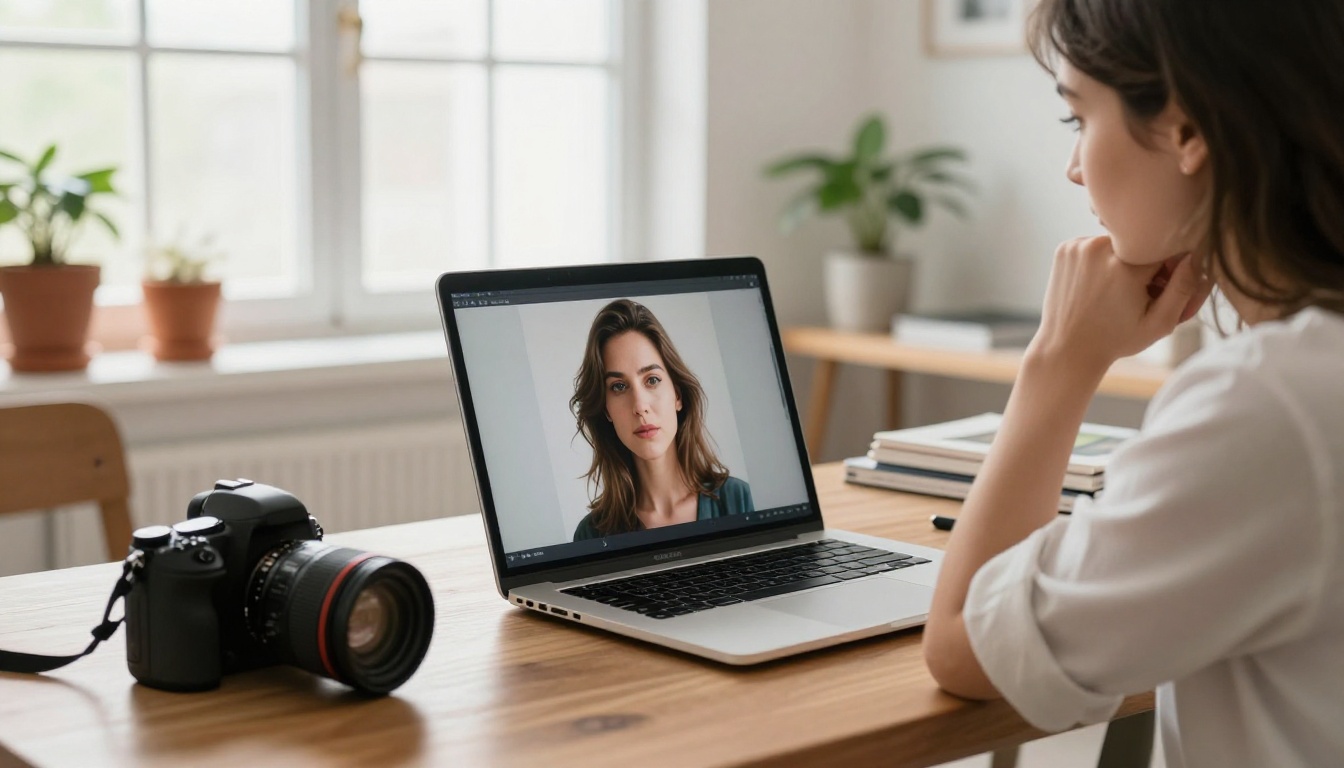
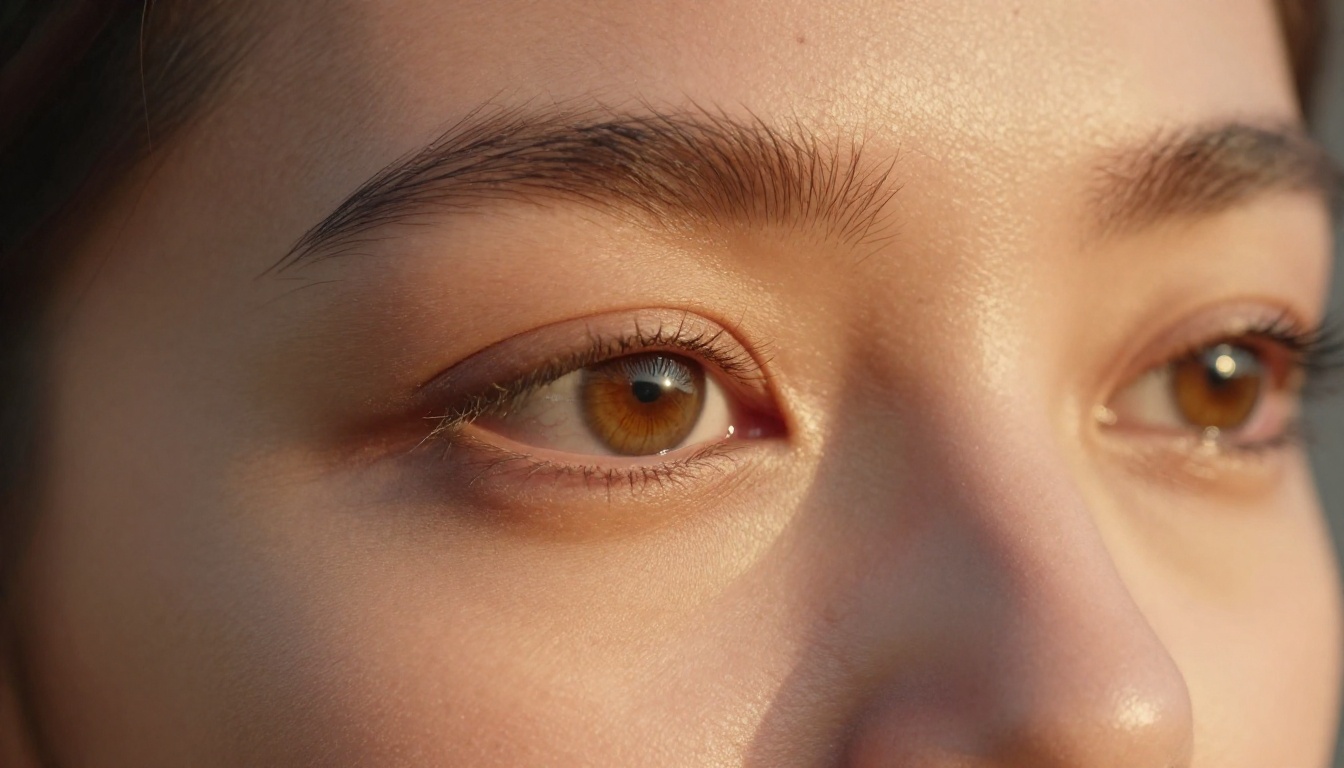
Crystal Upscaler specializes in portrait enhancement. It's trained specifically on face regions, applying sharper rendering to eyes, eyelashes, skin detail, and individual hair strands.
Best for: close-up portraits, profile photos, and professional headshots.
Google Upscaler at 4x
Google Upscaler offers reliable 4x upscaling with consistent output across diverse image types. You don't need to think about subject matter: it handles landscapes, architecture, and people with the same quality floor.
Best for: mixed content, architectural shots, landscapes, and situations where you need consistent results without model selection decisions.
Topaz for Maximum Output
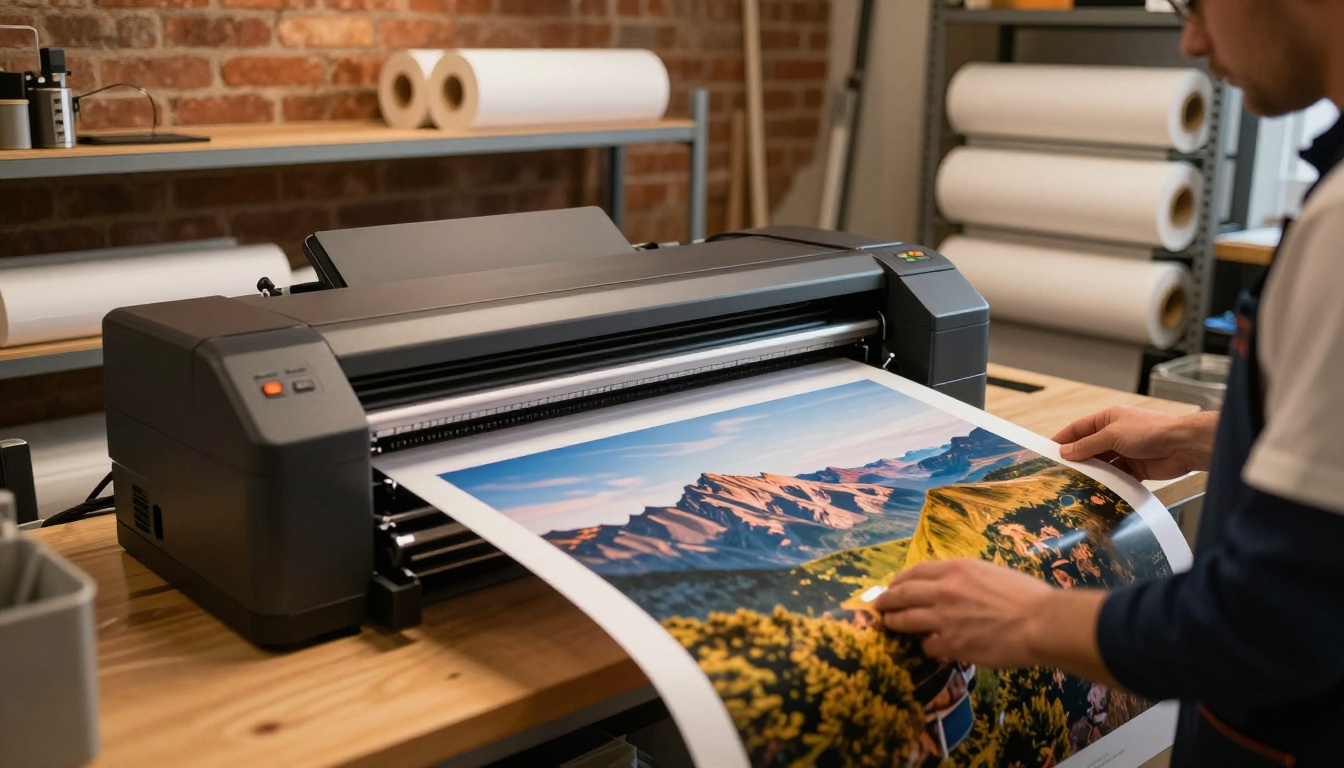
Image Upscale by Topaz Labs pushes up to 6x enlargement with industry-leading detail preservation. For creators who need print-ready files from small source images, this is often the ceiling of what's possible without re-generating the image entirely.
Best for: print production, large-format output, and commercial photography workflows where maximum enlargement is the priority.
Getting Sharper Results From the Start
Upscaling improves a weak image. A strong image needs less intervention. The best place to invest effort is at the generation stage, before any upscaling tool is involved.
Write Prompts With Detail in Mind
AI image models respond to specificity. Vague prompts produce vague output. Detailed prompts produce images where the model allocates its capacity toward specific textures, surfaces, and material qualities.
Compare these two prompts:
- Weak: "a woman in a coffee shop"
- Strong: "a woman in her early thirties sitting at a marble-top table in a European cafe, afternoon window light from the left creating catchlight in green eyes, espresso cup in hand, navy wool coat, visible marble surface grain, 85mm f/1.8 depth of field, Kodak Portra 400 grain"
The second prompt gives the model spatial, material, and lighting information. The output will show more rendered detail in the areas specified.
Prompt elements that increase rendered detail:
| Element | Example |
|---|
| Camera lens | "85mm f/1.4, shallow depth of field" |
| Film stock | "Kodak Portra 400, natural grain structure" |
| Lighting direction | "volumetric morning light from the left" |
| Surface texture | "visible leather grain, rough canvas weave" |
| Shot distance | "extreme close-up" or "aerial wide shot" |
Choosing the Right Model
Different models have different strengths. Matching your subject to the right model is as important as resolution settings. On PicassoIA, you have access to over 91 text-to-image models. For photorealistic output requiring sharp detail, models optimized for photography (rather than illustration or concept art) will consistently produce higher-fidelity textures and more accurate rendering of surfaces and light.
💡 Check the model examples on each model page to calibrate expectations. A model that handles portraits beautifully may produce flat texture on architectural subjects. Choose based on what your image actually contains.
Step-by-Step: Upscaling on PicassoIA
PicassoIA's super-resolution tools are accessible directly from the platform without local software or hardware requirements. Here's how the workflow runs:
Step 1: Start With Your Best Source
Begin with the best quality version of your image available. If you're using an AI-generated image, save it at the native output resolution before upscaling. Upscaling a heavily compressed or low-quality source doubles the existing problems instead of solving them.
Step 2: Pick the Right Model
Step 3: Check the Output at 100%
Zoom to 100 percent on the upscaled result. Look at three areas:
- Edges: Are they sharper, or has ringing appeared?
- Flat areas: Smooth gradients should stay smooth, not show added noise.
- Fine textures: Hair, fabric, and skin should have more definition, not smearing.
If the result doesn't satisfy, try a different upscaler model. Each uses a different training approach and some subjects respond better to specific architectures.
Step 4: Export for Your Output Medium
- Web: Save as WebP at 85 quality or JPEG at 90-95 quality. Size the image to no larger than displayed.
- Social media: Most platforms recompress uploads. Export at 2x your target display size.
- Print: Save as TIFF or high-quality JPEG at 300 DPI for the target print size.
Comparing AI Upscalers Side by Side
Quick reference for choosing between the upscalers available on PicassoIA:
💡 "Creative Hallucination" here means how much the upscaler invents new detail vs. sharpening what already exists. High hallucination adds texture that wasn't there. Low hallucination stays faithful to the source.
The Numbers Behind Print Quality
If you plan to print your AI-generated images, the math is straightforward but unforgiving.
Required resolution by print size at 300 DPI:
| Print Size | Required Pixels | Approximate Megapixels |
|---|
| 4x6 inches | 1200 x 1800px | 2.2 MP |
| 8x10 inches | 2400 x 3000px | 7.2 MP |
| 11x14 inches | 3300 x 4200px | 13.9 MP |
| 16x20 inches | 4800 x 6000px | 28.8 MP |
| 24x36 inches | 7200 x 10800px | 77.8 MP |
Most AI models produce images in the 1024-1440px range natively. That covers 4x6 at 300 DPI comfortably. For anything larger, upscaling is necessary, and for poster-size prints, you'll need multiple upscaling passes or the 6x output from Image Upscale by Topaz Labs to avoid visible softness at normal viewing distances.
For very large prints (24x36 inches and above), consider re-generating your image at the highest native resolution your model supports before upscaling. Starting from 1440px and going to 6x gives you 8640px, which prints cleanly at 240 DPI at 36 inches wide. That's poster territory from a single AI generation pass plus one upscale.
Start Creating High-Resolution Images on PicassoIA
Every model covered here is available on PicassoIA, with no local installation or hardware requirements. You bring a prompt or an existing image, and the platform handles the compute.
The workflow worth trying first: generate an image with a detailed, texture-specific prompt using one of the 91+ text-to-image models, then run the result through Clarity Pro Upscaler or Image Upscale by Topaz Labs. The difference between a native 1024px output and a well-upscaled 4096px version is immediately visible at 100 percent zoom.
For photographers working with real photos rather than AI-generated images, Real ESRGAN and Bria's Increase Resolution handle older scans and compressed files reliably. For creative AI output with stylized aesthetics, Recraft Creative Upscale adds texture in ways that complement the original generation rather than fighting against it.
The gap between a 1024px draft and a publication-ready 4096px image used to require expensive software and a powerful local machine. Now it takes one click. Browse all available super-resolution models and the full model catalog at picassoia.com/en/all-models.