There is a specific way people use AI image generators that makes everything faster, and most creators are not doing it. It is not about finding a better model or writing longer prompts. It is about how you structure your session: what you batch together, in what order, and what happens after the first generation. Once you have this in place, you stop spending hours on image creation and start spending minutes.
The Time Problem Nobody Wants to Admit
Most creators approach AI image generation the same way they approached stock photo searches in 2012: one attempt, look at the result, try again if it is wrong. That habit transfers badly to AI tools. With a traditional stock library, each search costs you five seconds. With an AI generator, each generation cycle costs you attention, context, and momentum.
The real bottleneck is not generation speed. Modern models are fast. Flux Schnell produces a finished image in under five seconds. The bottleneck is the loop: prompt, wait, evaluate, adjust, repeat, one image at a time.
If you are generating images one by one, rewriting your prompt after each result, you are burning time on the wrong part of the process. A typical creator doing it this way spends 40 to 90 minutes getting images that could have been ready in under 15.
What the Trick Actually Is
The trick is prompt batching combined with upscaling as a second pass. You write all your prompts first. You generate them all at once. Then you upscale only the ones worth keeping. That is it. Three phases, no back-and-forth, no second-guessing mid-session.
It sounds simple because it is. But the way you execute each phase determines whether you save two hours or twenty minutes.
Prompt Batching in Practice
Before you open the generator, write down every image you need for the project in a plain list. Do not open a tab. Do not start generating. Write.
For a standard blog post or campaign with 8 images, this takes about 12 minutes. You describe each image in detail: the subject, the angle, the light source, the background, the mood. You are essentially writing a shot list before a photo shoot.
When you open Flux Dev or another text-to-image model, you paste each prompt and fire them off in sequence without stopping to evaluate. The evaluating comes later.
Why this works: You stay in writing mode, not decision mode. The two are cognitively different. Switching between them repeatedly is what burns time.

Why Most People Skip This
The honest answer: it feels slower in the first five minutes. Writing 8 prompts before seeing a single result is uncomfortable if you are used to instant feedback. Most people break before they finish the list.
But the numbers do not lie. One-by-one generation with mid-session adjustments takes 45 to 90 minutes for 8 images. Batched generation with a pre-written prompt list takes 12 to 18 minutes for the same 8 images, including the writing time.
The discomfort at the start is the entire reason the trick works. You front-load the slow part and then coast through the fast part.
How Flux Dev Changes the Math
Not all text-to-image models are equal for batch workflows. Flux Dev is a 12-billion parameter model built for high-resolution output with predictable quality across varied prompts. That predictability matters when you are batching because it means your results are more consistent without per-prompt tuning.
The model supports image-to-image editing too, so if you have a reference shot you want to redirect, you can feed it into the batch alongside your text-only prompts and keep everything in the same workflow.
The Settings That Actually Matter
Most of Flux Dev's default settings are fine for batch work. The two you need to pay attention to are inference steps and aspect ratio:
| Setting | Recommended Value | Why |
|---|
| Inference Steps | 28 for batch drafts | Faster, still high quality output |
| Aspect Ratio | Set once per content type | Eliminates post-crop work entirely |
| Seed | Leave random for batch | Keeps variety across all outputs |
| Go Fast | Keep enabled | Cuts time without visible quality loss |
| Output Format | WebP for web, PNG for print | Matches your final delivery format |
The inference steps setting is the biggest lever. At 28 steps you get roughly 90% of the output quality at about half the time of a 50-step run. For batch drafts, this is the right trade-off. You can always run a final version at higher steps for the single image you end up using most.
Aspect Ratios That Save Resizing Time
Flux Dev supports 11 aspect ratios. For batch workflows, pick the right ratio before generating, not after.
- 16:9 for website headers, YouTube thumbnails, blog images
- 1:1 for social posts, product shots, profile images
- 9:16 for Instagram Stories, TikTok, vertical ads
- 4:5 for Instagram feed posts, portrait-format content
- 3:2 for editorial photographs, print media layouts
Generating in the wrong ratio and cropping later is a time tax you pay on every single image. Over a batch of 20 images, that adds up to real minutes and sometimes forces a re-generation anyway.
Practical tip: If your project mixes formats, separate your prompt list by ratio before you start. Group all the 16:9 prompts together, then all the 1:1 prompts. You avoid toggling the setting between every single generation.
The Upscaling Step Nobody Does
Here is where most creators leave serious quality on the table. They generate an image, it looks good enough on screen, and they use it. They do not upscale.
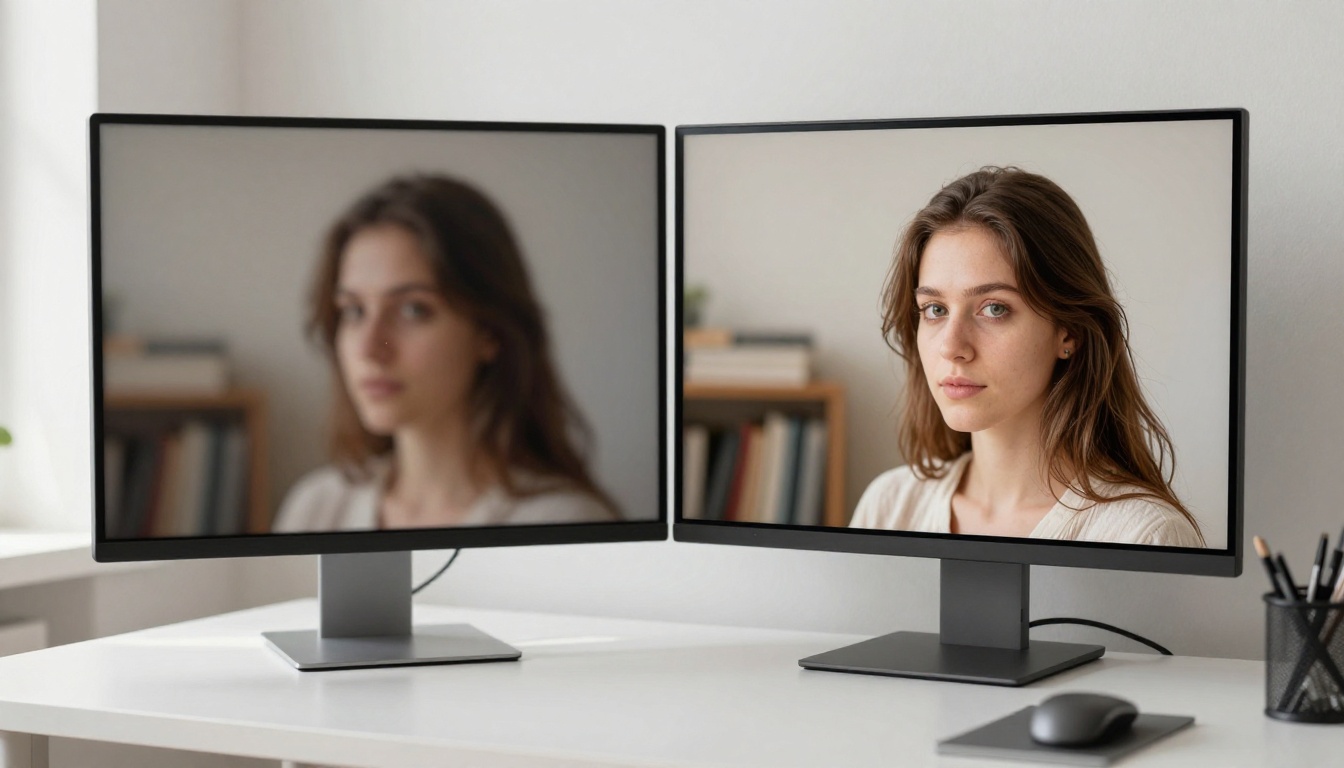
Upscaling after generation is the second half of the trick. It takes an already-good image and makes it sharper, more detailed, and genuinely print-ready. The difference between a 1-megapixel AI output and a properly upscaled version is visible in almost any context: web, print, social, or presentation.
Four Upscalers Worth Your Time
PicassoIA has nine super-resolution models. Here are the four that matter most depending on your use case:
Clarity Pro Upscaler is the go-to for photorealistic content. It adds micro-detail, sharpens edges, and recovers texture that the base model smoothed over. Best for portraits, landscapes, and product photography where fine surface detail matters.
Crystal Upscaler is specifically tuned for portrait work. If your batch included headshots, character images, or any close-up of a face, this is the one to run. It handles skin texture and hair detail better than general-purpose upscalers.
Real ESRGAN is the reliable workhorse. It does a solid 4x upscale on almost any image type without over-sharpening or introducing artifacts. If you are not sure which upscaler to use, start here.
Topaz Image Upscale goes up to 6x and handles fine textures like fabric, grass, and architectural detail exceptionally well. Use it when you need the largest possible output or when texture fidelity is critical.
When to Push to 4x
Not every image needs maximum upscaling. Use this simple decision rule:
- Web use only (blog, social, digital ads): 2x is usually enough. File sizes stay manageable and loading speed stays fast.
- Print, large-format, or high-DPI screens: Go 4x or higher. The Bria Increase Resolution model handles this reliably with sharp results up to 4x native resolution.
- Portrait or face-forward content: Use Crystal Upscaler at 4x regardless of end use. The detail improvement on skin and hair is always worth it.
- Speed is the priority: Try P Image Upscale, which produces sharp results in about one second per image. Fast enough to run on every output in your batch without adding meaningful time.
A Real Workflow That Holds Up
Here is the complete three-phase workflow spelled out. This is not hypothetical. It works consistently across content types from blog images to social campaigns to product photography.

Phase 1: Write Your Batch
Open a plain text file. Write one prompt per line. For each image, follow this structure:
- Start with the subject and what it is doing or how it is positioned
- Add the environment or background context
- Specify the lighting: direction, quality, time of day, color temperature
- Name the camera angle and lens focal length (28mm wide, 85mm portrait, 105mm macro)
- Add atmosphere or texture details specific to the surfaces in frame
- End with your target aspect ratio and
--style raw
Do not skip the camera and lighting details. These are the two variables that most affect whether an image looks professional or generic. A prompt that says "a woman at a desk" produces something generic. A prompt that says "medium shot, woman at a minimal desk, soft daylight from the left, 85mm f/1.8, blurred bookshelf background, Kodak Portra 400 grain" produces something you can actually publish.
Phase 2: Generate at Speed
Open Flux Dev or Flux Schnell on PicassoIA. Paste and run each prompt in sequence. Do not stop to evaluate. Do not regenerate anything mid-session. Your job in this phase is to get every image generated, not to pick winners.
If you are generating 10 images with Flux Dev, this phase takes 3 to 8 minutes. You end this phase with a full set of raw outputs ready for review.
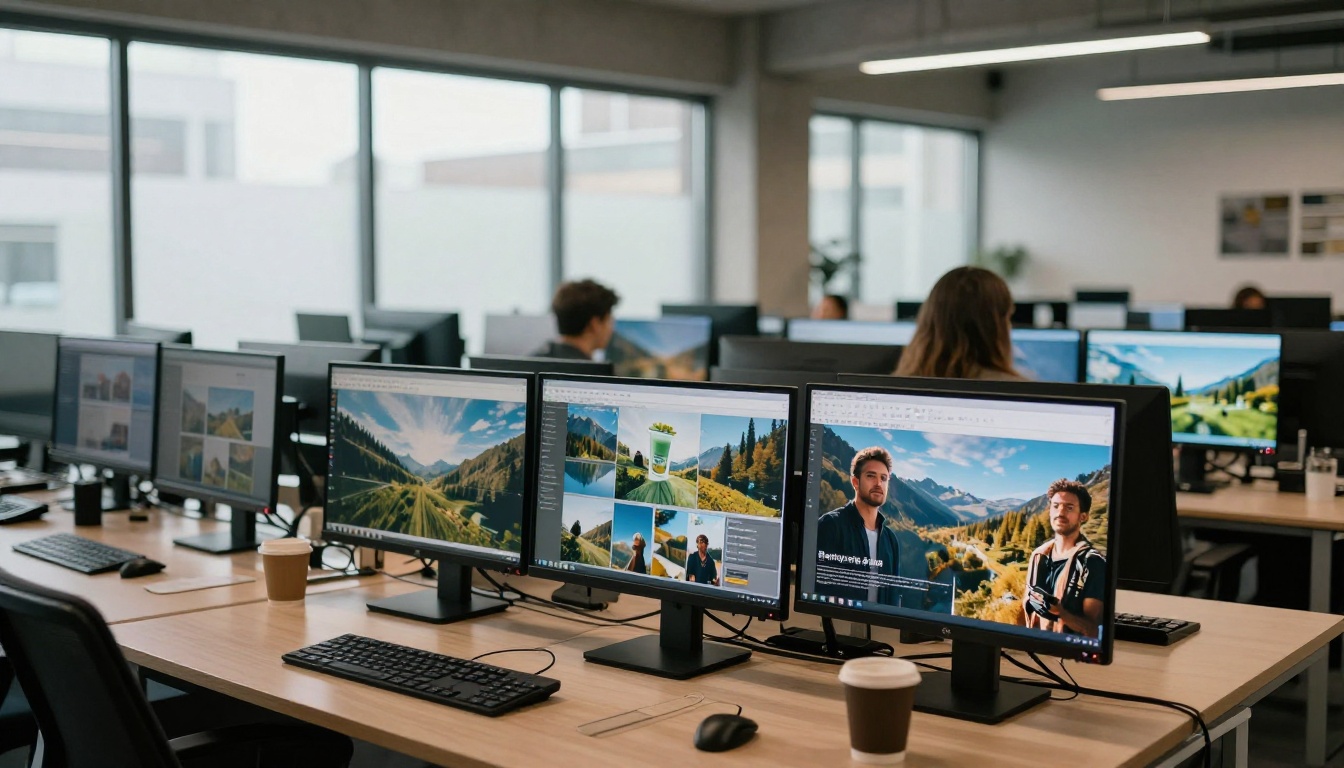
Phase 3: Upscale the Best Ones
Now you evaluate. Look at all the outputs at once. Pick the ones that are close to right. Run those through the appropriate upscaler on PicassoIA. Discard the rest without regenerating.
The rule: Only regenerate an image if you need a completely different composition. If the image is "almost right," upscaling will often fix what bothers you. Upscalers add sharpness and texture that make slightly soft images look intentional and polished.
For most projects, you will use 70 to 80% of your batch after upscaling. That hit rate, combined with the time saved in generation, is what makes this approach work at scale.
Three Mistakes That Kill Your Time
Mistake 1: Evaluating during generation. The moment you stop to look at one image and decide whether to keep it, you have broken the batch workflow. Finish all generations first, every time. Evaluating during the batch is the single most common reason this approach fails.
Mistake 2: Using the wrong aspect ratio. Generating in 1:1 when you need 16:9 for your header is not a minor inconvenience. Cropping afterward either removes content you wanted or forces a complete re-generation. Set the ratio correctly in your prompt list before the session starts.
Mistake 3: Skipping upscaling on anything that will be seen at full size. A 1-megapixel output displayed at 800x450 pixels on a web page looks fine. The same image displayed at 1920x1080 or printed at A4 size will show softness and noise. Run Recraft Crisp Upscale or Google Upscaler on anything that needs to hold up at larger display sizes.

Questions This Approach Raises
Does this work for product photography? Yes. Write detailed prompts for each product angle, generate them in batch, then run Clarity Pro Upscaler on the winners. Product shots benefit especially from upscaling because fine details like stitching, labels, and material surfaces become noticeably sharper.
What about visual consistency across a set? Use a fixed seed on Flux Dev when you need multiple images that share a visual style. Set the seed once, vary only the subject details in your prompt, and you get a consistent lighting and color treatment across the entire batch.
How many images can you realistically batch? Most people work in batches of 8 to 20. Larger than that and the evaluation phase becomes its own time sink. If you need 40 images for a project, split it into two or three sessions and evaluate between them.

Does resolution matter for social media? More than most people expect. Platforms like Instagram and LinkedIn apply their own compression, and images that start sharp hold up better after that compression cycle. Always upscale social images before uploading. P Image Upscale does this in about one second per image, which means there is no real reason to skip it.
Try It on Your Next Project
The batch-and-upscale approach requires one shift in habit: finishing the thinking before starting the generating. Most of the time you waste in AI image creation is decision time that happens at the wrong moment in the process.
Start small. Take your next project that needs 5 images. Write all five prompts in a plain text file before you open the generator. Run them all in sequence. Pick the best ones. Upscale them with Clarity Pro Upscaler or Real ESRGAN. Track how long the whole thing takes.
PicassoIA gives you Flux Dev, Flux Schnell, and all nine super-resolution models including Clarity Pro Upscaler, Real ESRGAN, Crystal Upscaler, and Topaz Image Upscale in one place. You do not need to move between separate tools. The full workflow from prompt to publication-ready image lives in a single platform.
The approach takes about 15 minutes to internalize. After the first successful batch, it becomes the only way you want to work.


